
Top bar
Always there.
The top bar in Infinite Painter contains all the menu icons and even more.
Top bar — default look


Home button
Tap to return to the Home screen (see: Home workspace)


The Editing Tools icon may be hidden if the Tools menus are combined (see below).

Layer panel toggle
(Learn more in Layer panel — overview)

Top bar with all possible controls
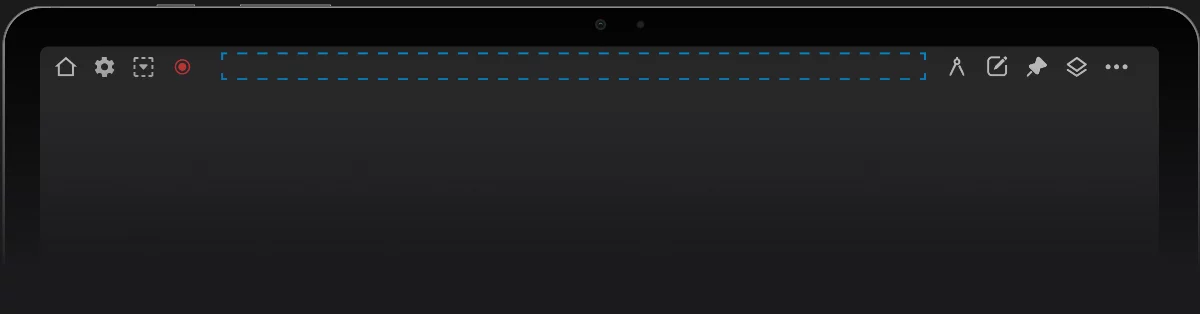
Home button

Tool settings menu
Shows up only for certain tools (when a tool is active). Learn more in Tool settings menu.

Selection menu
Shows up only when a selectionSelectionA selection is a defined region of your canvas that can be used to edit its content or to limit the application of painting tools (like a stencil). Technically, a selection is an 8-bit (grayscale) mask image which defines the selected vs. masked areas of the canvas. has been defined. Learn more in Selection workspace.

Active selection toggle
Shows up only when a selectionSelectionA selection is a defined region of your canvas that can be used to edit its content or to limit the application of painting tools (like a stencil). Technically, a selection is an 8-bit (grayscale) mask image which defines the selected vs. masked areas of the canvas. has been defined. Learn more in Selection workspace.

Reference menu
Shows up only when you import a reference imageReference imageIn Infinite Painter, an imported image (like a photo) that can be placed over the current artwork in a floating window for reference.Learn more. Learn more in Reference images.
Note that the optional icons on the top bar are displayed only when necessary and not always all at once.
The Selection controls show up only when a selectionSelectionA selection is a defined region of your canvas that can be used to edit its content or to limit the application of painting tools (like a stencil). Technically, a selection is an 8-bit (grayscale) mask image which defines the selected vs. masked areas of the canvas. has been defined; more in the Selection workspace chapter.
Tools menus overview
The hidden power of Infinite Painter.
The two main “Tools” menus contain over fifty powerful tools and options.


Creative Tools
detailed description in Creative Tools menu.
Editing Tools
detailed description in Editing Tools menu.
Both Tools menus are connected to each other. You can swipe left-right to switch between the two menus.
You can even combine both Tools menus into a single menu with two tabs (like it was in earlier versions of the app): In the Interface settings section of the app settings panel, uncheck the "Split Tools menu” option.
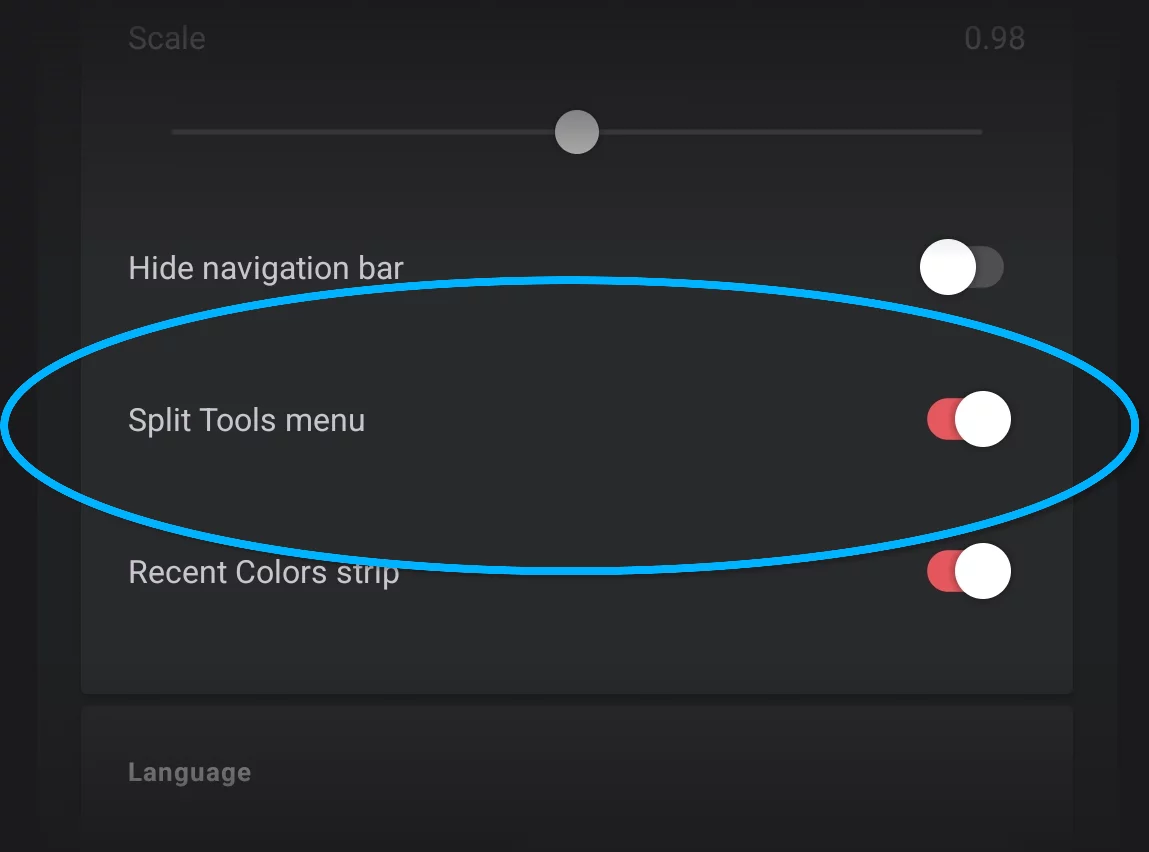
More about settings in Application settings.
Creative Tools menu
Tools to create content.
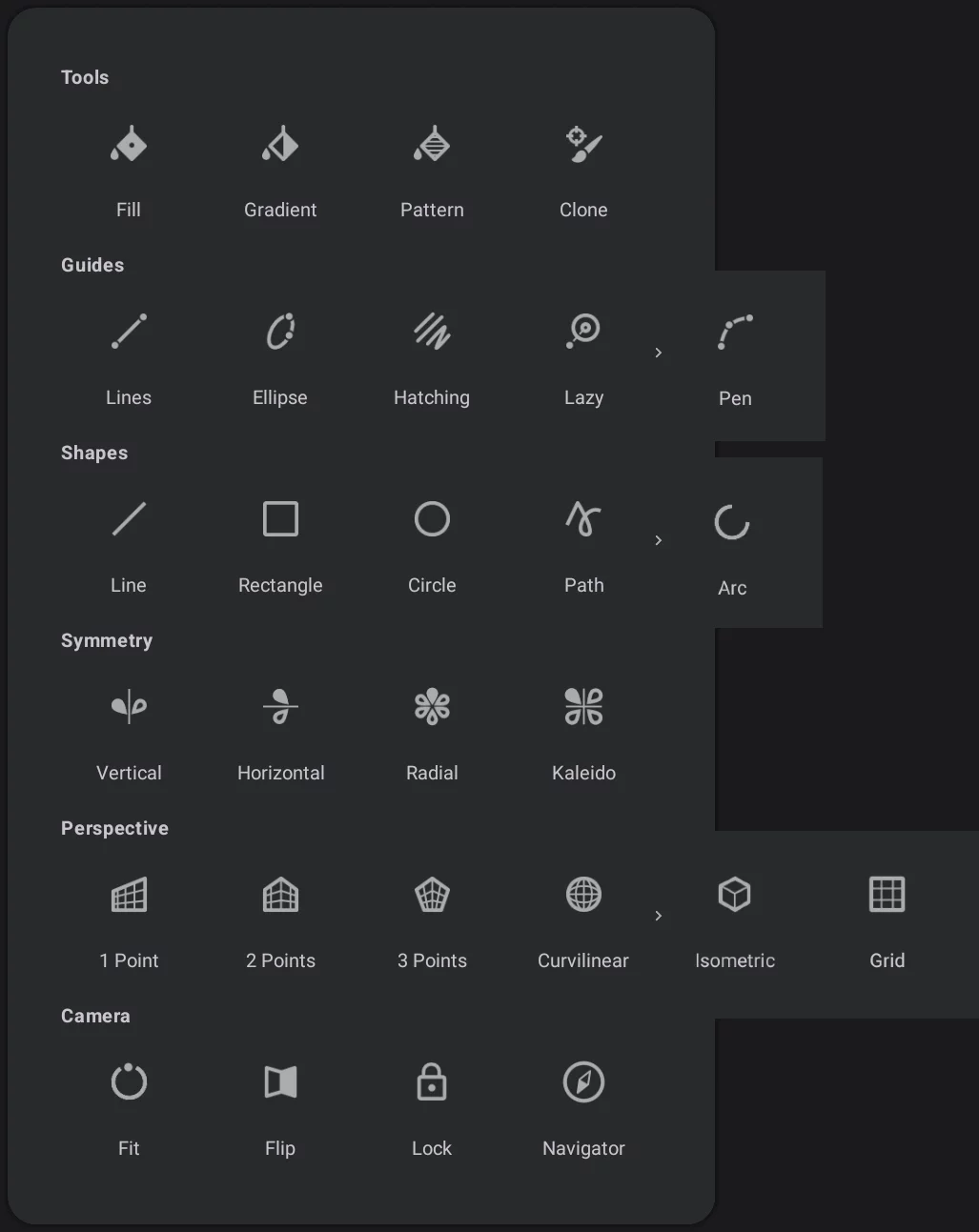

The chevron icon indicates that this row of icons may be scrolled sideways to show more icons.

If you are using a physical keyboard, press T key to open this menu. For the list of all keyboard shortcuts see Keyboard shortcuts.
Editing Tools menu
Tools to alter content.
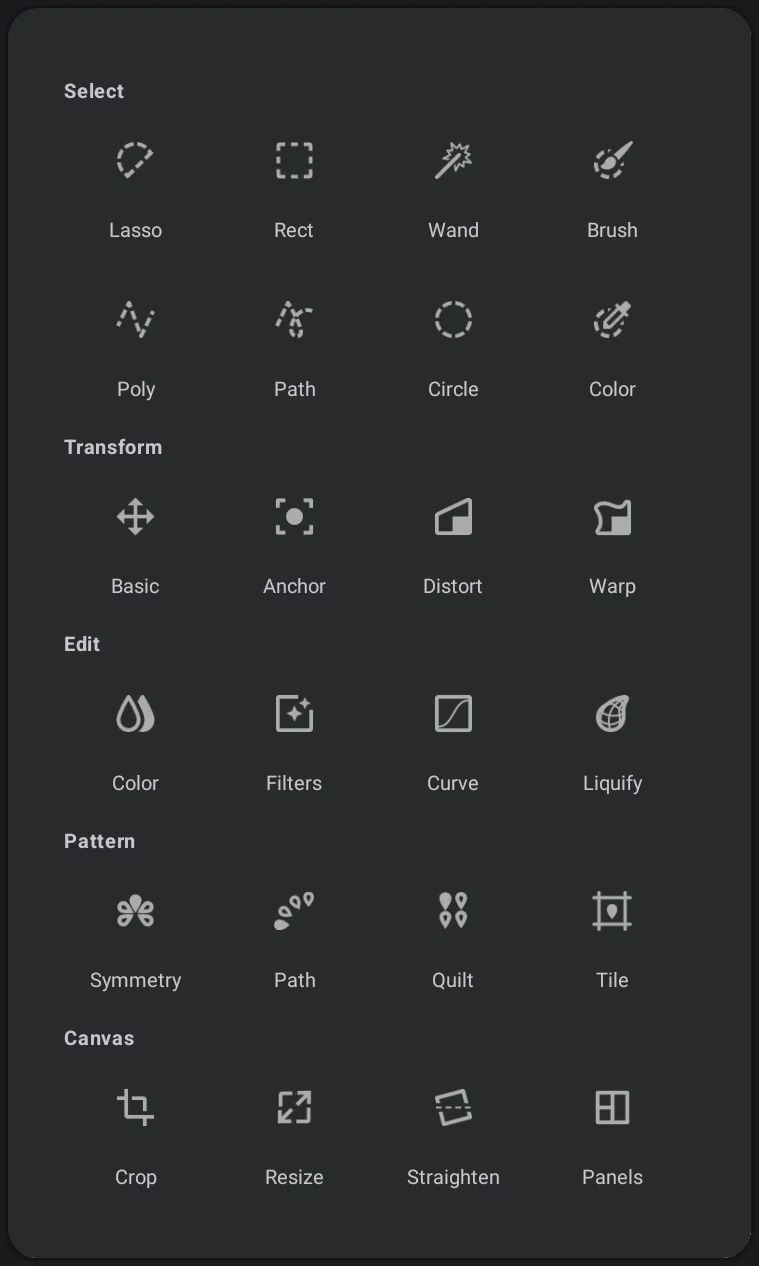
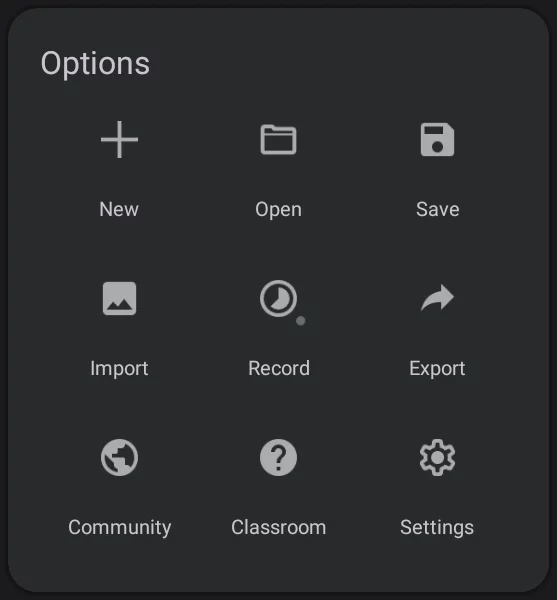
Project handling commands:

New
Close the current project and start a new one. More in New Project creator.

Open
Close the current project and open another, previously saved. More Project gallery.

Save
Save the current project to the local storage (without closing it). More in Saving projects.
Exchange data with the outside world:

Import
Use any image file as a part of your project. Here also access to system clipboard ("Paste"). More in Importing images.
Note that the Import function also imports images to be used for reference and assets like custom brushes and color palettes. See Import — export.
Record

Record a time-lapse video of your creative process; share it as a video file. Learn more about recording in Timelapse recording.

Export
Save your project as JPG, PNG, PSD or PNTR file. Learn more in Exporting images.

Online Users' Community
Access to the online community gallery. Watch what other users created with Infinite Painter.

Classroom
Basic help and tutorials.

Settings
Control the app options and set your preferences here. More in Application settings.
Infinite Painter in version 7 automatically saves your work.
Each time you close a project (either by returning to the Home workspace or via New or Open commands), your work is being saved. You can also save the project manually, adding a version history state to which you can return later. Learn more about saving projects in Infinite Painter in Saving projects. Learn about the project version history in Project version history.
Tool settings menu
All options in one place.
Tool settings menu groups the controls for all currently open tools (if they have controls).
The “cogwheel” icon appears on the top bar when at least one of the active tools have settings or selectable options.

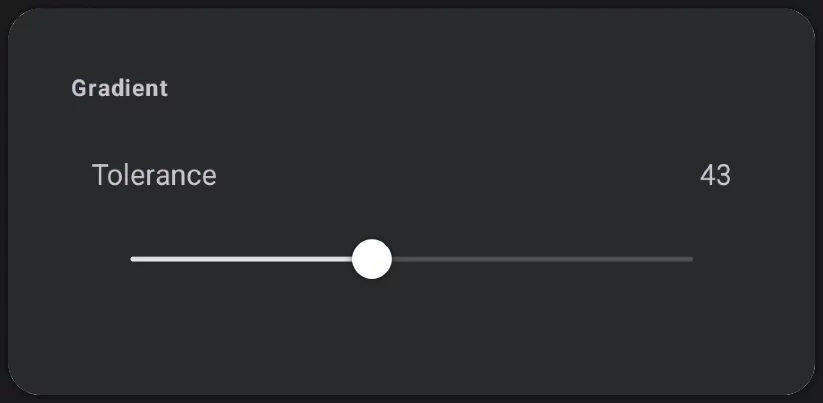
Tool settings menu may be simple for just a single tool... (here shown the Gradient Fill tolerance slider)
...or may be very complex if multiple tools are used simultaneously.
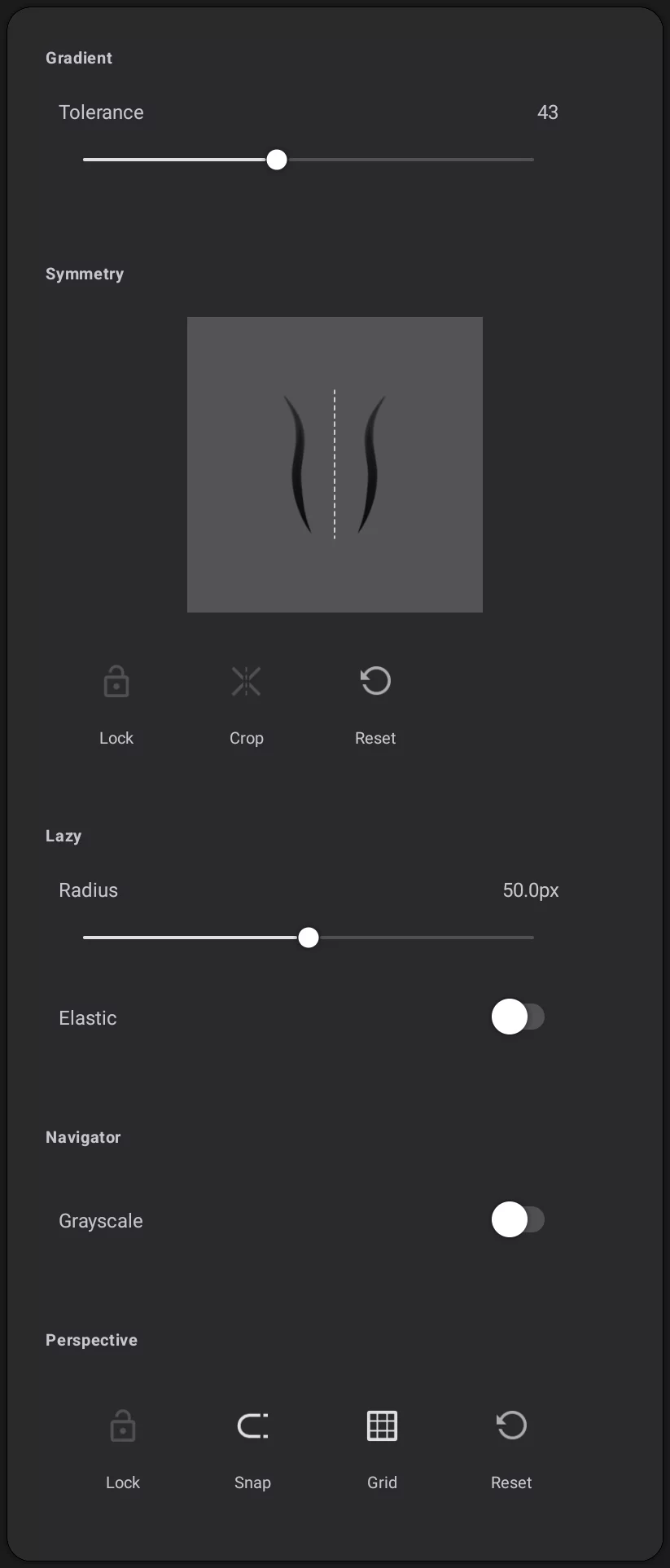
Here shown (for example):
Gradient Fill options
Symmetry options
Lazy guide options
Perspective grid options
Reference menu

The Reference menu lists all imported reference images in current project. The pushpin icon appears on the top bar only when you have at least one reference image imported.
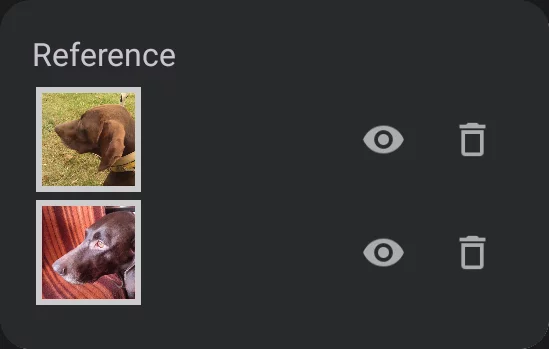
With this menu, you can control the visibility of the reference images and delete them when you no longer need them.
Learn more about using reference images in Reference images.
Selection menu

Selection menu gives access to all operations on selection mask and the content of the selection. The icon appear on the top bar only when a selection has been defined.
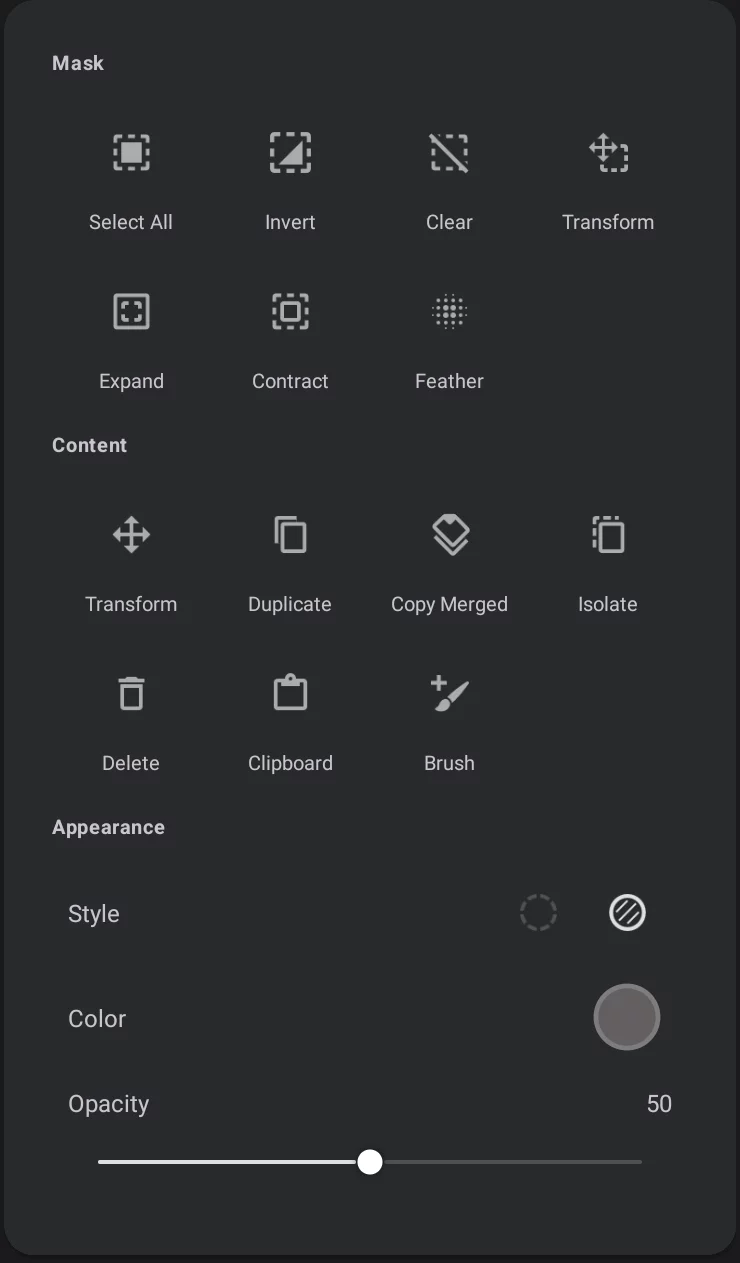
Learn more about using selections in Infinite Painter in the Selection tools chapter.