
Color Adjustments tools
May be applied to layers or selected fragments.
Color Adjustments allow you to precisely alter the colors on your canvas. These tools affect the active layer only.
Changes made with these tools are permanent; if you want to apply reversible color adjustments you can use Adjustment layerAdjustment layerA special, non-editable layer that works as a real-time adjustment or filter for all the underlying layers. There are various types of adjustment and filter layers.Learn mores instead (these are the same adjustments, only not permanent).

Find the Color Adjustment tools in the Editing Tools menu
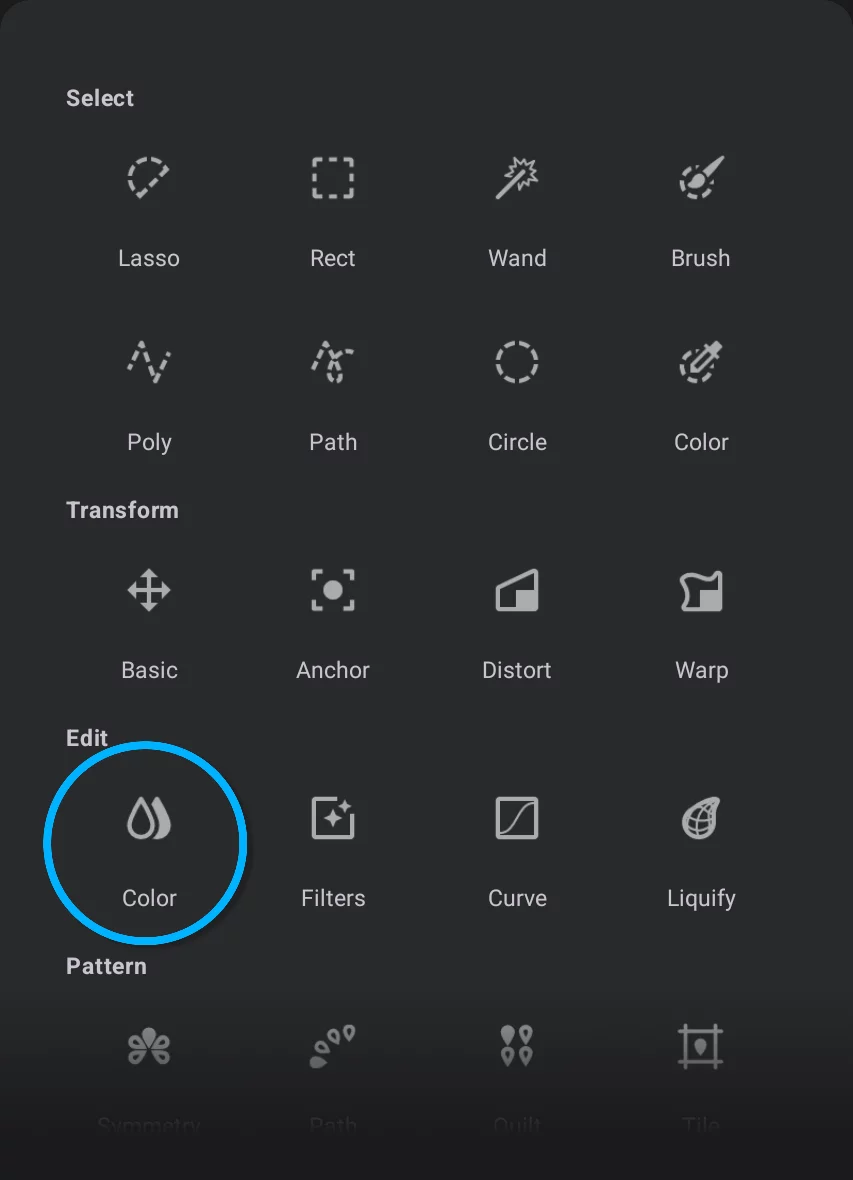
Color Adjustments tools:
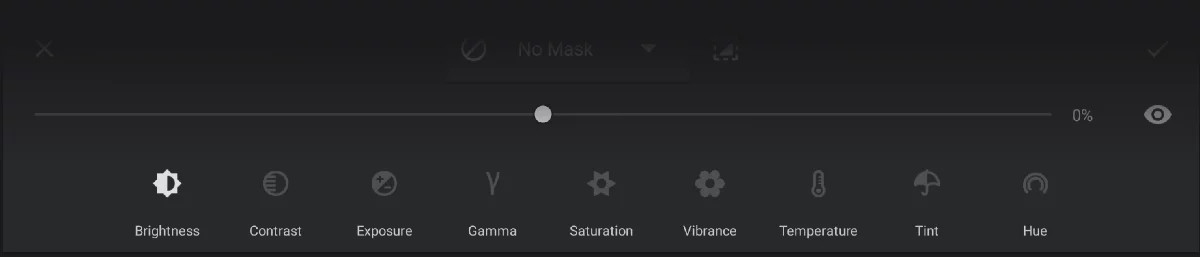
Light-related adjustments (Brightness, Contrast, Exposure, Gamma) change the tonal properties of the color. See Light-related adjustments.

Brightness

Contrast

Exposure

Gamma
Color-related adjustments (Saturation, Vibrance, Temperature, Tint, Hue) change the tint (hue) properties of color. See Color-related adjustments.

Saturation

Vibrance

Temperature

Tint

Hue
Color Adjustments toolbar
Common workspace for color adjustments.
Color Adjustments apply to the current layer or to a selected fragment of the current layer.
(However you can also add an internal mask like Focus or Tilt-Shift to them.)
Color Adjustments toolbar
(showing its default state: Brightness adjustment active at 0% value, with no mask applied).
Next time you open the Adjustments workspace, the last-used adjustment will be active.
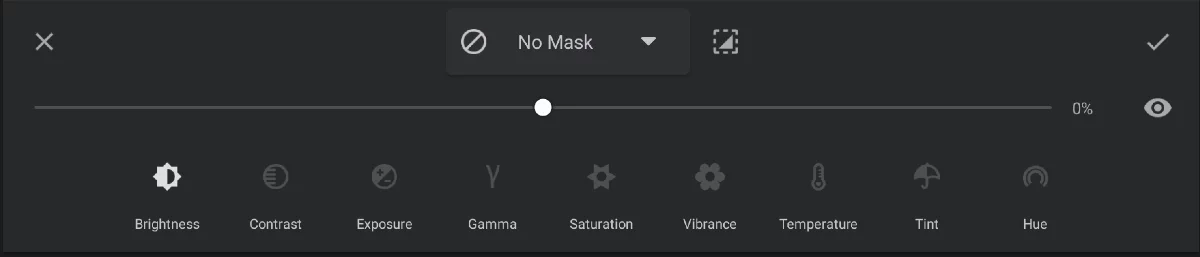

Masking menu
Offers a number of masking tools to restrict application of the color adjustment to certain areas only. Learn more in Masking in color adjustment tools.

Invert mask
Inverts current mask (also the global selection mask, if used).
The adjustments
You can make changes to any number of adjustment parameters in one session. However all they will share the same mask (if used).

Cancel
closes the tool without applying changes.

Confirm
Closes the tool applying the changes.

Hide the effect
Temporarily disables the real-time preview so you can compare "before — after”.
Current adjustment slider
It is the main control for the adjustments. Move the slider to change the amount of effect from -100% to +100%.
Note that the default value is zero, so immediately after opening the tool, there is no visible change to your canvas.