
Color Adjustments quick masks
A range of special effects.
Quick masking functions let you quickly restrict the color adjustment to the defined areas of the image without laborious manual masking. Focus and Tilt-shift masks are based on geometry, all the others are related to the color or tonal characteristics of the image.
The quick masks may be used in conjunction with the regular selection tools (see Selection tools — introduction).
If no mask is defined, the adjustments affect the entire current layer.
The quick masking system is common for the Filters and the Color Adjustments. Compare with Masking in filters.
Quick mask selector on the Color Adjustments toolbar
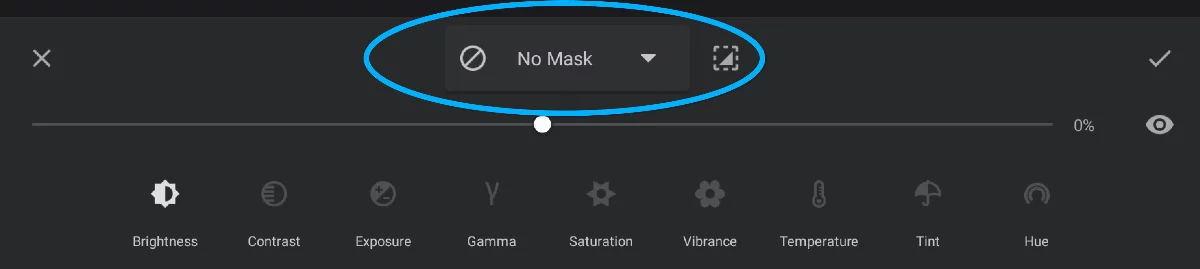
(More about the toolbar in Color Adjustments toolbar)
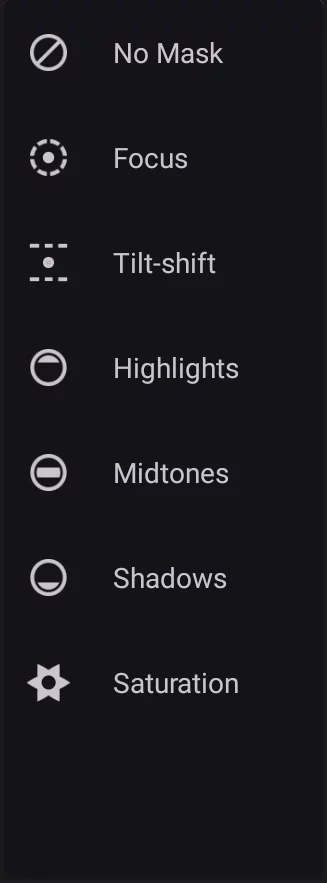


No Mask (default)
Note that "No Mask" option may still use the global selection mask if such has been defined beforehand. See Selection tools.


Focus mask
Focus on a spot.
Focus mask creates a soft-edged circular selection mask You can adjust the mask’s diameter and the softness of the edges in real time.
Focus mask
applied to +100% Brightness adjustment
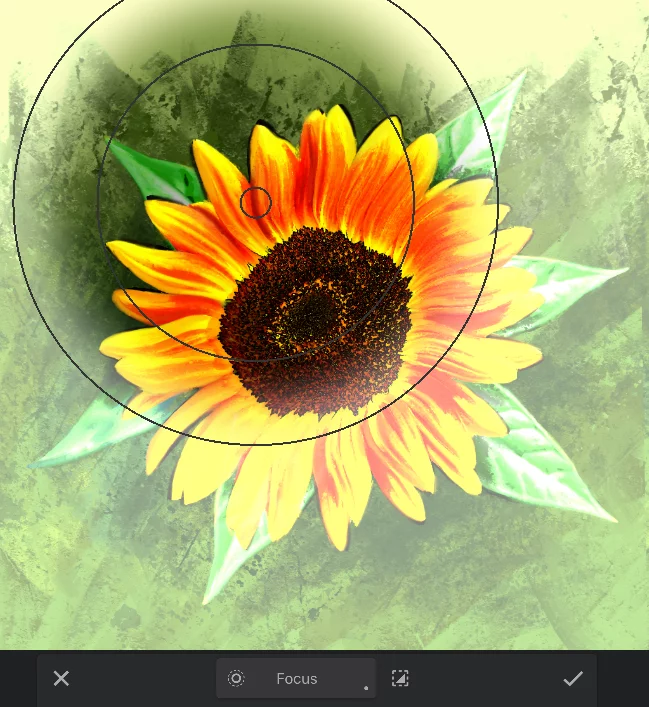
Center point
Drag to reposition the entire mask.
Inner ring
Drag to resize the “100% strength” area.
Outer ring
Drag to resize the “0% strength” area.
Focus mask inverted
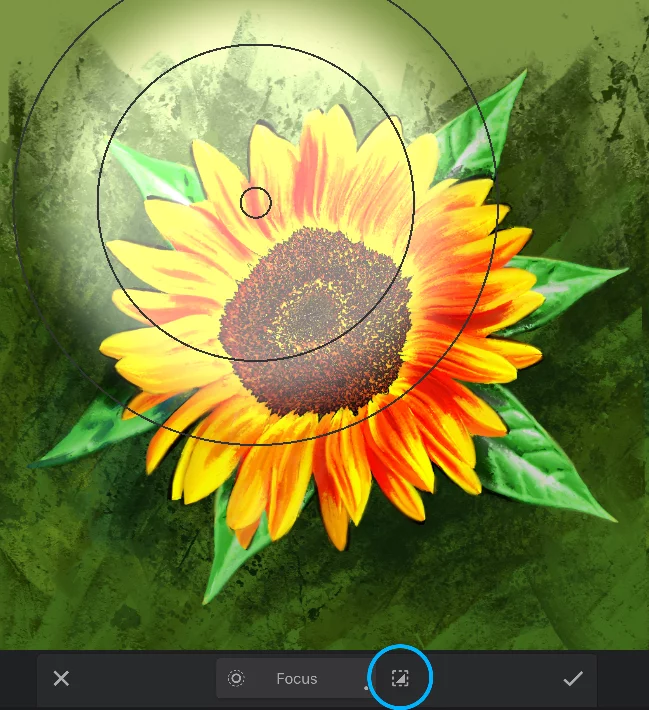
The farther away from each other the rings are, the softer the mask edge will be.
Tip: If you drag the inner and outer rings over each other you get a hard-edged circular mask.
You can combine the Focus mask with a selection maskSelectionA selection is a defined region of your canvas that can be used to edit its content or to limit the application of painting tools (like a stencil). Technically, a selection is an 8-bit (grayscale) mask image which defines the selected vs. masked areas of the canvas. created with any of the Selection tools. Learn more about selecting areas of your artwork in the Selection tools chapter.

Tilt-shift mask
For photographic effects. And for many other uses.
Tilt-shift mask creates a soft-edged linear selection mask.
You can adjust the mask’s width, angle and the softness of the edges in real time.
>Tilt-shift mask
applied to +100% Brightness adjustment
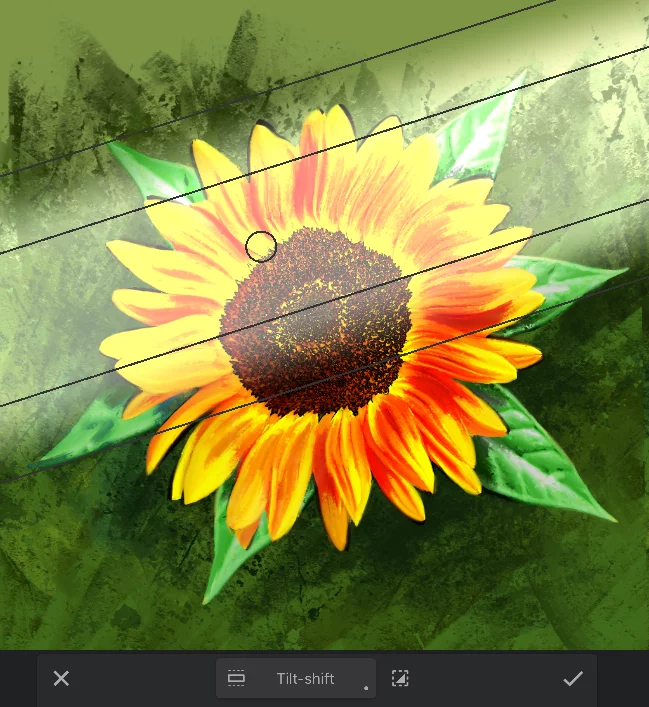
Center point
Drag to reposition the mask. It is also the center of rotation.
Inner edge
Drag to resize the 100% strength area.
Outer edge
Drag to resize the 0% strength area.
Tilt-shift mask inverted
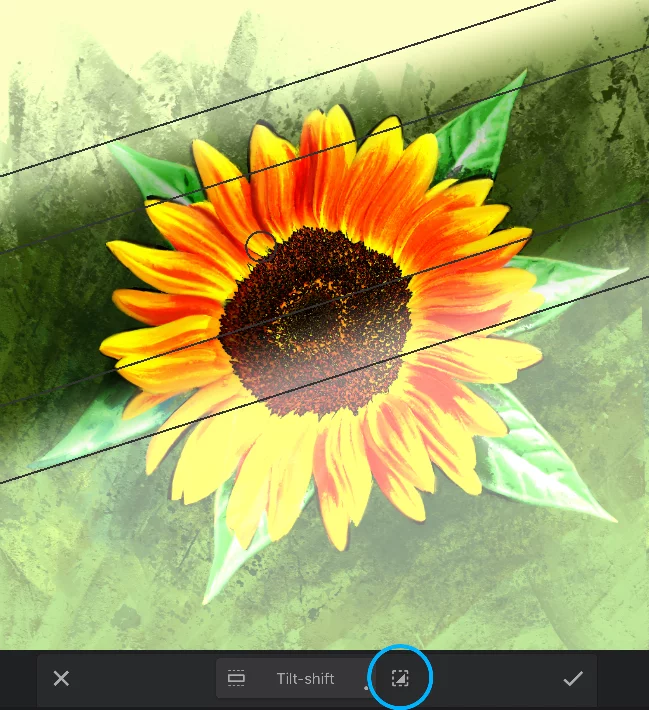
Drag anywhere between the inner edges to rotate the mask around the center point.
The mask snaps to 45° directions when rotated.
The name of the mask comes from the "tilt-shift" effect used in professional photography. You can use the mask with Blur filter to simulate this effect. Learn about that in Tilt-shift mask in filters.
The farther apart the edges are, the softer the mask edge will be.
If you drag inner and outer edges over each other you get a hard-edged linear mask.
You can combine the Tilt-shift mask with a selection mask created with any of the Selection tools. Learn more about selecting areas of your artwork in the Selection tools chapter.

Saturation mask
Applies adjustment to areas based on saturation.
Saturation mask creates a mask based on the current layer’s saturation.
More saturation, more adjustment is applied.
Saturation mask applied to +100% Brightness adjustment:
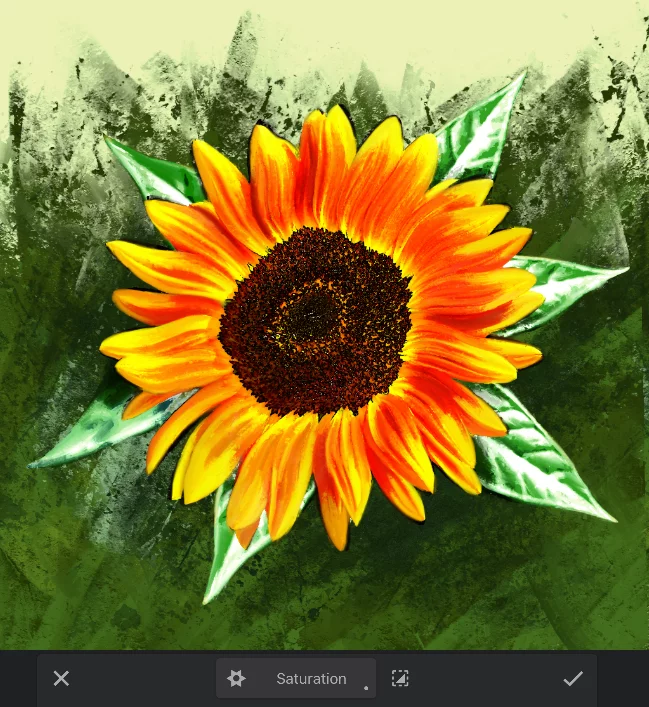
The most saturated areas are the most affected by the adjustment.
Saturation mask inverted:
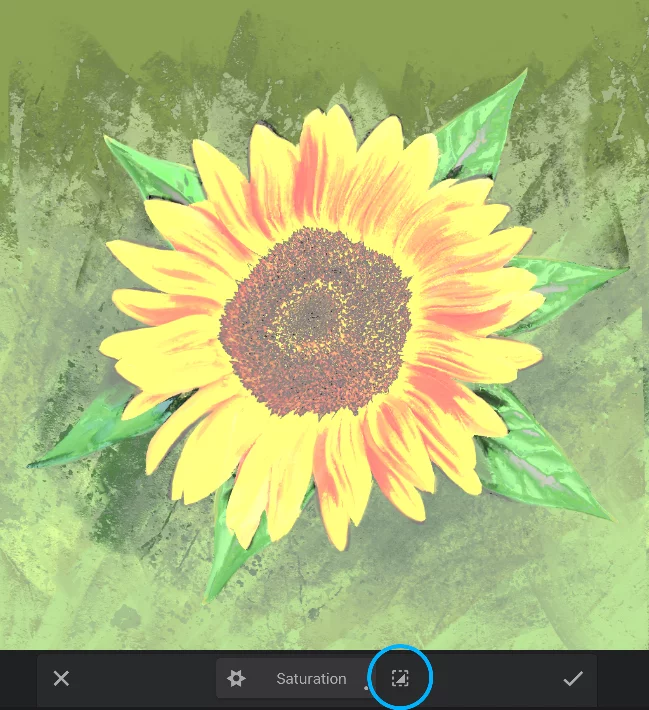
Now the least saturated areas are highlighted.
You can combine the Saturation mask with a selection mask created with any of the Selection tools
Learn more about selecting areas of your artwork in the Selection tools chapter.
Tonal masks
Apply adjustments and filters to highlights, midtones or shadows.
Tonal masks create a mask based on the current layer’s brightness, divided into three preset ranges (highlights, midtones and shadows).

Highlights
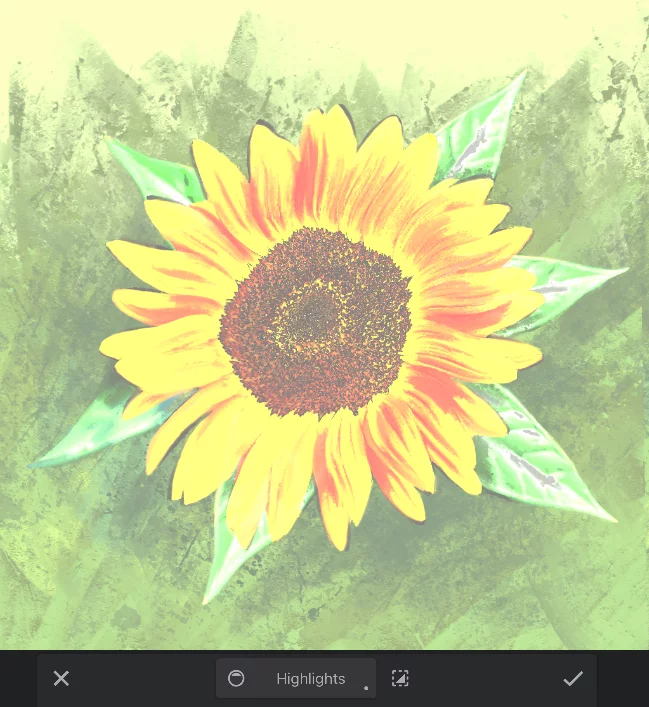
Highlights mask applied to +100% Brightness adjustment.
The lightest areas (HighlightsHighlightsHighlights are the brightest areas of an artwork where light hits the surface most directly. In digital art, these are defined by the highest values of brightness.) are the most affected by the adjustment.

Midtones
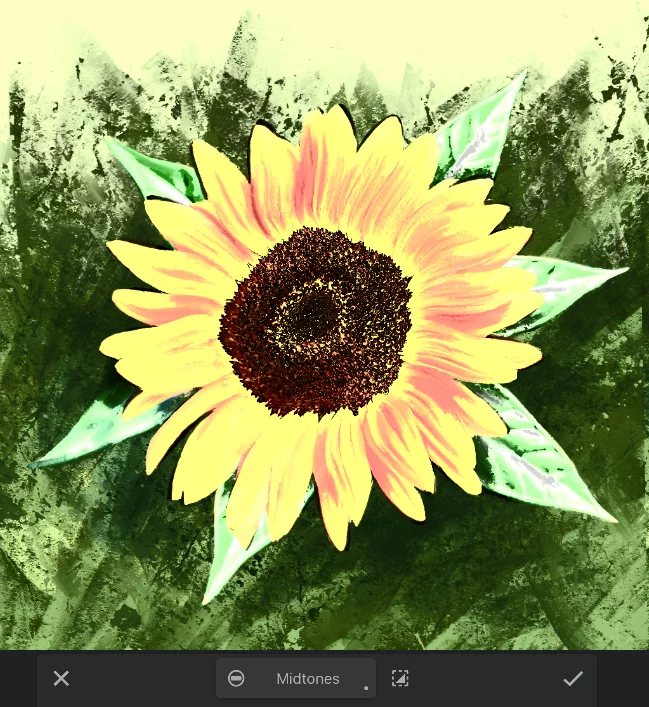
Midtones mask applied to +100% Brightness adjustment.
The MidtonesMidtonesIn painting and digital art, midtones refer to the range of tones or colors that fall between the darkest shadows and the brightest highlights. They represent the average or middle values of the brightness. are the most affected by the adjustment.

Shadows
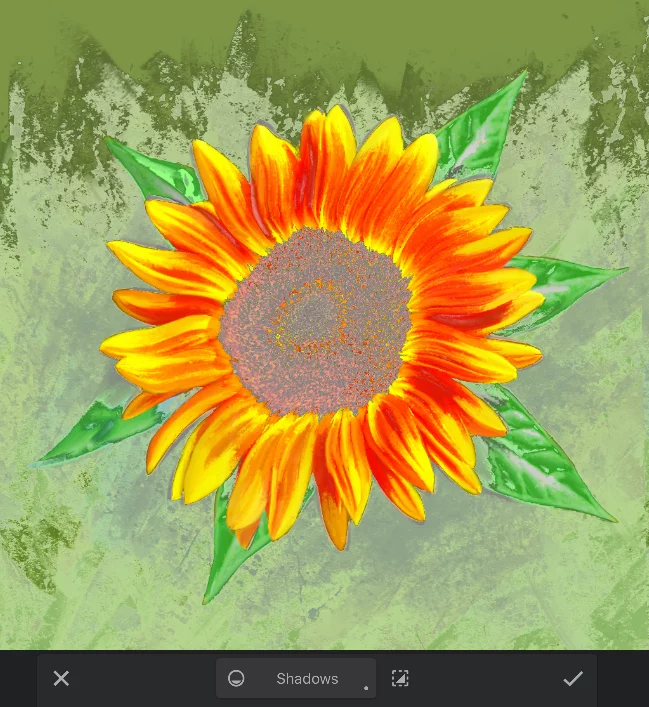
Shadows mask applied to +100% Brightness adjustment.
The darkest areas (ShadowsShadowsShadows are the darkest areas of an artwork where light is blocked or least present. In digital art: the areas of the image with pixels with the lowest brightness.) are the most affected by the adjustment.
You can invert the tonal masks as well; however the effect of this action may be unexpected.
You can combine the tonal masks with a selection mask created with any of the Selection tools.
Learn more about selecting areas of your artwork in the Selection tools chapter.