
Blur filter
Namely, the Gaussian blur.
The Blur filter applies the classic Gaussian blur effect to the image.
Original image
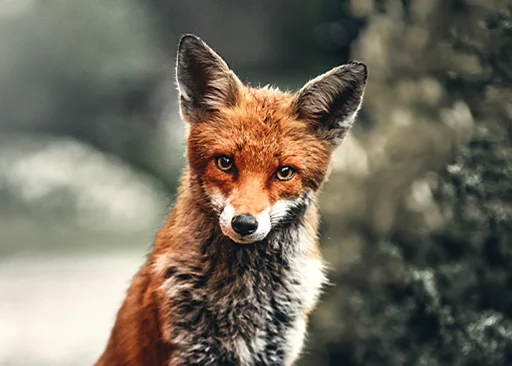
Filtered (example settings)

The filter strength slider adjusts the amount of the effect (in 0 – 100% range).
Note that the “Blur” Filter layerFilter layerA special layer that applies a filter to the layers below in the layer stack. The layers below it can be edited with the filter being updated in real time.Learn more, despite the same name, uses a different blurring algorithm (not the ‘true’ Gaussian blur). If you want a really smooth blur, use the Blur FilterFilterA filter, in digital image editing and digital art, is a predefined function or digital effect that may be applied to an image in order to change its appearance in certain way. Filters may change colors, structure or style of the image.Learn more, not the filter layer.
Smooth filter
Smart smoothing.
Smooth filter removes noise and small details from the image. Relatively smooth areas get blurred, the edges get refined.
Original image
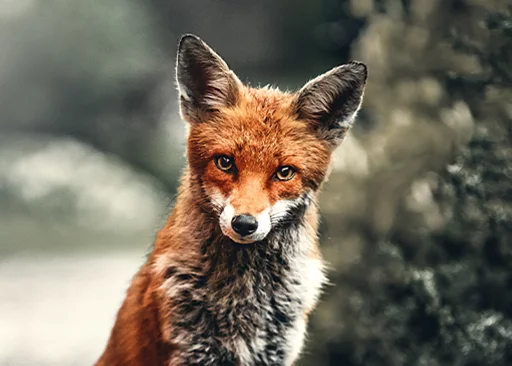
Filtered (example settings)

The filter strength slider adjusts the amount of the effect (in 0 – 100% range).
Bloom filter
Uplifting effect.
Bloom filter smartly emphasizes the brightest areas in the image.
Original image
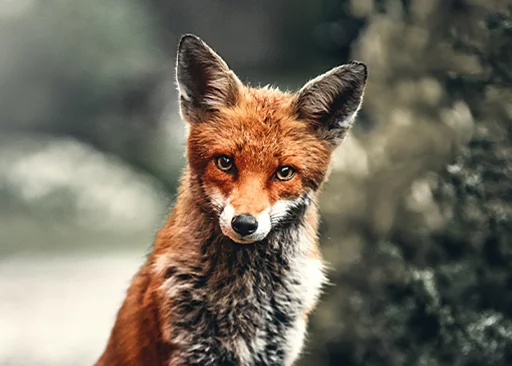
Filtered (example settings)

The filter strength slider adjusts the amount of the effect (in 0 – 100% range).
Gloom filter
Add some major chords.
Gloom filter smartly darkens the brightest areas in the image.
Original image
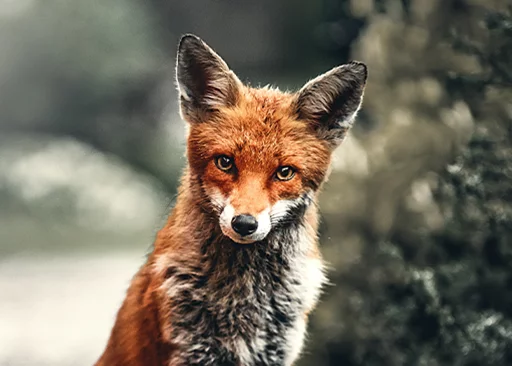
Filtered (example settings)

The filter strength slider adjusts the amount of the effect (in 0 – 100% range).
Dilate filter
Stretch the light.
Dilate filter emphasizes the highlights similarly to the Bokeh filter. For the line art on transparent background it thickens (dilates) the lines.
Original image
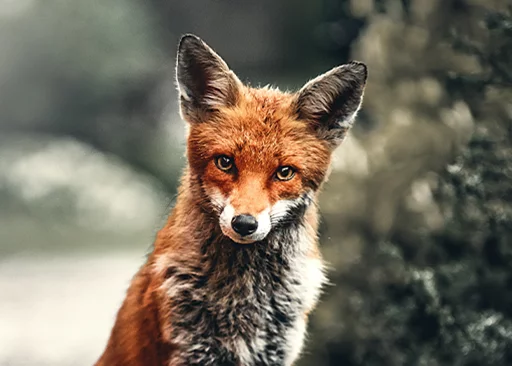
Filtered (example settings)
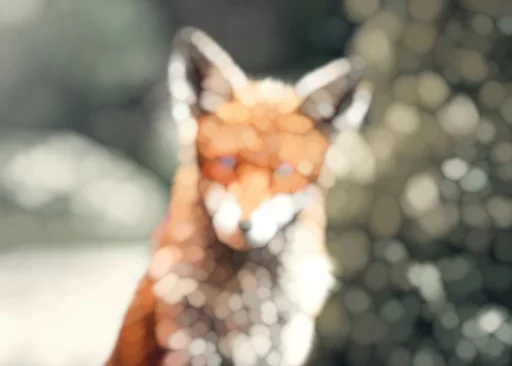
The Dilate filter may be used to quickly thicken thin lines (on transparent background).

The filter strength slider adjusts the amount of the effect (in 0 – 100% range).
Erode filter
Enlarge small details.
Erode filter widens the dark areas of the image. For line art on transparent background it contracts (erodes) the lines.
Original image
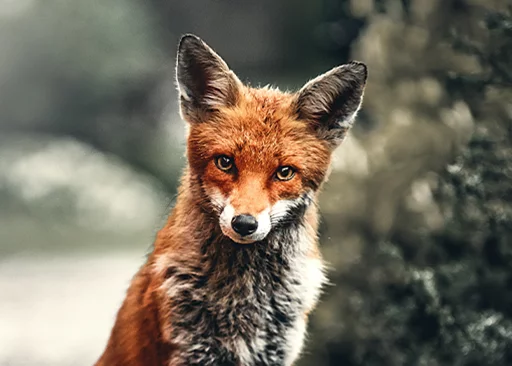
Filtered (example settings)

The filter strength slider adjusts the amount of the effect (in 0 – 100% range).
Scatter filter
Like frosted glass.
Scatter filter adds random displacements to the image. Note that the effect depends on the resolution (pixel size) of your canvas.
Original image
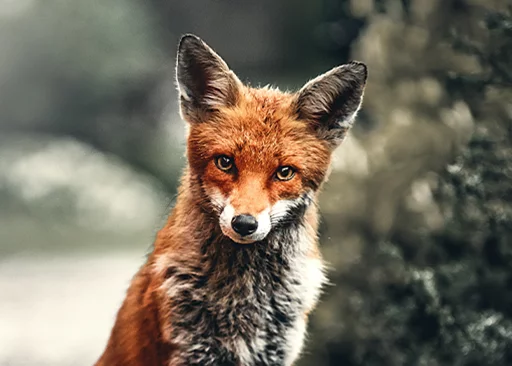
Filtered (example settings)
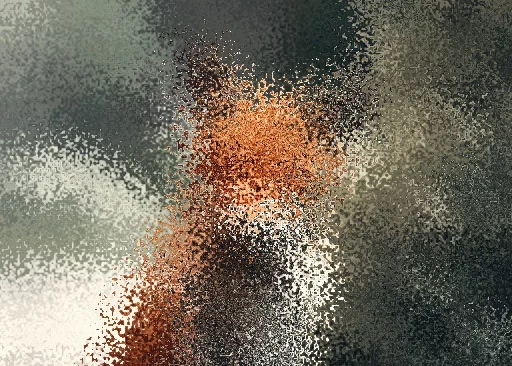
The filter strength slider adjusts the amount of the effect (in 0 – 100% range).
Sharpen filter
Enhance details.
Sharpen filter enhances edges and details of the image.
Original image
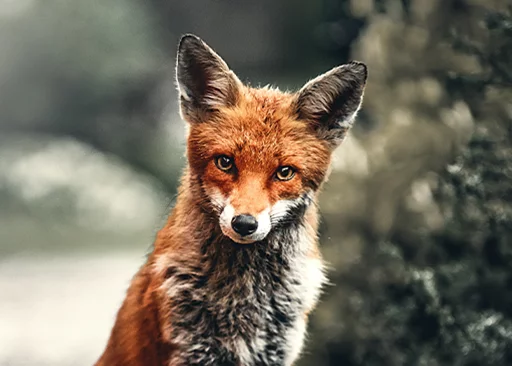
Filtered (example settings)
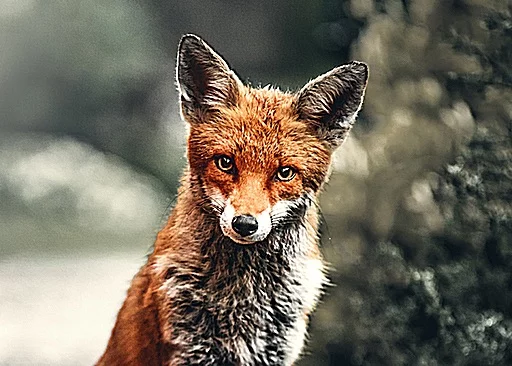
The filter strength slider adjusts the amount of the effect (in 0 – 100% range).
High-pass filter
Frequency filtering.
High-pass filter enhances details, thus sharpening the image.
Original image
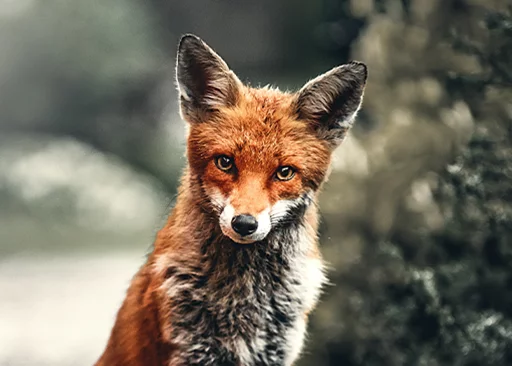
Filtered (example settings)
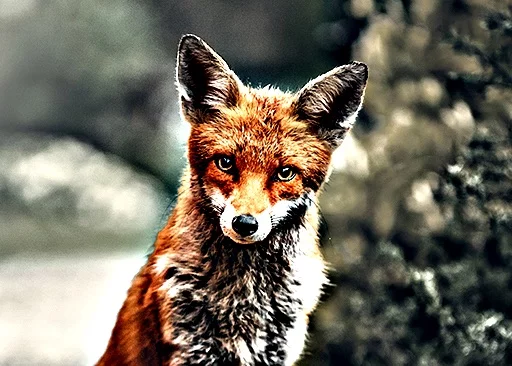

Photoshop® users: the High-pass filter in Infinite Painter works differently than the "High-pass" filter in Photoshop. In fact it is the Photoshop's High-pass applied to a duplicate of the image and blended with Hard Light blending. The effect is closer to PS "Unsharp Mask" filter.
The filter strength slider adjusts the amount of the effect (in 0 – 100% range).
Emboss filter
Carve a bas-relief.
Emboss filter adds simulated depth to the image. The lighter areas are considered "higher", the darker areas — "lower" in the simulated relief. The result is a grayscale image.
Original image
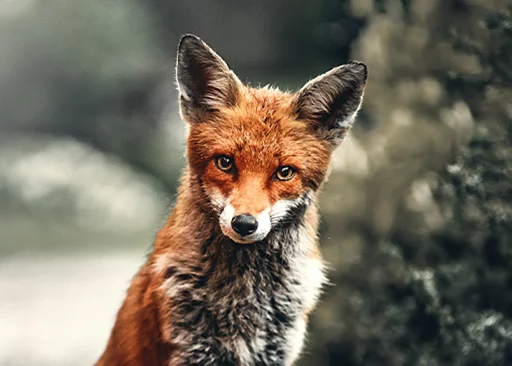
Filtered (example settings)
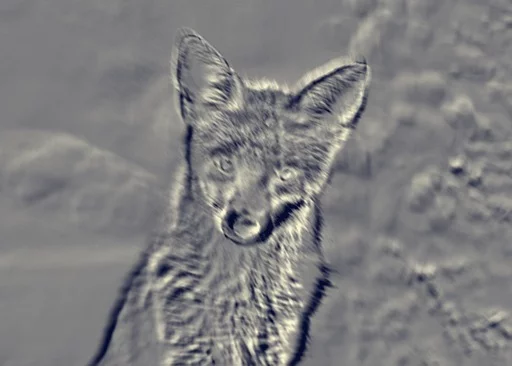
Tip: this filter works best with specially designed images, where you consciously decide which areas are to be raised, which depressed.
Direction of the simulated “lighting”
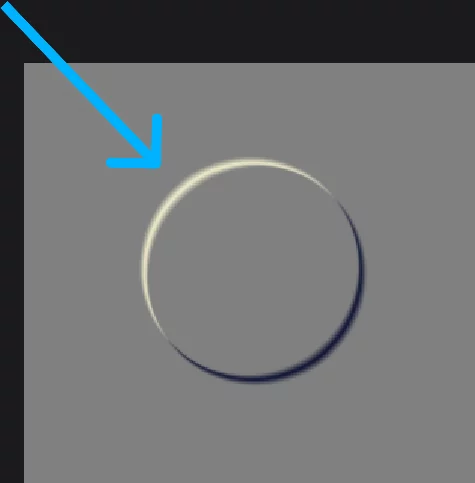
The filter strength slider adjusts the “height” of the relief (in 0 – 100% range). The direction of the simulated light cannot be changed in the current version.
Fisheye filter
Pinch and bloat.
The Fisheye filter distorts geometry of the image, simulating the effect of the fisheye photo lens. Negative values yield the opposite effect.
Original image
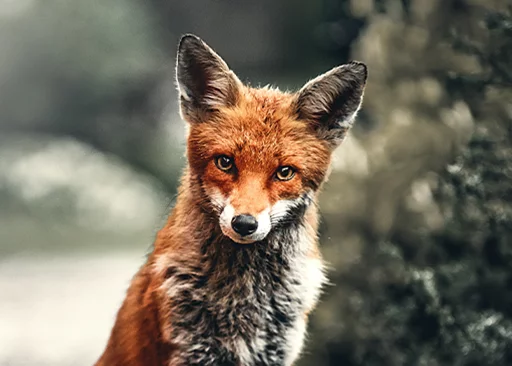
Filtered (example settings)

Drag on the screen to reposition the center point of the distortion.
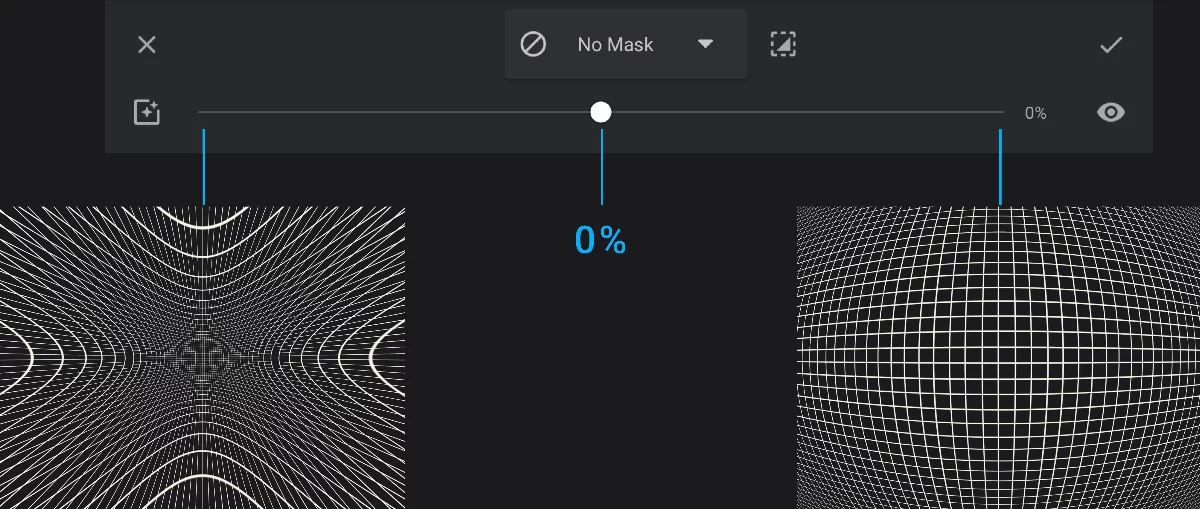
The filter strength slider adjusts the amount of the effect (in –100 to +100% range).
–100% to zero is a “pinch” distortion effect; zero to +100% is the “true” fisheye effect.
Zero strength means “no change” (and, as this is the default value, right after opening the filter you will not see any distortion).