
Besides the regular, bitmap, layers you can add special layers to the layer stack to add specific contents or to modify the regular layers in non-destructive way.
Special layers in Infinite Painter:
Adjustment layers
These are simply color adjustments affecting all the layers beneath. There are 11 kinds of adjustment layers in the current version of the application.
Filter layers
These are FilterFilterA filter, in digital image editing and digital art, is a predefined function or digital effect that may be applied to an image in order to change its appearance in certain way. Filters may change colors, structure or style of the image.Learn mores applied to the layers below, but in a dynamic, non-destructive way.
There are 27 filters available as filter layers.
Panels
You can add an editable set of borders and dividers in Manga or comics style. See Panels tool for details. You can have multiple panels layers in the project.
Text
Add any kind of text to your artwork. Text remains editable in a form of a text layer. See Text. You can have multiple text layers in a project.
Panels and text layers can be rasterized (converted to a regular, bitmap layer). This operation is irreversible (the special features of the layers will no longer be editable) but may preserve the visual appearance and offer different options of editing.
Panels and text layers may be used for clipping (masking) other layers and can be masked themselves.
Adjustment and filter layers can be masked, but they cannot be used to mask anything (as they are essentially empty).
All special layers can be manipulated in the layer panel like the regular layers (reordered, grouped, duplicated, deleted etc.). Each special layer can have specific color blending modeColor blending modeIn digital image editing and digital art, blending modes determine how the pixels of one layer interact with the pixels of underlying layers. These modes apply mathematical operations to color values, altering how the layers combine.
Not to be confused with the brush blend mode.Learn more and opacityOpacityMeasure of how much a layer (or a pixel on a layer) obscures the background. Zero opacity means full transparency; 100% opacity means that no background is visible.. See Using layers for details.
The number of special layers in a project is limited by the hardware resources. With their number increasing, the overall performance of the application may get affected.
Adjustment and filter layers — overview
Non-destructive color corrections and filters
Adjustment layers allow you to add nondestructive color adjustments and filters to multiple layers at once.
Learn more about color adjustmentsColor adjustmentsTools for altering the color and tonal relationships in the image. This includes Brightness, Contrast, Exposure, Gamma, Vibrance, Saturation, Temperature, Tint and Hue controls.Learn more and filtersFilterA filter, in digital image editing and digital art, is a predefined function or digital effect that may be applied to an image in order to change its appearance in certain way. Filters may change colors, structure or style of the image.Learn more in chapters Color adjustments and Filters.

The Adjustment/filter layer selector can be opened from the Layer panel (expand the panel first).
Adjustment/Filter layer selector panel
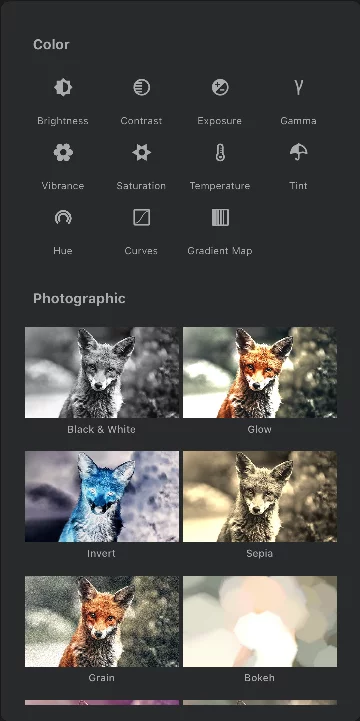
Scroll down to select a filter. Tap a thumbnail to apply it.
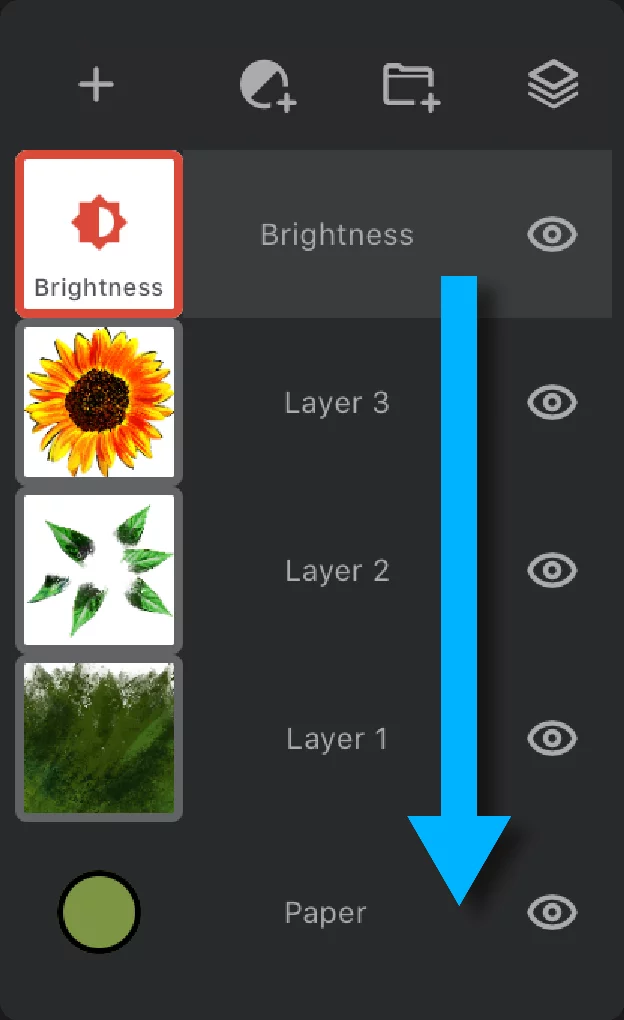
The adjustment layer — affects all layers below it.
You may limit this by using clipping masksClipping maskClipping mask (or clipping layer) is a regular RGBA layer used to mask another layer (or multiple layers).Learn more or by grouping the layersLayer groupA number of layers bound in a temporary unit. Groups (a.k.a. layer folders) can be nested within other groups.Learn more.
You can manipulate adjustments layers exactly like regular layers. Learn more in Reorganizing the layers.
Adjustment/filter layers use the same functions that Color adjustmentsColor adjustmentsTools for altering the color and tonal relationships in the image. This includes Brightness, Contrast, Exposure, Gamma, Vibrance, Saturation, Temperature, Tint and Hue controls.Learn more and FilterFilterA filter, in digital image editing and digital art, is a predefined function or digital effect that may be applied to an image in order to change its appearance in certain way. Filters may change colors, structure or style of the image.Learn more tools from the Editing Tools menu. The difference is that the Adjustment/Filter layers apply the effect in non-destructible way.
Adjustment layers — controls
Adjust the adjustment.
Adjustment layers affect the layers below only when they are visible, and the changes disappear when the adjustment layer is removed.
Adjustment layer representation (layer tile)
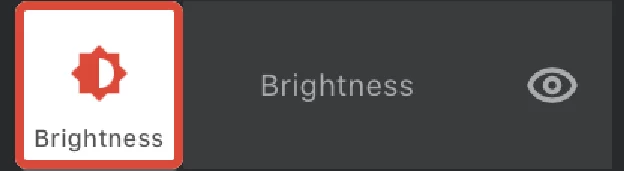
Adjustment layer icon
shows the kind of adjustment or filter used. Tap on the icon to make the layer active.
Layer name = adjustment type
(You cannot rename an adjustment layer)
Tap on the layer name to open the layer options pop-up.


Layer visibility
Tap to toggle.
Adjustment layer control toolbar
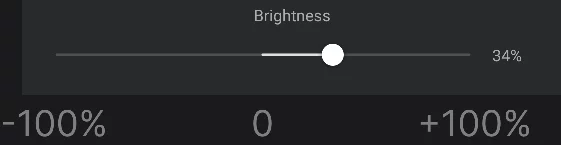
This slider controls the strength of the adjustment (or filter).
Not to be confused with the layer’s opacityOpacityMeasure of how much a layer (or a pixel on a layer) obscures the background. Zero opacity means full transparency; 100% opacity means that no background is visible..
Note that the initial (default) value for most adjustments is zero which means no adjustment. Use the slider to change the value. Changes are applied in real time.
Adjustment layers — options
Control the controls
Adjustment layers have most of the options of regular layers.
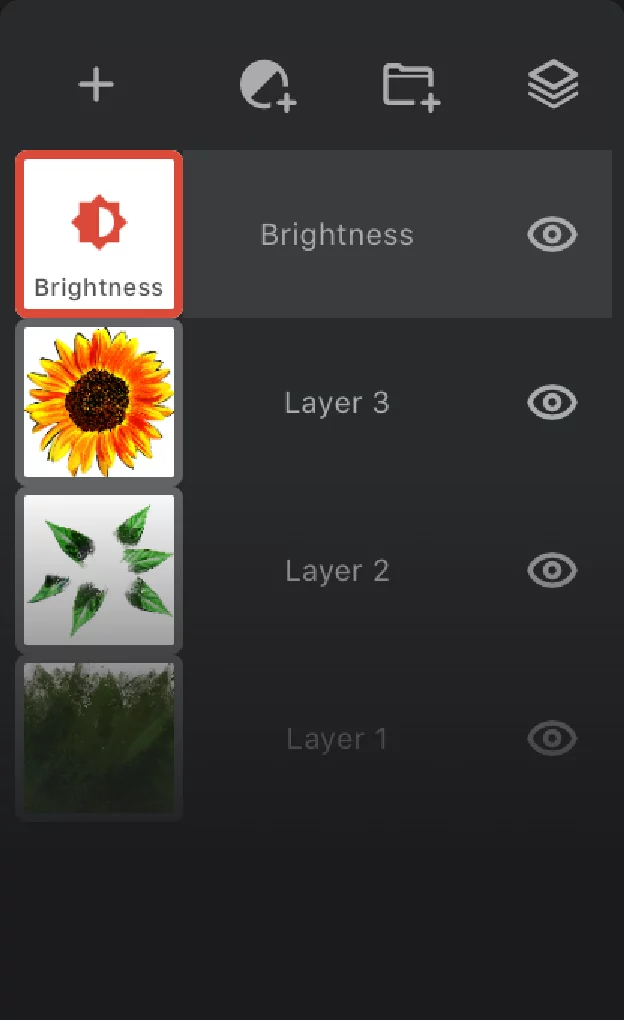
Tap on the layer's name to open the Adjustment layer popup:
Adjustment layer popup
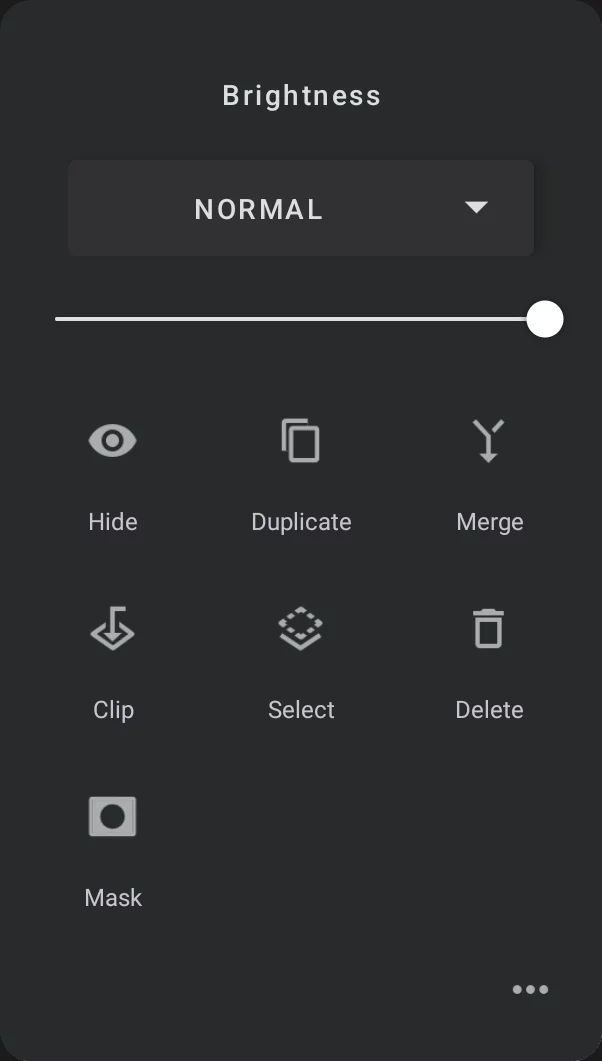
Adjustment type (you cannot edit the name)

Layer blending mode selector
Shows the current color blending modeColor blending modeIn digital image editing and digital art, blending modes determine how the pixels of one layer interact with the pixels of underlying layers. These modes apply mathematical operations to color values, altering how the layers combine.
Not to be confused with the brush blend mode.Learn more applied to the layer (here shown as the default “Normal”);
Tap to open the Blending mode selector.
Color blending controls how the current adjustment layer interacts with colors on the layers below. Learn more about using color blending modes in Layer blending modes.
Note that combination of the chosen color adjustment or filter with certain color blending mode may yield unexpected results. Still, all this is nondestructive, so experiment freely. Learn about using blending modes in Layer blending modes.
OpacityOpacityMeasure of how much a layer (or a pixel on a layer) obscures the background. Zero opacity means full transparency; 100% opacity means that no background is visible. of the adjustment layer
Not to be confused with the strength of the adjustment/filter effect.
Hide
Toggles visibility of current layer

Duplicate
Creates an exact duplicate above the current layer. Please be aware that multiplying certain filters may affect overall performance of the application. However, sometimes the effects may be worth it.
Each adjustment or filter layer, even of the same kind, may have separate settings.

Merge
Applies the adjustment layer to the layer below. This may change the look of other layers.
Because an adjustment/filter layer normally applies its effect to all layers below it, while the Merge function applies this effect only to a single layer immediately below, the result of the merging may be dramatically different from the original setup. If you wish to preserve the original look of the layer stack, you may consider merging all the layers or creating a “copy-merged” layer (learn more in Copy Merged function). You may need to use layer grouping for these tricks.
Note that merging two adjustment layers doesn't make sense and produces an empty, regular layer.

Clip
Uses the layer immediately below as a mask for current adjustment layer. More about clipping masks in Layer clipping.
Select layer transparency
(this function is inactive for adjustment layers)

Delete
Removes the adjustment layer. This does not affect regular layers (however the appearance of the layer stack is expected to change).

Add a layer maskLayer mask
An 8-bit (grayscale) image mask attached to a layer. The white areas in the mask reveal the pixels of the host layer, the black areas mask out the layer (yield transparency).Learn more to the adjustment layer to restrict its effect to certain areas only.
Learn more about using layer masks in Layer masking.

Displays more options, namely:
Hide when recording
When active, ignores the current adjustment in the time-lapse recordingTime-lapse recordingA video recording depicting the creative process in Infinite Painter. The video shows only the canvas (not the interface) and it is accelerated to fit all the process to a preset duration. Time-lapse recording is recorded and saved per project.Learn more.
With adjustment layers, the “Hide when recording” option may give completely unexpected results; test before using for serious jobs.
Learn more in Hiding layers from recording.