
Mask-editing functions
These are function that affect the selection mask, not the contents of the selected fragment.


Select all
Selects the entire canvas.

Invert
Inverts the selection. Equals to applying the Invert filters to the selection mask.

Clears the selection.
This leaves the contents of the layer intact. Only the selection mask is reset.

Transform mask
Transforms the selection mask (not the contents of the selection). All Transformations can be used. Do not confuse this function with the Transform function which applies to the contents of the selection.

Expand selection (see below)

Contract selection (see below)

Softens (blurs) the edges of the selection mask.
Expand and contract selection commands
Make the selection grow or shrink.
Selection toolbar

Expand moves boundary of the selection outwards.
Contract moves the boundary of the selection inwards.
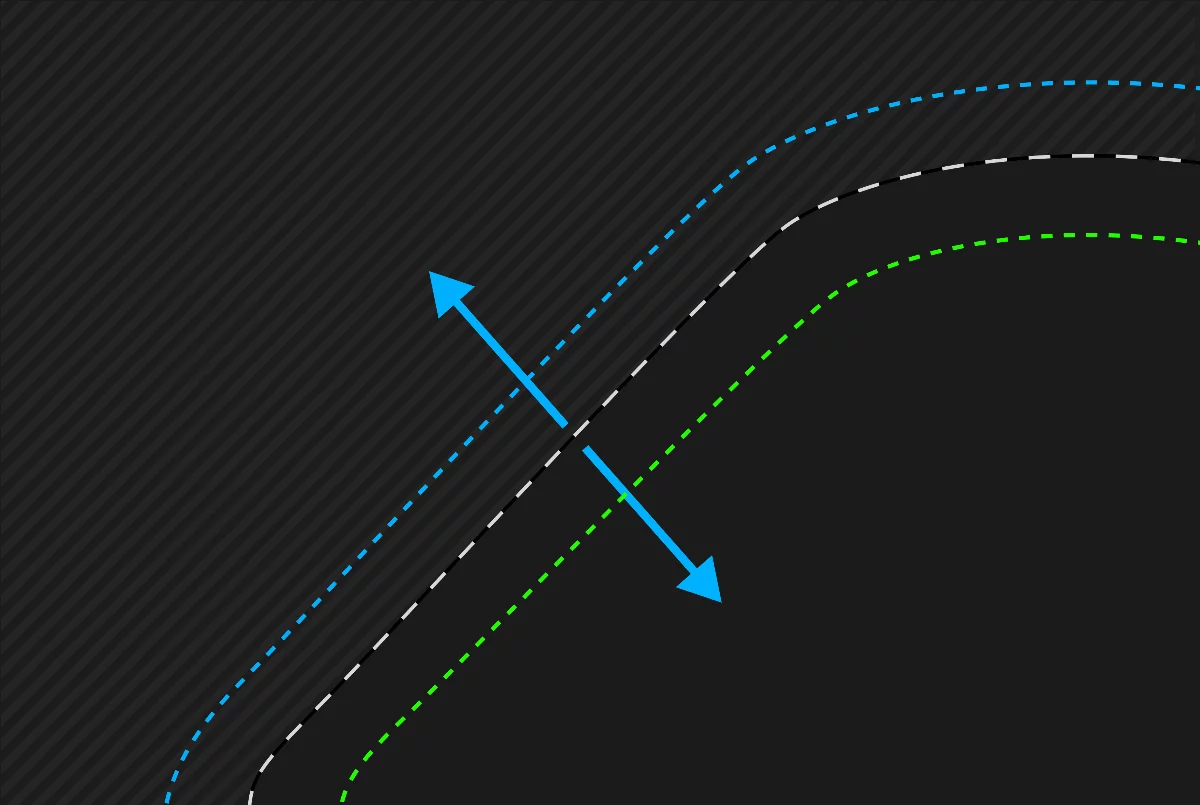
Mask
Selection
Expand selection
Contract selection

0% on the slider = no change.
Maximum expand or contract size is 6 pixels
Tip: You can apply the function multiple times to increase the value.
Feather selection command
Make soft-edged selections
Feather function is basically the Blur filter applied to the selection mask.

Feather 0%

Feather 50%

Feather 100%

You can also apply the regular Blur filter to the selection mask. It has a couple of additional features compared to Feather function.
Content-editing functions
Modify the selection content
These functions affect the contents of the selected fragment.
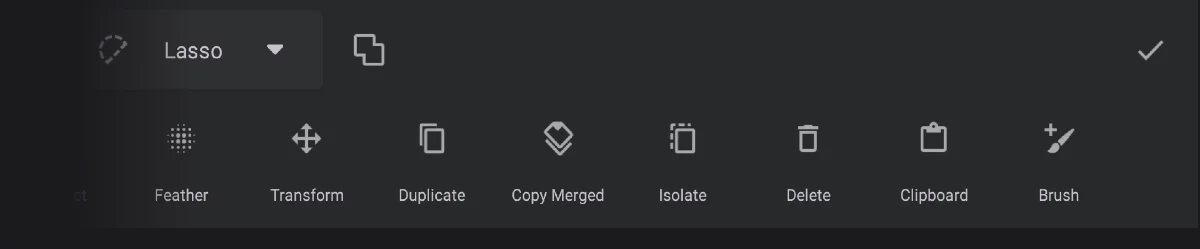

Transform the selected fragment.
Same as using the regular Transformations on the selected fragment.
Do not confuse with the Transform mask function.

Duplicate the selected fragment (see Duplicate and Isolate functions).

Isolate the selected fragment (see Duplicate and Isolate functions).

Delete the selected fragment.
(Deletes pixels from the current layerActive layerIt is the layer which is currently edited. In Infinite Painter, only one layer may be “active” at a time (except for the Transformation tools, where you can select a number of layers to be transformed simultaneously). only.)

Copy the selected fragment to the internal ClipboardClipboardInternal image repository in Infinite Painter. This is permanent library of copied fragments, separate of the system ‘clipboard’ that temporarily holds copied contents.Learn more.

Create a new brush based on the selected fragment.
More in New brush from a selection.
After using any of the editing functions, the selection (mask) is cleared. If you intend to reuse the selection mask, copy the selection mask onto a layer mask (see Layer masking).
Duplicate and Isolate functions
Copy and cut.
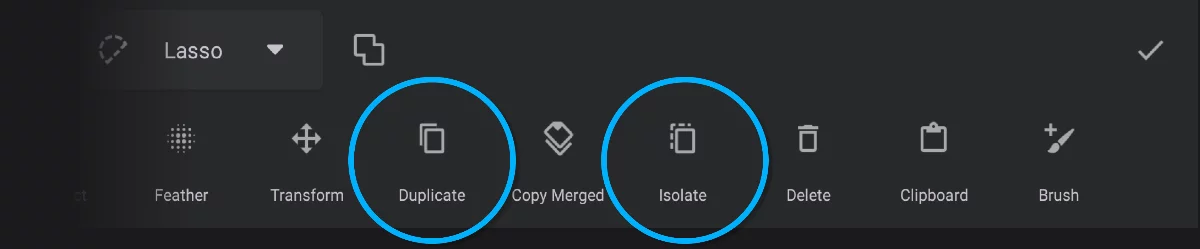

Duplicate function makes a copy of the selection and places it on a new layer.
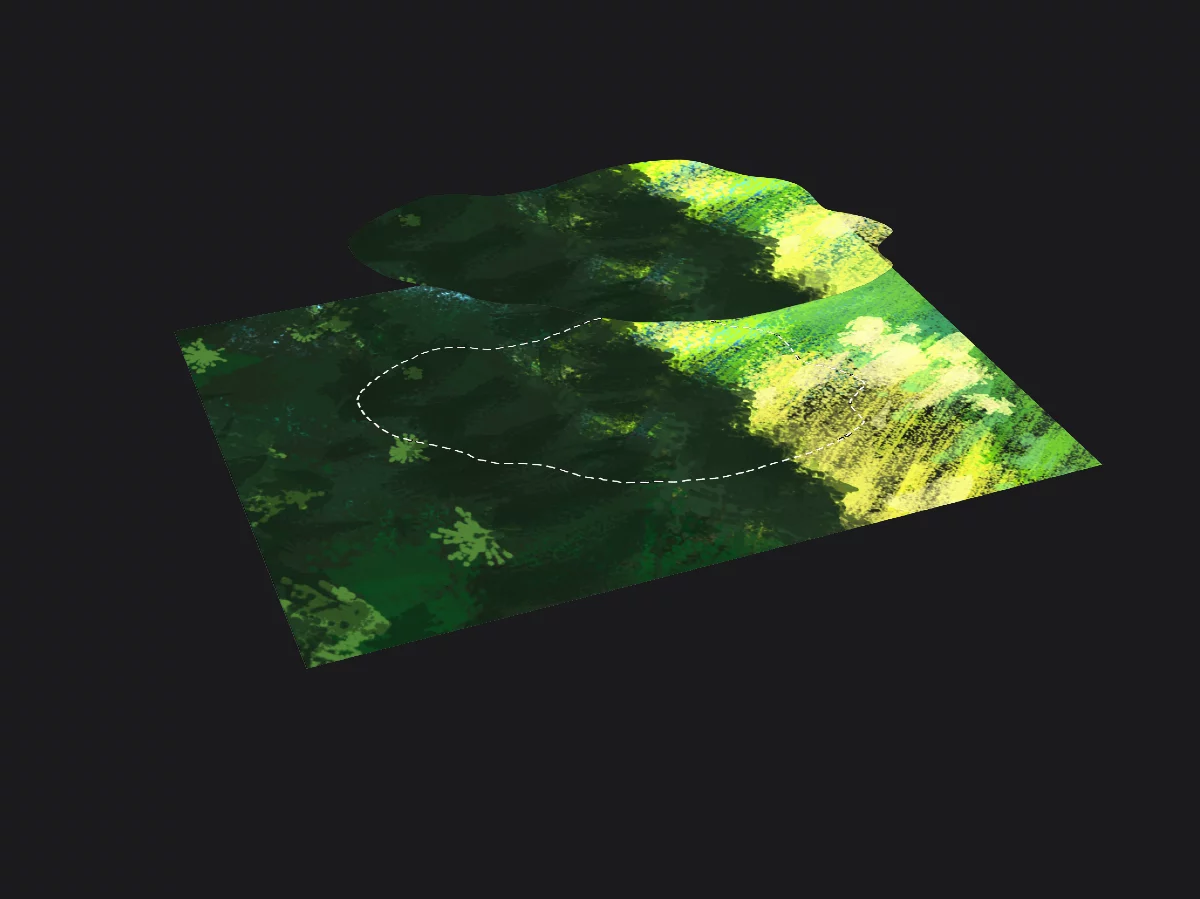
Isolate function cuts the selection form current layer and places it on a new layer.
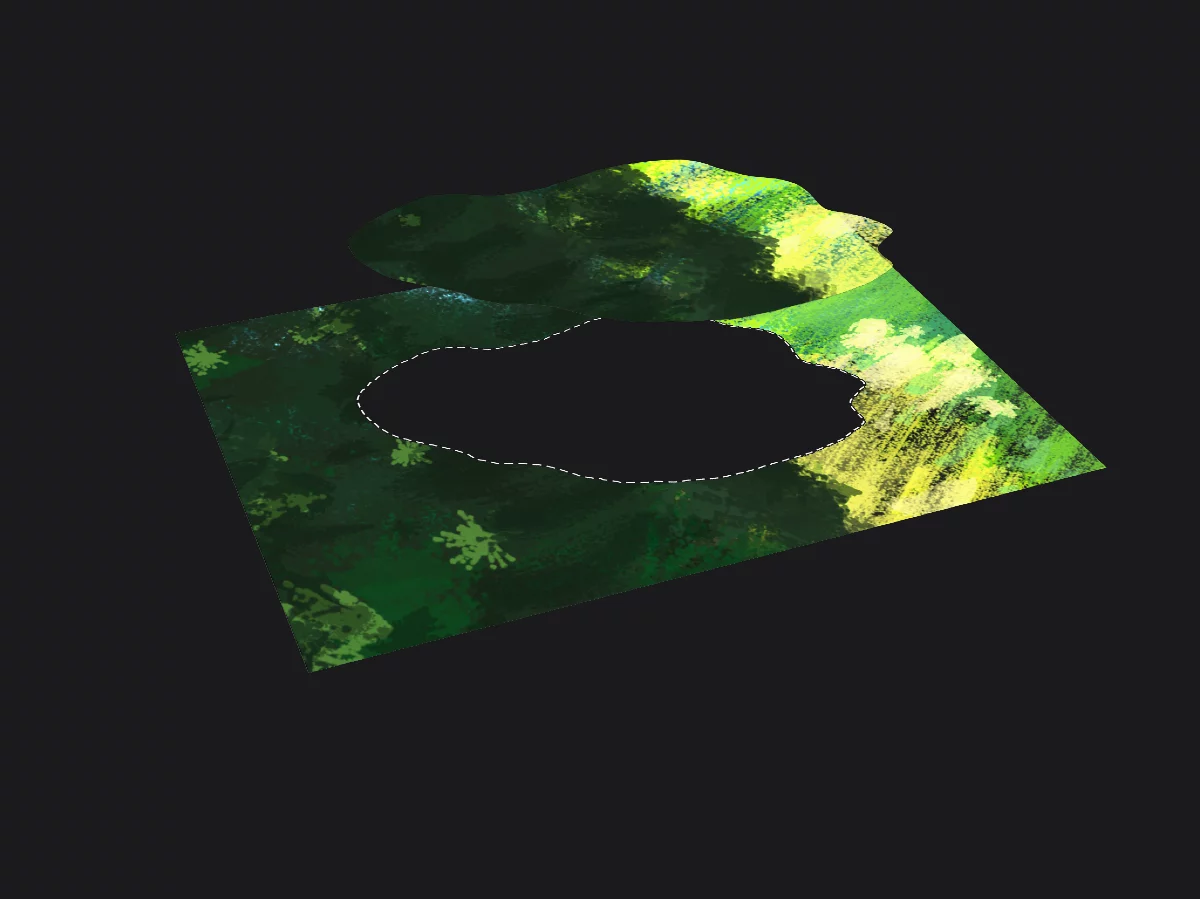
Note that with empty selection, Duplicate will duplicate the entire layer. This is however different from duplicating the layer in the Layer options menu (layer name, opacity, blending mode and mask will not duplicate).
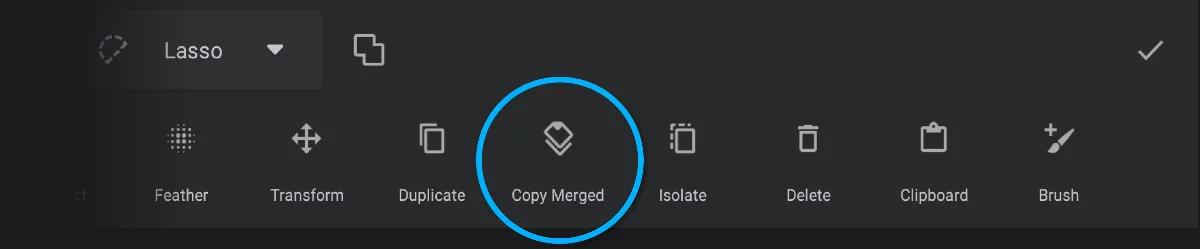
Copy Merged function
Copies visible selection content to a new layer

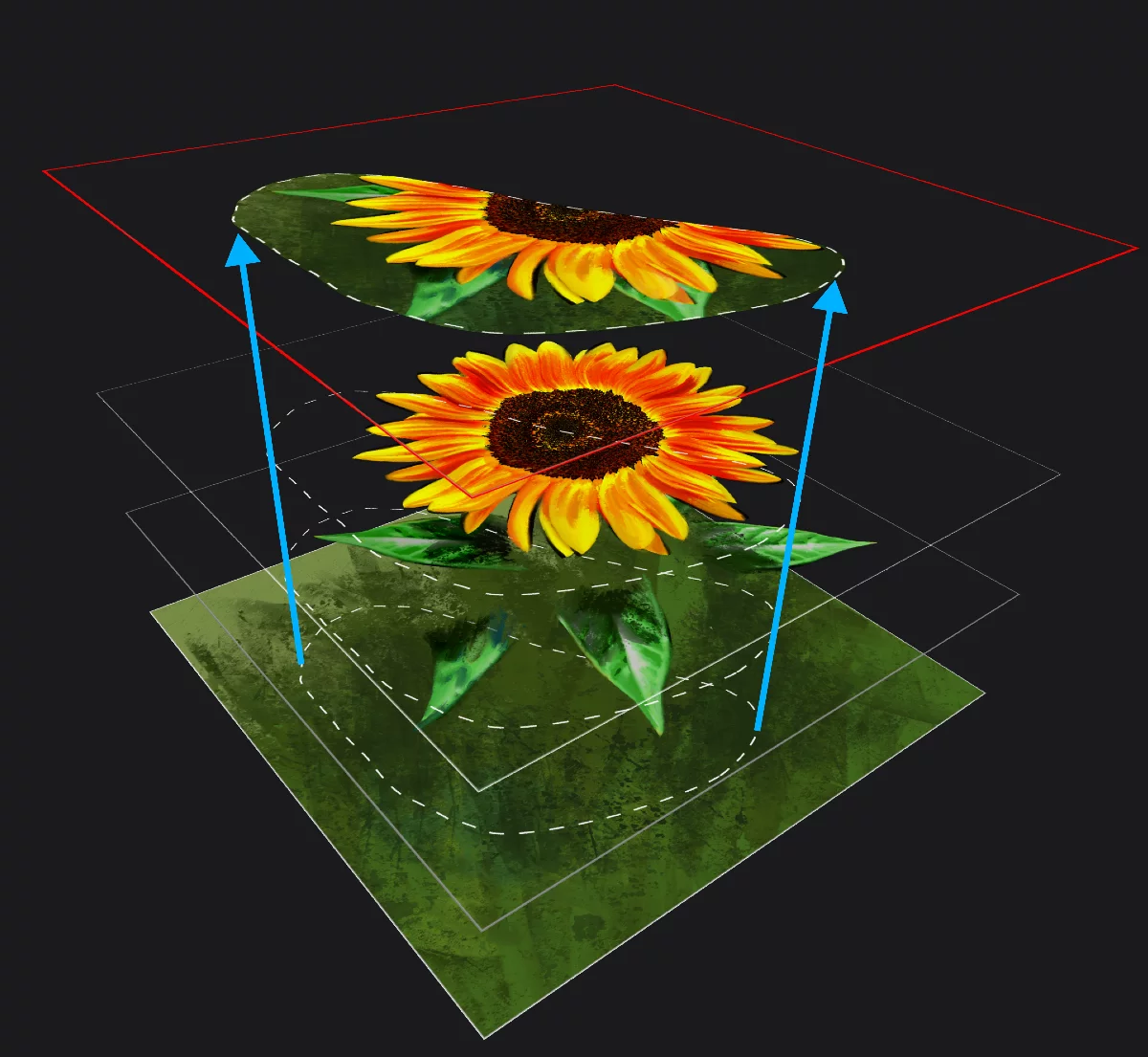
Resulting new layer with copied content
Selection edge
All visible layers
Right after being copied to the new layer, the selection content is open in TransformationTransformationA geometric change applied to the active layer or its selected fragment. It may be a simple displacement (move), rotation, scaling or a geometric distortion.Learn more mode so you can conveniently place it where necessary. If you want it where it is, simply cancel the transformation. Learn more about using Transformation tools in Transformations.
Note that with empty selection, Copy Merged will create a merged copy of the entire canvas.
This is similar to making a merged copy of all layers in a group by Copy Merged function in Layer group options.