
Photographic filters simulate effects that are somehow related to photography or to the traditional image manipulation.
(back to the List of all filters)
Black & White filter
It is full grayscale in fact.
Black & White filter turns the current LayerLayerA layer is a separate RGBA image (usually) of the size of the canvas. Layers can be stacked on top of each other. (or a selected fragment) into an 8-bit GrayscaleGrayscaleIn computer graphics, image editing and digital art, grayscale refers to images and image encoding with only a single channel for “intensity” or “amount of light”. In other words, a monochrome image composed exclusively of shades of gray.
Commonly (but incorrectly) referred to as “black-and-white”. image.
Original image
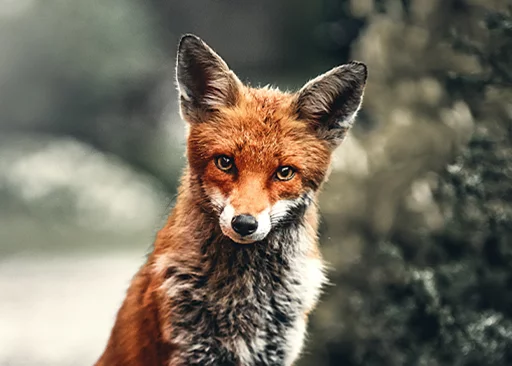
Filtered (example settings)
Filter toolbar (more in Common controls in filters).

Filter strength (–100% … +100%) — adjusts the GammaGammaIn digital image editing, "gamma" refers to the non-linear relationship between the pixel values of an image and their displayed brightness. Adjusting the gamma affects the midtones of the image, allowing for fine-tuning of the brightness without altering the shadows or highlights too drastically. (apparent lightness) of the resulting grayscale image (Light — Neutral — Dark)
Fade filter
Blend into background.
Fade filter reduces the OpacityOpacityMeasure of how much a layer (or a pixel on a layer) obscures the background. Zero opacity means full transparency; 100% opacity means that no background is visible. of the current layer. Note that you can achieve the same effect by using Opacity slider in the layer options; the filter however reduces the opacity permanently.
Also, it can be applied to selected fragments.
Original image
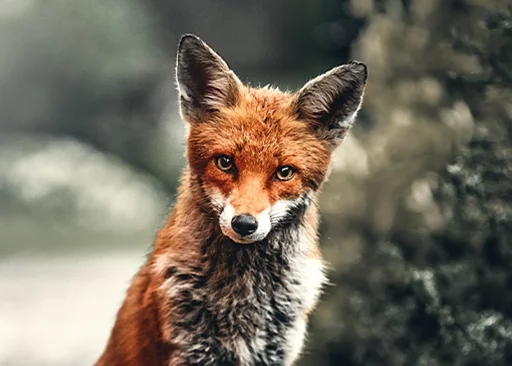
Filtered (example settings)
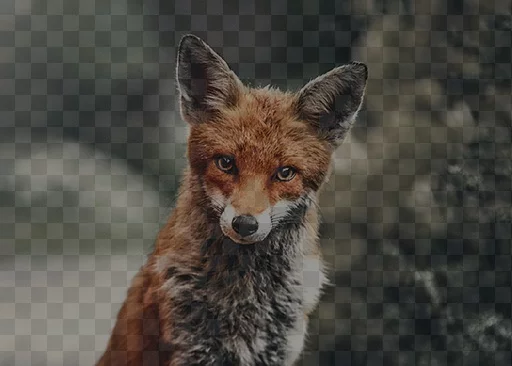
The filter strength slider adjusts the layer's opacity, but in reverse: 0% strength means 100% opacity (no change) while 100% strength means 0% opacity (the layer invisible).
Glow filter
Brighten up.
Glow filter makes the highlights of the image even brighter.
Original image
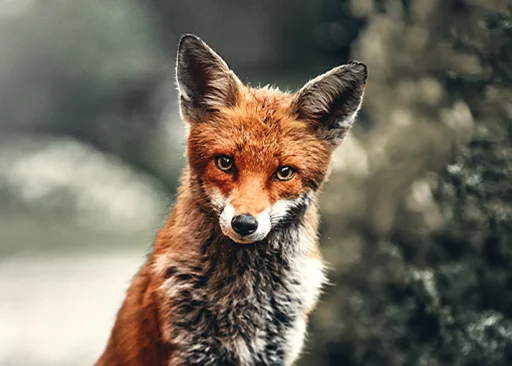
Filtered (example settings)
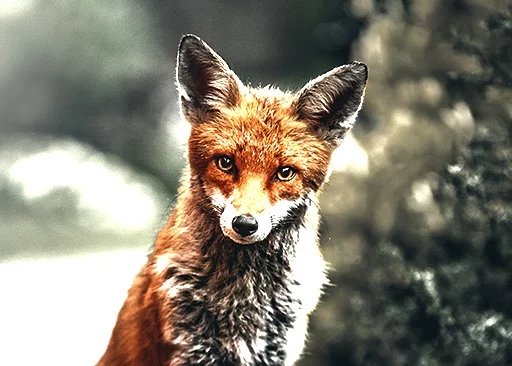
The filter strength slider adjusts how much of the highlights gets brighter. 0% means no change, 100% means the widest area.
Invert filters
Four different negatives.
Invert filter consists of four different filters:
i. Invert RGB
The "regular" photographic negative.
ii. Invert Chroma
The grayscale component remains intact, only color hues are inverted.
iii. Invert Luminance
Only the grayscale component is being inverted, color hues preserved.
iv. Invert Alpha
Inverses layer's alpha channel (transparency) only (for fully opaque layers works as Fade filter).

Variant selector
Tap to cycle through the variants (from “i” to “iv” and back to “i”).
Invert filter — Invert RGB
A negative effect.
Invert RGB filter turns the current layer into its photographic negative.
Original image
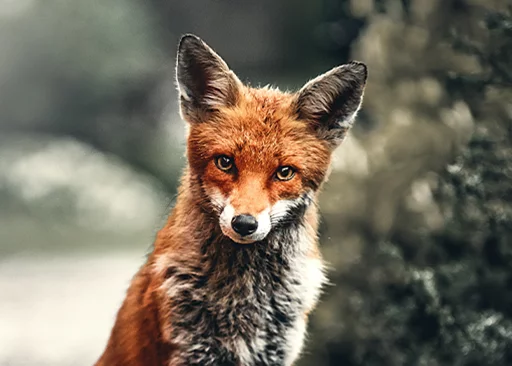
Filtered (example settings)
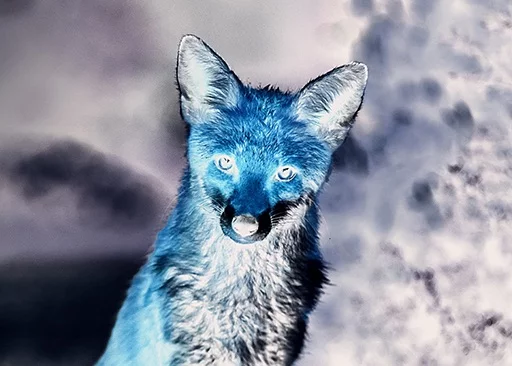
Filter strength ranges from the unaltered original (at –100%) to full negative (at 100%) across neutral gray. 0% value fills the image with neutral gray.
Invert filter — Invert Chroma
Reverse colors only.
Invert Chroma filter inverses color hues in the image, leaving the grayscale component intact.
Identical effect can be achieved by reversing all channel curves (γ, R, G, B) of the Tonal curve tool. See Tonal Curves tool).
Original image
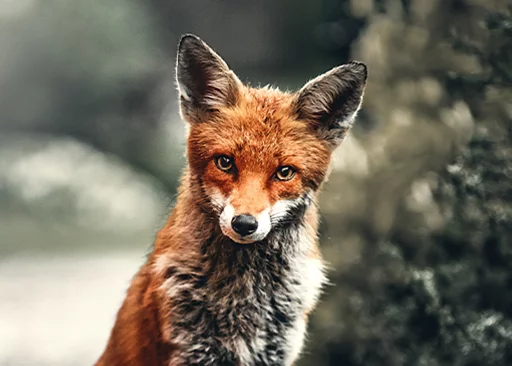
Filtered (example settings)
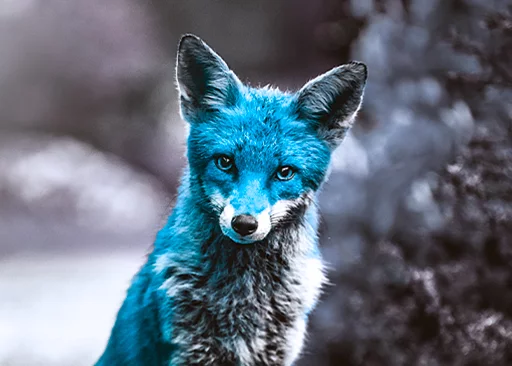
Filter strength ranges from the unaltered original (at –100%) to reversed chroma (at 100%) across grayscale image (no chroma). At zero, the filter yields grayscale version of the image.
Invert filter — Invert Luminance
Reverse grayscale only.
Invert Luminance filter inverses the grayscale component, while leaving the colors intact.
Identical effect can be achieved by reversing the GammaGammaIn digital image editing, "gamma" refers to the non-linear relationship between the pixel values of an image and their displayed brightness. Adjusting the gamma affects the midtones of the image, allowing for fine-tuning of the brightness without altering the shadows or highlights too drastically. (γ) channel of the Tonal curve tool. See Tonal Curves tool).
Original image
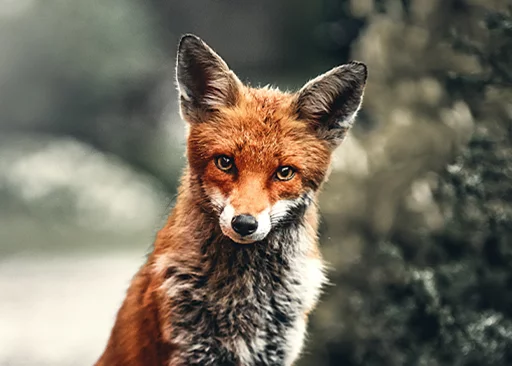
Filtered (example settings)
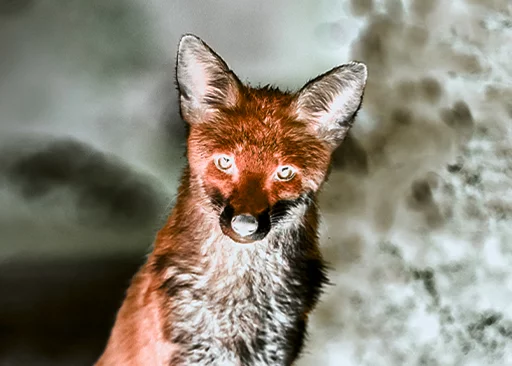
Filter strength ranges from the unaltered original (at –100%) to reversed luminance (at 100%). At zero, the luminance is zero. This is similar to reducing the color saturation to zero.
Invert filter — Invert Alpha
Reverse transparency.
Invert Alpha filter inverses the alpha channel (transparency) of the layer.
Note that the layer has to contain transparent pixels for the filter to produce useful results; for fully opaque layers it simply reduces the layer opacity like the Fade filter.
Identical effect can be achieved by reversing the Alpha channelAlpha channelIn the RGBA color coding, the Alpha channel defines transparency of the image. Each pixel has defined opacity (usually in 0–255 scale). (A) of the Tonal curve tool. See Tonal Curves tool)
Original image
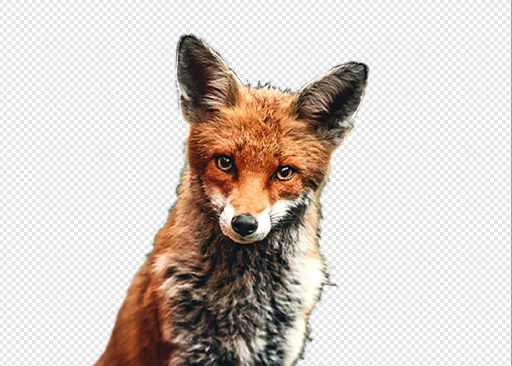
Filtered (example settings)
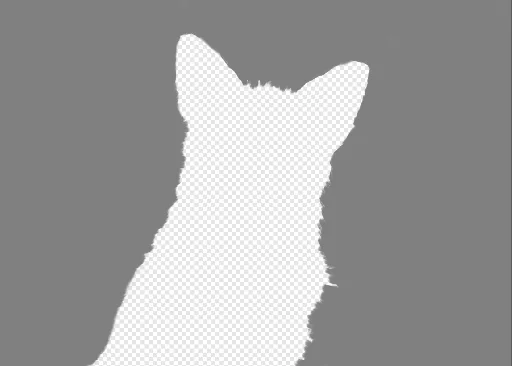
Filter strength ranges from the unaltered original transparency (at –100%) to reversed transparency (at 100%). At 100% all the opaque areas of the layer are transparent, while all originally transparent areas become opaque and filled with neutral gray (#808080).
Sepia filter
Vintage photo effect.
Sepia filter turns the current layer into a sepia-colored grayscale image.
Original image
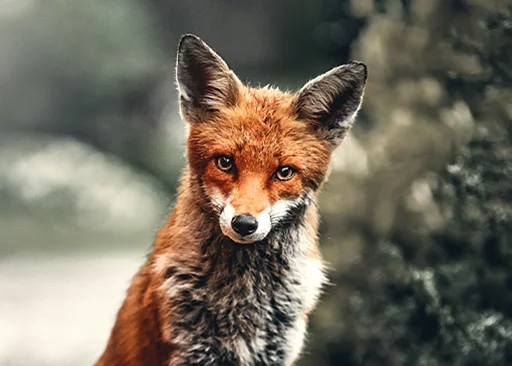
Filtered (example settings)
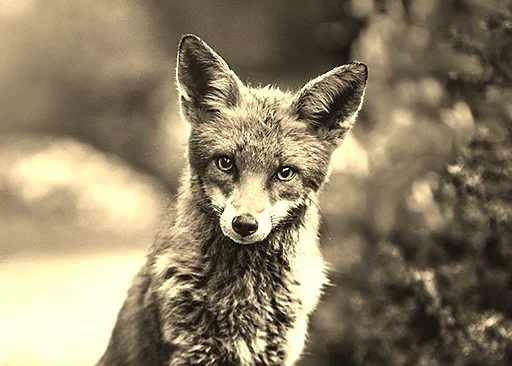
The filter strength slider adjusts the amount of the effect (in 0 – 100% range). At 100% no original color information is left.
Grain filters
Add some noise.
Grain filter adds three kinds of random noise to the image:
i. Monochromatic grain
adds monochromatic noise to the image.
ii. RGB grain
adds "color noise" to the image.
iii. Alpha grain
adds noise to the layer's transparency only.

Variant selector
Tap to cycle through the variants (from “i” to “iv” and back to “i”).
Grain filter — monochromatic grain
Regular photographic grain.
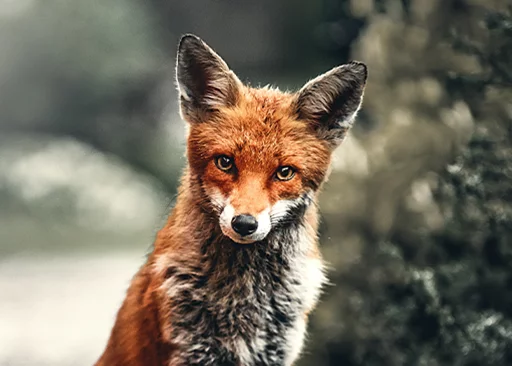
Monochromatic grain filter adds random noise to the image. It simulates photographic grain.
Original image
Filtered (example settings)
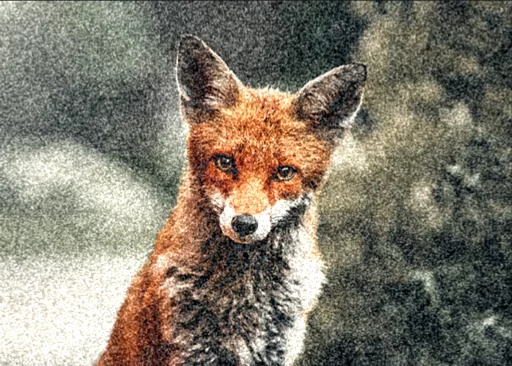
Filter strength slider adjusts the amount of noise added (0 – 100%).
Grain filter — RGB grain
Poor JPG.
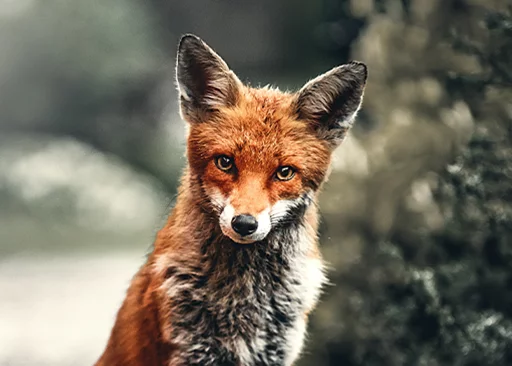
RGB grain filter adds random color noise to the image. Simulates old digital camera artifacts.
Original image
Filtered (example settings)
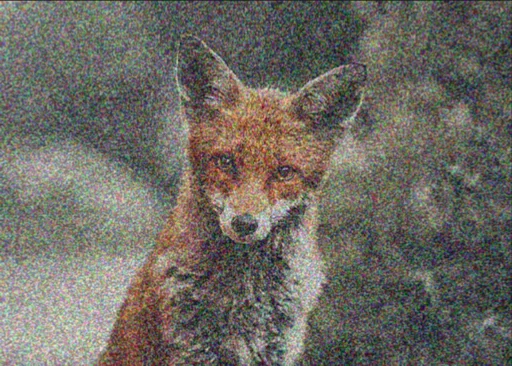
Filter strength slider adjusts the amount of noise added (0 – 100%).
Grain filter — Alpha grain
Good for soft masks.
Alpha grain filter adds random noise to the alpha channel of the layer.
Original image
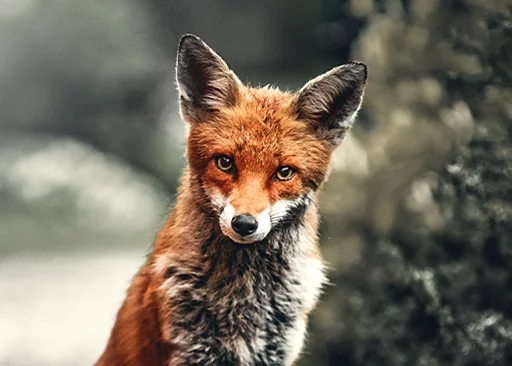
Filtered (example settings)
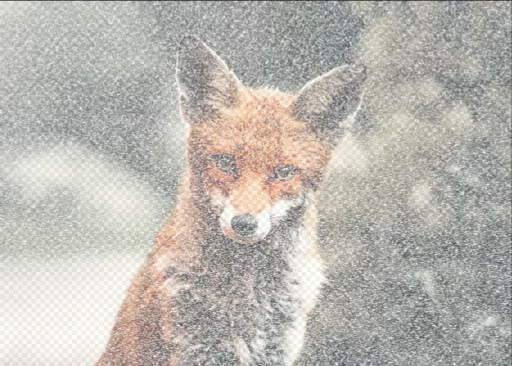
Filter strength slider adjusts the amount of noise added (0 – 100%).
Bokeh filter
Add some depth.
Bokeh filter adds the photographic “bokeh” effect to the image. Bokeh simulates the way how photographic lenses render out-of-focus areas by emphasizing highlights. Ideal for adding realistic appearance to slightly blurred backgrounds. Note that the effect strongly depends on the resolution (pixel size) of the canvas.
Original image
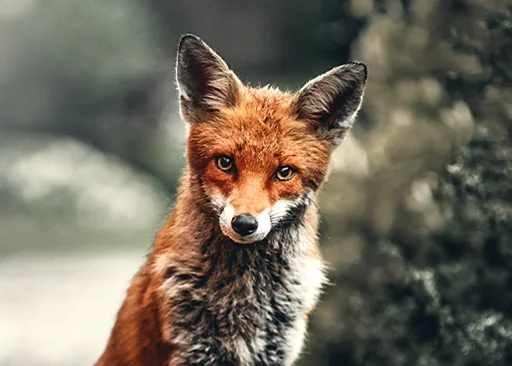
Filtered (example settings)

Filter strength slider adjusts the amount of the effect (0 — 100%).
Local Contrast filter
Smart contrast.
Local contrast filter increases contrast of the image in areas of high detail and on edges.
Original image
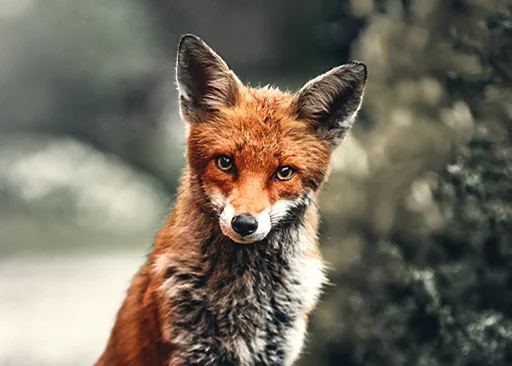
Filtered (example settings)
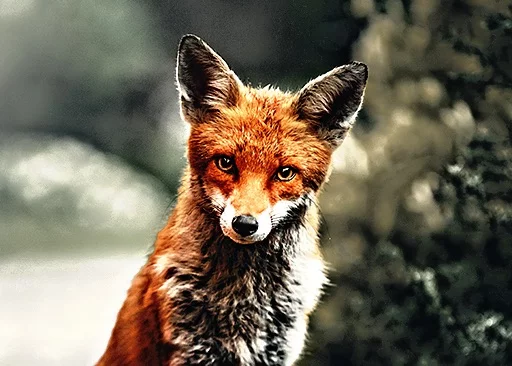
Filter strength slider adjusts the amount of the effect (0 — 100%).
Warm filter
In fact, it is cool too.
Warm filter adjusts photographic "tint" of the image. It is similar to the Tint color adjustment (see Color-related adjustments) but more subtle.
Original image
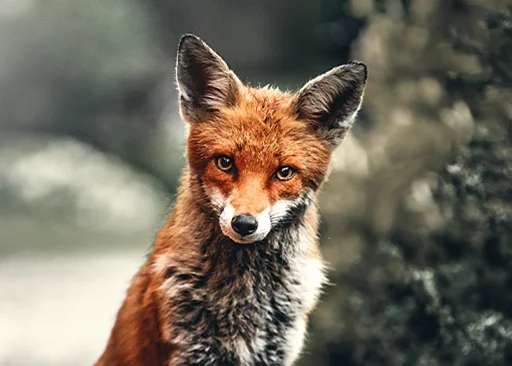
Filtered (example settings)
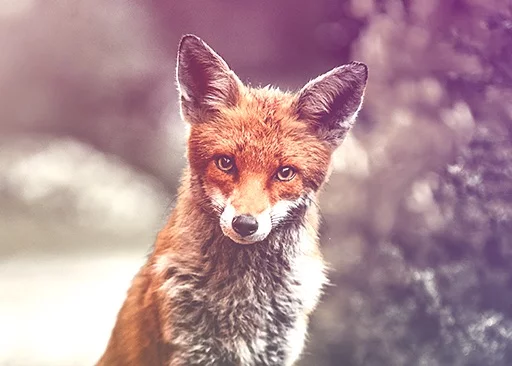
The filter strength slider adjusts the color temperature, from cool (at –100%) to warm (at 100%). Zero means no change.
Lens flare filter
Backlight effect.
Lens flare filter adds a basic lens flare effect to the image. You can adjust the intensity and location of the light burst.
Original image
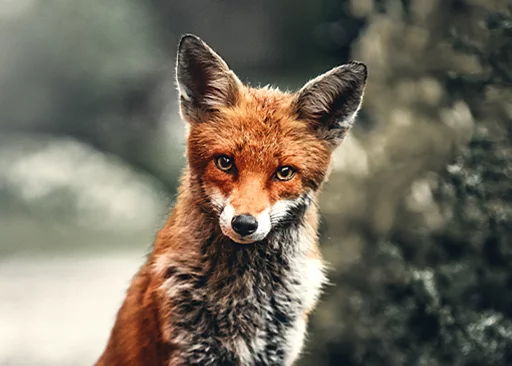
Filtered (example settings)
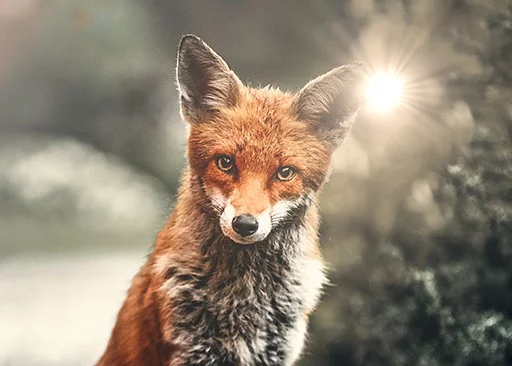
Filter strength slider adjusts the amount of the effect (0 — 100%).
Drag across the canvas to reposition the center of the flare.
Gradient map filter
Recolor your image.
Gradient map filter maps a custom color gradient onto the grayscale component of the image. The original color information of the image is discarded and replaced with the mapped gradient.
Original image
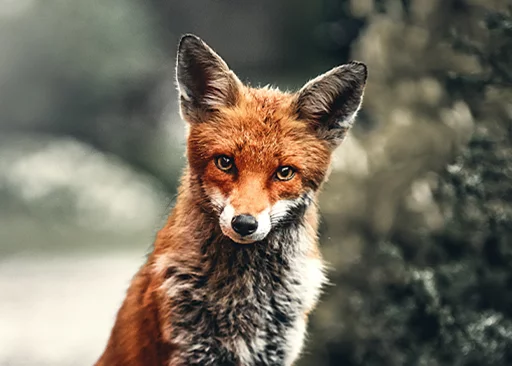
Filtered (example settings)
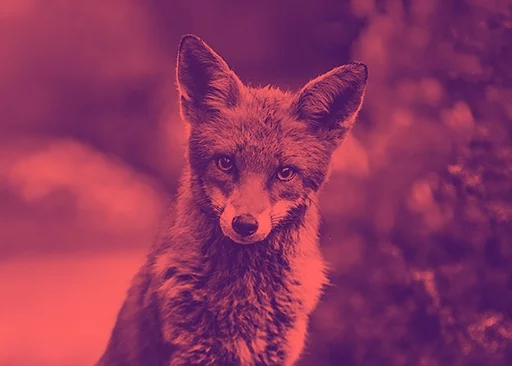
Gradient Map filter toolbar
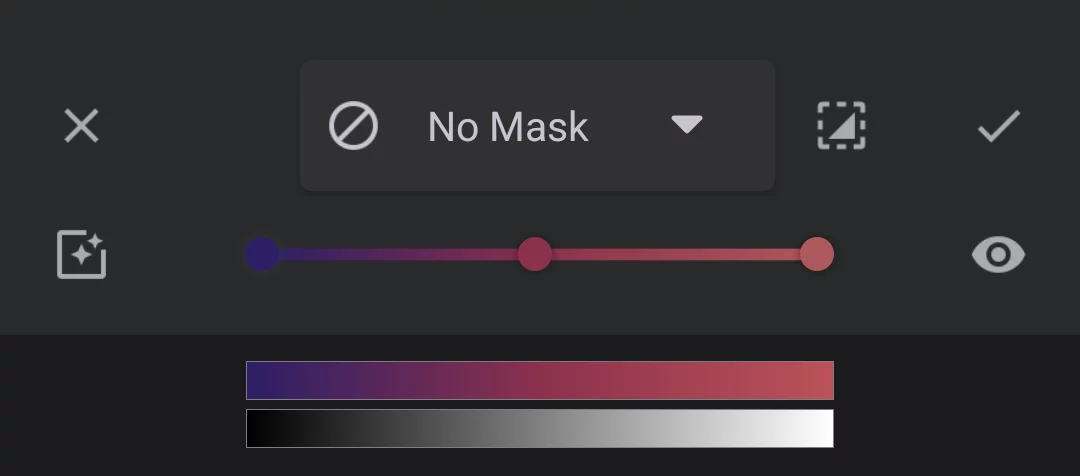
Gradient designer
Compose the gradient like in the Linear Gradient fill. See Linear gradient fill.
Unlike the regular Gradient Fill, gradient maps cannot contain transparency.
Color stops
Tap on the line to add a color stop.
Drag a color stop along the line to reposition.
Drag out a color stop from the line to remove.
Tap on existing color stop to edit its color.
You can add any number of color stops to the gradient axis.
Custom gradient
Original grayscale component of the image.