Linear Gradients
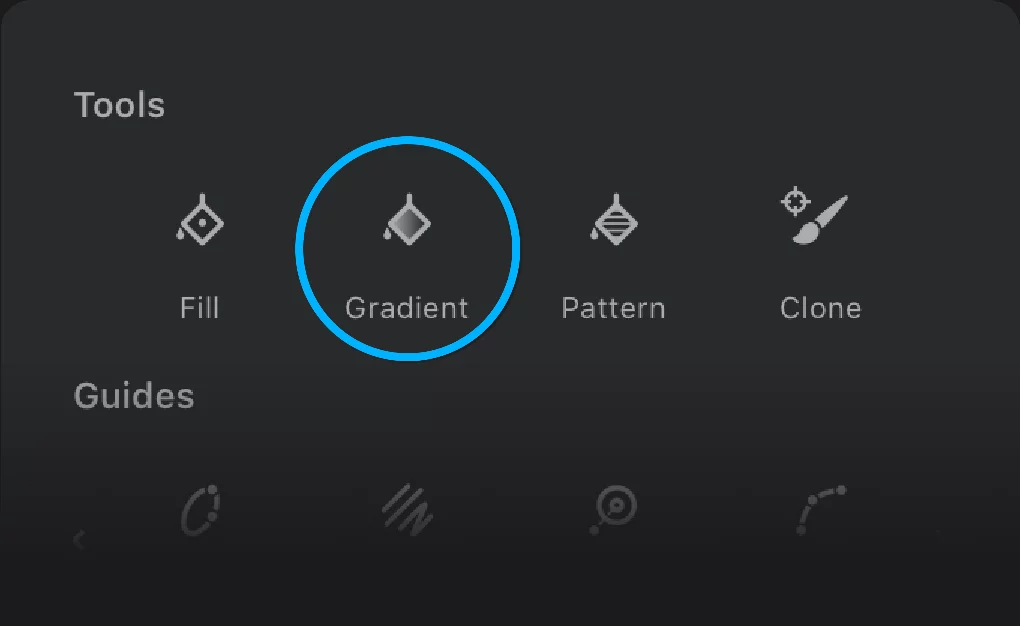
Note that there is only one, common “Gradient” button in the Creative Tools menu for all three gradient types.

Linear Gradient tool fills a closed area or a selection with colors smoothly blending between defined color stops, along an axis. The number of intermediate color steps is practically unlimited. Color stops may have different opacity so the gradient may smoothly blend into existing artwork.
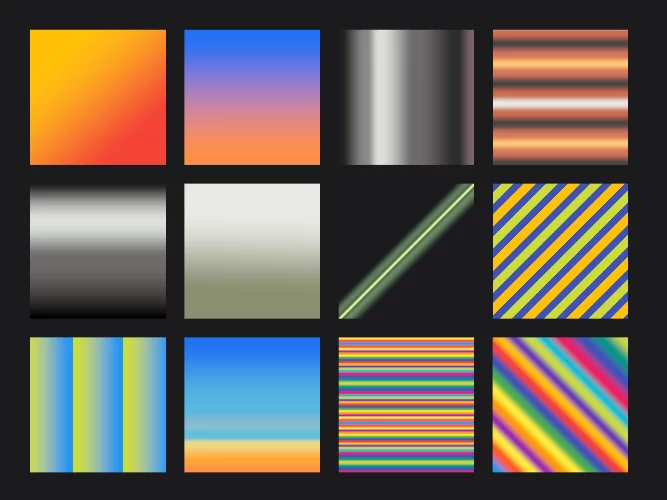
Repetition function may multiply the range of the fill. See below.
Application
Just draw the gradient.
Drag from the start point
The gradient will be displayed in real time.
Release your stylus/finger at the end point.
Make sure that the start point lies within the area you want to fill; the end point may be placed anywhere. You can reposition the start and end points after creating the gradient.
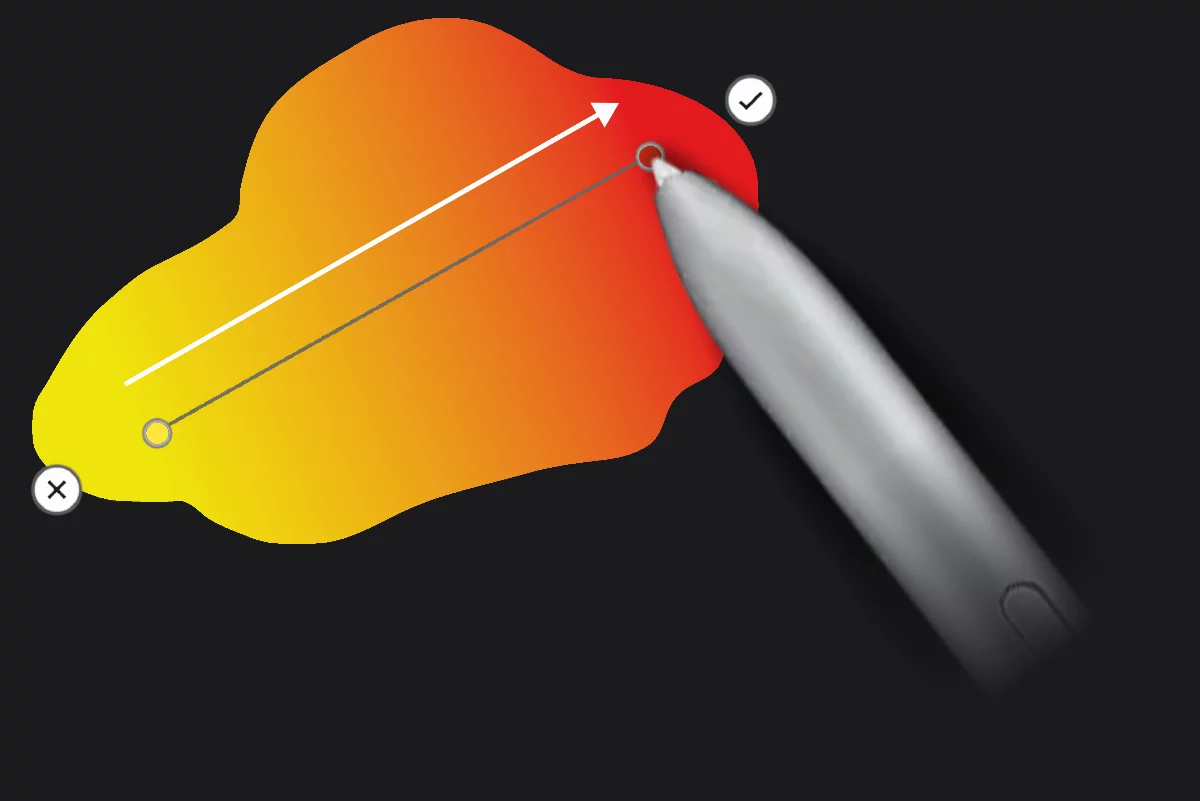
You are supposed to edit the colors after application of the fill. This is different than for example in Adobe Photoshop®.
There are no gradient presets in Infinite Painter.
Note that when you apply a gradient for the first time, it is based on the current Paint colorPaint colorThe color currently picked with the Color panel. All brushes and fills will use this color as their base color. The sample of the current paint color is always shown on the main toolbar.
In Infinite Painter there is only one “current” color (there is no concept of a “background color” for the brushes and gradients).. On subsequent fills the last-used gradient is applied.

You can edit the gradient unless you confirm it with the floating checkmark button (or until you close the tool).
Basic controls
This is a common interface for Linear, Radial and Sweep fills.
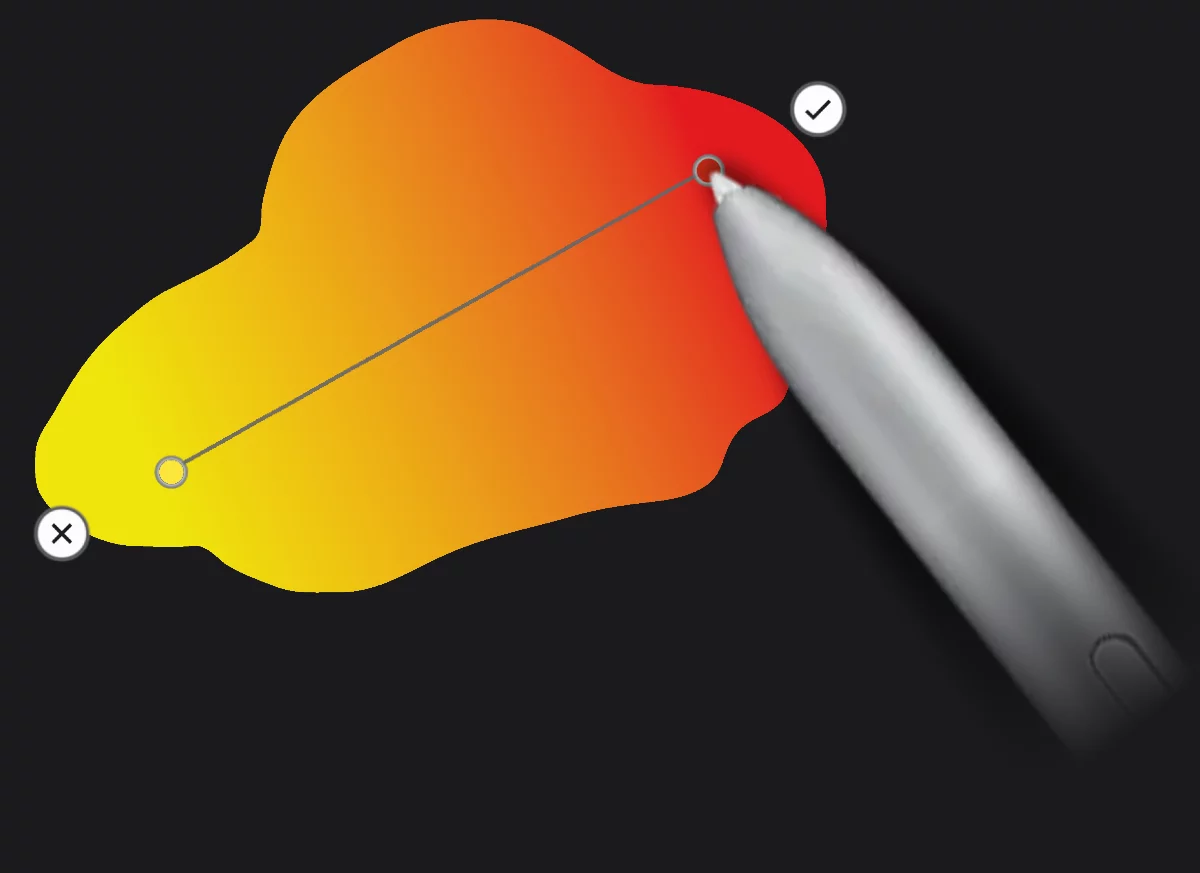
End color stop
Drag to reposition.
Tap to change the color.
Gradient axis
Drag to reposition the entire gradient.
Tap on the axis to add a new color stop.
Cancel button
Tap to cancel current gradient. Previously applied fills will stay intact.
Confirm button
Applies the current fill. Then you may apply another fill or leave the tool.
Multiple color stops
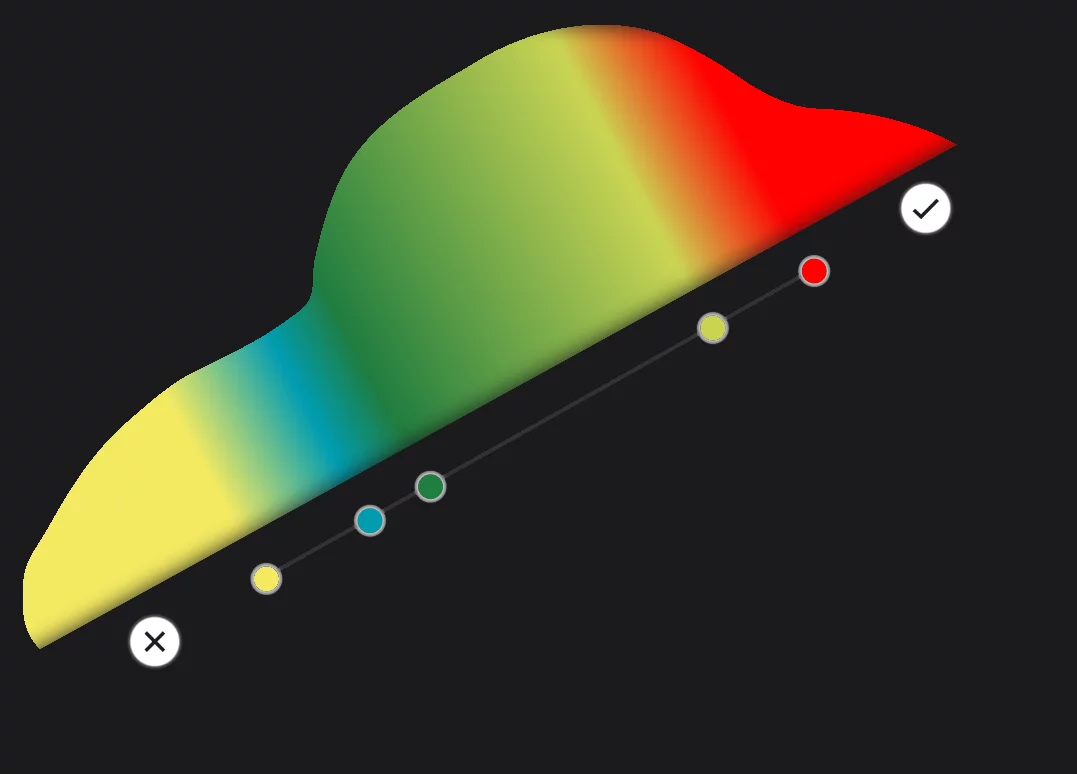
Intermediate colors
You can add as many color stops as you wish.
Drag a stop handle along the axis to reposition; drag out from the axis to remove.
Gradient color picker
The color picker for the gradient colors is the full-featured Color panelColor panelA panel to select colors.Learn more , with addition of the opacityOpacityMeasure of how much a layer (or a pixel on a layer) obscures the background. Zero opacity means full transparency; 100% opacity means that no background is visible. control. Learn more about using the Color panel in Main color panel.
Pick a color for the selected stop
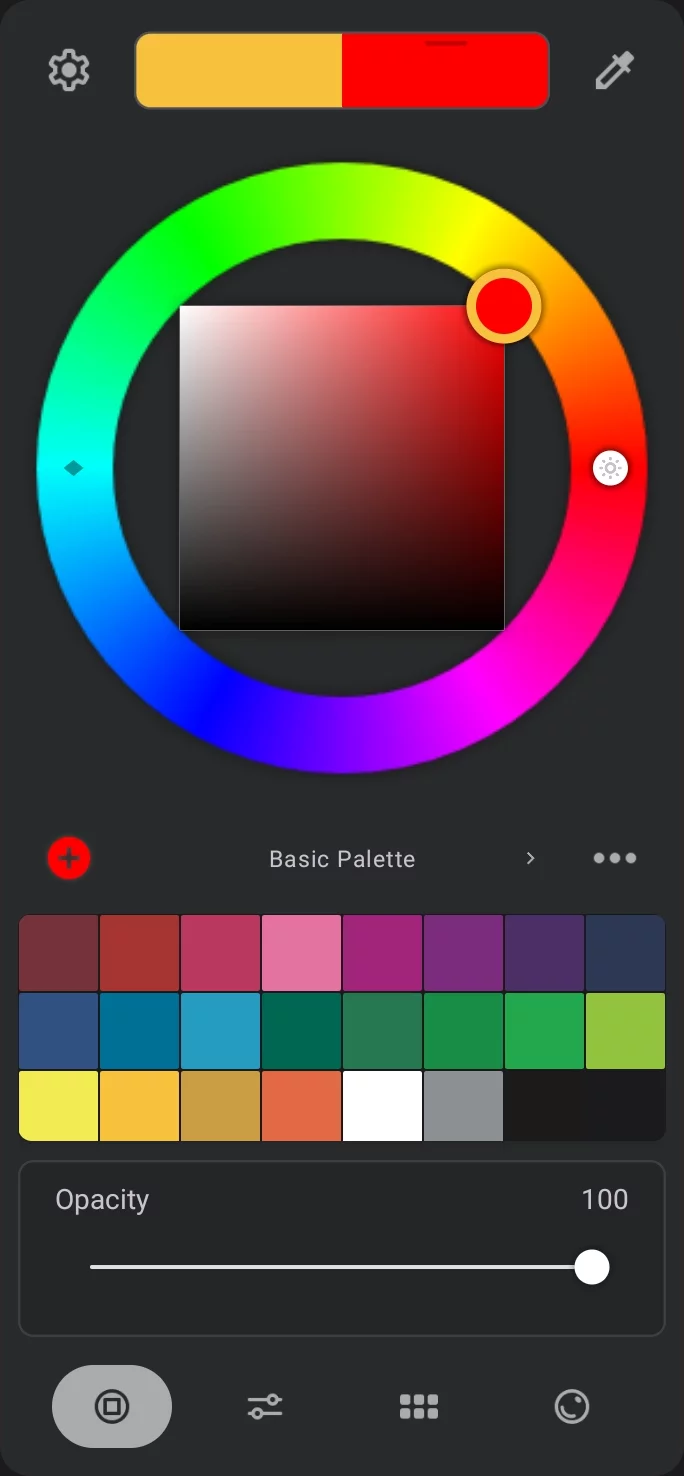
Opacity
Color stops may have different opacityOpacityMeasure of how much a layer (or a pixel on a layer) obscures the background. Zero opacity means full transparency; 100% opacity means that no background is visible.. Unleash your creativity.

You can edit the gradient unless you: confirm it with the checkmark button or cancel it with the X button.
You can close the Fill toolbar without confirming the last gradient (this will confirm the gradient automatically).
Options
For basic two-color gradient.

Linear Gradient options:
Default gradient (no repetition, no reflection)
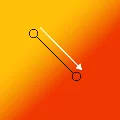

Repeat active


Reflect active


Reverse direction (toggle)
Reverses the direction of the gradient axis with all of the color stops on it.

You can use repeat and reflect options together:
Repeat + Reflect