
Main color panel
Color wheel and much more.
Use the color panel to select or adjust colors for painting. There are four separate color “tools” in the panel; use the one you find the most useful.
Access the Color panel from the main toolbar
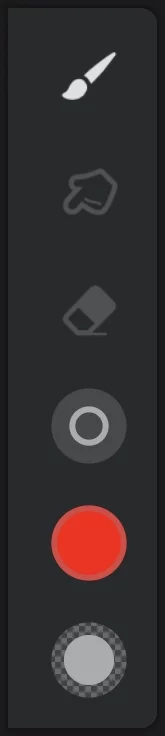
Tap on the color indicator to open the Color panel.
Learn more about the main toolbar in Main toolbar.
If you are using a physical keyboard, press the C key to open the color panel. For the list of all keyboard shortcuts see Keyboard shortcuts.
You can find the color panel also in the Fill tools, in the paperPaperA special layer at the bottom of the layers’ stack: the background of the artwork. The Paper can have a solid color fill and (optionally) a texture.Learn more color setup, in the text color selector and in certain filtersFilterA filter, in digital image editing and digital art, is a predefined function or digital effect that may be applied to an image in order to change its appearance in certain way. Filters may change colors, structure or style of the image.Learn more. The color selectors in these places may look slightly different.
All tabs of the Color panel
There are four separate color-picking tools in the panel:
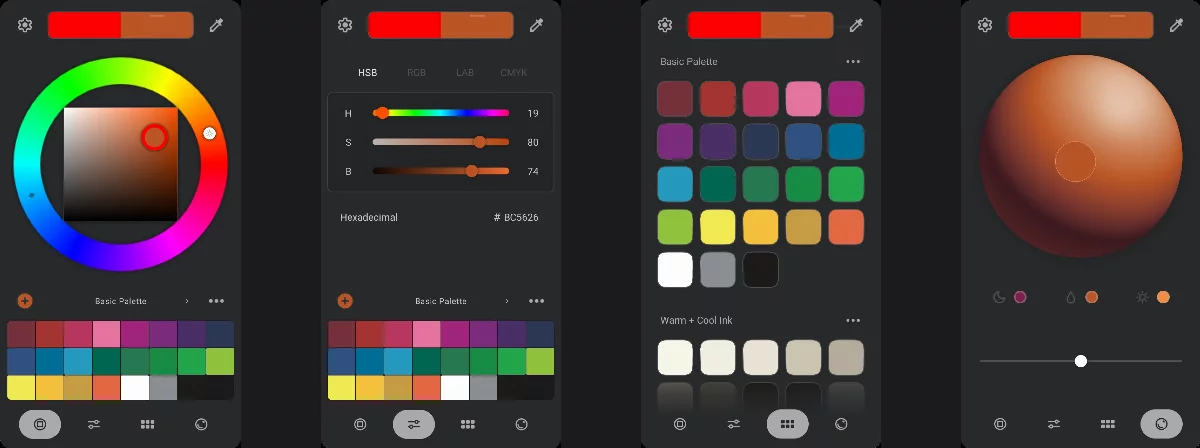
All the tabs of the Color panel are synchronized. Change of the colorPaint colorThe color currently picked with the Color panel. All brushes and fills will use this color as their base color. The sample of the current paint color is always shown on the main toolbar.
In Infinite Painter there is only one “current” color (there is no concept of a “background color” for the brushes and gradients). in one tab changes it for all the other tabs (and this color is immediately applied to the current active tool, like a paintbrushBrushA brush is a tool that lets you paint on a the canvas with different shapes, textures, and colors, similar to using real paintbrushes. The brushes follow the movements of your finger or stylus on the touchscreen (as opposed to other tools that have no real-time interaction with the canvas). In Infinite Painter, the brushes have much more functionality than merely applying colors.Learn more).
Color panel common controls
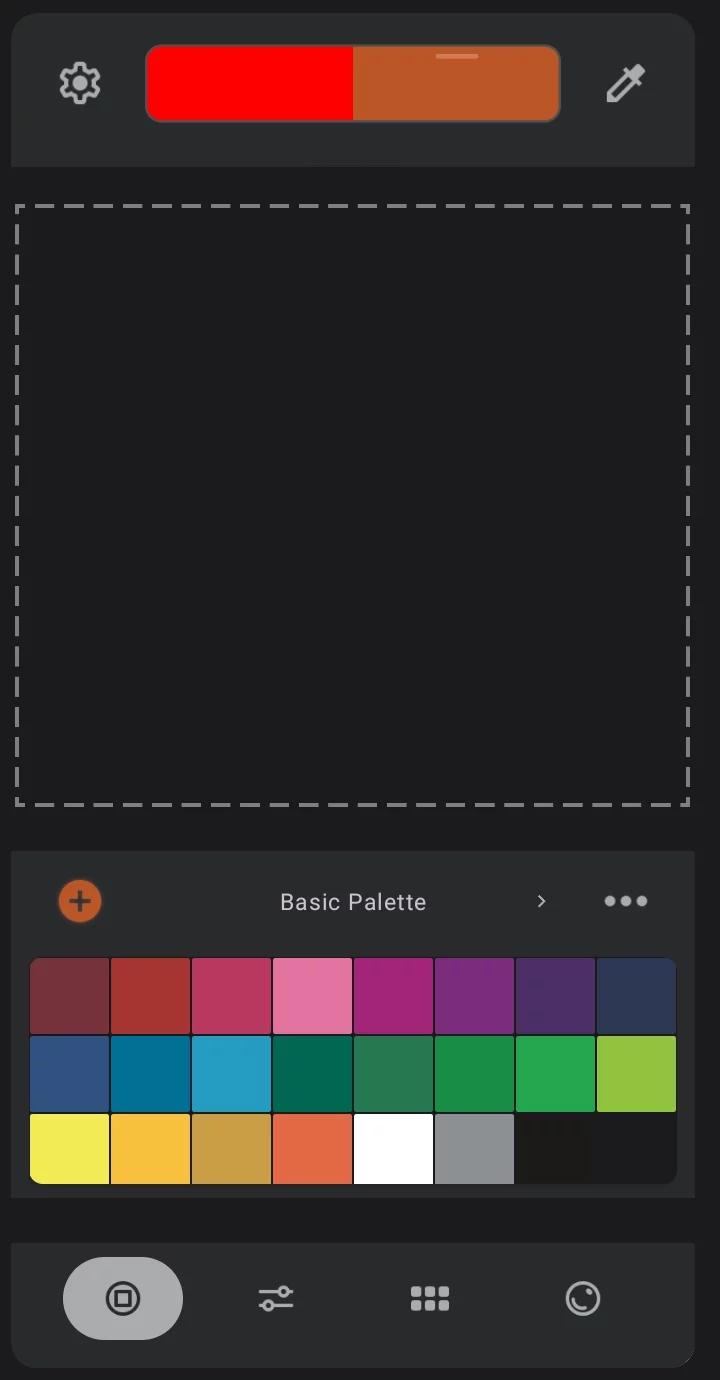

Color settings
(see Color settings)
Previous color indicator
Current colorPaint colorThe color currently picked with the Color panel. All brushes and fills will use this color as their base color. The sample of the current paint color is always shown on the main toolbar.
In Infinite Painter there is only one “current” color (there is no concept of a “background color” for the brushes and gradients). indicator
This swatch can be dragged away from the panel and placed anywhere on the canvas for more precise color comparison. See Advanced features of the Color panel.
Top bar
(this part is common for all tabs)

Eyedropper tool (color picker)
Current ‘color tool’
(one of the four)
Compact swatch palette
(not on all tabs). Learn more in Managing the swatch palettes.
Drag the dynamic color swatch out of the panel to compare with your artwork
More in Advanced features of the Color panel.
“Tab navigation bar”


HSB color wheel
more in Color wheel.

Color sliders
more in Color sliders.

Main swatch palette
more in Swatch palettes.

Lighting Orb
more in Lighting orb.
The panel remembers the last-opened tab and returns to it when opened next time.
All the controls in the color panel are interlinked:
• Color wheel
• HSB, RGB, LAB, CMYK sliders
• Large swatch palette
• Compact color palettes
• The Lighting Orb
• The Eyedropper color picker
Change in either part changes the same main current colorPaint colorThe color currently picked with the Color panel. All brushes and fills will use this color as their base color. The sample of the current paint color is always shown on the main toolbar.
In Infinite Painter there is only one “current” color (there is no concept of a “background color” for the brushes and gradients). You may for example pick a color swatch from the palette and then adjust it with the color wheel controls or with the color sliders.
Note that the colors picked in the Fills and in the Paper setup do not alter the main "painting" color.
Learn more about using swatch palettes in Swatch palettes.
Advanced features of the Color panel
Floating color swatch
The current color swatch may be dragged out of the panel to compare the color changes with their planned context in the artwork
Drag the dynamic color swatch out of the panel
to compare with your artwork.
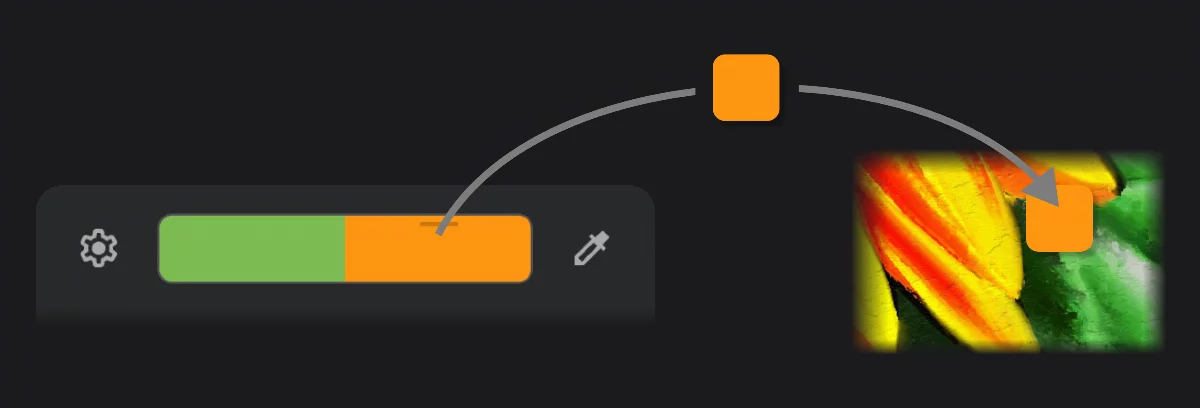
Colors may look dramatically different in different context, especially when compared from a distance. Use the floating swatch for the most precise color comparison: place it directly where the new color is indented to be applied in your artwork.
The Floating Swatch remains on the screen only as long as the Color panel is open. It can be repositioned to any part of the screen, even over the reference images.
"Compare tone"
"Compare tone" option displays the tone (grayscale value) of the color below the color swatch
This option allows you to assess the tone (grayscale value) of the current color against the previous color. Adjust the saturation and brightness of the new color until its grayscale component looks identical to the previous one.

Previous color swatch
Previous color's tone
Current color swatch
Current color's tone
The two colors shown here have very different hues but very similar tone (brightness).
The "Compare Tone" is an extension of the Tone Lock feature (see Tone Lock). Unlike the Tone Lock, this feature allows you to alter both the hue and the saturation of the color while keeping its tone constant.
The tone means here the HSB brightness. Learn more about the HSB color space in Digital color.
The "Compare tone" option can be turned on or off in the Color Settings panel.
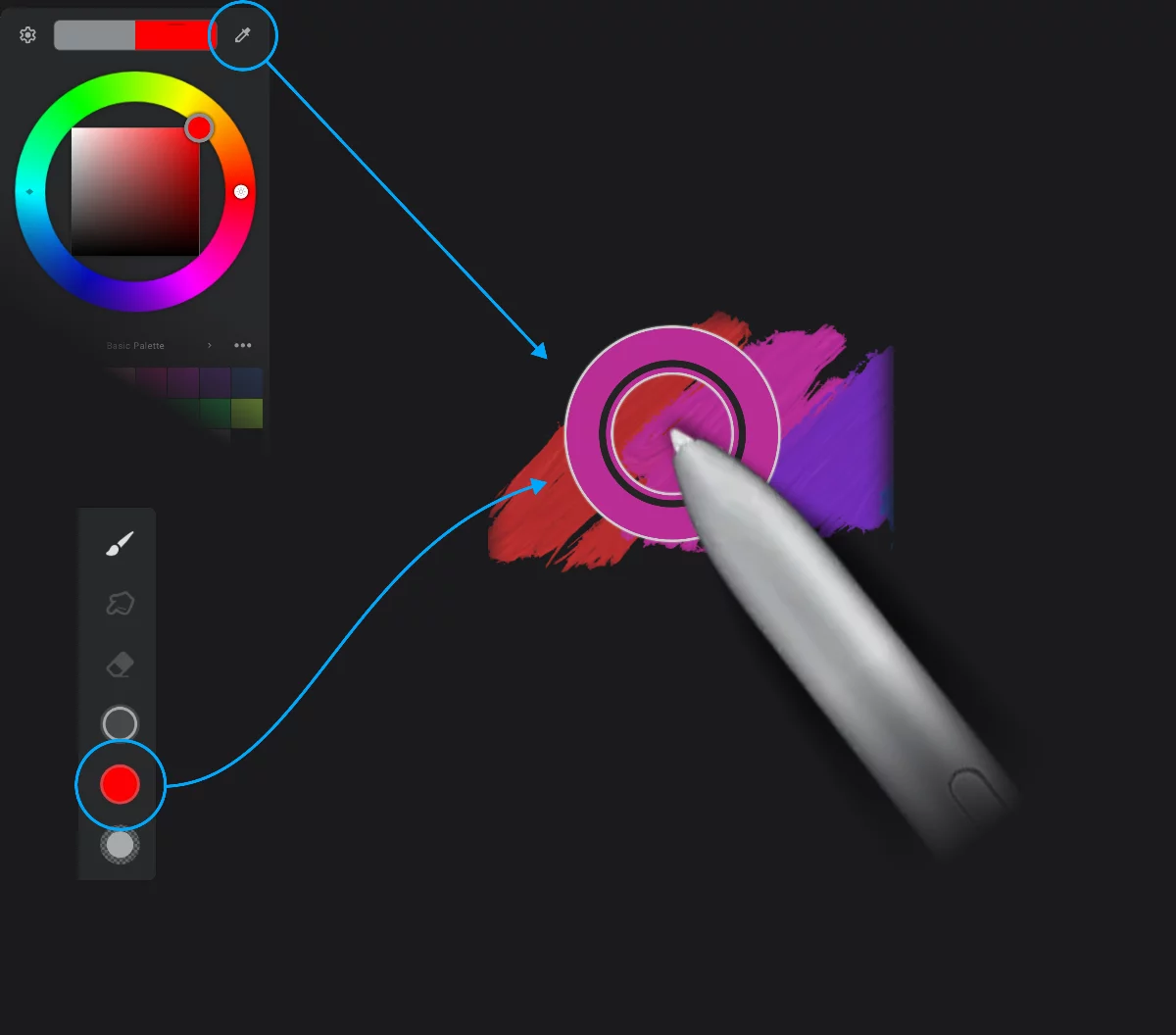
Tap the Eyedropper icon in the Color panel
Drag out from the color indicator on the Main toolbar
This is probably the fastest way.
Outer ring
indicates the color to be sampled
Drag to select color, lift stylus to confirm
You can drag out the Eyedropper also from the color indicator in the Solid Fill toolbar. See Solid fill.
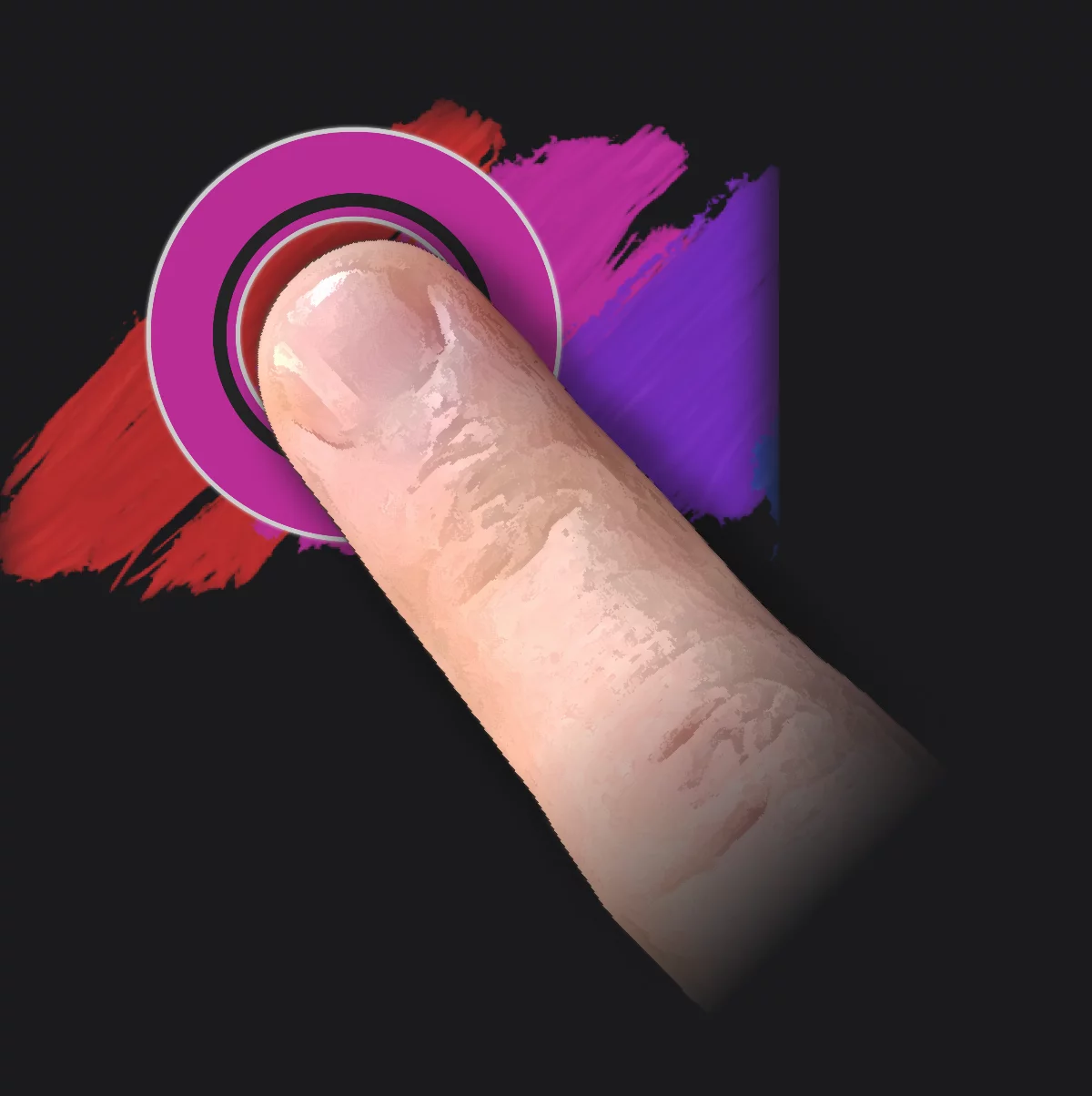
Alternative ways to trigger the Eyedropper:
You can set the Eyedropper as the Finger function. See Gestures controls.
You can assign the Eyedropper to the side button of your stylus. See Stylus settings.
If you are using a physical keyboard, press the “i” key to use the Eyedropper.
For a list of all keyboard shortcuts see Keyboard shortcuts.
With the Eyedropper you can sample colors from reference images too. See Reference images to learn more about using reference images.
The Eyedropper can sample a single pixel or average of pixels in given radius. Also, it can sample all layers or only the current layer.
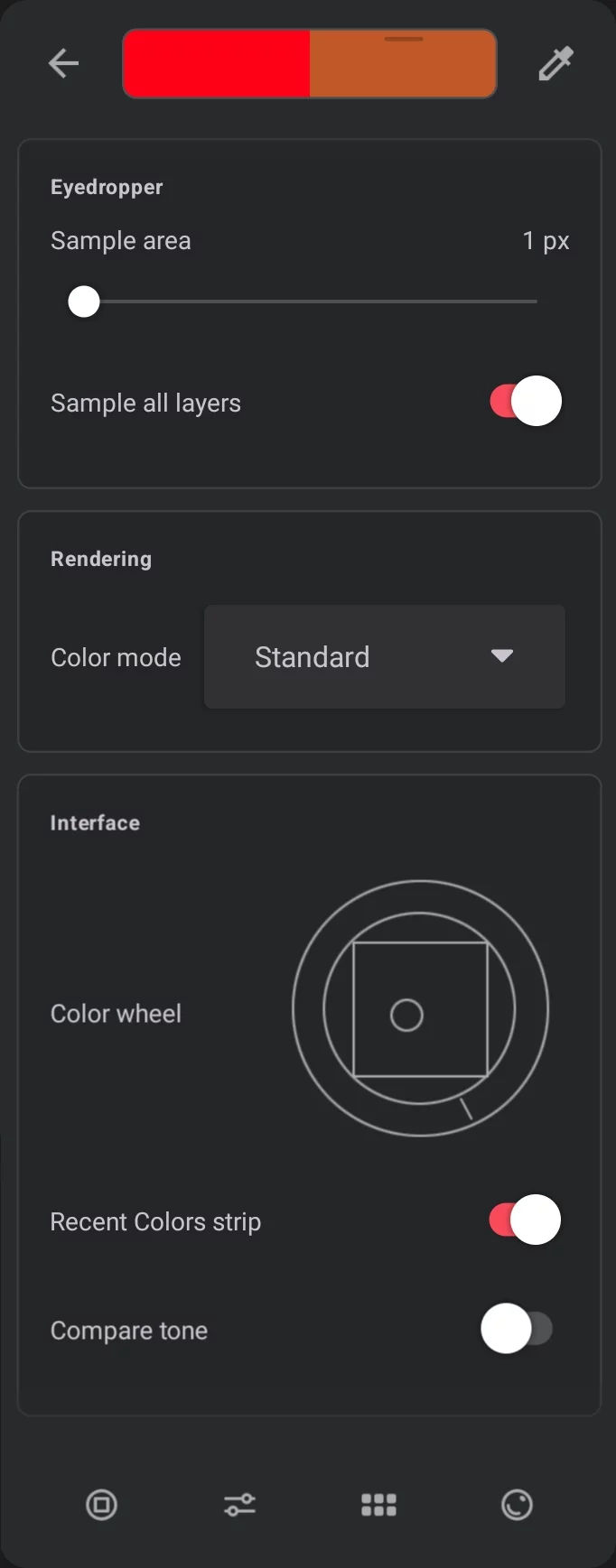
Eyedropper settings
Control your pixels.
Eyedropper settings in the Color settings panel
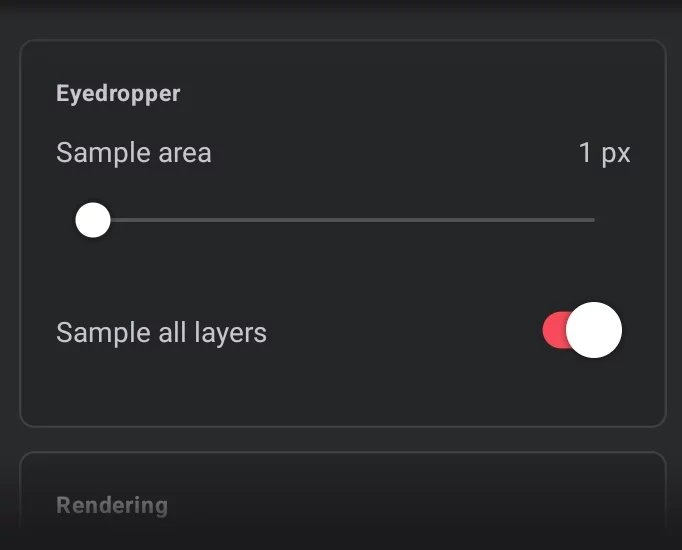
Sample area (the size of the sample area)
The Eyedropper averages colors of pixels within a set radius. This allows you to avoid sampling stray pixels in random colors.
Sample all layers (toggle)
Sample size
Sample size and resulting average color:
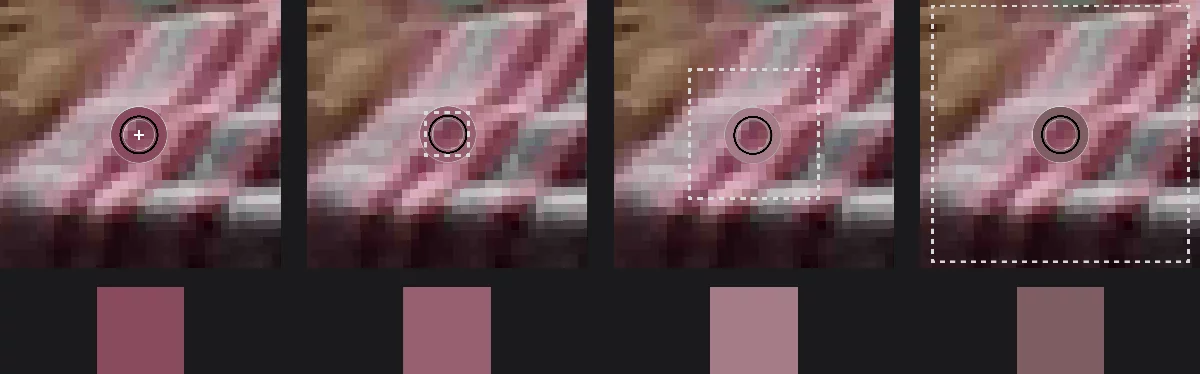
Sample size = 1 px (point sample)
Sample size = 5 px
Sample size = 15 px
Sample size = 31 px
(Zoomed in to show the actual pixels of the image)
The sample size of the Eyedropper may be set between 1 and 100 pixels.
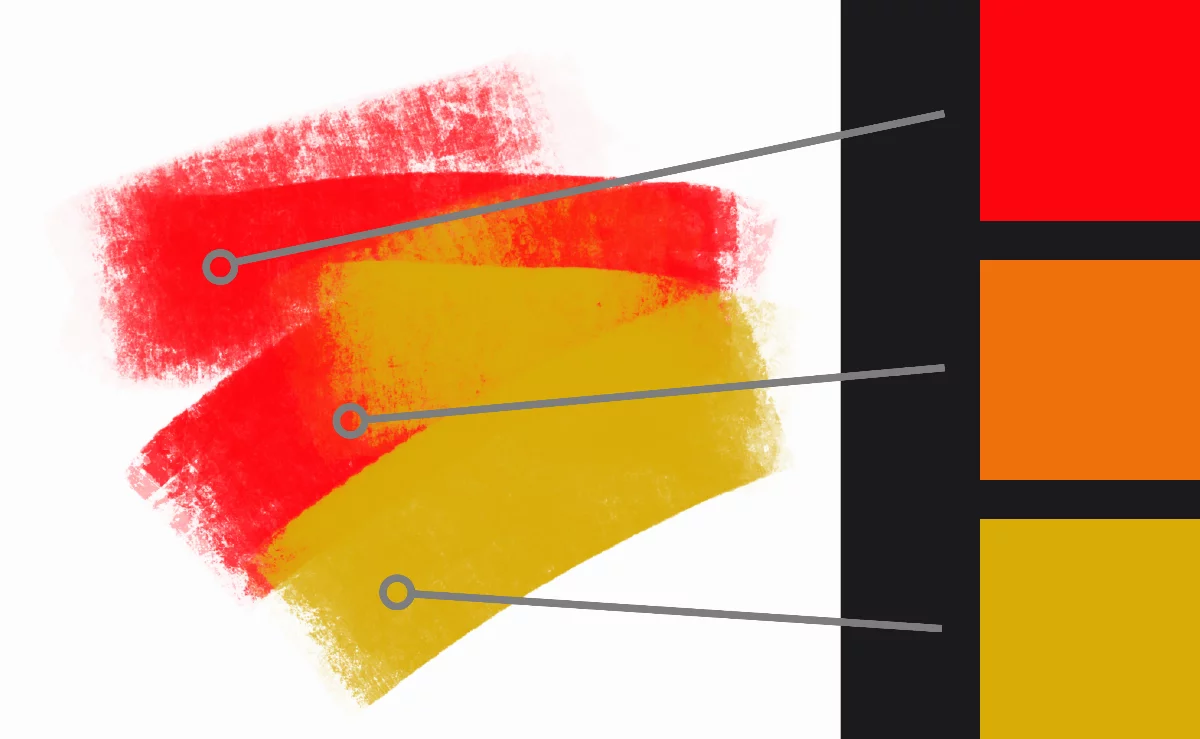
Sample all layers
Sample all layer ON (default)
All layers and the Paper are sampled. The result is closer to your intuitive assessment of the color in given point of the canvas.
Sample all layers OFF
Only the current layer is sampled. The resulting color may be more precise, but usually unintuitive.
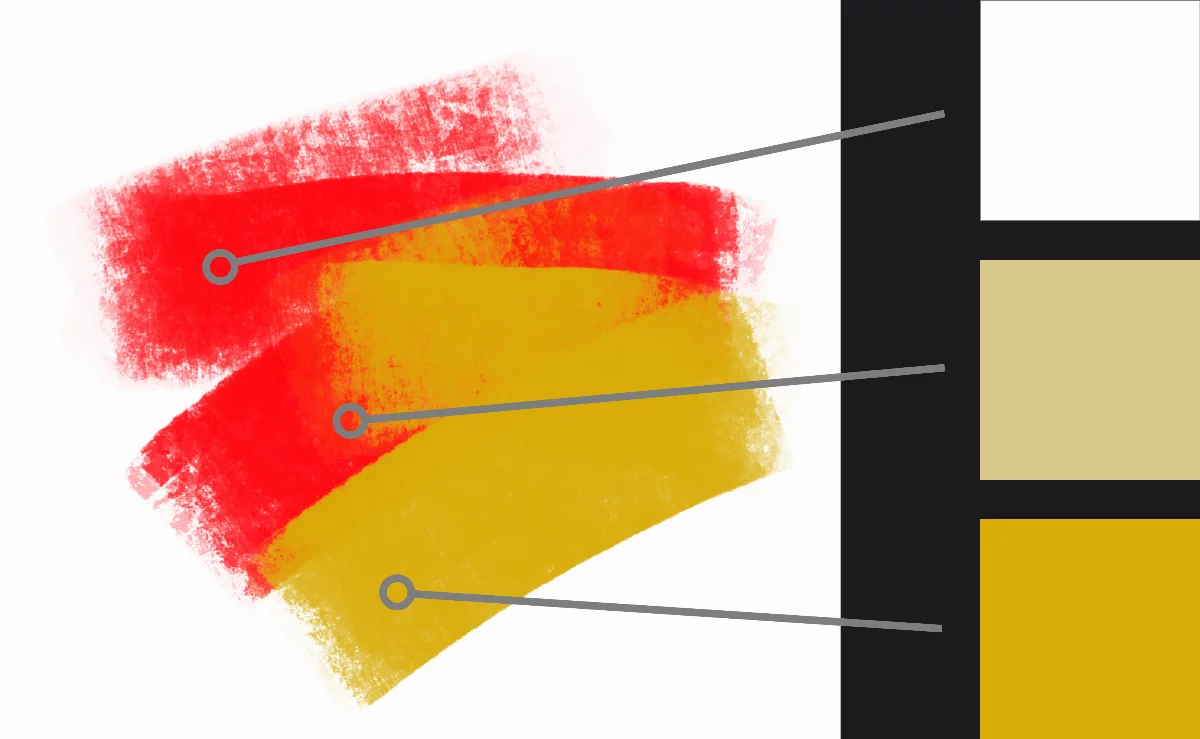
When the Paper layer is visible, its color is sampled; if Paper is hidden, the background is treated as white.
Turning off the "Sample all layers" option makes the Eyedropper ignore also all the adjustment layersAdjustment layerA special, non-editable layer that works as a real-time adjustment or filter for all the underlying layers. There are various types of adjustment and filter layers.Learn more above the current layerActive layerIt is the layer which is currently edited. In Infinite Painter, only one layer may be “active” at a time (except for the Transformation tools, where you can select a number of layers to be transformed simultaneously).. The results may be unexpected.
Color history
Color history keeps up to 10 of the last-used colors, so you can reuse exactly same colors consistently.
Recent colors can be found in two places:
Recent Colors strip
docked to the main toolbar
“Recent Colors” section
in the main Swatch palette (see Swatch palettes).
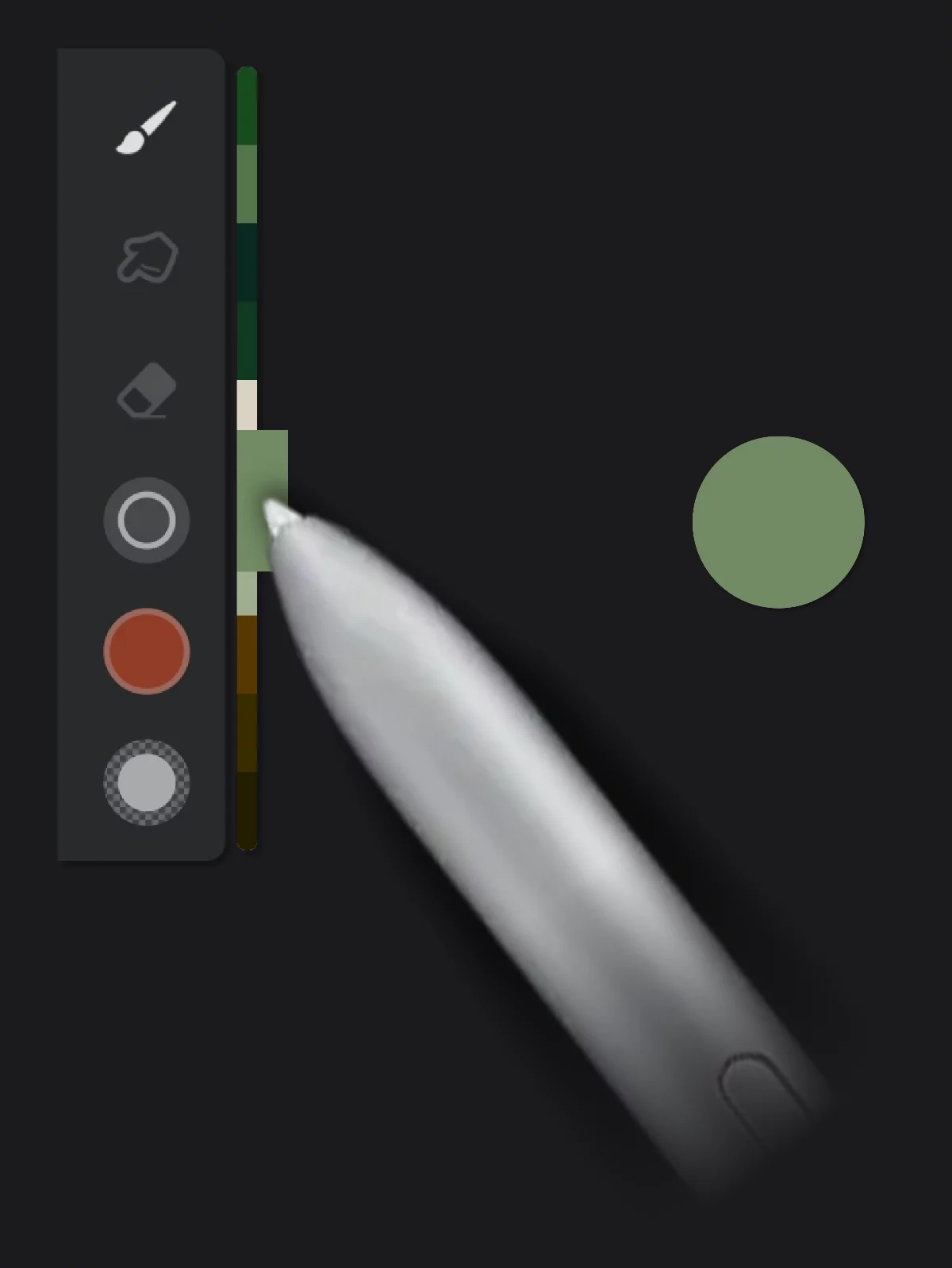
Recent Colors strip
docked to the main toolbar. Always there when you need it.
Tap on a color swatch
to set it as the current painting color. Drag up and down to preview other colors from the history.
When you select a color from the Recent Colors strip, a large floating swatch is displayed
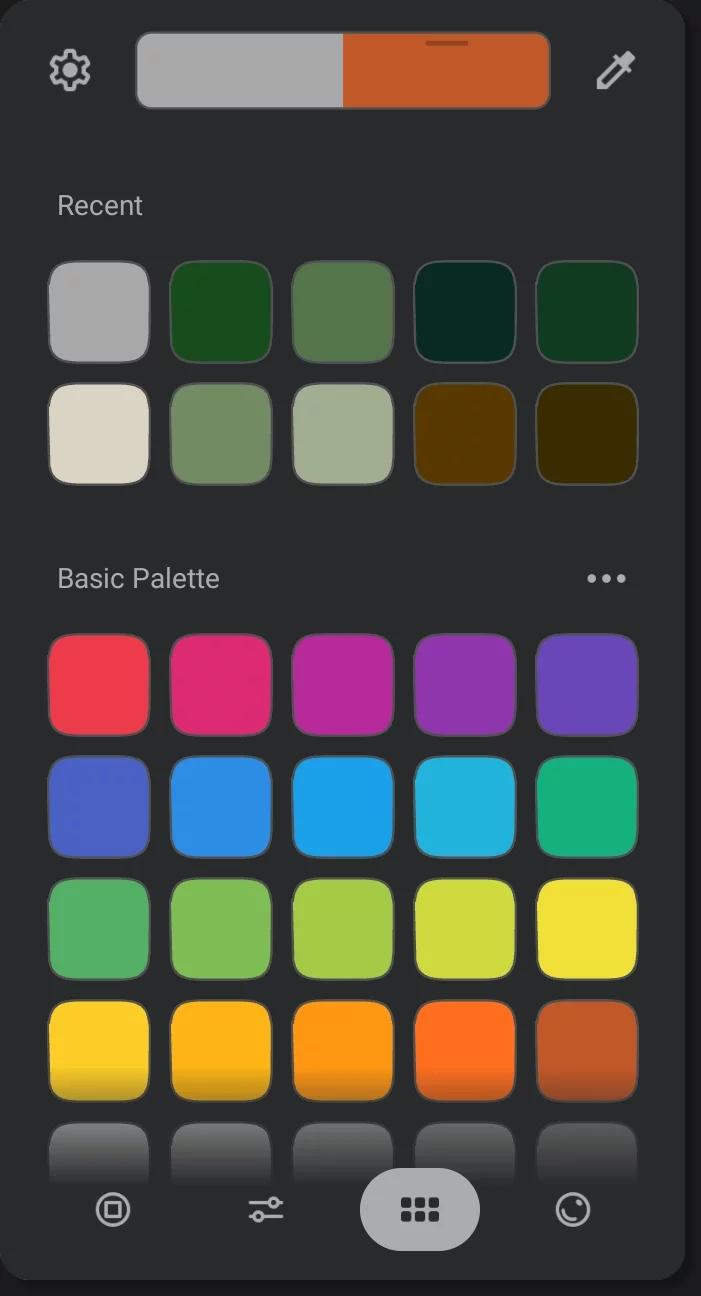
Recent colors section
at the top of the Large Swatch palette is the same as in the Color History picker.
Smart color selection
The color history averages very similar colors, so if you use a color almost identical to an earlier one, it will not be added to the list.
You can hide the strip in the Color settings.

Close
the settings panel
Color mode
Set the color profile for the on-screen color proofing. This option affects only the working preview, not the actual colors of your artwork. Learn more in On-screen color proofing.
Color wheel style
Select your favorite style of the color wheel.
(You can have only one variant at a time)
Learn more about the alternative styles of the color wheel in Alternative color wheels and about using the color wheels in general — in Using the color wheel.
Compare tone
More in Advanced features of the Color panel.