
The Orb
The magic of light and shadow.
The Lighting Orb is an innovative tool for studying (and applying) realistic lighting
Set the colors of the light and the shadows and pick any intermediate color to your artwork
Principles of the illumination of a 3D object
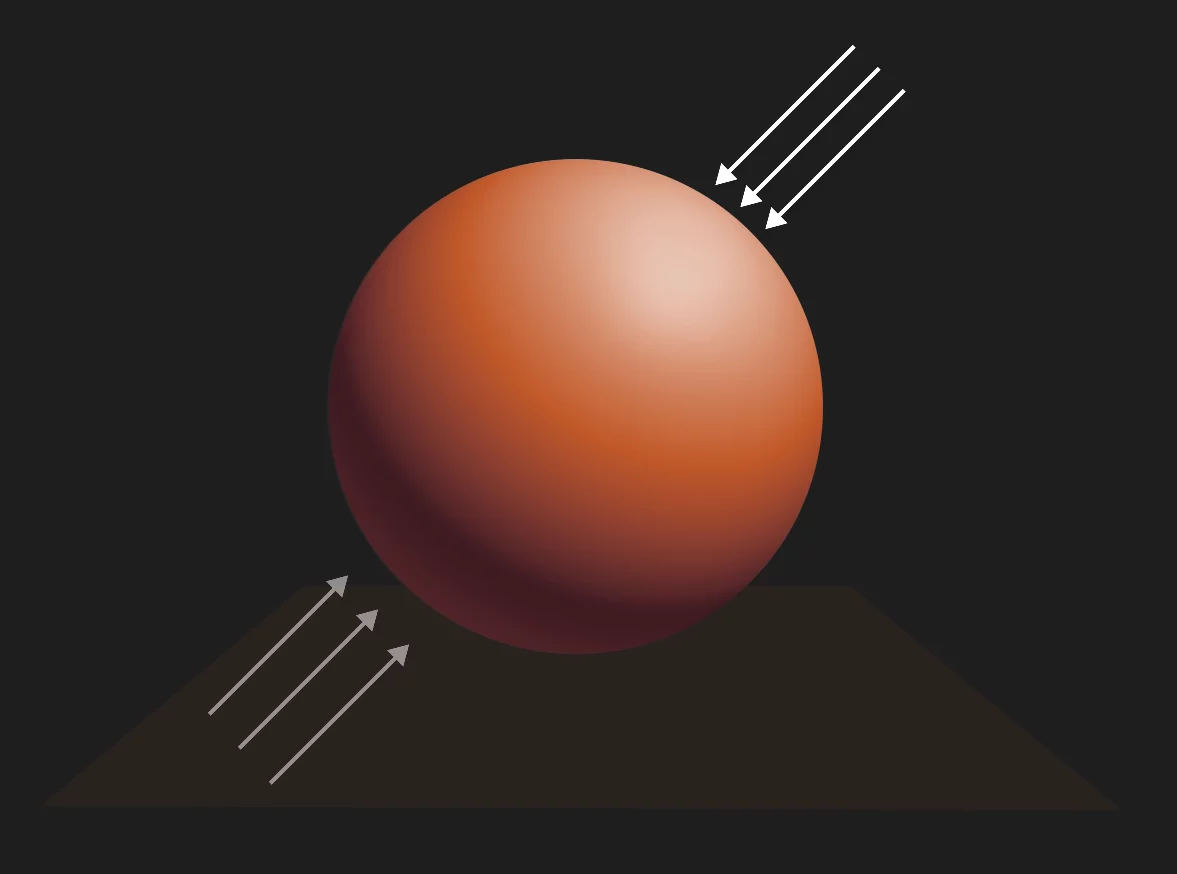
The main "light source"
Ambient and reflected light defining the color of the shadows.
The shadows in real world are rarely black
The Lighting Orb tool helps you simulate how the colors of the object, the light and the ambient light mix.
Color panel the Lighting Orb tab
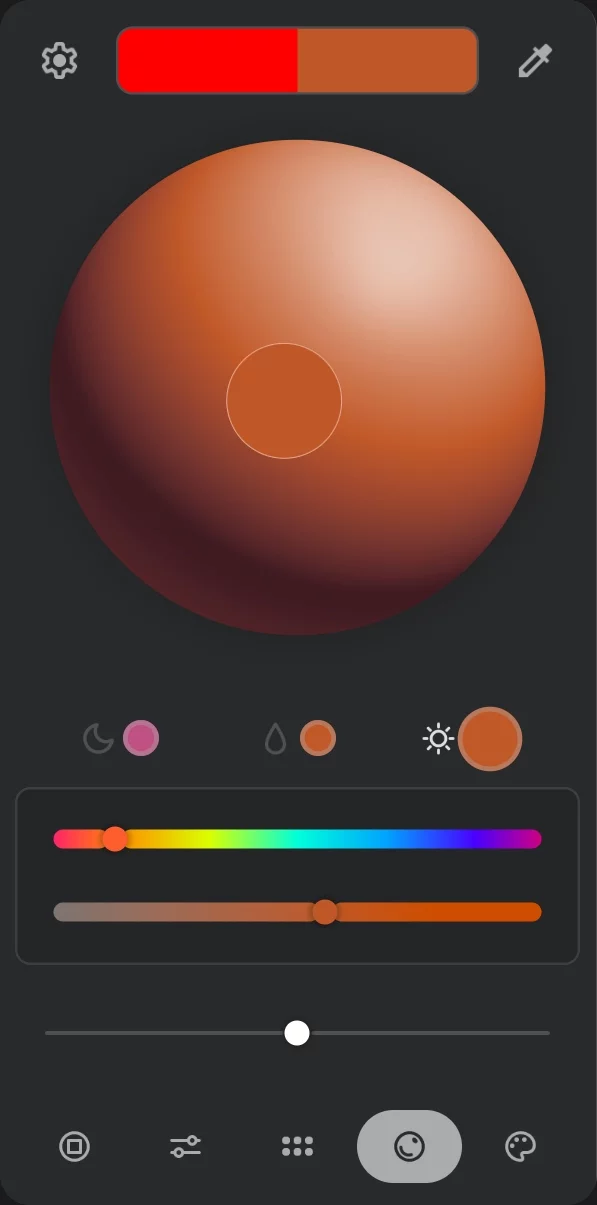
Color picker
drag the pointer to pick the color from the orb
The color of the "light"
Tap to adjust the color (here shown as selected)
The "base" color (the color of the object)
Tap to adjust the color
The color of the "shadow"
(the hue of the darkest parts of the object)
Tap to adjust the color
Hue
Saturation
(of currently selected color: base, light or shadow). Note that the brightness of the light and shadow colors is controlled by the Contrast slider.
Contrast slider
adjusts the intensity of the light and shadow
The Contrast slider
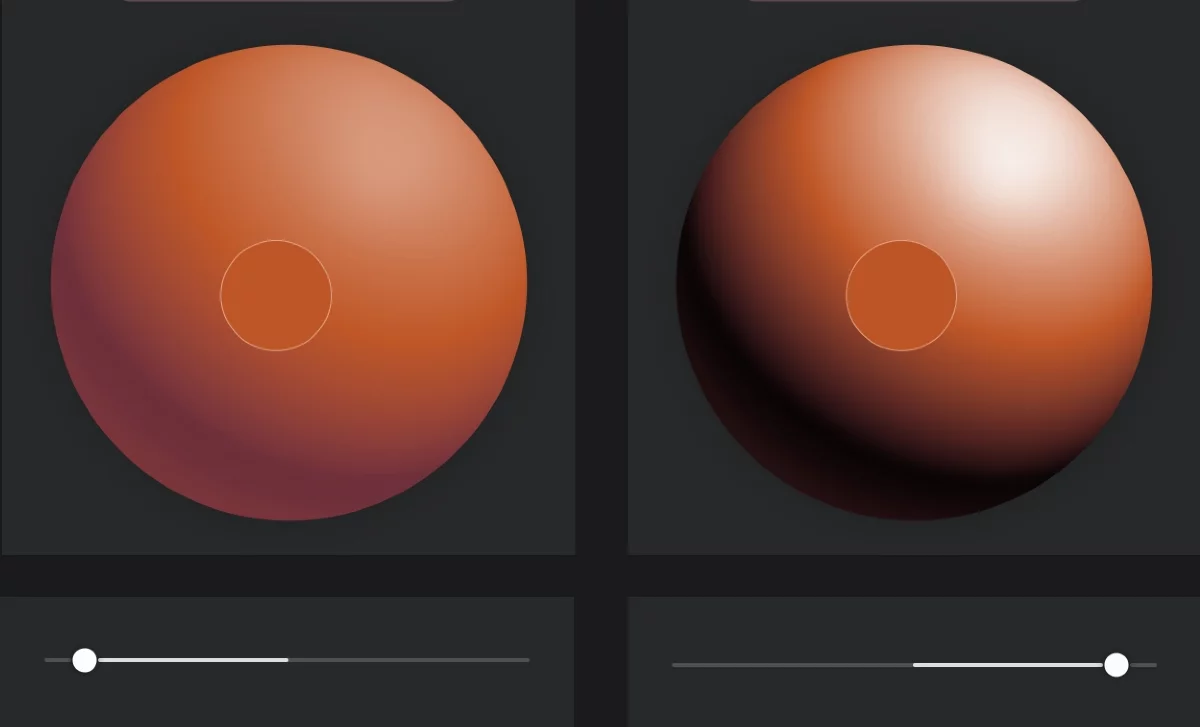
Low contrast
High contrast
You can change the base color of the Orb without altering the colors of the light and shadow to study how differently-colored objects would look like in the same lighting setup.
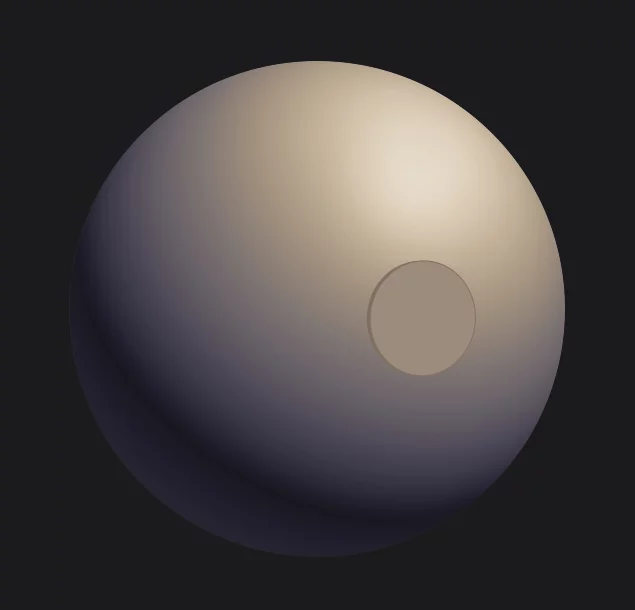
For dramatic, painterly effects, set the color of the light warm and the color of the shadows cool.