
Floating tools
Have them where you want them.
You can have a number of floating widgets on your screen. Place them where convenient; scale them with two-finger pinch gestures.
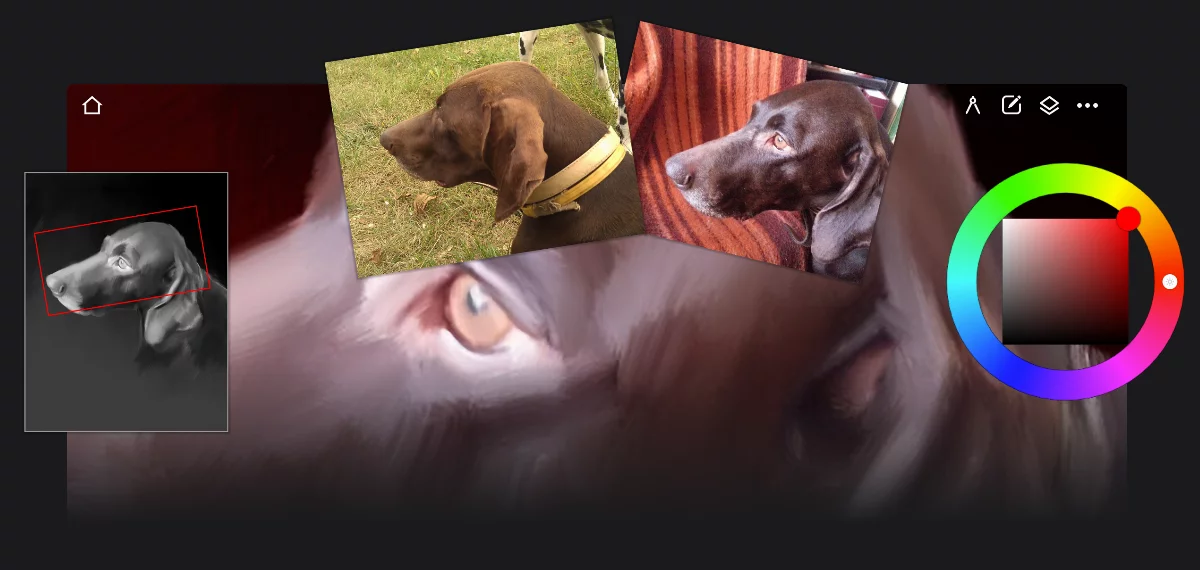


Reference images
Import photos or your own sketches for reference. Learn more below.

Color wheel
pick colors without opening the color panel. See Color wheel widget.
Reference images
Get inspired, not limited.
Use photos for reference and inspiration. Place them anywhere on your screen.
Lean how to import them in Importing images.
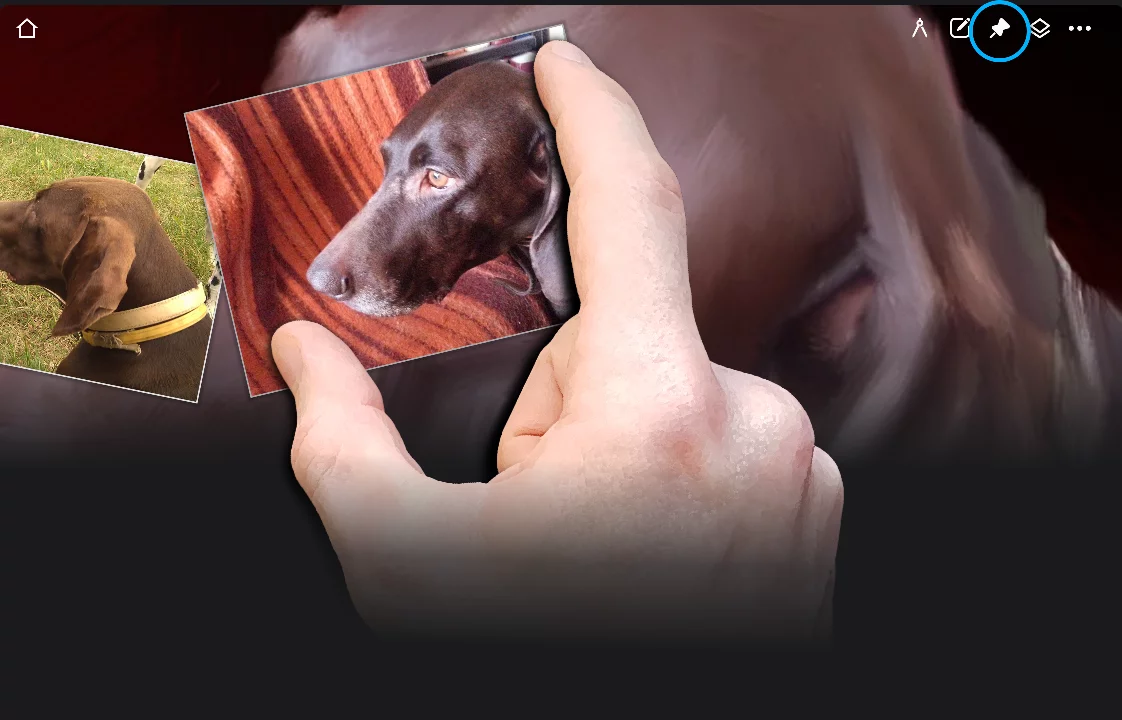
When reference images overlap, tap that one you want on top.
Move, scale and rotate the floating images with two-finger pinch gestures.
Learn more about gestures in Gestures.
You can sample colors from reference images by simply tapping with your stylus (or finger in Normal mode) or using the Eyedropper tool.
Learn more in Eyedropper tool.
You can have as many reference images as you wish in a single project. Note that in Infinite Painter 7 the reference images are stored within your project; adding multiple reference images may increase the size of the project.
If you delete the reference, it will disappear from the project, but the original file will not be affected.
Using reference images
Import them, use them, forget them.
To place an image as reference use Import command from the Options menu with "Import As Reference" option.
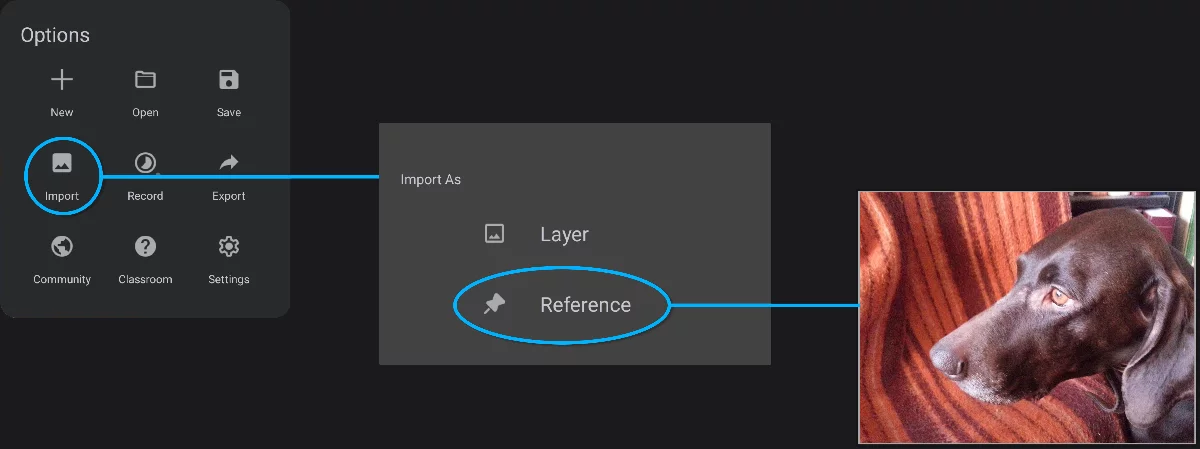
Imported photo appears on the screen. Use two fingers to place where you want it.
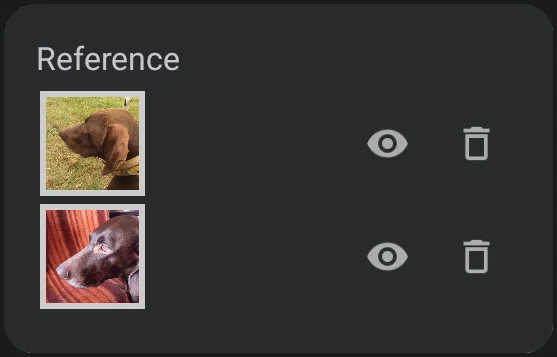
Reference image thumbnail
Toggle image visibility (hide/show).
Remove image from the project (this doesn't delete the original image file).
To flip a reference image double-tap on it.


Tip: To quickly hide a reference image drag it with your stylus over the ✖ icon in the middle of the screen.