
Infinite Painter is designed for use on touchscreens and many functions are controlled by gestures. Starting with drawing and painting which are, well, inherently gesture-controlled.
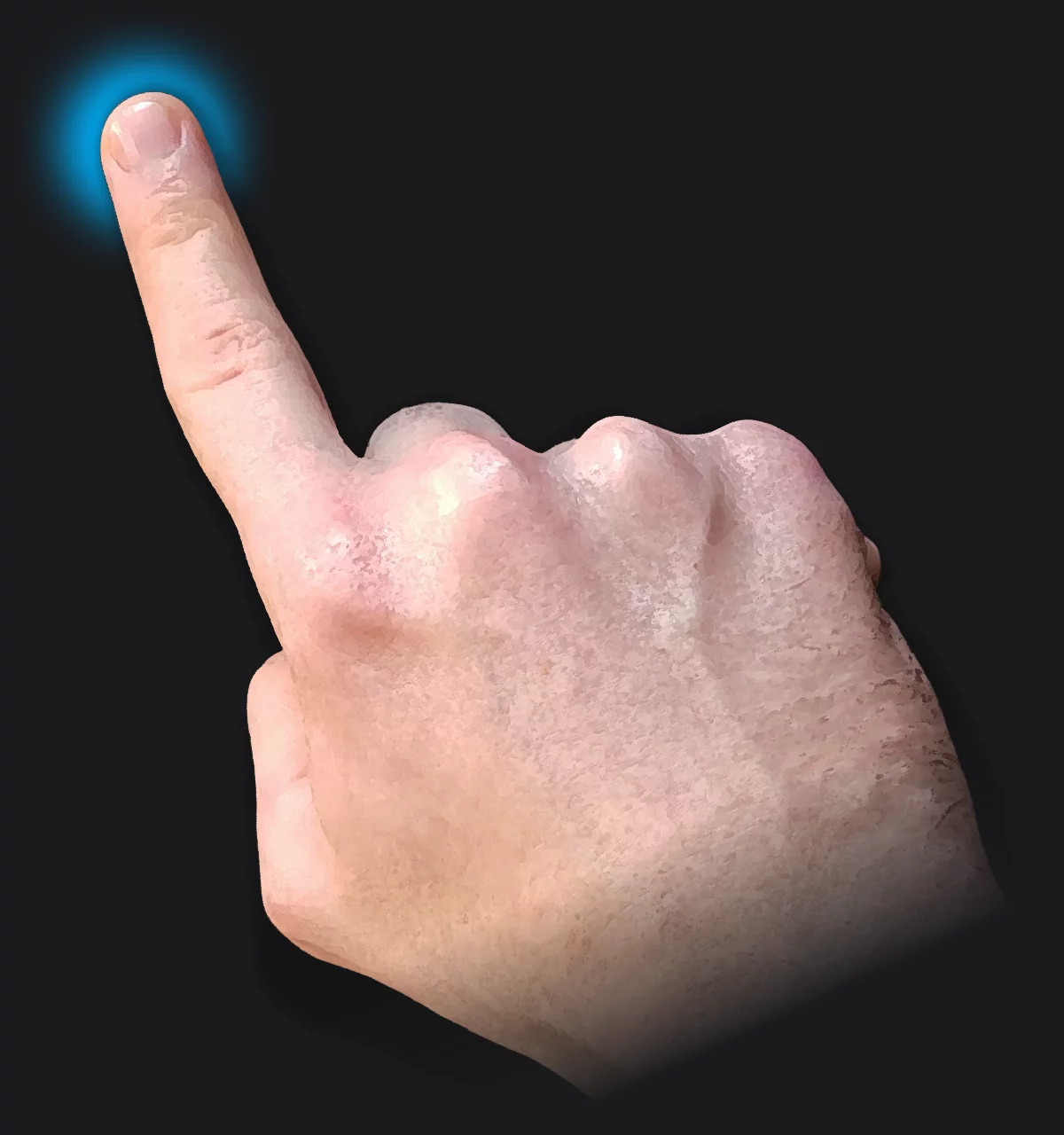
Tap and draw
Use your finger or a stylus.
You may paint, blend, erase and use any of other tools with your finger alone. Select tools by tapping them.
If you have a stylus, like the Samsung S-Pen®, you gain a lot more precision.
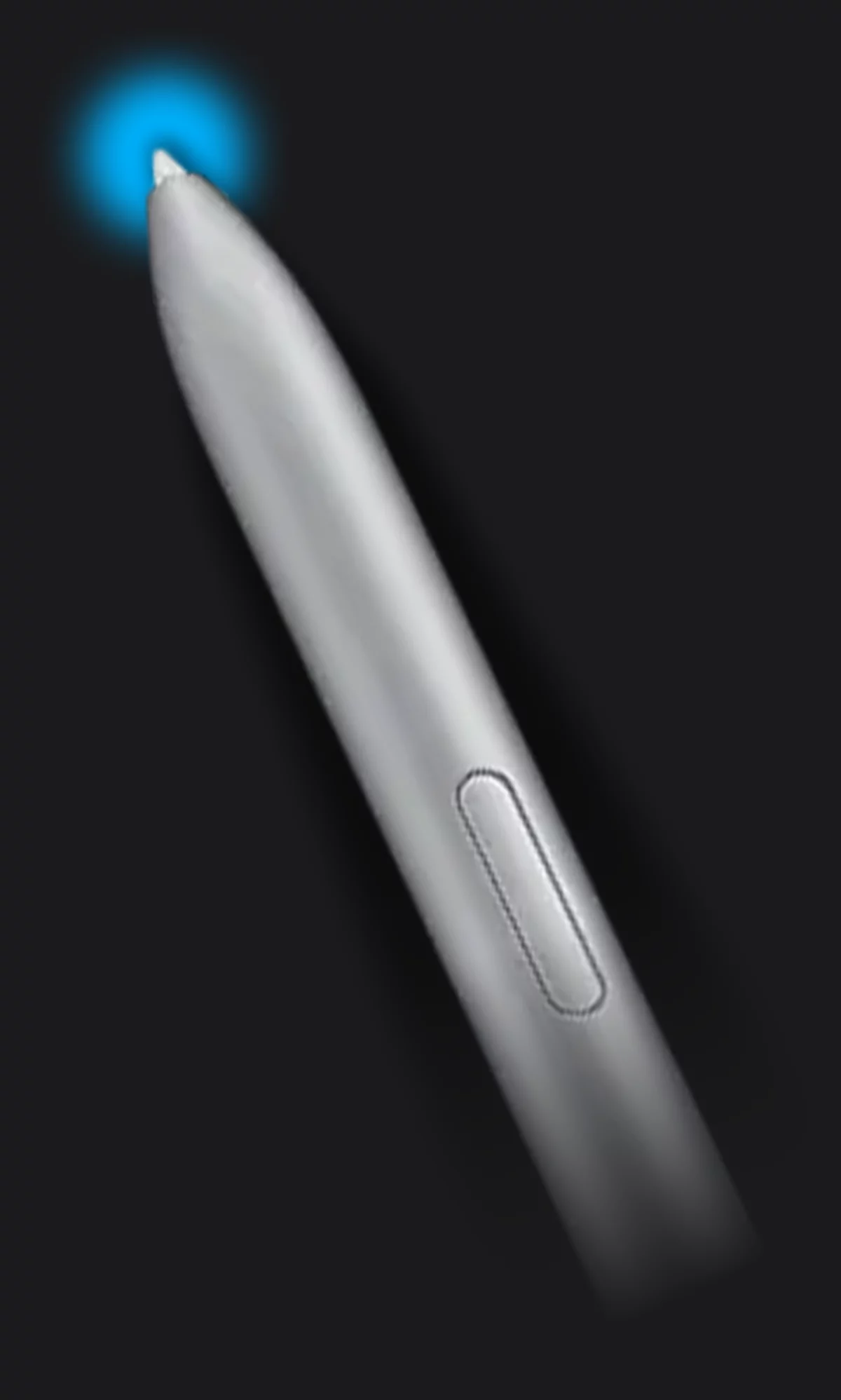
Note that once you use the stylus, certain functions in Infinite Painter may be used with the stylus only (learn more about that in Using a stylus.
Navigate around the canvas
With two fingers.
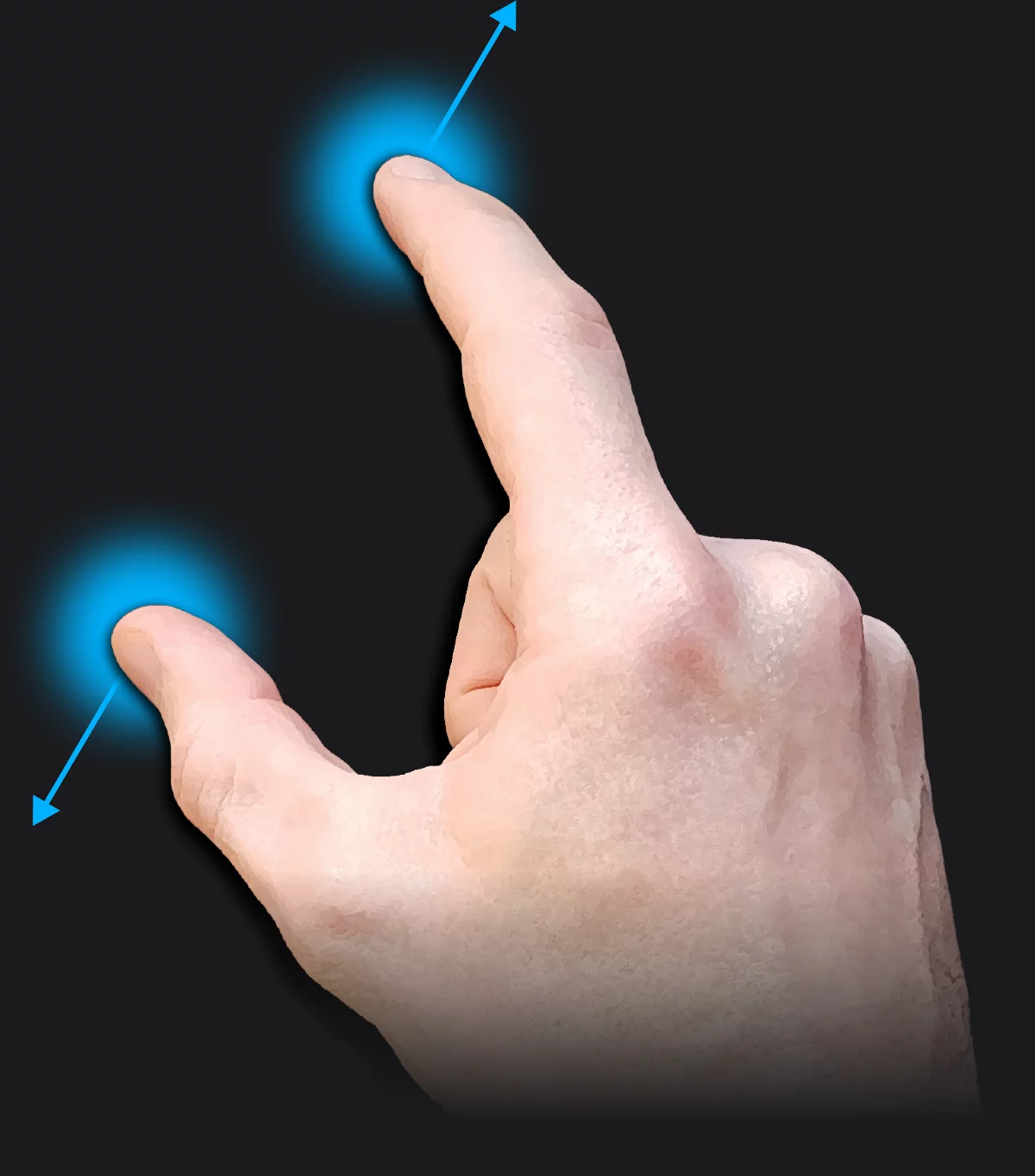
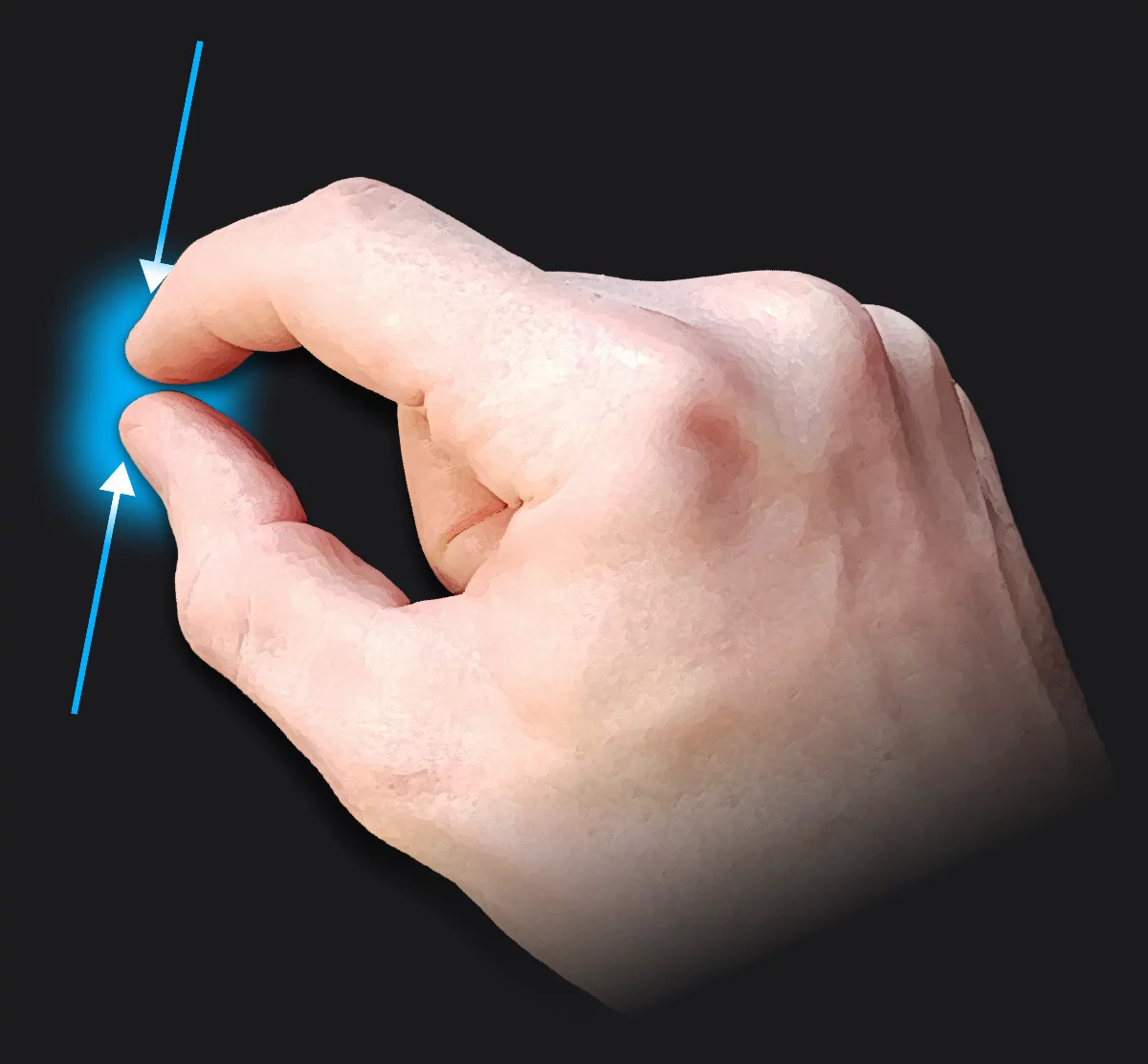
Pinch with two fingers to zoom in and out.
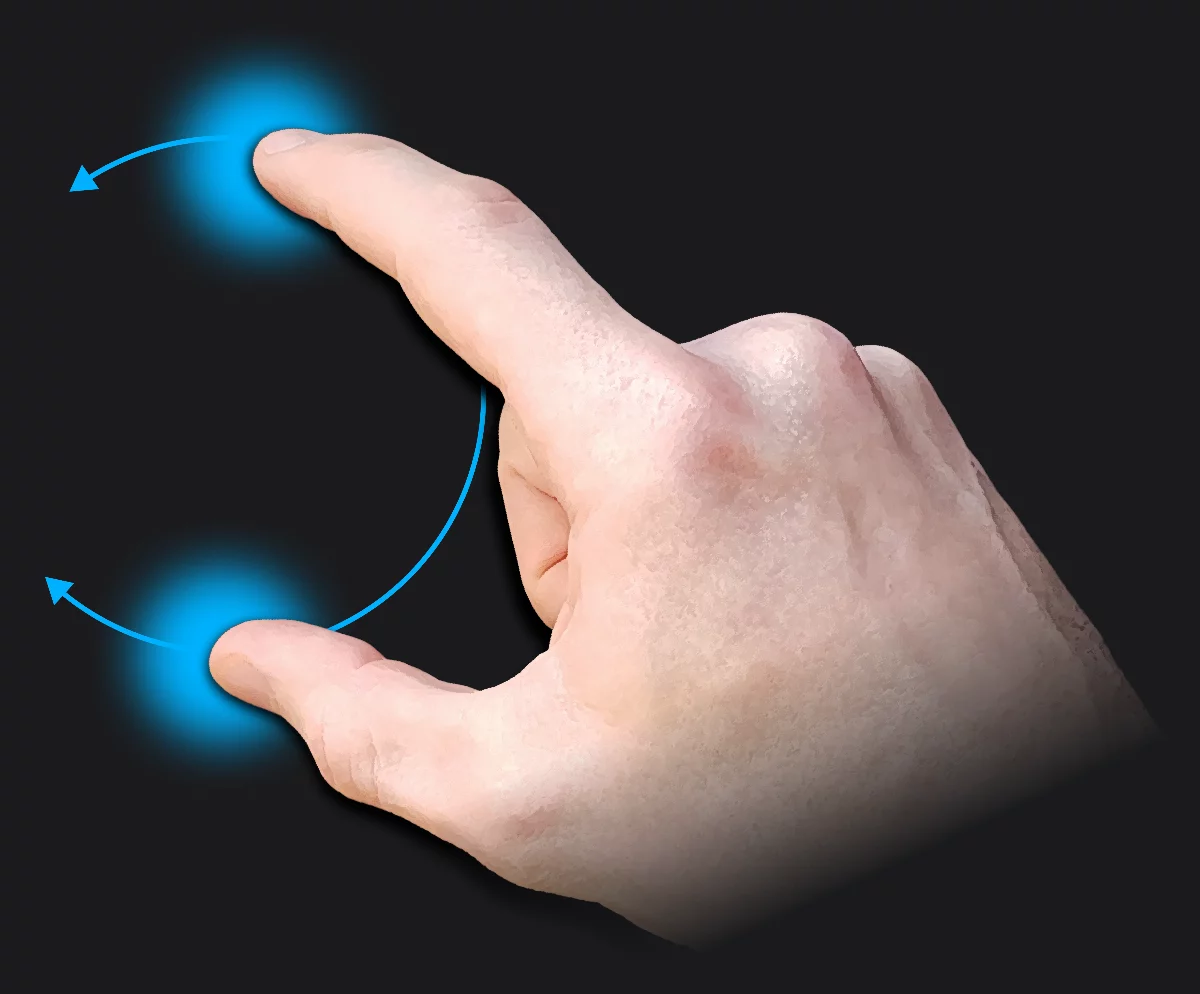
Rotate canvas with two fingers. You can simultaneously zoom and rotate.
Got lost?
It is easy to return to full canvas view
Quickly pinch with your fingers and lift them up to see the entire canvas.
...or double tap with one finger.
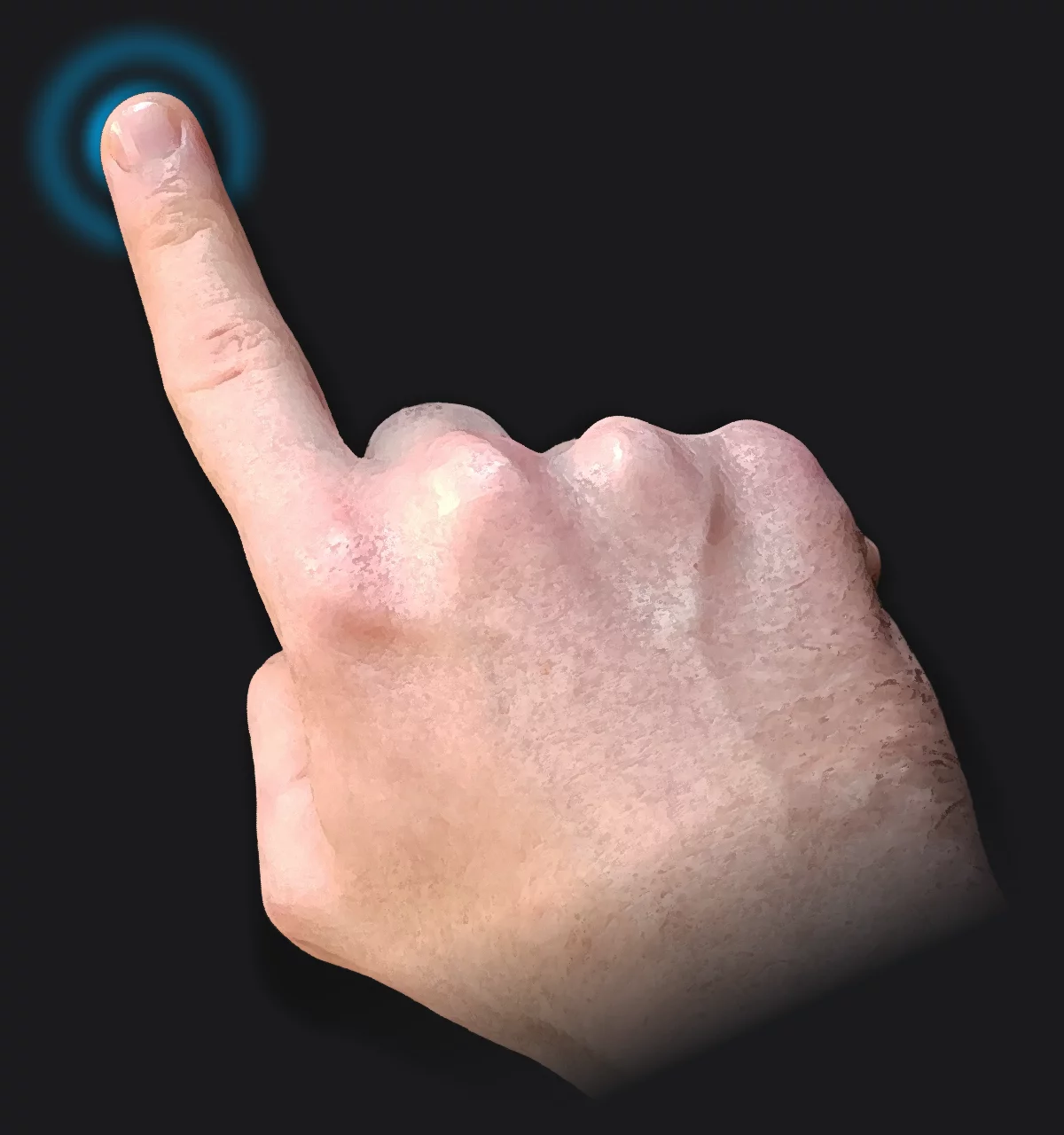
Note that you may assign the double-tap gesture to other functions if you wish to. See Application settings for details how to do this.

You can also use the Fit command from the Creative Tools menu.
Undo and redo with gestures
So easy.
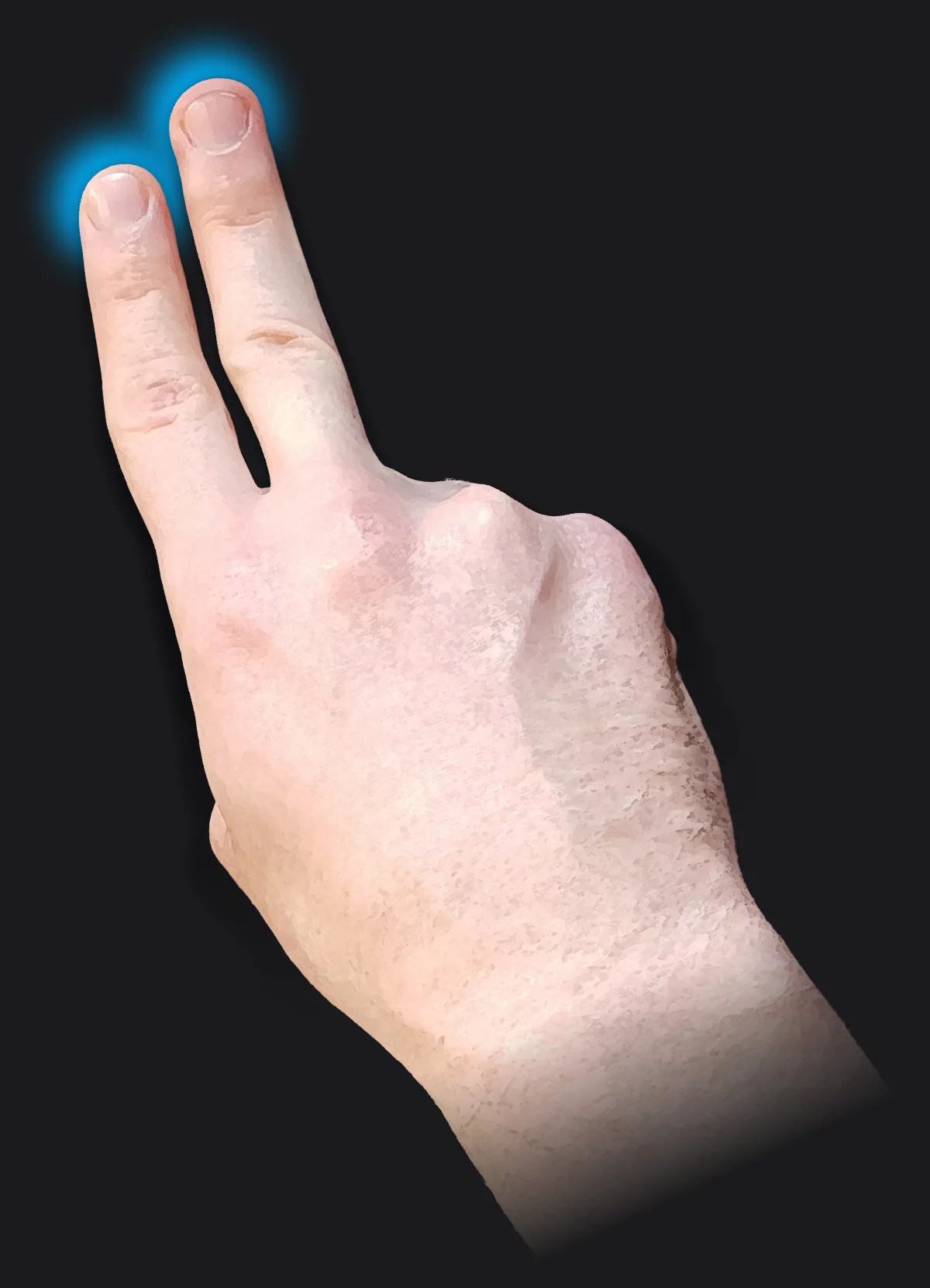
Tap with two fingers to undo last action.
Up to 32 steps back.
Tap with three fingers to redo if you changed your mind.
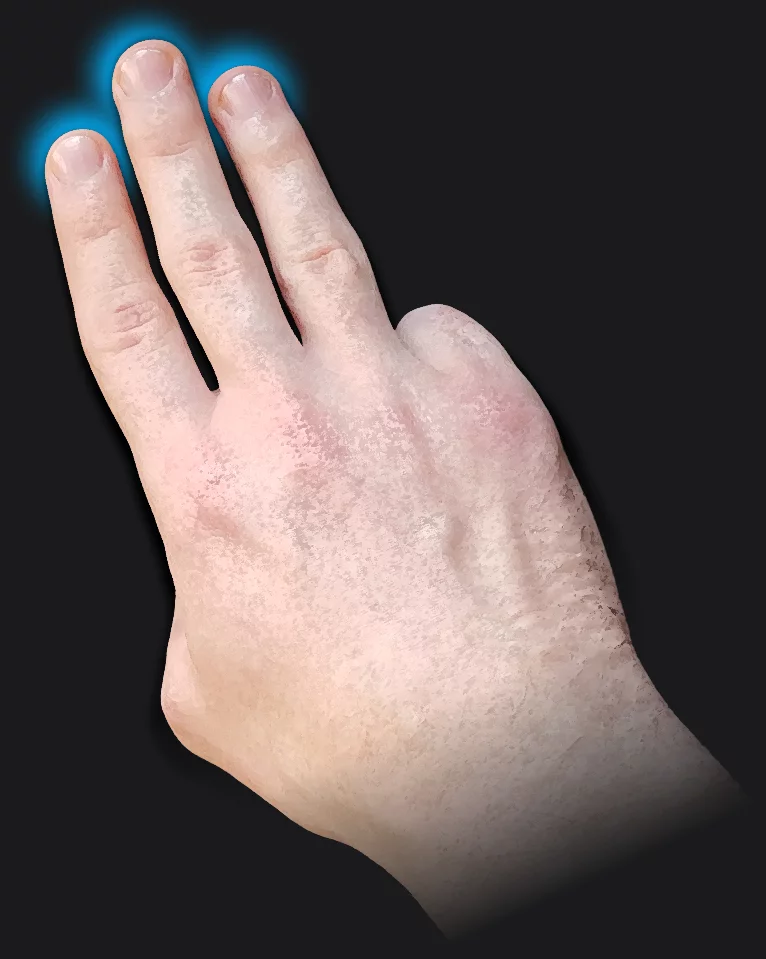


Of course you can still use the undo and redo buttons in the lower-left corner of your screen.
Learn more about the undo-redo system in Undo system.
Long-press
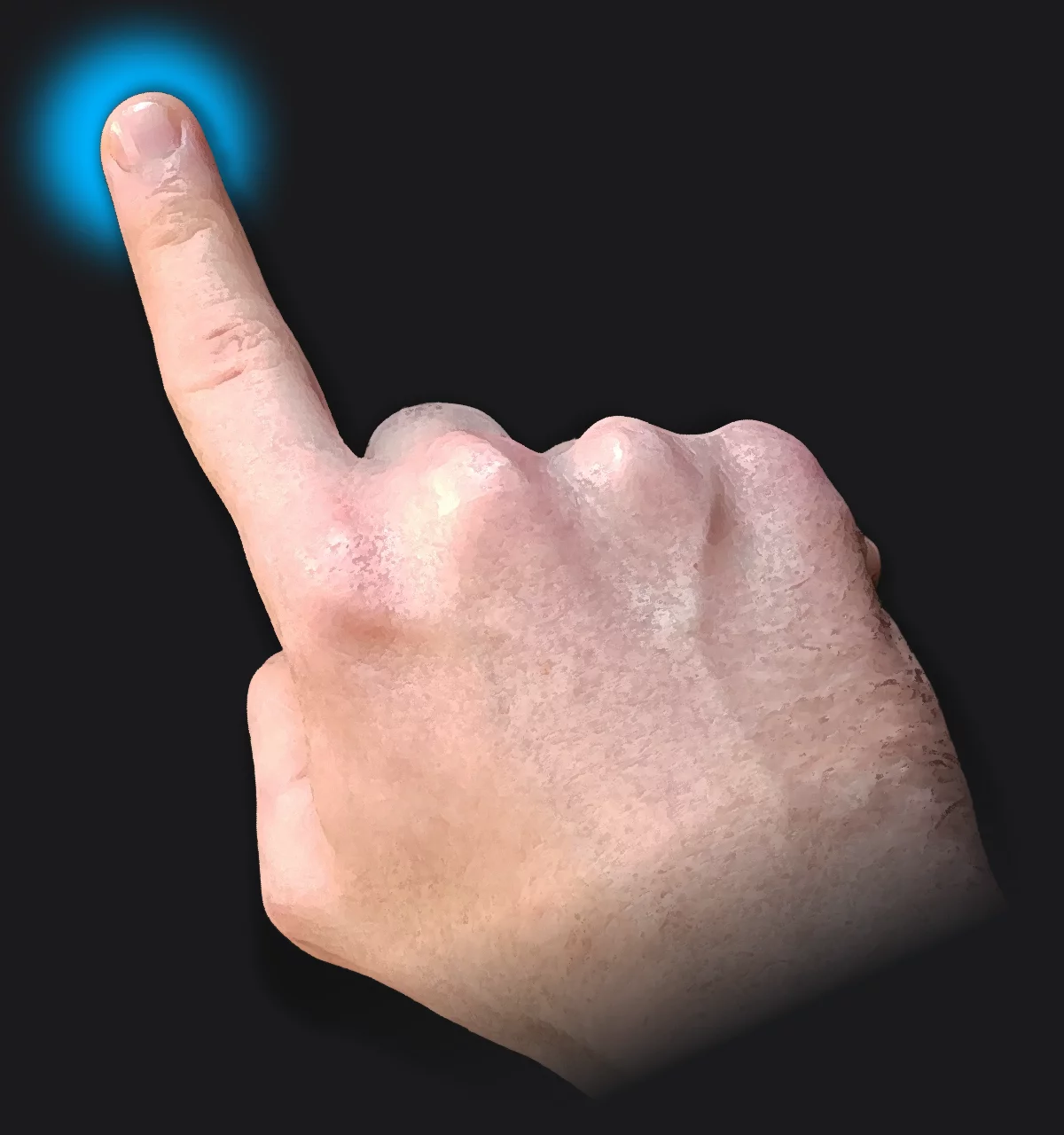
Touch-and-hold.
On the canvas:
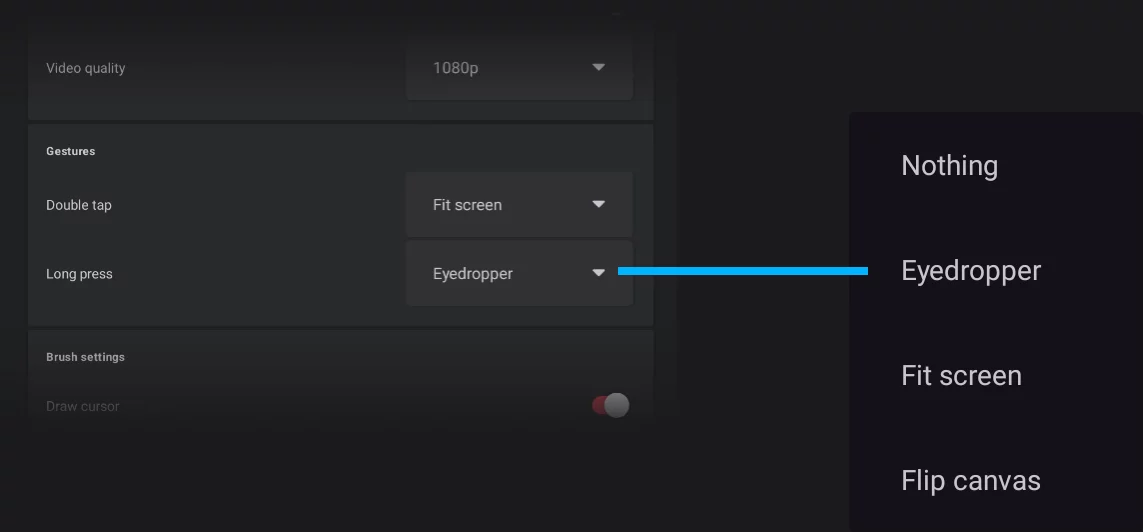
Long press gesture (on canvas) can be bound to any of several actions.
The default action is the Eyedropper (color picker).
Settings panel
In lists of items:
Long-press on an item in a list usually gives access to its options/settings.
This applies to: brushes (and brush folders), project thumbnails, swatch palettes, color swatches, image thumbnails (in Texture and Pattern selectors and in Clipboard) etc.
Long-press-and-drag
Move things around.
Long-press-and-drag gesture on an item usually allows you to move it.
Reorganizing layers
(See Reorganizing the layers)
Reorganizing projects
(See Reorganize thumbnails in the gallery)
Reorganizing brushes
(See Brush organization)
Reorganizing brush folders
(See Brush organization)
Docking tool icons on the top bar
(See Custom toolbar)
Adjust the brush size with a gesture
Don’t bother using sliders anymore.
Drag with three fingers up and down to adjust the size of the current brush.
This works for other tools too.
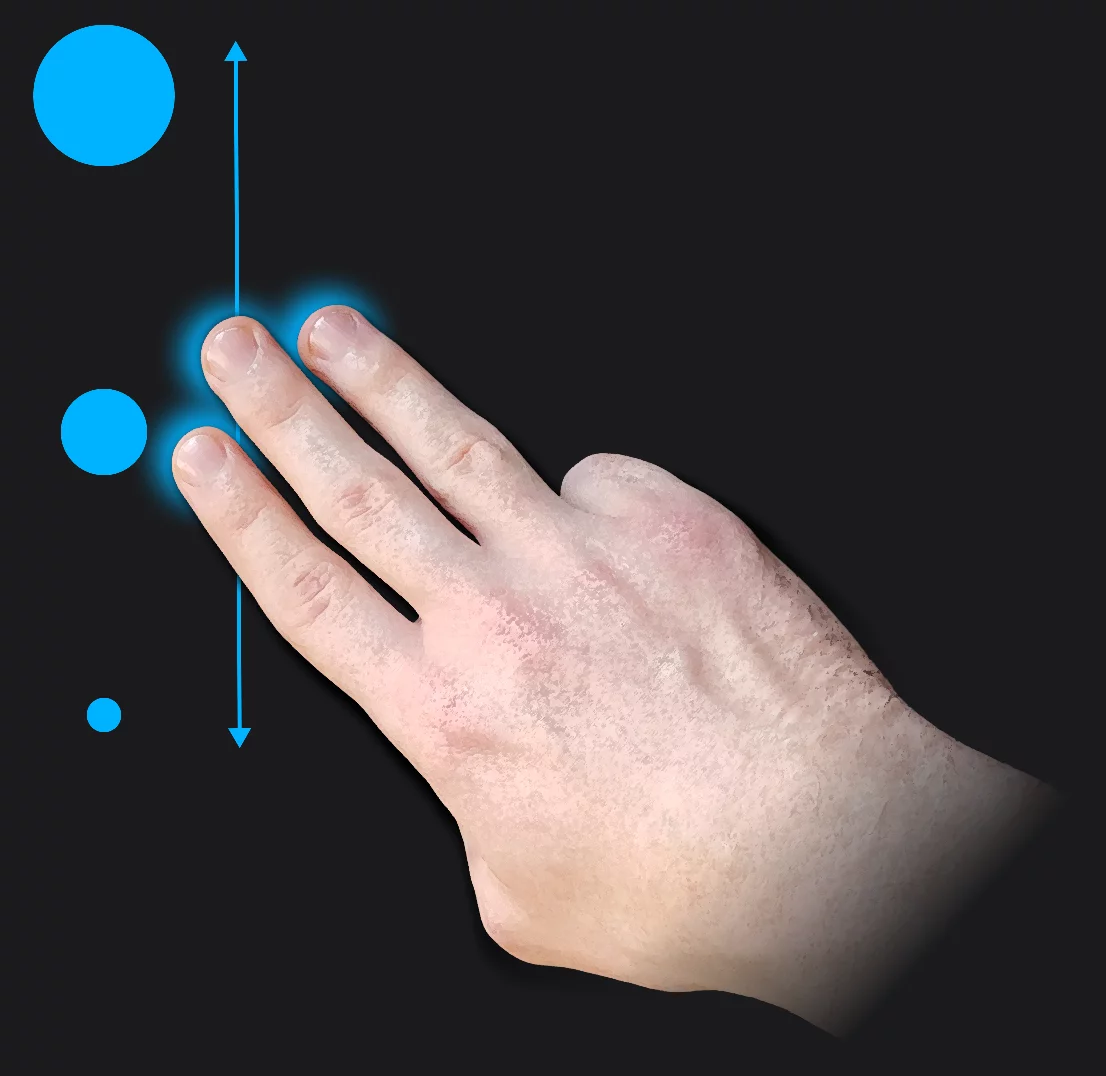
You may change the brush size in other ways too; see Basic brush controls.
Adjust the brush opacity with a gesture
And not only opacity.
Drag with three fingers left and right to adjust the opacity of current brush.
This works for other tools too.
Drag to the left to decrease opacity, to the right to increase it.
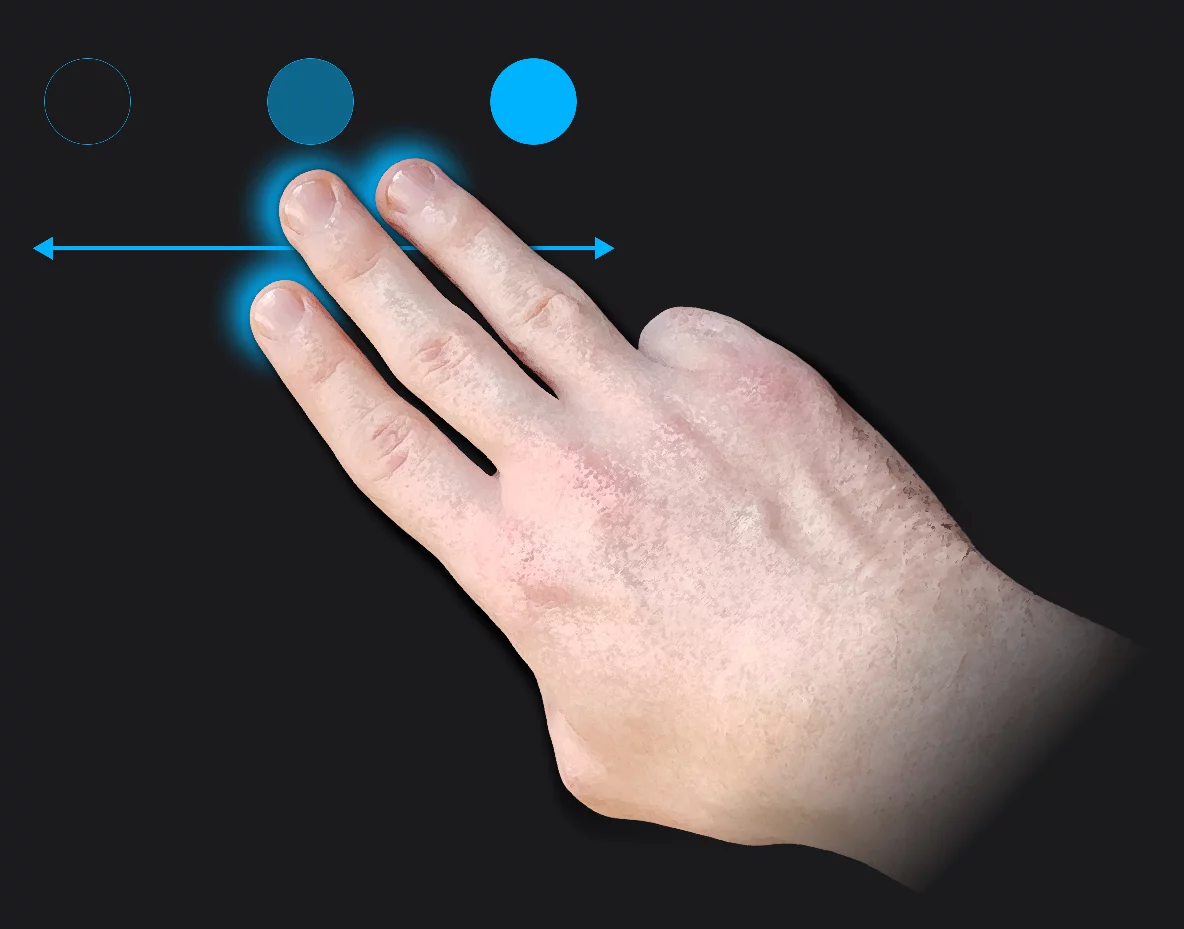
You may change the brush opacity in other ways too, see Basic brush controls.
You may assign this gesture to changing Flow or Softness of current brush if you wish to. Learn in Brush — basic adjustments how to do that.
Touch-Alt
Modify the stylus function with a touch of your finger
While using your stylus, you may quickly change its function by touching the screen with a finger. You can touch the screen in any place.
The resulting action depends on the settings for the Finger function. Default option is the Eyedropper (color picker; see Eyedropper tool for details)
This function may not work on all Android devices.
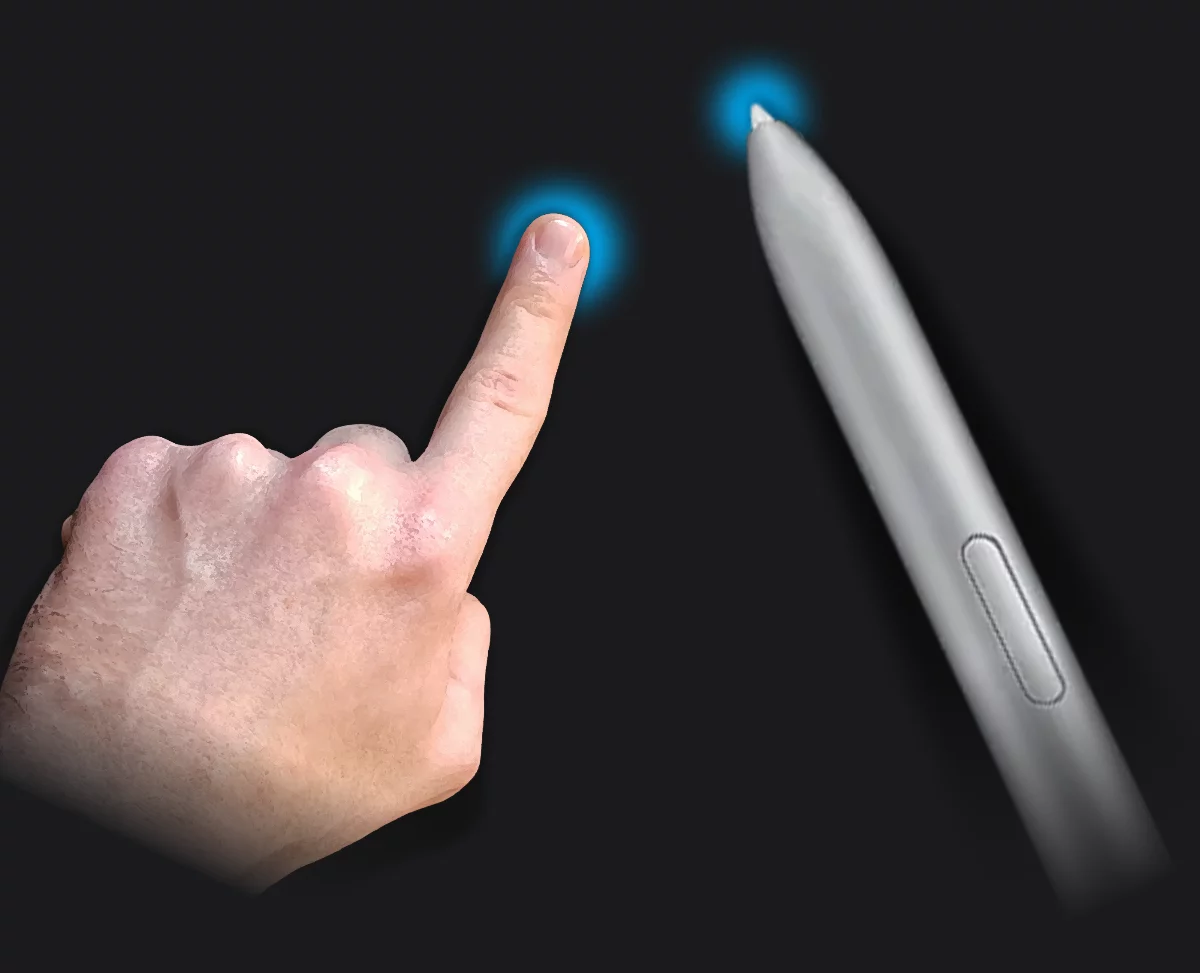
Depending on the tool used, the Touch-Alt function yields different results:
For brushes (in Paint, Blend, Erase and Clone modes) — switches the stylus to Eyedropper or to the function set for Finger (Blend, Erase or canvas move).
For Shapes:
Rectangle: constrains to square
Line: snaps to 15° direction
Ellipse: snaps ellipse axis to 15° direction
For Transformations:
Move: constrains to 45° direction
Resize: constrains to 100% size increments
For Gradient and Pattern fills: constrains the fill axis to 45°
For Crop/Resize: keeps original canvas ratio.
Hide the interface with a gesture
For full immersion work
Tap with four fingers to hide all the interface elements.
In this immersive mode you can still draw and paint, or use any previously activated tools.
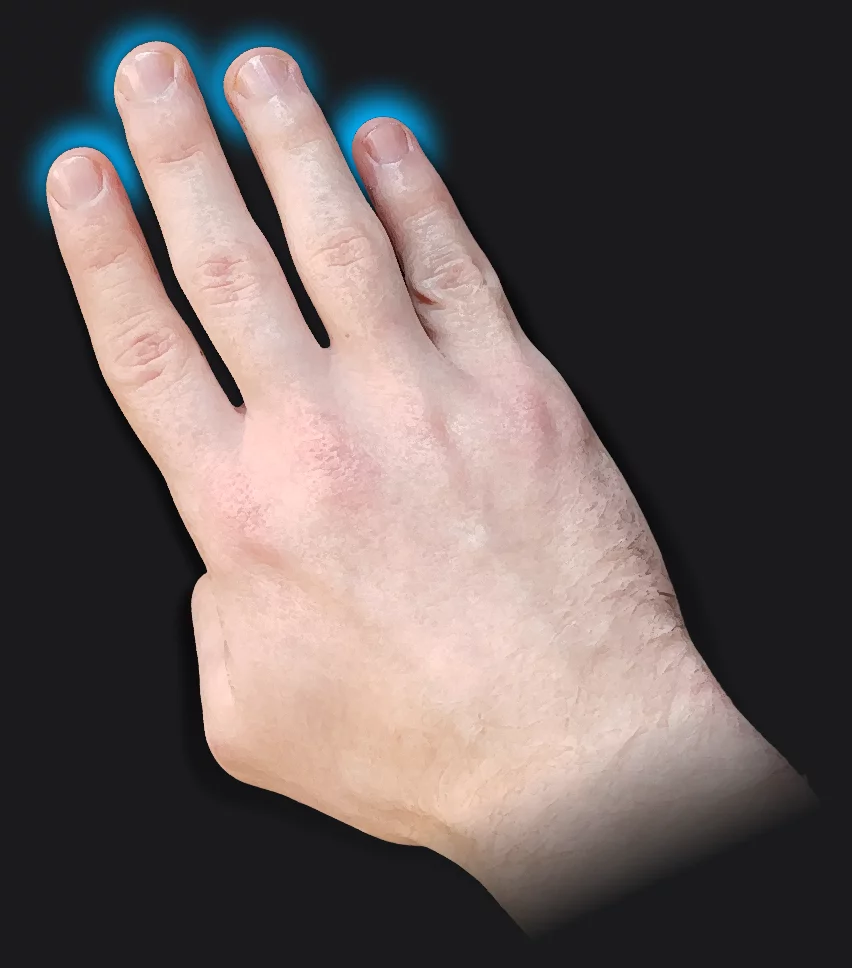
This however does not hide the “floating” screen widgets:
Reference imageReference imageIn Infinite Painter, an imported image (like a photo) that can be placed over the current artwork in a floating window for reference.Learn more
so you can still use them in the immersive mode.
Also, the mini-toolbars for the active tools remain on the screen.
Return to regular interface
Tap again with four fingers to return to the regular interface.

You can also tap the icon in the upper-right corner of the screen to exit the immersive mode.