
Using a stylus
Painting with a stylus
Infinite Painter accepts the regular finger input from the touchscreen, but the real power of the painting tools may be unleashed only by using a stylus.
There are two major types of styluses for the mobile devices:
Capacitive (”universal”) styluses
These work on the regular touchscreens and are usually not pressure-sensitive.
Active (pressure-sensitive) styluses
These usually work with dedicated touchscreens or require a wireless connection to the device.
Capacitive styluses do not require any connection with the device but they do not support pressure or tilt dynamic control.
Active styluses detect how hard you press the stylus against the surface of the screen and (usually) also detect the angle between the stylus and the screen. Both parameters are used to control brushes and other tools in Infinite Painter.
A pressure- and tilt-sensitive stylus replicates the sensitivity of a real pencil, paintbrush or other drawing utensil. All the natural movements of your hand are used to control the digital brush in real time.
Certain styluses require additional software (drivers) to be installed on the device or/and a separate connection with the device (like Bluetooth pairing). In general, Infinite Painter supports the styluses that are compatible with the operating system of your device (Android).
Once you touch the screen with an active stylus for the first time, Infinite Painter will recognize the instrument and will automatically assign separate functions to the stylus and to your finger touches. In general, the stylus would be used for painting while the fingers for screen navigations and interface interactions.
You will be able to decide which functions to assign to your finger in the Stylus settings section of the settings panel.
Stylus calibration
Usually the stylus should work just fine but in rare cases you may need to calibrate the input (pressure or tilt).
There are two separate calibration charts that allow to adjust the pressure and tilt input of the stylus. See Stylus settings.
S-pen® Stylus
The best companion for your Samsung tablet.
Infinite Painter uses all the capabilities of the Samsung S-pen® without the need of pairing or calibration.

The stylus detects pressure and its spatial position relative to the screen (tilt).
Also, the side button can be used to trigger certain functions in Infinite Painter.
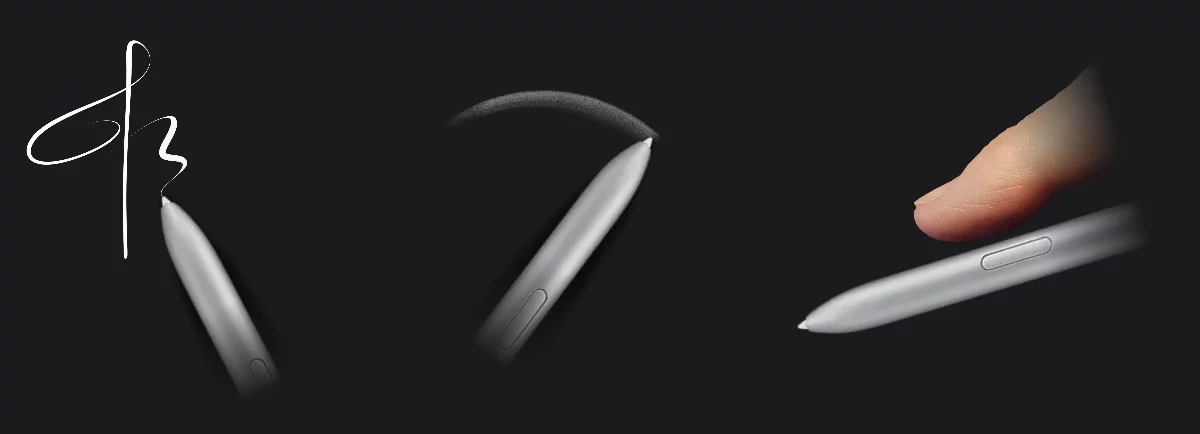
See Brush settings to learn how to fine-tune both pressure and tilt sensitivity of your stylus, and Stylus settings for how to customize the function of the side button of your stylus.