
Settings panel
Your control center.
Control every aspect of Infinite Painter's behavior here.
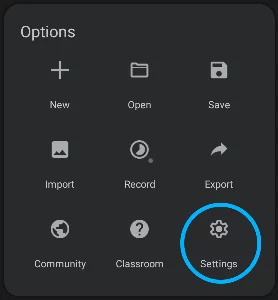
The Settings panel can be accessed from the Options menu.
The panel is divided into 12 sections:
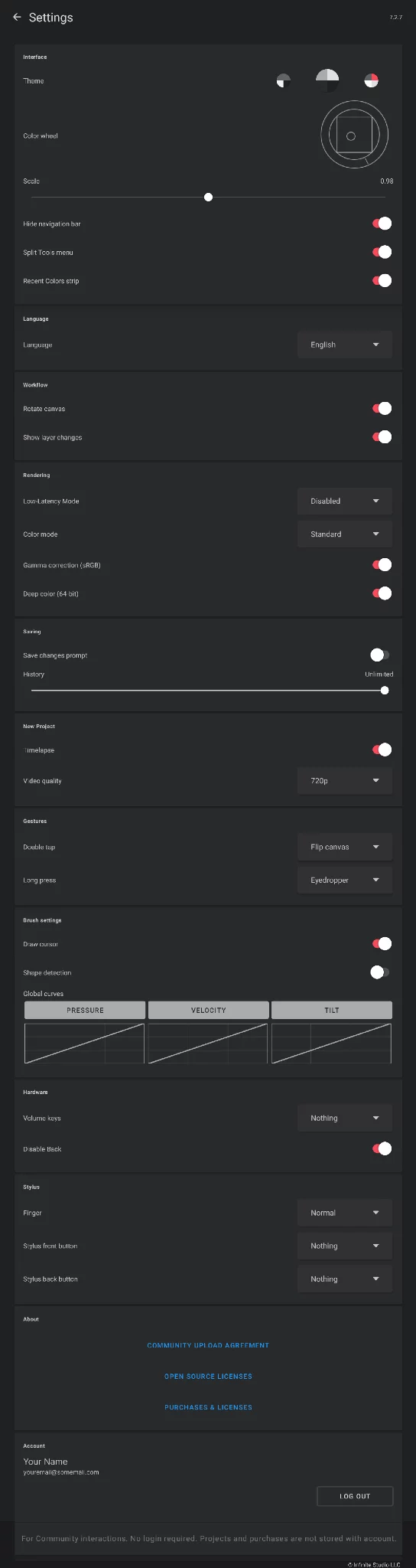
Stylus settings (optional)
If you are a registered beta tester, you may see more sections in the settings panel.
The Settings panel reference
Interface settings section
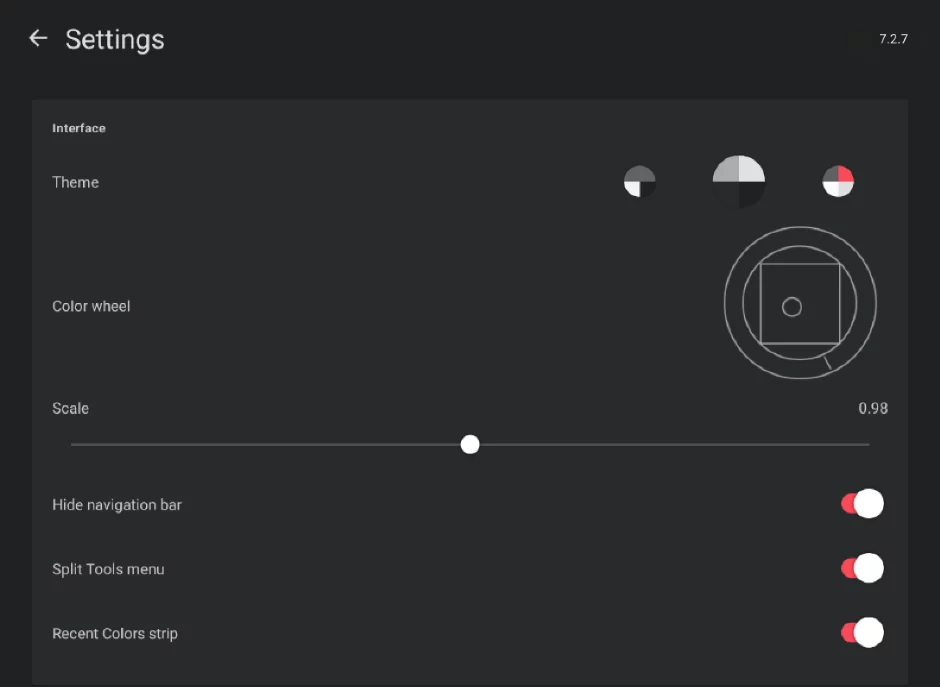
Color wheel
Select your favorite style of the color wheel. (You can have only one variant at a time)
This can be also selected in the Color settings in the Color panelColor panelA panel to select colors.Learn more.
Scale of the interface
Adjust the size of interface elements in Infinite Painter.
Split Tools menu
If on, there are two separate menus: Creative Tools menu and Editing Tools menu. If off, the Tools menu has one icon (but two tabs).
Recent Colors strip
Show or hide the color history picker next to the Main toolbarMain toolbarThe main set of controls for the brushes. Almost always visible on the screen in the Studio workspace. Main toolbar lets you select and adjust the brush and pick the color for painting (and much more).Learn more. (See Color history)
Language settings section

Language
You can use any from 14 supported languages (see List of supported languages). By default, the language used in your system is used (or English, if your system language is not supported).
Workflow settings section
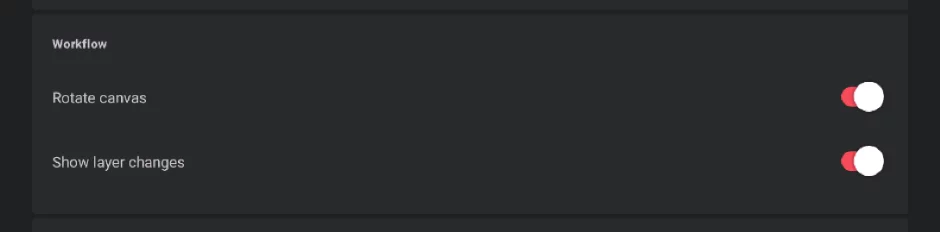
Rotate canvas
Allows you to rotate canvas with two fingers. Turn off to keep it aligned with the screen.
Show layer changes
If on, the layer blinks slightly when selected (activated).
Rendering settings section
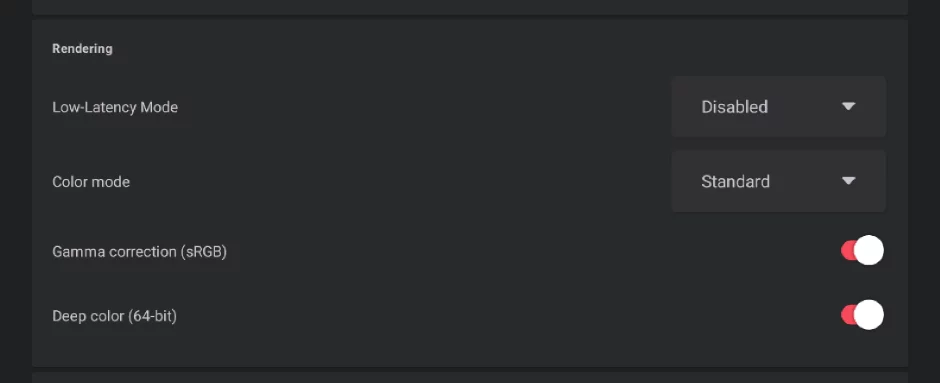
Low Latency Mode
(Settings: Disabled, Active, Fastest)
Infinite Painter in version 7.1 supports the Low Latency Drawing technology by Google. This technology allows for real-time brush strokes, however the results depend on the hardware support too. You may wish to test which option works best for your device.
Color mode
Set the color profile for the on-screen color proofing. This option affects only the working preview, not the actual colors of your artwork. Learn more in On-screen color proofing.
Leave “Standard” if you are not sure what “on-screen color proofing” really means.
The color profile can be set also in the Color settings panel and in Rendering panel.
Deep color (64 bit)
Infinite Painter, by default, uses 64-bit color model (16 bit-per-channel color depth). This ensures smoother color gradients and color mixing. This however may not work on certain devices, so you can turn it off here. If in doubt, leave this on. Learn more in 64-bit color depth.
Saving settings section
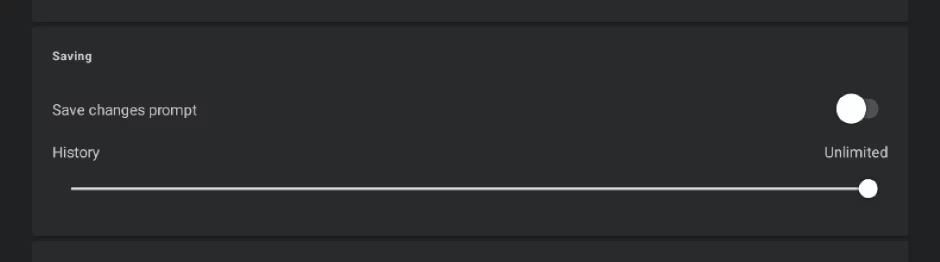
Save changes prompt
Turn on if you prefer to be asked whether to save changes on exit (when you close the current project). If off, Infinite Painter saves changes automatically on exit. Learn more in Saving projects.
History
Set the number of version historyProject version historyProject version history is a safety feature in Infinite Painter that stores a preset number of previous versions of the project. Each time the project is saved, the app does not overwrite the previous version, but keeps both. In case of a technical problem during saving or of a creative error, previous versions may be accessed and restored.Learn more states to be stored in your project. Default setting is 6 last saves, maximum is “Unlimited” (to store all project history states). Select a lower number (1 – 10) to save storage space or turn the option off if you don't want to record your project's history at all.
if you set this slider to lower values and then open an old project which had more history states than the set number, on the next save of this project part of its version history may be erased. Learn about project history in Project version history — overview.
New project defaults
(these settings apply to newly created projects).
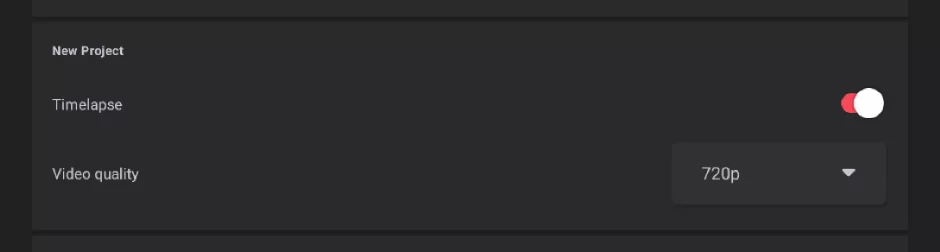
Timelapse
Activate, if you want to document your workflow in a form of a time-lapse video. (See Timelapse recording).
Video quality
Set the video frame size: from 720p to 4K.
Note that the video quality (resolution) cannot be changed after creating the project.
Higher settings of the video quality may produce significant amounts of data. Control the amount of free storage on your device, especially while working on large projects that take long time to finish.
Gestures controls
Set your favorite function for each gesture:
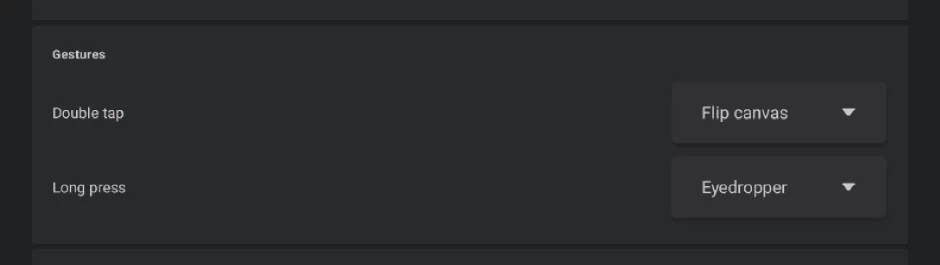
Double tap gesture function
Long press gesture function
Hardware settings section
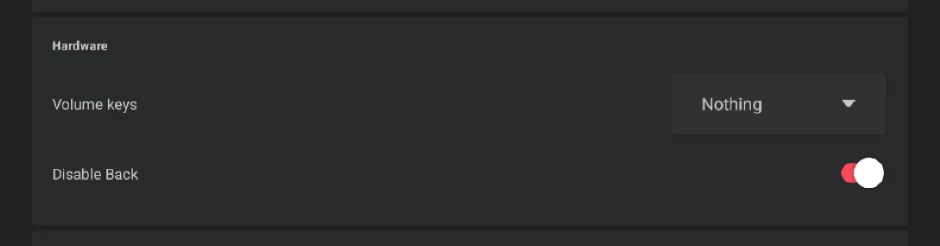
Volume keys
Allows you to bind function to your device's volume keys.
Disable Back
Disable the system Back button (either a hardware button or the on-screen one) to prevent accidental triggers.
Stylus settings section
This section shows up only when the application detects that you are using a pressure-sensitive stylus (you have to make at least one brush stroke with the stylus for the app to recognize its presence). Capacitive (”rubber”, ”universal”) styluses utilize the regular touchscreen and are considered fingers, so this section will remain hidden if your stylus uses this technology.
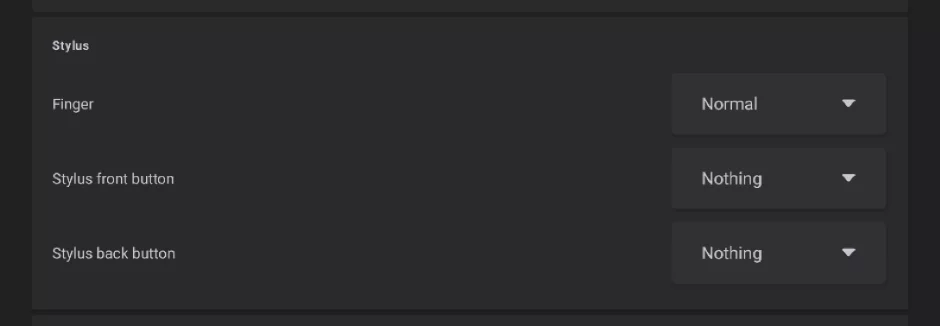
Finger
You can set a separate function for finger if you are using a pressure-sensitive stylus. Learn more about using a stylus in Using a stylus.
Stylus front button
Set a function for the primary side-button of your stylus.
Stylus back button
Set a function to the secondary button, if your stylus has one.
Note that secondary buttons in styluses may send non-standard codes and be incorrectly recognized by the application.
Brush settings
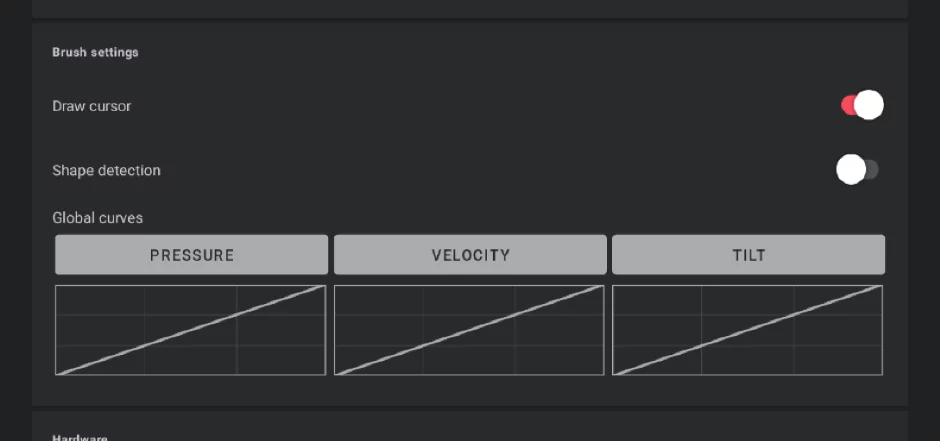
Draw cursor
Displays the brush head contour while painting.
Shape detection
Controls the automatic prediction of geometric shapes. Learn more in Shape detection.
Global dynamics curves
Allow for precise calibration of your stylus.
Calibrate your stylus' pressure, velocity and tilt characteristics. These settings affect all brushes in the application. Tap on a graph to edit the curve. Learn more in Brush Editor — curve graph controls.

If you accidentally edit the curve in one of the graphs and wish to reset the graph, tap on the leftmost preset button (linear).
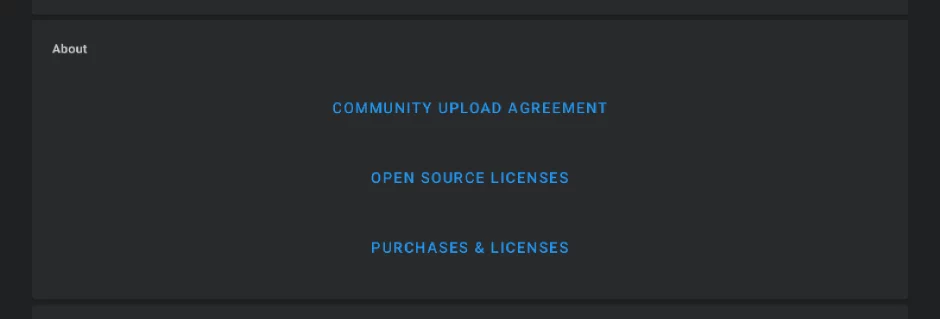
“About” section
Legal notices, licenses and terms of service.
Account section
Your user account's details.
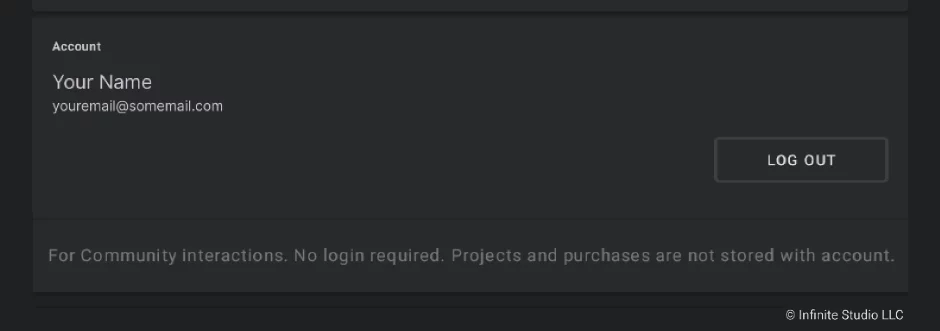
When you are correctly logged in to the application, your username and email address will be displayed here.
Please note that the Infinite Studio account is NOT used to unlock the paid features in the pro version of Infinite Painter. For the Android version of the application, the license for the pro version is bound to the Google account (email address) used for the purchase.
In general, you do not have to be logged in to the application to unlock the pro features.
Log-out button
You are not going to lose access to any app features when you log out.