
Overview
Or 'quick shapes'.
Infinite Painter has built-in shape detection: any freehand stroke can be converted into a clean geometric shape; just hold your stylus or finger for a second at the end of the stroke.
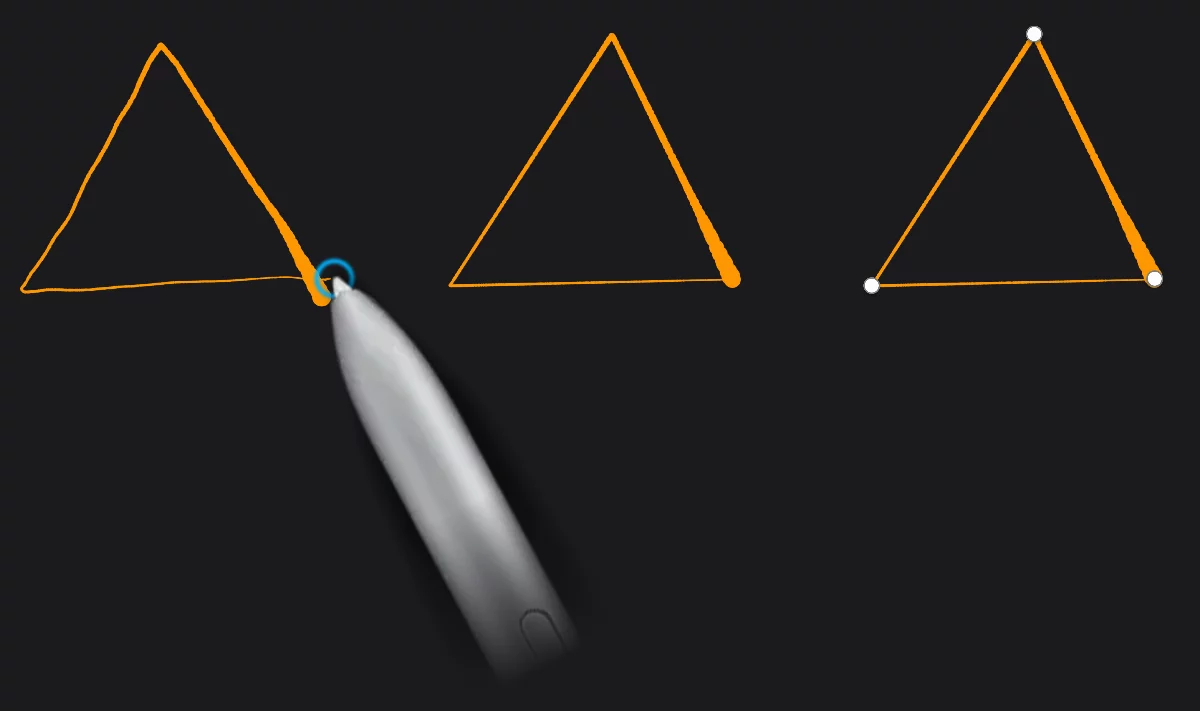
Hold your stylus at the end of the stroke for a second.
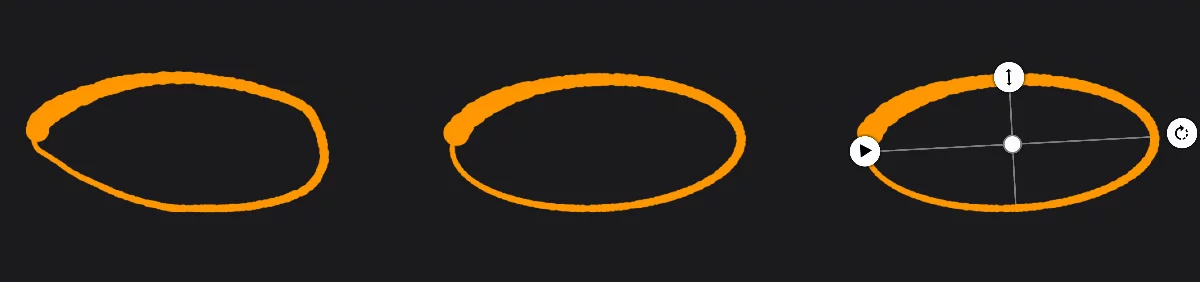
The freehand stroke is converted into a clean geometric shape.
Tap on the shape line to edit
The controls that will appear depend on what shape has been recognized.

Stamp button
While editing the shape, you may create multiple copies of it.
The shape detection can be turned off in the settings panel. More about settings in Application settings.
The geometries
Draw a shape, Infinite Painter probably will guess your intention.
Shape detection recognizes up to eight different geometries. For each type you have different controls.
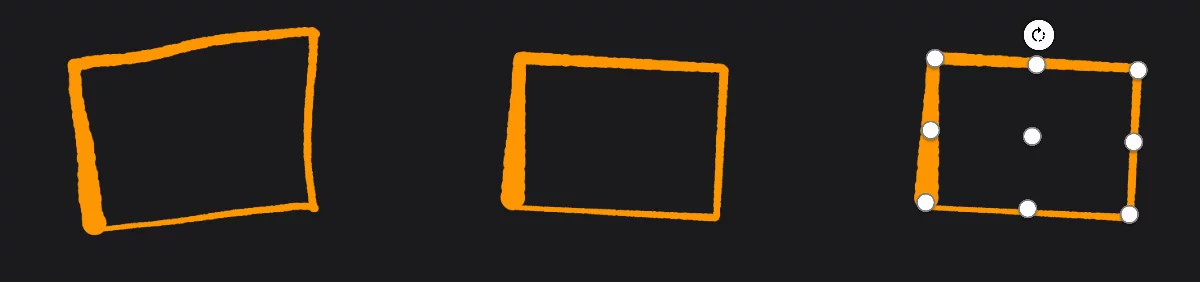
Right after conversion to a shape you have control over the last node (or over the size/angle of the shape for ellipses and rectangles). Tap on the line to edit like a regular Shape.
Line shape

Arc shape

Path shape (smooth)

Path shape (polyline)

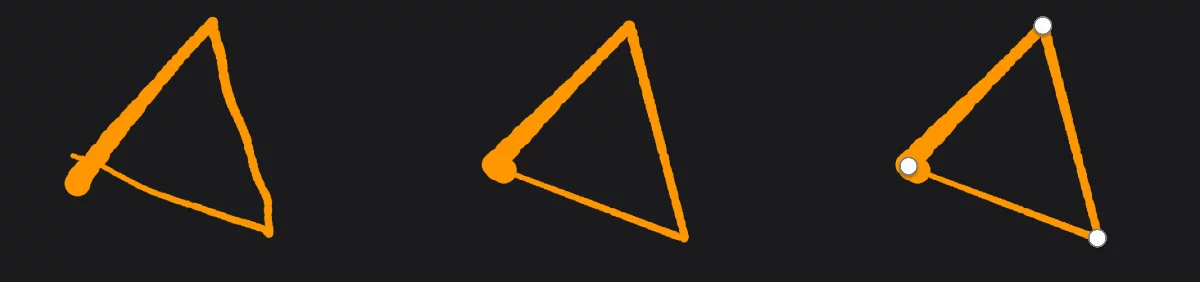
Triangle shape
Rectangle shape
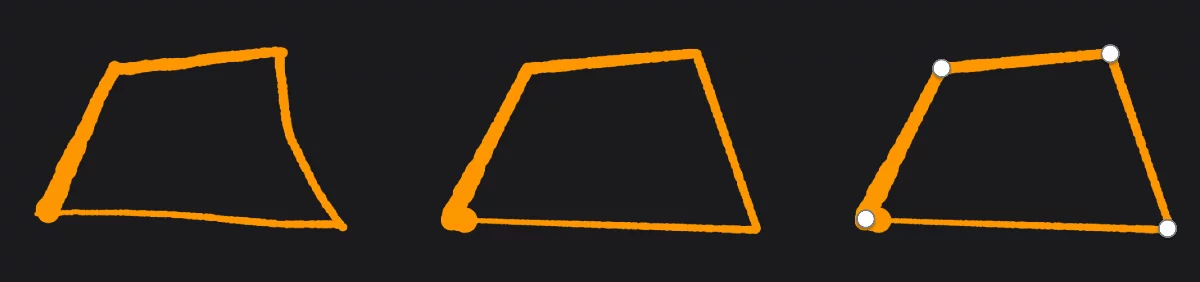
Quadrangle shape
Ellipse/circle shape
For closed polygons (triangles and quadrangles) you can only move the corner points; you cannot add points like in the Path shapes.
Polygons of more than four corners are interpreted as ellipses. If you want to draw a more complex polygon, use the Path tool. Detected open paths may contain mixed smooth and cusp nodes.