
Customize your workspace
Place your favorite tools on top.
You can easily build your custom workspace tailored to your needs and tastes.
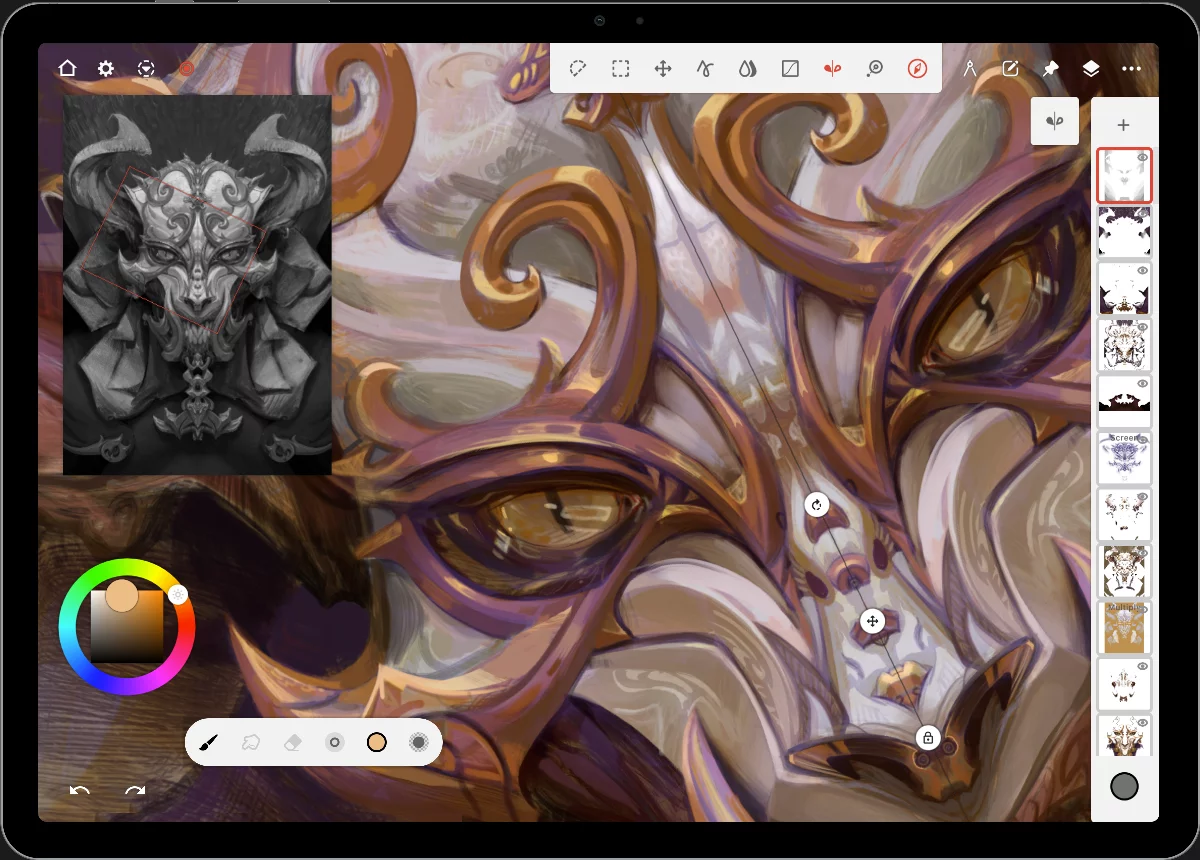
Custom toolbar
(More below)
Layer panel
(here shown in collapsed view to save space). Use as many layers as you need. Learn more in Using layers.
Custom toolbar
Create your own toolset.
Drag any tool icon onto the top bar. The icon will remain docked
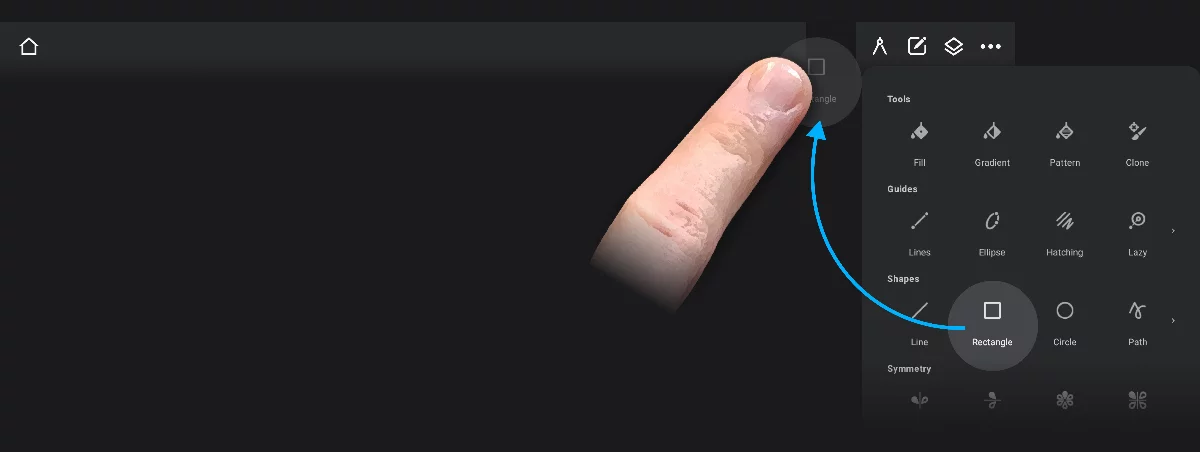
Long-press the selected icon…
…and drag it over the top bar.
Drag the first icon over the target (placeholder).
Subsequent icons can be inserted in any position on the custom toolbar.
Drag more icons to create a custom toolbar

An example of a custom toolbar; create a better one.
Long-press and drag to reposition icons.
Long-press and drag outside of the toolbar to remove an icon.
This of course does not harm the actual tool.
The available number of slots depends on your screen size
You can dock any icon from the Tools menus, Options menu and from Layer options; also a number of other tools. Try yourself which ones.
This functionality is currently available on tablets only. Sorry, phone users.
Immersive mode
Hide all interface; work on.
You can temporarily hide all interface elements (icons and panels) and continue working with the current tool.
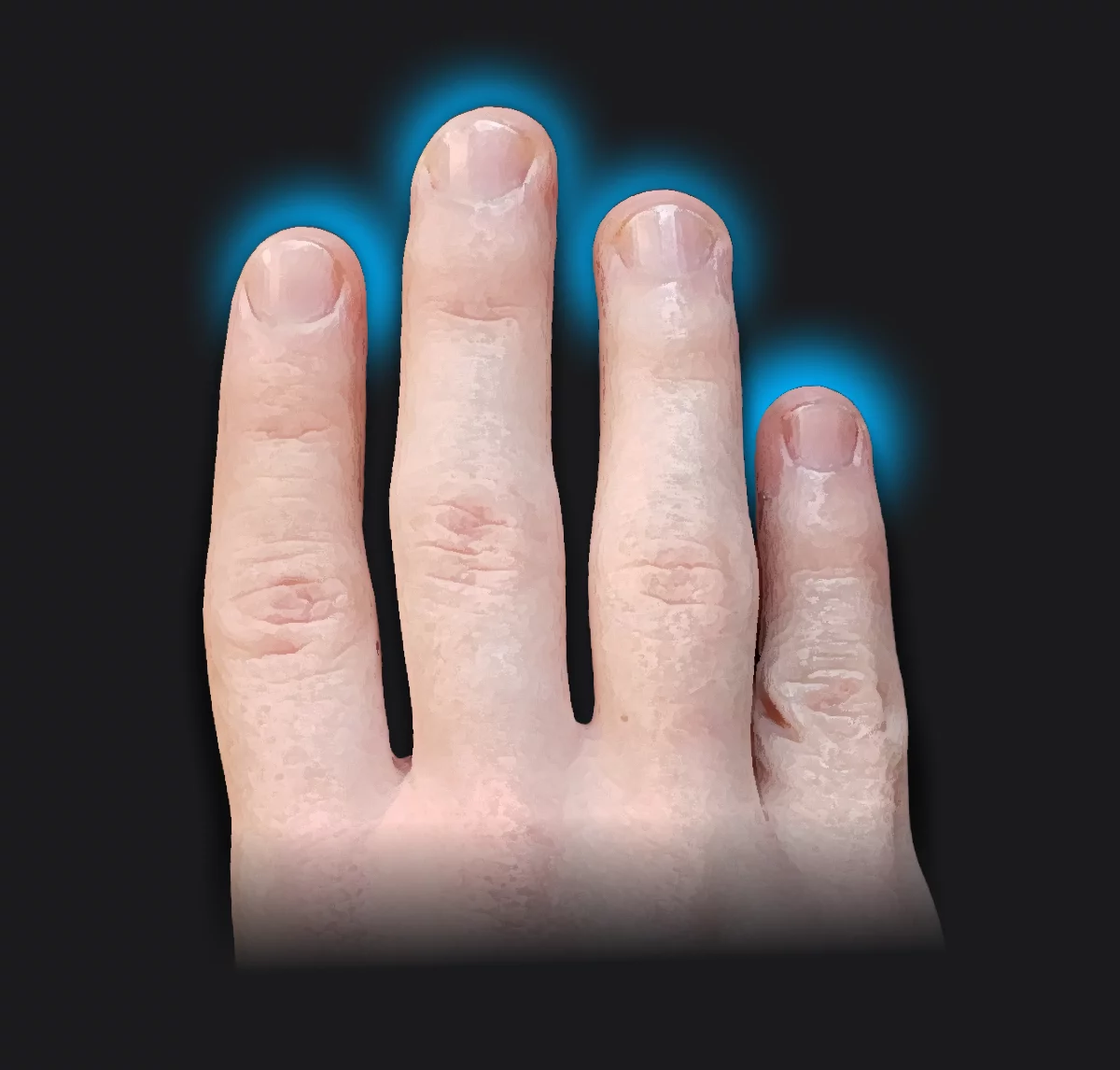
Tap with four fingers to hide the interface.

To return to regular interface, tap again with four fingers or tap the icon in the upper-right corner.
The Hide interface function does not hide widgets (Reference images, Color wheel widget and the Navigator window).
In the immersive mode you can still use all gesture controls and keyboard shortcuts (if you use a physical keyboard).
See chapter "Gestures “ to learn more about gestures; Keyboard shortcuts for list of all available shortcuts.