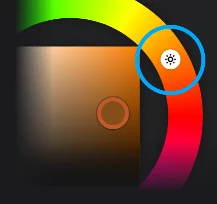
The color wheel is a device for picking colors according to the HSB color modelHSB color modelA color model defined by three dimensions: Hue, Saturation and Brightness.Learn more.
HSB color wheel principles
Slice the solid.
HSB color space
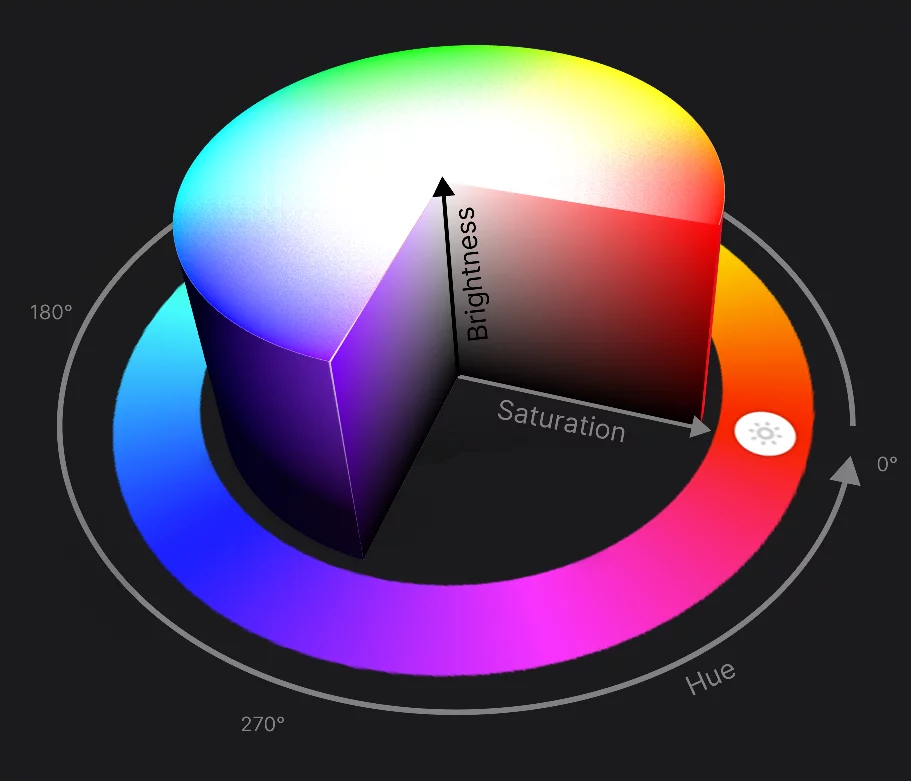
HSB color wheel
shown as for H=0°
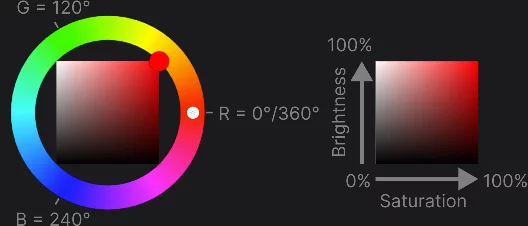
The outer ring represents Hue values as for Saturation = 100%, Brightness = 100%.
Color pointer (defines Saturation and Brightness).
Hue pointer defines Hue (here at 0°)
Inner square represents Saturation-Brightness space for given Hue.
As Infinite Painter uses standard HSB color space and color pickers, you may find a lot of additional information about using this color space online.
Using the color wheel
Two controls only.
>Color panel in color wheel view
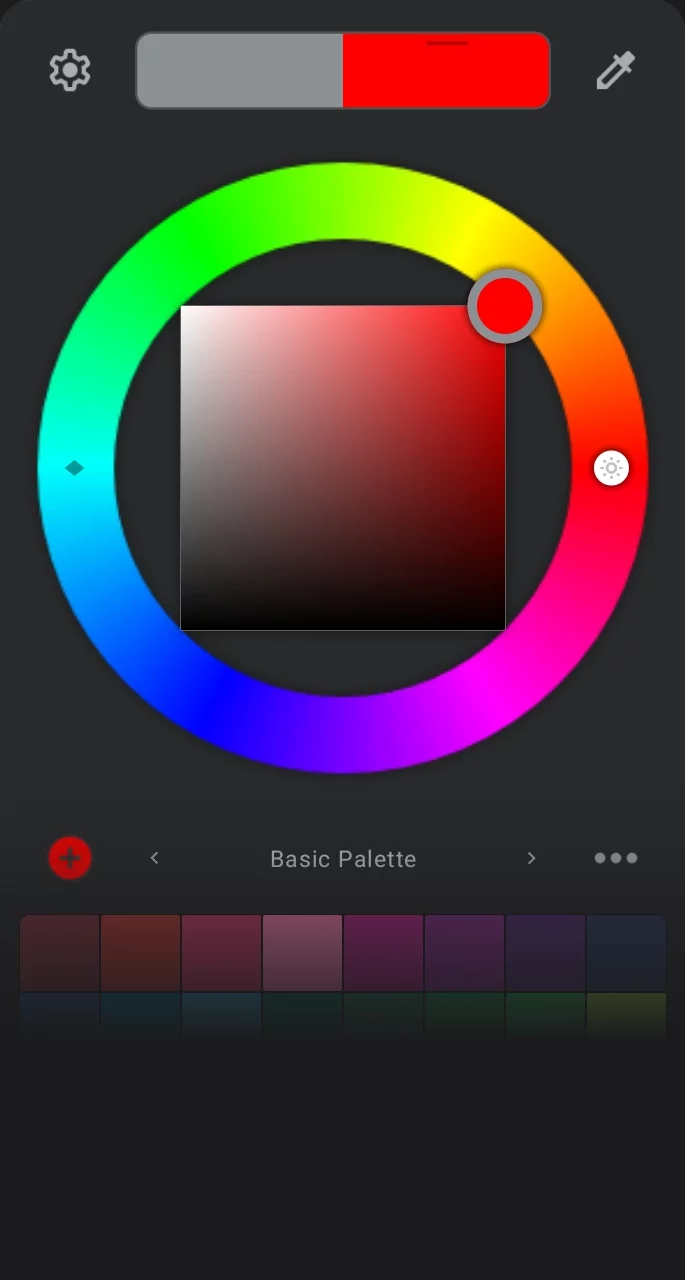
More about Color panel in Color panel.
Standard color wheel elements
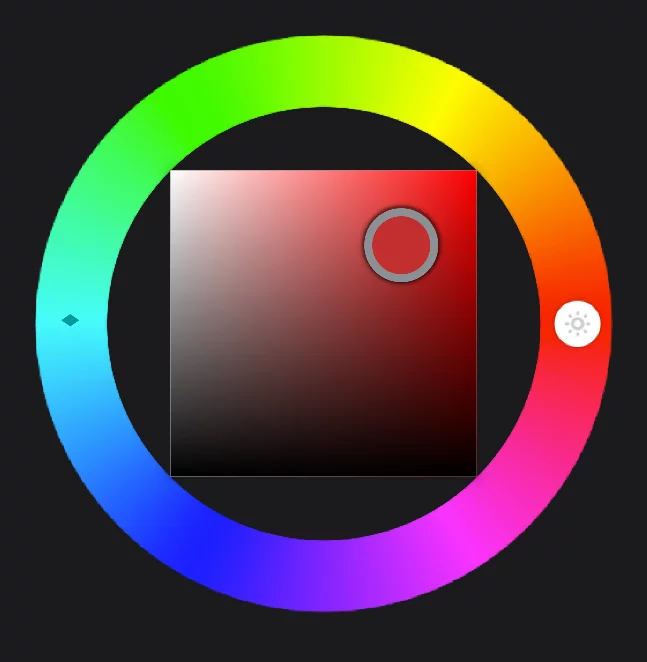
Saturation-Brightness field
Hue ring
Main pointer (S-B handle)
Drag horizontally to adjust saturation, vertically to adjust brightness.
Hue pointer (handle)
Drag around the ring to select the hue.
Learn more about HSB color model in Digital color.

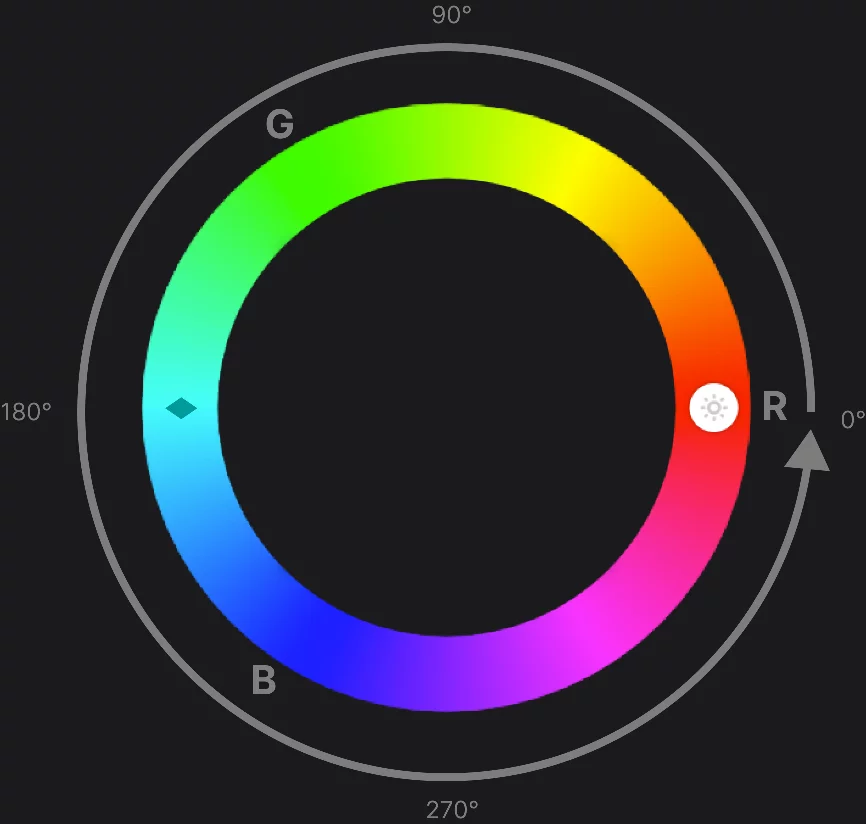
Select the Hue value on the outer ring
Complementary color marker
Indicates a hue complementary/opposite to the current color.
Note that this is a complementary color as defined in the RGB color spaceRGB color spaceAn additive color model defined by mixing three primary colors: Red, Green and Blue.Learn more.
Saturation-Brightness field
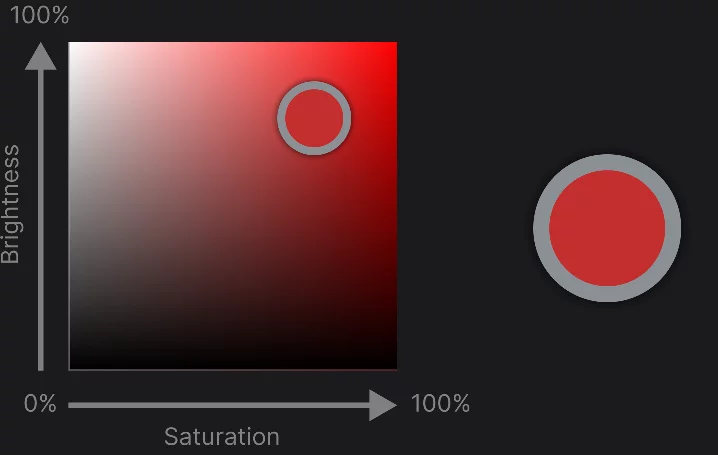
Select Saturation and Brightness values by dragging the the main pointer.
Pointer fill shows current color.
The outer ring shows previous color.
Alternative color wheels
In Infinite Painter you can use different styles of the color wheel (some of them actually not being "wheels").
Color wheel selector in Color settings.
This selector can also be found in the main Settings panel (Interface section).
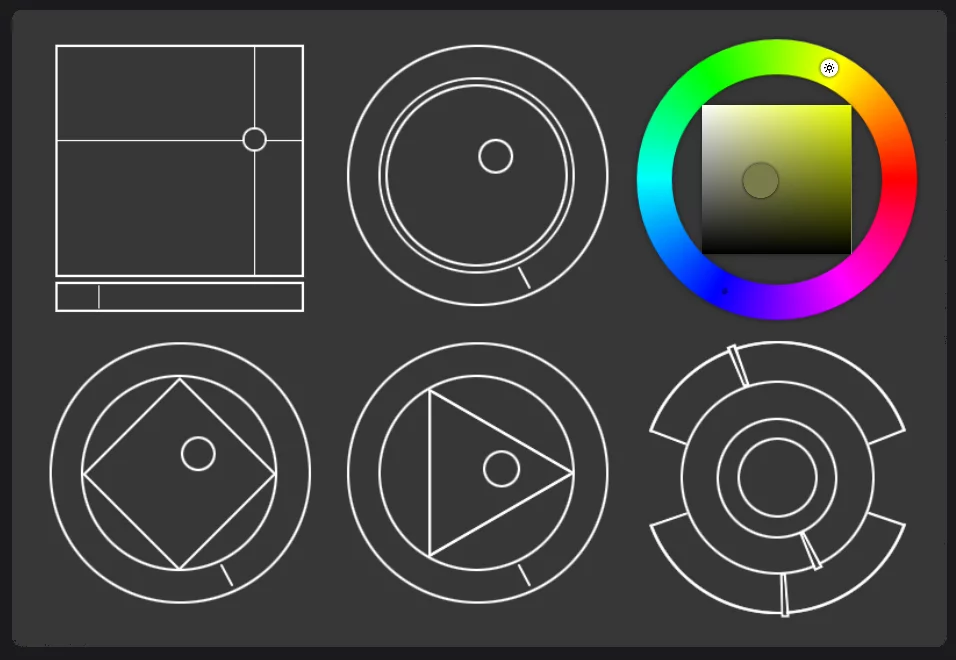
There are currently six different models of the color wheel in Infinite Painter. All of them are based on the HSB color modelHSB color modelA color model defined by three dimensions: Hue, Saturation and Brightness.Learn more, but have different advantages.
For example, the standard, 'square-in-circle' color wheel has disproportionately large area occupied by very dark colors; the 'diamond' and 'triangle' versions reduce this flaw. Likewise, the 'square' model offers enlarged S-B area for easier adjustments.
Note that the variant you pick will be used in all places in the app: in all color panels and as the floating widget.
The selector screen in settings lets you interact with each wheel variant. All the wheels are functional. Have fun.
Learn more about HSB color model in HSB color space.
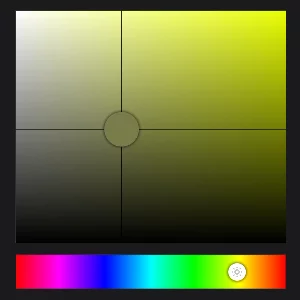
Square HSB picker
The Saturation-Brightness area is enlarged, Hue selector is a linear strip. Good for precise tonal adjustments.
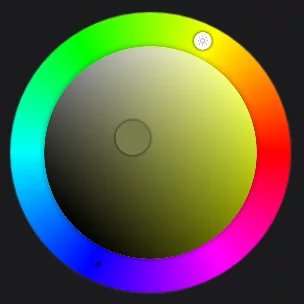
Round HSB wheel
The Saturation-Brightness area is mapped onto a circle. Procreate's® style.
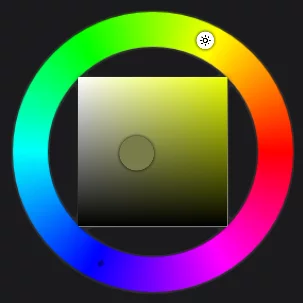
Default, standard HSB wheel
The Saturation-Brightness area is a regular XY graph. See Using the color wheel.
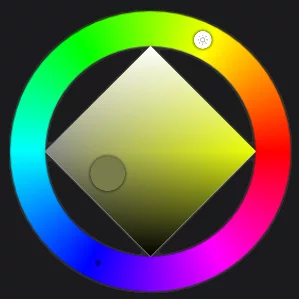
Diamond HSB wheel
The Saturation-Brightness area is rotated 45°, so it is easier to pick pure white and pure black. More room for mid-range shades.
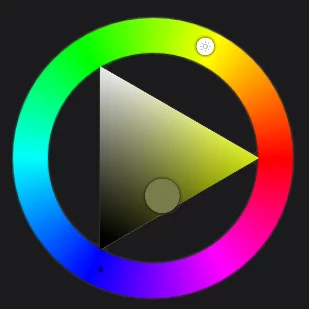
Triangle HSB wheel
The Saturation-Brightness area is mapped onto a triangle. Full saturation is in the right-hand corner, pure white on top and black at the bottom.
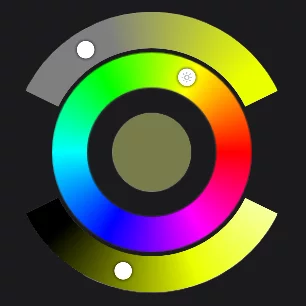
Combo HSB picker
The Saturation-Brightness selector is split into two separate arcs. Large current color swatch in the center.
Color wheel widget
Place it anywhere.
Drag the color wheel out of the panel with two fingers:
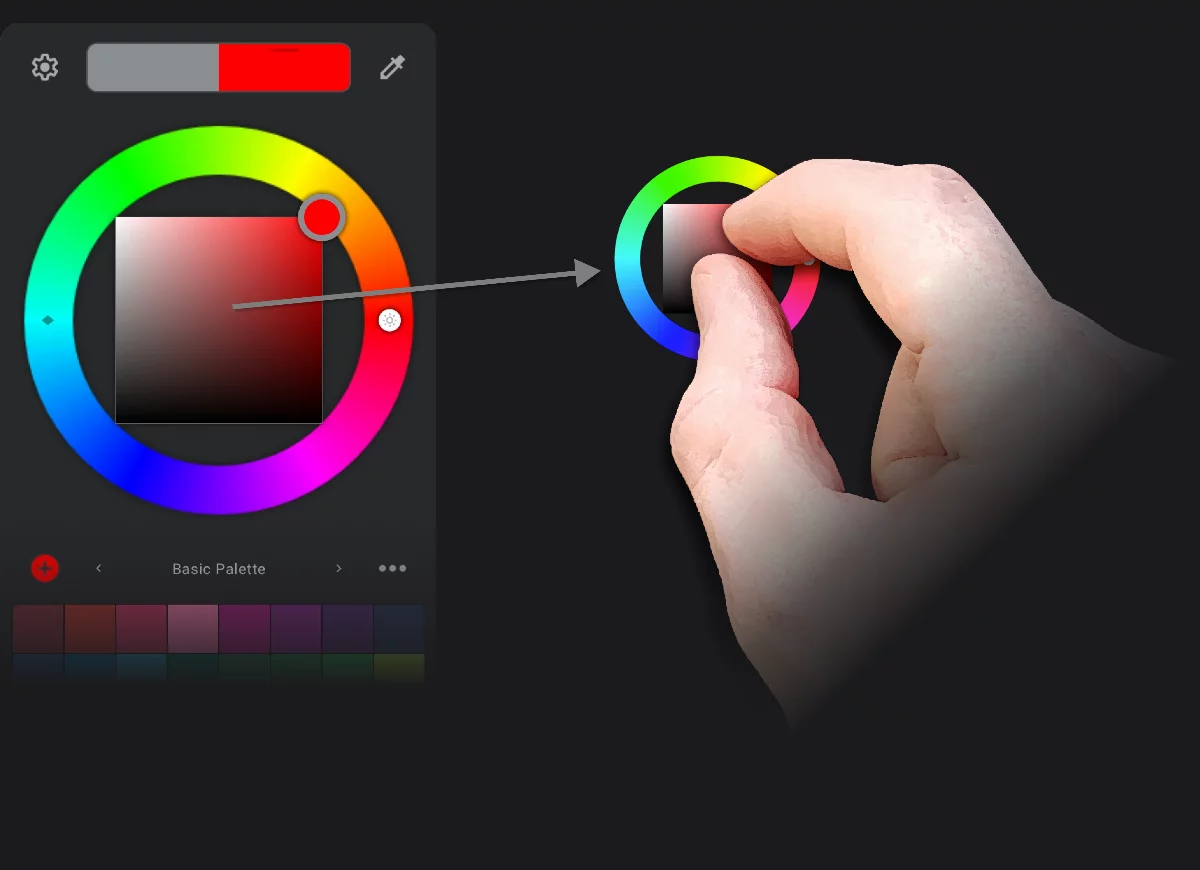
Move and scale the widget with two-finger pinch gestures:
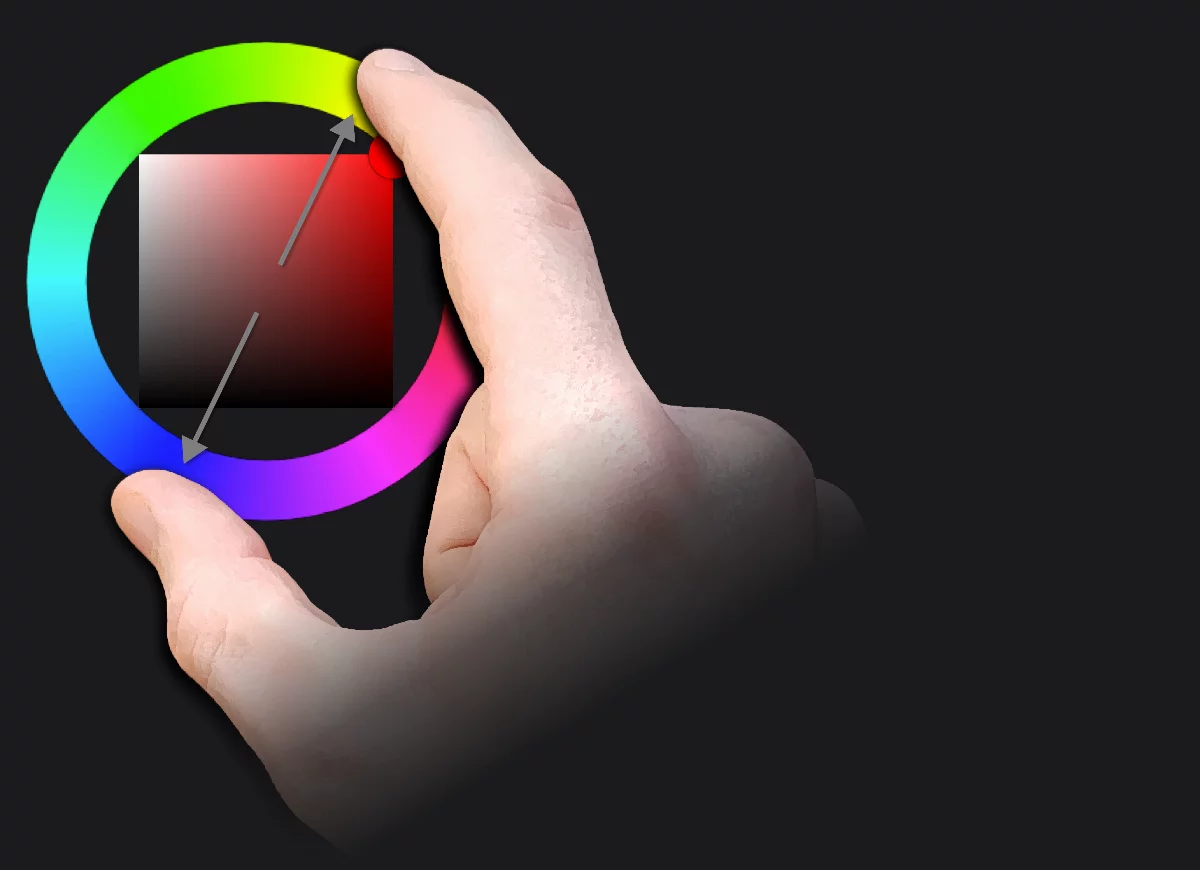
Once you placed the widget on the screen, use it as the regular color wheel.
The widget is synchronized with the main color panel.

To close the widget, drag it onto the x icon in the middle of the screen with two fingers.
Tone Lock
Pick more consistent hues.
In the HSB color model used in the color wheel, changing the Hue changes the perceptual “tone” of the color. This prevents the colors to be visually consistent.
The Tone Lock feature preserves the perceptual tone of the color when its hue is changed with the color wheel.
Regular Hue adjustment (= Tone Lock off; default)
Brightness and Saturation don't change when you change the Hue value.
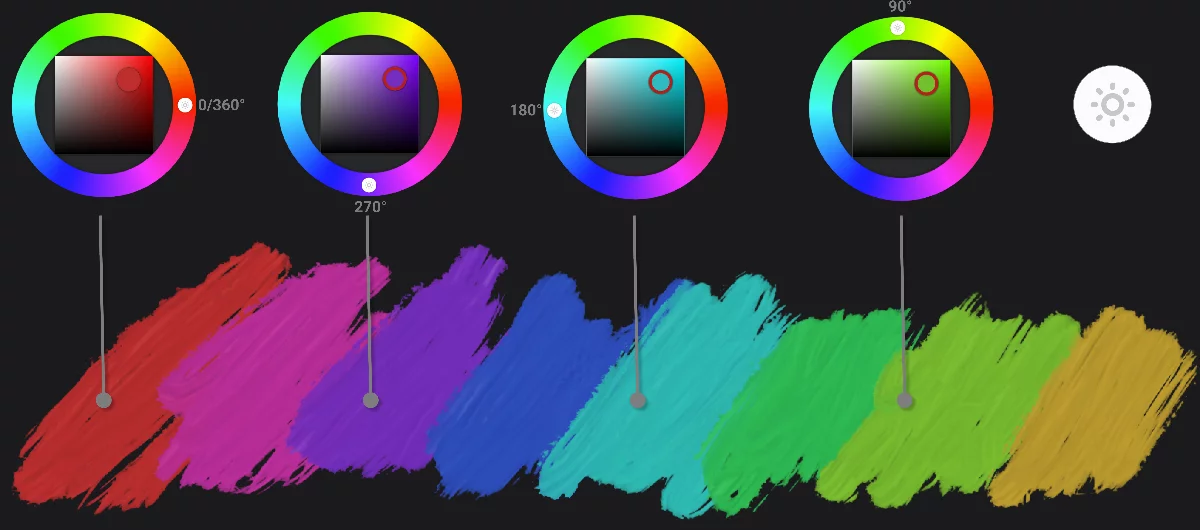
In each stroke Saturation = 75, Brightness = 75. The resulting colors have different perceptual values (they appear darker and lighter).
With the Tone Lock active
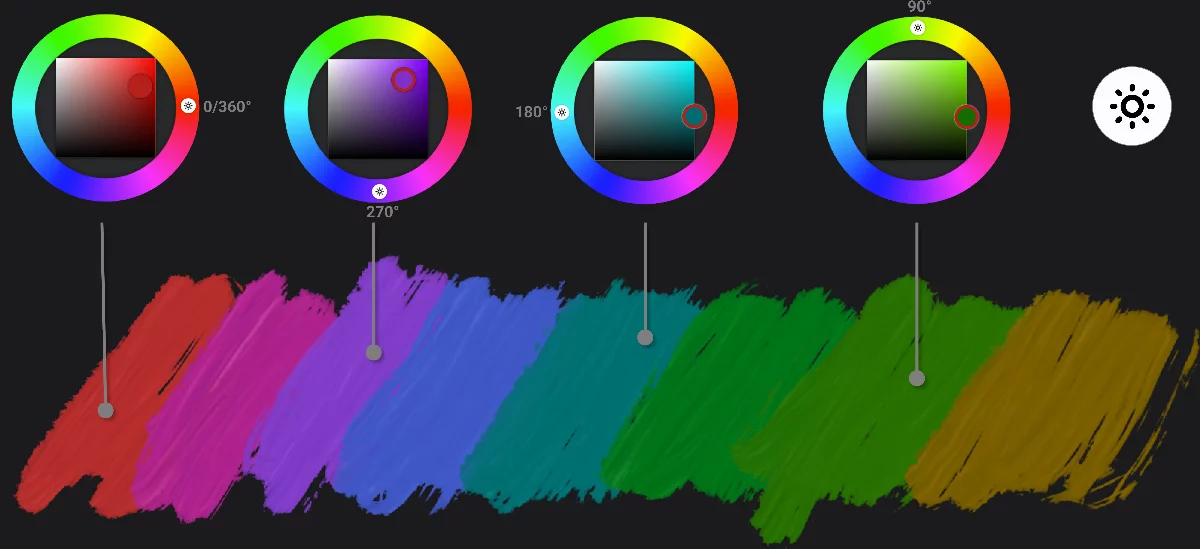
In each stroke, Saturation and Brightness are automatically adjusted. The resulting colors have more uniform perceptual values (all hues have similar apparent brightness).
To activate/deactivate the Tone Lock, tap on the Hue pointer (handle):