
Overview
A time machine.
Infinite Painter 7 stores (almost) every version of your project ever saved.
How the version history works:
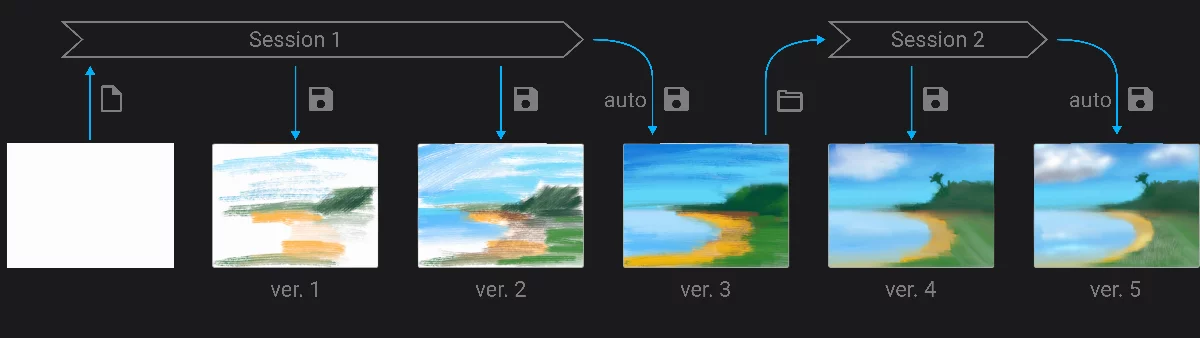
Creation of a new project
New blank canvas
Painting session 1
Manual save (the user used the Save command in the Options menu).
Session 1 finished by exiting the Studio.
(= “autosave” — Infinite Painter saved the project automatically).
Project opened again (session 2 started)
Painting session 2
Session 2 finished by exiting the Studio.
(= autosave)
Intermediate archive versions saved in the version history.
The current (last-saved) version.
All versions are stored in the same project. You can restore each version as a new project or delete versions that are no longer necessary.
Version history vs. the Restore interface
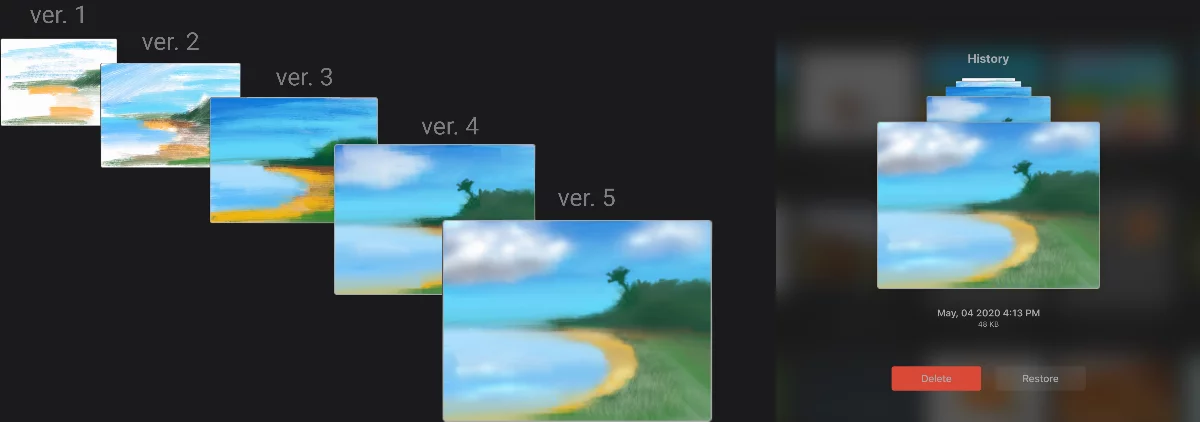
Scroll vertically to browse available versions. More below.
(Actually the project versions are not named only marked with the time stamps).
Note that even if Infinite Painter is theoretically able to store all the version of the project ever saved, for practical purposes the number of the stored versions is limited by default.
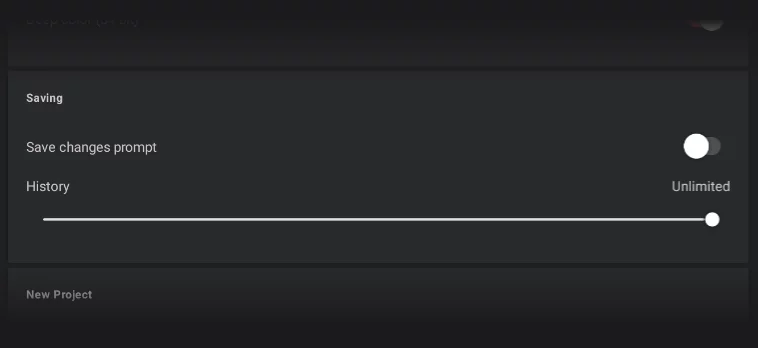
You can adjust the number of the versions to be stored in the Saving settings section of the settings panel.
None
(Version history feature disabled). Only one, “current” version of each project will be stored.
Setting the History slider to zero turns off the version history system. Use this setting only if you have to.
Number of last versions to be saved (1 to 10).
After reaching the number of saved versions set here, the application will delete the oldest version of the project to make room for the new ones.
Unlimited
All saved versions will be stored forever.
Note that each version of the project adds significant amount of data to the storage, especially for larger projects. You may wish to find the balance between security and the amount of data stored on the device.
The number of saved history states is a global control, it applies to all projects. If you reduce the number of the history states in one project and then open another project with more history states that the current setting, saving this project will irreversibly erase its earliest saved states.
Selecting previous history states
Enjoy the time travel.
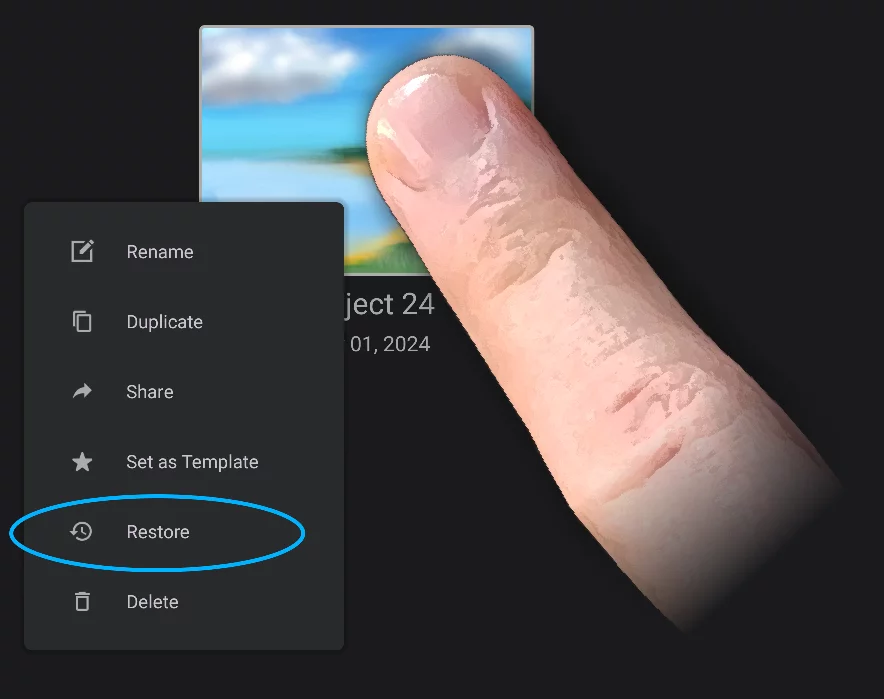
Long press on the project thumbnail
to access the project options list. Learn more in Managing projects in gallery.
Use the Restore command to open the version history browser.
With the Restore function you can return to an earlier version in the project history and restore this version as a new project. The original project will be left intact. You can also erase early versions of the project history to save storage space. This however deletes the archival data permanently.
Selecting the history states in the version history browser
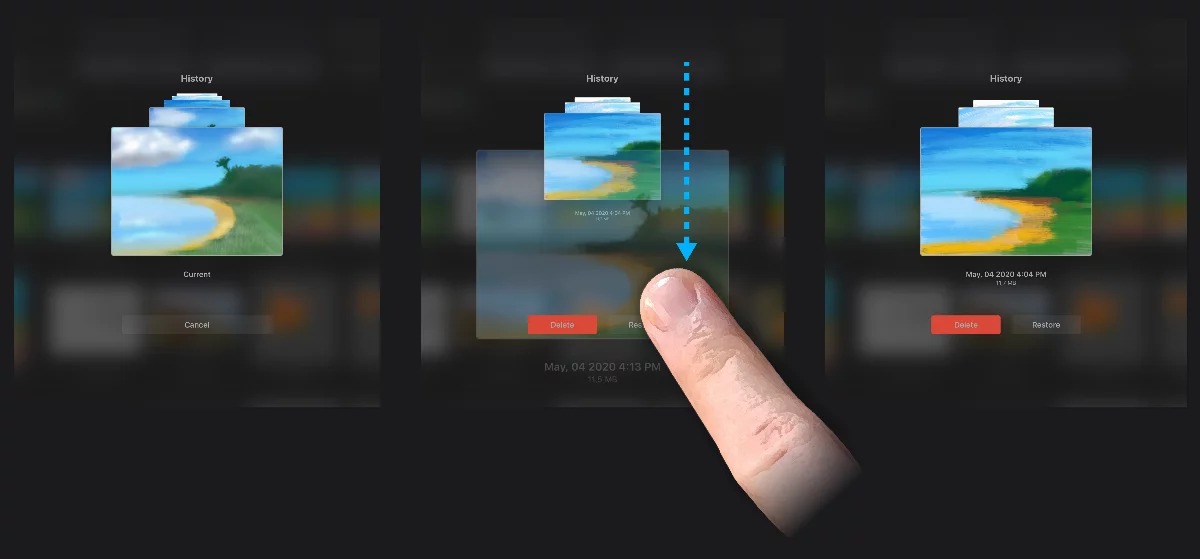
Version Restore interface
showing current (the latest) version.
Scroll vertically to browse available versions. Versions show their time stamps.
Pick the version you want to edit.
Selected version.
There are two available options for each version:
Delete
or Restore
(Learn more below)
Editing the history states
You can change the history.
The original version history of a project:
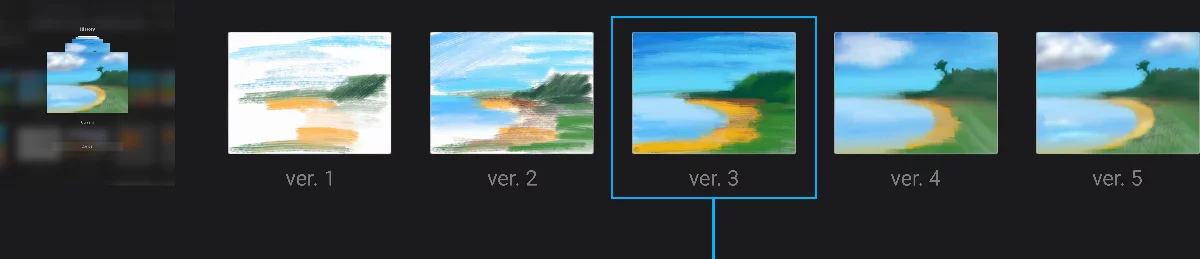
Version “3” picked for editing.
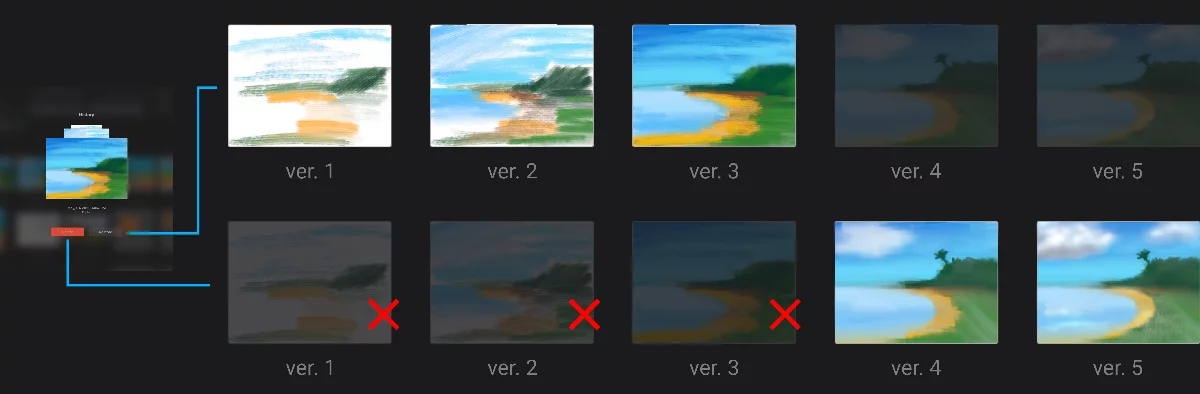
“Restore” button restores version 3:
A new project is created with versions 1, 2, 3 only.
(All versions will be kept in the original project)
“Delete” button deletes version 3 and all earlier versions:
Versions 1, 2, 3 are deleted from the original project. Only versions 4 and 5 will be left.
Versions 1, 2, 3 will be deleted from the history.
this is irreversible. History data is going to be permanently erased.
(Only the versions 4 and 5 will be left in the original project).
The Delete button permanently erases the selected version and all previous versions. Be cautious.