
Importing images into Infinite Painter
Use any image from outside.
You can import images into Infinite Painter from various sources and use them for various purposes.
“Import” in Infinite Painter may mean a number of different operations:
Create a new project from an imported image (see New Project creator).
Add an imported image as a layer to the currently open project (see Importing images as layers).
Add a reference image (see Using reference images).
Import a pattern tile for Pattern fill (see Pattern Fill — using images).
Import a bitmap for the brush head (see Brush Head selector).
Import a bitmap for the brush texture (see Brush Texture selector).
Import a bitmap for the paper texture (see Paper layer).
also, open a project from an archive PNTR file.
Besides the image files, you can import assets like brushes or color swatch palettes (see Importing and exporting assets).
Import sources
Use all available sources
In any of the aforementioned scenarios, you will have the choice of the import source, in form of the
Import source selector:
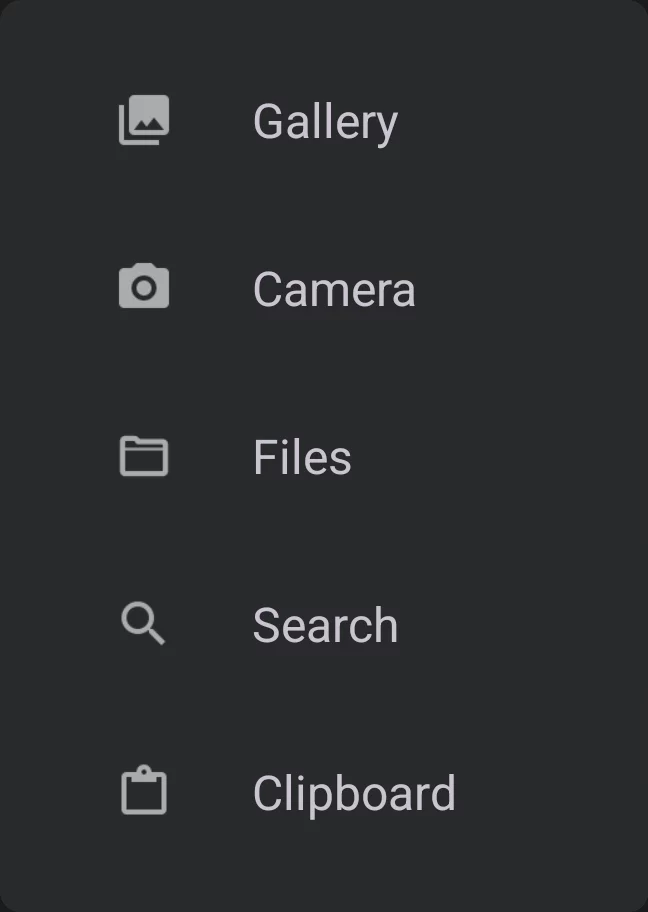

Gallery
(Opens the system photo gallery app or the Google Photo Picker tool). Pick one of your photos.

Camera
(Opens the Camera app). Take a photo with the built-in camera.

Files
Opens the default system file manager app. Gives you access to available cloud storage too.

Search
Use the Pixabay™ image search. Learn more about Pixabay in Pixabay image search.

Note that on Android you can import PSD and PNTR files only via the Files option (using the system file manager).
Import formats
Not only images
You can import images in JPG, PNG and PSD formats but other stuff too.
JPG (JPEG) image file
Most popular file format used in most digital cameras and on web sites. Note that JPEG uses lossy compression algorithm so the quality of the images is usually limited. However the files are small.
PNG (Portable Network Graphics) image file
Second most popular bitmap image format. This is the recommended format for bitmap data transfer. Uses lossless compression so original image data may be restored. PNG files may contain alpha channel (transparency).
WebP image file
Image file format developed by Google. The files are even smaller than JPEG with comparable quality, and also with support for transparency (RGBA).
PSD (.psd) Adobe Photoshop® document
Proprietary file format developed by Adobe Inc®. PSD files may be multilayer and may contain additional data like adjustment layers, layer masks, vector paths, 3D and animation data etc. Infinite Painter is able to read only the regular RGB bitmap layers (ignoring vector paths, 3D and animation data). When importing more complex PSD documents caution is recommended. Note that importing a PSD file always creates new project with the name of the original file.
PNTR (.pntr) Infinite Painter project
Proprietary file format for storing Infinite Painter projects. The format is common between Infinite Painter for iOS and Infinite Painter for Android so projects saved on one platform can be opened and edited on the other one.
PRBR (.prbr) Infinite Painter brush file
You can import single brushes in PRBR format. Note that this format is not compatible with other applications.
PRZP (Infinite Painter's brush pack format)
You can download and add packs of brushes in .przp format. Note that this format is not compatible with other applications.
You can import PSD and PNTR files (and brush files) only with the file manager app.
Pixabay image search
Your gateway to free stock images.
Search from 1.7+ million of free, high quality stock images from Pixabay.com™
After picking the “Search” option, type in any keywords into the search field and hit Enter. Use the filter button on the right to refine your search (in Android version only).
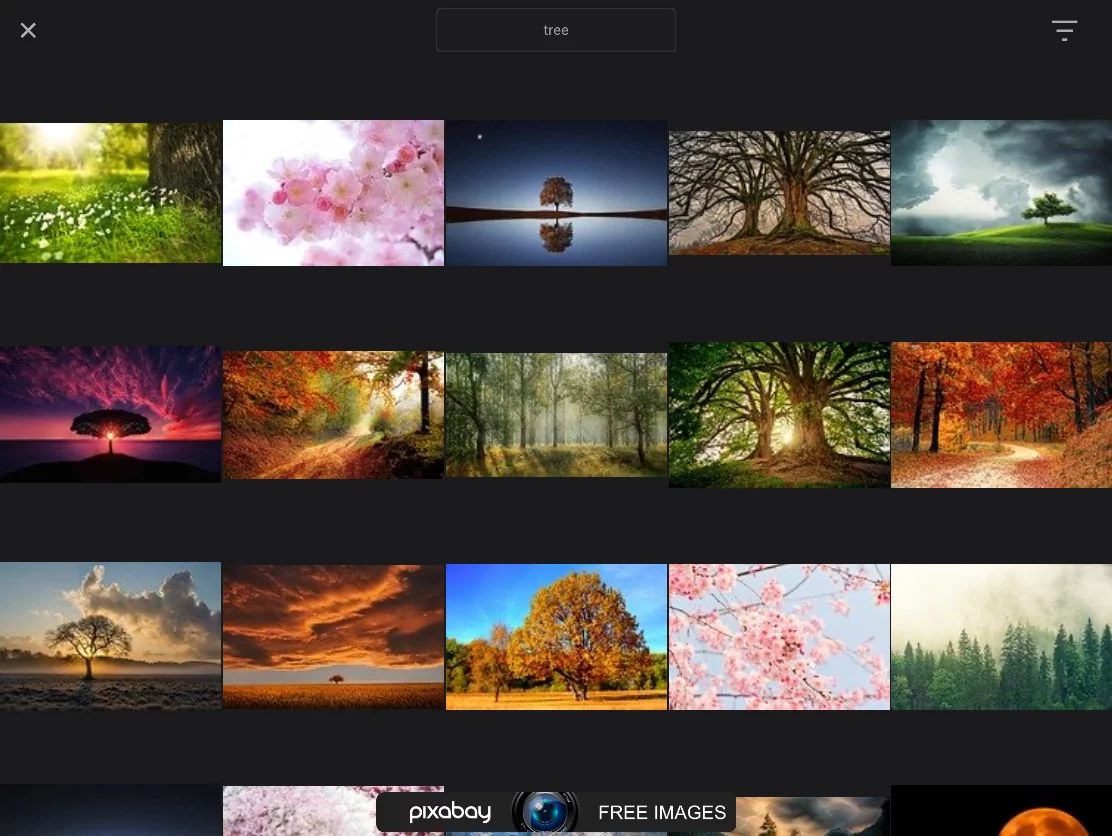
Cancel
Search text field
Type in any keywords
Search options
Browse the results
Tap a thumbnail
to import the image to your project as a layer or as a reference (learn more about using photo references Using reference images).
Note that the images are imported in limited resolution due to Pixabay terms of service. You can download the full-resolution versions of selected images directly from the Pixabay website..
Search options
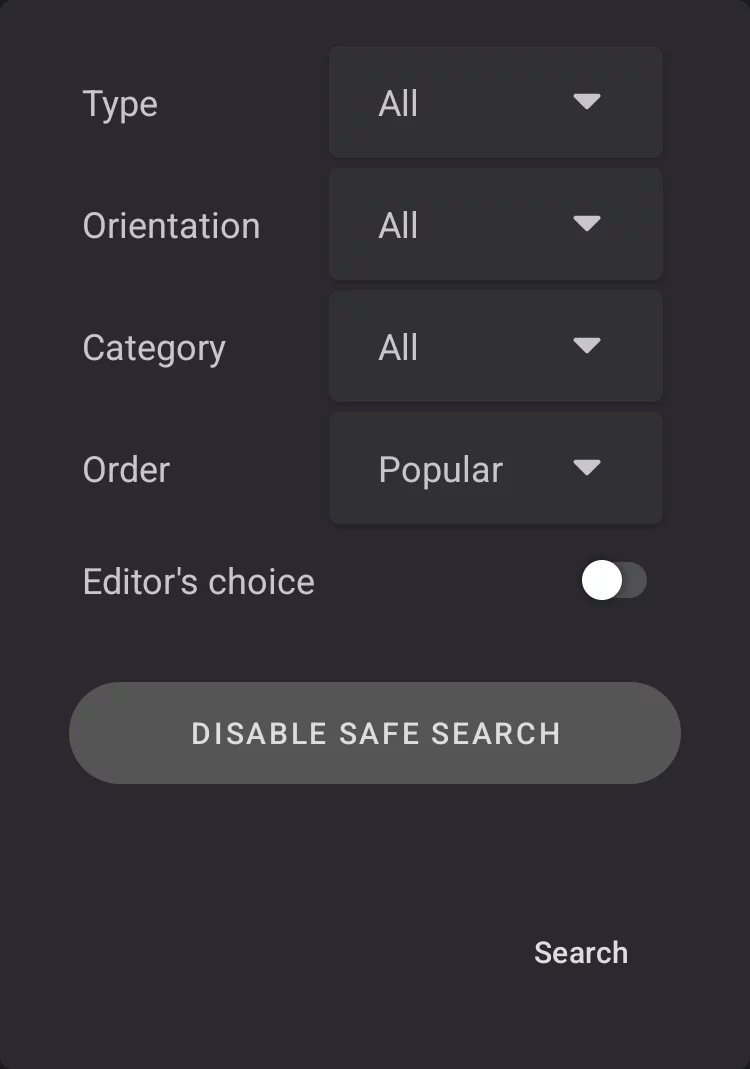
Type
Photo/Illustration/Vector (or all)
Orientation
Horizontal/Vertical
Category
20+ thematic categories
Sorting order
Sort by Popular/Newest
Editor's choice
That's Pixabay suggestion.
Disable safe search
By default, controversial images like depicting nudity are hidden; if you really want to see all the results, you have to state your age.
Pixabay.com offers the images on a ‘free’ license, specifically allowing you to use the images for any legal purpose for free and without the need to attribute the author (however this is a good habit to do so). See the license on the Pixabay website.
Importing images as layers
But one at a time.
By default, an imported image will be placed on a new layer, directly above active layer or as a top layer.
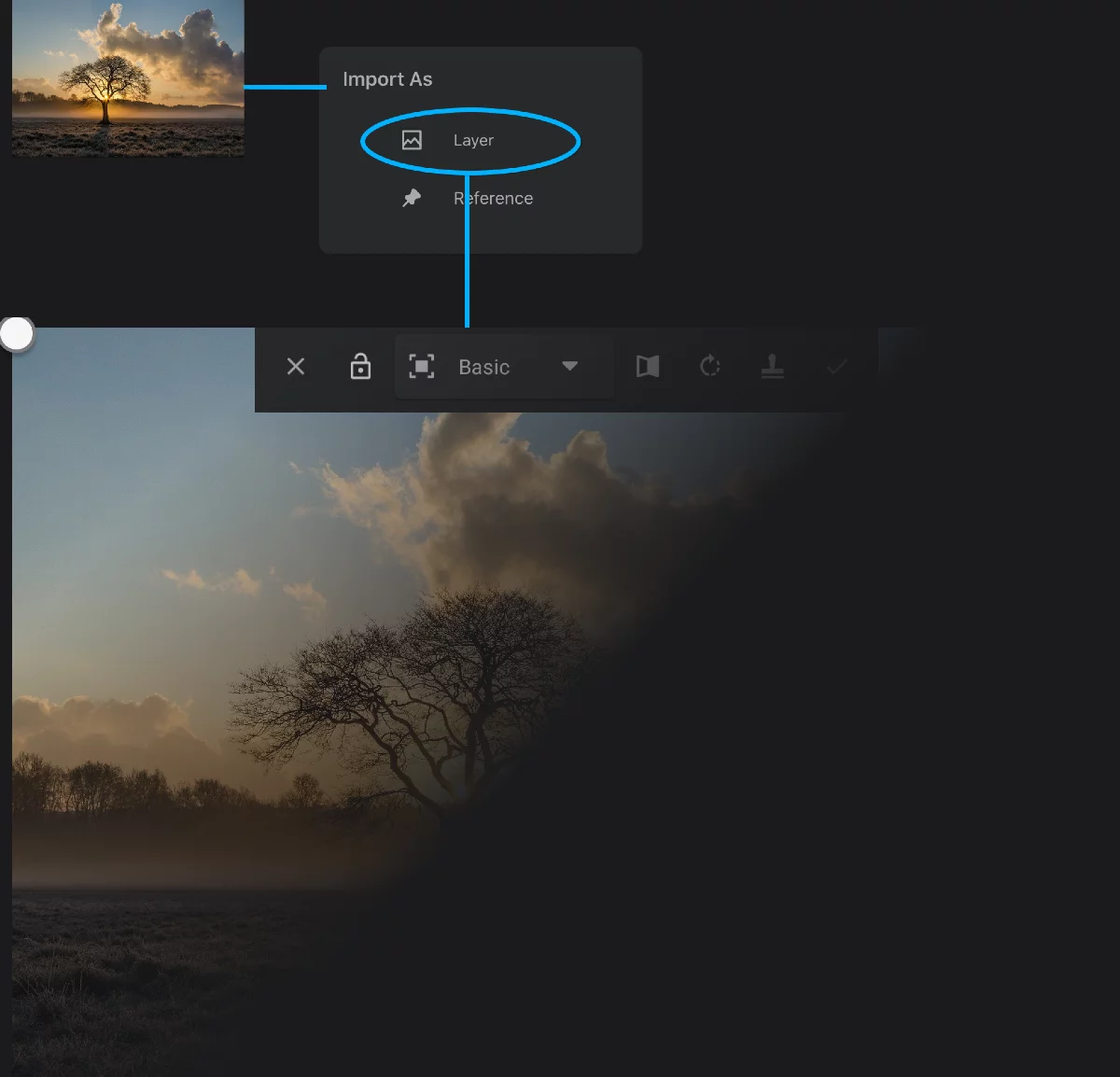
The imported image is always initially scaled to fit the canvas size. For your convenience the imported image is opened in Transform workspace so you can immediately resize it and move to desired place. If you want to keep it as is, just cancel the transformation. Learn how to use transformation tools in Transformations.
You can only import JPG, WebP and PNG images as layers.