
Create or import brushes
Make them yourself or take them from other users.
You can create a new brush from scratch, edit a copy of an existing brush or download a brush from the web.
Adding brushes in the Brush selector panel:
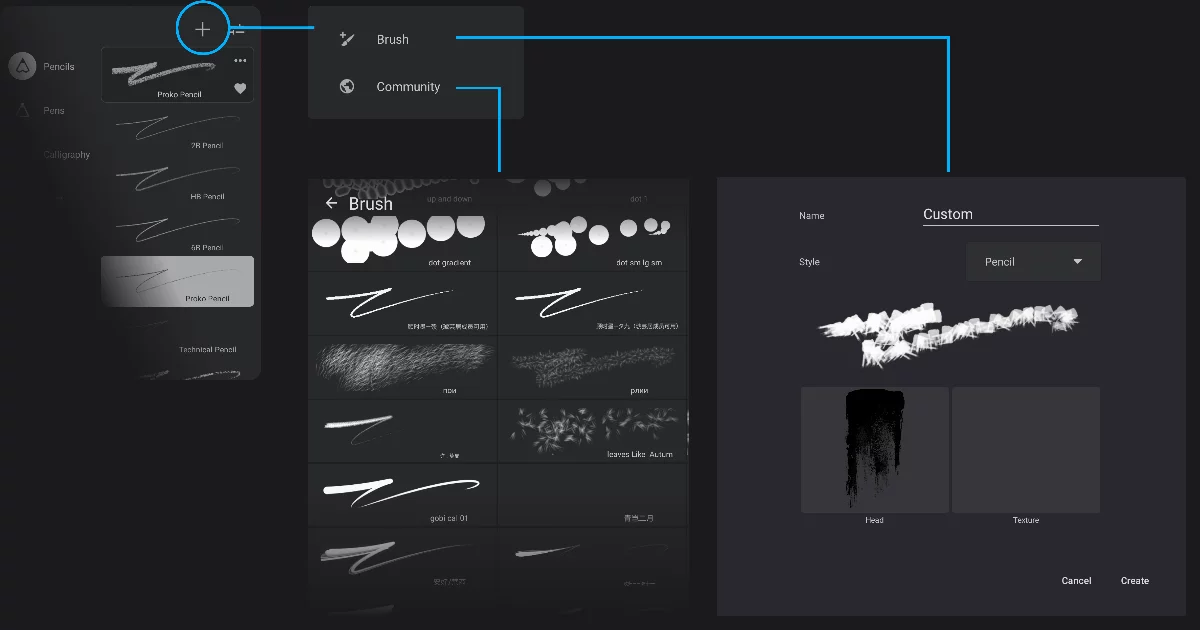
‘Add brush’ popup
Brush Creator
(Learn more below.)
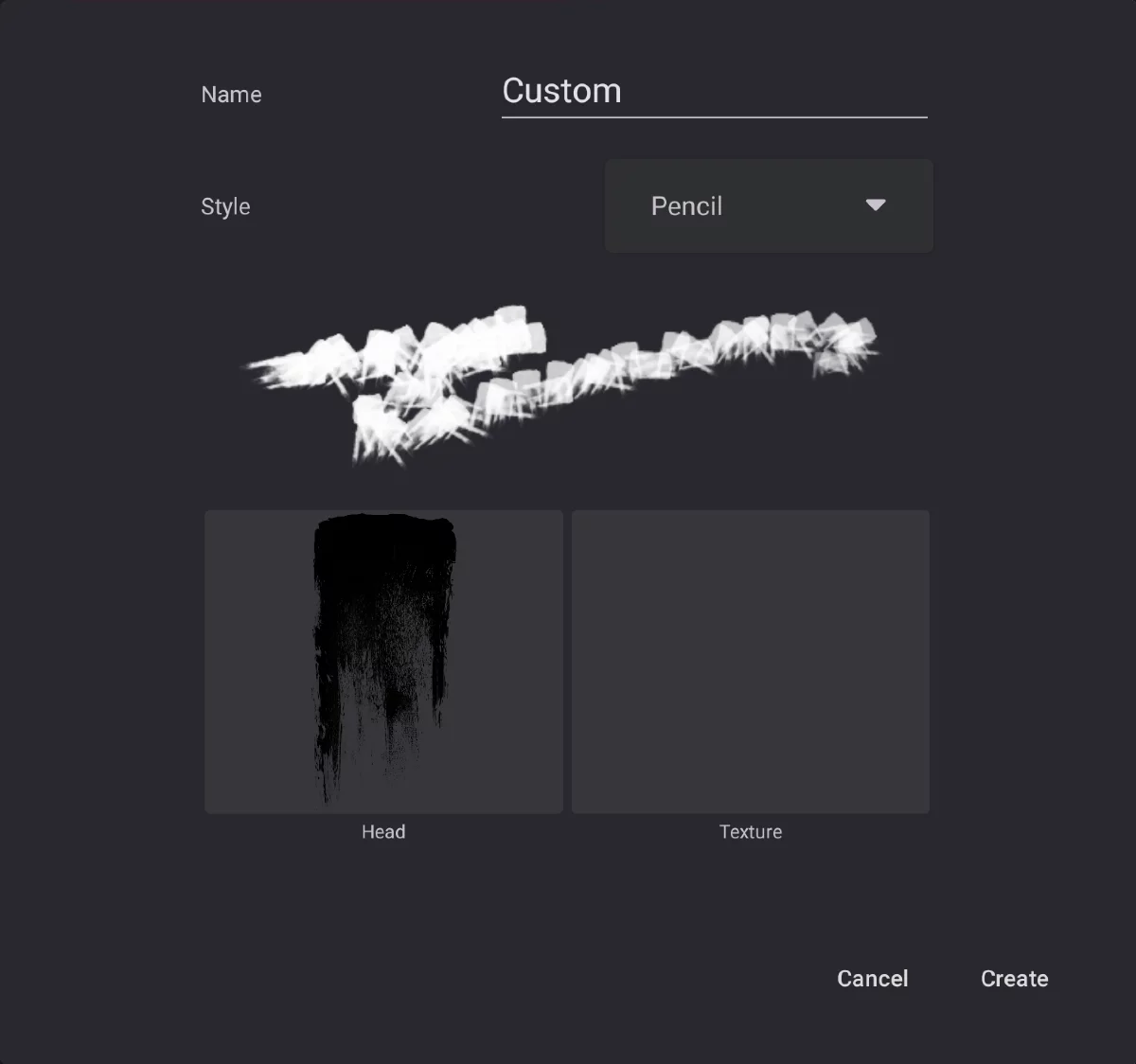
Brush Creator
You can also add brush packs purchased from third-party vendors.
Note that Infinite Painter uses proprietary brush format (PRBR) which is not compatible with brushes from Adobe Photoshop™ or Procreate™. More about this in Downloading brushes from third-party suppliers.
Brush Creator
Create a new brush from scratch.
Brush Creator
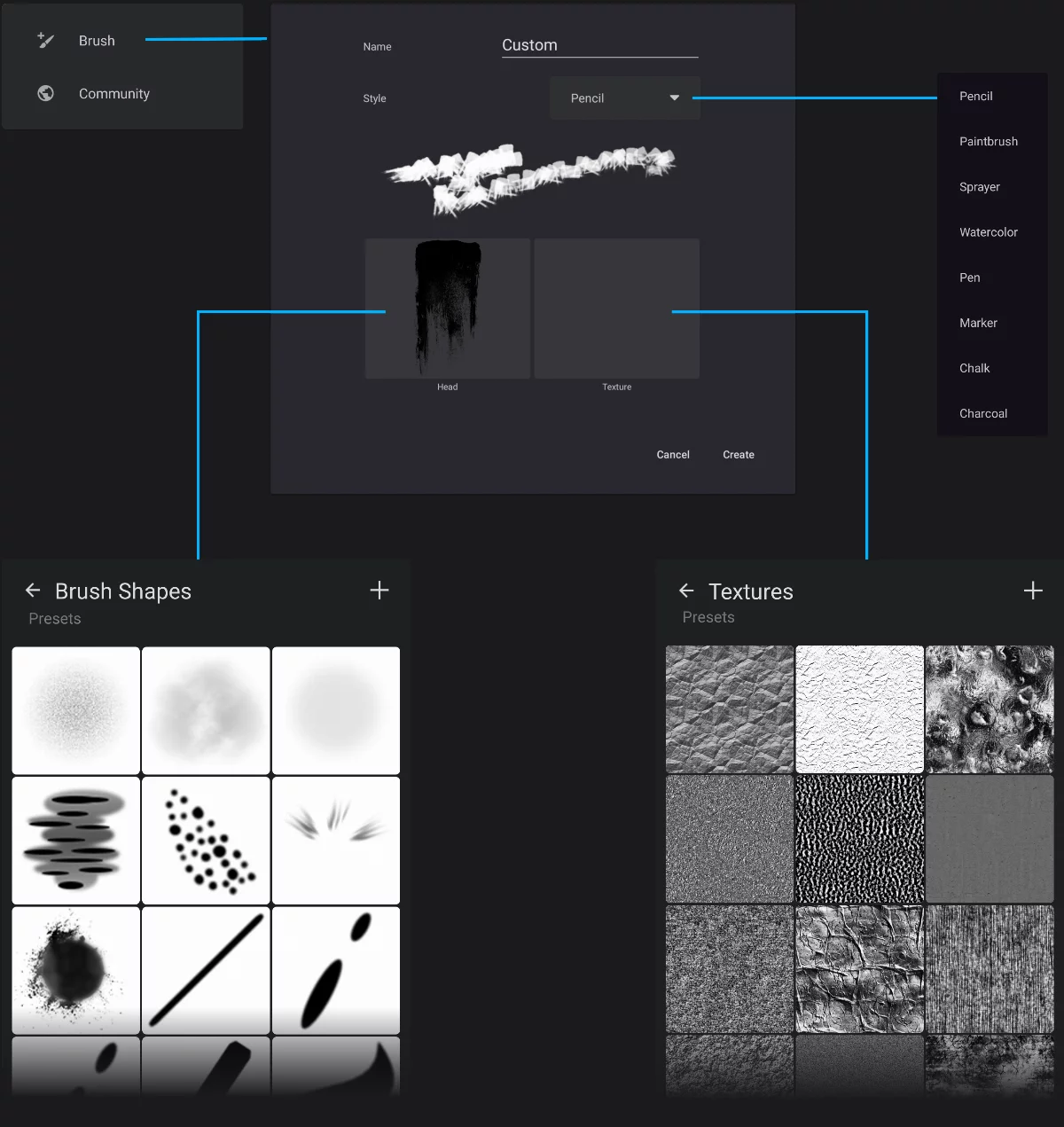
Brush name
Use a meaningful name to easily identify the new brush.
Brush type selector
Presets for different brush types.
Note that these presets are very general; further editing will be needed to fine-tune the brush.
Brush stroke preview (thumbnail)
Brush head
Tap to select a bitmap. If you leave this field empty, a default, round head will be used.
Brush texture (optional)
Use textures for more natural effects.
Brush Head selector
More below.
Texture selector
More below.
After creating a brush here, use the Brush EditorBrush EditorComplex panel (or rather a set of panels) containing all the controls of a brush in Infinite Painter. Learn more to fine-tune it. Learn how to use the Brush Editor in the Brush editing chapter.
You can start the Brush Creator also from the Selection toolbar right after selecting a fragment intended for the brush head. Learn more in Selections — editing functions.
Brush Head selector
Find the best brush tip.
You can reach the Brush Head selector from the Brush Creator panel or from the Brush Editor — Head tab.
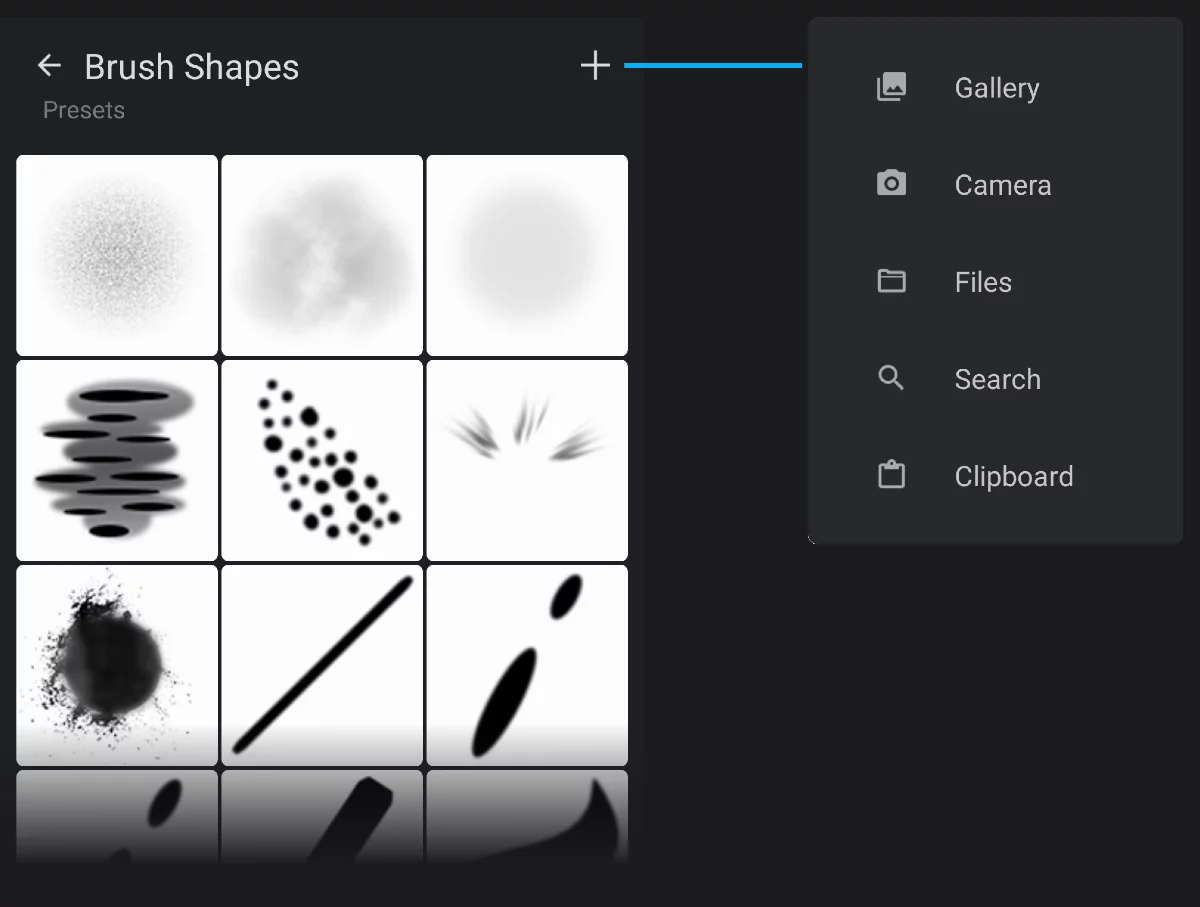
Presets list
These are the brush head bitmaps that come with Infinite Painter.
If you import a bitmap, it will appear in the separate “Imported” section.
Import a bitmap
If you do not find what you need.
System ‘Photo Gallery’
Your device’s Camera
‘Files’ (file manager)
Bring images from your device or from a cloud storage.
Infinite Painter’s internal ClipboardClipboardInternal image repository in Infinite Painter. This is permanent library of copied fragments, separate of the system ‘clipboard’ that temporarily holds copied contents.Learn more.
Learn more in Importing images.

If you wish to delete an imported bitmap, long-press on its thumbnail and tap “Delete” button. Be careful, as one bitmap may be used in multiple brushes and by deleting it you may damage all these brushes.
The preset (built-in) brush heads cannot be deleted.
Black or white? (In the head bitmap)
The concept of the brush head bitmap is to define areas of the brush tip that would apply color by using the brightness of the bitmap (the bitmap is usually a grayscale image).
In general, for historical reasons, in the computer graphics industry, the white areas paint, the black areas are considered transparent. So, technically, the brush head bitmap should be a white shape on a black or transparent background. This is a bit counterintuitive, as we generally prefer using a black-on-white images for the brush head.
In Infinite Painter you don’t have to worry about this; you can invert the bitmap colors with one tap in the Brush Editor (see Brush Editor — Head tab).
Brush Editor, Head tab:
(see Brush Editor — Head tab).
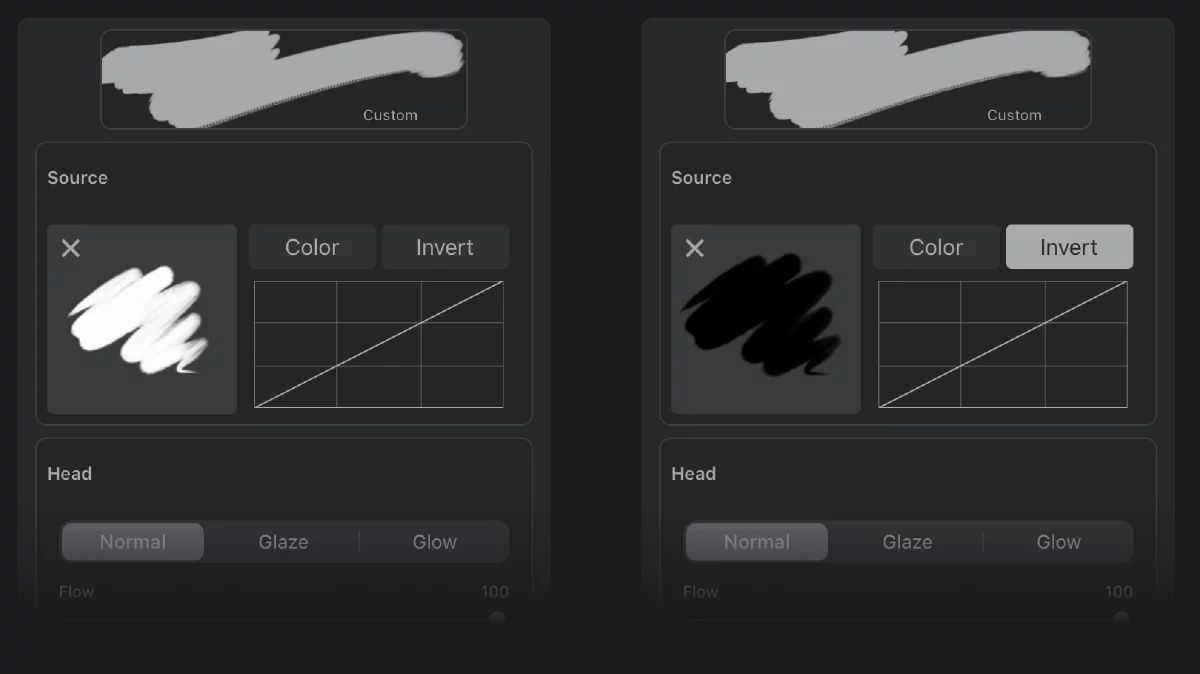
A white-on-transparent bitmap
Prefect; you don’t have to change anything.
A black-on-transparent bitmap
Has to be inverted.
In Painter, for the brush head bitmaps, you can use any kind of images:
• white-on-black
• black-on-white
• white-on-transparent
• black-on-transparent
• full color (with or without transparency)
Anything will work.
All the built-in brush head bitmaps are stored as black-on-transparent for clarity, but inverted by default.
Brush Texture selector
Add a texture to your brush.
You can reach the Brush texture selector from the Brush Creator or from the Brush Editor — Head tab.
Brush texture selector
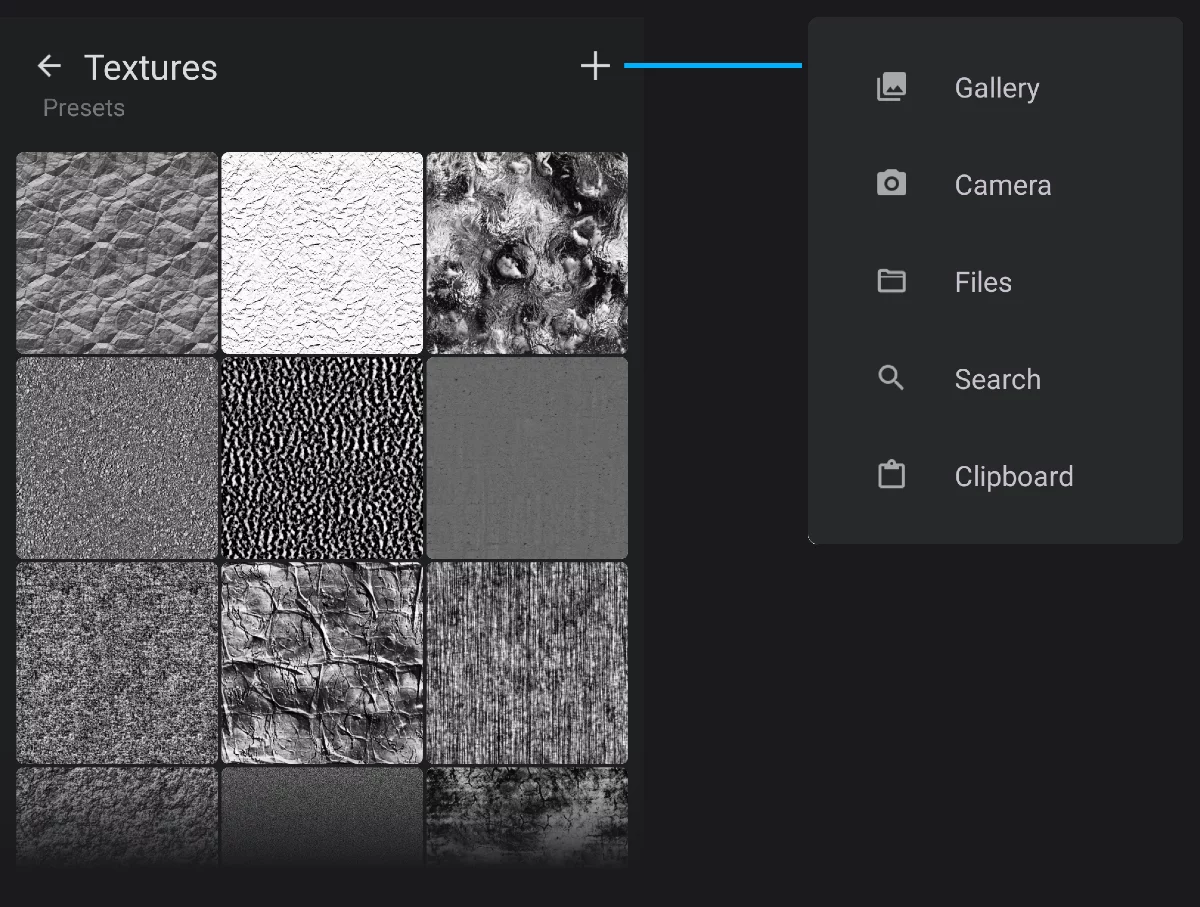
Presets list
These are the textures that come with Infinite Painter.
If you import a bitmap, it will appear in the separate “Imported” section.
Import a bitmap
If you do not find what you need.
System Photo Gallery
Your device’s Camera
Files (file manager)
Bring images from your device or from a cloud storage.
Infinite Painter’s ClipboardClipboardInternal image repository in Infinite Painter. This is permanent library of copied fragments, separate of the system ‘clipboard’ that temporarily holds copied contents.Learn more.
If you wish to delete an imported texture bitmap, long-press on its thumbnail and tap “Delete” button. Be careful, as one bitmap may be used in multiple brushes and by deleting it you may damage all these brushes.
The preset (built-in) textures cannot be deleted.
Black or white?
Similarly to the brush head bitmaps, the brush texture bitmaps define the “painting” and “masked-out” areas with their brightness. In general, again, the white areas paint, the black areas are transparent. But you can change it in the Brush Editor, Texture tab. Refer to Adding new brushes for details.
Brush Editor, Texture tab:
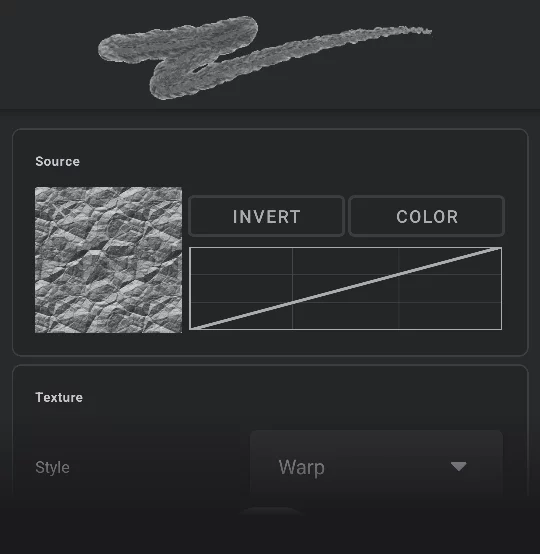
In Painter, for the brush texture bitmaps, you can use any kind of images:
• white-on-black
• black-on-white
• white-on-transparent
• black-on-transparent
• full color (with or without transparency)
Downloading brushes from the Community
For free.
Brushes in the Community repository are the brushes uploaded by other users of Infinite Painter.
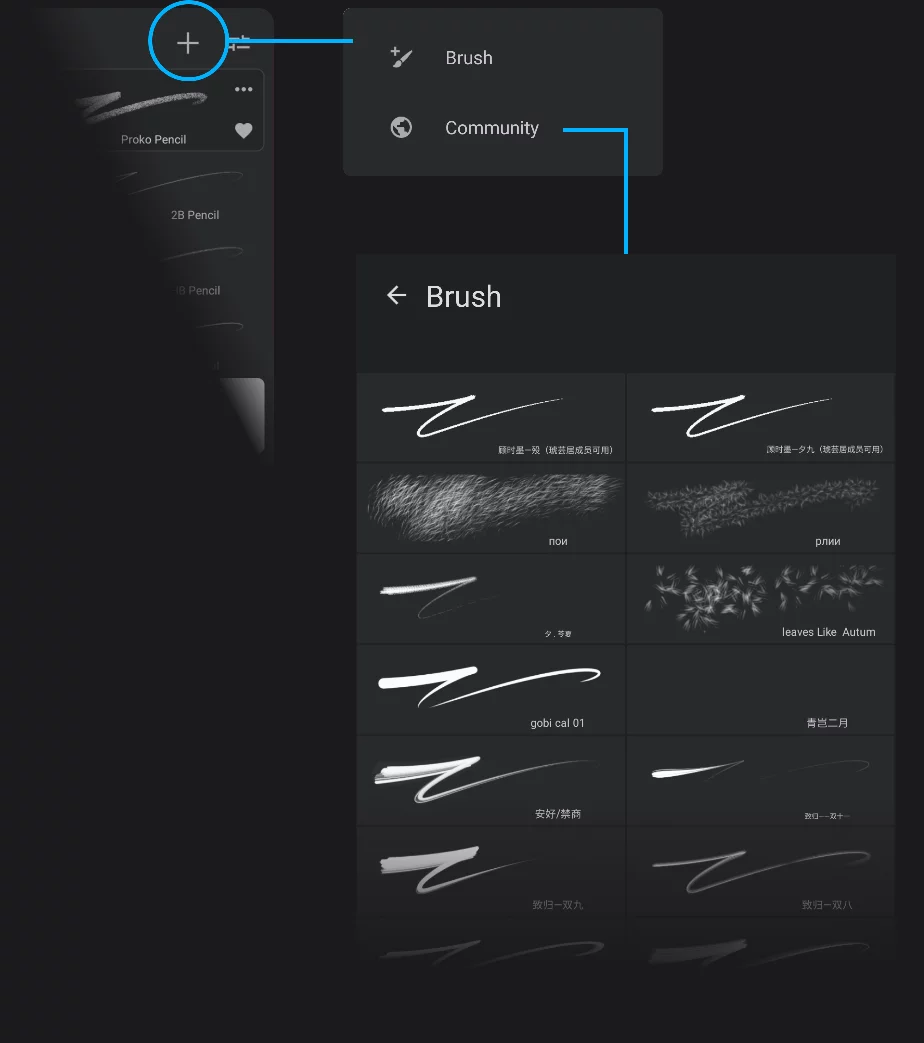
Online brush repository
This is, in its current version, a very simple selector: no categories, no search feature. Just scroll and pick. You can select any number of brushes without leaving the Downloader. Tap the button to download all selected brushes. The brushes already downloaded are highlighted.
Brushes in the repository are sorted by date of upload (most recent on top).
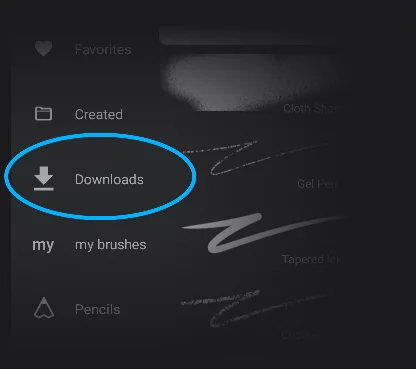
Downloaded brushes land in the "Downloads" folder
Disclaimers
The Community brushes are free.
Use them, alter them, re-share them. But respect other users' work: do not re-share somebody's brushes as yours without significant changes.
The brushes created by other users are free for any use without charge and without a need for attribution. However it is possible that the creator of a particular brush might have used a copyrighted asset within the brush (most commonly a texture image). In such situation using that brush may be not completely safe for certain types of commercial jobs.
Please note that the brushes offered for free download are not a part of Infinite Painter application so the developer (Infinite Studio LLC) is not responsible for any possible legal or technical issues with these brushes.
You can also download brushes from commercial vendors.
Downloading brushes from third-party suppliers
Commercial way.
Brushes from third-party suppliers can be either free or offered for sale. They can be single brushes or (most commonly) brush sets.
1. Find a supplier offering Infinite Painter brushes.
Note that brushes and brush sets in Infinite Painter 7 are not compatible with brushes from other applications. Currently it is not possible to use Photoshop™ brushes in Infinite Painter (and vice-versa).
2. Purchase and download the brush set file
It should have .przp extension (single brushes would have .prbr extensions).
3. In Infinite Painter, use Import/Files function to locate the file
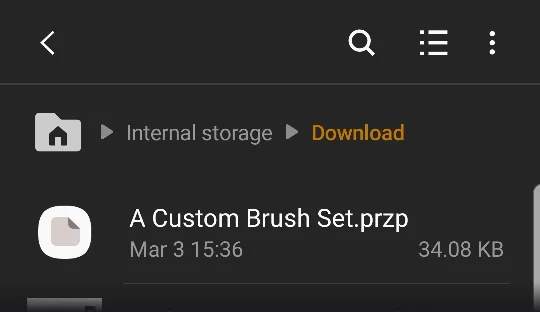
A PRZP (.przp) exchange file
4. Import the file
The brushes should appear in the brush list as a new folder.
Do not try to extract single brushes from the .przp file outside Painter. Only download and import the .przp file as a whole.
The .przp file is technically a ZIP archive (container), so certain systems may be able to open the file and display its contents. DO NOT use this option when downloading the .przp file and DO NOT unzip the file before importing into Painter. Even if the .przp container may contain separate .prbr brush files, theses may get corrupted if imported separately.
If you need only certain brushes from given .przp pack, import the whole pack and delete the unnecessary brushes inside the application.
Disclaimers
© Brushes purchased online may be copyrighted. Do not share them to the Community without clear consent from their creator.
Commercially available digital assets (like the brushes) may be offered on whatever license; please make sure that the license suits your needs (especially if you intend to use the brushes for commercial work).
§ Disclaimer: brushes offered by the third-party suppliers are not a part of Infinite Painter application package and the developer (Infinite Studio LLC) is not responsible for any possible legal or technical issues with those products.
You can also download free brushes from the Community. See above.