
Internal Clipboard
In image library
Infinite Painter has an internal image repository called Clipboard. Here you can save images and selected fragments for further use.
Saving to Clipboard
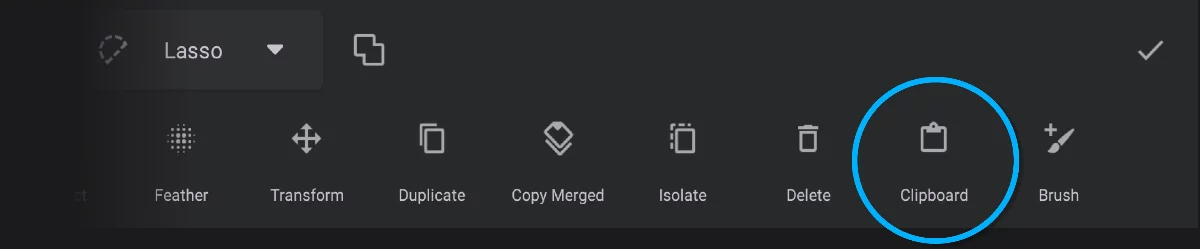
You can save a selection or a layer to the Clipboard with the Clipboard command from the Selection toolbar.
Importing from Clipboard
Access the Clipboard — via the Import command in the Options menu or wherever the app offers the import option.
Import sources selector
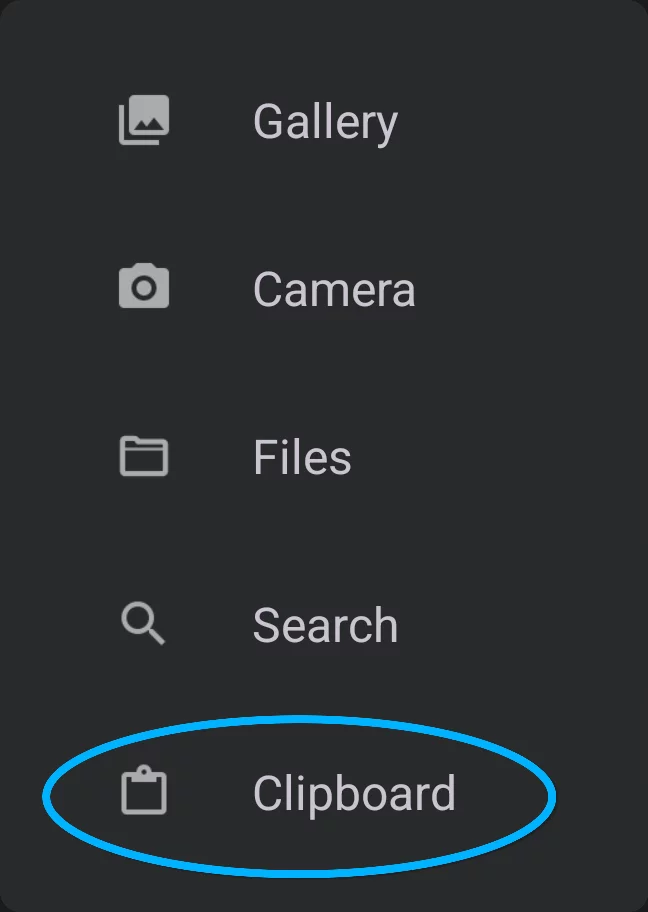
You can reuse patterns, brush head bitmaps, icons, selected fragments or entire layers
using the Clipboard.
Unlike in the other "copy-paste" systems, the images in Clipboard are stored permanently until you delete them manually.
Using the Clipboard content
Reuse your assets.
You can assess the Clipboard from any Import selector. Like when importing brush head bitmaps or patterns.
Learn more about importing images for various purposes in Importing images.
Use Clipboard for storing any kind of images.
The images are stored in PNG format with transparency (RGBARGBAEncoding of RGB color space with transparency (the “A” stands for “alpha channel”). Technically a RGBA image consists of four channels, three of them encoding the RGB color of each pixel plus the “alpha” channel encoding opacity of each pixel.).
Saved images are permanently stored on your device and may be accessed from any project.
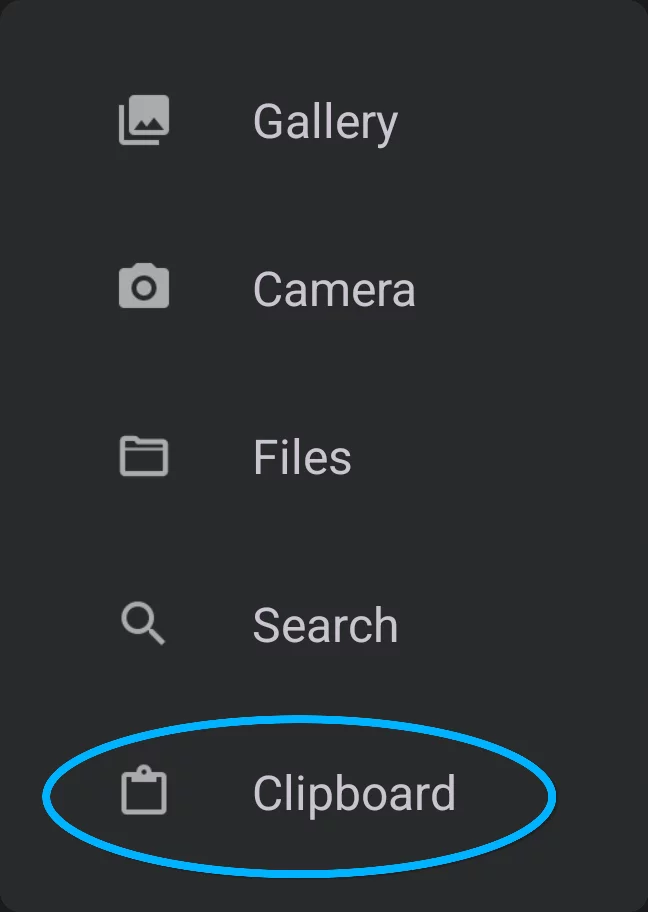
Access the Clipboard via the Import command.
Import sources selector
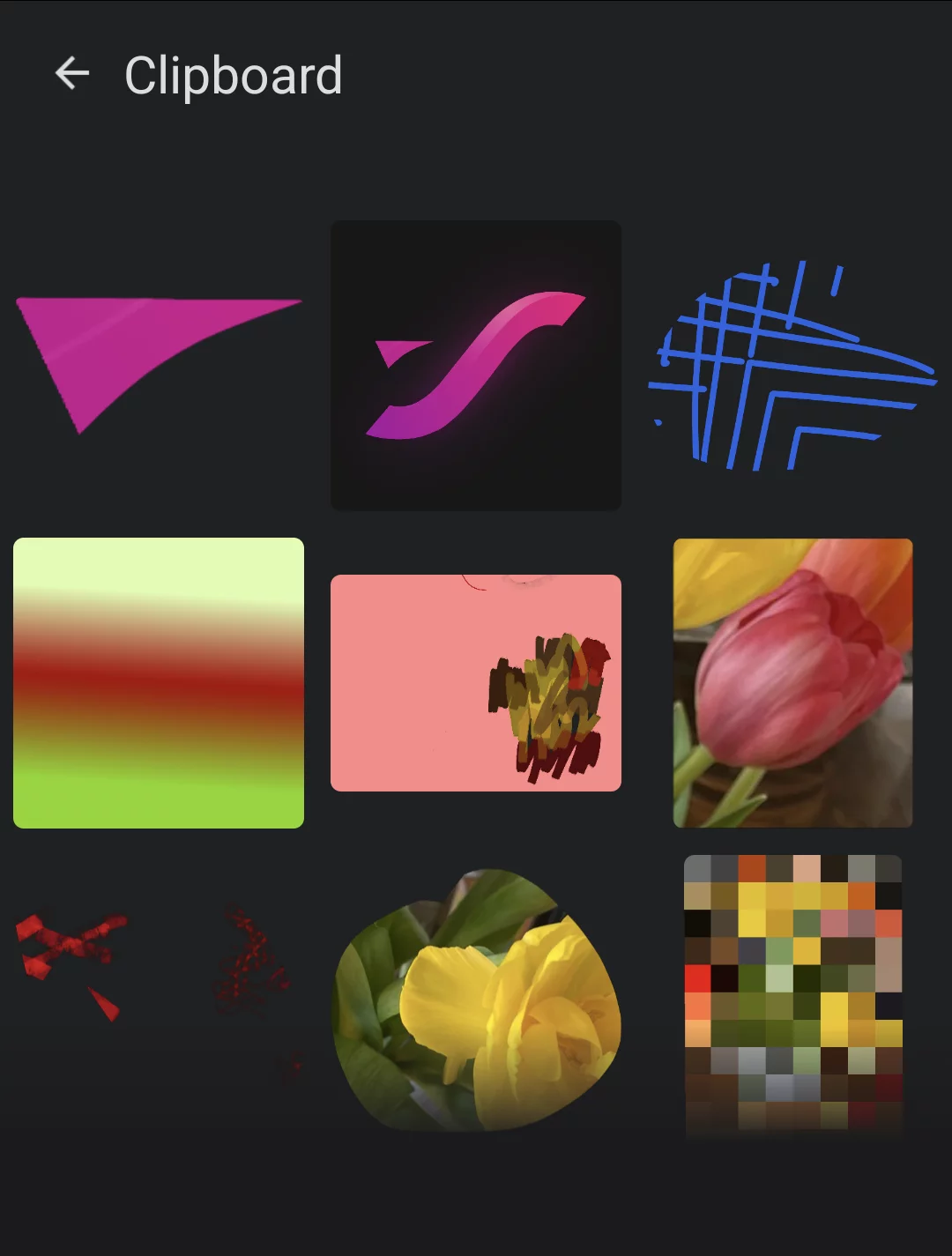
Close browser button
A thumbnail of a stored image
To delete an image long press on its thumbnail, then tap the Delete button.
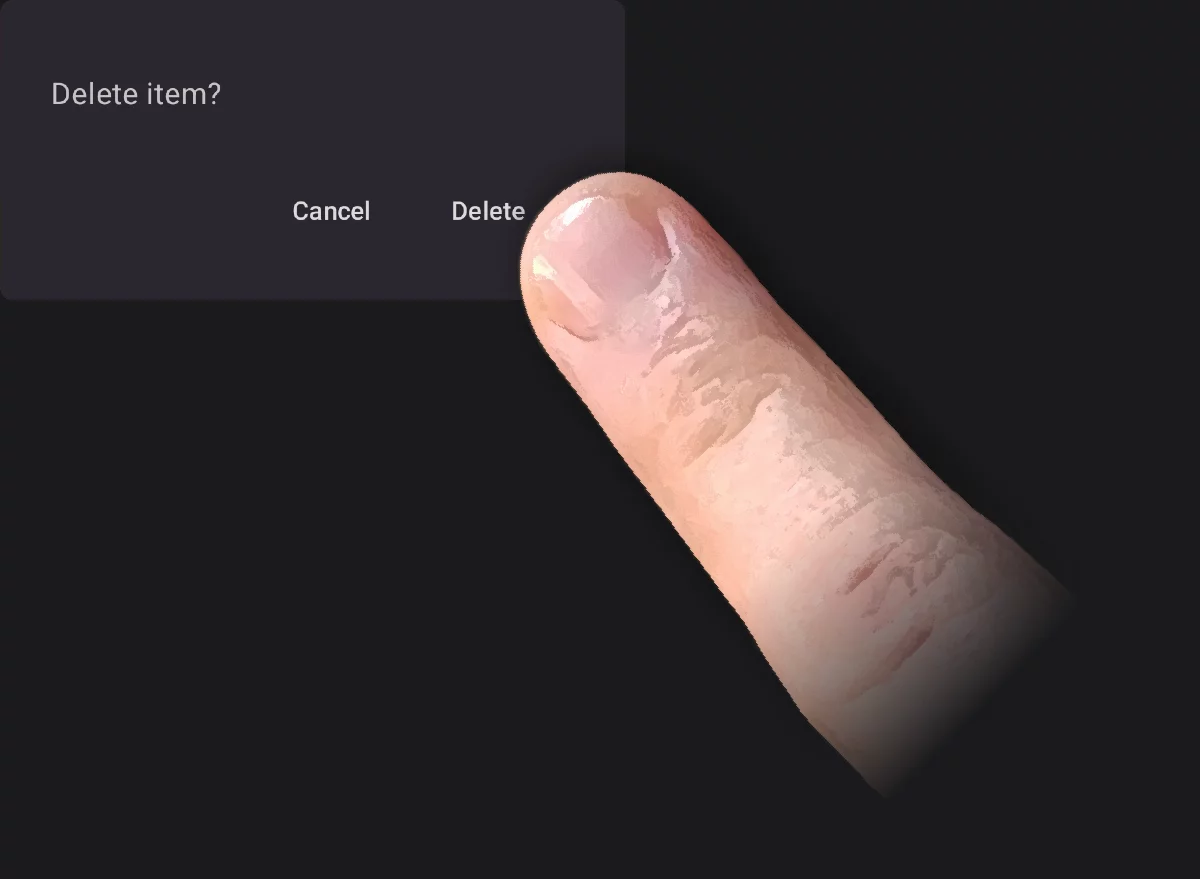
Deleting an image from the Clipboard is irreversible.
Note that the Clipboard storage is a part of the application data and it may be lost in case of reinstallation of Infinite Painter. This is the general system policy.