Common workspace of the Selection tools
Switch between tools from one place
Selection toolbar

Selection toolbar
Common for all Selection tools
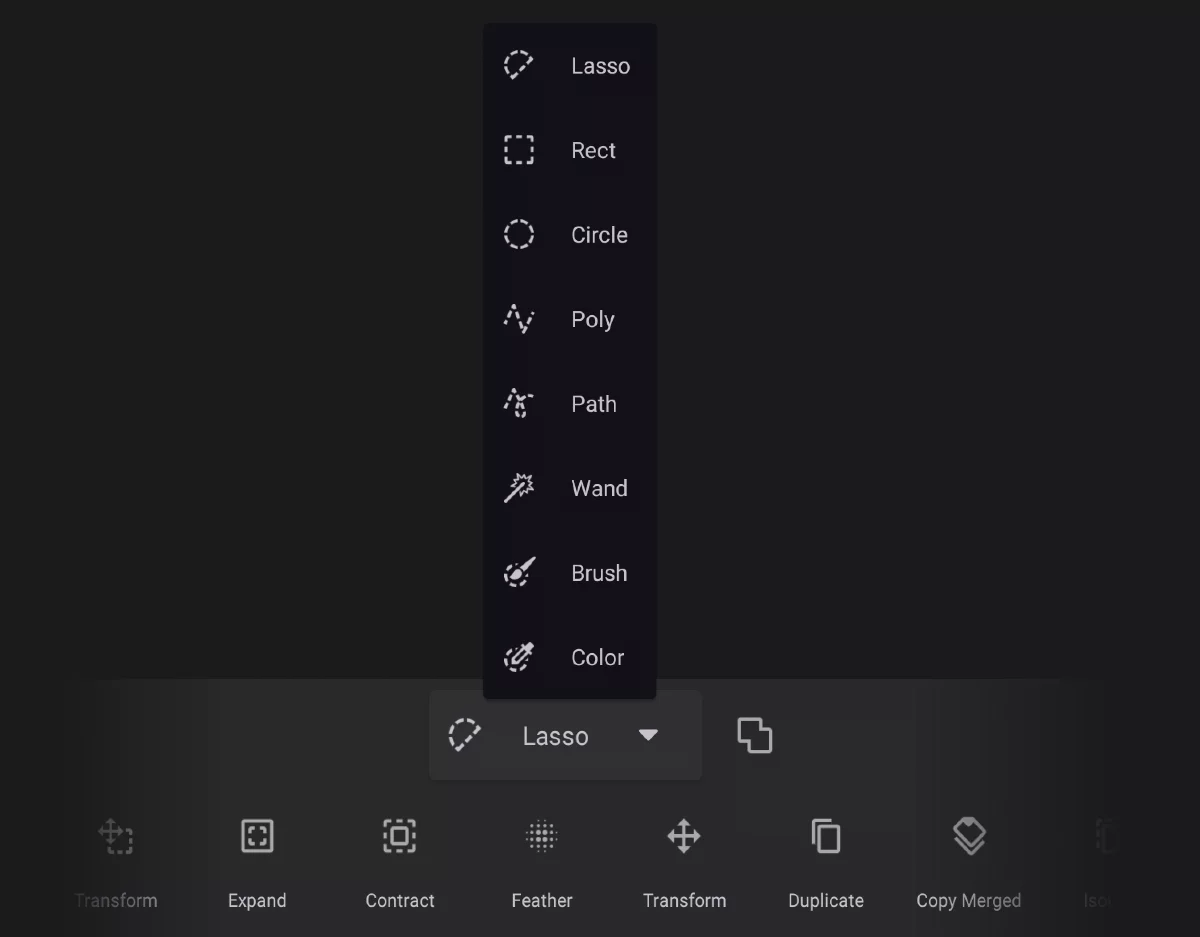
Selection tools list
Use any of the tools without leaving the common workspace. See Selection tools selector


Cancel
Close the selection workspace (and clear the selection).

Confirm
Leave the selection workspace; the selection remains active for use.
The toolbar is scrollable; not all icons may be visible on your device simultaneously.
As long as the Selection workspace is active, all regular editing tools affect the selection mask, not the actual content of active layer.
You can use any combination of selection tools and editing tools to create even very complex selection masks. See Selection tools used with other tools for details.
Selection tools — selector
Tap on the name of the current selection tool (e.g. Lasso) to open the list of all available selection tools. You can change the tools without leaving the Selection workspace.
Selection toolbar


Top bar indicators
When a selection is active, two icons appear at the left end of the top bar: the Selection menu icon and the Active selection indicator/toggle.

Selection indicator (and on/off toggle)
This icon indicates that a selection has been defined, and shows whether the the selection is active or not.
Also, toggles the active selection on/off.
(This icon shows up only after you confirm the selection and close the Selection toolbar.)


A selection is active
Tap the icon to deactivate the selection (turn the mask off), without deleting it.

Selection inactive (but still there, ready for further use).
Tap to activate.
Turning off a selection doesn't clear it; you can turn it on again.
Note that a selection mask may sometimes be invisible but still active, so the red indicator is there to spare you confusion.
If you are using a physical keyboard, press \ (backslash) key to toggle the selection on/off.
For the list of all keyboard shortcuts see Keyboard shortcuts.

Selection menu
Only appears when a selection is created
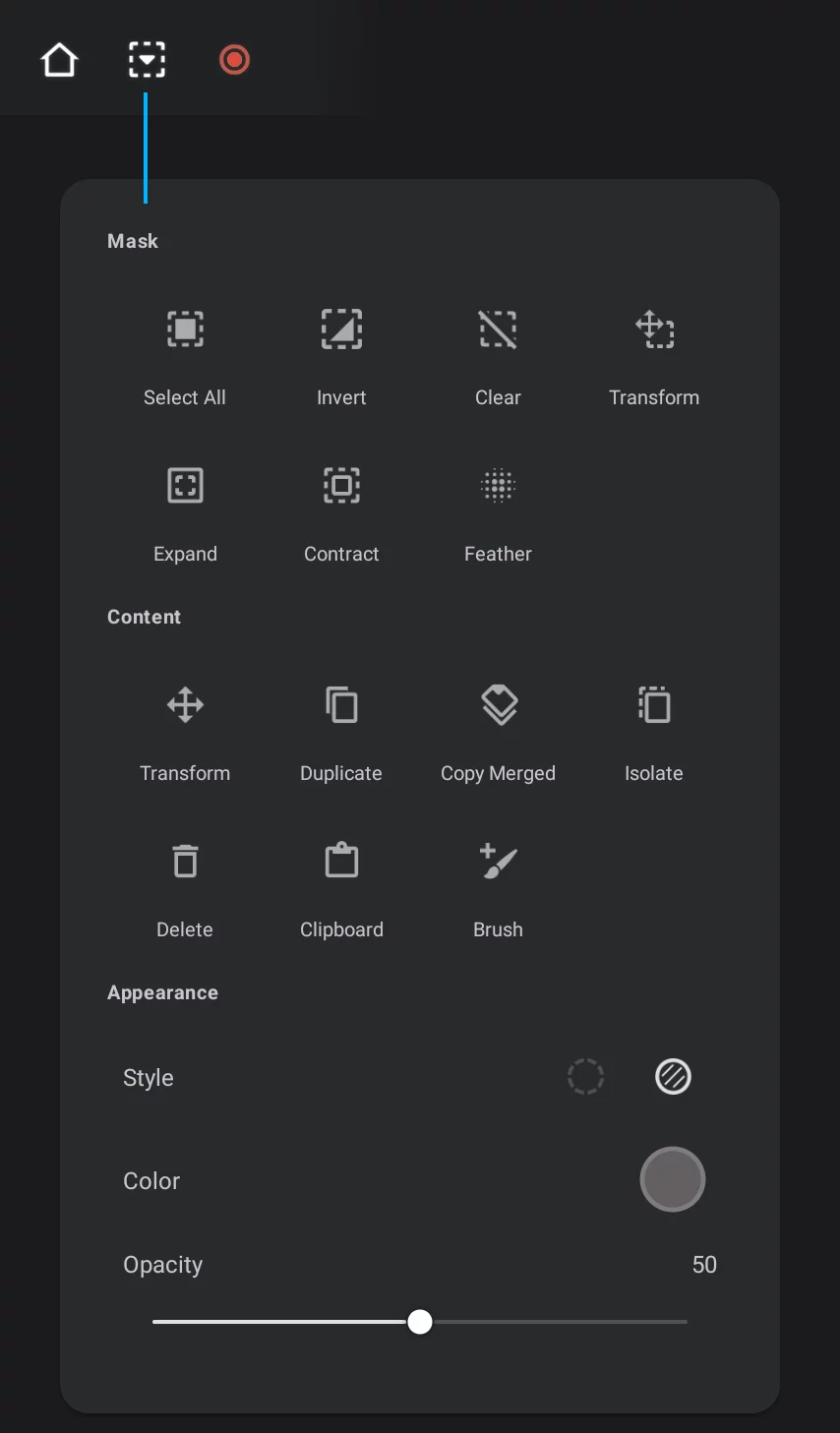
Selection menu gives access to all operations on selection mask and on the content of the selection, plus controls of the appearance of the selection mask.
In most part this menu duplicates the functionalities of the Selection toolbar, except the actual selection tools.