
Selection tools used with other tools
In general, you can try everything with everything.
Selection tools may be used with many other ToolToolIn Infinite Painter ‘tools’ usually refer to functions that are not directly related to painting with brushes. In this context, “tool” may help in adding color to the artwork or may edit already existing composition.s. Try Symmetries, Perspective grids, Lazy guide etc. while using Lasso tool, Rectangle and Circle selection or Brush selection tool.
| Guides: Lines, Ellipse, Pen | Guides: Lazy | Shapes: Rect., Circle, Path | Shapes: Line, Arc | Symmetries | Grids | |
| Lasso | × | × | * | × | ✓ | × |
| Rectangle | × | ✓ | * | × | ✓ | ✓ |
| Circle | × | ✓ | * | × | ✓ | ✓ |
| Polyline | × | ✓ | × | × | ✓ | × |
| Path | × | × | * | × | ✓ | × |
| Wand | × | × | × | × | × | × |
| Brush | ✓ | ✓ | ✓ | ✓ | ✓ | ✓ |
| Color range | × | × | × | × | × | × |
* Selection tools: Rectangle, Circle and Polyline are in fact the Lasso tool working with respective Shapes, so using any of these with other Shapes just switch the shape type.
Selection mask may be edited with most of the editing tools: (while still in the Selection workspace)
• Pattern tools (Symmetry, Path, Quilt, Tile patterns)
• Filters (however not all filters make sense with 8-bit mask)
Selection mask may be transformed with the Selection transform tool (see Mask editing functions). This offers all regular Transformation modes.
New brush from a selection
Make a custom brush head in one step
New custom BrushBrushA brush is a tool that lets you paint on a the canvas with different shapes, textures, and colors, similar to using real paintbrushes. The brushes follow the movements of your finger or stylus on the touchscreen (as opposed to other tools that have no real-time interaction with the canvas). In Infinite Painter, the brushes have much more functionality than merely applying colors.Learn more can be easily made from any selected fragment of your artwork.
Select desired fragment with Rectangle selection tool
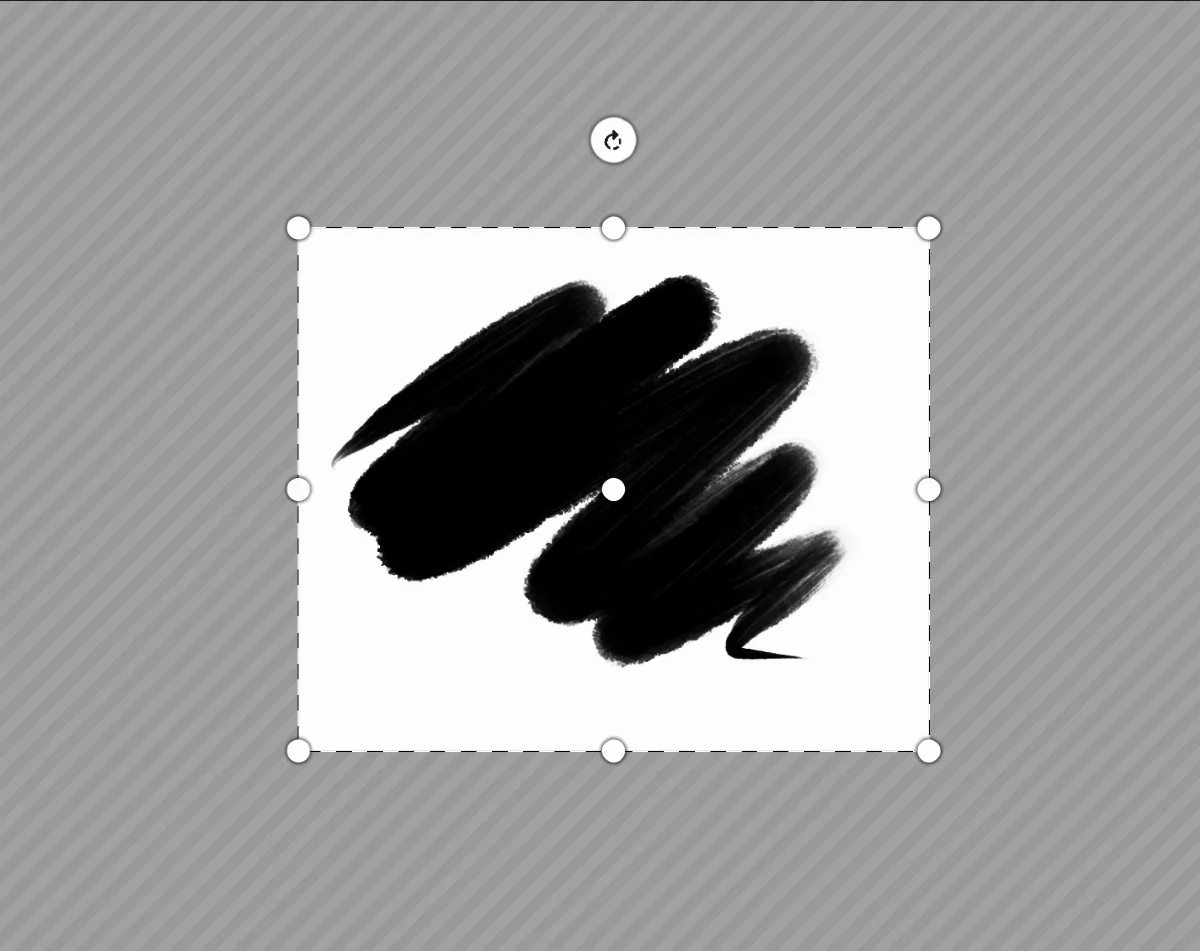
Use the Make Brush command on the Selection toolbar
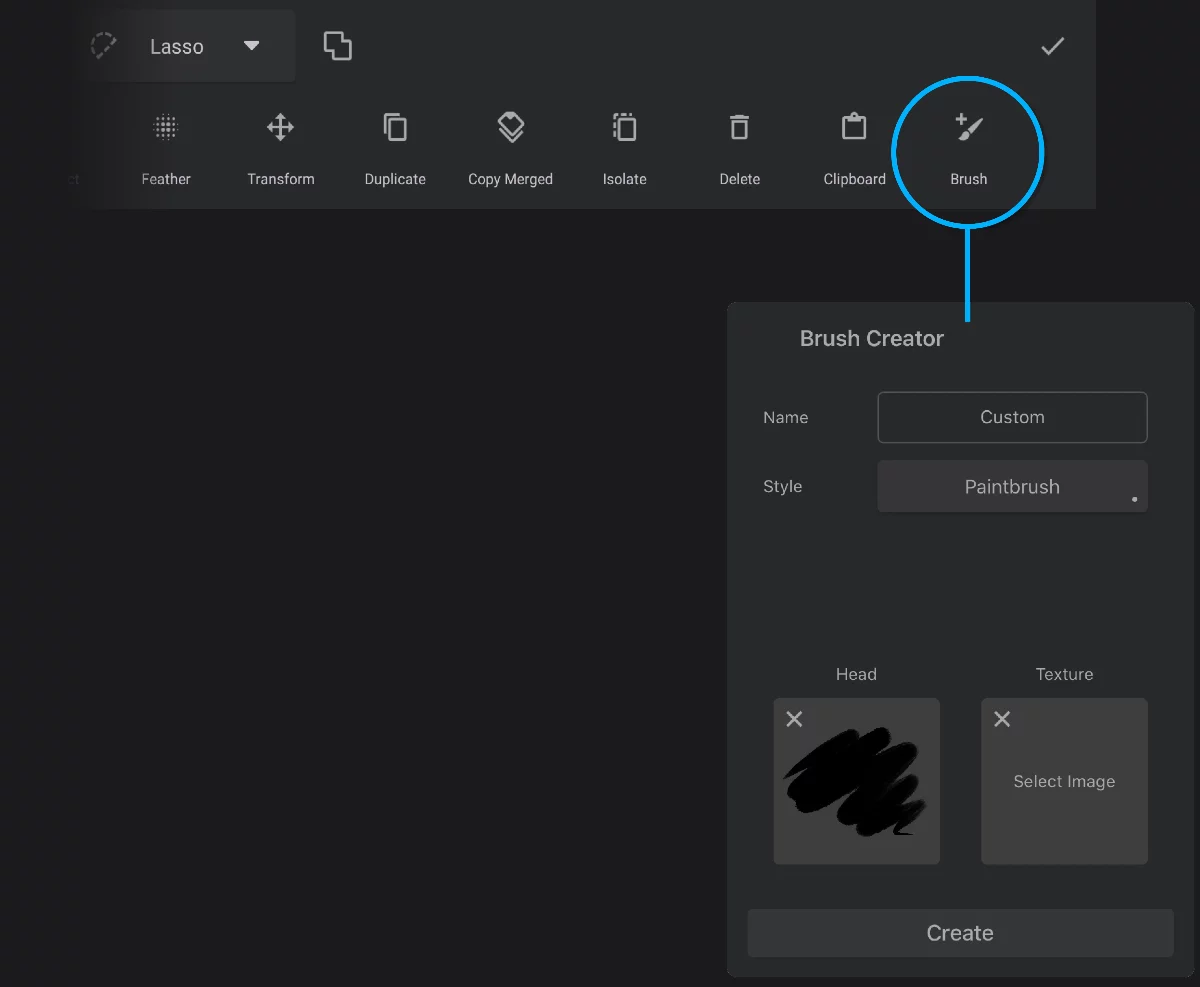
Selection toolbar
Brush Creator opens with your fragment loaded as the brush head.
Your selected fragment used as the brush head.
Complete the setup of the new brush and confirm. (Learn more about creating custom brushes in Brush Creator). Enjoy your new tool!
Ideally the brush head bitmap should be "white-on-transparent" (but in fact can be anything).
For best results, the selected fragment should be square, but it doesn’t even have to be rectangular. The brush engine will adjust the shape.
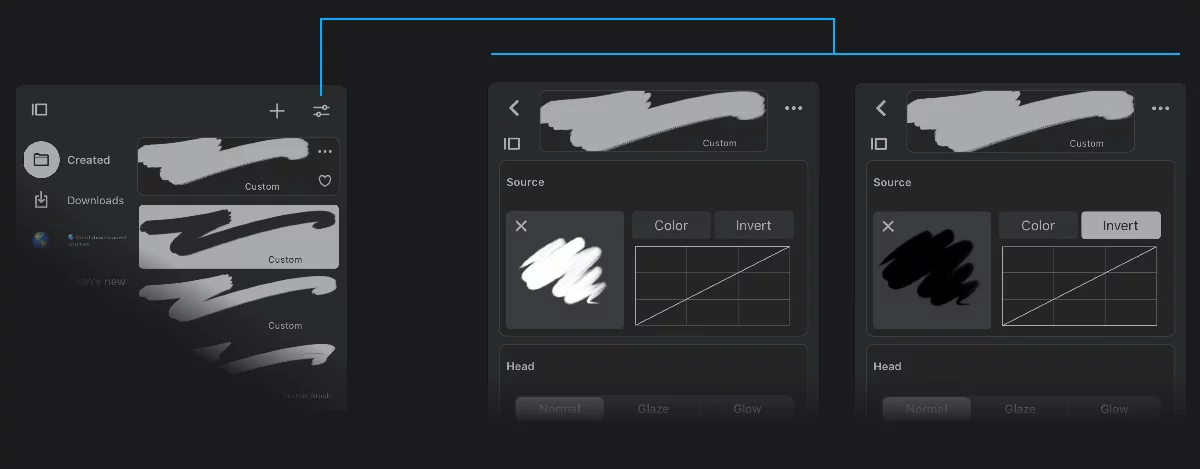
Brush selector
Brush editor, Head tab
For "white" bitmaps leave defaults.
Use ‘Invert’ if your bitmap is "black”.
Note that in Infinite Painter, the brush head may be a full-color bitmap. In such case make sure to activate the “Color” option in the Brush EditorBrush EditorComplex panel (or rather a set of panels) containing all the controls of a brush in Infinite Painter. Learn more.
More about using brush head bitmaps in Brush Head selector.
Selection mask appearance
Control how the selection mask is shown
There are two styles of the selection mask: the “marching ants” line and a color overlay.

Toggle the style in the Selection menu.
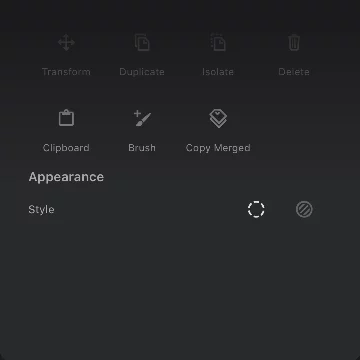
Mask appearance section
Toggle mask style

"Marching ants" line
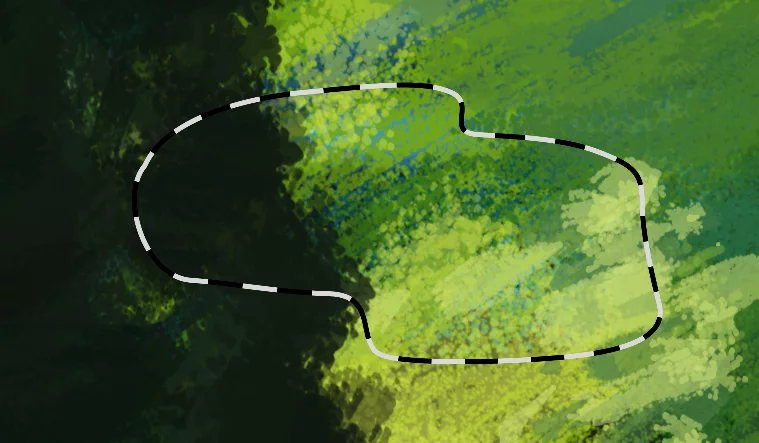
The selected area
The "marching ants" style is perfect for simple, hard-edged selections. This style doesn't obstruct artwork visibility, yet for more complex selections it may be confusing.

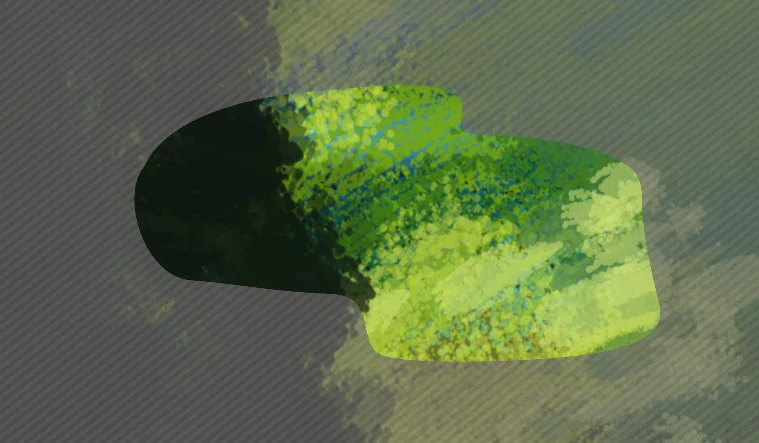
The selected area
You change the color of the mask overlay:
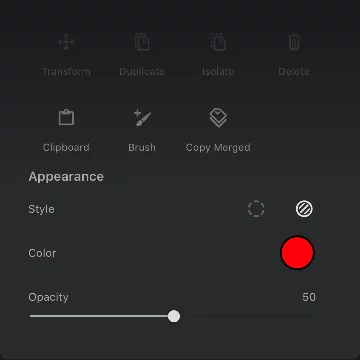
Color selector for the mask overlay
Color overlay 50% opacity red
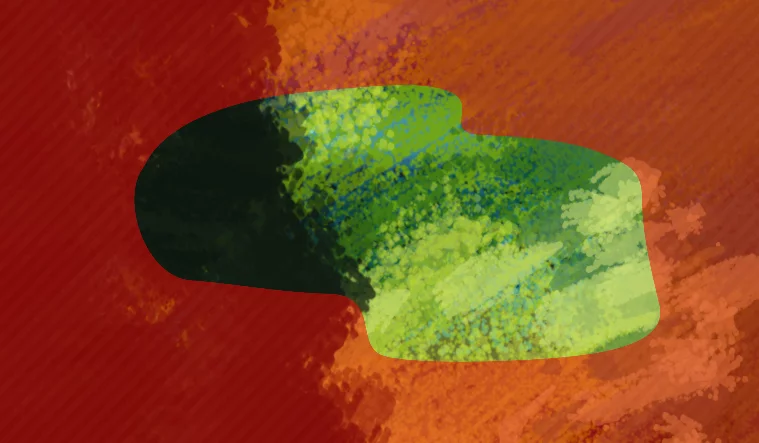
Semi-transparent color overlay shows both the artwork and the mask at the same time.
Color overlay 100% opacity red
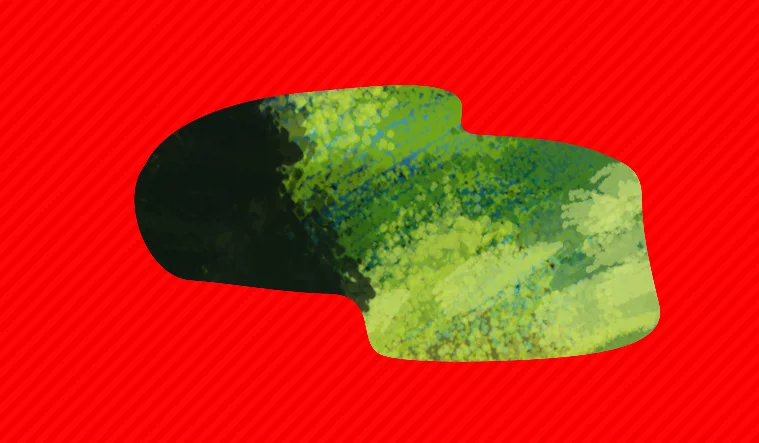
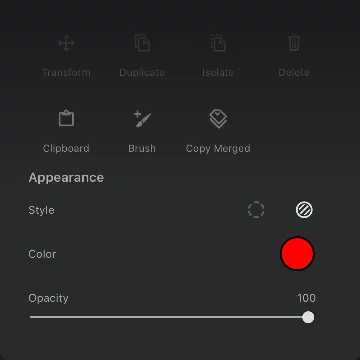
Adjust the opacity of the overlay.
Fully opaque color overlay allows you to apply precise editing to the selection mask, like softening edges or manual painting of the mask.
Note that the color of the mask overlay is for your convenience only; the mask is technically a grayscaleGrayscaleIn computer graphics, image editing and digital art, grayscale refers to images and image encoding with only a single channel for “intensity” or “amount of light”. In other words, a monochrome image composed exclusively of shades of gray.
Commonly (but incorrectly) referred to as “black-and-white”. image. You may use a color contrasting with your artwork for better visibility, or a neutral color. Mask overlay opacity set here doesn't affect the "strength" of the selection mask; it is only a visual style.