
Wand selection
A magic wand it is.

The Wand works exactly like the Solid fill. Only it fills with selection not with color.
Tap to select an area using pre-set tolerance…
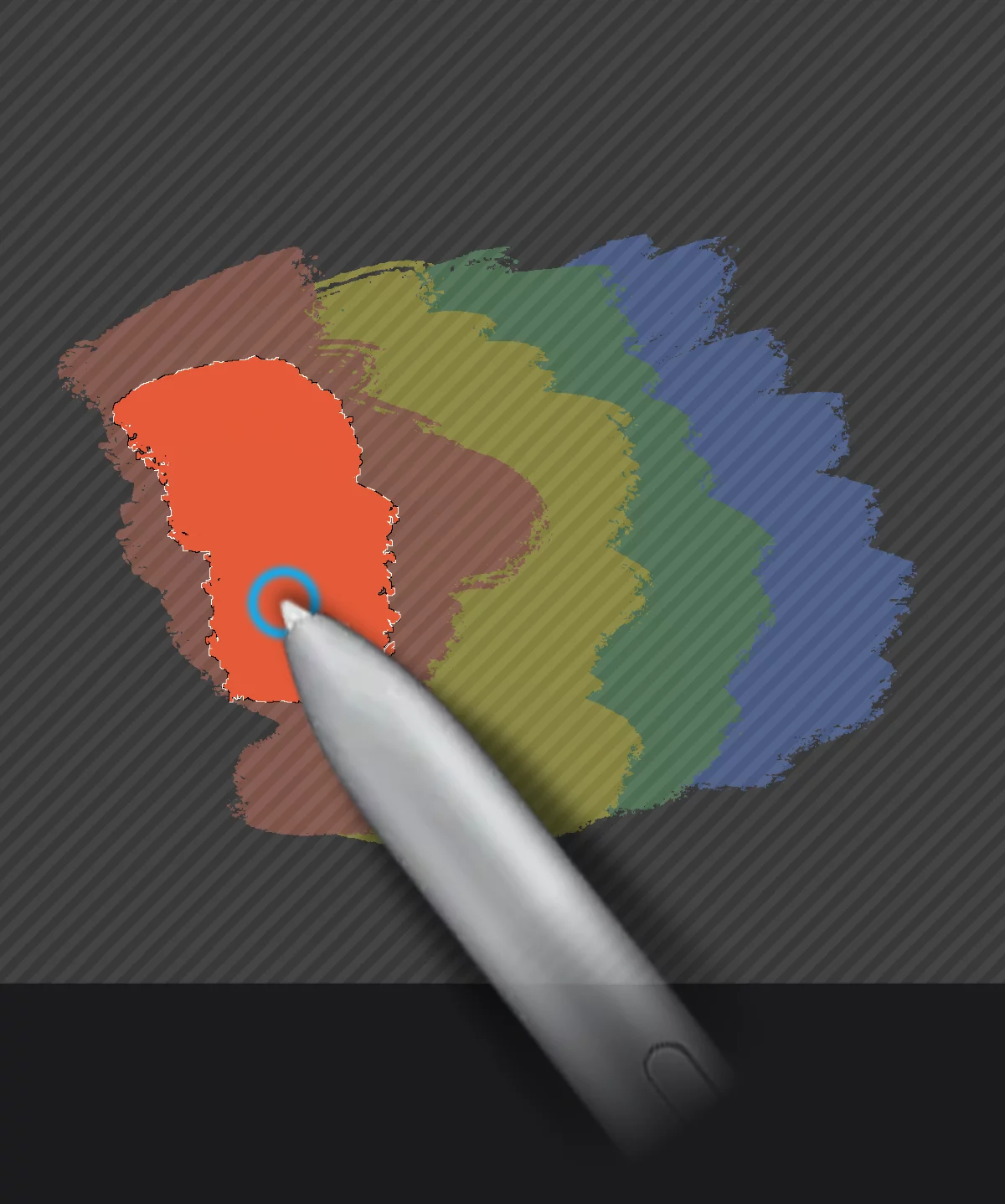
or drag from a point, to visually control the amount of selection.
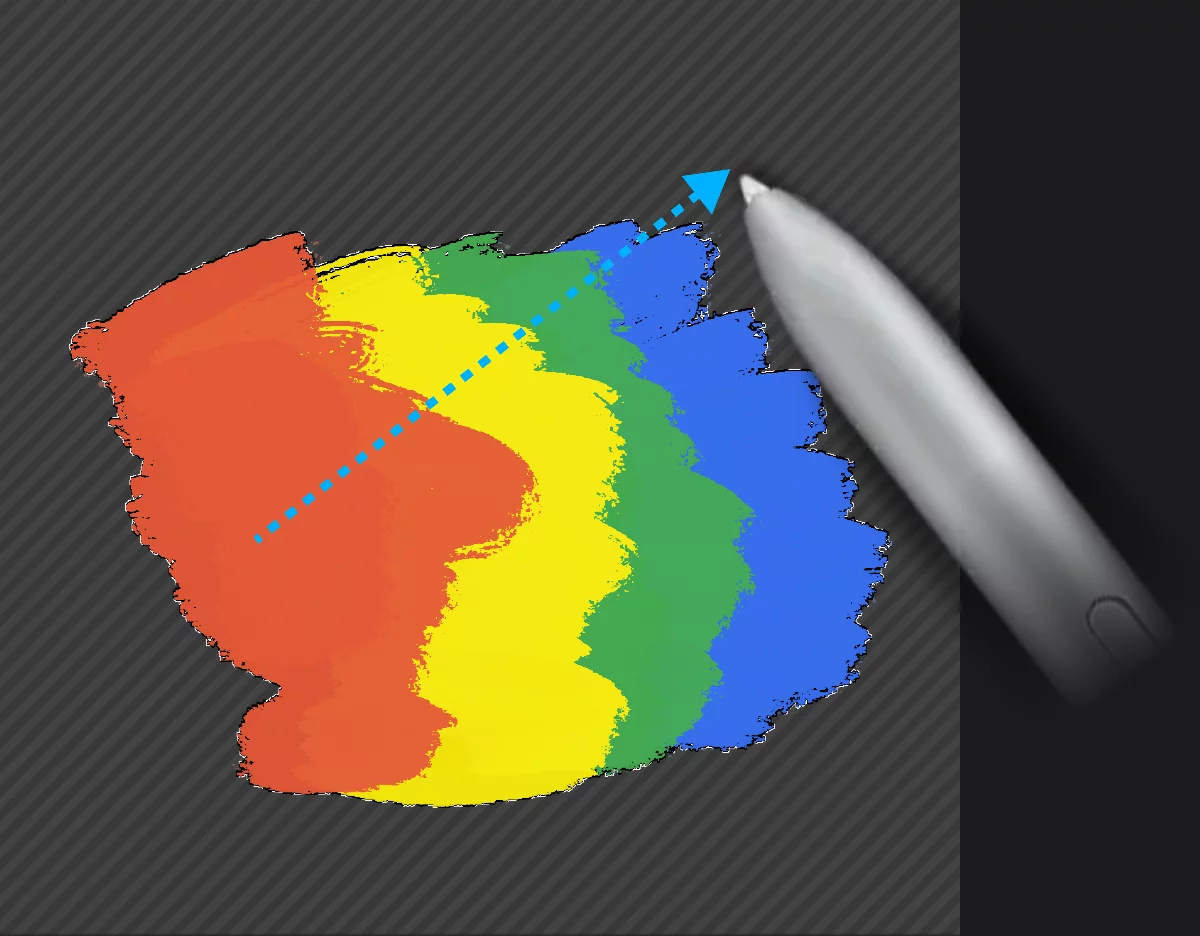
(This is called Live Tolerance; learn more in Fill tools — tolerance).
Learn more about using Solid Color fill in Solid fill.
Wand tool tolerance
Learn to use the magic.
The Tolerance slider is located in the Tool settings menuTool settings menu The menu that contains all the settings of currently active tools. If at least one active tool has settings, the cogwheel icon appears at the left end of the top bar.Learn more. It is common for the Wand and all the fill tools.
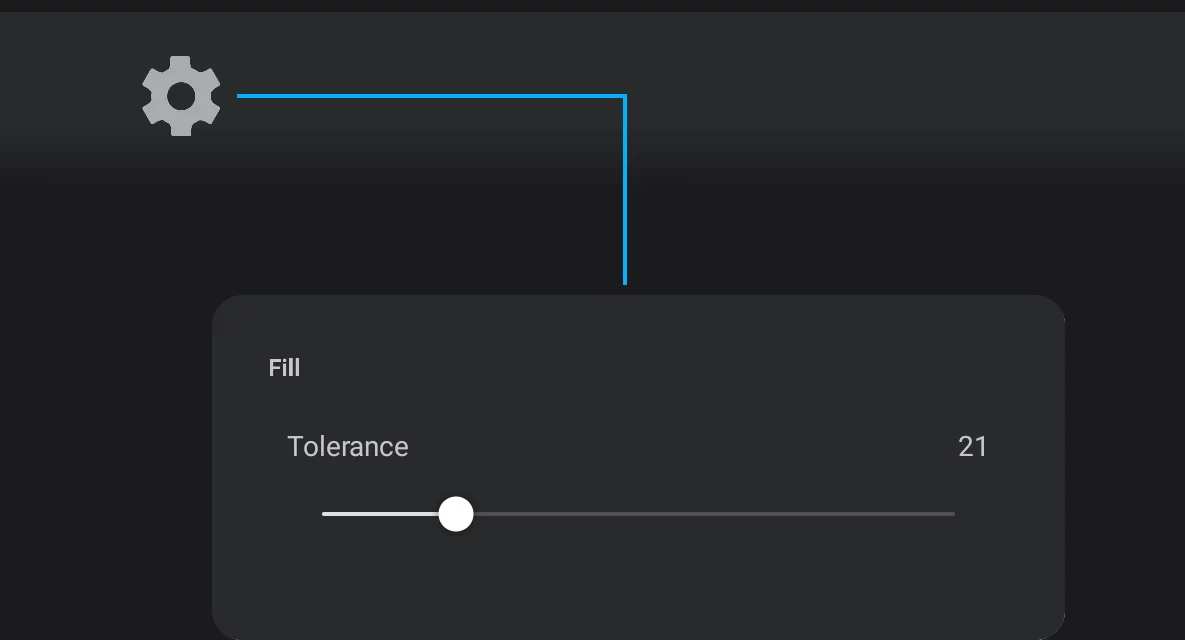
Tool settings menu button on the top bar.
Fill/Wand tolerance slider
Tolerance 1%
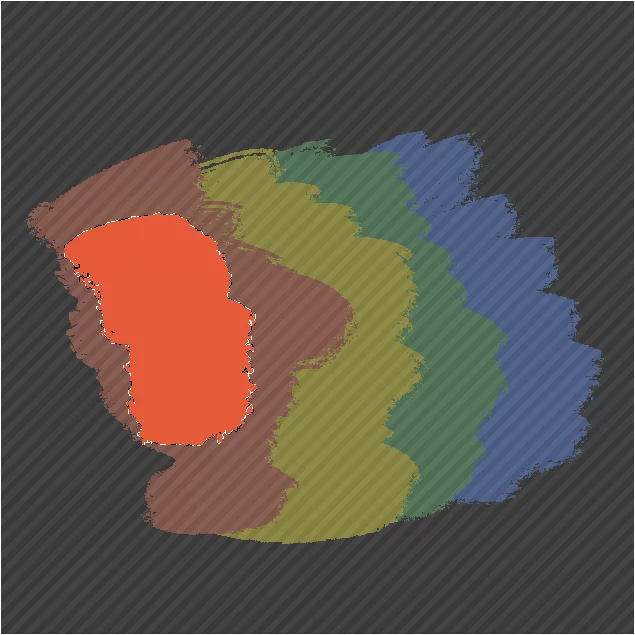
Sampling point
Tolerance 30%
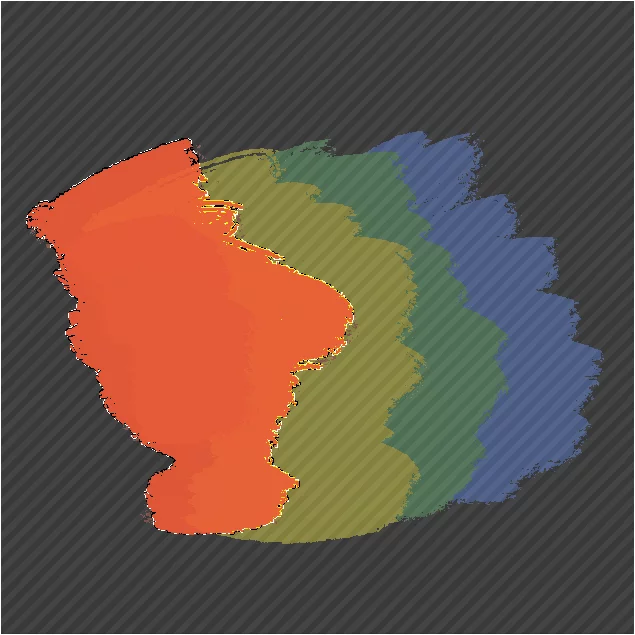
Tolerance 60%
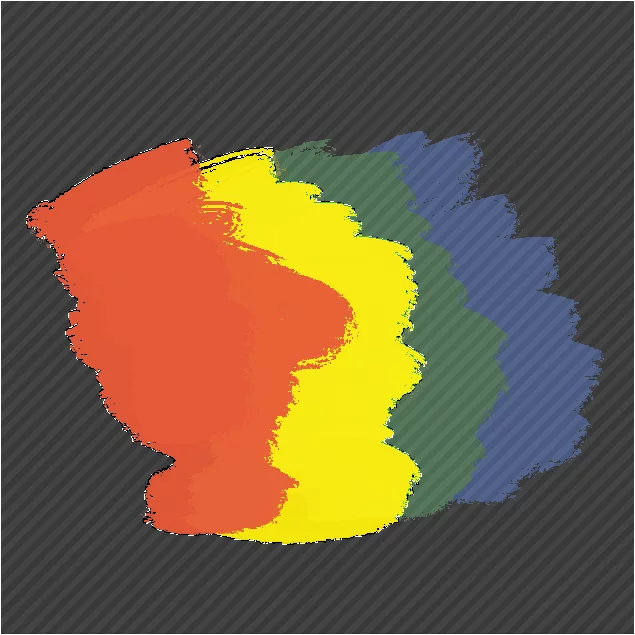
Tolerance 70%
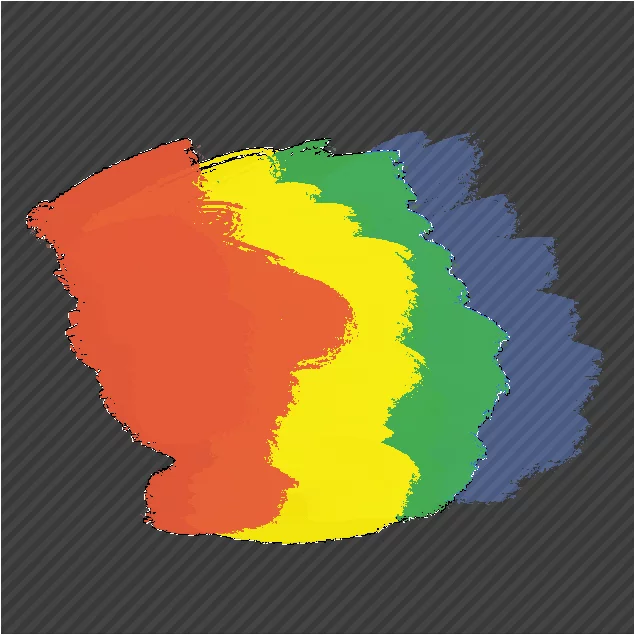
Tolerance 80%
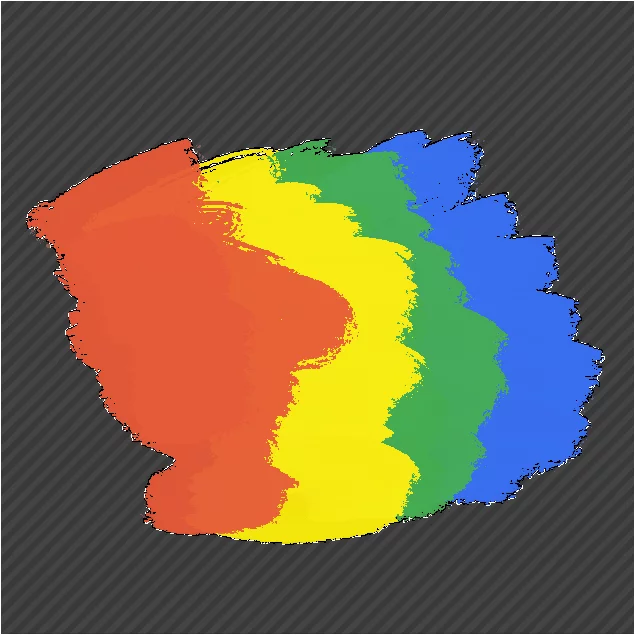
Tolerance 100% (Entire canvas selected)
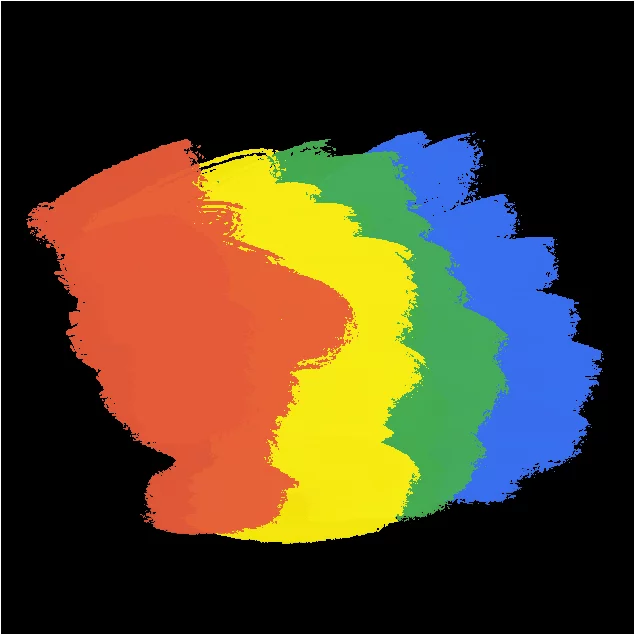
Learn more about using Live Tolerance in Solid fill.
Wand — multilayer vs. single-layer sampling
You can control what area is going to be selected.
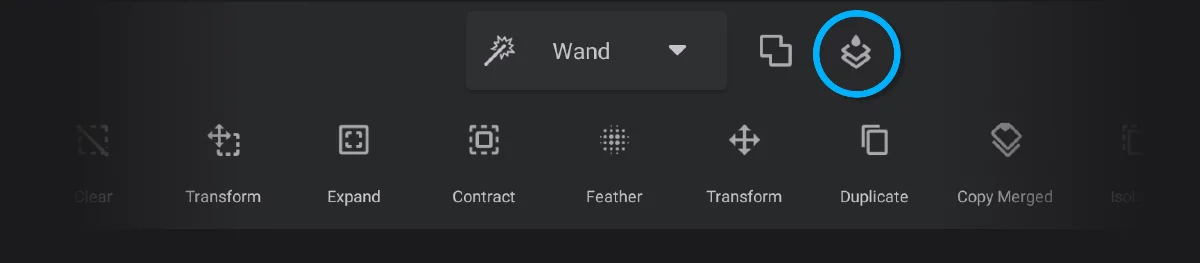
By default. the Wand samples all visible layers to find the closed area to be selected. You may switch to single-layer mode to sample current layer only.
Before selection (current layer shown black)
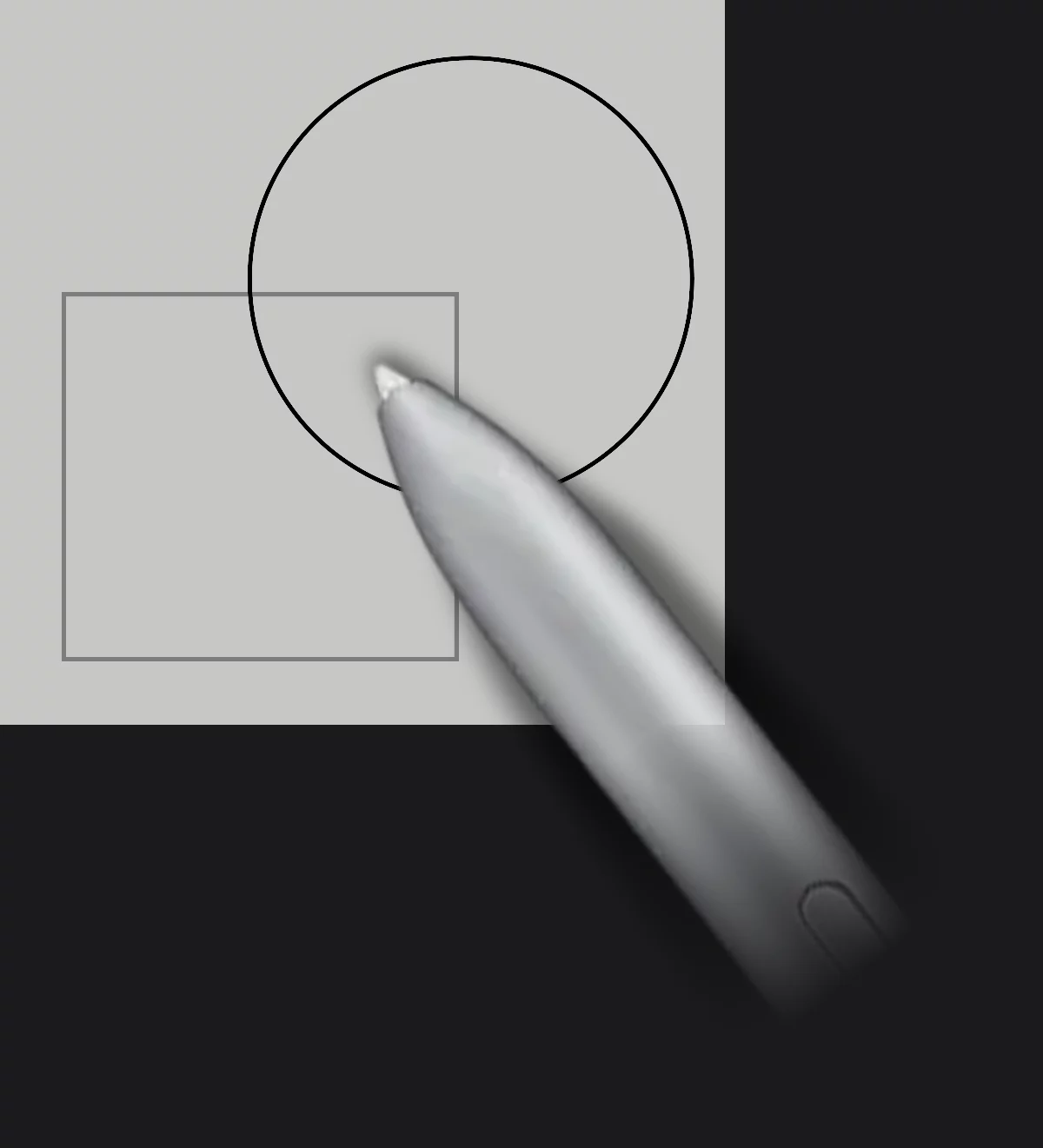
Multiple layer sampling (default)
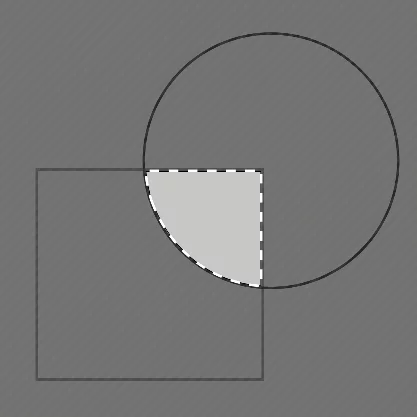
The Wand takes all the layers into account.
Single layer sampling
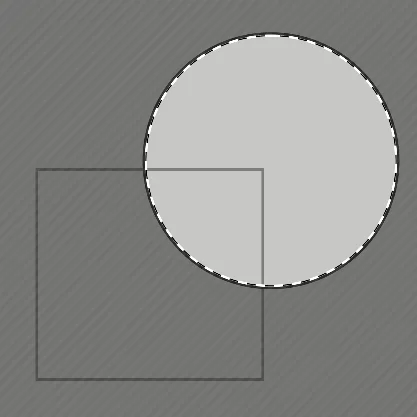
Only the current layer is taken into account.
In fact you may also assign any other layer to serve as a source (reference) for fill areas. Learn the trick in Fills — setting a source layer.