
Fill tolerance
Controls how much the fill will spread.
Common tolerance setting for all the Fill tools
The Fill Tolerance slider is located in the Tool settings menu:
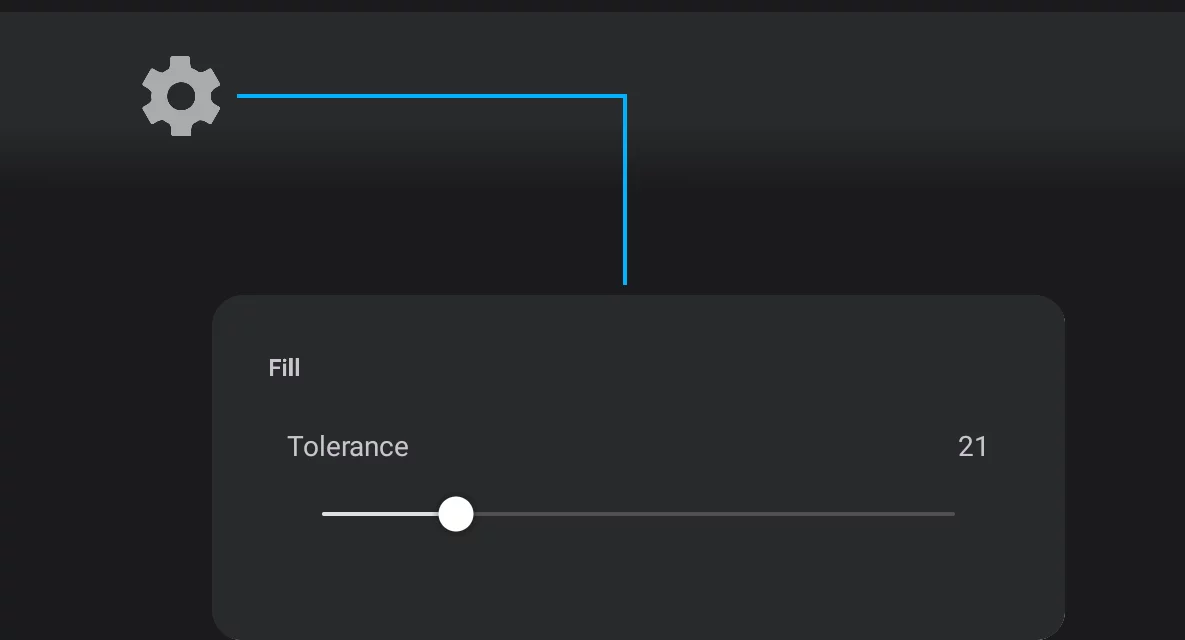
Tool settings menu button on the top bar.
Solid Color fill with different tolerance settings:

Live tolerance
When you apply a Solid Color fill with Live Tolerance (by dragging out from a point rather than tapping at the point), the tool ignores the main tolerance setting (so you can adjust the tolerance dynamically in full 0 – 100% range).
(See Solid Color Fill — application to learn how to use Live Tolerance in fills.)
Note that 100% tolerance may fill the entire layer if used with regular filling method (with a tap).
Multilayer vs. single-layer sampling
You can control what area is going to be filled.
By default, the fill tools sample (analyze) all visible layers to find the closed area to be filled. You may switch to the single-layer mode to sample the current layer only.
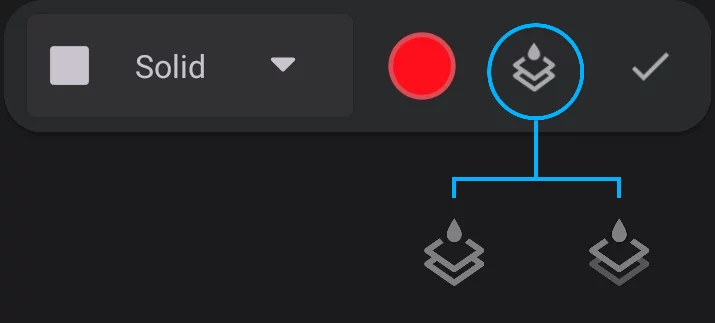
Multiple layer sampling (default)
Single layer sampling
Before filling (the current layer shown black)
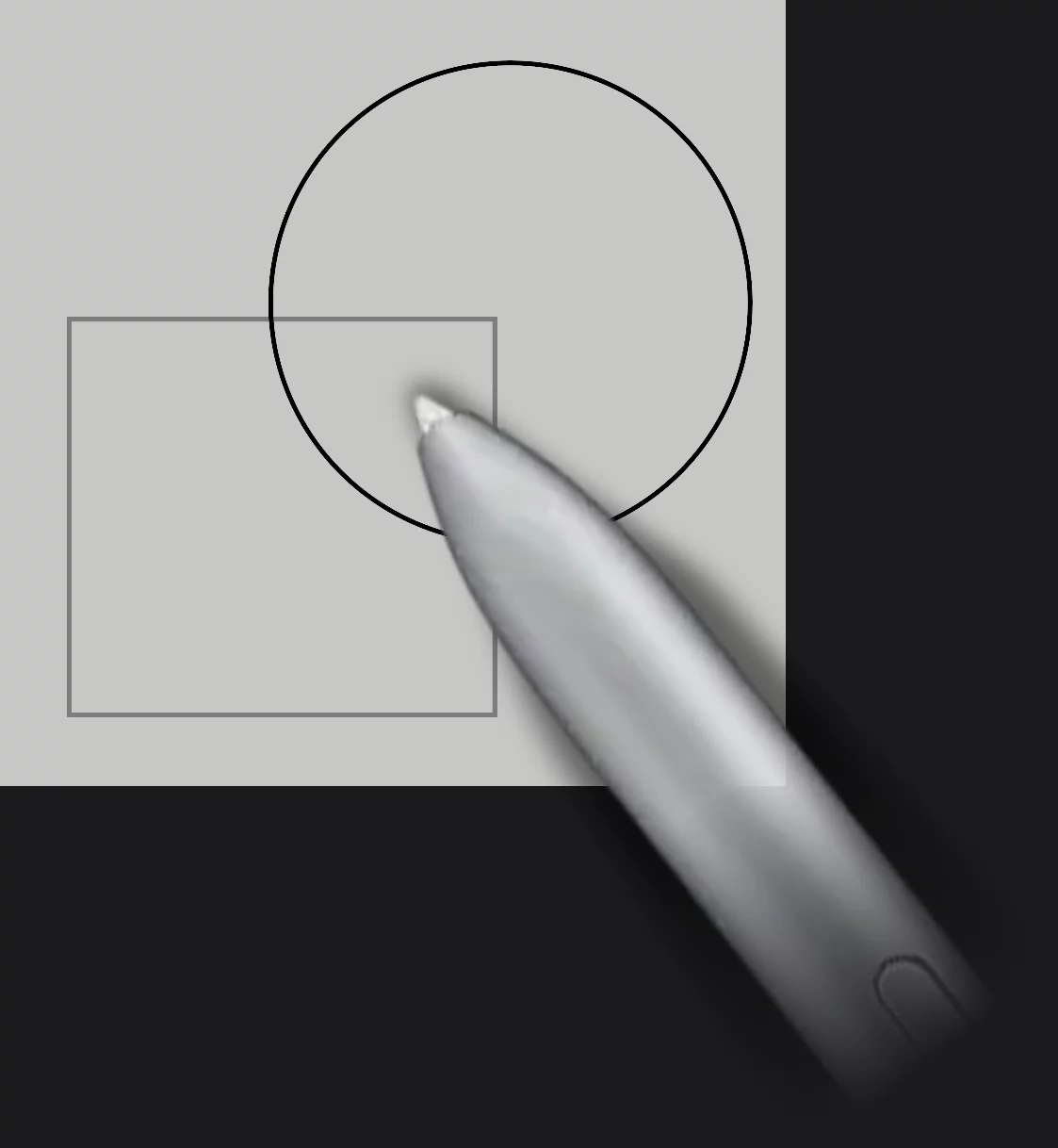

Multiple layer sampling (default)
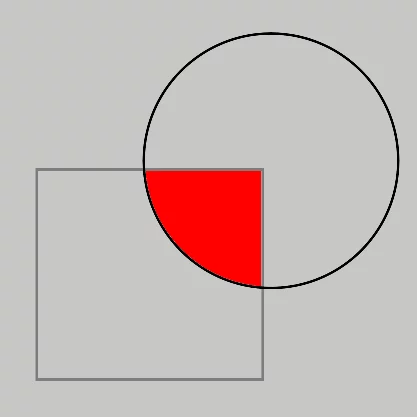
The fill takes all layers into account.

Single layer sampling
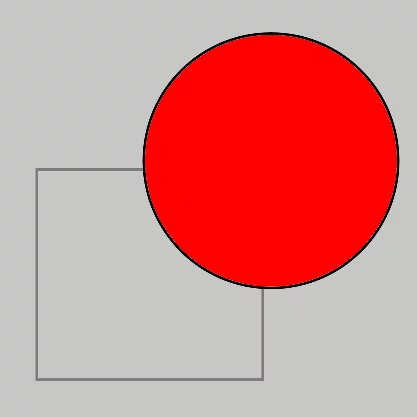
Only the current layer is taken into account.
In fact you may also assign any other layer to serve as a source (reference) for fill areas. Learn the trick below:
Setting a source layer
A pro feature.
You may set the fill tools to reference any layer.
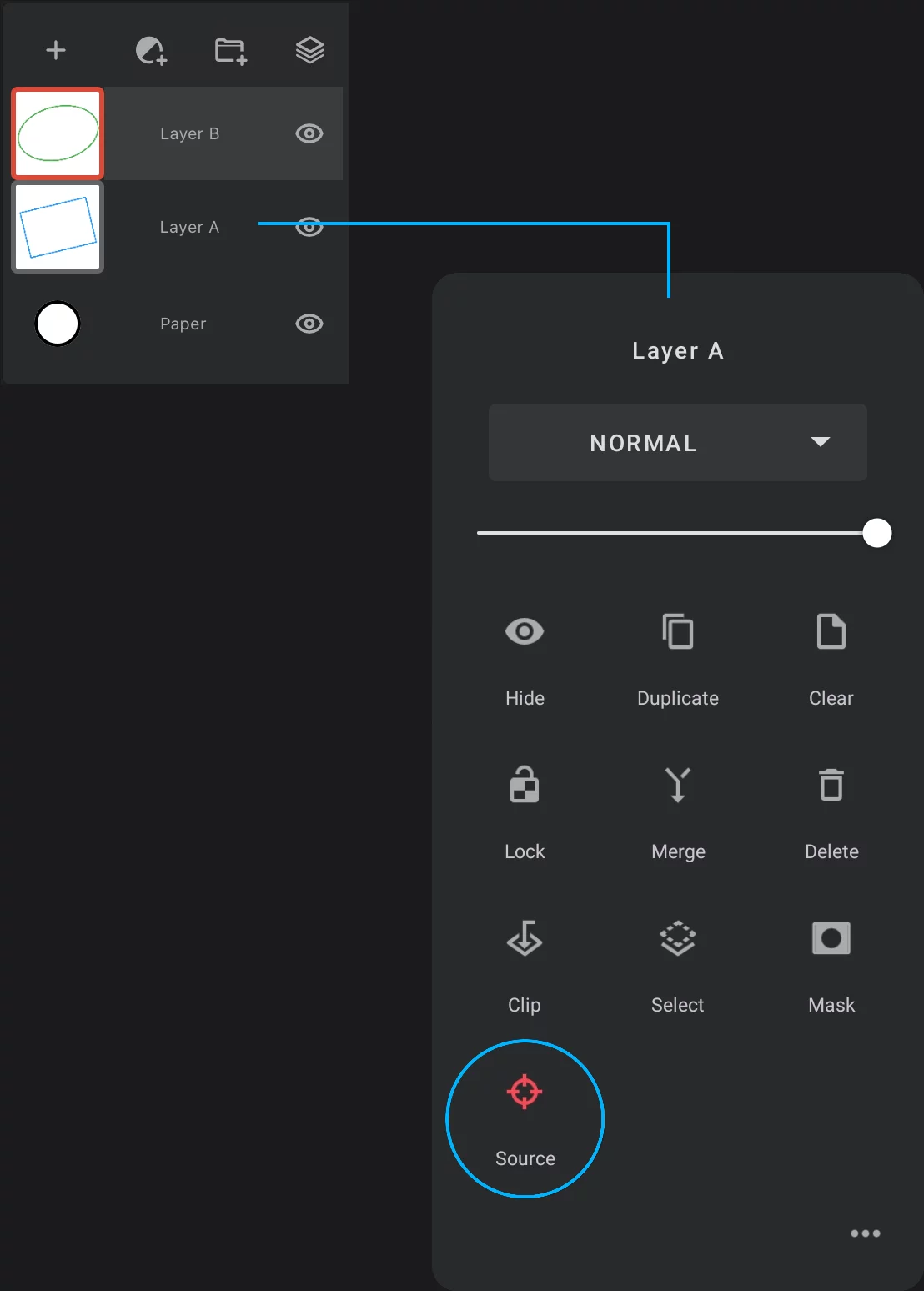
Layer panel
Active layer is the source by default
Layer options popup
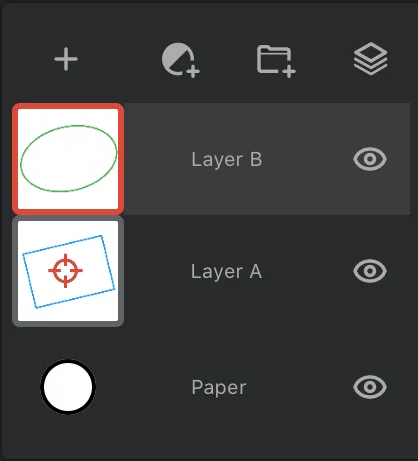

Active layer
Where the fill will appear

Source layer
From which the fill area will be calculated

When a layer (different from the active one) is set as the source, the fill toolbar indicates this with appropriate icon:

If you intend to fill a line-art drawing with colors, set the line-art layer as the source and place the fills on a separate layer below it. Your drawing will be clean and safe and the fills will be way more accurate. Of course the line-art has to be on transparent background.