
Solid Color Fill
The basic one.
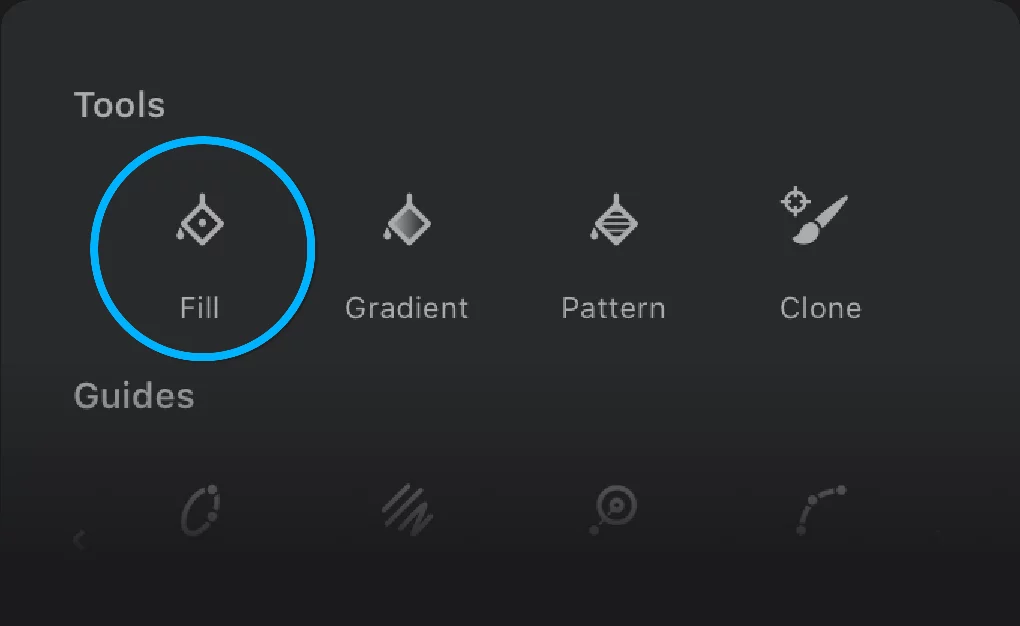

Solid Color Fill, a.k.a. Solid fill, Fill; or Paint Bucket.
This tool fills a closed area or a selection with a flat color. Just that. It uses the current colorPaint colorThe color currently picked with the Color panel. All brushes and fills will use this color as their base color. The sample of the current paint color is always shown on the main toolbar.
In Infinite Painter there is only one “current” color (there is no concept of a “background color” for the brushes and gradients)., but you can change the color with the Fill toolbar.
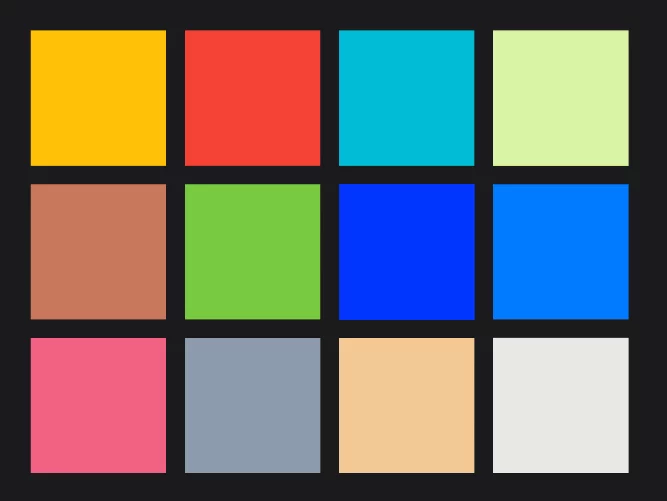
Solid Color Fill — application
There are two ways to use it.
Tap where you want the color to appear.
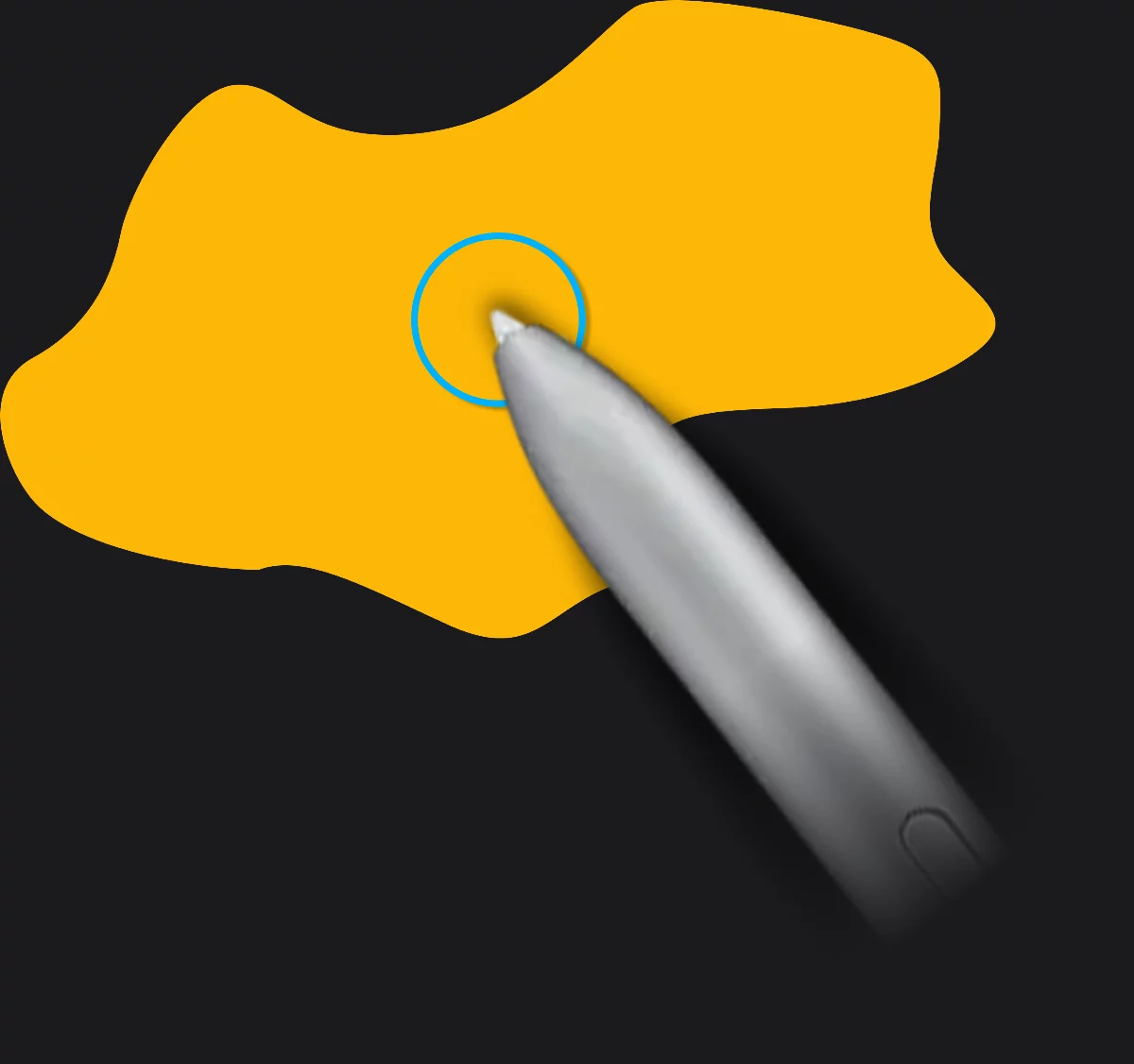
The color will fill an empty area or an area of uniform color until it reaches a boundary.
or…
Drag out from a point
The distance between the starting point and the stylus/finger position defines the filling tolerance. Watch how the fill area grows and shrinks under your control. We call it Live Tolerance method. Make sure that you start dragging inside the area to be filled.
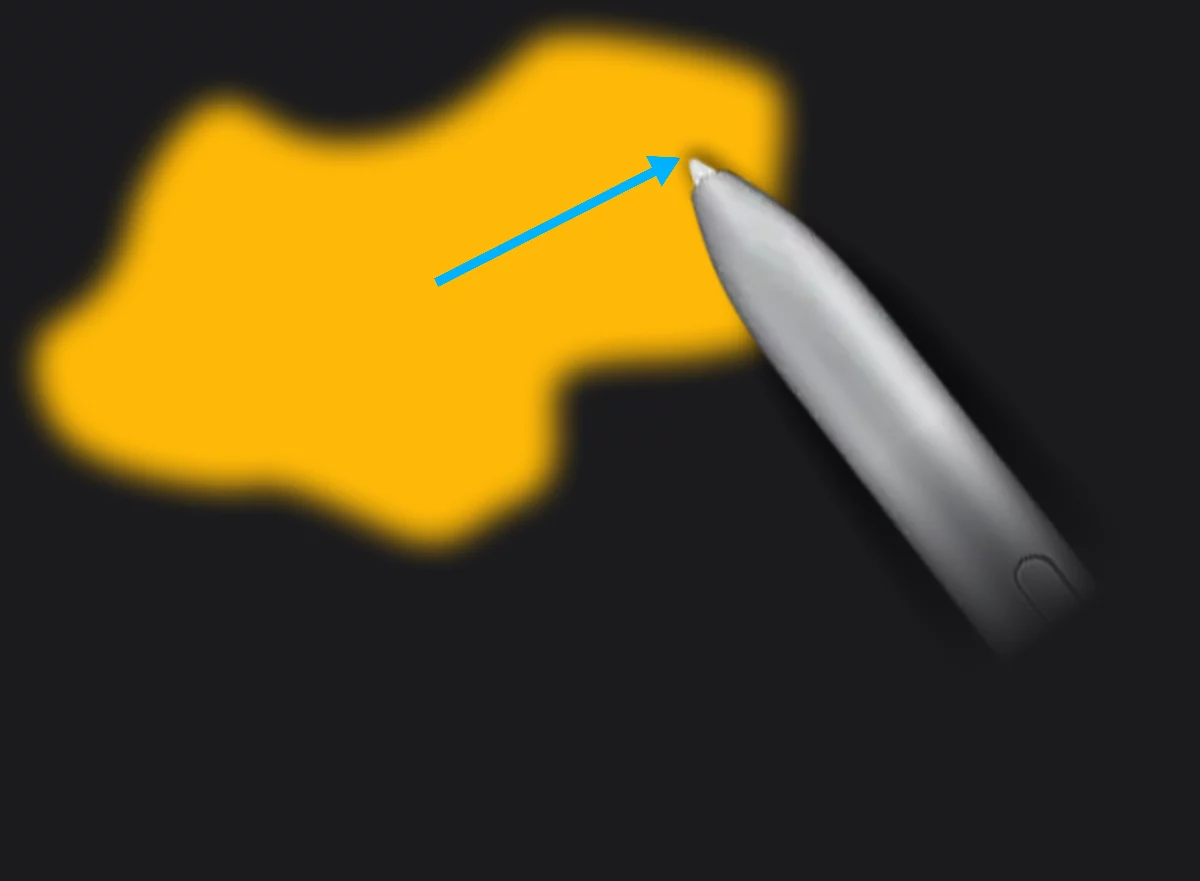
The live tolerance filling method will increase the area of the fill up to 100% tolerance (ignoring the value set in the Tool settings menu).
More about fill tolerance in Fill tools — tolerance.
You may fill as many areas as you need without leaving the Fill workspace, or even mix different kinds of fills in one session.

When you are done with the filling job, tap the checkmark icon on the toolbar to finish.
Note that the Fill toolbar has no “cancel” button. You can however confirm the fill and undoUndoThe "undo" command allows you to reverse your last action, restoring the artwork to its previous state. Most of the operations in Painter can be undone. Learn more the result.