
Fill tools
Solid Fill, three Gradient fills and Pattern fill
Infinite Painter has five fill tools:
Solid fill (”Paint bucket tool”)
Find the Fill tools in the Creative Tools menu.
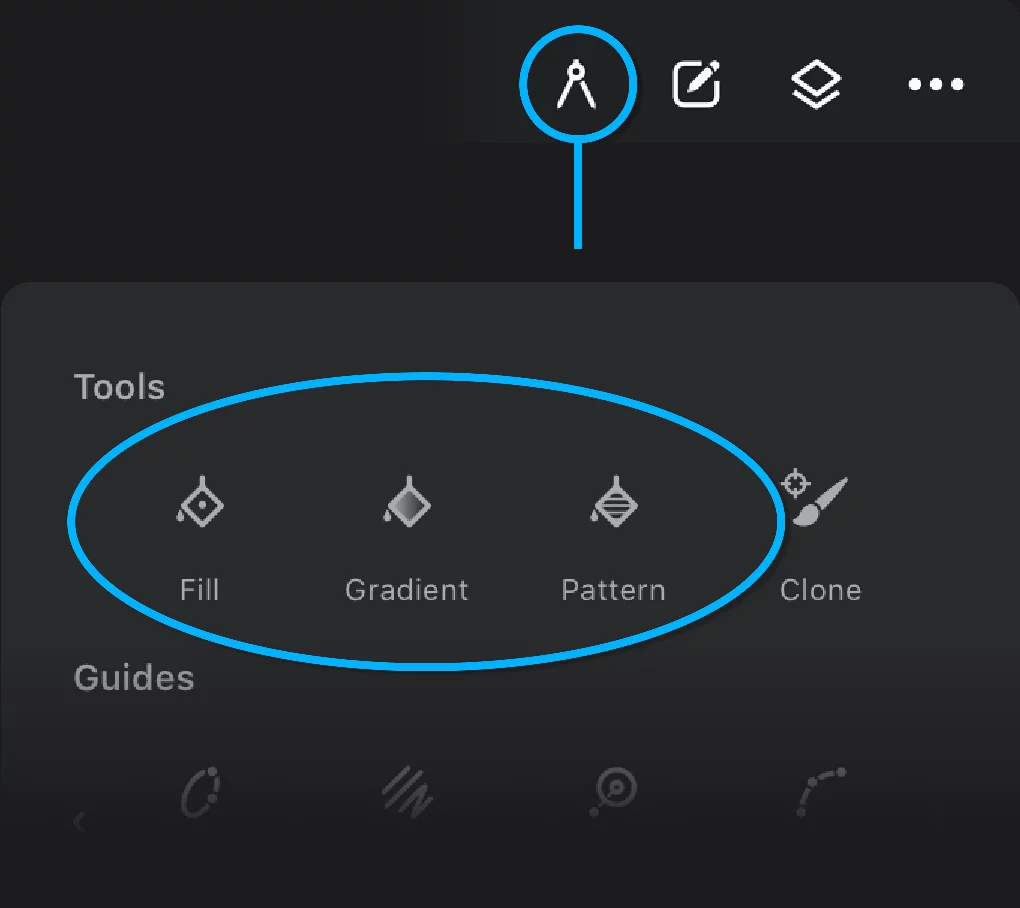
Note that all three gradient fill types are represented by a single “Gradient” tool icon.
With each of the fill tools you can fill:
the entire layerLayerA layer is a separate RGBA image (usually) of the size of the canvas. Layers can be stacked on top of each other.
any area of similar color
any closed area (like a “cell” in a line drawing)
a selected fragmentSelectionA selection is a defined region of your canvas that can be used to edit its content or to limit the application of painting tools (like a stencil). Technically, a selection is an 8-bit (grayscale) mask image which defines the selected vs. masked areas of the canvas. of current layer.
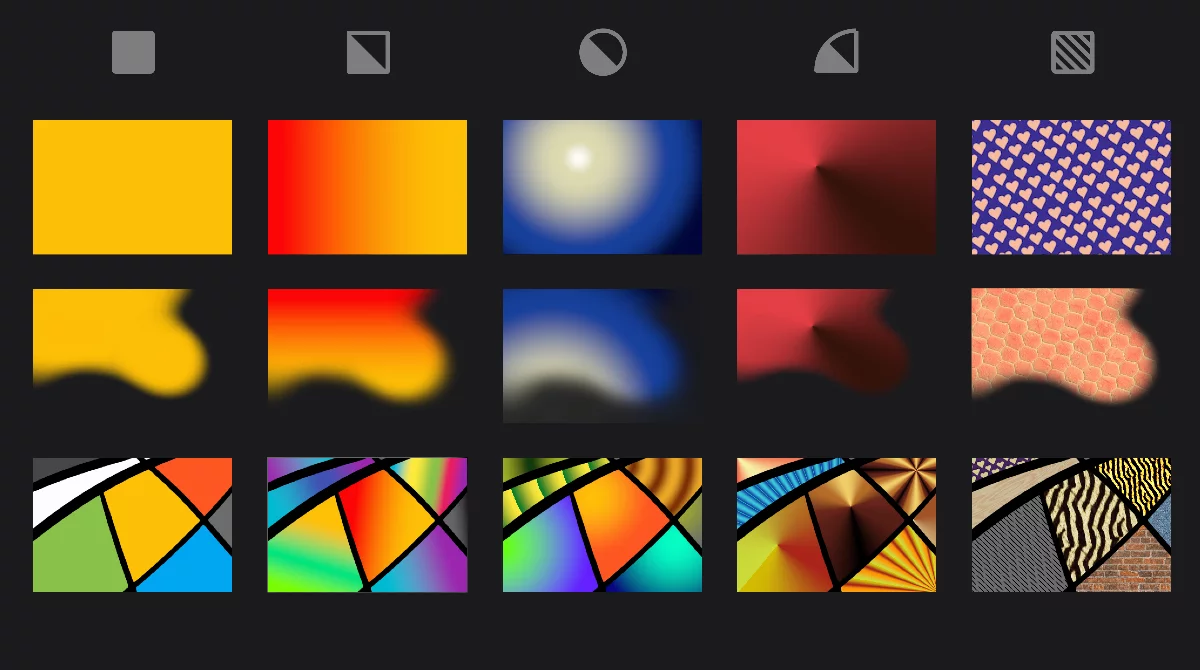
Besides that, there is a separate category of Fill brushes. Just draw the shape to be filled, and there it is.
Fill tools — the common workspace
All the fill tools share the common workspace so you can apply multiple fills without leaving it.
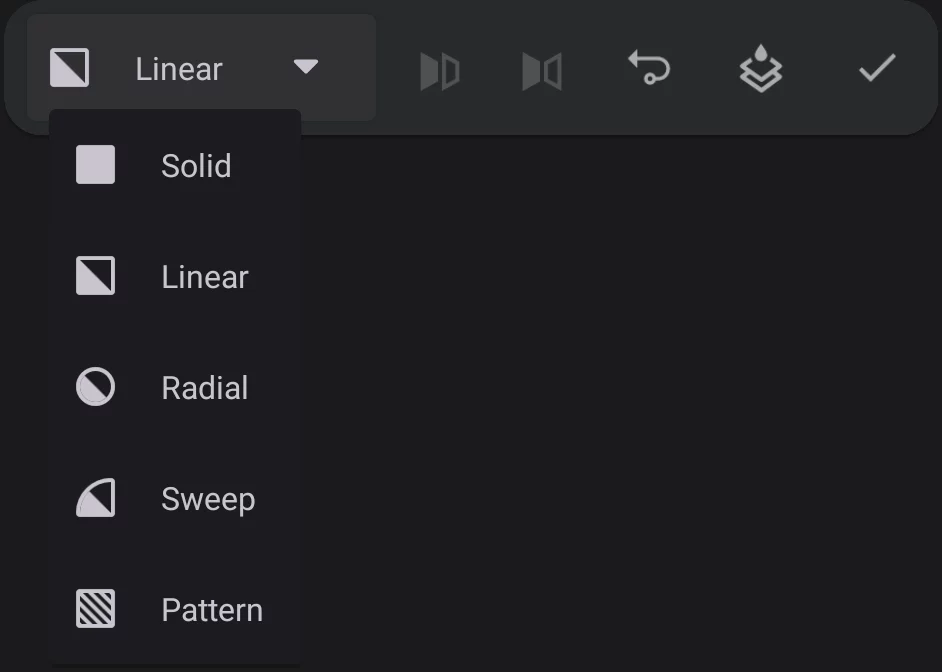
Fill type selector
Indicates the current fill mode (fill type). Tap to select another fill type.
The toolbar shows different controls for different fill modes:





You can apply different kinds of fills without leaving the Fill workspace.
For each fill type, the Tolerance setting can be adjusted in the Tool settings menuTool settings menu The menu that contains all the settings of currently active tools. If at least one active tool has settings, the cogwheel icon appears at the left end of the top bar.Learn more.
More in Fill tools — tolerance.