
Pattern Fill tool
Pattern Fill tool fills a closed area or selection with a repetitive pattern based on a chosen bitmap tile. Patterns are simple repetitions of the base tile, but, depending on the design, may produce seemingly random textures too.
You can use any from the 30+ built-in patterns, or create your own patterns, or import third-party ready-made pattern tiles. Learn more about creating high quality, seamless patterns in Infinite Painter in Pattern Fill — using seamless pattern tiles.
In fact, you can use any image as a pattern tile, however specially designed, seamless tiles produce best results.
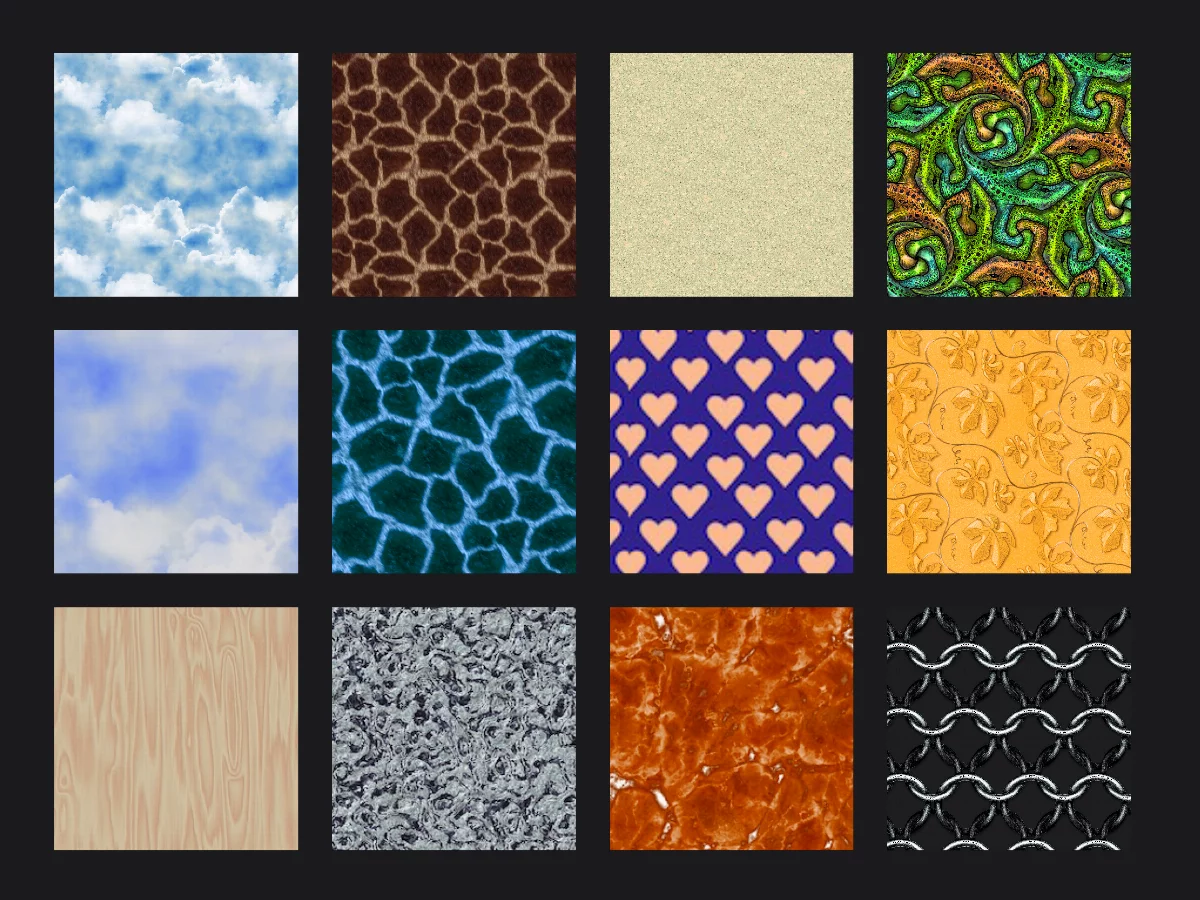
(In this illustration, the first three columns depict a selection of the built-in patterns that come with the application; the rightmost column consists of custom seamless patterns created in Infinite Painter).
Patterns can contain transparency.
The tool allows you to adjust the appearance and opacity of the pattern.
Application
Start from the center, like the Linear Gradient.
Drag out from the center point
The pattern will grow in all directions. This system allows to fill small areas.
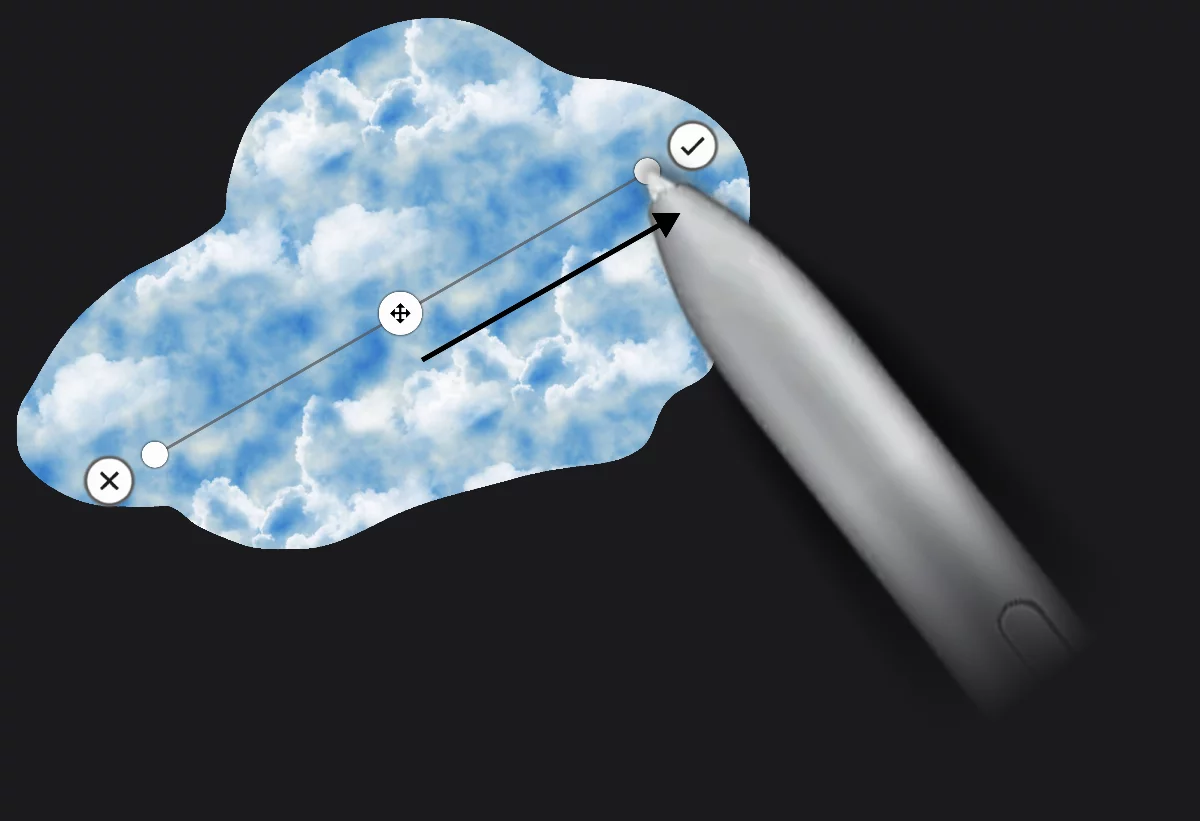
Note that when you apply a pattern fill for the first time it uses the default “cloud” pattern like shown here. You can change the pattern before of after applying it.
On subsequent fills the last-used pattern is loaded.
Select the pattern tile
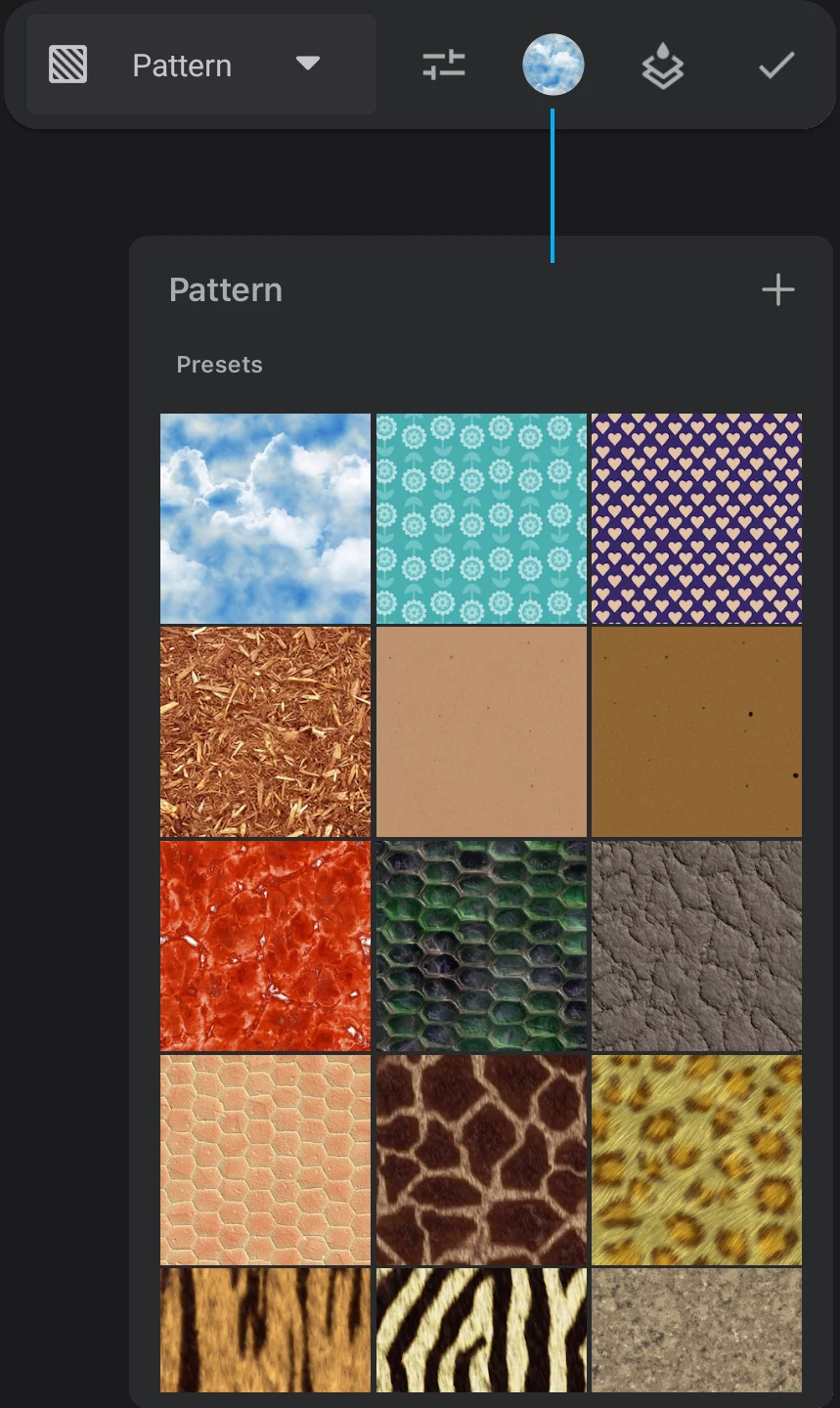
Tap the sample to select another pattern tile.
Pattern library
Pick your pattern from the library.
If you wish to use a custom image for a pattern tile, tap the “+” button to import one. The imported image will appear in the “Imported” section of the pattern library. Then pick this image to use in the current fill.
More about importing images in Importing images.

You can edit the pattern fill unless you confirm it with the checkmark button (or until you close the tool).
Basic controls
The interface is similar to that from Linear Gradient fill.
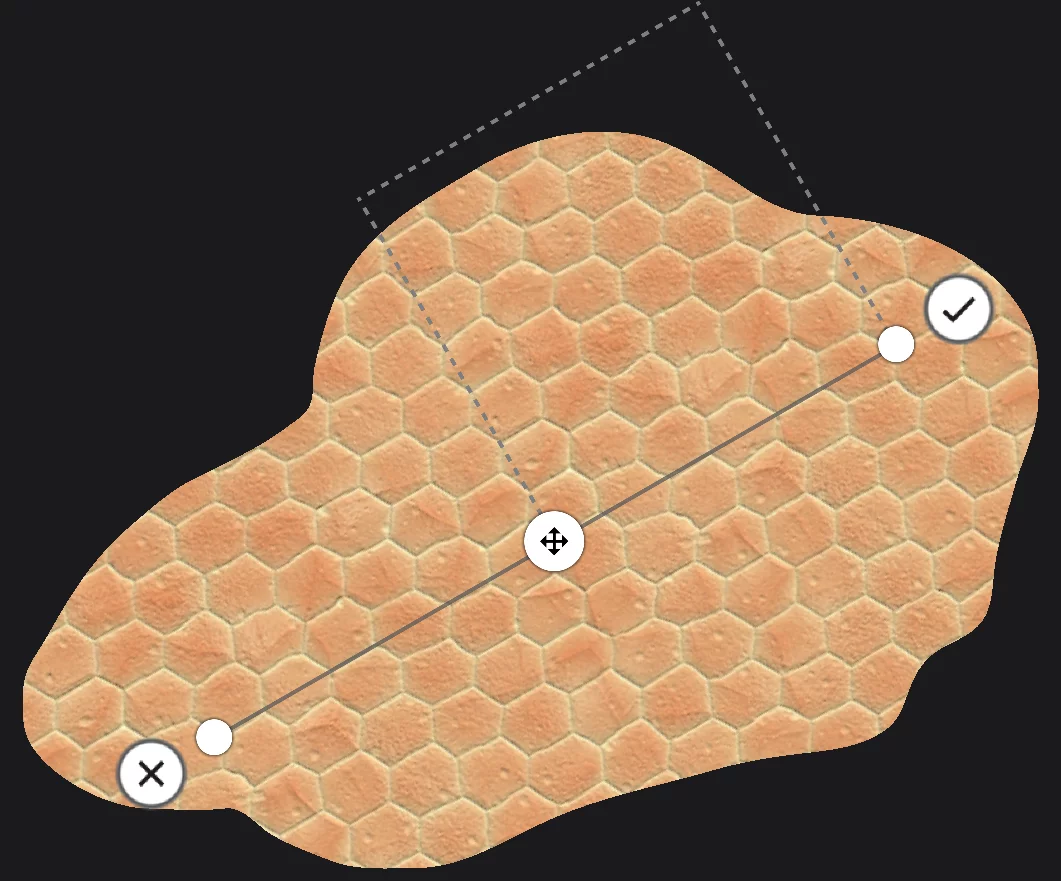
Move handle (and the starting point of the pattern)
Drag to reposition the pattern.
End handle
Drag to resize and rotate the pattern.
Pattern axis
Shows the bottom edge of the pattern tile.
Cancel button
Tap to cancel current pattern. Previously applied fills will stay intact.
Confirm button
Applies current fill. Then you may apply another fill or leave the tool.
Single pattern tile area
Usually not easily distinguishable.
Pattern Fill toolbar controls

Pattern color controls
You can adjust the appearance of the current pattern here (color and opacity). Learn more in Pattern Fill — editing the pattern appearance.
The sample of current pattern.
Tap to select another pattern tile.
Confirm button
Tap to apply the fills and close the Fill toolbar and return to regular Studio workspace.
Using images as patterns
Choose wisely.
Any image may serve as a pattern fill tile. But there are better and worse choices.
Images with transparent or neutral background may create nice patterns.
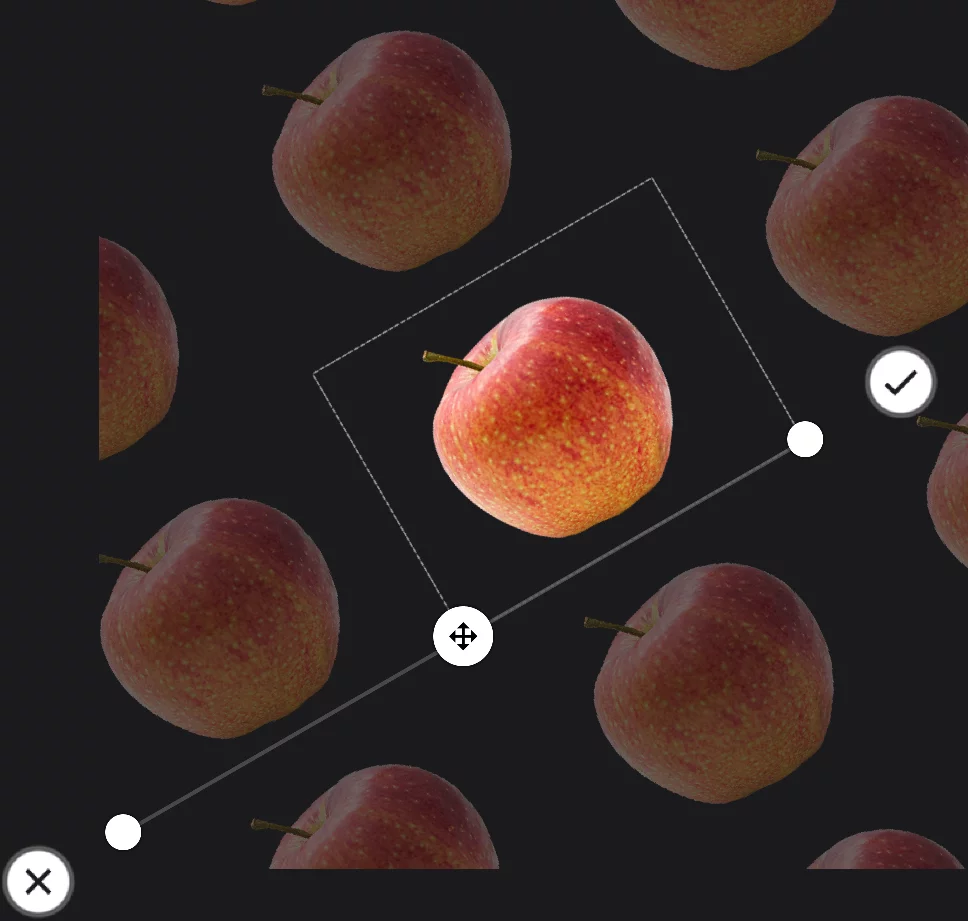
Random images with detailed backgrounds do not look good as patterns.
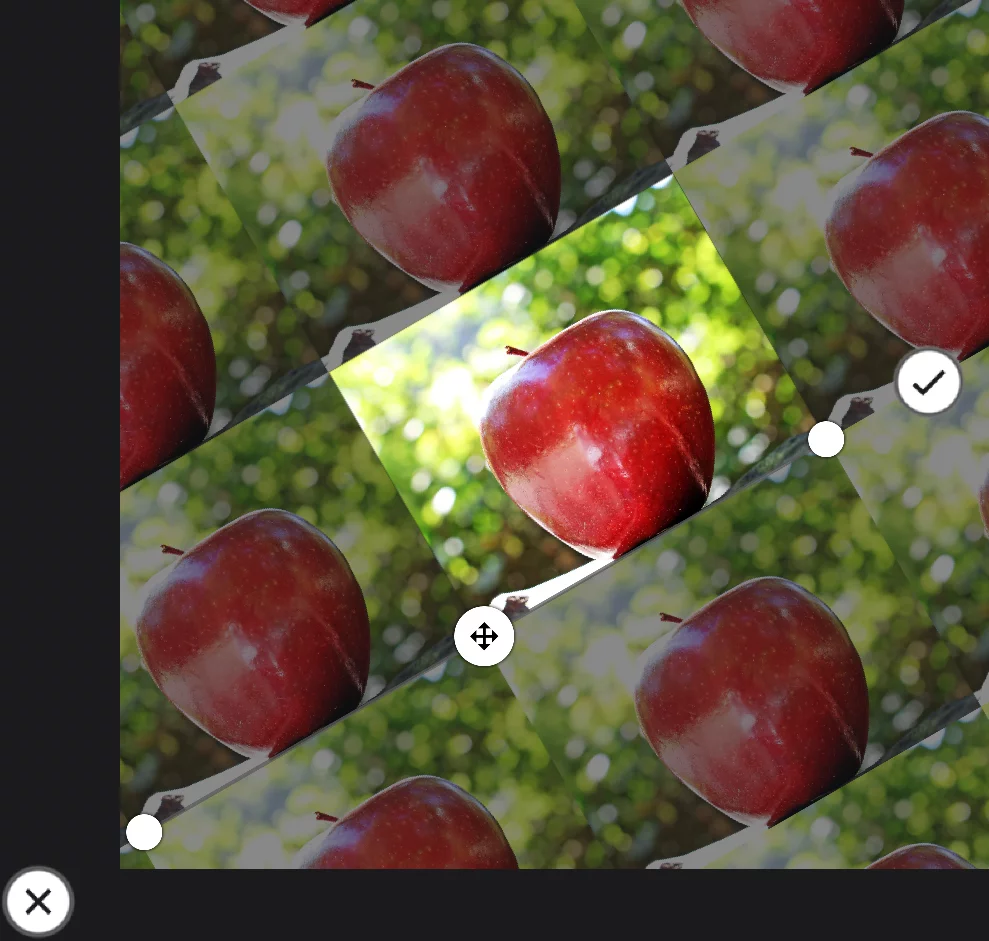
(Free images from PixabayPixabayPixabay ™ is an online photo repository which contains millions of free images offered for download. Pixabay is accessible from Infinite Painter via …/Import/Search and in a couple other places.Learn more™)
Using seamless pattern tiles
You can use Infinite Painter tools to create patterns.
Specially designed, seamless pattern tiles may give superior results in filling larger areas. Here, a pattern tile created in Infinite Painter produces a perfectly seamless pattern fill.
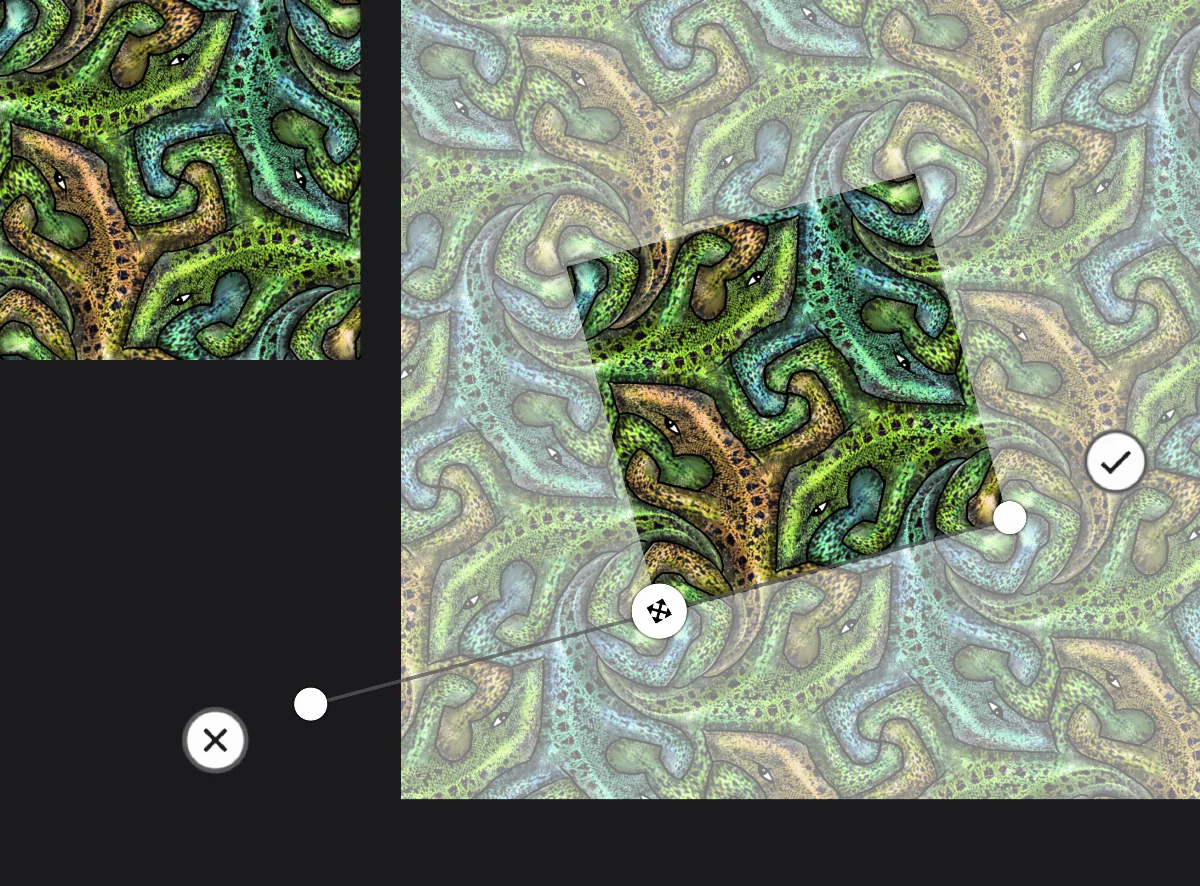
Learn about creating seamless patterns in Infinite Painter in Tile pattern tool and about the Pattern projects in Pattern projects.
With a seamless pattern you can fill even large areas without losing image quality.
You can find a lot of ready-made seamless pattern tiles on the Web, sometimes for free. For example, explore the PixabayPixabayPixabay ™ is an online photo repository which contains millions of free images offered for download. Pixabay is accessible from Infinite Painter via …/Import/Search and in a couple other places.Learn more™ repository (adding “seamless” keyword to your search).
Seamless textures are widely used in 3D graphics (CGI) so you can find entire websites offering countless high-quality patterns and textures.
When importing third-party patterns and textures, prefer the PNG (lossless) file format.
Editing the pattern appearance
The same pattern tile may produce a range of different patterns
Pattern color controls
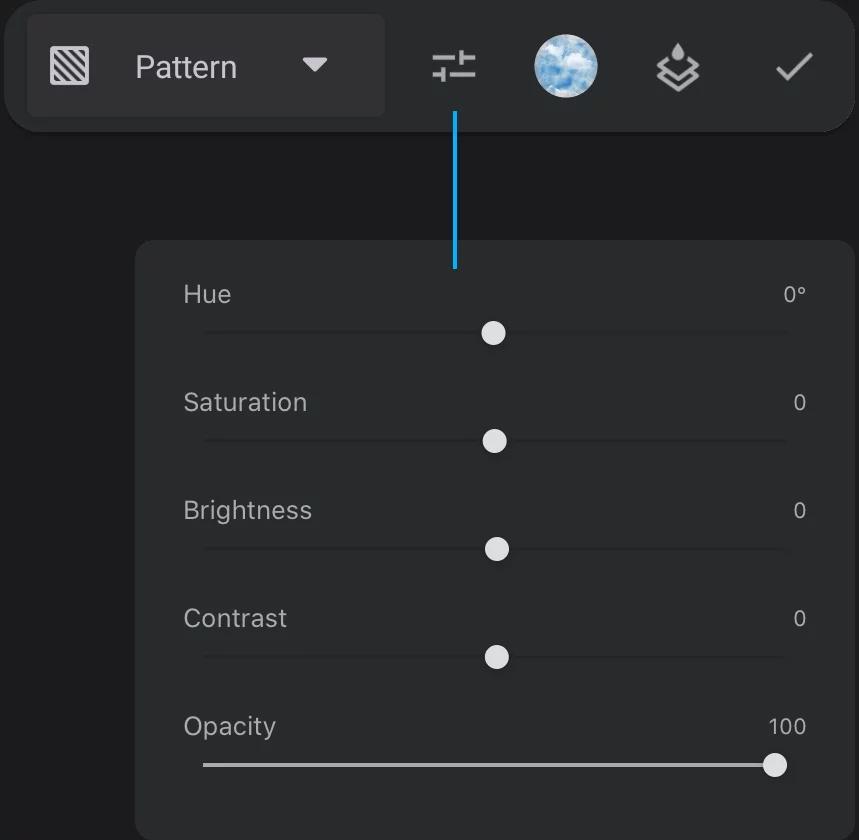
Pattern color controls button
Hue
Adjusts the HSBHSBHSB refers to a method of encoding colors in digital applications (by defining Hue, Saturation and Brightness dimensions).Learn more Hue value of the pattern.
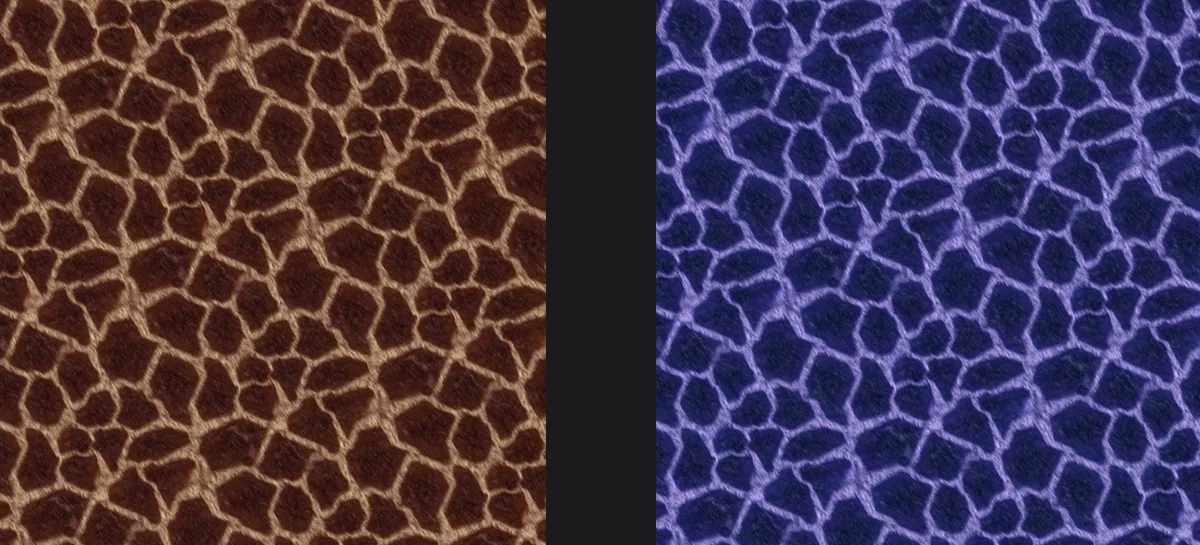
Saturation
Adjusts the HSBHSBHSB refers to a method of encoding colors in digital applications (by defining Hue, Saturation and Brightness dimensions).Learn more Saturation value.
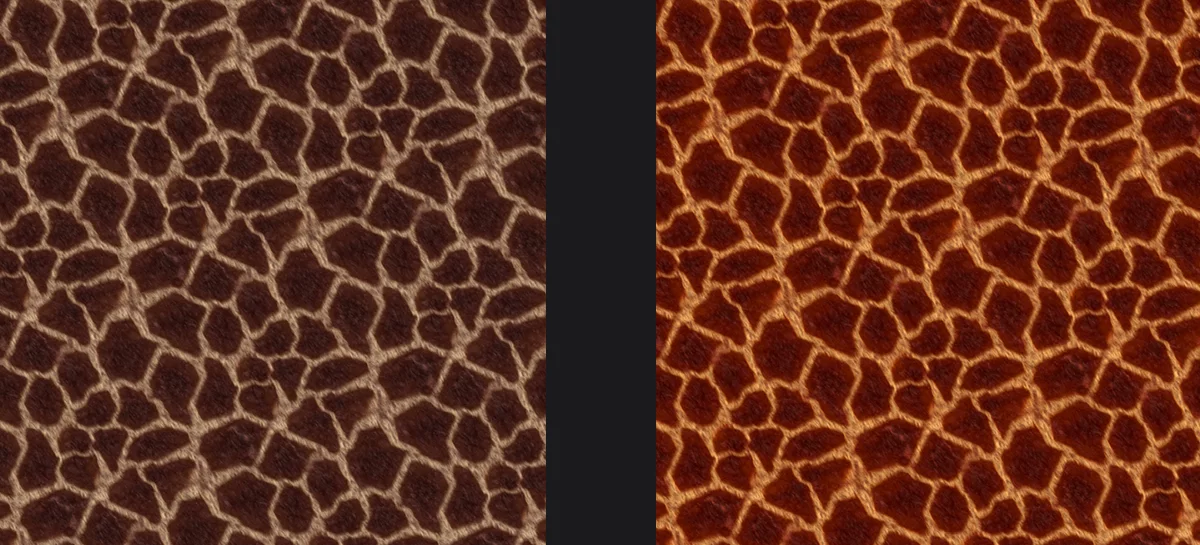
Brightness
Adjusts the HSBHSBHSB refers to a method of encoding colors in digital applications (by defining Hue, Saturation and Brightness dimensions).Learn more Brightness value.
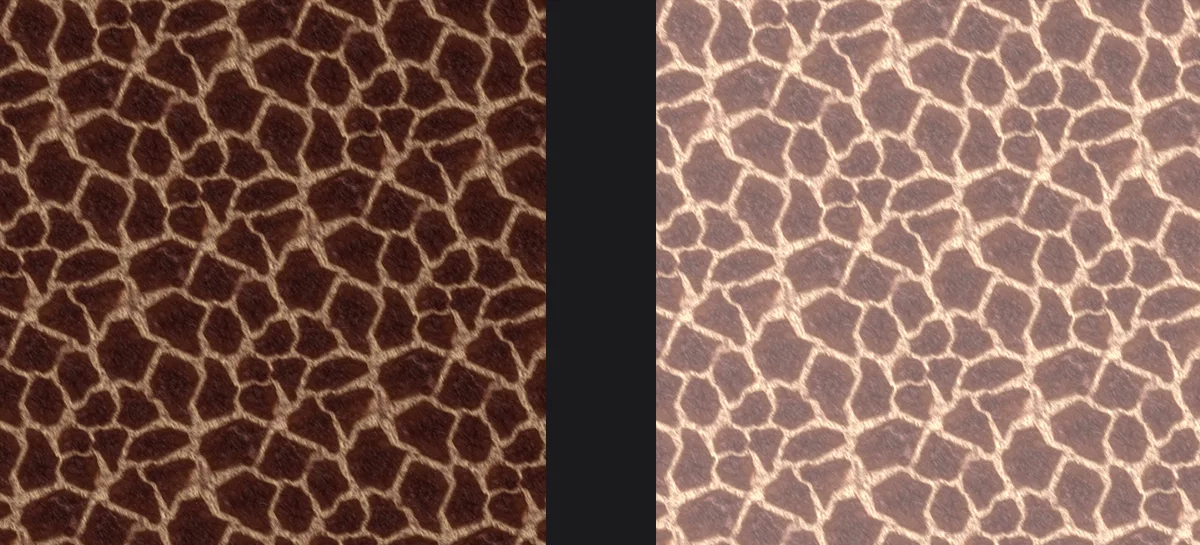
Contrast
Adjusts contrast of the pattern.
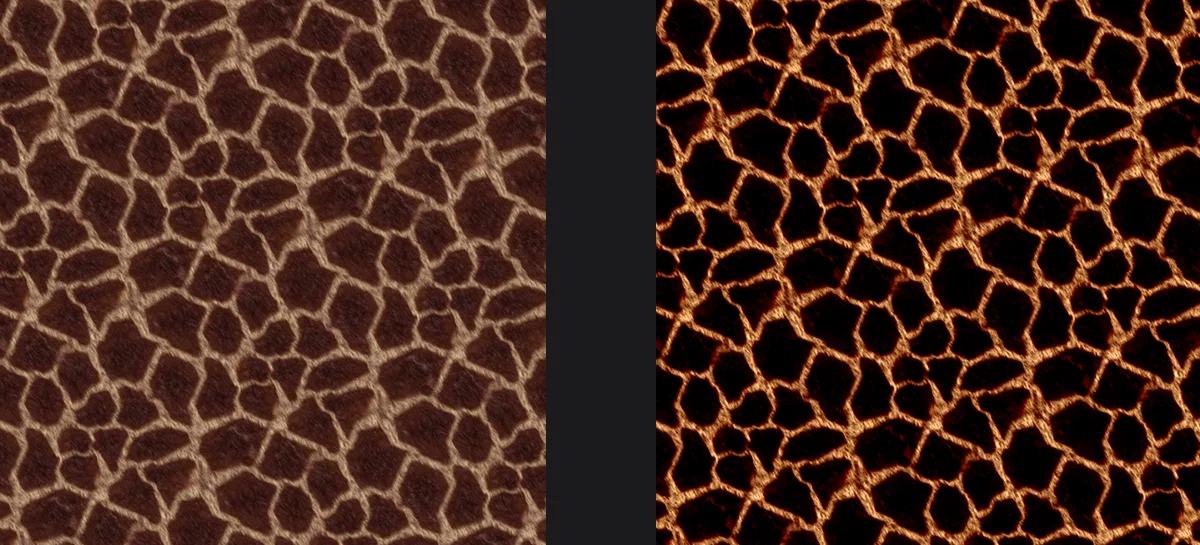
Opacity
Adjusts OpacityOpacityMeasure of how much a layer (or a pixel on a layer) obscures the background. Zero opacity means full transparency; 100% opacity means that no background is visible. of the pattern.
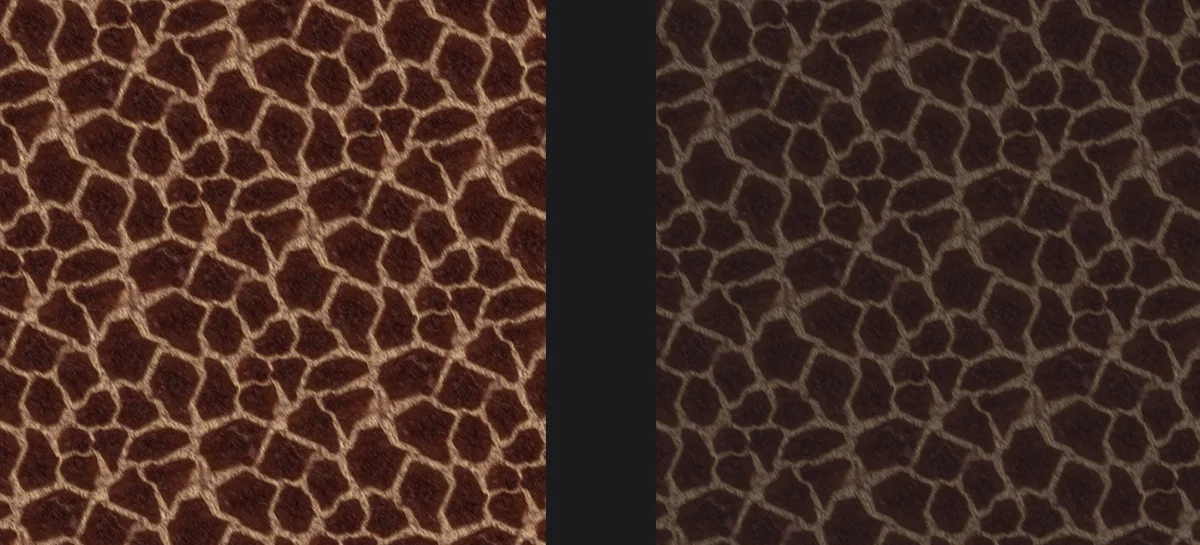
Note that these controls apply to the current fill only so you can apply the same pattern with various settings in a single session.
The color adjustments do not reset automatically, so you can reuse the last settings.