
Overview
That’s mesmerizing.
The Tile pattern tool creates seamless repetitive pattern from chosen rectangular fragment of the current layer.
The pattern replaces current layer but also can be exported as a single tile for further use.
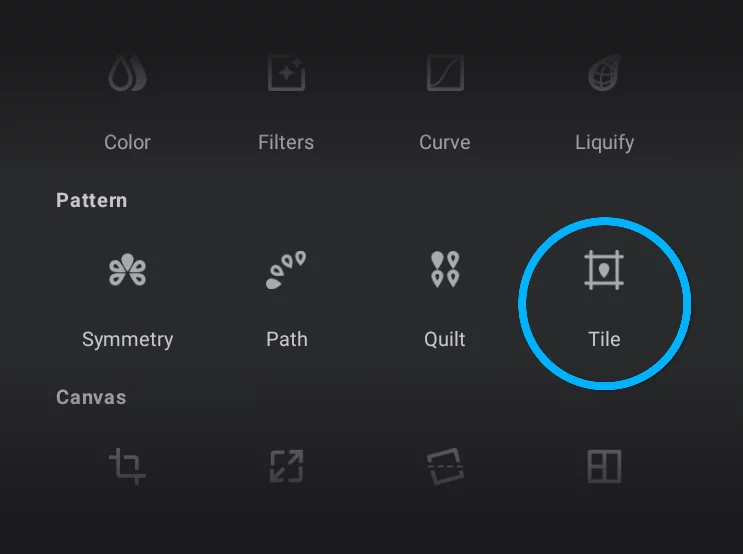
Tile Pattern tool in the Editing Tools menu
Tile pattern toolbar (more below)

Original image and the resulting pattern
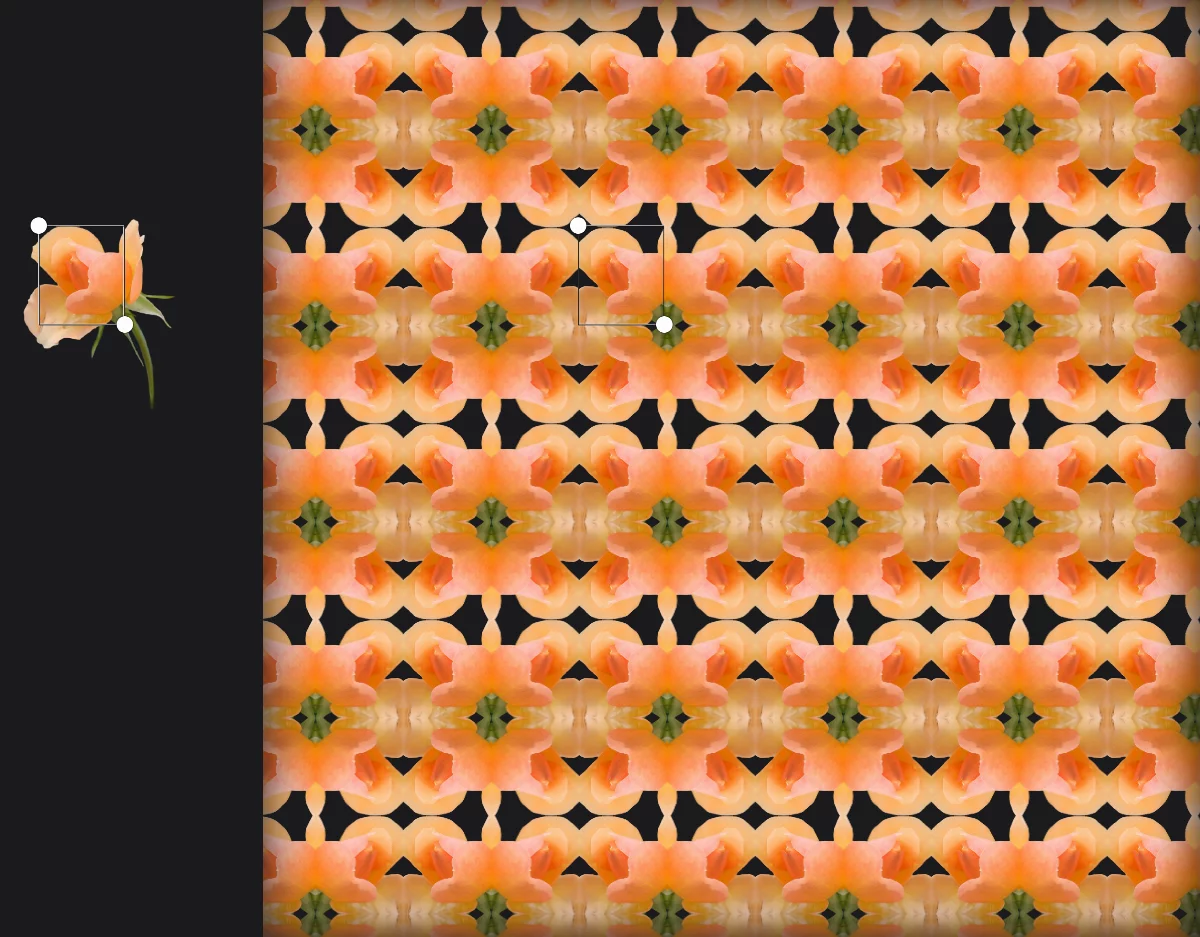
Note that this example uses both horizontal and vertical symmetry (reflection). Learn more about using symmetry below.
You can draw the control rectangle wherever on your canvas and reposition and resize it later to fine-tune the pattern.
Tile pattern tool works perfectly on both small and large areas. Just start experimenting! The Tile pattern can be also generated from a SelectionSelectionA selection is a defined region of your canvas that can be used to edit its content or to limit the application of painting tools (like a stencil). Technically, a selection is an 8-bit (grayscale) mask image which defines the selected vs. masked areas of the canvas.. Learn more about using selections in the Selection tools chapter.
Controls
Make patterns, reuse patterns.
On-screen controls
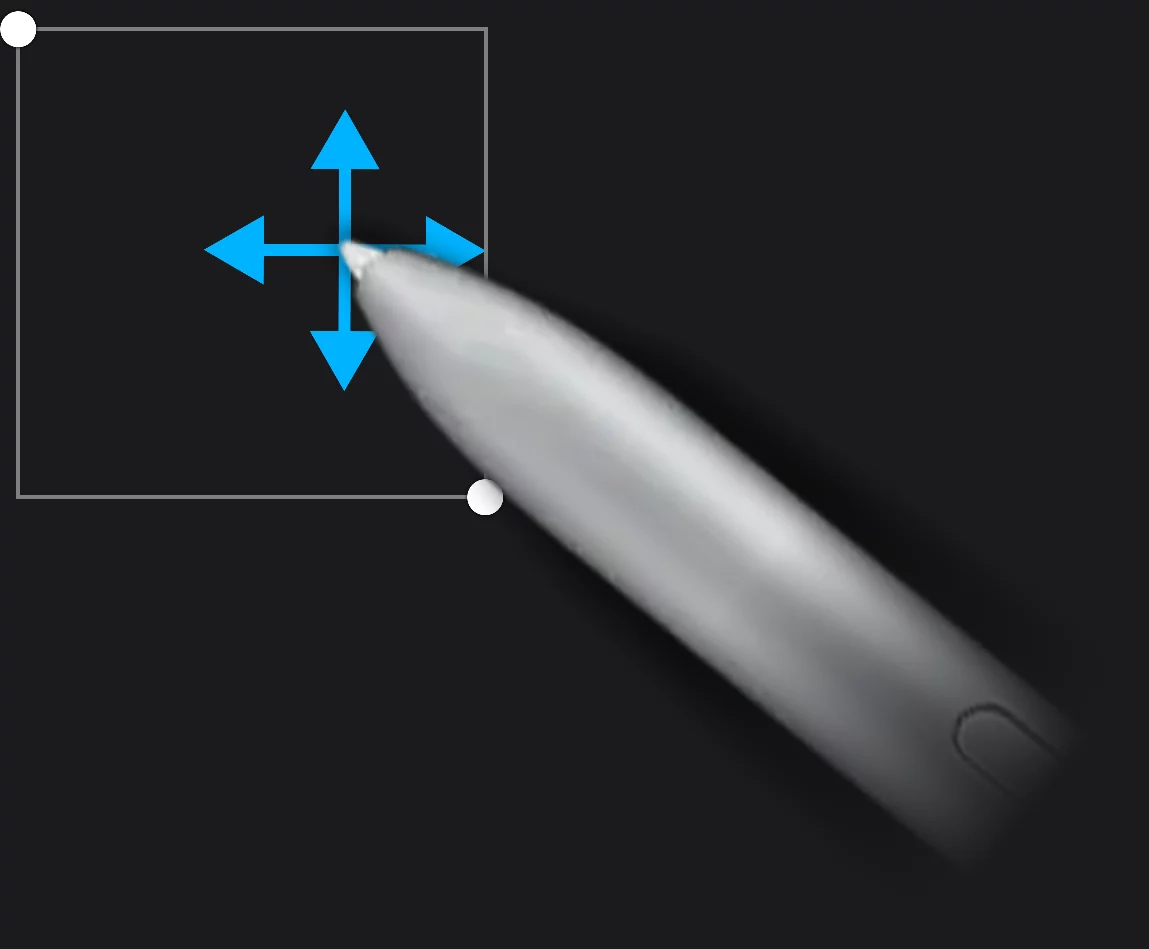
You can move around each control handle or drag the entire control box. The pattern updates to the changes in real time.
Tile pattern toolbar


Cancel
closes the tool without applying changes.


Symmetry switches – more below.

Save pattern button
Tap to export the pattern tile.

Confirm
Closes the tool applying the changes.
Saving the patterns

The 'Save pattern' button adds the pattern to your library so you can reuse the pattern later with the Pattern Fill tool. (Learn how to use the Pattern Fill tool in Pattern fill )
You will find your saved pattern tiles in the ‘Imported’ section of your pattern library.
You can save the pattern tile even without actually applying the pattern to the current layer. Simply tap the Save button and then cancel the tool with the × button.
Tile pattern symmetries
Make your patterns even more complex.

Use the symmetry switches on the toolbar to add complexity to your pattern.

The original (pattern source)
Examples of symmetries
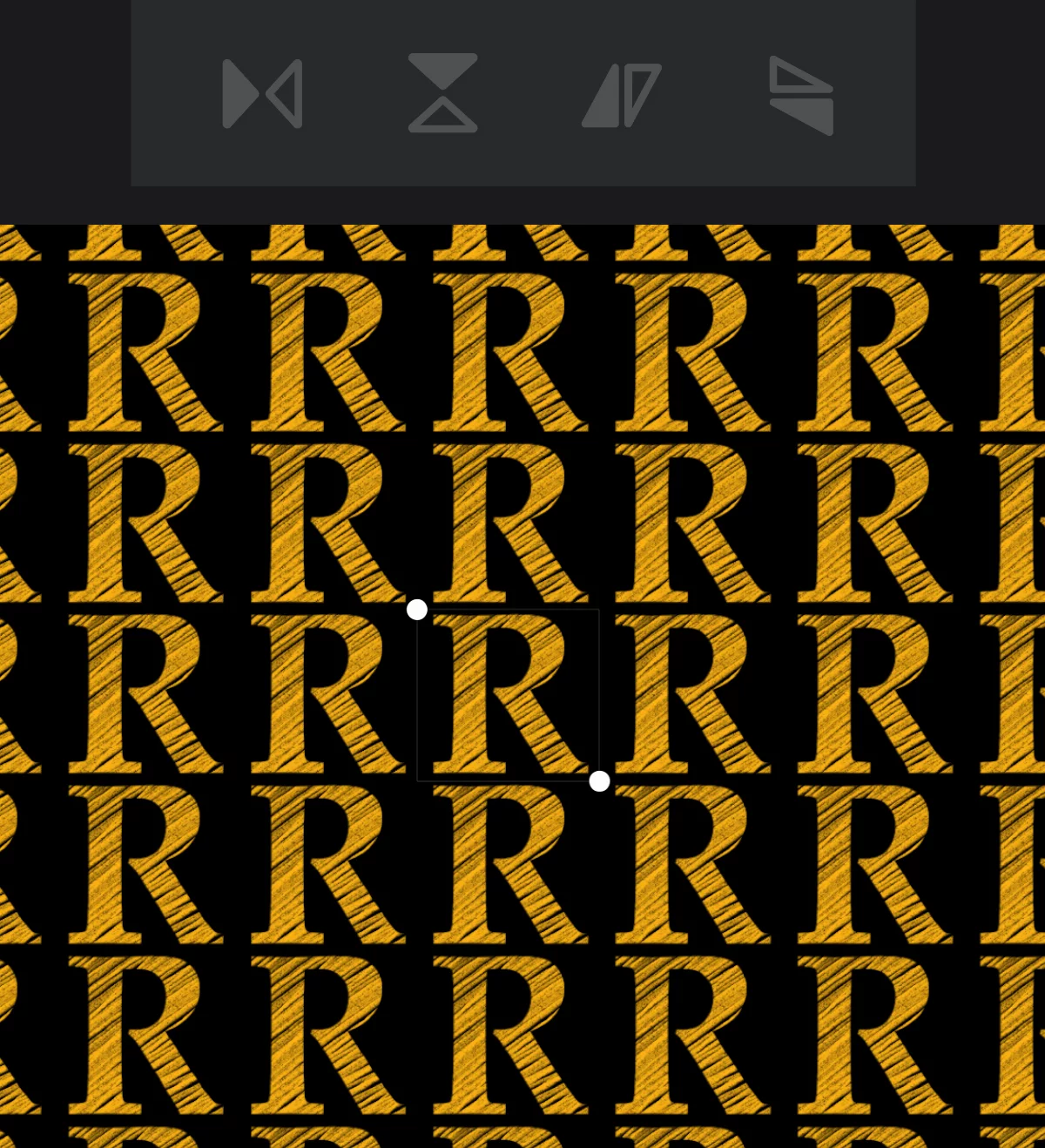
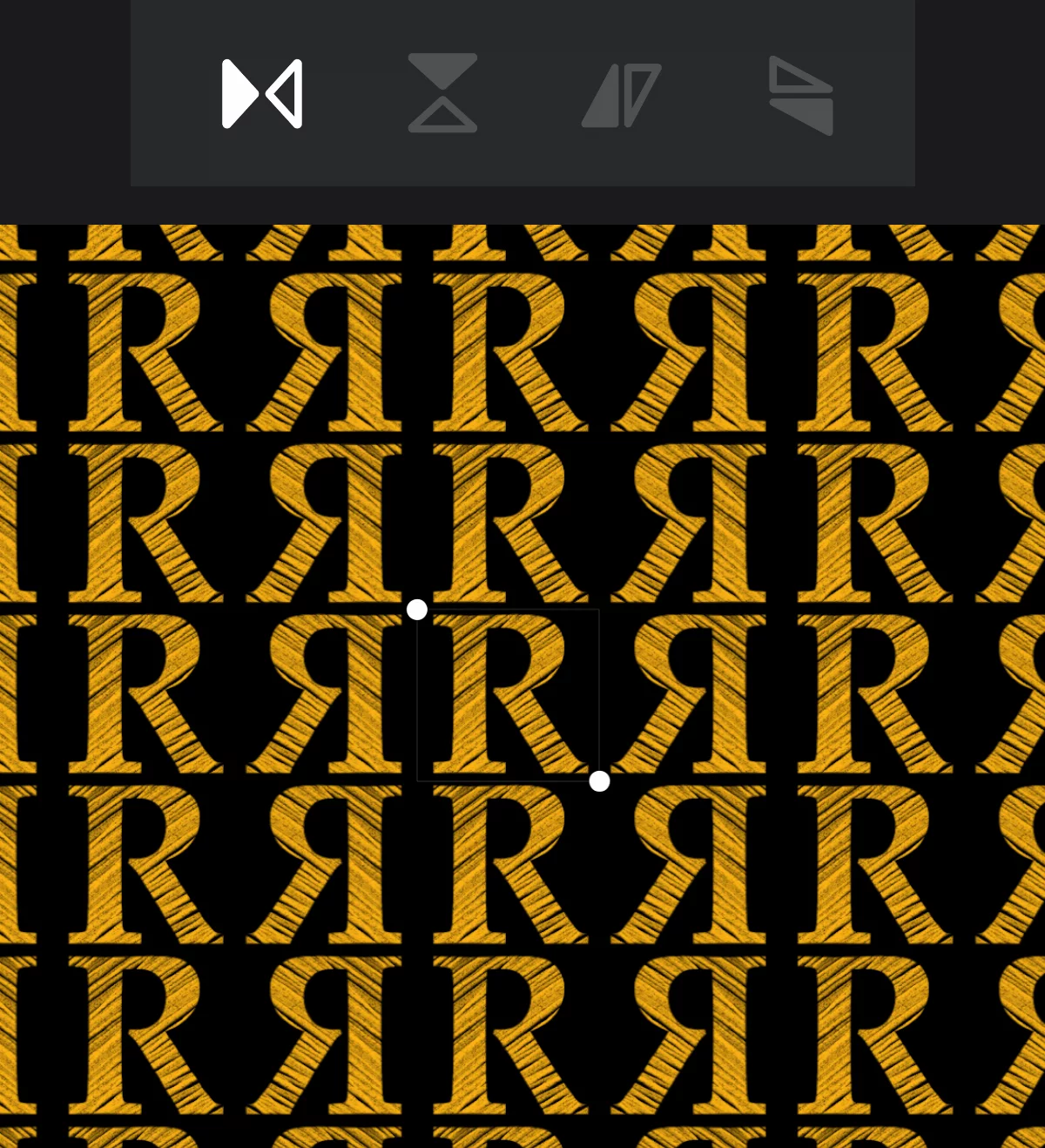
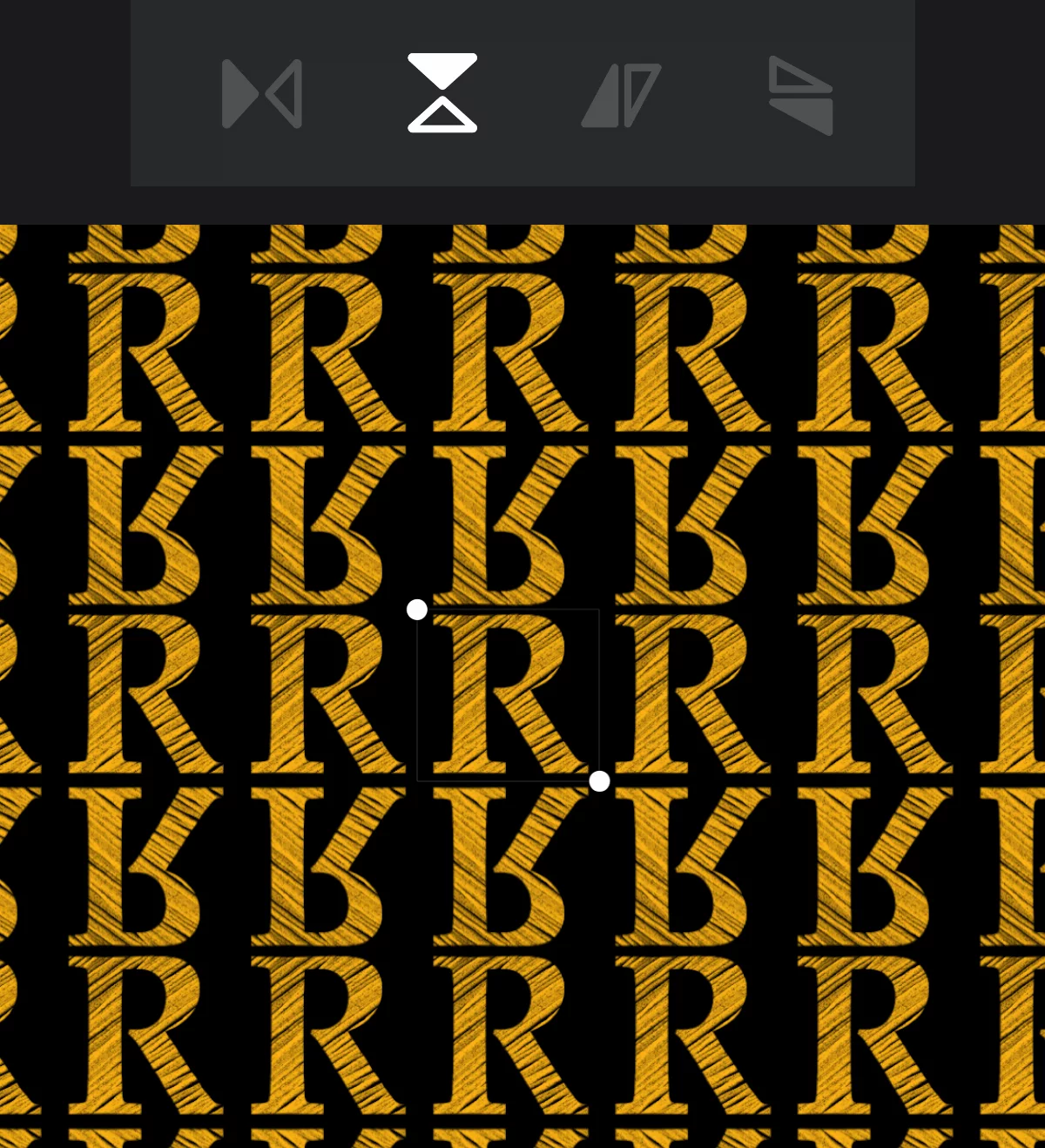
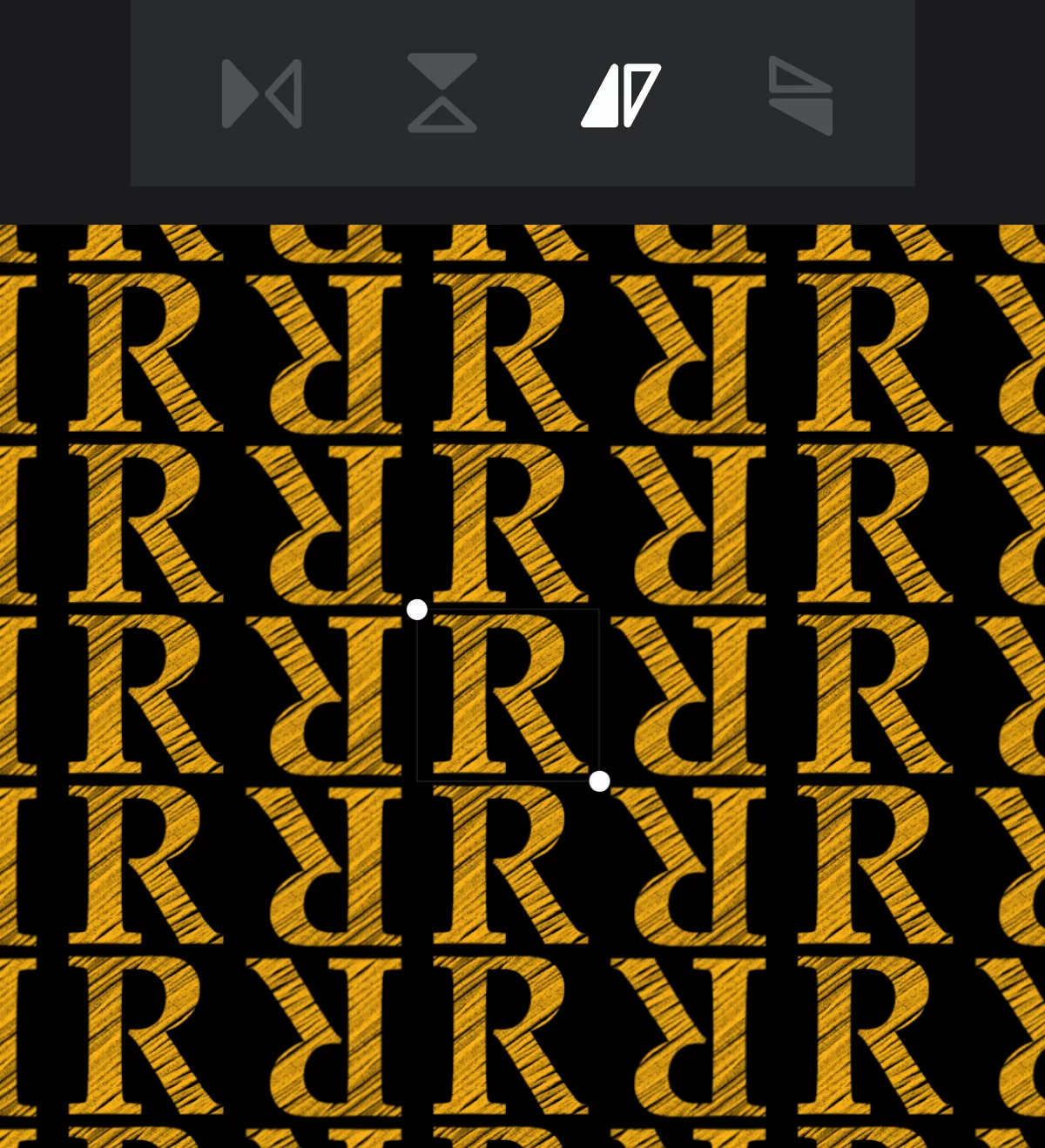
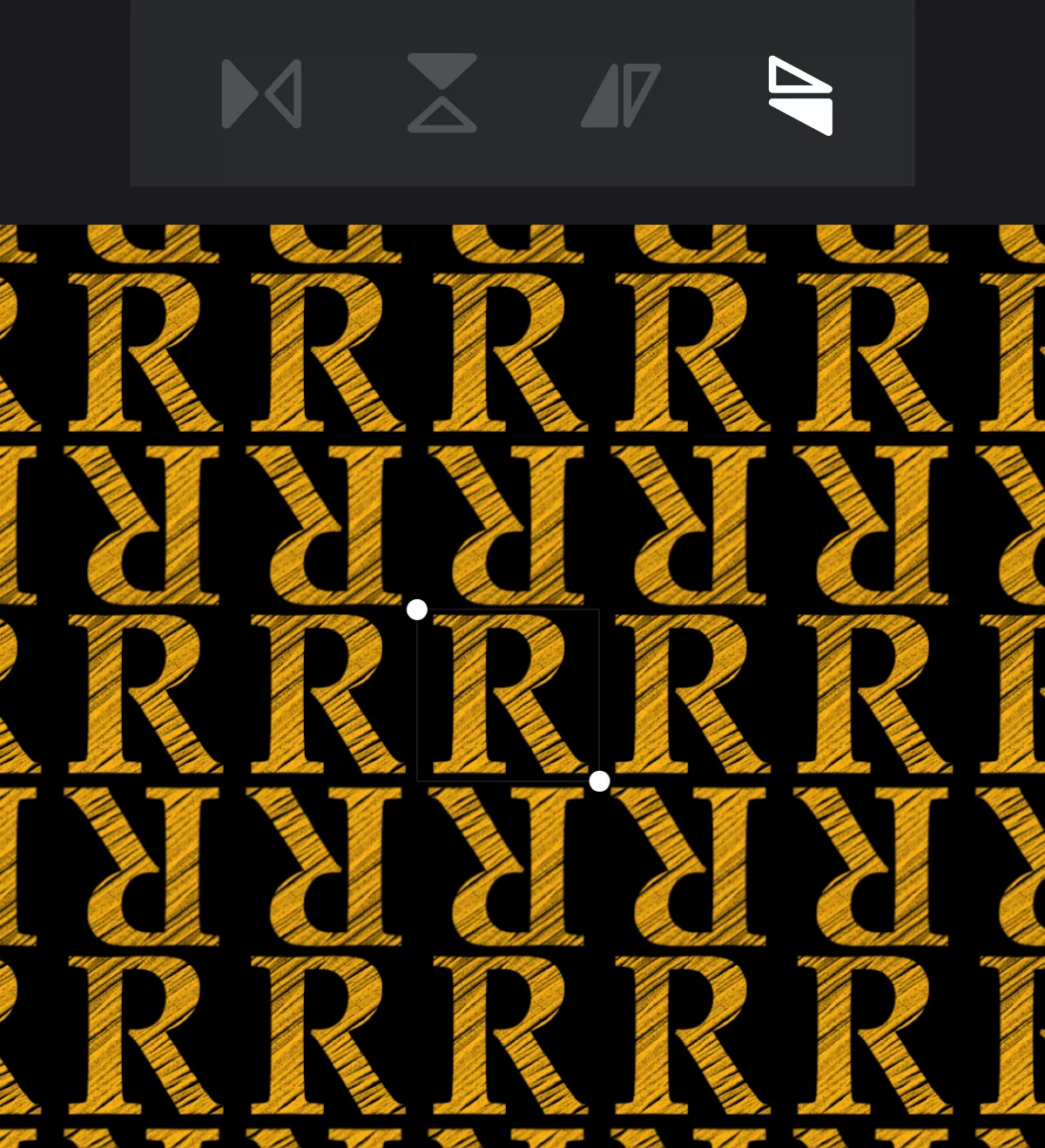
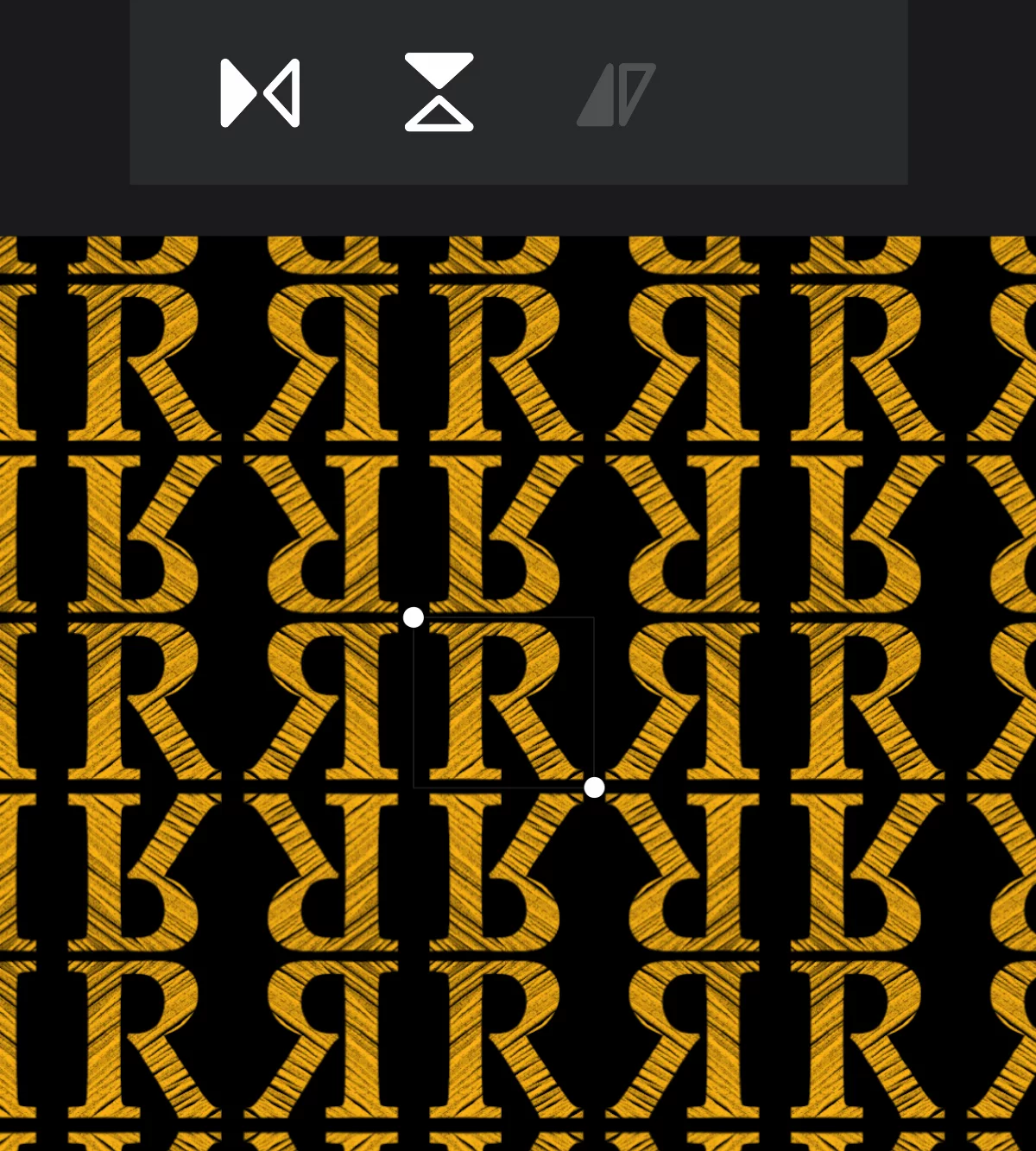
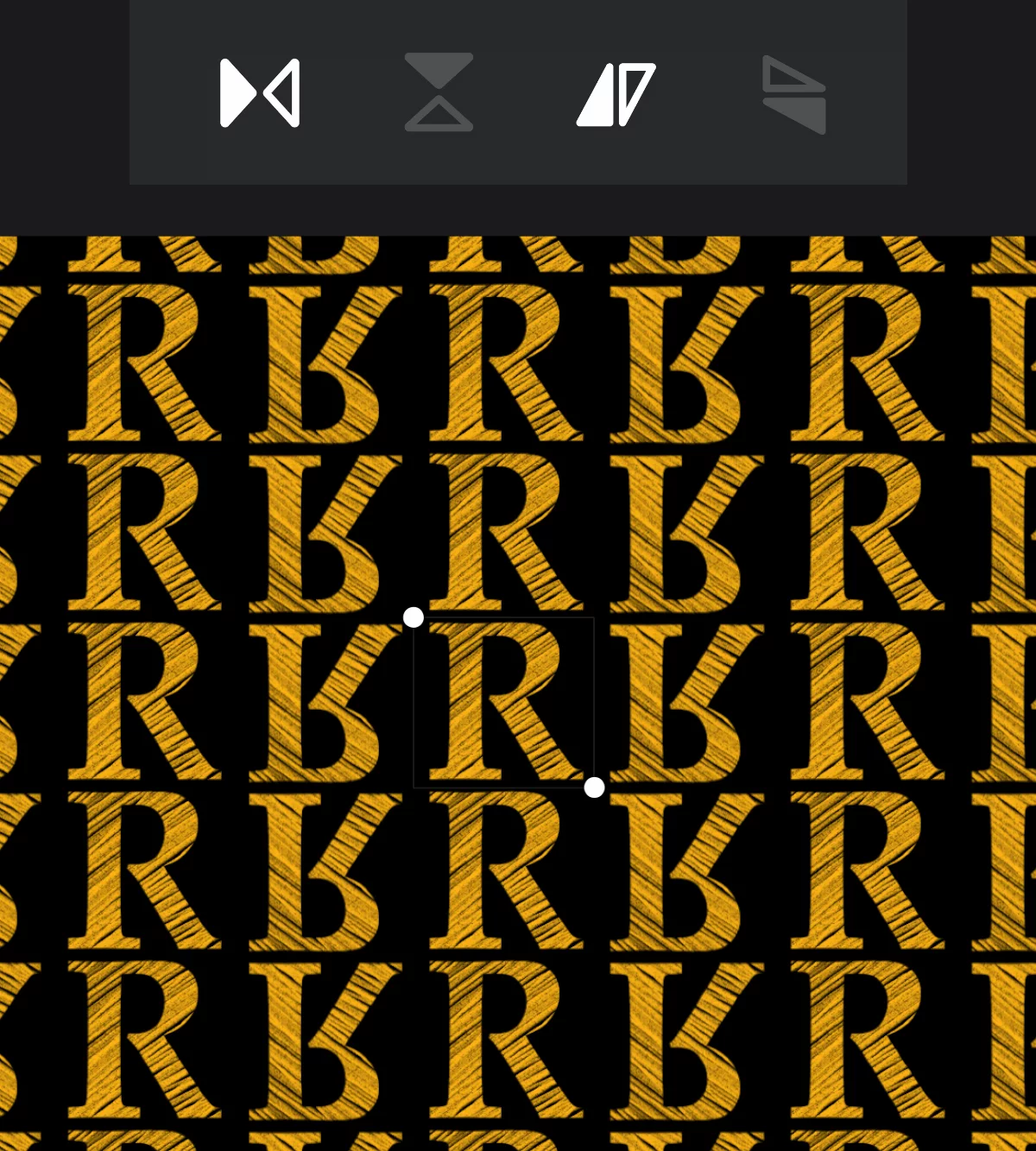
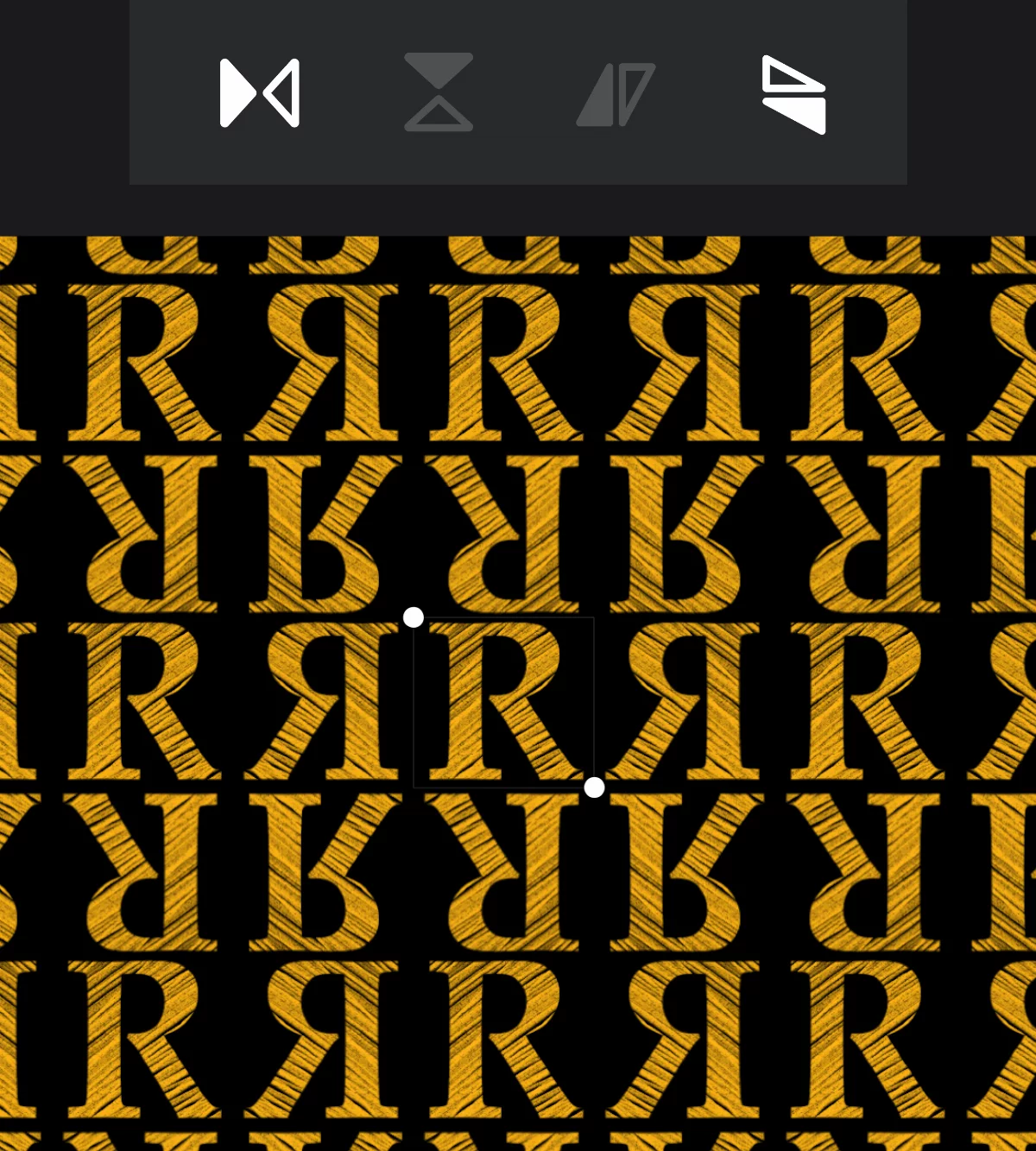
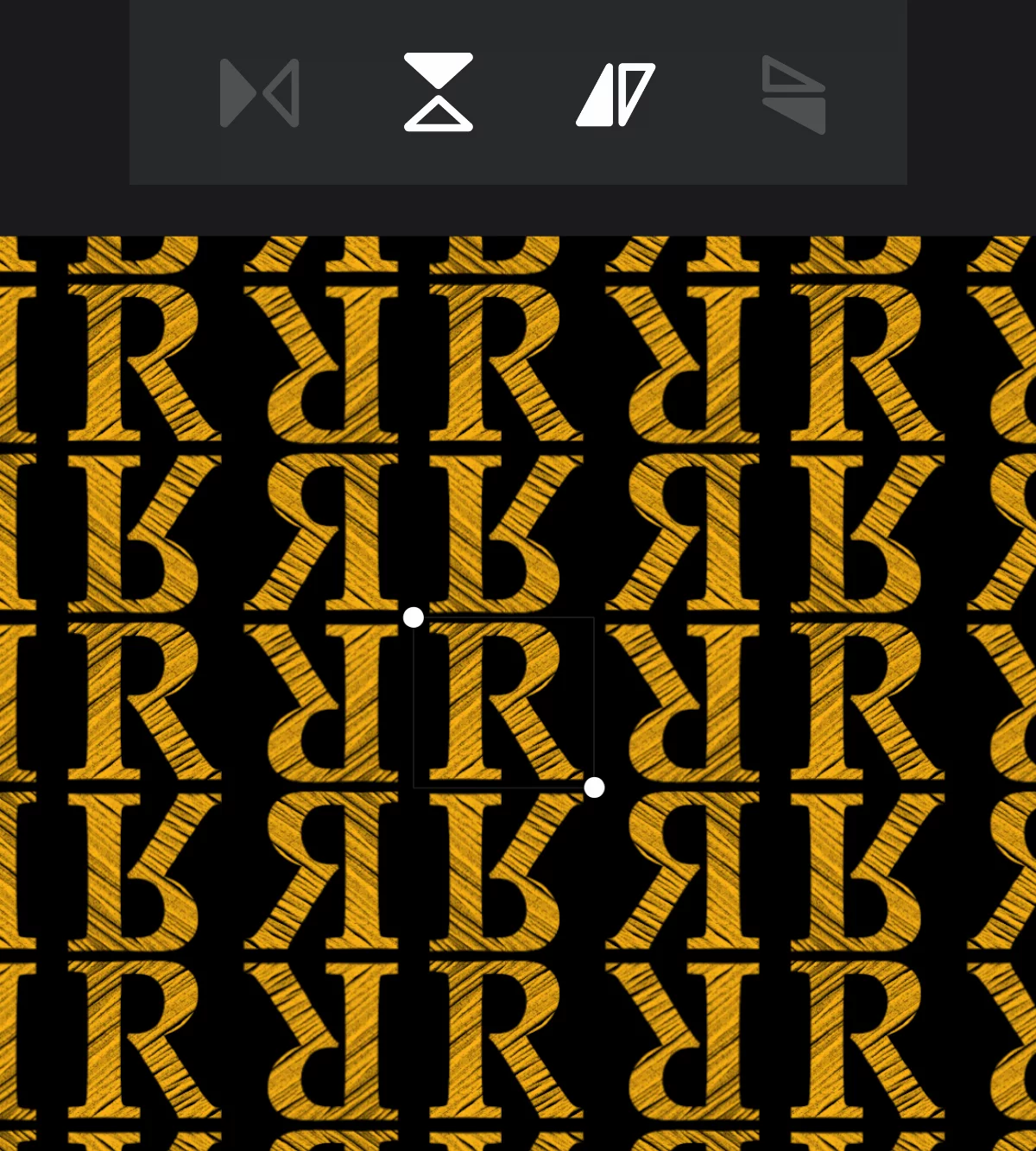
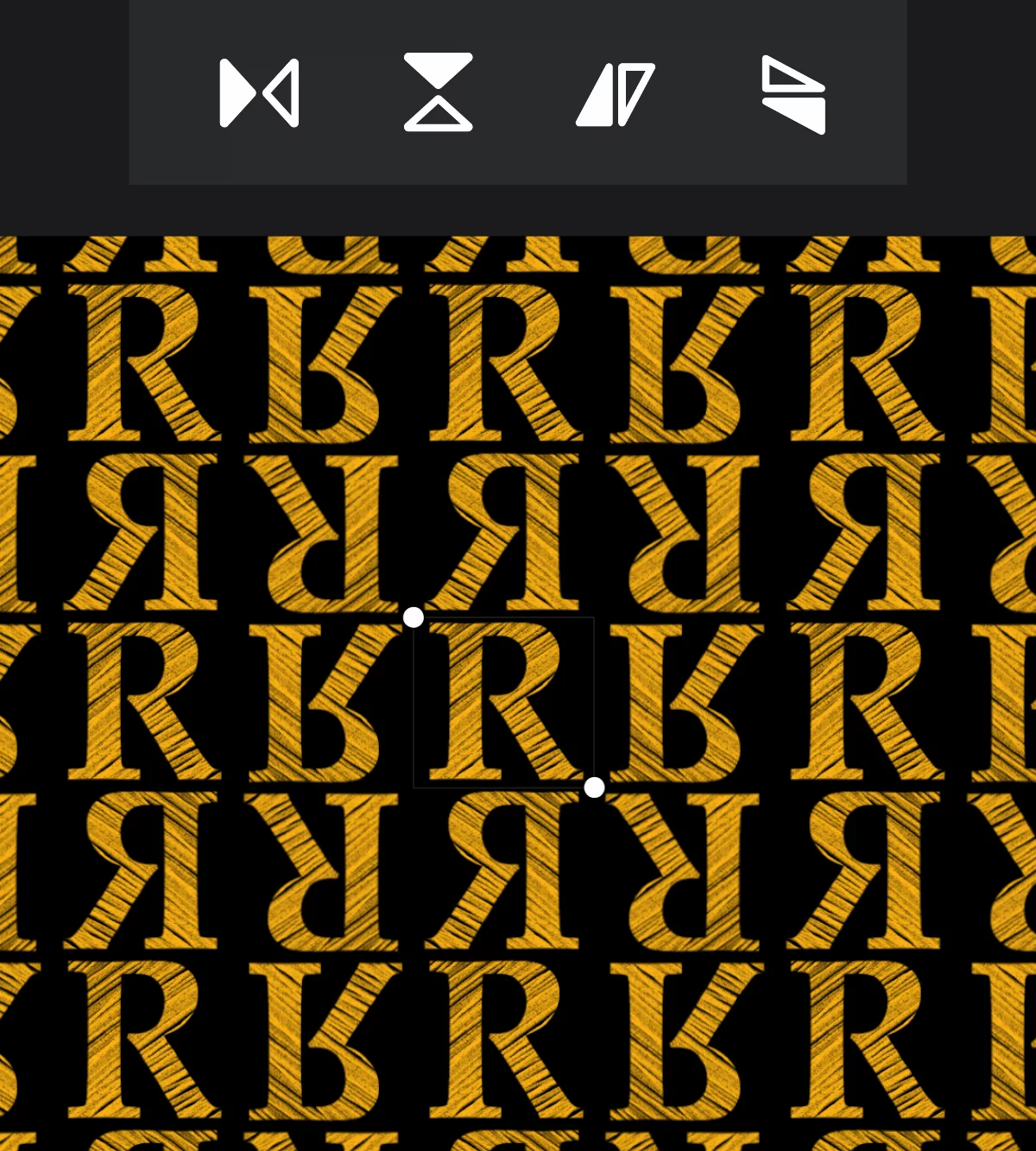
Note that when you save the pattern tile, it is saved along with the symmetry options so the pattern fills will look exactly like the preview (even in other applications).
Primary application of the Tile pattern tool is to provide seamless patterns and textures for the Pattern fill tool. Learn how to use the fills in Pattern fill.