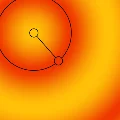
Radial Gradients
Radial Gradient fills a closed area or a selectionSelectionA selection is a defined region of your canvas that can be used to edit its content or to limit the application of painting tools (like a stencil). Technically, a selection is an 8-bit (grayscale) mask image which defines the selected vs. masked areas of the canvas. with colors smoothly blending outwards from the center point.
The number of intermediate color steps is practically unlimited.
Color stops may have different opacity so the gradient may smoothly blend into existing artwork.
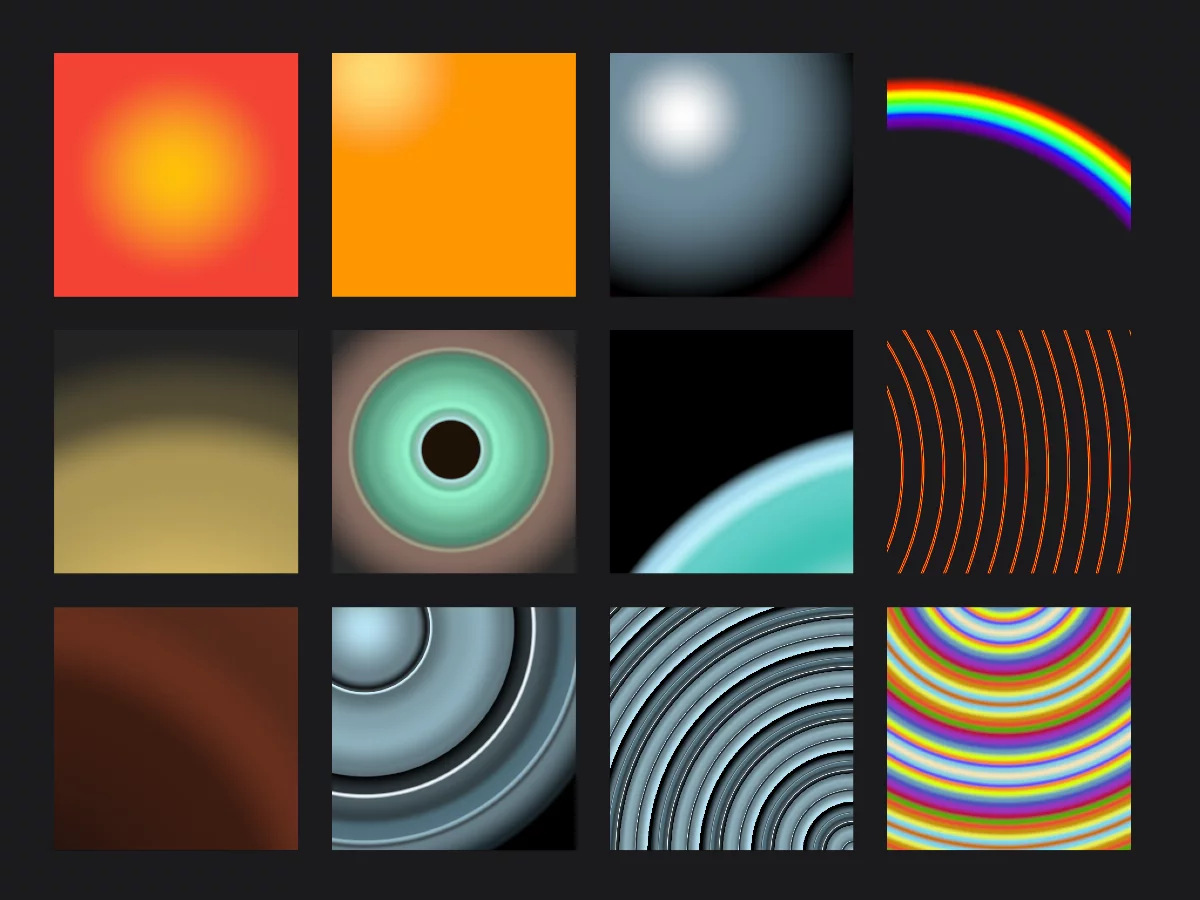
The repetition function may add complexity to the fill. See Radial Gradient Fill — options.
Application
Start from the center.
Drag out from the center point
The direction doesn’t matter here.
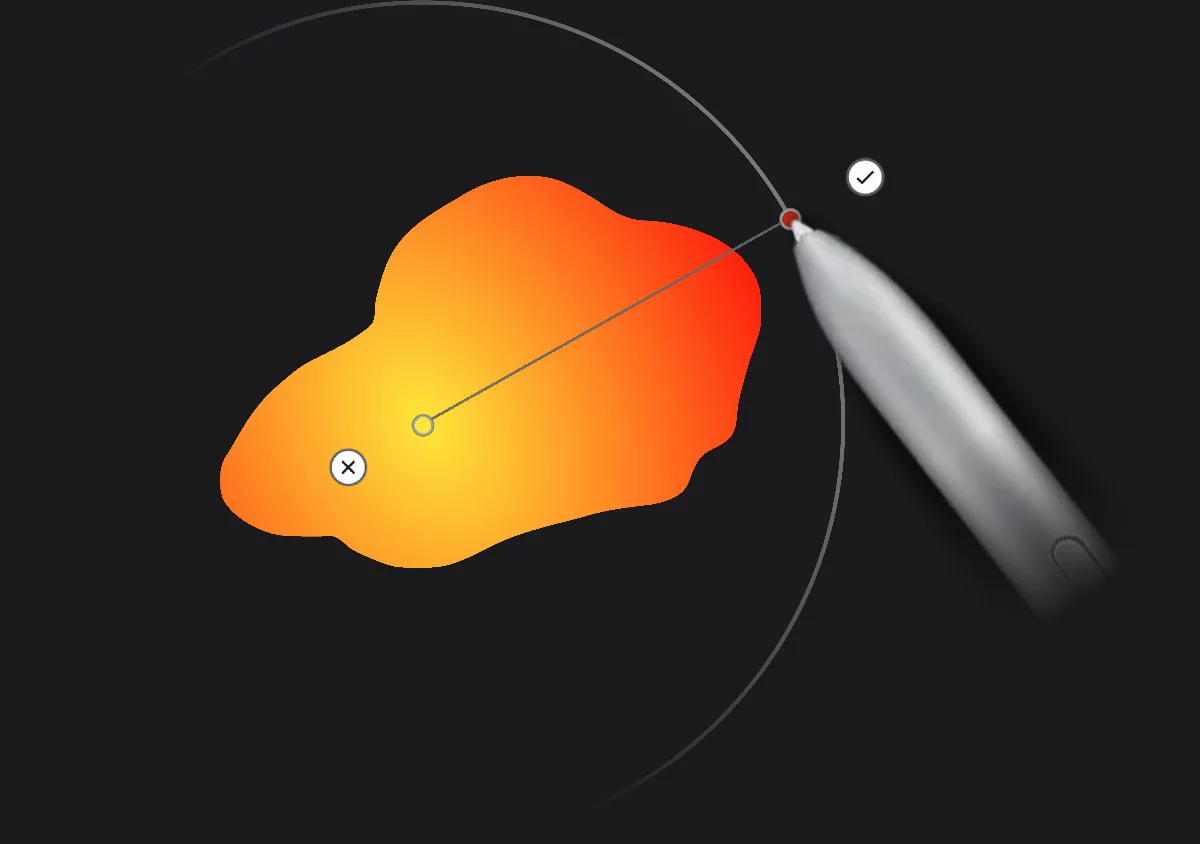
You are supposed to edit and add the colors after application of the fill. This is different than for example in Adobe Photoshop®.
There are no gradient presets in Infinite Painter.
Note that when you apply a gradient for the first time, it is based on the current Paint colorPaint colorThe color currently picked with the Color panel. All brushes and fills will use this color as their base color. The sample of the current paint color is always shown on the main toolbar.
In Infinite Painter there is only one “current” color (there is no concept of a “background color” for the brushes and gradients).. On subsequent fills the previous gradient is used.

You can edit the gradient unless you confirm it with the checkmark button (or until you close the tool).
Basic controls
Exactly like the Linear Gradient.
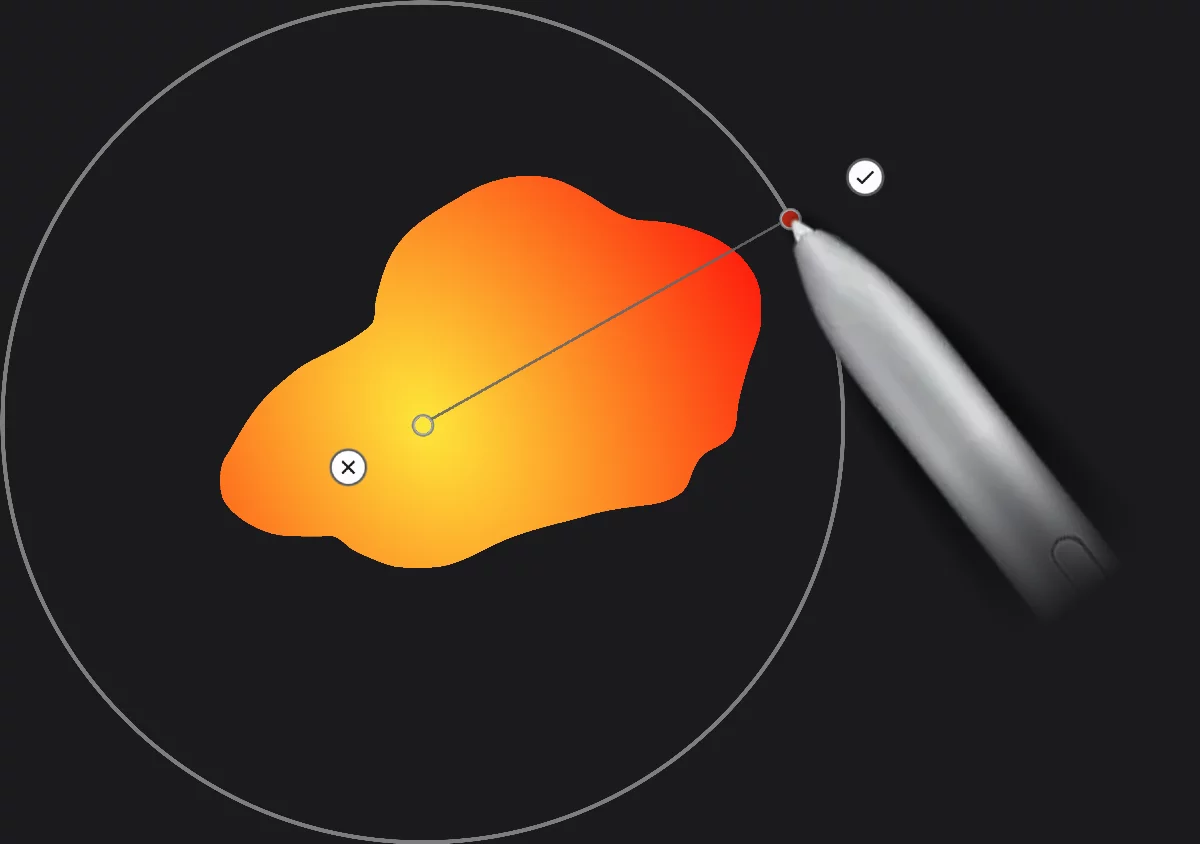
Center color stop
Drag to reposition.
Tap to change the color (opens the color picker).
End color stop
Drag to reposition.
Tap to change the color.
Gradient axis
Drag the axis to reposition the entire gradient.
Tap to add a new color stop.
Cancel button
Tap to cancel current gradient. Previously applied fills will stay intact.
Confirm button
Applies the current fill. Then you may apply another fill or leave the tool.
Gradient circumference
Visual indication of the fill area (disappears when you release the stylus/finger).

You can edit the gradient unless you: confirm it with the checkmark button or cancel it with the × button (or close the Fill toolbar).
Options
For basic two-color gradient.

Radial Gradient options
Default gradient (no repetition, no reflection)
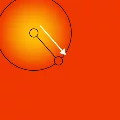

Repeat active


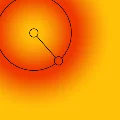
Reflect active

Reverse direction (toggle)
Reverses the direction of the gradient axis with all of the color stops on it.
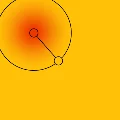
You can use repeat and reflect options together:
Repeat + Reflect