
Select a layer
Pro tools.
You can easily select all non-transparent pixels of current layerActive layerIt is the layer which is currently edited. In Infinite Painter, only one layer may be “active” at a time (except for the Transformation tools, where you can select a number of layers to be transformed simultaneously)..
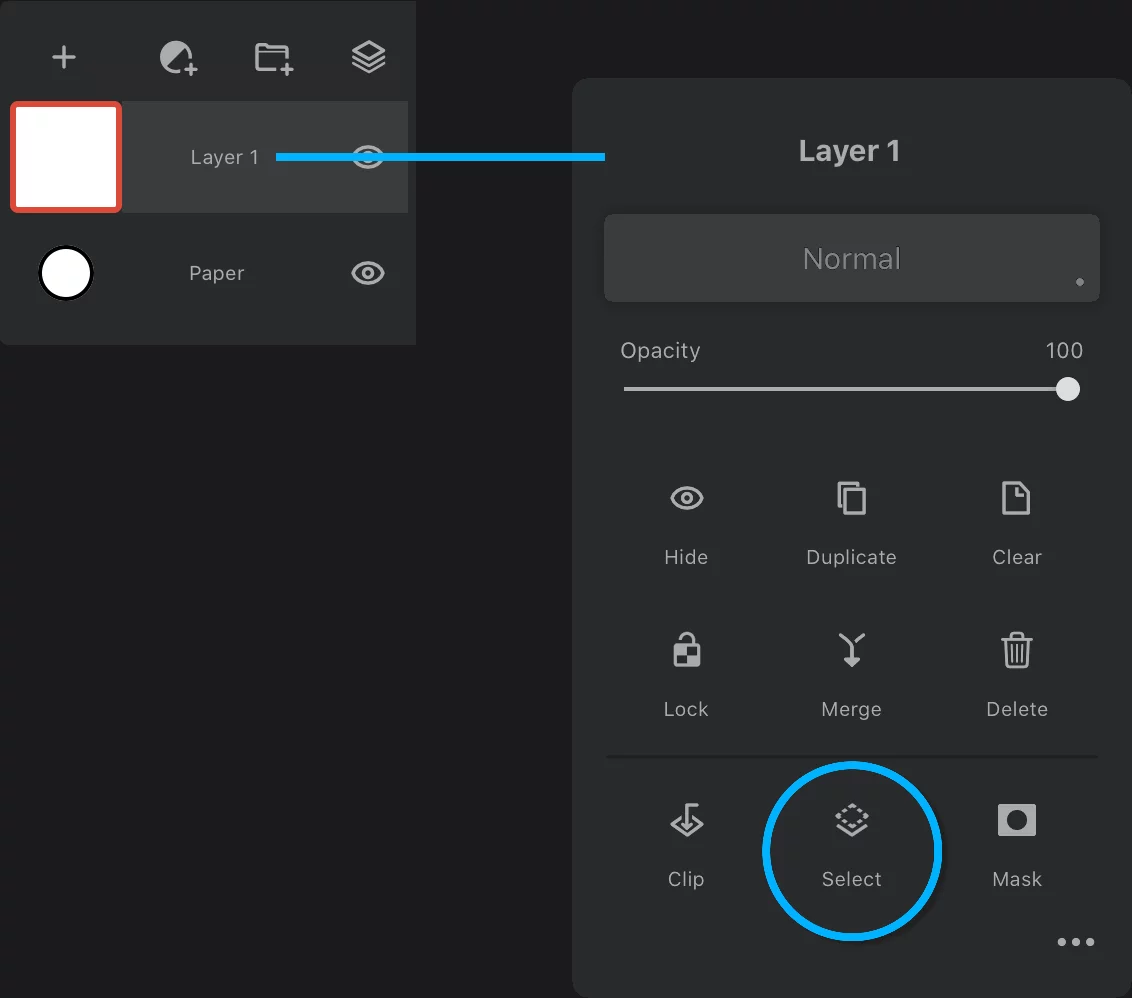

Select Layer
plus access to Boolean operations on selections.
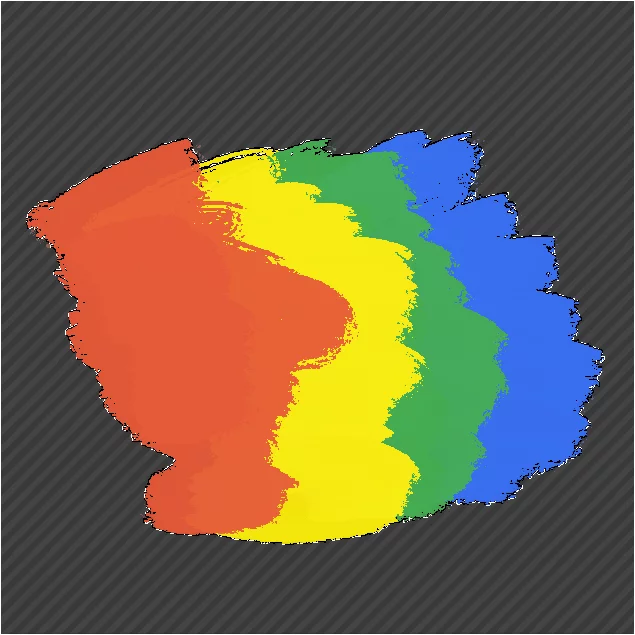
Active layer

Resulting selection
Select a layer mask
Layer mask may be selected exactly the same way as a layer.
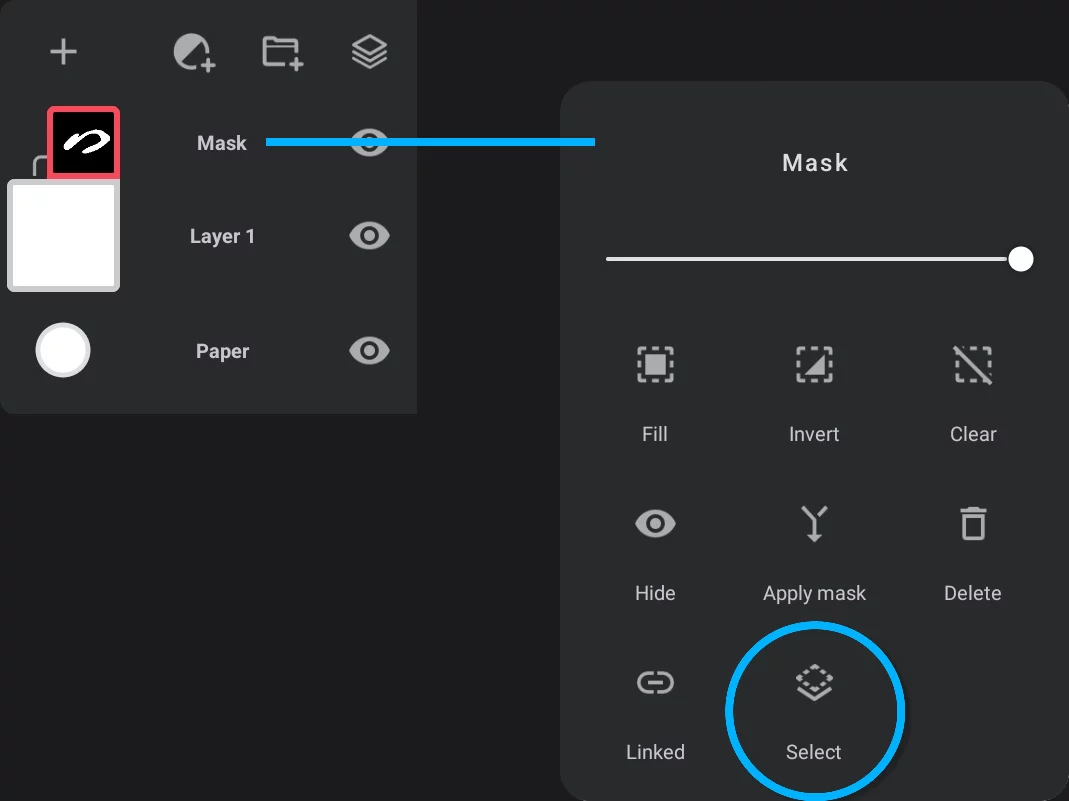
This allows you to use layer masks as reusable stencils.
Boolean operations on selections
Definitely nerd stuff.
Play with selections using layers
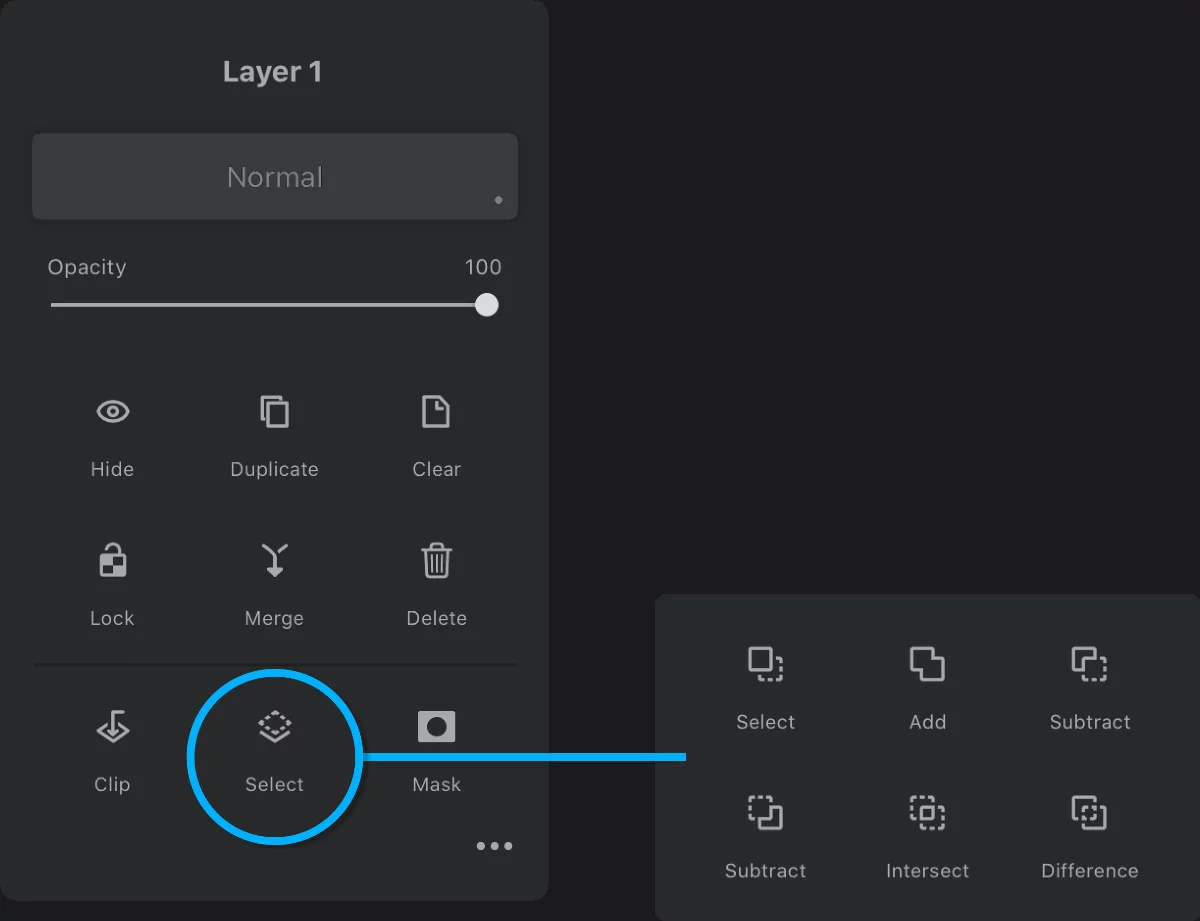
Note that the Boolean options are only accessible when a selection exist.
Boolean functions
Let:
A = existing selection
B = current layer area


Select
Replaces any existing selection with current layer area. Equals "regular " selection of the layer.


Add (Boolean union)
Adds current layer area to existing selection.


Subtract (A – B)
Subtracts current layer area from the existing selection.


Reverse subtract (B – A)
Subtracts the existing selection from the current layer’s area.


Intersect
Finds common area of existing selection and the current layer’s area.


Difference
Finds areas that are not common in existing selection and the current layer’s area.

Note that you can use any Selection tools in two basic Boolean modes:
Normal (Add) and Subtract.
Toggle them on the Selection toolbar (see Selection tools — common workspace).
Turn layers into stencils:
Make a selection. Fill it with flat color on a separate layer. Repeat with other selections. Use these layers in various Boolean combinations to create any shape you need.
You can also use layer masks for that purpose.