
Construction of the brush in Infinite Painter
Brushes in Infinite Painter basically consist of two main elements: the brush head and the brush texture (which is optional). Besides that, there are numerous parameters, attributes and special effects that my change the appearance and behavior of the brush.
Also, the interaction with the background (the PaperPaperA special layer at the bottom of the layers’ stack: the background of the artwork. The Paper can have a solid color fill and (optionally) a texture.Learn more layer, the active layerActive layerIt is the layer which is currently edited. In Infinite Painter, only one layer may be “active” at a time (except for the Transformation tools, where you can select a number of layers to be transformed simultaneously). and even the layers below it) may affect the behavior of the brush.
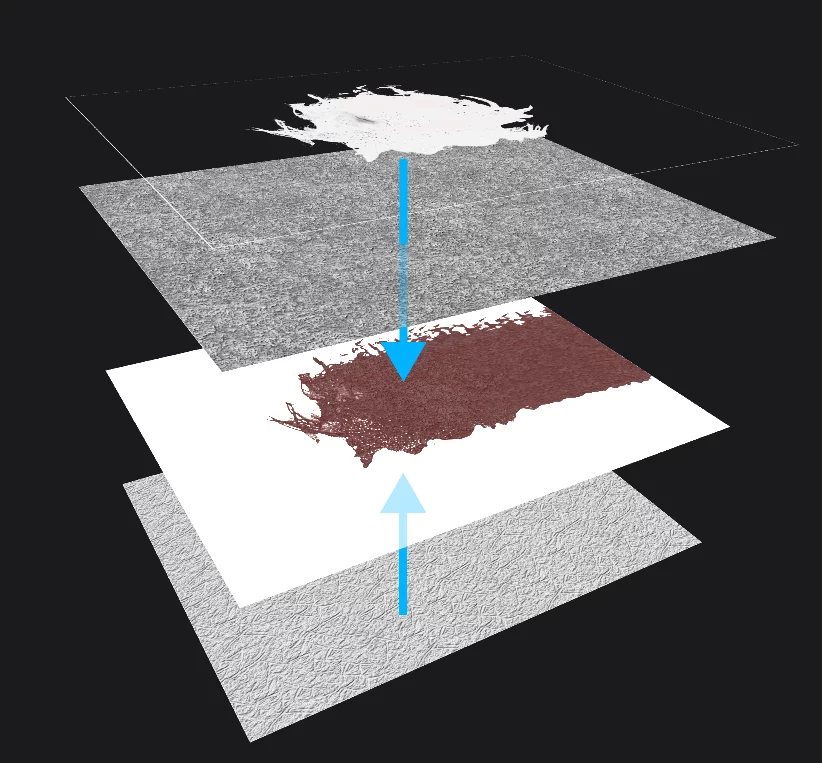
Brush head
A bitmap (or the default, round shape). The most distinctive element of each brush.
Brush effects and attributes
May greatly affect the look of the stroke. See Brush Editor for details.
The result
A brush stroke on the active layer. Brushes always apply or change color on the active layer only.
Paper texture
A bitmap (optional).
Paper texture consistently affects the look of every brush stroke made on the canvas.
Paper texture is independent from the internal brush texture and they may interact with each other.
See Paper layer for details.
Each brush in Infinite Painter has over 100 separate parameters that, together with the head and texture bitmaps, define the specific behavior of the tool. All these parameters can be altered in the Brush Editor panel (See Brush Editor for details).
The definition of each brush (including all the changes you may make to it) is stored in the application, and can be exported as a brush file (.prbr).
Note that the same brush will behave differently in each Brush modeBrush modeOne of the three main ways the brushes in Infinite Painter work: in the Paint mode the brush applies the color, in the Blend mode it blends or smears existing colors on the canvas, and in the Erase mode it removes the color. Technically, the Cloning is actually a brush mode too.Learn more, or when used for special purposes (like cloning or painting a selection maskSelectionA selection is a defined region of your canvas that can be used to edit its content or to limit the application of painting tools (like a stencil). Technically, a selection is an 8-bit (grayscale) mask image which defines the selected vs. masked areas of the canvas.).
Procedural brushes
Among the Built-in brushes in Painter, there is a number of special brushes that do not follow the basic scheme described above.
In general, there are two classes of procedural brushes that have completely different internal construction:
Harmony brushes
These brushes do not use the regular brush heads and they may not accept all the regular settings.
Procedural brushes interact with the Paper texture like the regular brushes.
Fill brushes
are described in Fill brushes.
Fill brushes may apply brush filters and color adjustments. The Screentone effects and Particle effects do not work with them, the Watercolor effects is very limited. Brush filters may be used with these brushes (and may be a very convenient way to quickly apply filters or color adjustments).
Certain filters may be applied to the brush stroke for interesting effects (like the Blur filter to soften the edges of the fill area or the Edges filter to draw only the edges of it).
Harmony brushes
Harmony brushes are generated by an algorithm that draws a pattern of thin lines following the movements of the brush tip. The density of the lines depend on the length and shape of the brush stroke. Different Harmony brushes have different algorithms, some of them may add a lot of complexity to the artwork. Have fun!
The Harmony brushes accept the brush filters, but the results may be unexpected.
List of the Harmony brushes in Infinite Painter 7.1
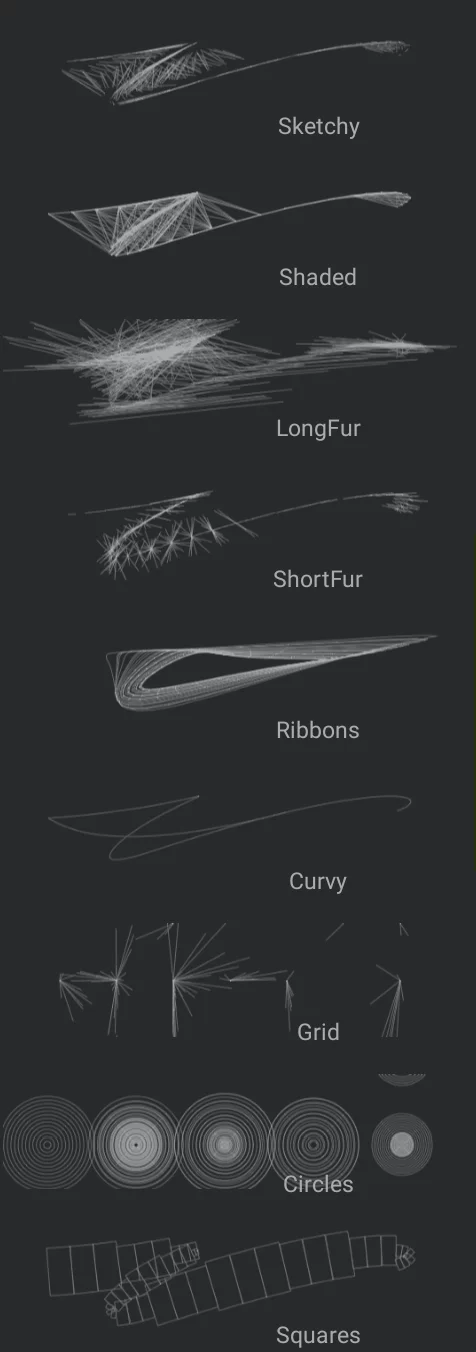
Sketchy
Shaded
LongFur
ShortFur
Ribbons
Curvy
Grid
Circles
Squares
Both Fill and Harmony brushes do not employ the concept of a “brush head” so they practically have no “Size” control (in the Harmony brushes the Size parameter changes the line thickness, not the overall scale of the brush strokes).