
Clone tool
Stamp tool? Not exactly.
The Clone tool is in fact a group of powerful creative tools that use fragments of existing painting to create new artwork.
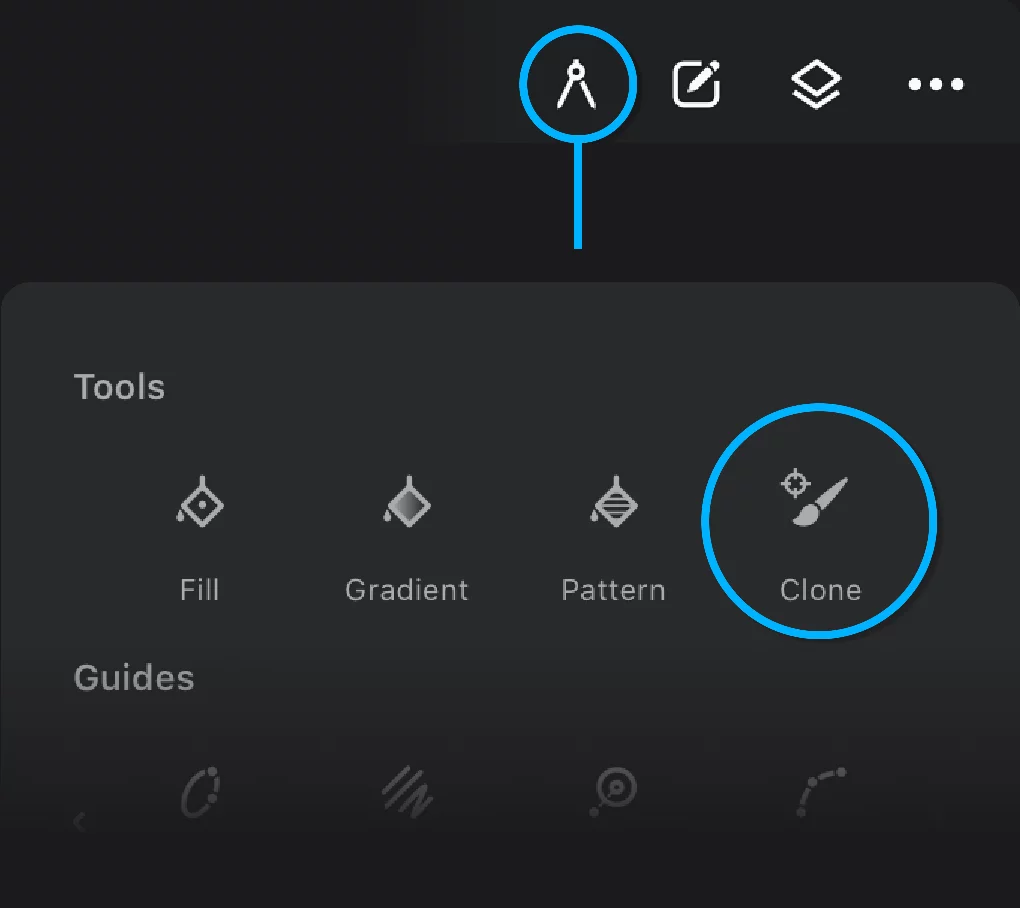
Find the Clone tool in the Creative Tools menu
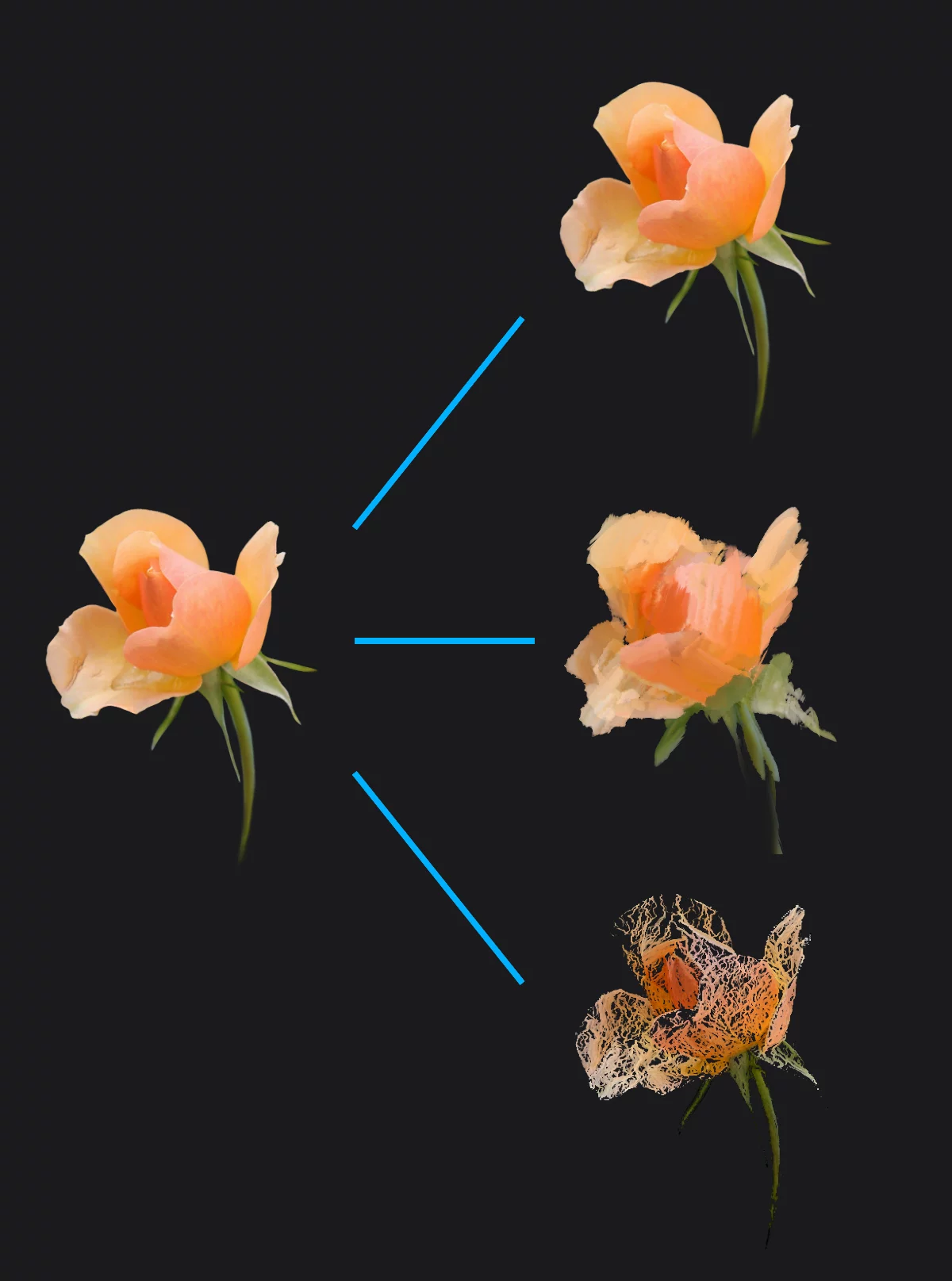
The original (source)
The source may be a fragment of current layer or another layer. Learn more in Clone tool — source and target layers.
Photo mode
Clones content of the source directly to the target location. Perfect for retouching. Use any brush. See Photo mode.
Artistic mode
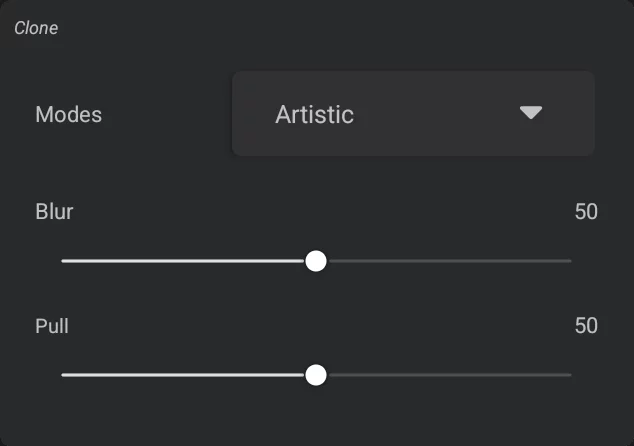
Uses the original only as a general source of colors for painting at the target location. Use any brush. See Artistic mode.
Smart mode
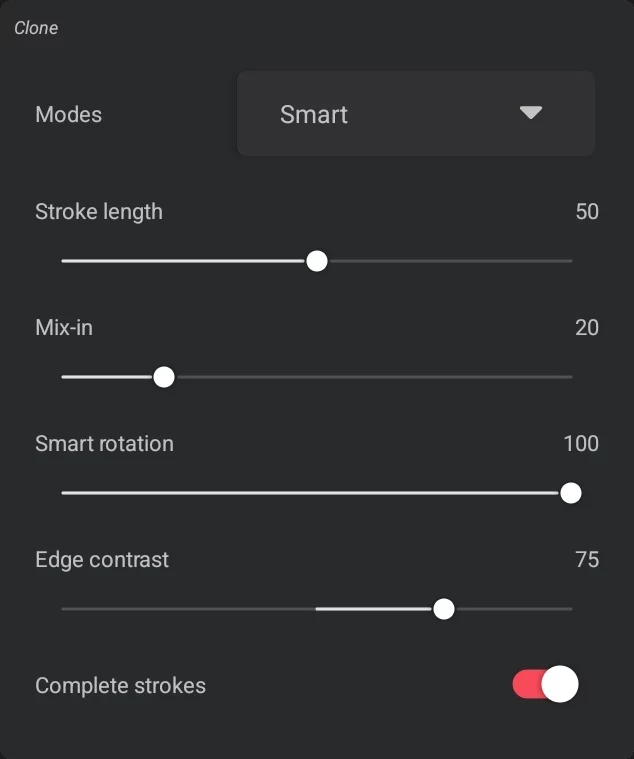
Uses advanced algorithms to interpret the source image and create a new one. May produce infinite number of different results. Some brushes may not work as expected.
See Smart mode.
Note that even if the cloning tool uses the existing image as the source, the results depend on your creative process. Using different brushes and different settings may also change the result dramatically
Clone tool in the Offset mode works like the Stamp tool in Photoshop®, only that you can select the source layer. Learn more about using the Offset mode in Clone tool — offset mode.
Options
At the main toolbar.
Main toolbarMain toolbarThe main set of controls for the brushes. Almost always visible on the screen in the Studio workspace. Main toolbar lets you select and adjust the brush and pick the color for painting (and much more).Learn more


The Clone icon
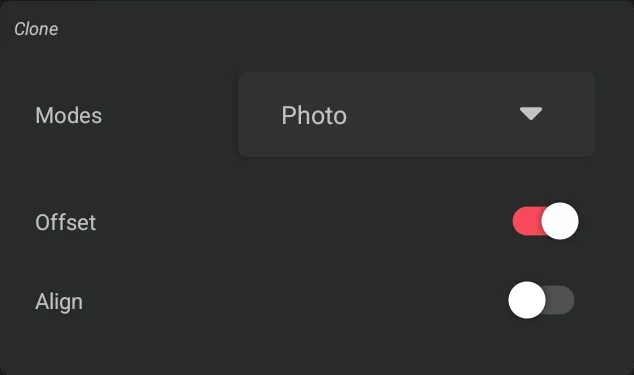
Tap to access the options pop-up:
Clone options for Photo mode
Clone options for Artistic mode
Clone options for Smart mode
Clone tool indicator (Mini-toolbarMini-toolbarIn Infinite Painter’s interface, a small toolbar displayed in the upper-right part of the screen when certain tool is active. This toolbar may consist of one or more buttons; the main, leftmost icon indicates the tool in use. Learn more)

tap it to close the tool.
You may set any layer as the source for cloning in any cloning mode
Learn how to in Clone tool — source and target layers.
You can use any brush* for cloning
You can use any guides, shapes, symmetries and other tools with the Clone tool.
(*except for the Smart cloning mode).
You can use Blend modeBlend modeOne of the main three brush modes. The brush in Blend mode blends or smears the existing colors on the current layer. Not to be confused with the color blending modes.Learn more and Erase modeErase modeOne of the main three brush modes. The brush erases color from the current layer to transparency.Learn more while in Clone mode; they will behave normally, even in Smart mode.
Source and target layers
Watch what's in your crosshairs.
You can clone within the same active layer or set another layer as the source.
Active layer is the source by default.
Cloning within the same layer
(usually with offset mode on); this is the default setup.
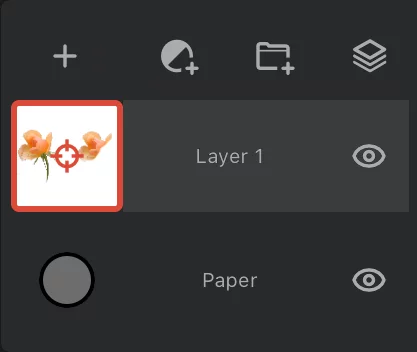
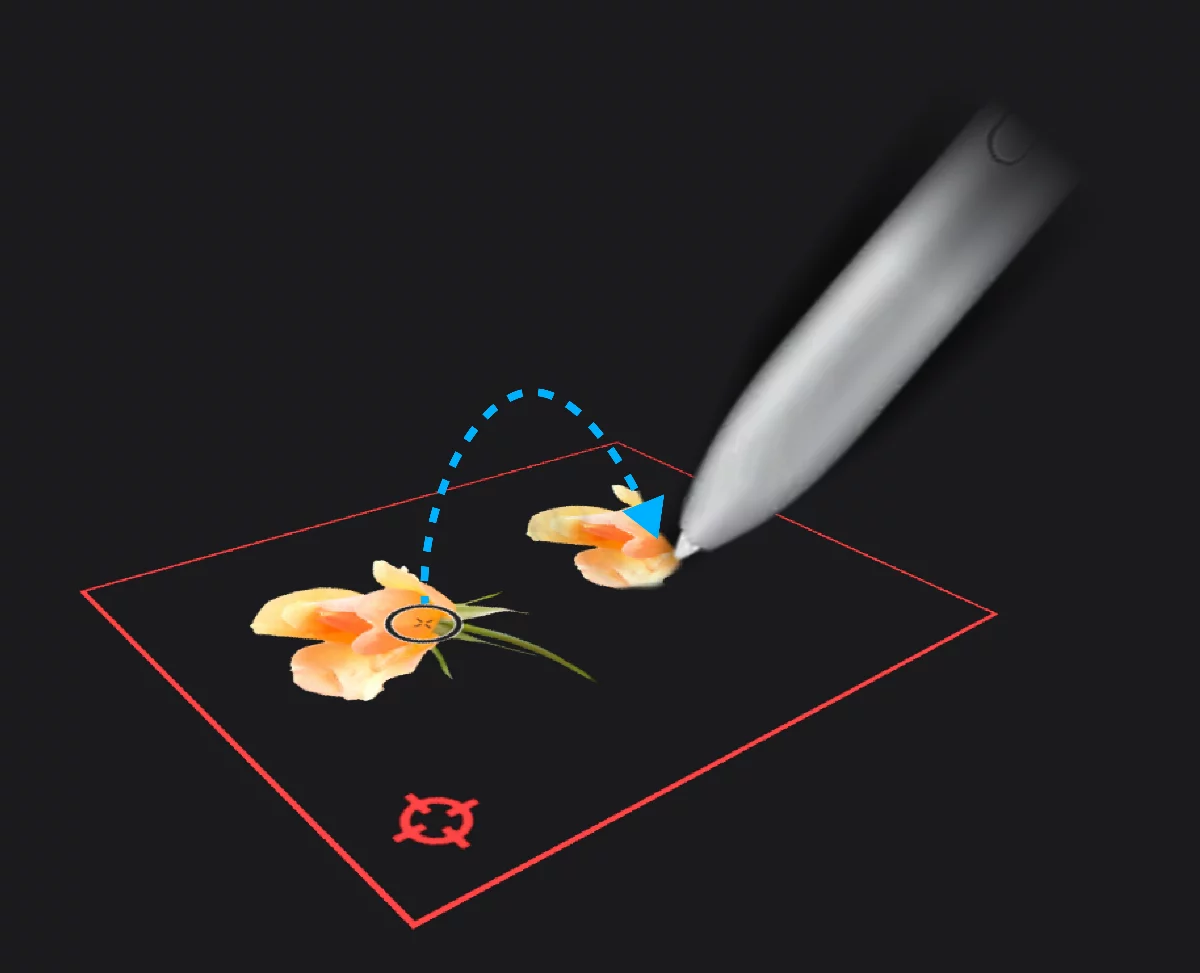
Source point
marked with the crosshairs pointer
Source layer = target layer
Cloning across layers
(usually with offset mode off)
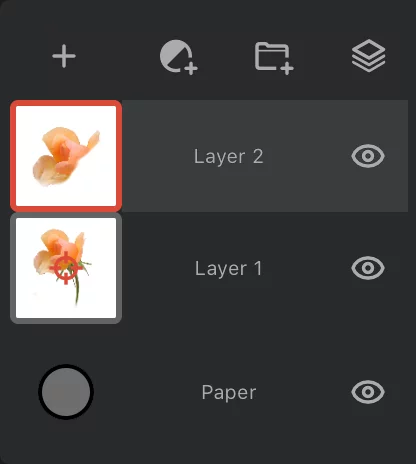
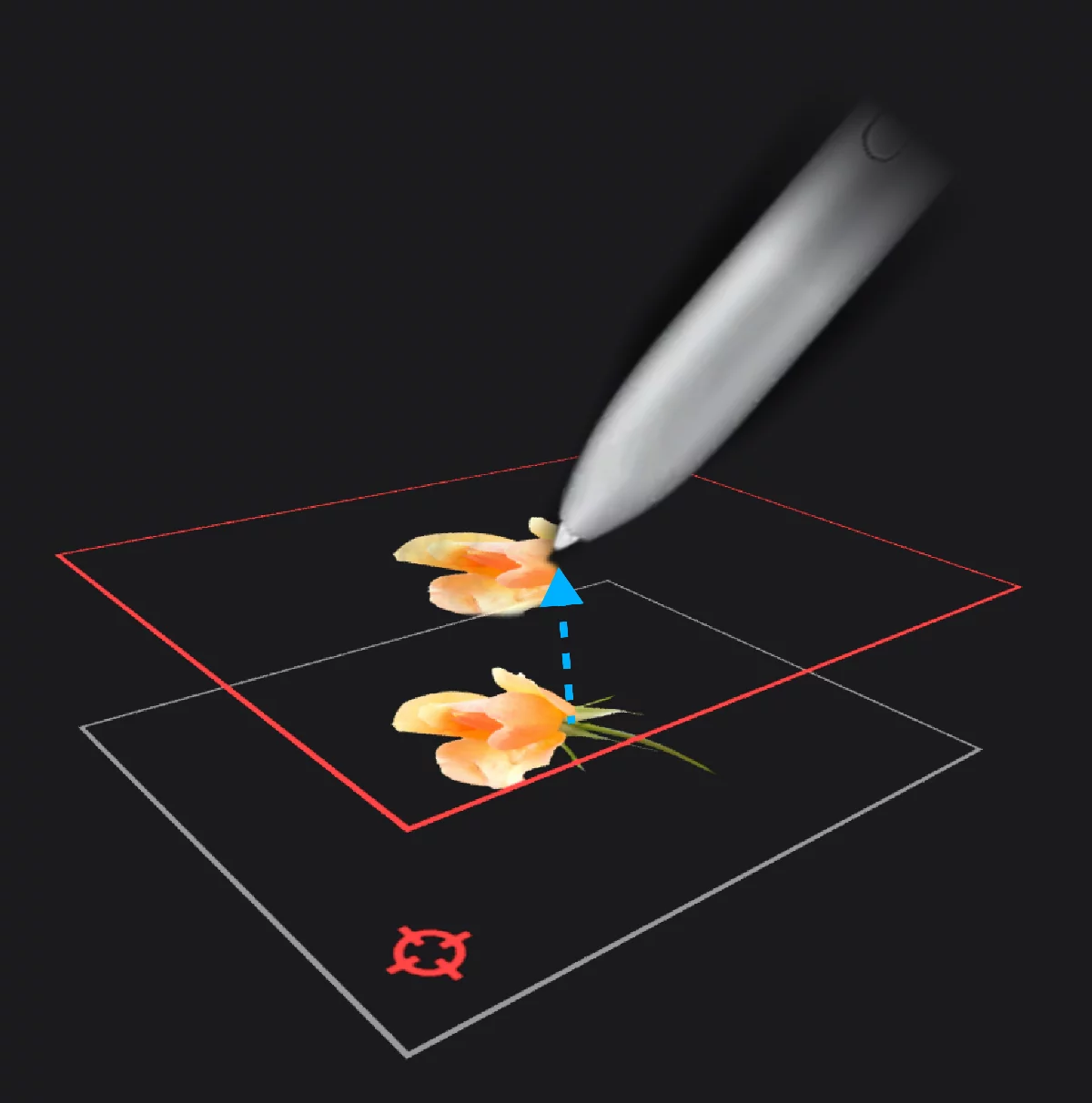
Target layer
Always it is the Active layerActive layerIt is the layer which is currently edited. In Infinite Painter, only one layer may be “active” at a time (except for the Transformation tools, where you can select a number of layers to be transformed simultaneously). (because you are clone-painting on it).
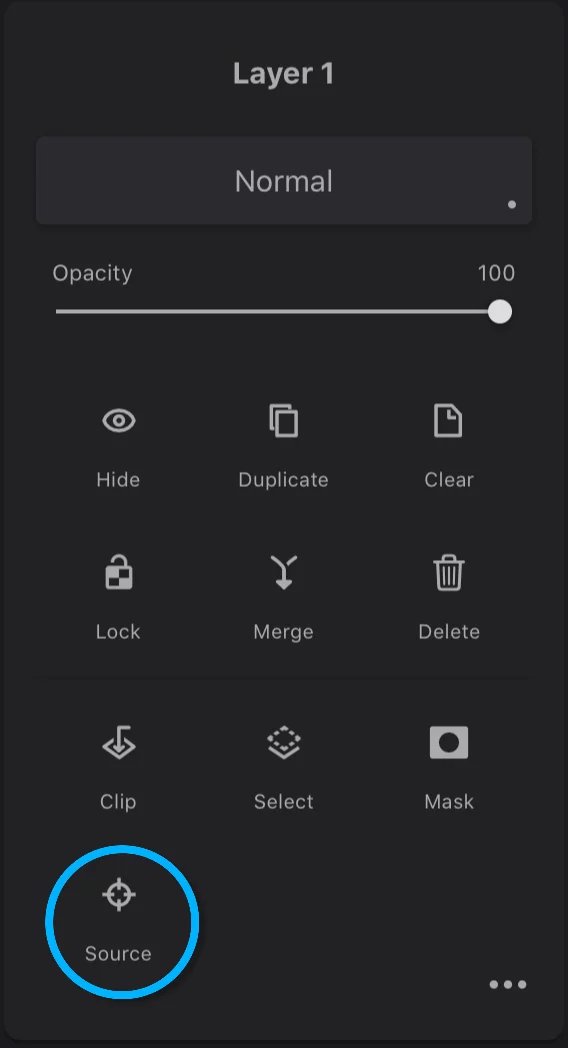
When you start the Clone tool, the current Active layerActive layerIt is the layer which is currently edited. In Infinite Painter, only one layer may be “active” at a time (except for the Transformation tools, where you can select a number of layers to be transformed simultaneously). is set as a source. If you want to use another layer as the target, activate this layer after starting the Clone tool.
Learn more about using layers in general in the Using layers section.
Offset mode
That's the Stamp tool.
Offset cloning: you can use it in both single-layer and cross-layer cloning.
Clone tool options
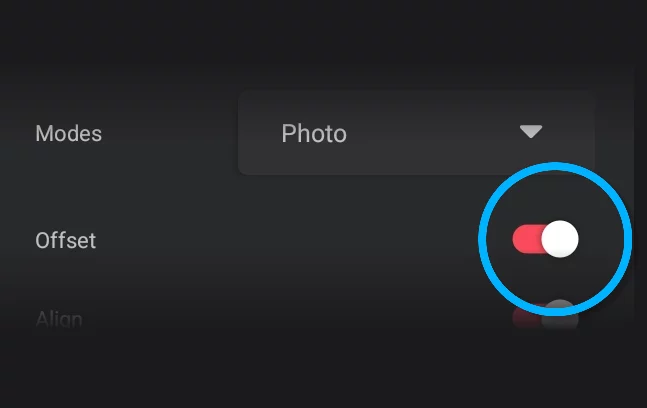
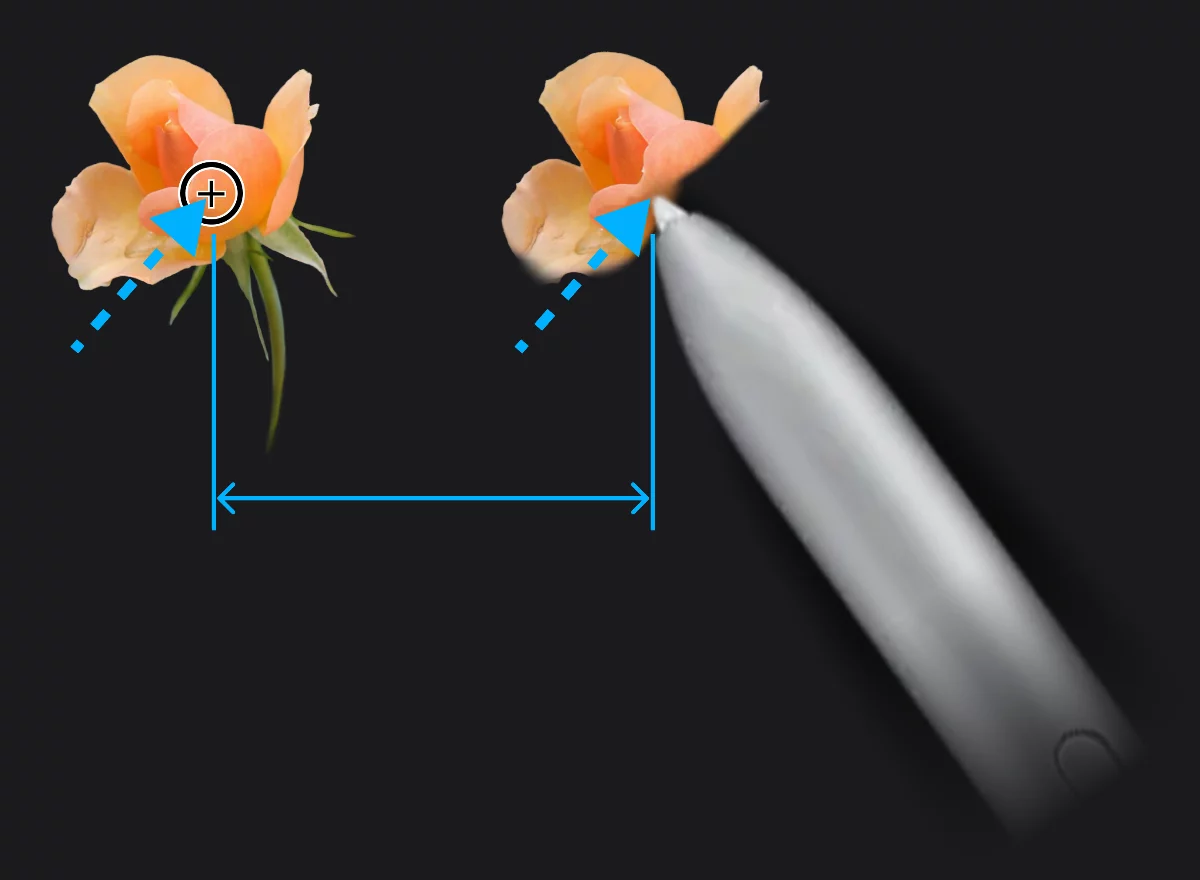
Original (source)
Offset cloning (here in Photo mode)
Set the exact source location by dragging the source pointer (the cross hairs)
Offset distance
The offset pointer will follow the movements of your stylus with constant offset distance.
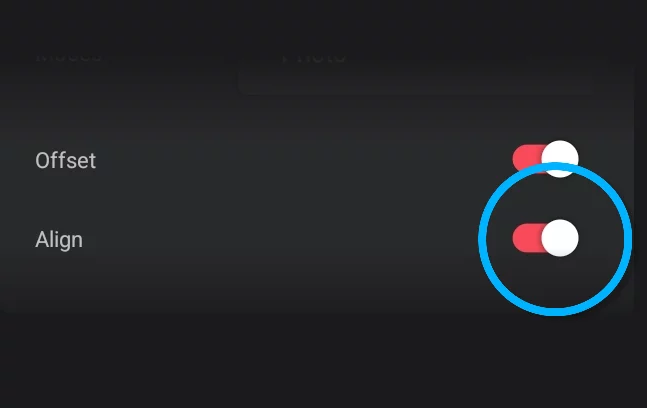
Align on
The source point (crosshairs) and brush tip are aligned so you can build the clone image in subsequent strokes.
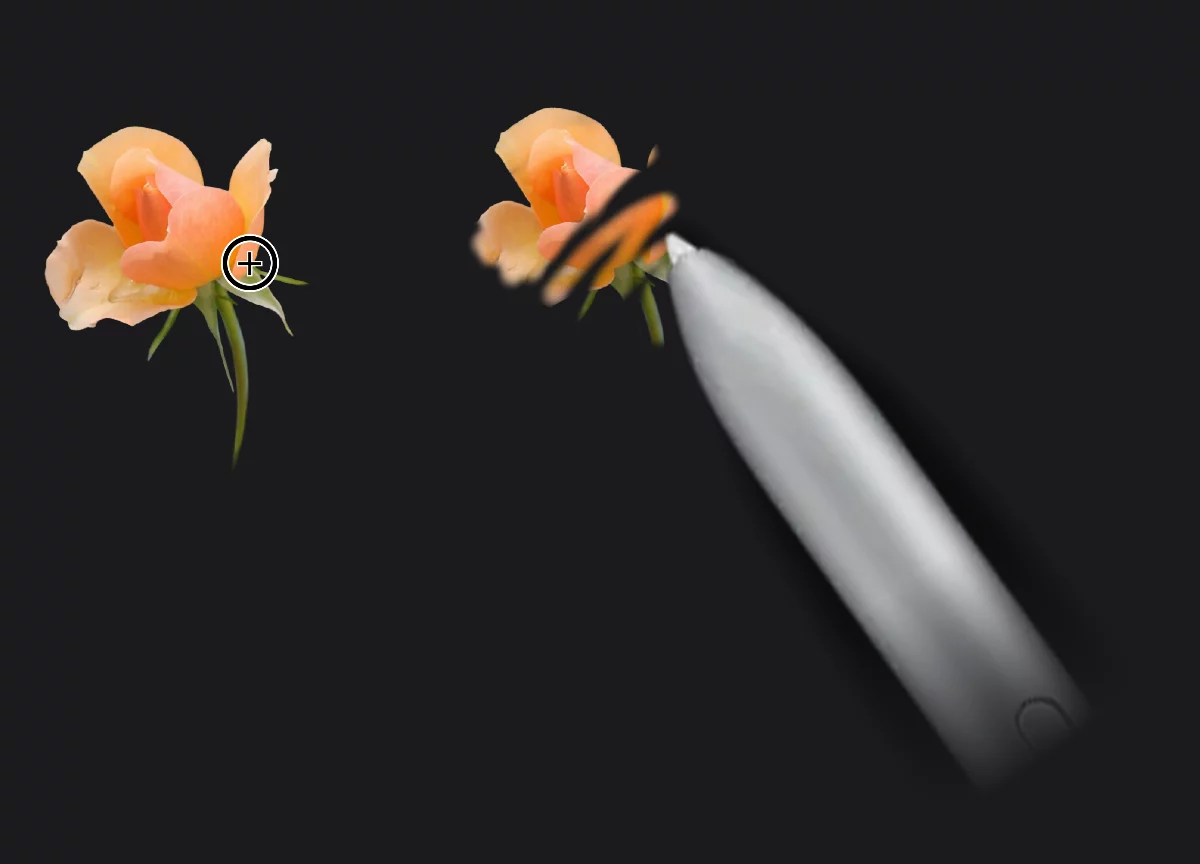
Each new stroke reveals continuous clone of the source image.
Align off
The source point (crosshairs) returns to its original position after each stroke, so you can use the same fragment in various points of your target picture
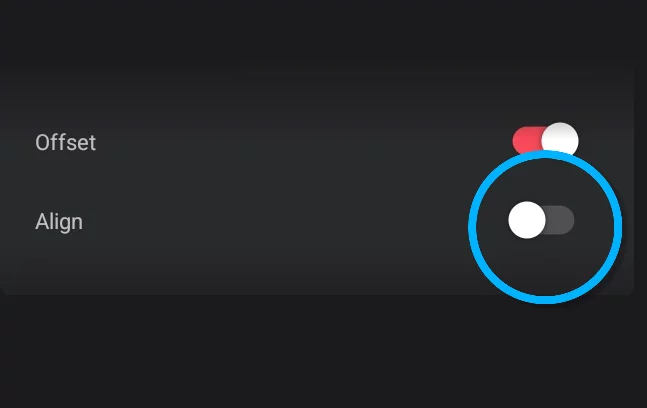
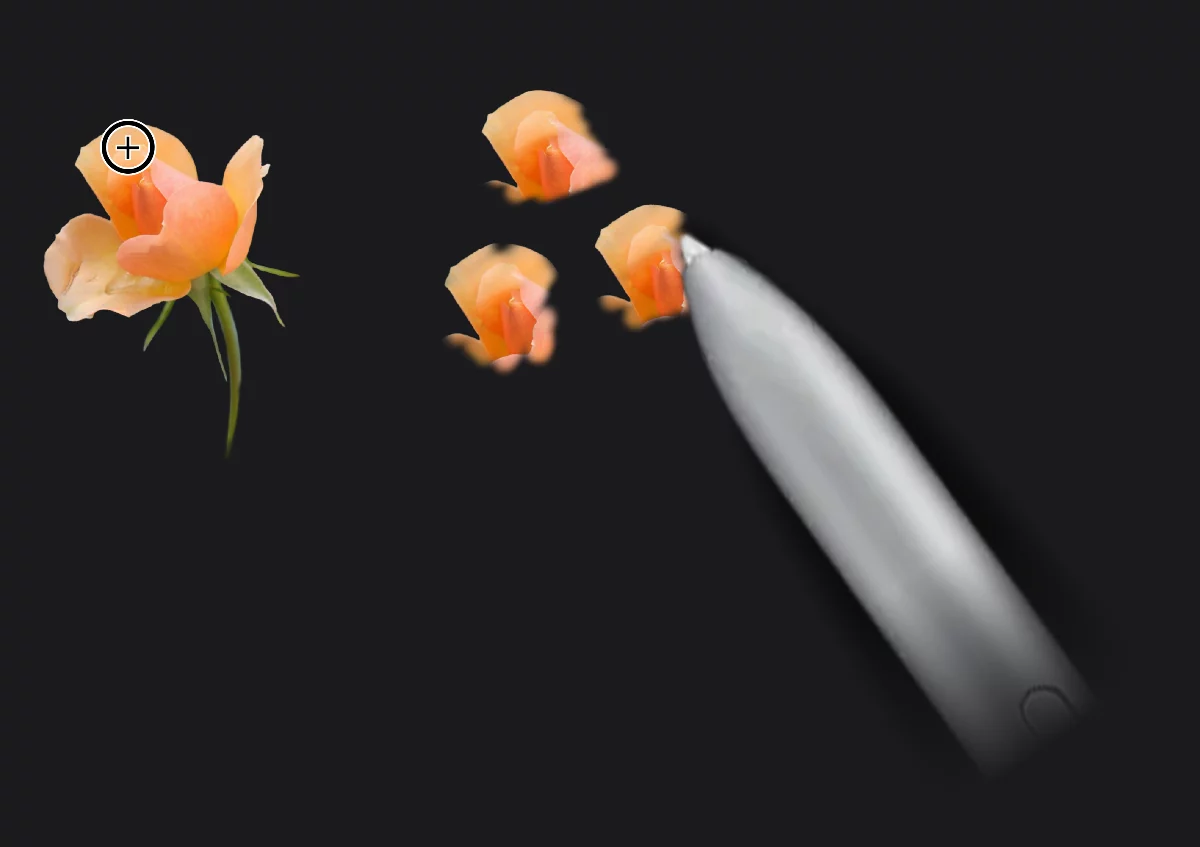
Each new stroke starts a new copy of the source.