
Photo cloning mode
Exact clones.
Photo cloning mode paints with exact copy of the original (source). Technically, it transfers the pixels from one area of the canvas to another area of the canvas using the brush texture.
Default configuration is the offset mode on the same layer, however you may set different layers as the source and the target (learn about the offset mode in Clone tool — offset mode, and how to set the source layer – in Clone tool — source and target layers)
Photo cloning can be used for photo retouching, duplicating details in pictures or for creative photobashing. Or for any other purpose.
Clone options for Photo mode
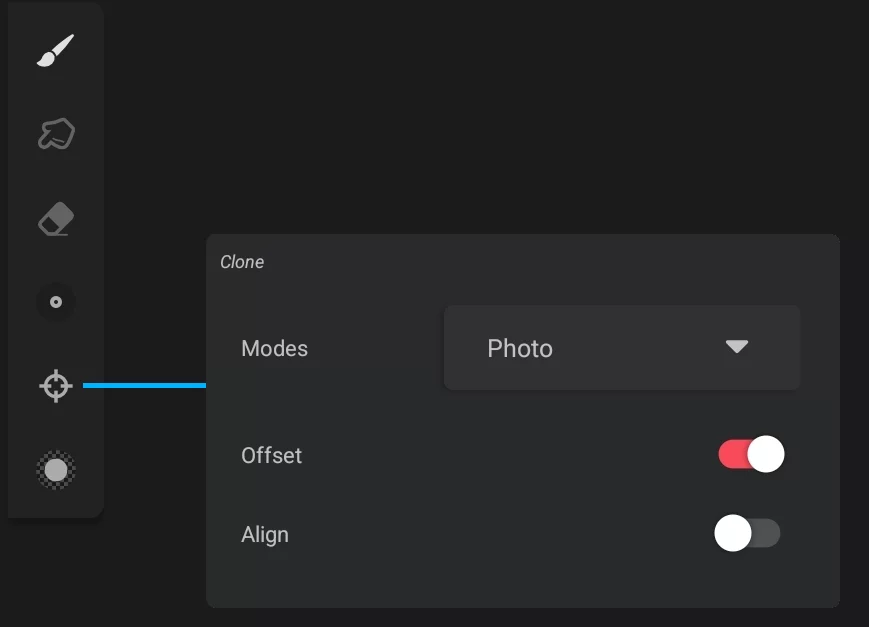
Offset mode (active by default)
Turn off if you want to clone between layers in place. Learn more in Clone tool — offset mode.
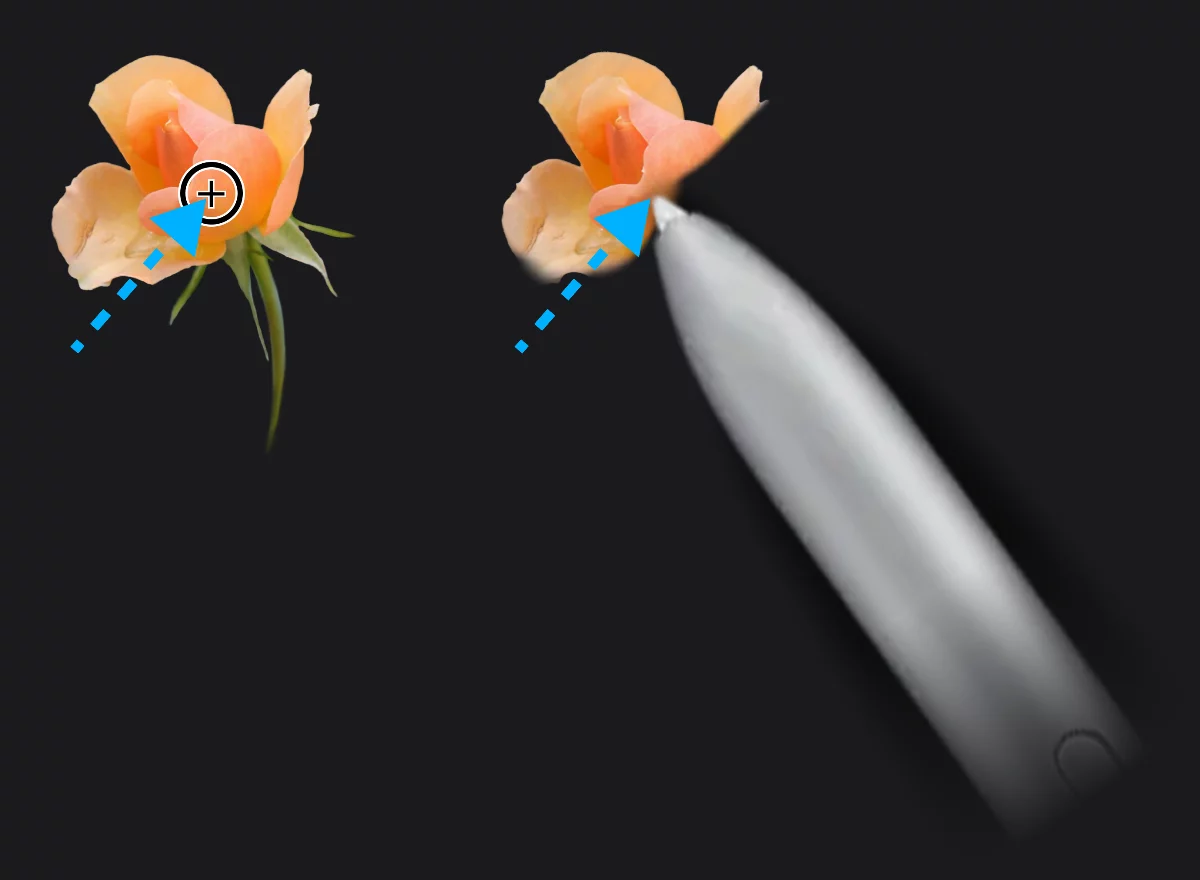
Original (source)
Photo cloning (here in the offset mode)
Note that even if the Photo mode clones exact appearance from the source location the resulting image may look differently if you use certain brushes or if the source and the target are on different layers with different opacities or blending modes. Also, other layers may influence the look of the cloned imagery.