
Halftone filters
Screen them out.
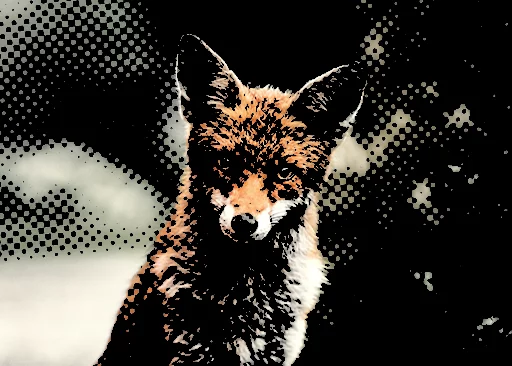
Halftone filter consists of four different filters:
i. Grayscale halftone
Applies HalftoneHalftoneHalftone is the technique used in polygraphy that simulates continuous-tone imagery through the use of dots, varying either in size or in spacing that, when watched from a distance, simulate various tones in the image (even if the dots are 100% black on 100% white background).
Halftone screen was historically a mask with tiny holes in dense geometric grid that was used to photographically convert a continuous-tone image (like a photo) into a black-and-white halftone image suitable for offset printing.Learn more screen only to the GrayscaleGrayscaleIn computer graphics, image editing and digital art, grayscale refers to images and image encoding with only a single channel for “intensity” or “amount of light”. In other words, a monochrome image composed exclusively of shades of gray.
Commonly (but incorrectly) referred to as “black-and-white”. component of the image.
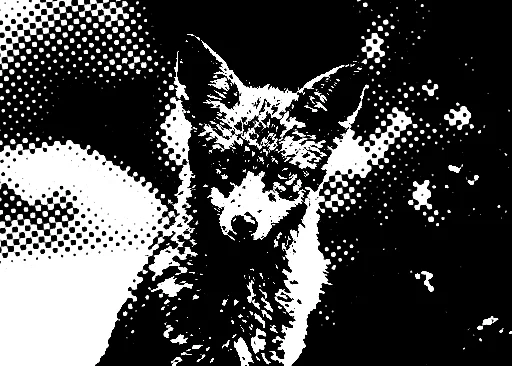
ii. Black and white halftone
Turns the image to grayscale prior to applying the effect.
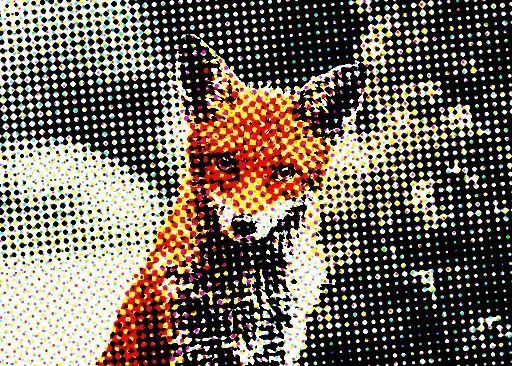
iii. CMYK halftone
Simulates the CMYKCMYKIn digital art and printing, CMYK is a color space based on four inks: Cyan, Magenta, Yellow, and Key (Black). It’s primarily used for color printing, where colors are created by subtracting light from white paper. Unlike RGB (used for screens), CMYK is a subtractive color model, and its color range is more limited than RGB.
Learn more halftoning.
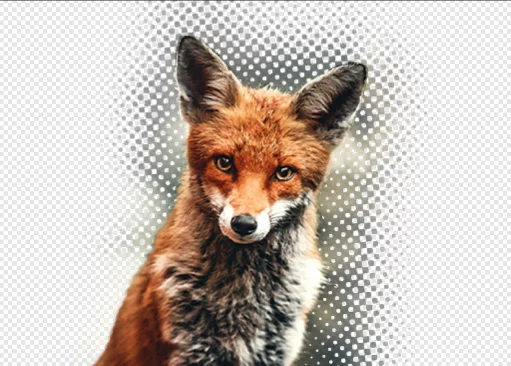
iv. Alpha halftone
Applies halftone screen to transparency (Alpha channelAlpha channelIn the RGBA color coding, the Alpha channel defines transparency of the image. Each pixel has defined opacity (usually in 0–255 scale).) only.
Note: yields visible effect only if the layer has semi-opaque areas.

Variant selector
Tap to cycle through the variants (from “i” to “iii” and back to “i”).
An example of a halftone pattern
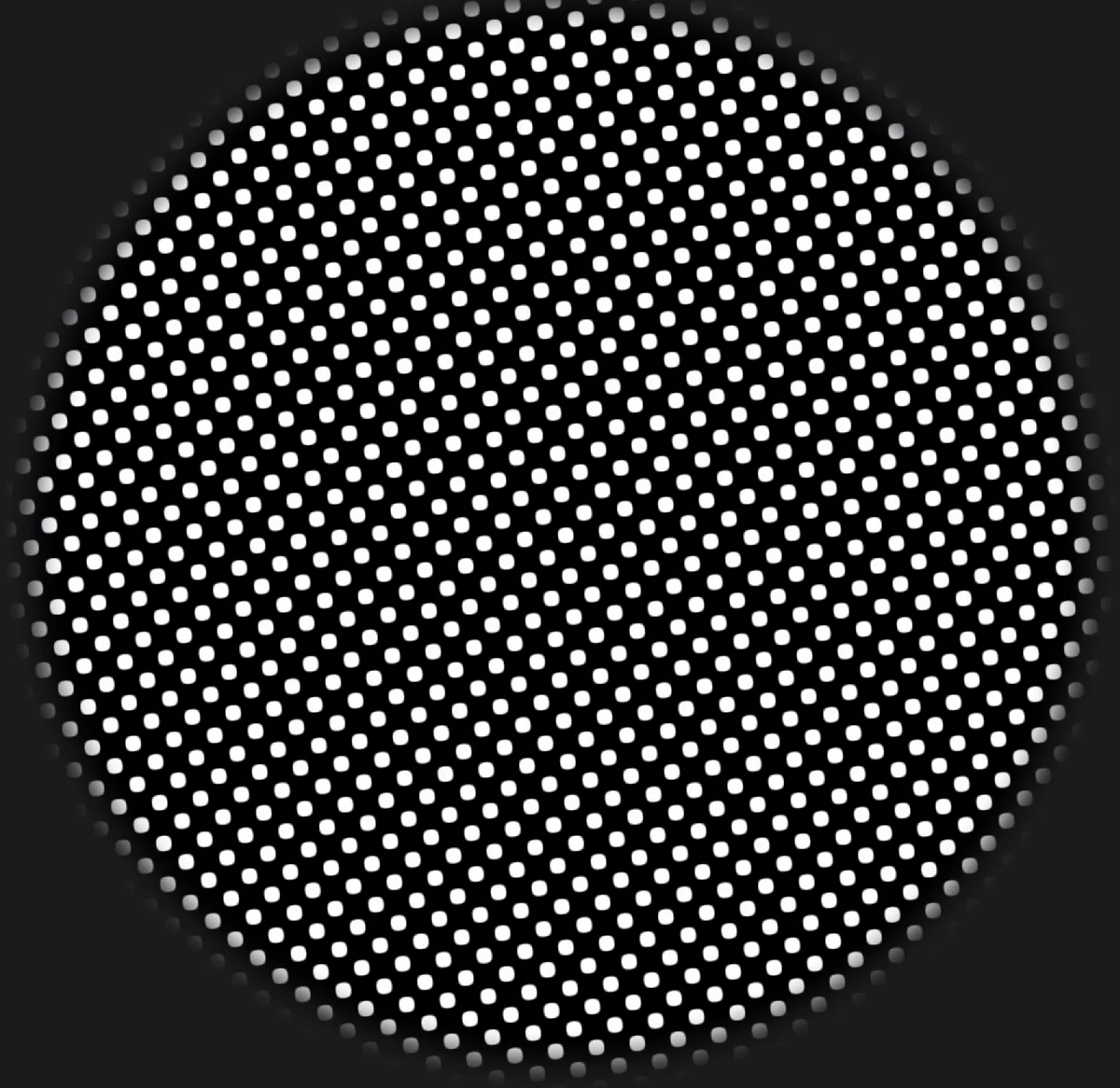
Note that the final effect of the halftone filters depends on the resolution (pixel size) of your canvas.
Manga filter
It won't make you a Manga master, but still.
Manga filter turns the current layer into a Manga-style image. The filter finds edges in the image, creating a line-art drawing from them, and replaces "flat" color areas with halftone screens. The result is always a grayscale image.
Original image
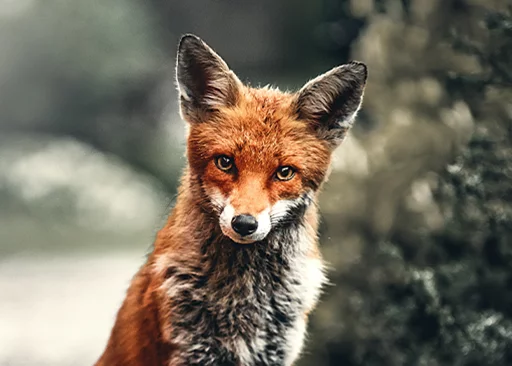
Filtered (example settings)
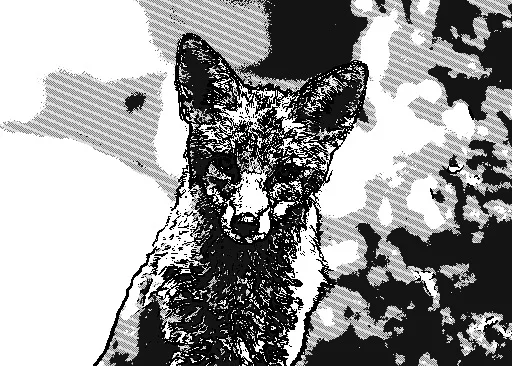
The filter strength slider adjusts the overall brightness of the resulting image.
Zero means the darkest fills, 100% means outlines only (no halftone fills)
Hexagons filter
Honeycomb effect.
Hexagons filter breaks the image into flat regular hexagons each filled with the average color of the original image in its area.
Original image
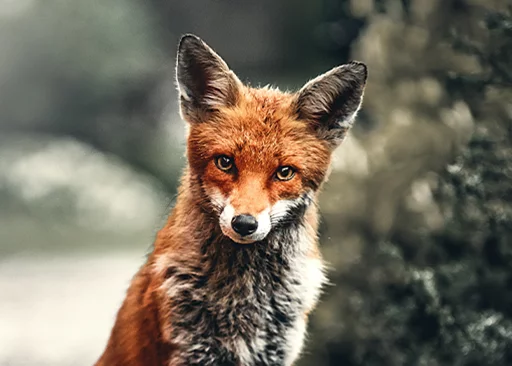
Filtered (example settings)
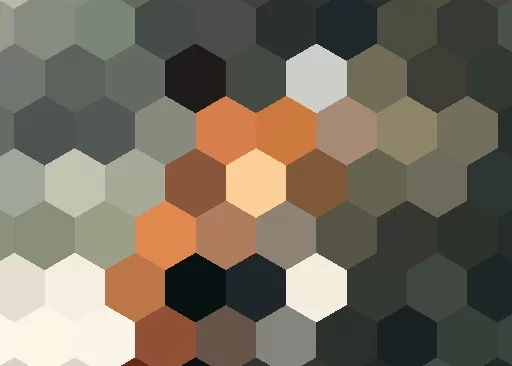
Filter strength adjusts the size of the hexagons (roughly in pixels). Zero is 1 px.
Note that for the values below 10, the shape of the hexagons may be difficult to recognize.
Pixelate filter
Pixel-art?
Pixelate filter breaks the image into a grid of oversized pixels (square fields of uniform color). The color of each "pixel" is the average color of the original image in its area.
Original image
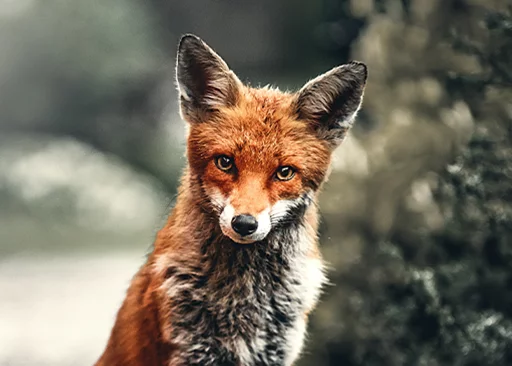
Filtered (example settings)

Note that the actual resolution of the image is not reduced. The huge visible "pixels" are built with multiple actual pixels of the canvas.
Filter strength adjusts the size of the "pixels". Note that the visual effect of the result depends on the resolution (pixel size) of your canvas.
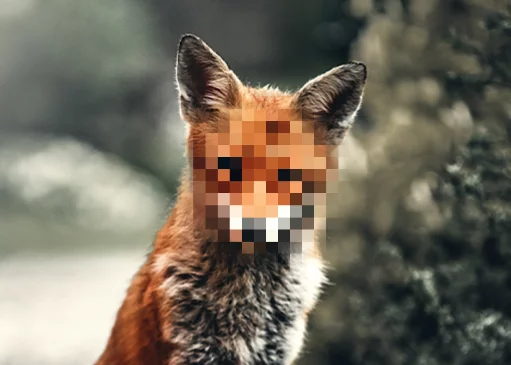
Use this filter with the Focus mask in filters to quickly ‘censor’ sensitive areas in photos. Learn more about quick masks in Masking in filters.
Stained Glass filter
A Voronoi diagram.
Stained Glass filter breaks the image into irregular grid of flat-colored polygons. Technically this is the Voronoi tessellation.
Original image
Filtered (example settings)
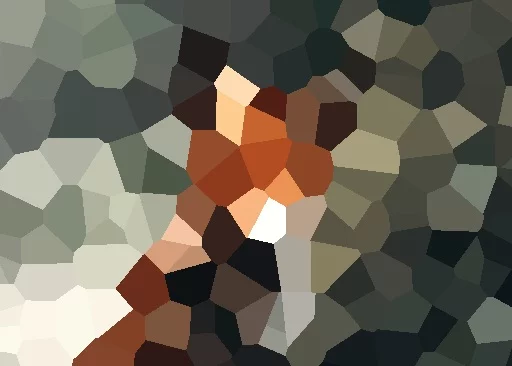
Filter strength slider adjusts the size of the regions.
Stamp filter
Black-and-white only.
Stamp filter turns the image into 1-bit (black-and-white) BitmapBitmapBitmap (also called raster) graphic is an image formed from rows of differently colored pixels. A bitmap image always has defined dimensions (expressed in number of pixels vertically and horizontally). An artwork in Infinite Painter is technically a bitmap..
Original image
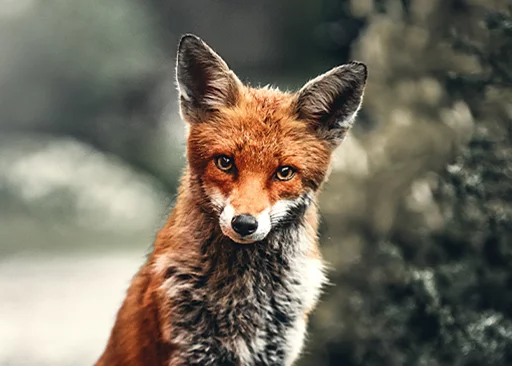
Filtered (example settings)
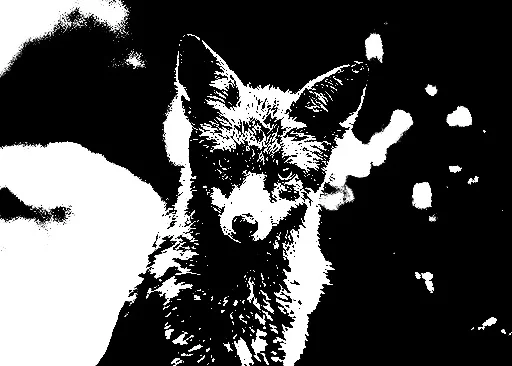
Filter strength slider adjusts the overall darkness of the resulting image. Zero yields almost solid black, 100% – solid white.
Edges filter
Turn any image into line art.
Edges filter finds edges in the image and draws them in black on transparent background.
Note that the result highly depends on the resolution (pixel size) of your canvas.
Original image
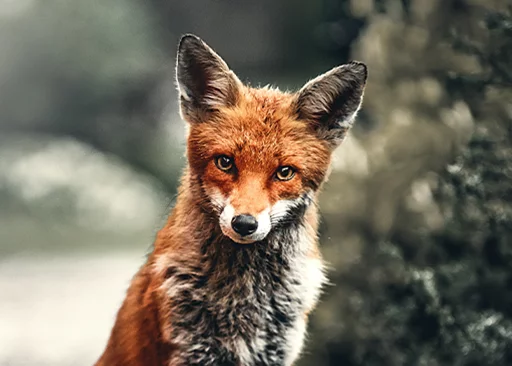
Filtered (example settings)
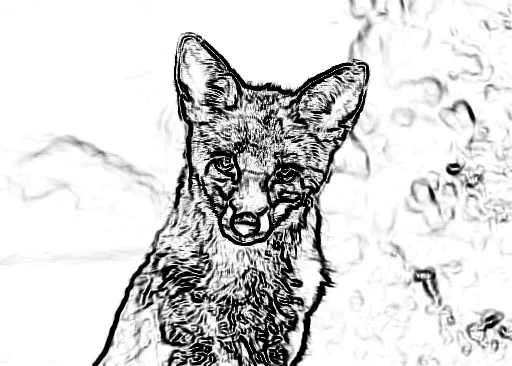
Filter strength slider adjusts the amount of the effect. Lower values yield less edges, higher – more.
Trace filter
Add some fake line art.
Trace filter finds edges in the image and draws them in black over the original. This is similar to the Edges filter superimposed over a copy of the original image. Like the Edges filter, this one also depends on the image resolution.
Original image
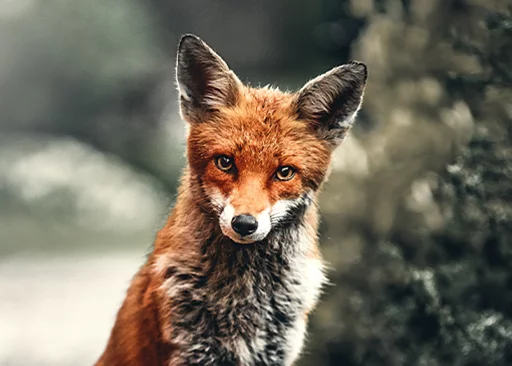
Filtered (example settings)
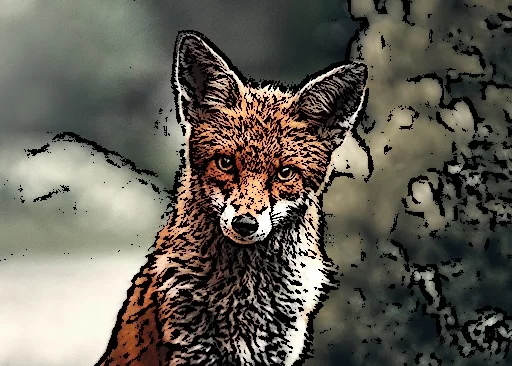
The filter strength slider adjusts the amount of the effect (in 0 – 100% range).
Stereo filter
You have to wear colored glasses to appreciate it.
Stereo filter breaks the image into RGB channels and offsets each channel. The result simulates the vintage red-green stereo images.
Note that the resulting image has transparent background.
Original image
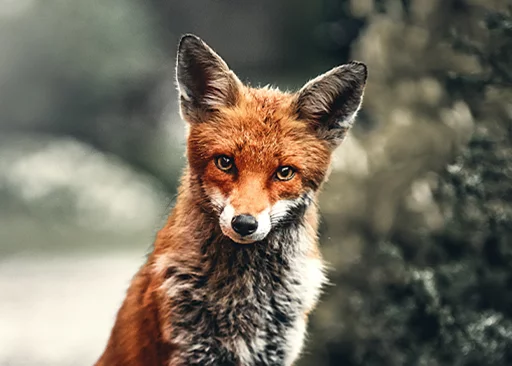
Filtered (example settings)
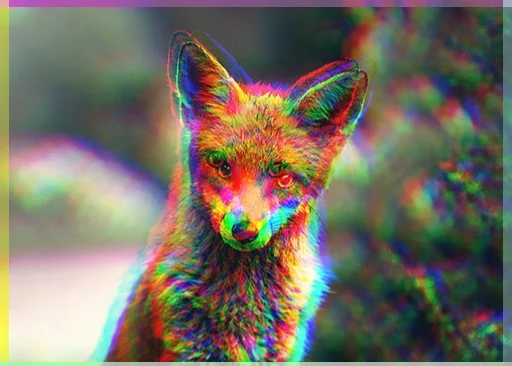
The filter strength slider adjusts the the offset distance (in 0 – 100% range). Zero means no offset (unaltered image).
If you want a “real” stereo image (red and green channels only) you need to completely remove the Blue channel from the resulting image. Use the Tonal Curve tool for that.
You can use this filter in low settings as Chromatic Aberration effect (known from other graphic applications).
Kaleidoscope filter
Play with the kaleidoscope.
Kaleidoscope filter adds a complex kaleidoscopic effect to the image. You can control the number of symmetry planes and the location of the center of the symmetry.
Original image
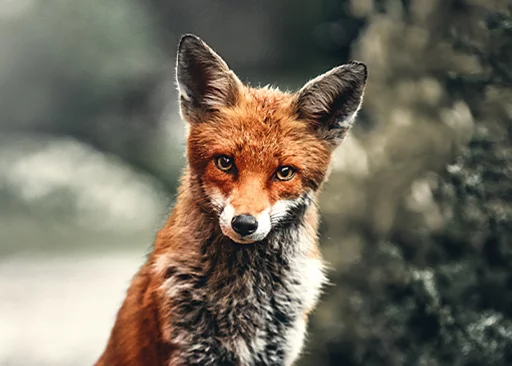
Filtered (example settings)
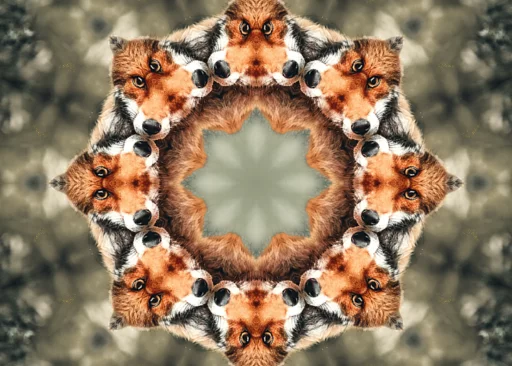
Drag to reposition the center of the symmetry.
Filter strength slider adjusts the number of the mirror planes. Min is one plane, max is 12.
Palette filter
Posterize it.
Palette filter adds posterization effect to the image: reduces the number of colors in the image. The resulting color palette is calculated from the original image.
This filter is named Posterize in other graphic applications.
Original image
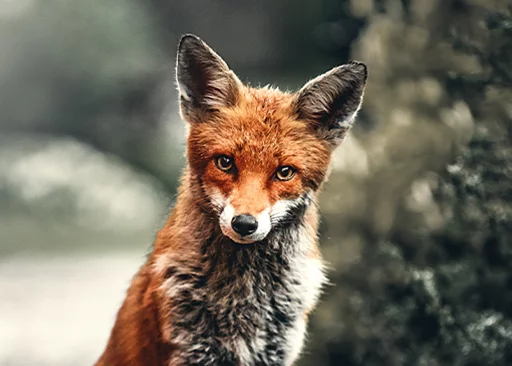
Filtered (example settings)
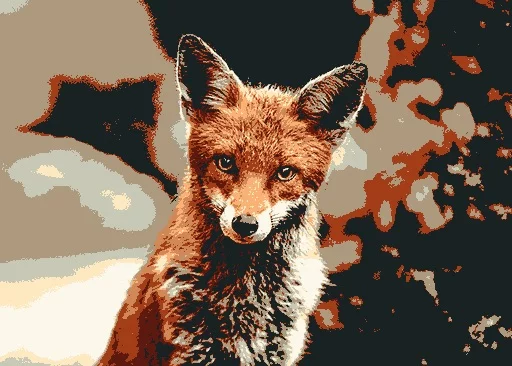
The filter strength slider adjusts the number of colors in the palette (from 2 to 48 colors).
Monet filter
Monet. Claude Monet.
The Monet filter stylizes your image into an impressionistic painting.
Original image
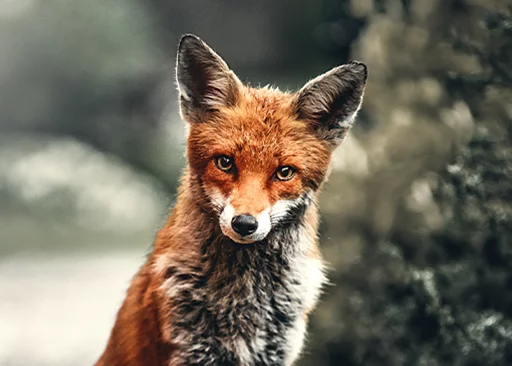
Filtered (example settings)
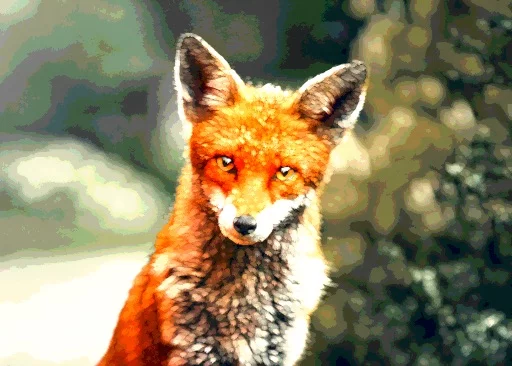
The filter strength slider adjusts the amount of the effect (in 0 – 100% range).
Van Gogh filter
Late Van Gogh.
Van Gogh filter stylizes your image into another style of impressionistic painting, with a bit of Van Gogh's swirls added.
Original image
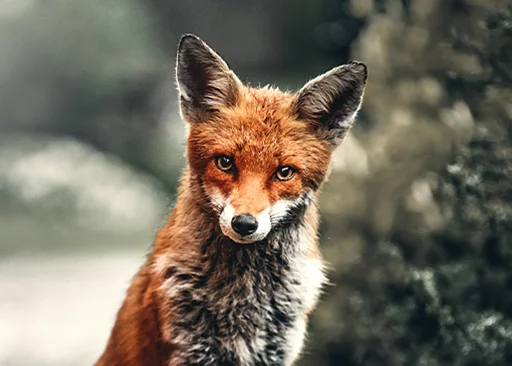
Filtered (example settings)
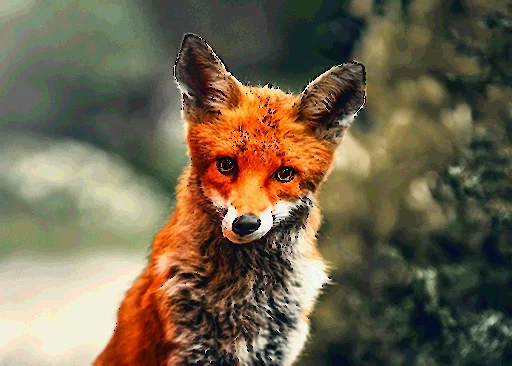
The filter strength slider adjusts the amount of the effect (in 0 – 100% range).
Pop-art filter
Maybe Roy Lichtenstein's style?
The Pop-art filter adds some pop art style to the image. Some color enhancement, some halftone overlays. Note that the scale of the halftone effects depends on the resolution (pixel size) of your canvas.
Original image
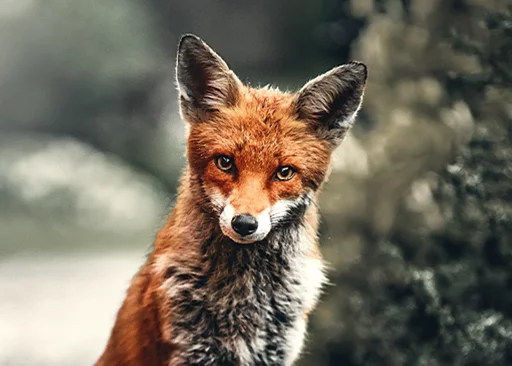
Filtered (example settings)
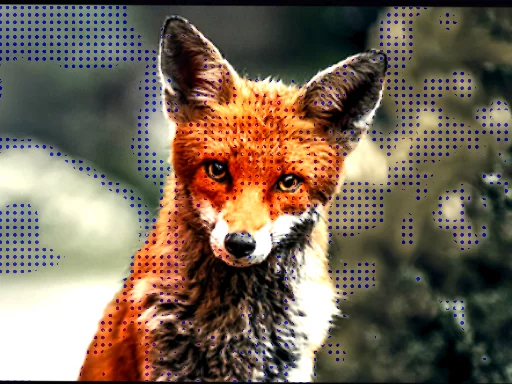
Filter strength slider adjusts the scale of the halftone screen (in 0 – 100% range, relative to the size of the canvas).
Pencil filter
A very quick sketch.
The Pencil filter adds a pencil sketch appearance to your image. Overall tonal relations are preserved, flat color areas are replaced by simulated pencil hatching textures.
Original image
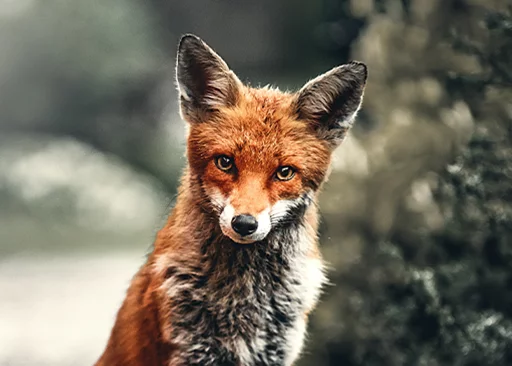
Filtered (example settings)
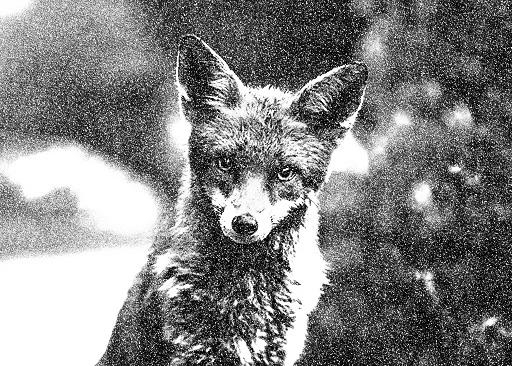
Filter strength slider mainly adjusts the length of the simulated hatching lines.
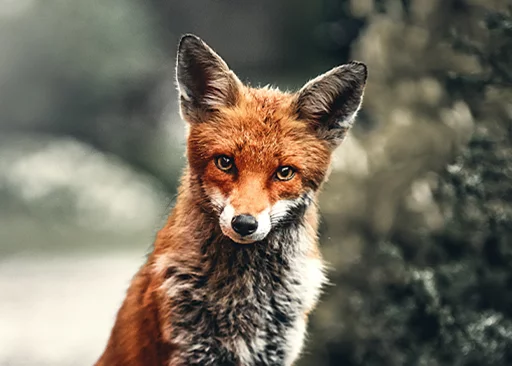
Paintbrush filter
Oil painting look.
The Paintbrush filter adds an oil painting appearance to your image. Note that the effect depends on the resolution (pixel size) of your canvas.
Original image
Filtered (example settings)
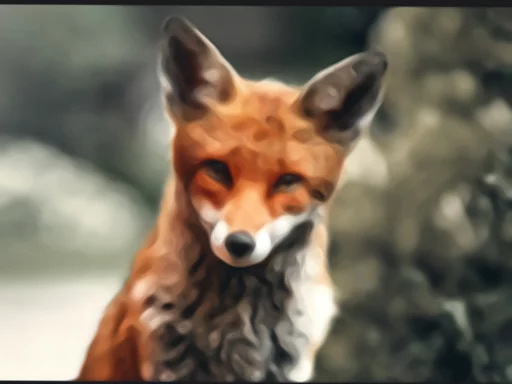
The filter strength slider adjusts the amount of the effect (in 0 – 100% range).