
The Curve tool
Pro tool to adjust tonal ranges.
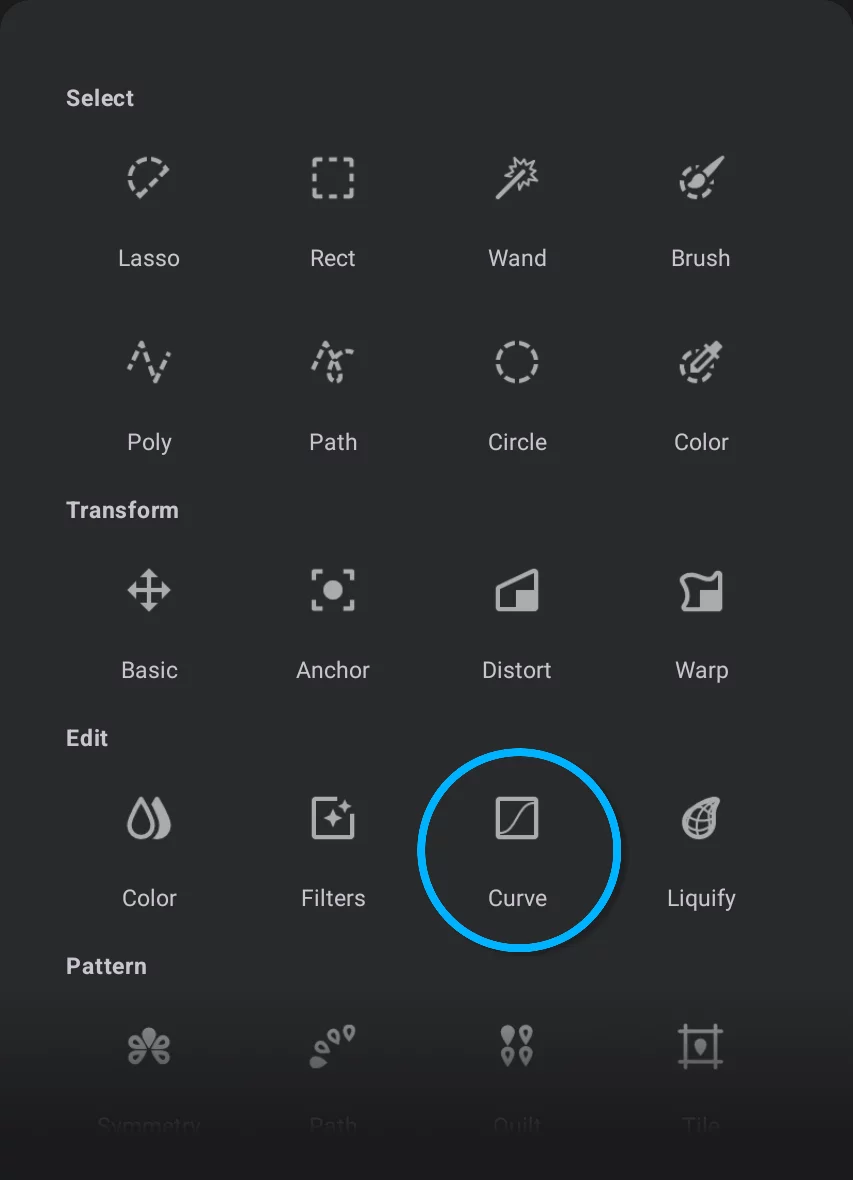
The Tonal Curve tool in the Editing Tools menu
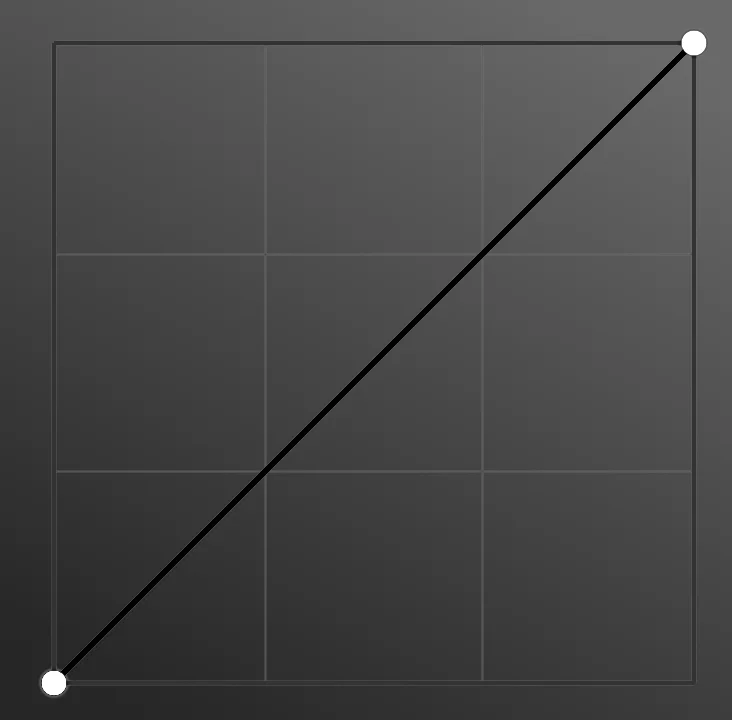
Curve graph
The black line indicates RGB composite channel (γ = GammaGammaIn digital image editing, "gamma" refers to the non-linear relationship between the pixel values of an image and their displayed brightness. Adjusting the gamma affects the midtones of the image, allowing for fine-tuning of the brightness without altering the shadows or highlights too drastically.) and 1:1 linear relation (no change). You can manipulate each channel by changing the shape of the curve.
Curve tool toolbar


By default the toolbar opens showing the composite channel (gamma). More below.

The Curve tool works almost exactly like the Curves in Photoshop™ with the addition for the Alpha channel curve (which is not directly accessible in Photoshop).
The graph
Multichannel control.
The curve shows relation between original brightness of each pixel and the resulting brightness. (there are five curves — four channels and the composite).
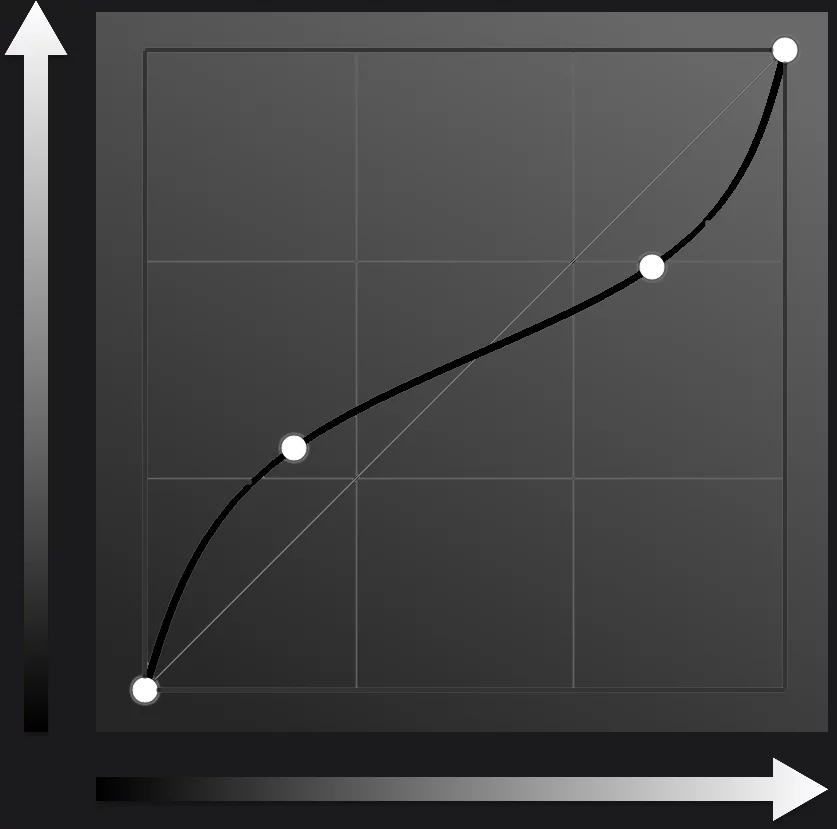
Input brightness
Output brightness
Tap on curve to add a node.
Drag node to reshape the curve
Drag a node over a neighboring node to remove it.
You may reset a curve to its original state (linear relation) by removing all additional nodes.
Curve tool toolbar


Cancel
Close the tool without applying changes.

Channel selector
Current channel is highlighted (here — the GammaGammaIn digital image editing, "gamma" refers to the non-linear relationship between the pixel values of an image and their displayed brightness. Adjusting the gamma affects the midtones of the image, allowing for fine-tuning of the brightness without altering the shadows or highlights too drastically. channel). The curve for the selected channel is displayed in its color. Note that in the default configuration (all channels in linear relation) all the curves overlap.

Hide preview temporarily
Compare "before vs after”.

Confirm
Close the tool applying changes.
Channel symbols
γ — (GammaGammaIn digital image editing, "gamma" refers to the non-linear relationship between the pixel values of an image and their displayed brightness. Adjusting the gamma affects the midtones of the image, allowing for fine-tuning of the brightness without altering the shadows or highlights too drastically.) = RGBRGBRGB refers to a digital image in which the color of each pixel is encoded in three separate channels (for Red, Green and Blue primary colors) or to the RGB color space (the system of encoding color with these primary colors). composite
R — Red
G — Green
B — Blue
A — (alpha channel) OpacityOpacityMeasure of how much a layer (or a pixel on a layer) obscures the background. Zero opacity means full transparency; 100% opacity means that no background is visible.
Note that the channels are actually the channels of the RGBARGBAEncoding of RGB color space with transparency (the “A” stands for “alpha channel”). Technically a RGBA image consists of four channels, three of them encoding the RGB color of each pixel plus the “alpha” channel encoding opacity of each pixel. color model.
Examples of practical application
Total control over the color.
Lighten
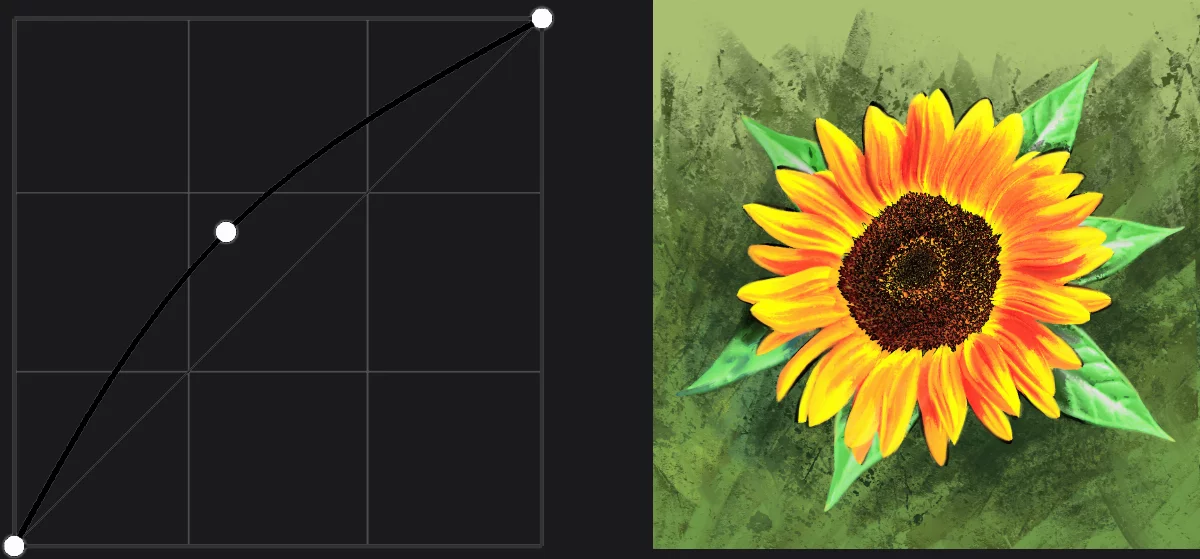
γ (gamma) curve bent upwards.
Increase contrast
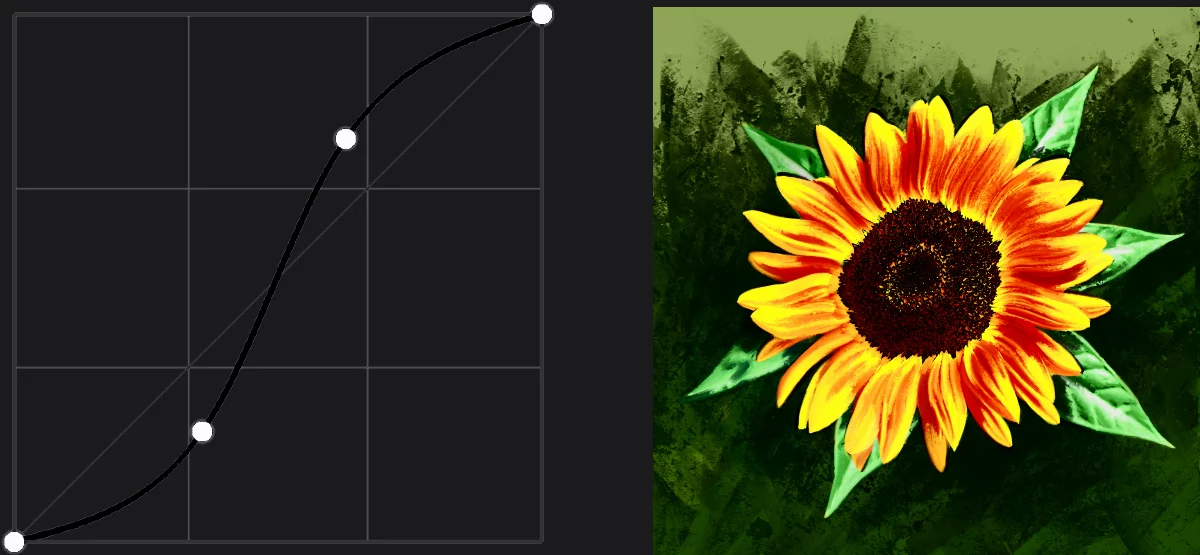
γ (gamma) curve S-shaped.
Warmer colors
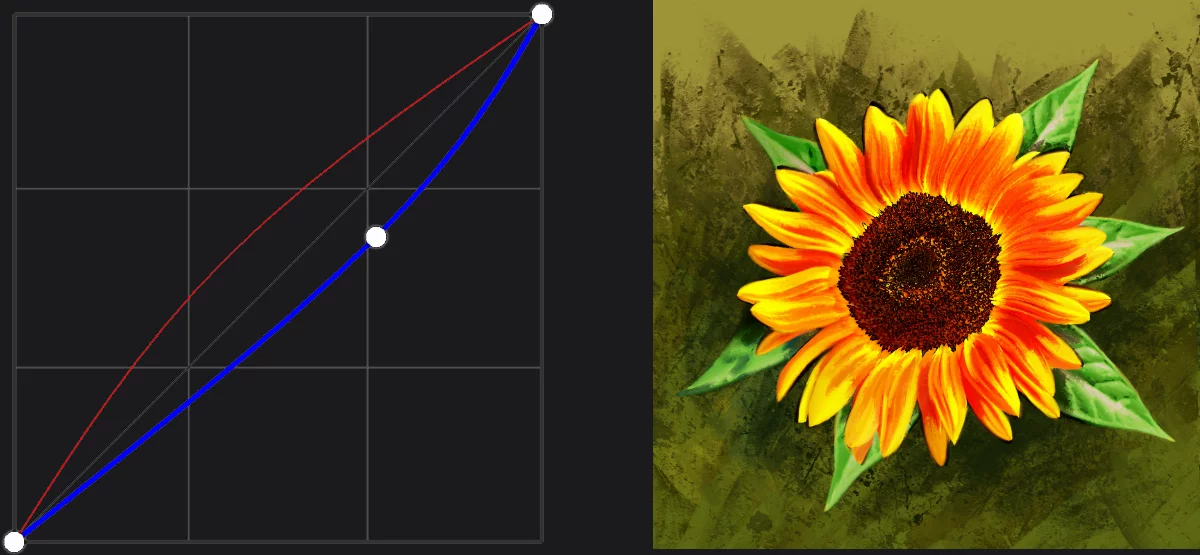
R channel up, G channel down.
"Gamma negative"
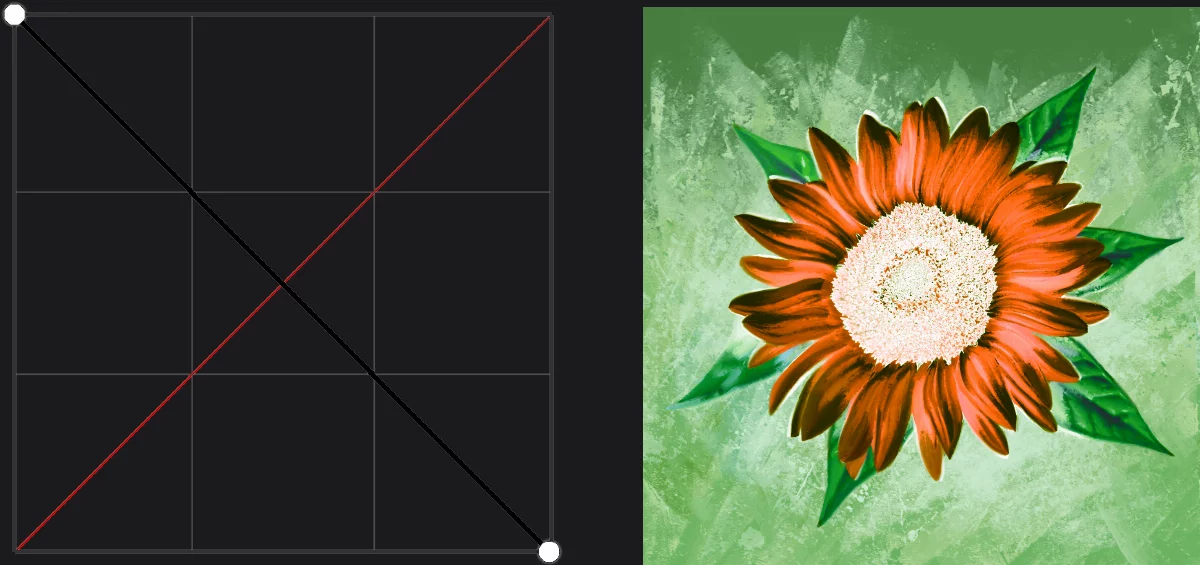
only the γ (gamma) curve inverted (shadows replaced with highlights, but the hues preserved).
True negative
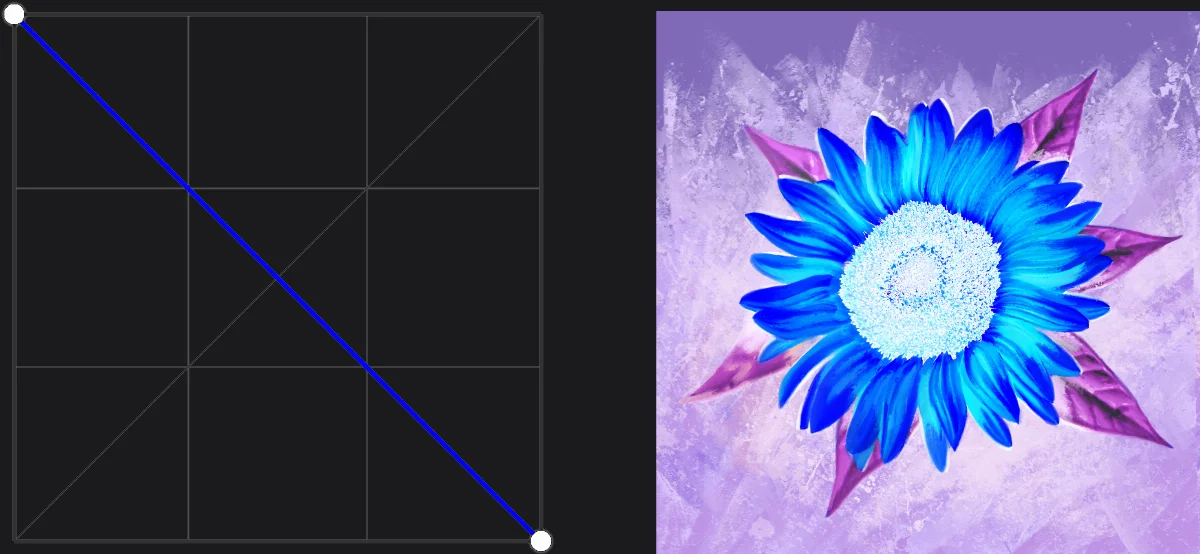
R, G, B channels inverted, γ left default.
Single channel
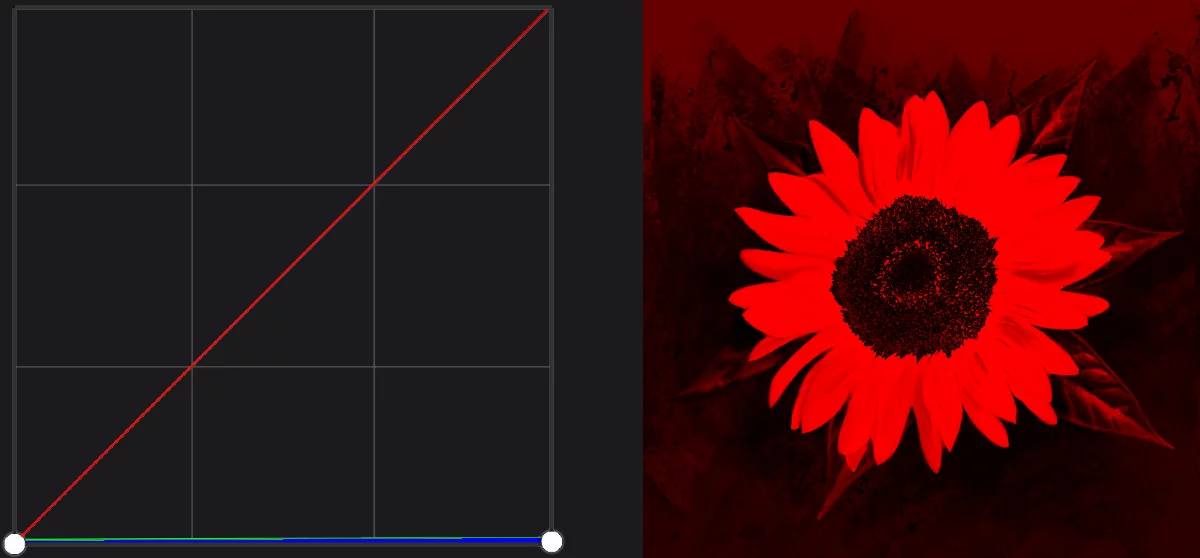
G and B channels reduced to zero, R left default.
You may find a lot of tutorials on how to use the Curves tool in Photoshop. All they will apply to the Curve tool in Infinite Painter too. The exception is the Alpha channelAlpha channelIn the RGBA color coding, the Alpha channel defines transparency of the image. Each pixel has defined opacity (usually in 0–255 scale). curve which is not directly accessible in Photoshop.
Alpha channel curve
Refine edges of your artwork.
Alpha channelAlpha channelIn the RGBA color coding, the Alpha channel defines transparency of the image. Each pixel has defined opacity (usually in 0–255 scale). curve allows you to refine blurred edges of layers and selections.
Blurred edges
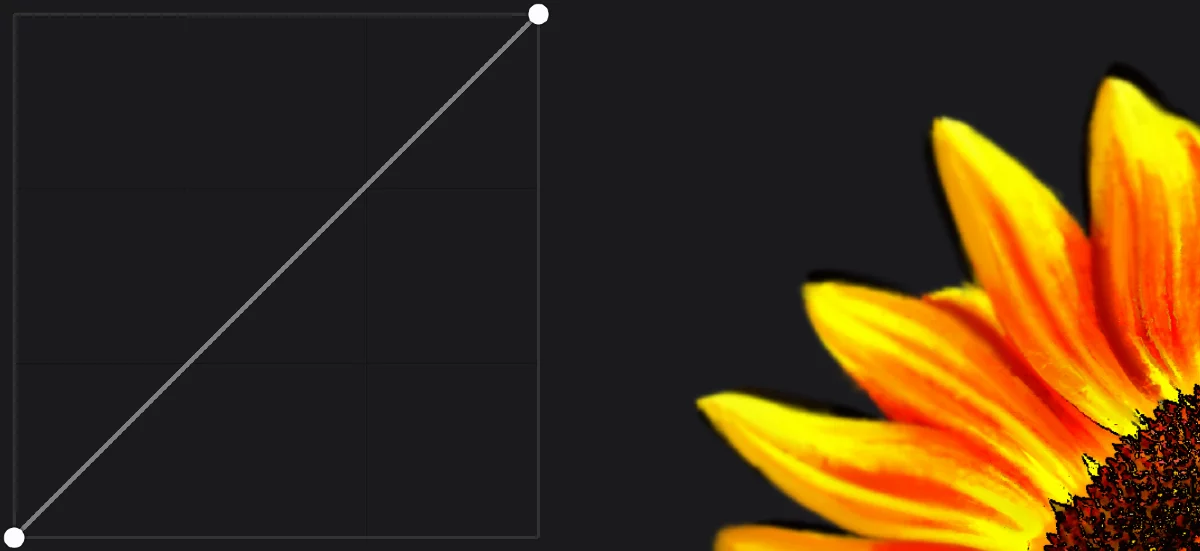
The edges refined with the Alpha curve
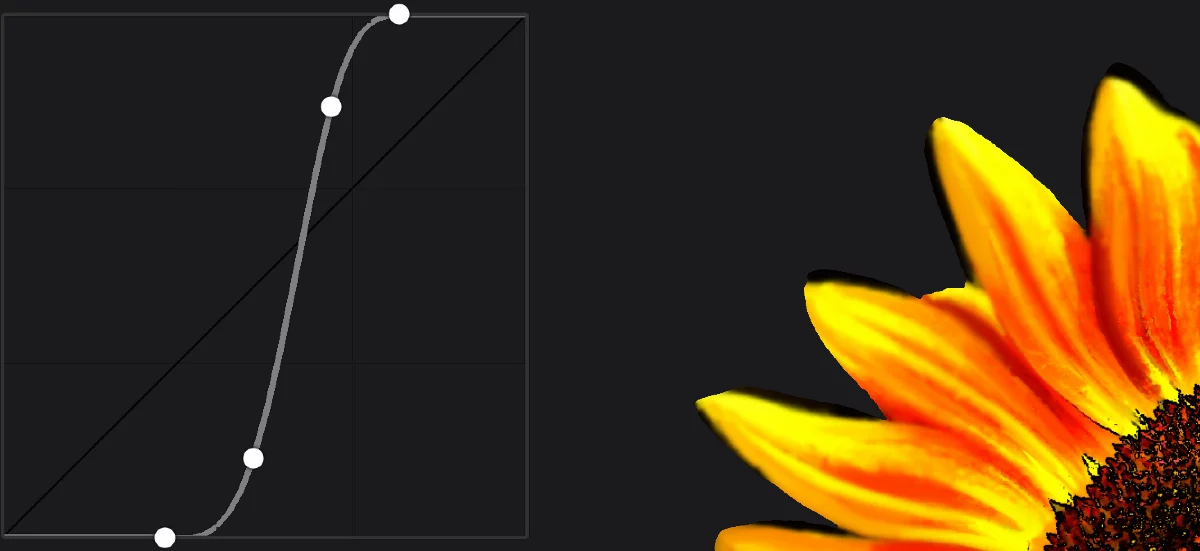
Note that the shape of the curve indicates increased contrast of this channel.

Alpha channel on the Curves toolbar