
Starting a new project
Start new project from scratch or use an image
If you want to start a new ProjectProjectIn Infinite Painter a project is the saved document containing the digital artwork (the canvas with all the created layers) and a set of assets and settings related to this artwork. Project may contain version history data and time-lapse recording documenting the process of creation of the artwork.Learn more (empty canvas), use one of the large buttons on the Home screen:
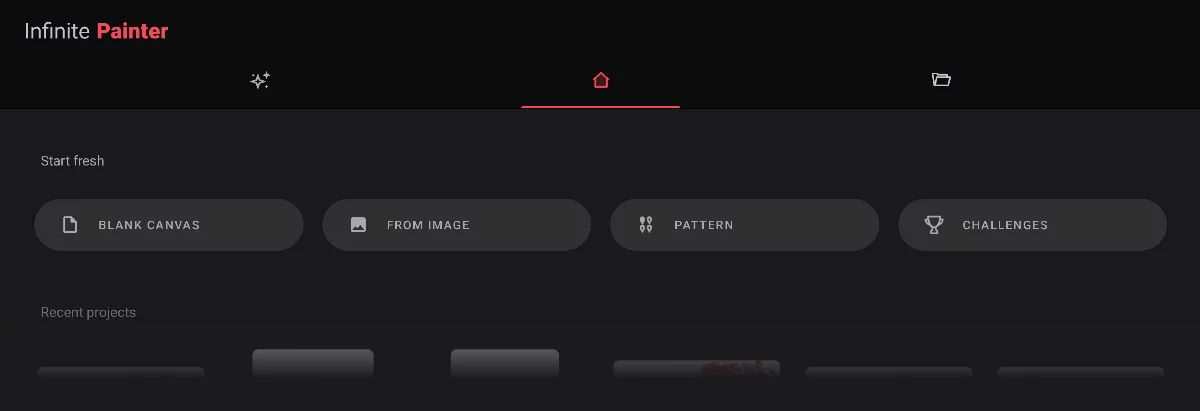
BLANK CANVAS – create a new blank canvas
Opens the New Project creator screen so you can define the canvas size, etc. Learn more below.
FROM IMAGE – new project from existing image
Pick an image file in any importable format (seeImport formats) to be opened as a new project. You can also use the image for tracing or as a reference. See New Project from an image.
Use the FROM IMAGE button (with “Files” option as the source) to open a PNTRPNTRPNTR ("Painter Project Transfer File") is a special proprietary file format for transferring Infinite Painter projects between devices or for backup.Learn more or PSD document.
PATTERN – create a new Pattern project
A pattern project is intended for creating seamless, repetitive patterns. Learn more in Pattern projects.
CHALLENGES – start a Challenge project
If you want to learn new skills or compete with others. Learn more in Challenges.
Learn more about types of Infinite Painter projects in What is a project.
Note that you can also start a new project in other ways:
with the + icon in the Project gallery
with the “New” command from the Options menu within the StudioStudioThe Studio is the main workspace in Infinite Painter where you create and edit your artwork.Learn more .
New Project creator
Quick start.
New Project setup lets you jump-start the project. But you can customize the canvas if you like.
The default canvas size for the new project is the size of the screen of your device, or the size you have used the last time.
New canvas creator screen
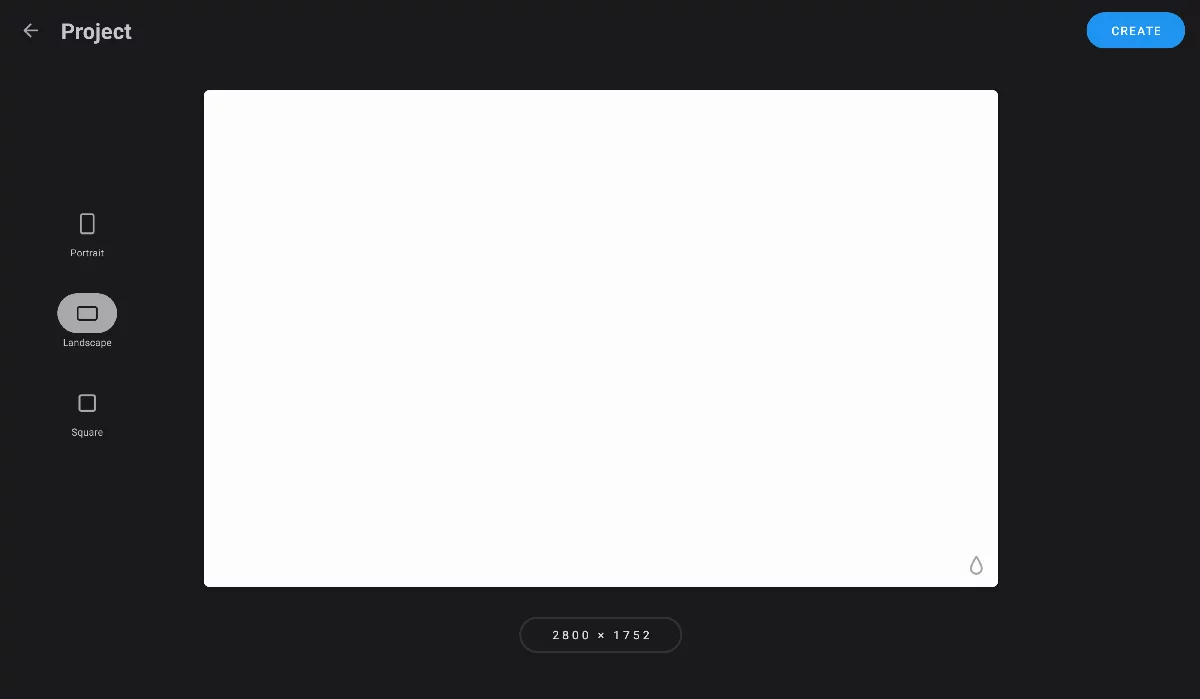
Tap on the default "Project" title to rename the new project
Canvas orientation
Portrait, Landscape or Square
The default orientation is the current orientation of your device.
Create
Tap to accept the settings and open your new project in the StudioStudioThe Studio is the main workspace in Infinite Painter where you create and edit your artwork.Learn more.
Paper color and texture setup. These can be changed later in the Studio.
Tap on the canvas dimensions to set a custom size of your canvas, or use one of dozens of the provided presets. See below.
The canvas size can be changed later in the Studio, however it is better to start with the correct canvas dimensions.
New project canvas preview.
New Project settings
Size sometimes matters.
Use a preset to set your new canvas or enter the canvas dimensions manually.
Custom canvas size dialog
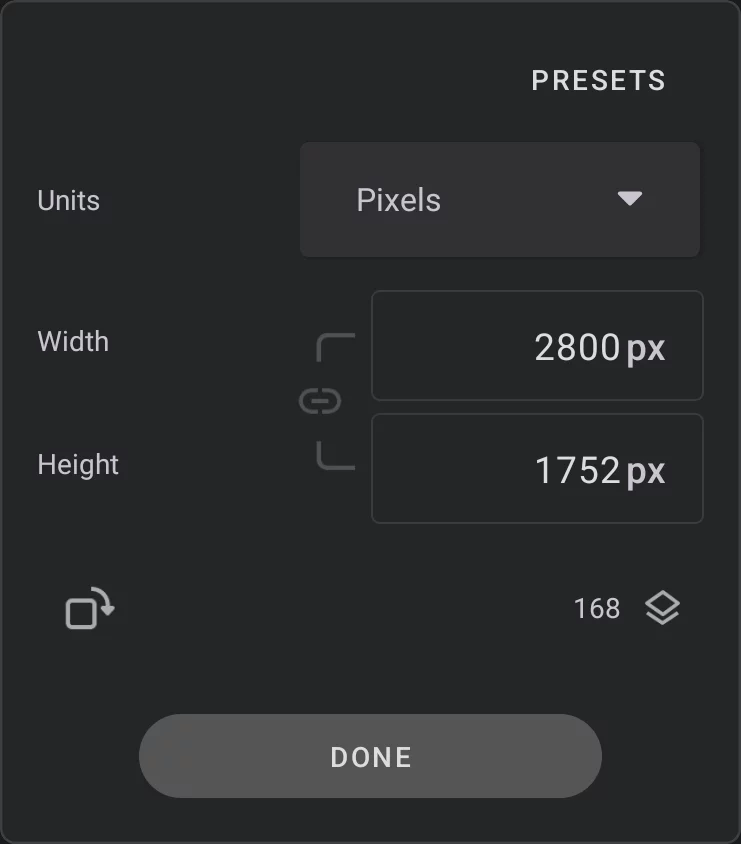
Switch to the list of the Canvas size presets.
Units of canvas dimensions
You can define canvas size in pixels but also in physical units like millimeters. (See Setting up canvas size).
Canvas dimensions
Learn more below.

Swap width/height
Equals to rotating the canvas 90°
Preserve proportions by locking the Width and Height ratio.
Hit the Done button to confirm the setup
Max number of layers that could be created in given canvas size.
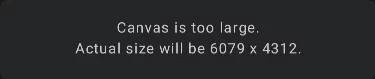
Note that the maximum canvas size and the number of layers in a project are limited by the hardware (mainly by the amount of RAM memory on the device). If you set a canvas too large, you will see a warning and the actual size will be reduced.
Canvas presets selector
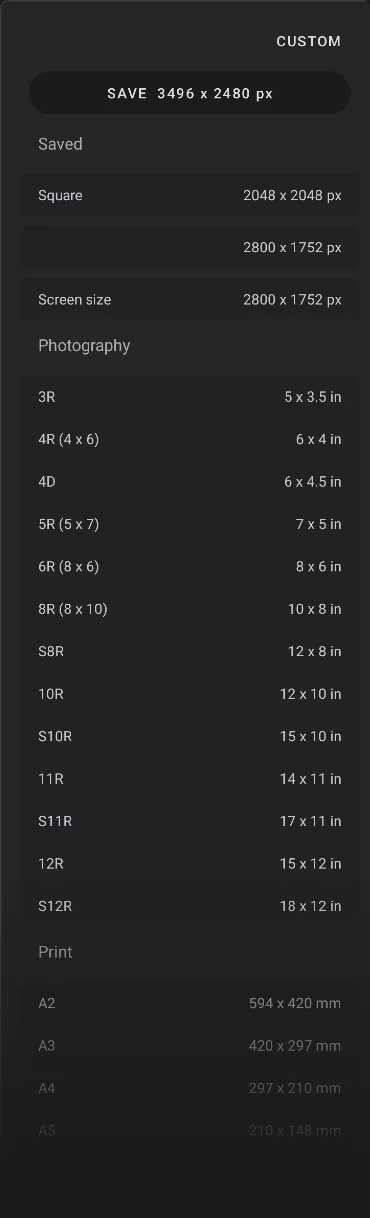
Return to the custom canvas size setup
The list of canvas size presets:
Photo standard formats (13 presets)
Print formats (15 presets)
Social media standards (3 presets)
Video and film standard formats (4 presets)
More about canvas size presets in Canvas size presets.
The more advanced settings for the new project, like the Timelapse or color proofing profile have been removed from the new canvas setup in version 7.1. All these can be easily accessed in the Application settings.
Setting up canvas size
Set any canvas size you want (well, almost any).
Set canvas size in pixels or in physical units.
Canvas dimensions in pixels and in physical units:
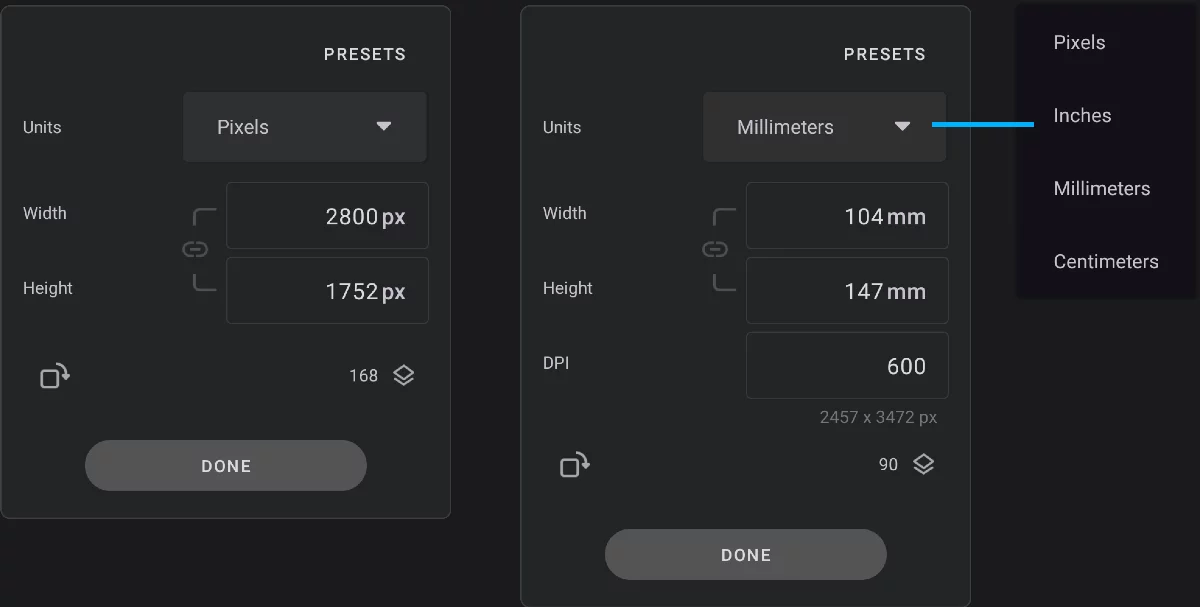
Canvas dimensions in pixels
Canvas dimensions in millimeters
Presets button
Opens the presets list.
Current measurement units (here: mm)
(you can use inches instead)
Canvas width
Canvas height
Lock ratio
when entering numerical values
Swap width/height
Equals to rotating the canvas 90°
DPI
When using physical units for the canvas dimensions, you can set canvas ResolutionResolutionIn computer graphics, resolution is a measure of how many pixels of the digital image fits per unit of physical dimensions. Generally, the more pixels per unit, the more detailed the image can be (so the visual quality of the image would increase). Resolution makes sense only when physical size of the digital image is defined (like the print size).
Resolution is usually expressed in DPI (”dots per inch”) units, or more correct, PPI (”pixels per inch”).Learn more in dpi (dots-per-inch = pixels-per-inch).
Note that if the chosen units are pixels, the concept of ResolutionResolutionIn computer graphics, resolution is a measure of how many pixels of the digital image fits per unit of physical dimensions. Generally, the more pixels per unit, the more detailed the image can be (so the visual quality of the image would increase). Resolution makes sense only when physical size of the digital image is defined (like the print size).
Resolution is usually expressed in DPI (”dots per inch”) units, or more correct, PPI (”pixels per inch”).Learn more does not apply (and the DPI field is not displayed).
If physical measurement units are used, the resulting pixel size is calculated here.
Pixel size of your canvas equals print size × resolution. It is easier to calculate in inches as the resolution unit is dot-per-inch (= pixels-per-inch).
Maximum number of layers available for current canvas size.
List of the measurement units.
(these are pixels, inches, millimeters and centimeters)
Hit the Done button to apply the changes.
Maximum canvas size is limited by your device's memory.
The bigger the canvas, the better resolution (quality) your work will have, but you will be able to create smaller number of layers and the performance of the app may be reduced. It is always a trade-off.
Learn more about canvas pixel size vs. print size and about resolution in Canvas pixel size vs. print size.
Canvas size presets
Use the presets to quickly setup new project.
Canvas presets selector in New Project settings
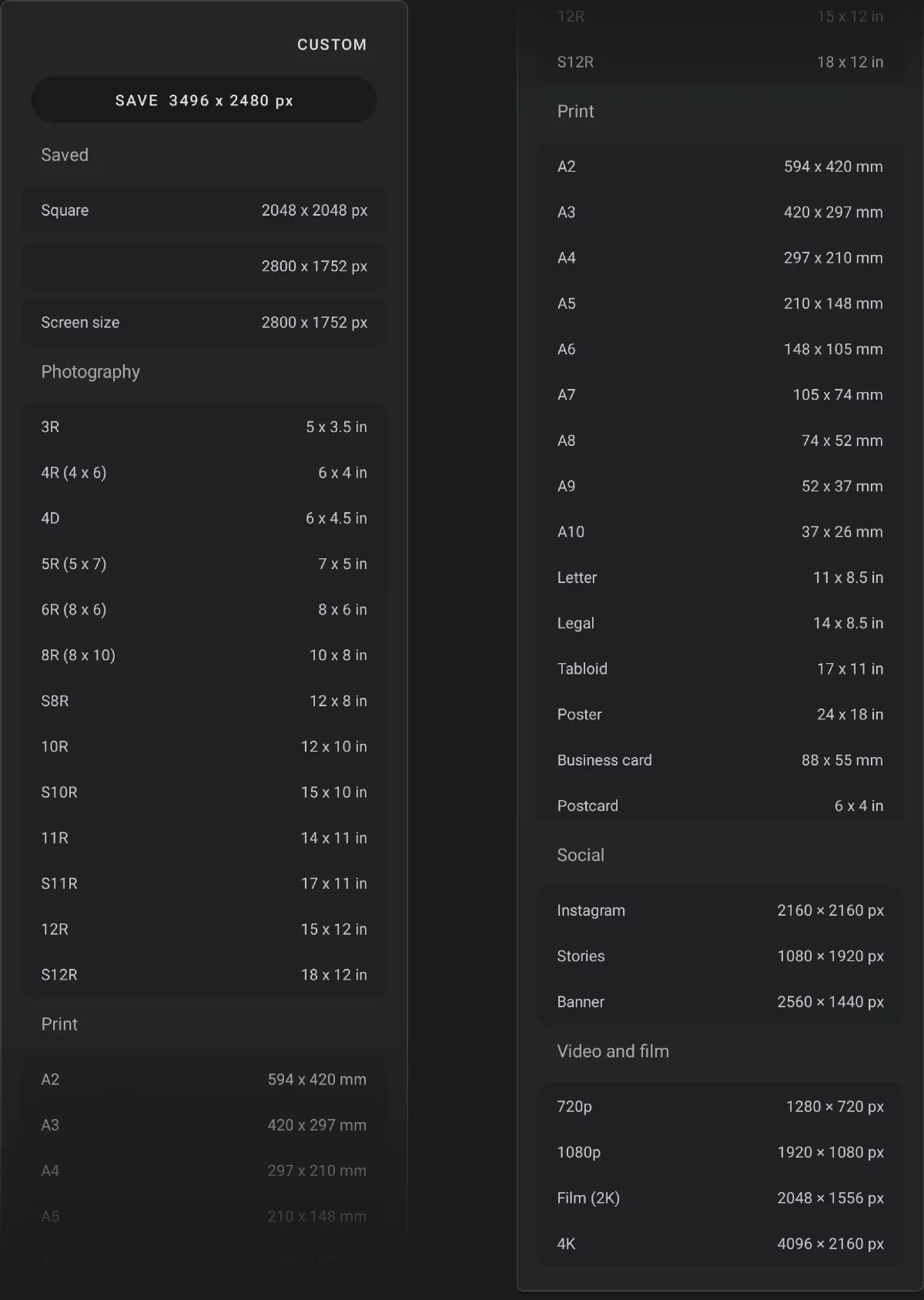
Return to the custom canvas dimensions tab.
Save
Tap this button to add your current custom size to the presets. This new preset will appear in the “Saved” section, at the top of the preset list.
Actual screen size of your device. This is the default size for new projects.
Saved presets
custom canvas sizes (your own custom presets will appear here).
‘Photography’ presets
Standard sizes of photographic paper (13 presets)
‘Print’ presets
Standard print sizes: ISO and US standards (15 sizes)
‘Video and film’ presets
Video and film standard frame dimensions.
Longer sections may be collapsed. You can expand each section to see more presets.
Note that you can change the resolution (DPI) of each print size preset (in fact you can change resolution of any preset). Learn more about resolution in Canvas pixel size vs. print size.
Complete list of canvas size presets can be found in Lists.
New Project from an image
Start new project based on existing photo or scanned image.
You can open an existing image as a new project. But not only that.
Import sources
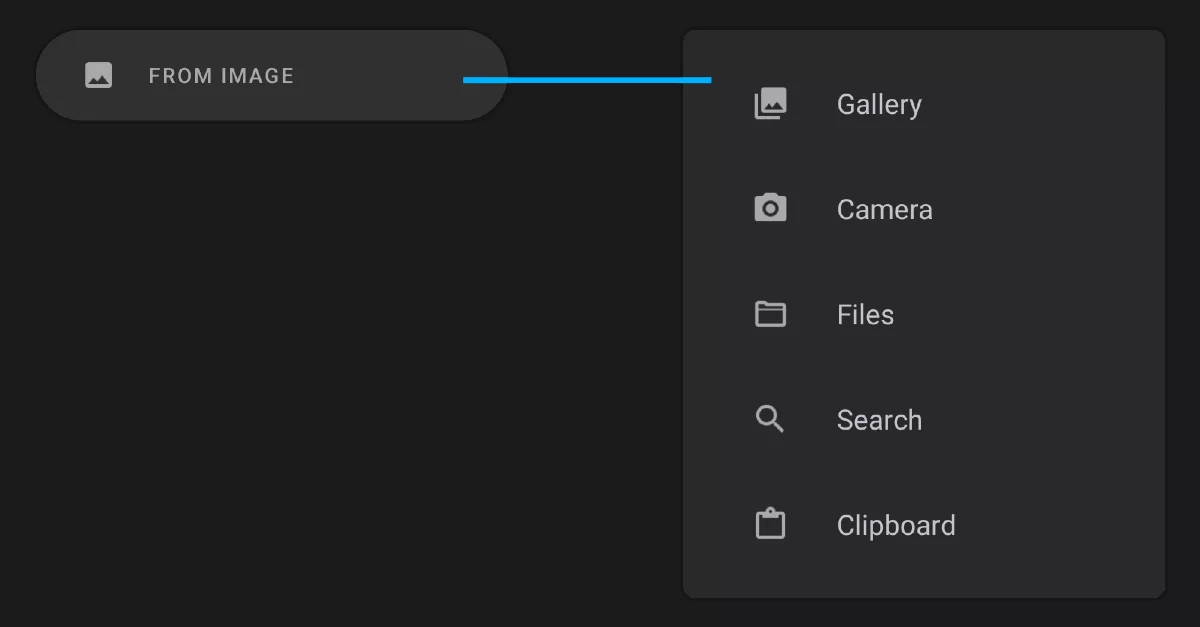

Gallery
(Opens the system photo gallery app). Pick one of your photos or scanned sketches.

Camera
(Opens the Camera app). Take a photo with the built-in camera.
Files
Opens the default system file manager app. Gives you access to available cloud storage too.
You can open PNTR files (Painter Project Transfer format) using the Files option. PNTR files open directly in the Studio.
Search
Use the online Pixabay™ stock image repository. Learn more about this service in Pixabay image search.

New project from image screen
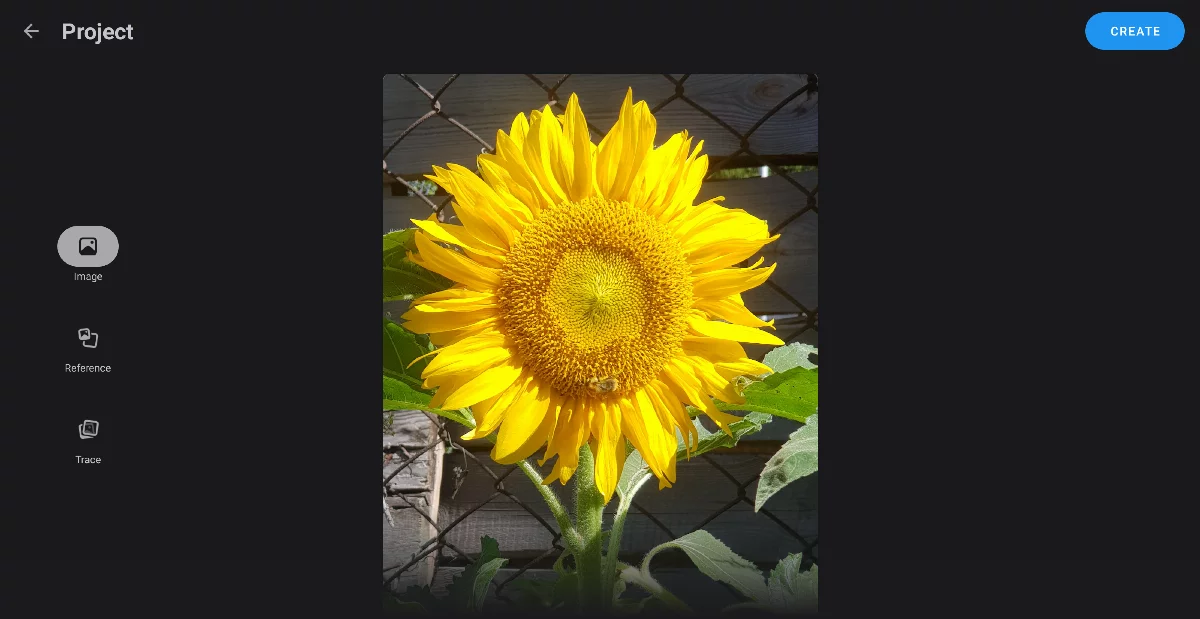
Tap on the default "Project" title to rename the new project
Create Tap to accept the settings and open your new project in the Studio.

Image
open the image for editing.
In version 7.1, you can use the imported image in three different ways: for editing, as a reference image or for tracing. Learn more below.

Reference
Load the image as a reference (in an empty project).

Trace
Load the image for tracing. See details below.
Image preview
Note that JPG and PNG images are single-layer (flat) images.
From the supported formats, only the PSD supports multiple layers like Infinite Painter's proprietary project format (PNTR). The PSD documents can only be opened for editing (because they can contain multiple layers). PSD files on Android can only be imported from the Files app (they are not listed in the system Gallery).
Learn more in Import formats.
New Project from an image – options
Use your photos in various ways.
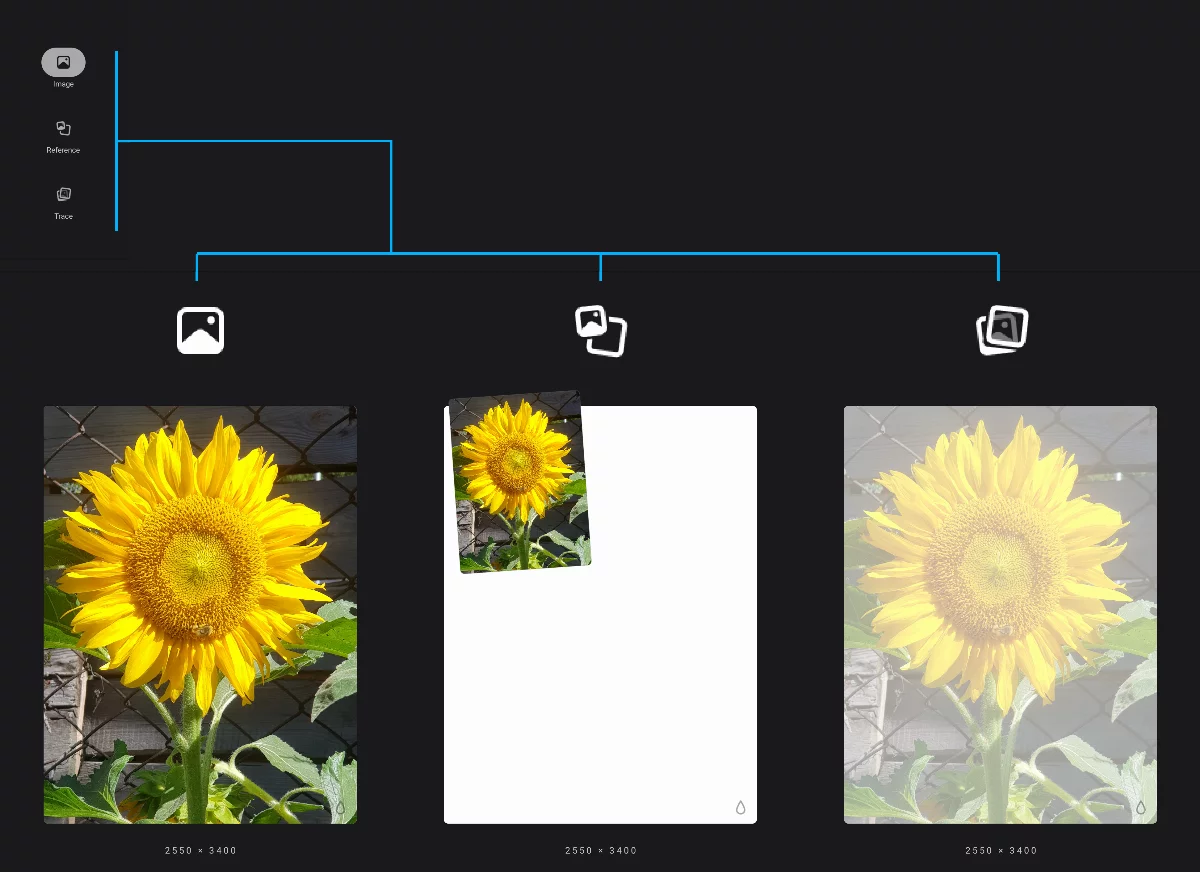
Open the image for editing
The image will appear as an editable layer in a new project.
Open the image as a reference
Learn how to use reference images in Reference images.
Open the image for tracing (as a layer in the Trace mode).
Learn more about the Trace mode in Layer visibility modes.
The imported image may be later used also as a regular, editable layer.
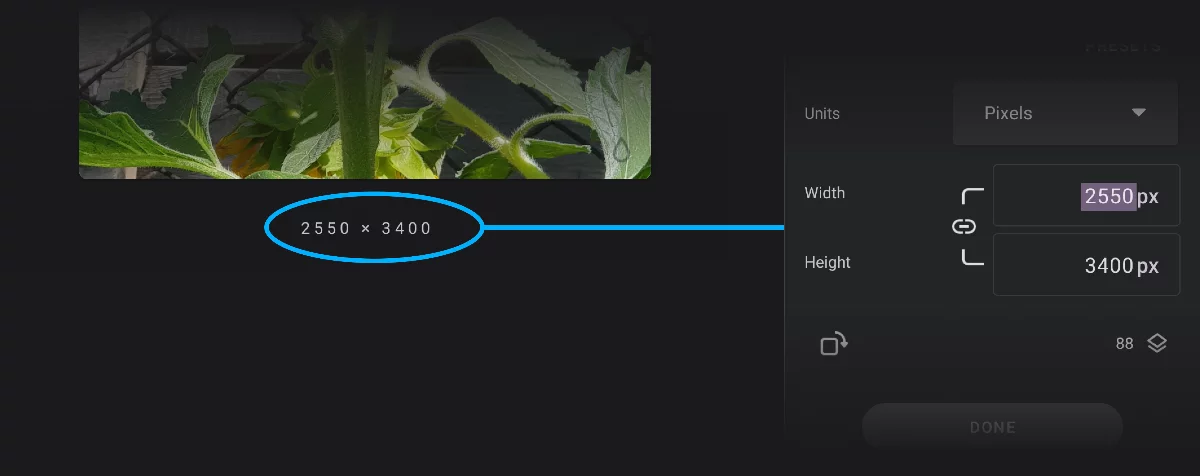
Opening an image as a new project preserves its pixel dimensions. You may wish to override this, for example to enlarge the imported, low resolution image. Tap the dimensions below the image preview to change them. Even if the ratio lock is disabled, the image will not be distorted, only empty space added around it. If you prefer distorting the image, you can use the Resize tool.
Opening multilayer documents
With the “From Image” command and “Files” option as the data source, you can open two types of multilayer documents:
PNTRPNTRPNTR ("Painter Project Transfer File") is a special proprietary file format for transferring Infinite Painter projects between devices or for backup.Learn more (Painter Project Transfer files)
PSD (Adobe Photoshop documents)
PNTR documents are generally Infinite Painter projects packed for backup or data transfer and they should open exactly like when exported.
PSD documents may contain incompatible elements and after import to Infinite Painter they may not look exactly like in Photoshop. Learn more in Import formats.