
Overview
You don't have to see all your layers all the time.
You can quickly hide all layers besides the active one, or just dim them a bit.
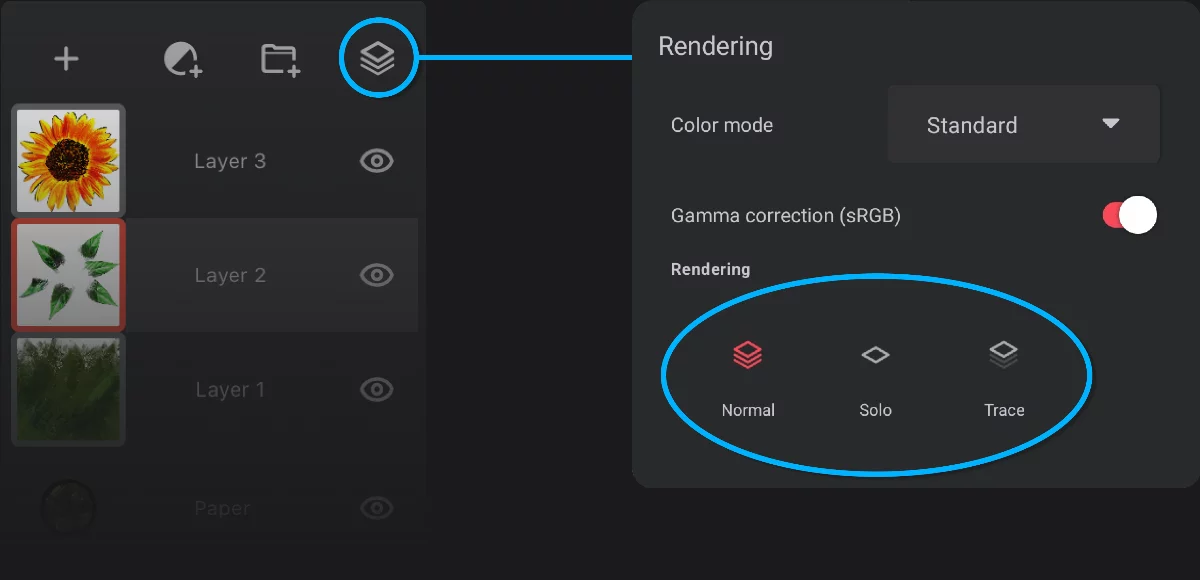

Normal visibility mode
all layers are visible

This is the default and standard mode.

Solo visibility mode
only the active layer is visible

You may wish to use this mode to make edits to overlapping layers.
You may use the Solo mode to turn Infinite Painter into a multi-page sketchbook.
You may even create a number of empty layers and set the volume keys of your device to navigate between the layers. This way you wouldn’t need to have the Layers panel open to “turn pages” in your virtual sketchbook. (See Hardware settings).

Trace visibility mode
the active layer is visible, other layers get dimmed

Trace mode can be used to trace over an imported image (see Importing images).
It is also perfect for building your drawing up from a rough sketch, leaving subsequent steps on separate layers. See below.
Note that paper layerPaperA special layer at the bottom of the layers’ stack: the background of the artwork. The Paper can have a solid color fill and (optionally) a texture.Learn more is visible in each mode.
Using Trace mode for sketching
Draw like a pro.
Trace mode progressively dims all layers below the active one. This lets you gradually hide previous steps of your drawing by adding new layers.
This is a unique feature of Infinite Painter.
Normal visibility mode
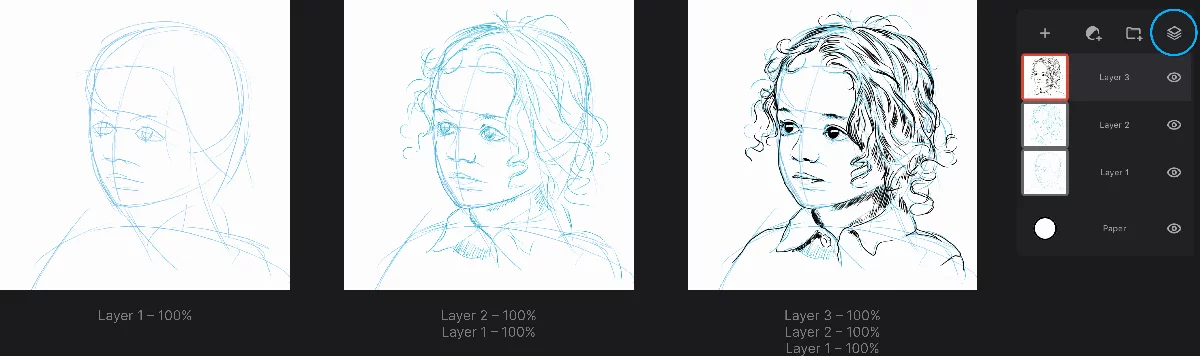
All layers are visible.
Trace visibility mode
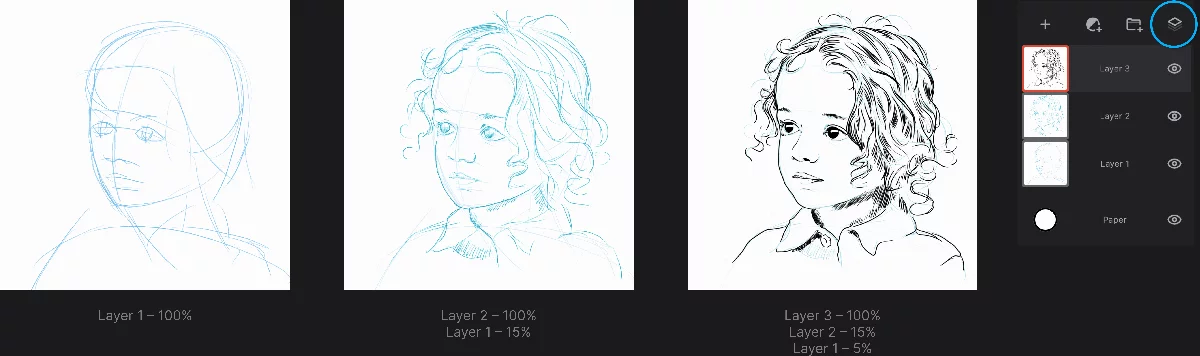
Layers below the active one are progressively dimmed.
Note that Trace dimming doesn't actually change the layer opacityOpacityMeasure of how much a layer (or a pixel on a layer) obscures the background. Zero opacity means full transparency; 100% opacity means that no background is visible.. After leaving this mode all layers will have their original opacity values restored.
When leaving the Trace mode, you will be asked whether to hide the trace layers. If you confirm, the dimmed layers will get hidden (however they will remember their original opacity settings).