
Overview
Control your canvas size.
Resize tool in the Editing Tools menu.
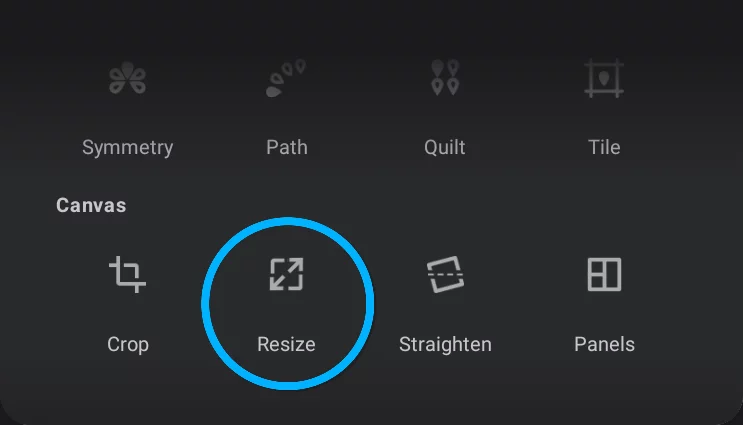
The Resize tool has three different applications:
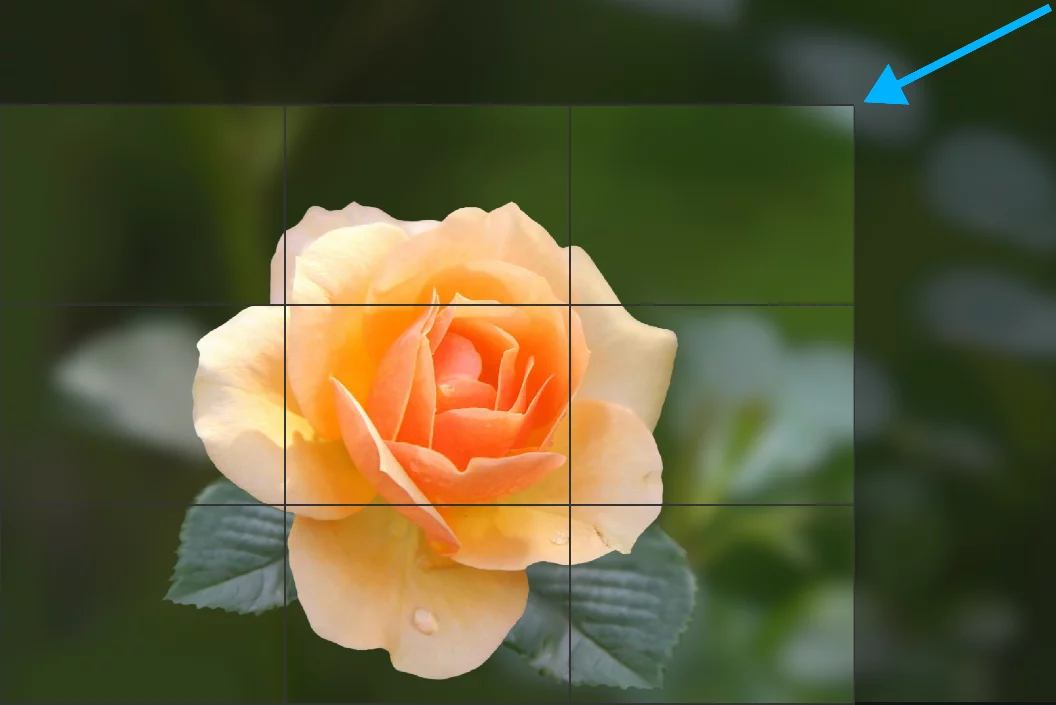
Crop out unwanted parts of the canvas
(this is irreversible; learn more in Resize tool — cropping).
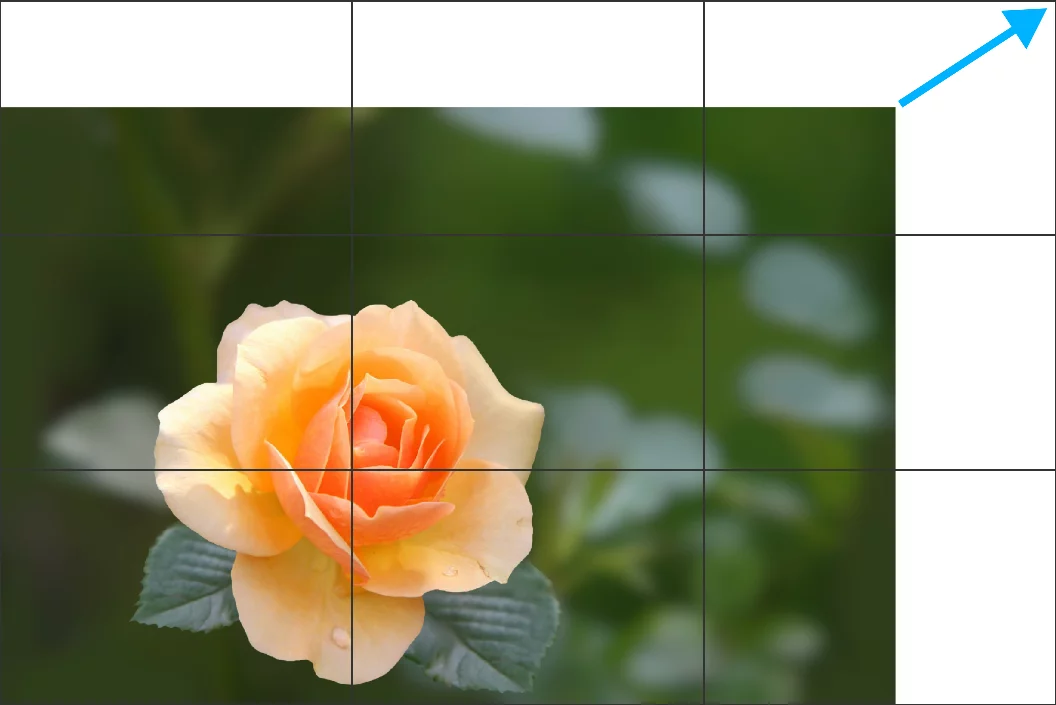
Add more canvas area
(enlarge canvas only; learn more in Resize tool — cropping).
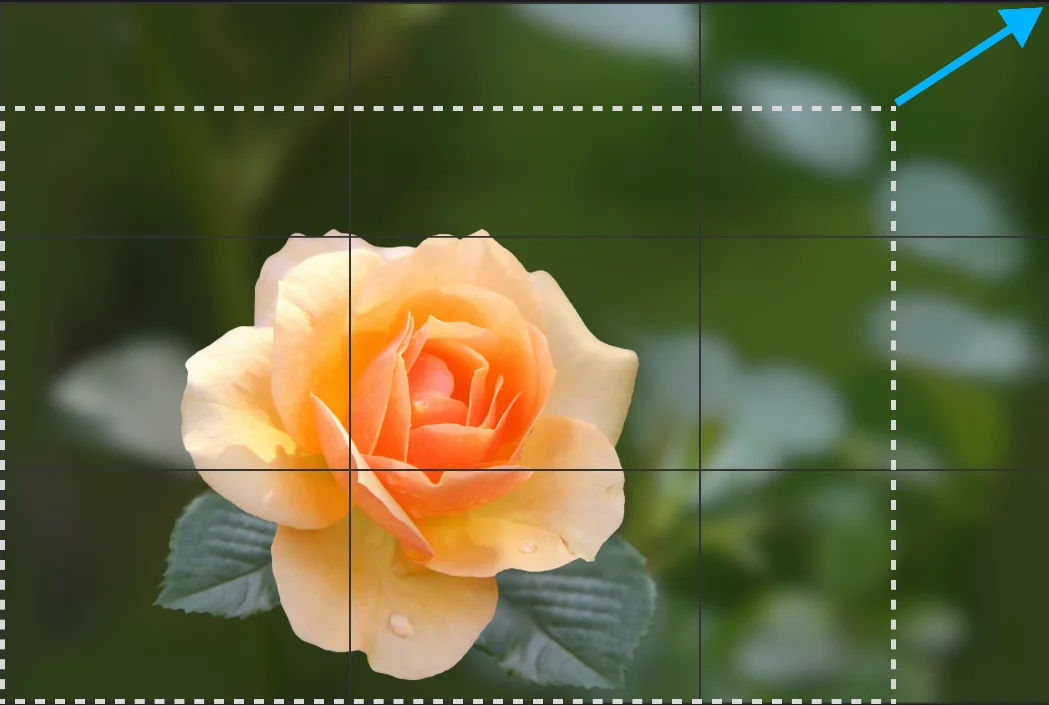
Resize the content of the project
(resample all layers: increase or reduce resolution; learn more in Resize tool — resizing the project)
When using the Resize tool you should have basic understanding of what the pixel size of the canvas means.
Setting too low or too high pixel dimensions may severely affect the quality of your work or the performance of the application. If you are not sure you know what you are doing, better don't. Or at least test on a duplicate of your project first.
Learn more in Canvas pixel size vs. print size.
Resize toolbar


Cancel
closes the tool without applying changes.
Width input field
tap to enter exact value (in pixels).

Keep proportion (aspect ratio) lock
If on, the resized canvas will keep original proportions.
Height input field
tap to enter exact value (in pixels).
Resize content toggle:

Resize content toggle off
for cropping and adding canvas area (see Resize tool — cropping)

Resize content toggle on
for resizing (resampling) of the project (see Resize tool — resizing the project)

Confirm
Closes the tool applying the changes.
Control grid: each one from the 9 fields is a draggable handle
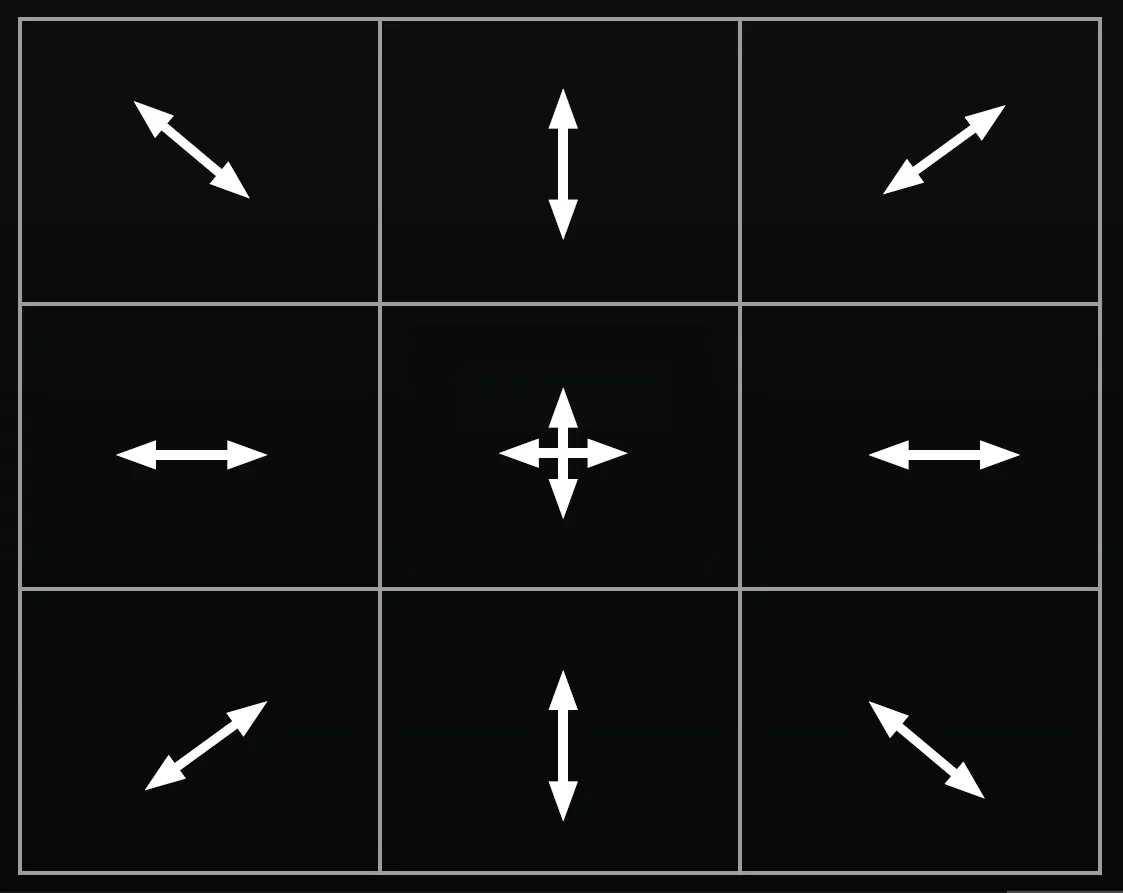
The corner handles scale the cropping area proportionally.
Note that with the proportion lock active, all the side handles scale the cropping area proportionally.
Cropping with Resize tool
That's like scissors: be careful.
Crop out unwanted areas of the canvas permanently, or add extra canvas area.

The Resize content toggle should be off for cropping and adding canvas area.
Adjust the cropping area by dragging by the control fields.
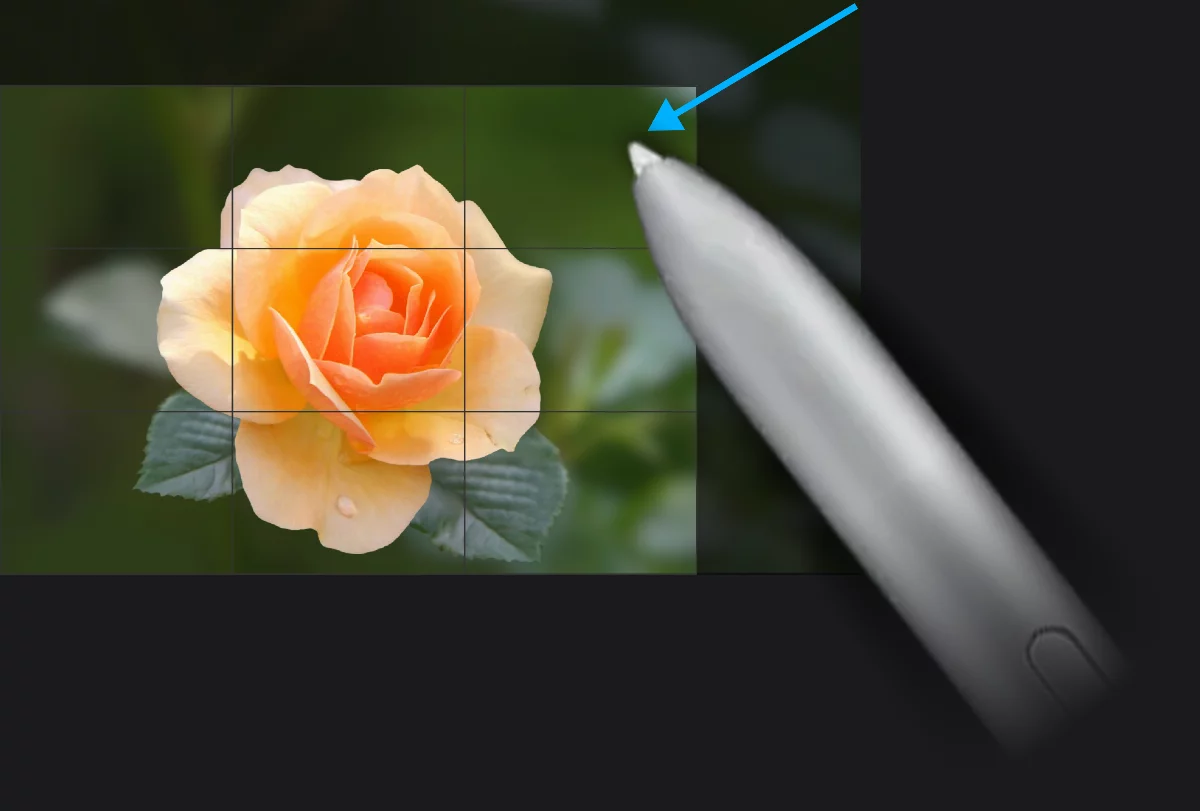
Cropped image
Only this part will be editable after cropping
Cropping frame
Deleted area will be erased irreversibly.
Note that cropping your canvas with the Resize tool is irreversible* – the cropped out pixels will be permanently erased.
If you wish to be able to reverse or edit the cropping, better use the Crop tool.
the Resize operations use virtual transformation technology and in fact are reversible until a layer is being pixel-edited. However be cautious while utilizing this feature. Learn more about virtual transformations in Virtual transformations.
Resizing the project
Control your project's resolution.
Resize the entire project: enlarge or shrink the canvas pixel size. This resamples each layer (adds or removes pixels)

Resize content toggle should be on (active) for resizing (resampling) of the project.
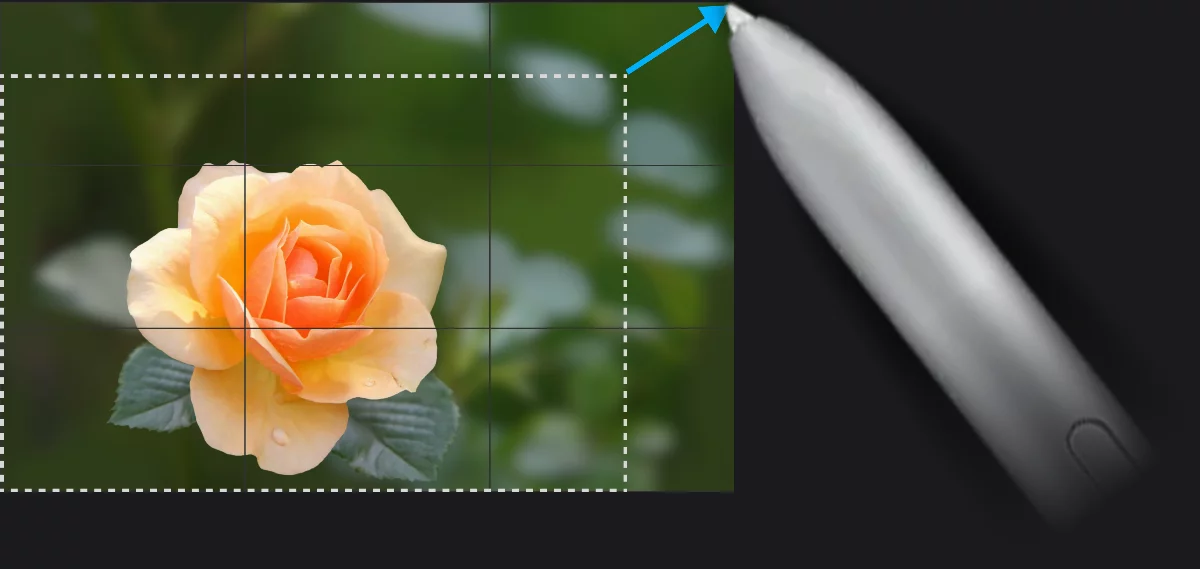
Original size of the project
New size of the project
Adjust the size by dragging by the control fields.
Tip: for best results, watch the numerical values on the toolbar or enter precise values directly into the input fields.
Note that resizing your canvas with the Resize tool affects the resolution (quality) of your artwork. Setting the pixel dimensions too low may severely decrease the quality of your work, while setting too high values may affect the performance of the application.