
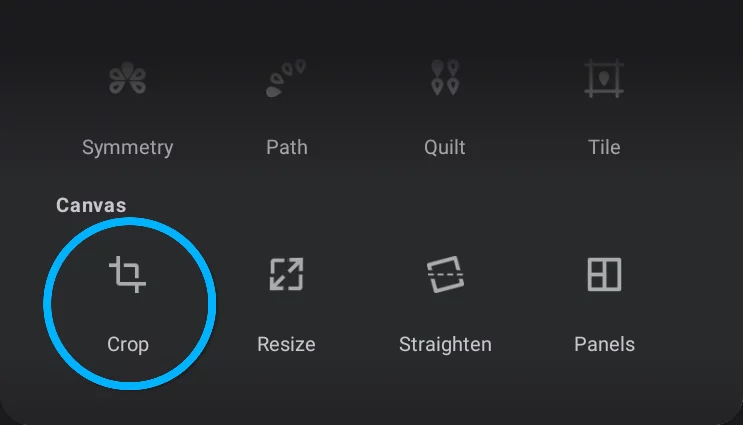
Crop tool
Crop it, but keep the whole thing.
Crop (mask out) unwanted areas of the canvas; you can restore them later.
Crop tool in the Editing Tools menu.


Cancel
closes the tool without applying changes.
Width input field
tap to enter exact value.

Keep proportions lock
If on, the cropped canvas will keep original proportions.
Height input field
tap to enter exact value.

Swap width/height values

Confirm
Closes the tool applying the changes.
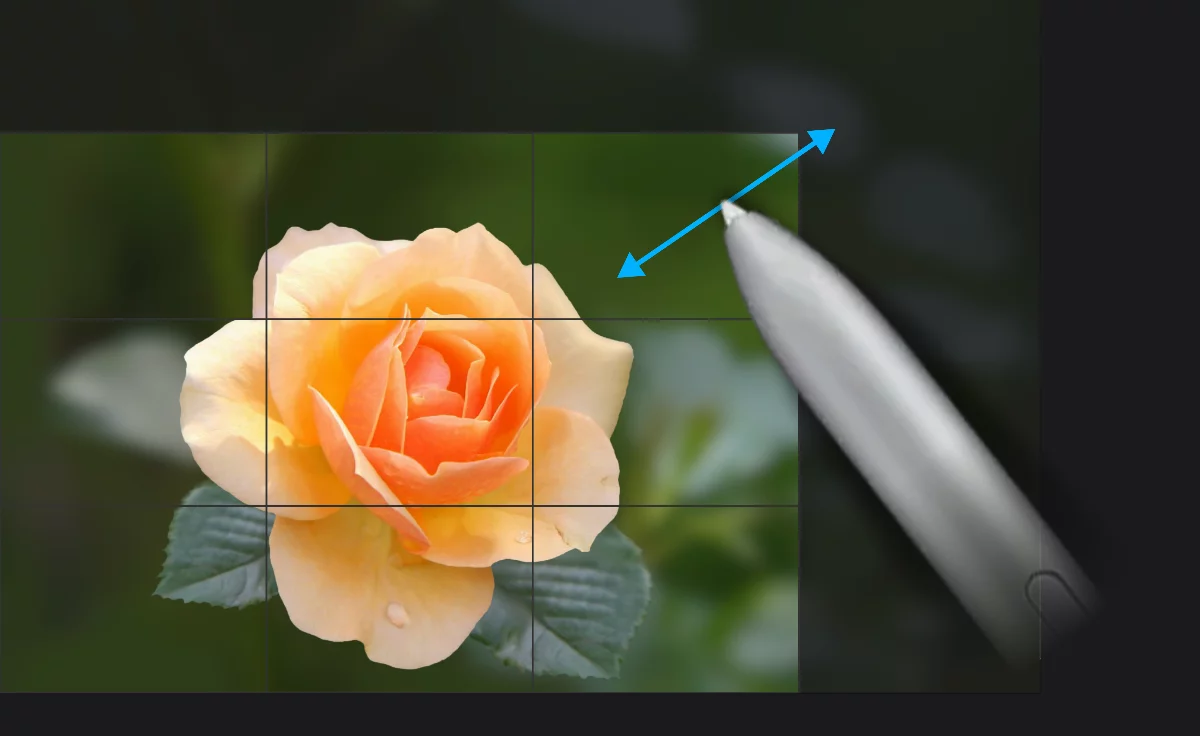
Masked-out (hidden) area
will not be editable after cropping (but will remain safe).
Cropping frame
Cropped image
Only this part will be editable after cropping.
Control grid: each one from the 9 fields is a draggable handle
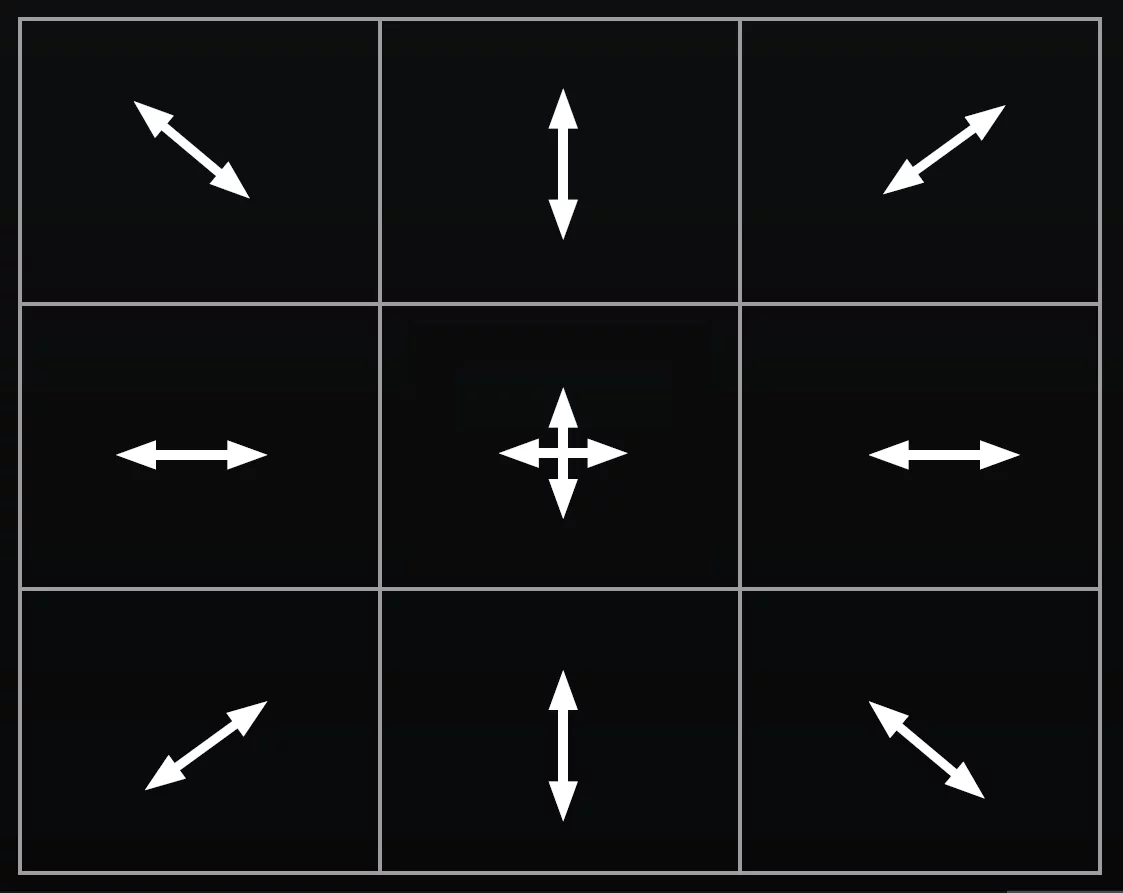
The corner handles scale the cropping area proportionally.
Note that with the proportion lock active, all the side handles scale the cropping area proportionally.
If you wish to completely erase the unwanted parts of the project use the Resize tool.