
Project workflow
Learn the difference between saving and exporting.
The life of each project may be reduced to three stages:
New project creation
Project open in Studio (for painting and editing the artwork)
Output
When you create a new canvas and continue working on it (painting, drawing, editing), the changes are automatically saved to the project (stored in the internal memory of your device). When you close the application and open it again you will find your project in the project gallery so you could re-open it and continue working on it. You normally do not have direct access to the project stored in the device’s memory outside Painter.
In order to use your artwork outside Painter, you have to export it in one of the standard image file formats. This exported file will no longer be a part of the project, rather you will be able to share it or open in other applications. Learn more about export formats in Exporting images.
Note that you have to export your artwork in order to print it.
Starting a new project
You can start the new project either from scratch (as a blank canvas) or by importing an existing image (a photo or a scanned sketch). Learn more in Starting a new project.
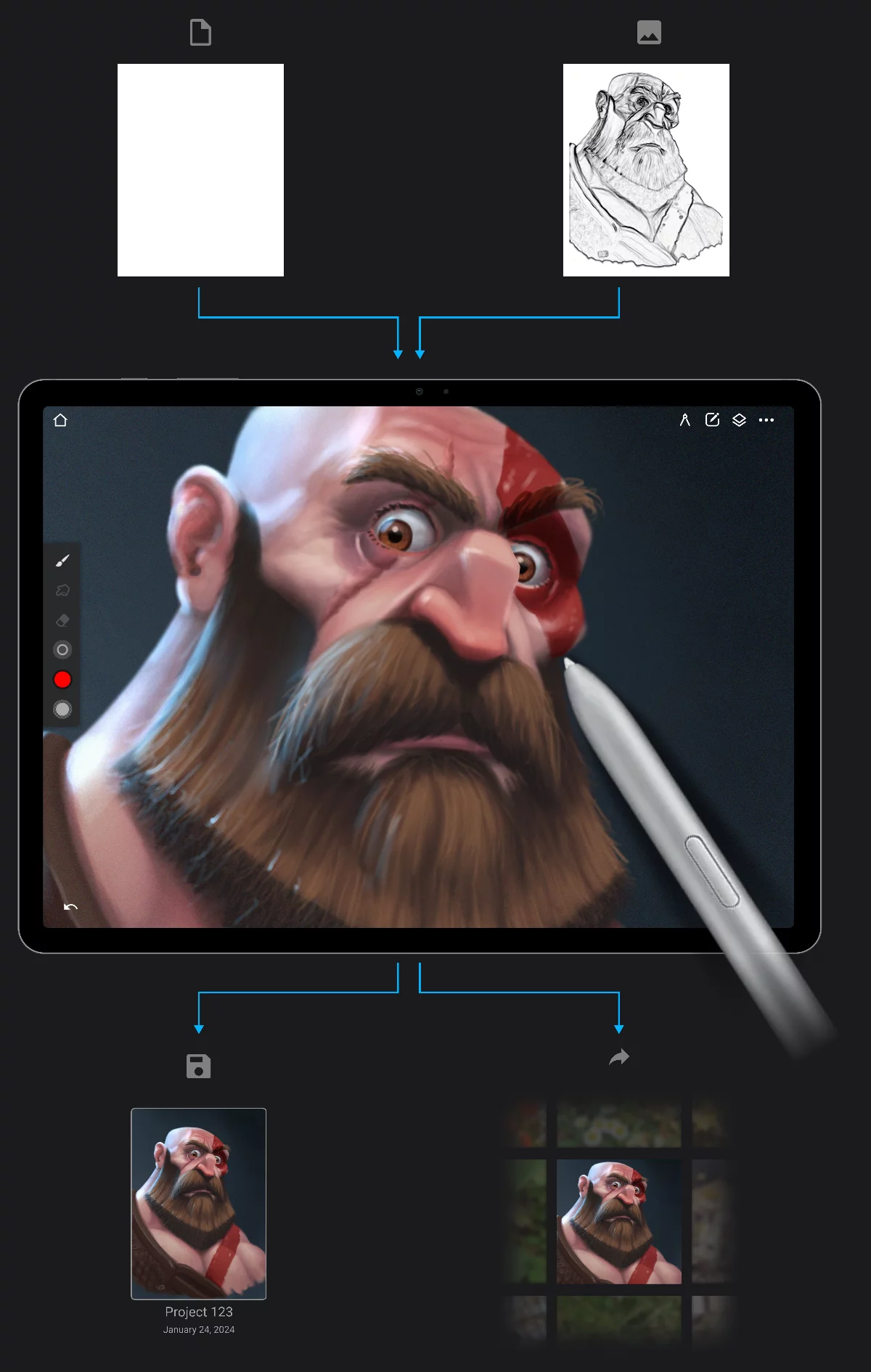
New blank canvas
An imported image (a photo or a scanned sketch)
Artwork opened in the Studio for you to create.
Export
Save
Project saved in the internal storage of the device.
You can re-open it at any time and work on.
The artwork exported outside Infinite Painter as a standard image file.
It usually shows up in the system photo gallery (or in a file manager).
Exporting your artwork
Projects may be exported to various standard formats:
• PNG
• JPG
• WebP
• PSD
Exported images can be shared to any appropriate third party application or printed.
Learn more about exporting in Exporting images.
You can also export the artwork as “Painter Project” (PNTR format). This is a special format for transferring projects between devices or for backup. This is the only export format that contains 100% of the project data. Learn more in Transferring projects between devices. PNTR files can only be opened in Infinite Painter.
Saving the project
The project is automatically saved whenever you close the application, but you can also save it manually. See Options menu.
Infinite Painter is also backing up the current state of your artwork while you are working on it, in case of a fatal error (mobile devices are not immune to unexpected crashes). After restarting the application you should return to your work where you left it.
Please note that Infinite Painter uses a version history system, so saving the project does not overwrite the previously saved version, only adds a new state of the project. A preset number of last states (versions) is stored in the internal storage of your device so you can restore any of the previous version. Learn more about the version history feature in Project version history.
Project backup and transfer
Note that on Android there is no direct access to the project data stored in the internal memory of the device. If you want to transfer your project to another device for further editing in Infinite Painter, you have to export the project in PNTR format (as “Painter Project”) and transfer this file to the other device. See Transferring projects between devices.
If you plan to edit your projects in other application, export them in PSD (Photoshop®) file format. See Exporting images. PNG and JPG formats do not preserve layers. Learn more about export formats in Export formats.
Timelapse recording

You can record your creative process and export it to a timelapse video file. Learn more in Timelapse recording. The video recording is stored in the project, and may be exported as a standard video clip.
The workflow described above generally applies to all types of the projects: regular projects, Pattern projects and the Challenges.
Canvas pixel size vs. print size
Plan ahead.
The size of digital images is usually given in pixels, as this is the actual measurement of a bitmap (number of pixel in a row and number of the rows). When you intend to print the image, its physical dimensions must be defined.
The same digital image can be printed at any size, however the larger the printed image, the lower its resolution (hence lower visual quality).
600 dpi (high resolution)
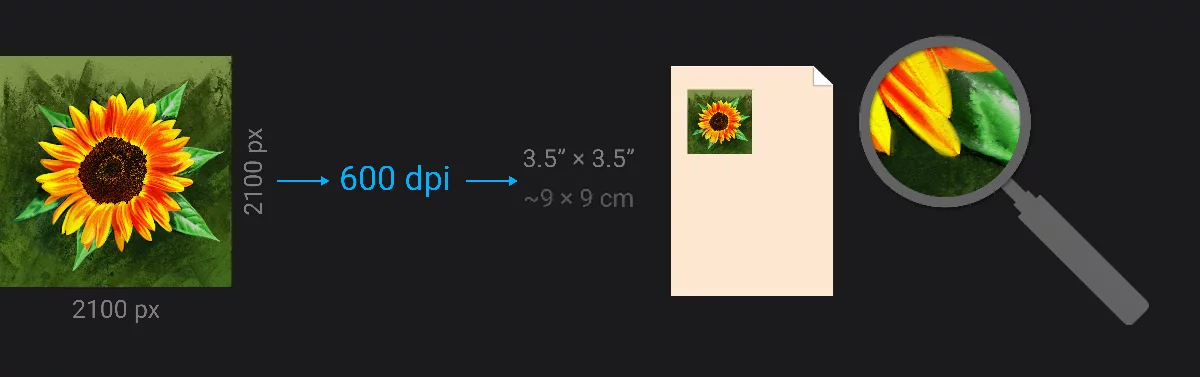
600 dpi is a very good quality suitable for high quality illustrations and edited photos.
300 dpi (medium resolution)
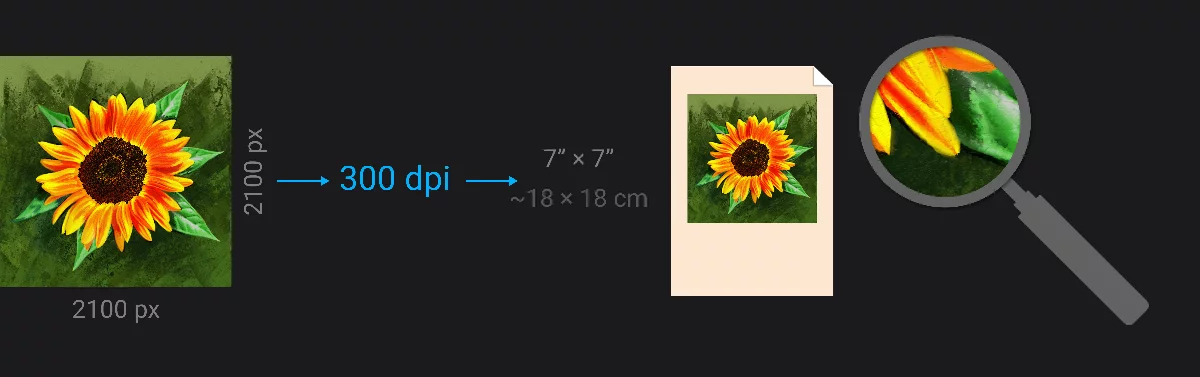
300 dpi is a good quality standard for medium size printouts.
72 dpi (screen resolution)
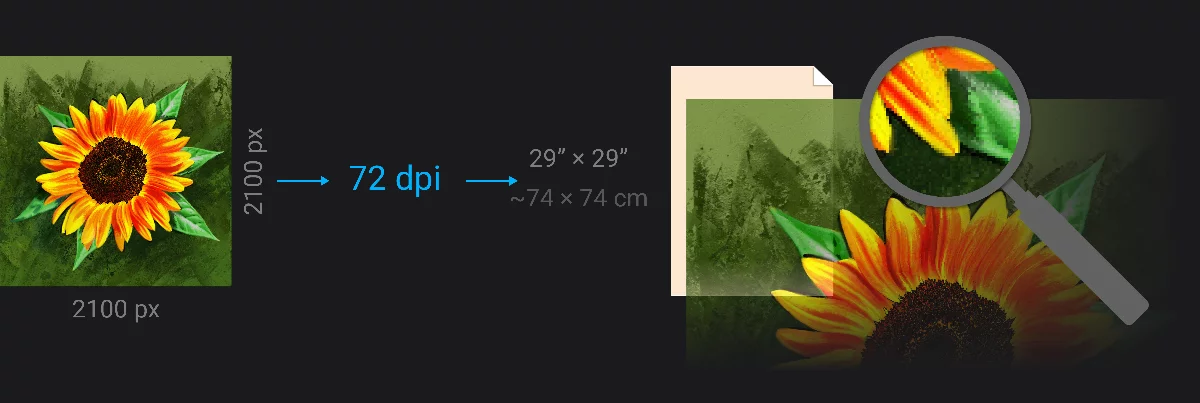
Such a low resolution is usually unacceptable quality for printing. May be enough for low-quality posters.
Even if the canvas size in Infinite Painter can be defined in physical units (metric or imperial), internally, the size of the canvas is always measured in pixels.
In fact, you may adjust the print size and resolution after exporting the image. Most of the software used for printing allows you to scale the image prior to printing.
Resolutions below 100 dpi and above 600 dpi are rarely used in printing of bitmap images.
The “72 dpi” resolution remains the default "screen" resolution for JPEG and PNG images even if today's computer screens usually have much higher resolutions. If you don't intend to print your artwork, you may leave 72 dpi value (or whatever other resolution in fact).
"dpi" or “DPI” is a standard unit of image resolution. DPI stands for "dots per inch". More precise unit name would be "ppi" ("pixels per inch") but "dpi" is widely used.
100 dpi ≈ 39 pixels per centimeter.