
Geometric transformations
Definitions.
Infinite Painter offers a range of tools for geometric transformations, from move-scale-rotate Basic transformation mode to sophisticated free-form Warp transformation.
Here are the definitions of geometric transformations for reference:
(Original image)

Similarity (linear) transformations
Move

Scale
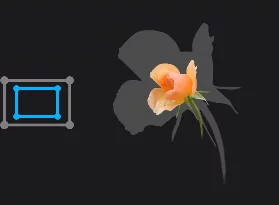
Rotate
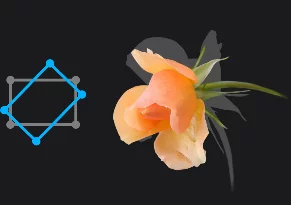
Symmetry
Flip
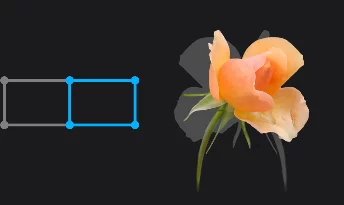
Deformations
Stretch

Skew
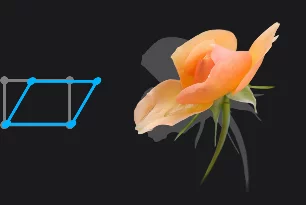
Distort
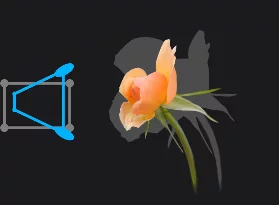
Warp
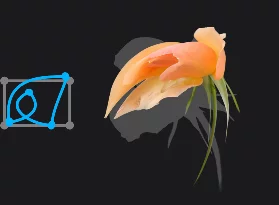
Objects of the transformations
Choose what you want to transform.
In Infinite Painter you can transform:
a selected fragment of a layer
the entire layer
a set of layers (this may be a group, or multiple groups of layers too)
a selection mask (this may be a layer mask too).
In current version of the app (7.2.x) you cannot transform editable Text and Panels layers. You can edit a text or panels layer if you rasterize it (convert to a regular image layer) first.
Text tool has its own basic transformations (move-scale only). See Formatting text.
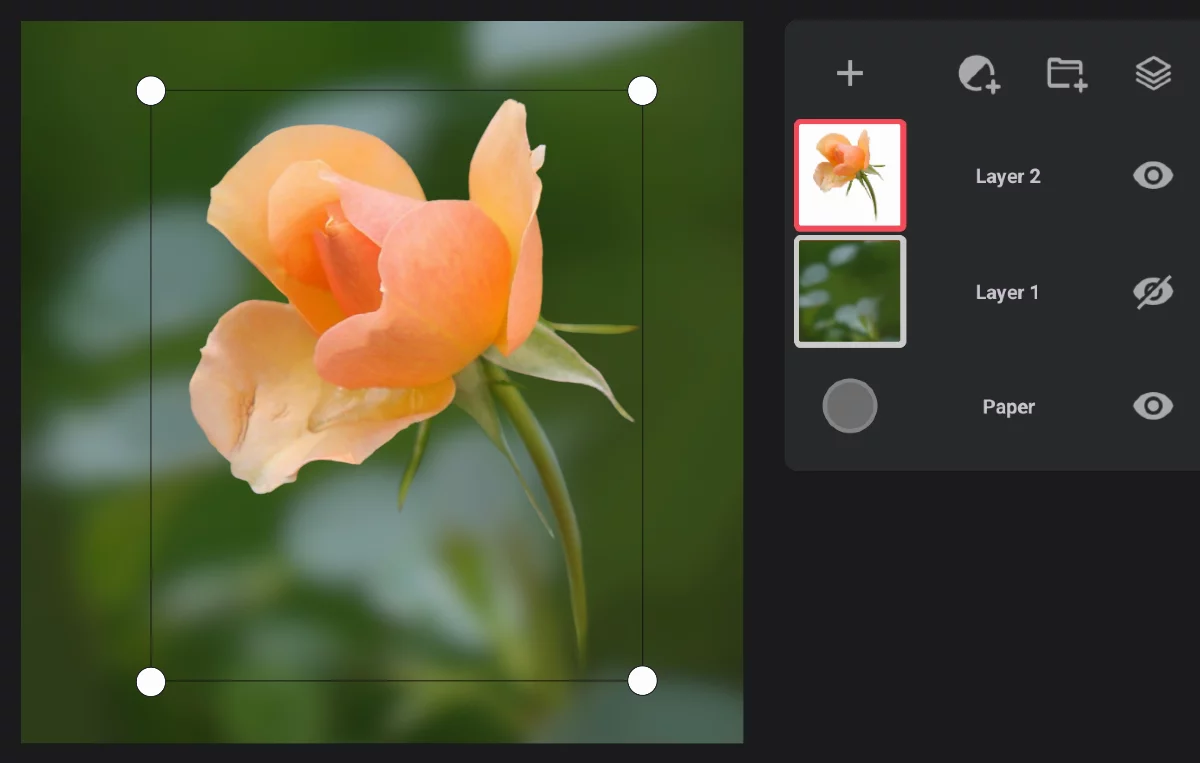
Transforming the current layer
Current LayerLayerA layer is a separate RGBA image (usually) of the size of the canvas. Layers can be stacked on top of each other. is transformed by default when no SelectionSelectionA selection is a defined region of your canvas that can be used to edit its content or to limit the application of painting tools (like a stencil). Technically, a selection is an 8-bit (grayscale) mask image which defines the selected vs. masked areas of the canvas. is active.
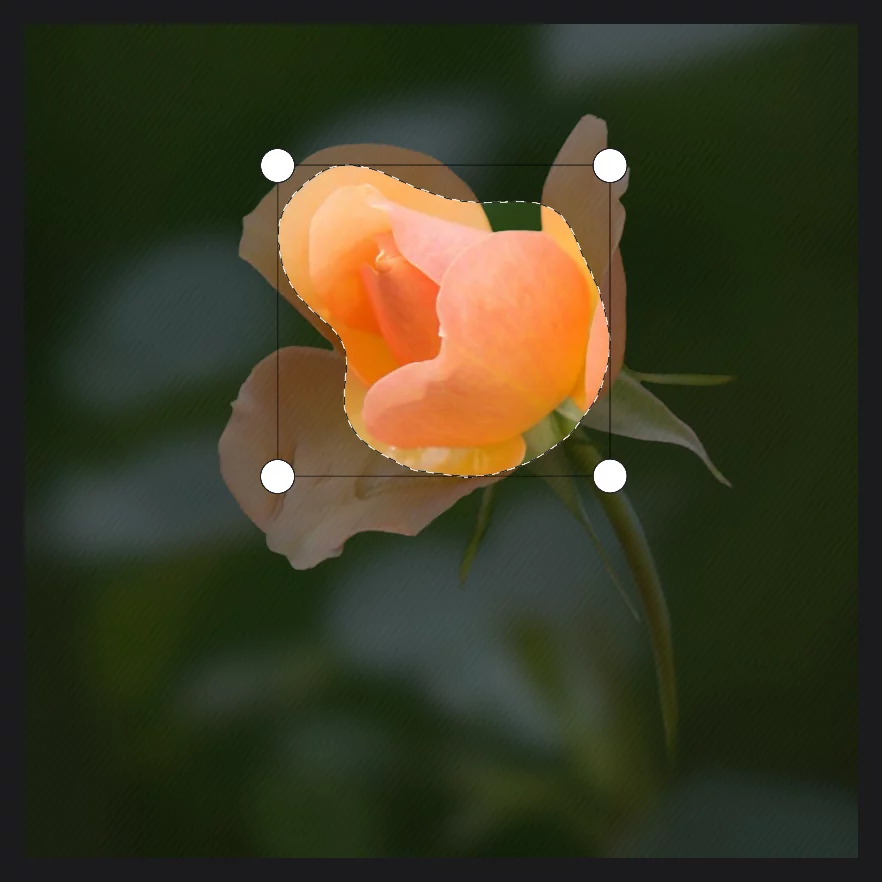
Transforming a selected fragment

Use the Selection tools to define what to transform; then tap the Transform button on the selection toolbar.

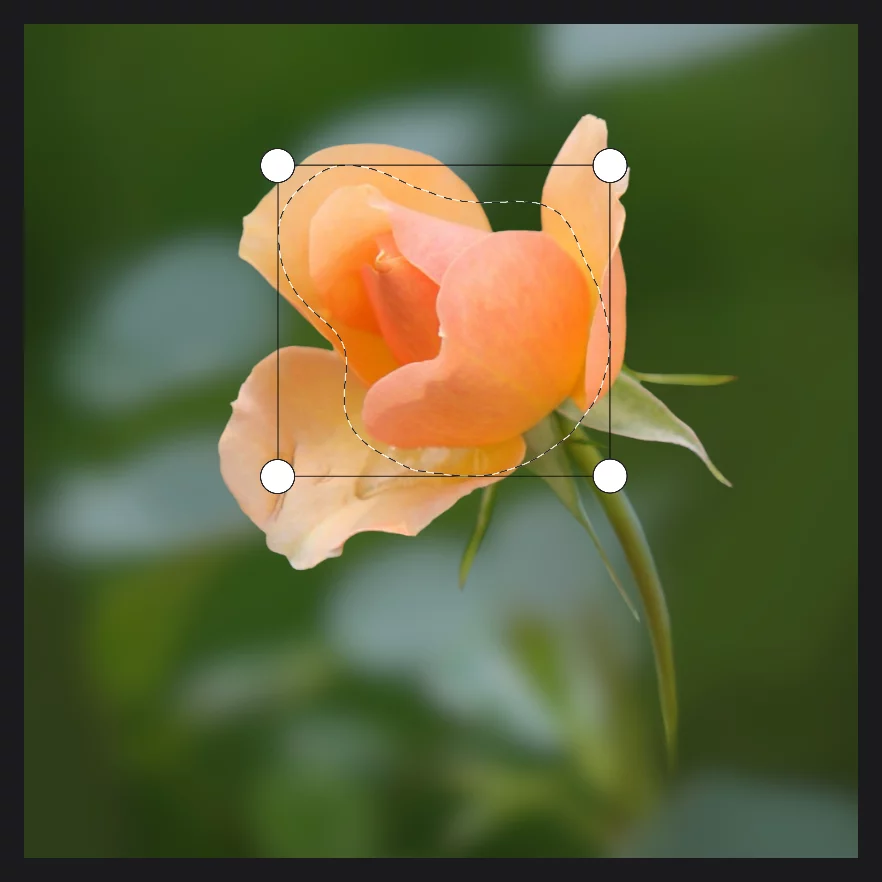
Learn how to use selection tools in Using selections.
Note that you can transform a selection across multiple layers as well.
Transforming a selection mask
Transform the mask only.

Define a selectionSelectionA selection is a defined region of your canvas that can be used to edit its content or to limit the application of painting tools (like a stencil). Technically, a selection is an 8-bit (grayscale) mask image which defines the selected vs. masked areas of the canvas. with the Selection tools, then tap the Transform mask button on the selection toolbar. Learn how to use selection tools in Using selections.

Transforming multiple layers
First, start a transformation tool, then add layers to the transformation set by tapping their thumbnails. Layers to be transformed are marked with the red border around the thumbnail.
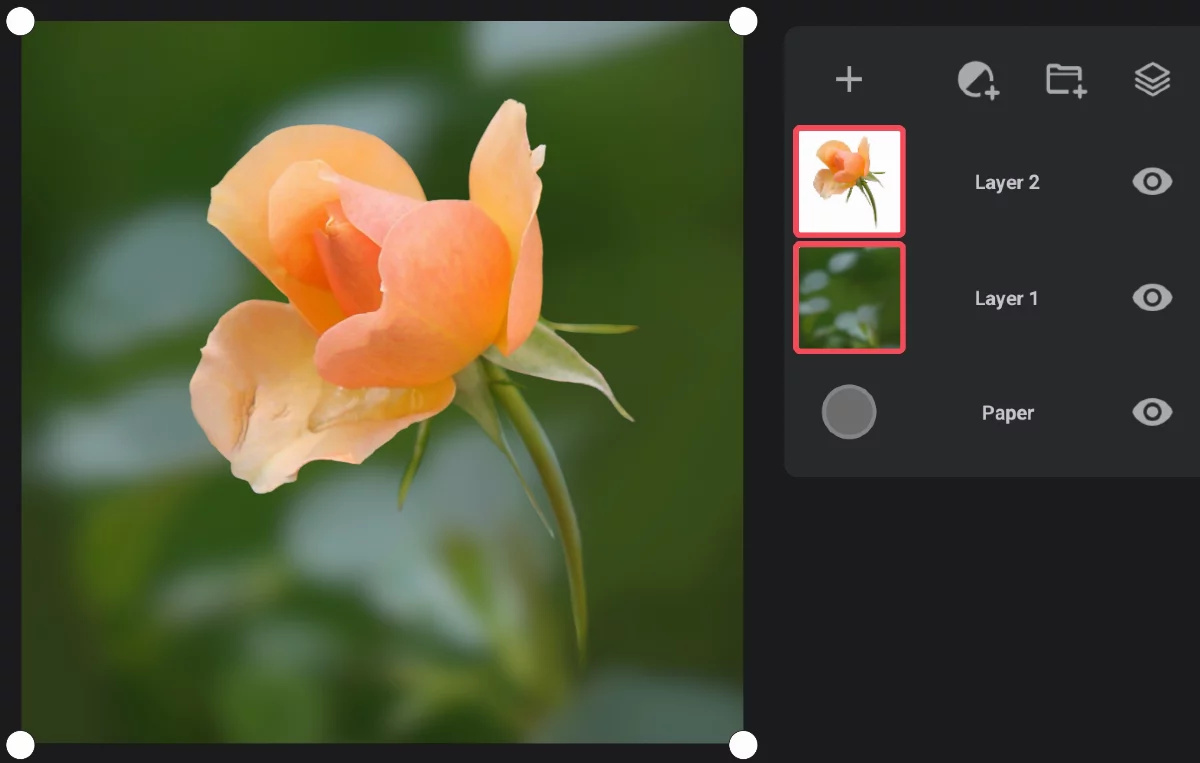
If you want to remove a layer from the set, just tap on its thumbnail again.
If a selection is active, the selected fragment will be transformed on each marked layer.
Transformation tools – where to find them
You'll find the tools exactly when necessary.
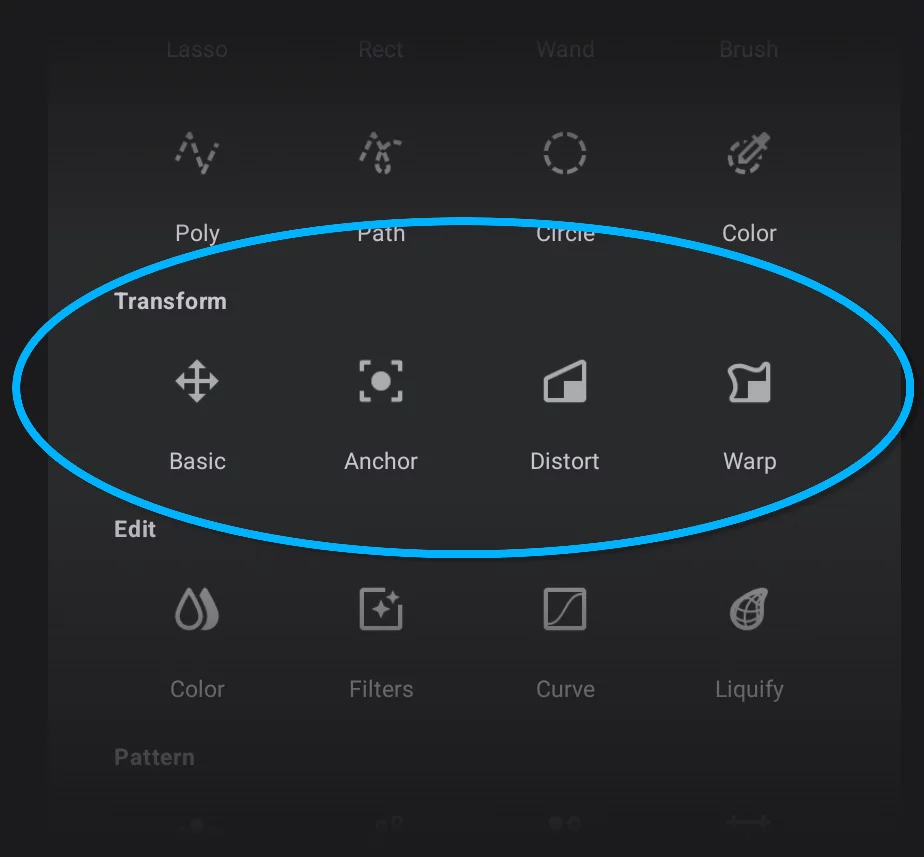
Generally you access the Transformation tools from the Editing Tools menu but not only from there.

Editing tools menu
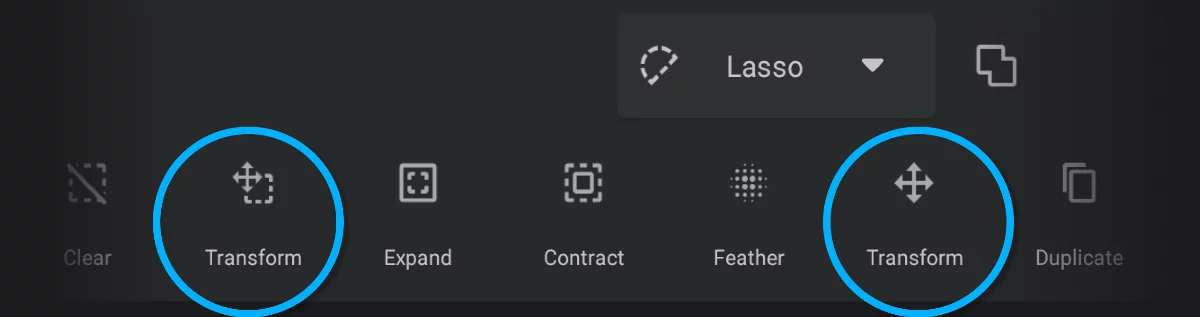
Transformations can be triggered also directly from the Selection toolbar for the selectionSelectionA selection is a defined region of your canvas that can be used to edit its content or to limit the application of painting tools (like a stencil). Technically, a selection is an 8-bit (grayscale) mask image which defines the selected vs. masked areas of the canvas. content and the selection mask separately.

Selection toolbar
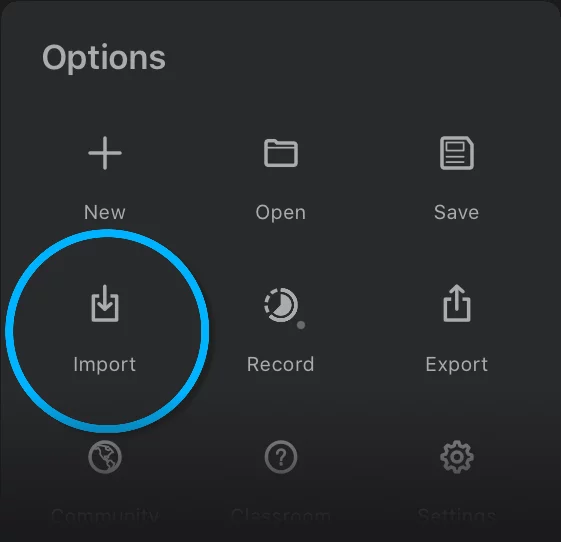
Transformation workspace is also automatically brought up when you import an image, or when you create a copy of a selection with Duplicate or Isolate commands (see Selections — editing functions)

Options menu – Import image
Each transformation tool opens the same common toolbar:

Learn more about the common controls in Transformations workspace.
Transformation tools in Infinite Painter
Infinite Painter offers four transformation tools or rather four modes of the same transformation tool.

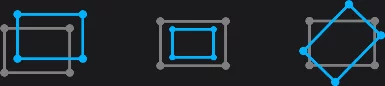
Basic transformation
Basic move-scale-rotate tool. See Basic transformation.

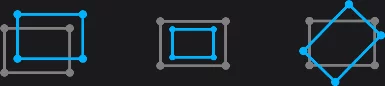
Anchor transformation
Move-scale-rotate with an anchor point. See Anchor transformation.

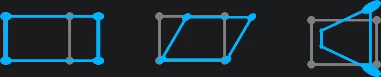
Distort transformation
Skew and distort tool. Also a perspective distortion. See Distort transformation.

Warp transformation
Free-form deformation tool. See Warp transformation.

You may wish to try the Liquify tool as well, however it is not considered strictly a “transformation”, rather a “deformation tool”.