
Basic transformation mode
The simplest manipulation of objects.
Basic transformation mode allows you to move, scale and rotate objects.

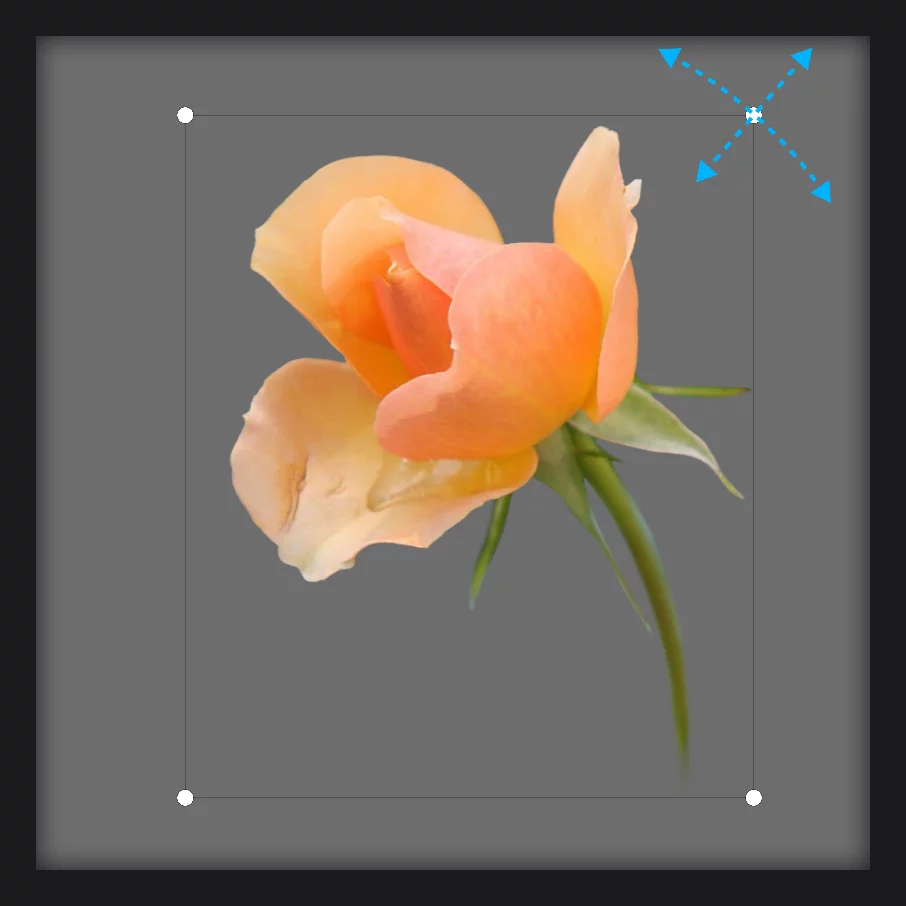
Control cage is a bounding box of the object: a rectangle circumscribing the object.
The cage is aligned to the edges of the canvas.
Move object by dragging from any point of the screen.
Scale object (make smaller or larger proportionally) relative to the center point of the control cage.
Rotate object around the center point of the control cage.
Note that in Infinite Painter, scaling and rotating are performed with the same corner handles. The direction in which you drag the handle determines which transformation is triggered.
Quick transformations
Fast and intuitive.
In Basic transformation mode you can quickly move, scale and rotate the selected object (fragment)
with two finger gestures.
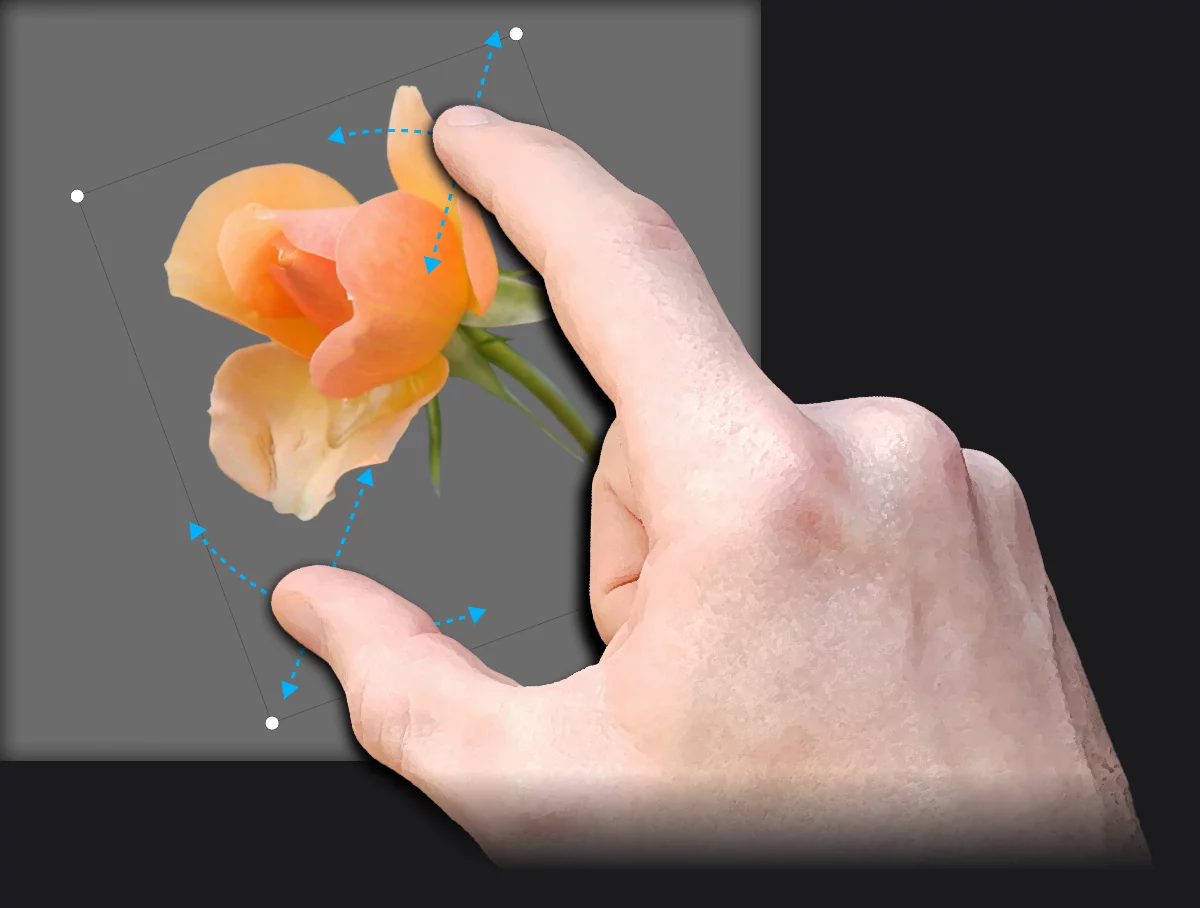

Move object by dragging with two fingers within the control cage.

Scale object by pinch gesture within the control cage.

Rotate object with two fingers within the control cage.
Note that two-finger gestures outside the control cage may be still used for canvas navigation (see Navigate around the canvas).
In all other transformation modes two-finger gestures are used for canvas navigation only.
You can tap the Stamp button while manipulating the object with two fingers to leave a copy. Create multiple copies of the object with various sizes and positions in seconds. Learn more in Transformation Stamp.