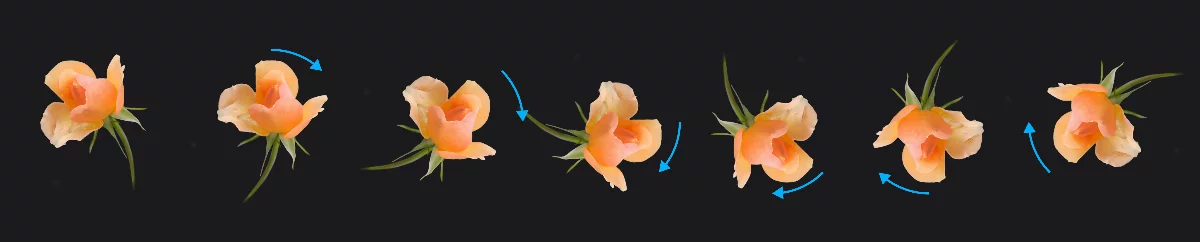
Adjusting the control cage
Really pro feature.
Sometimes you may want to transform the control cage (bounding box) only, for example to align it with other elements of your project.
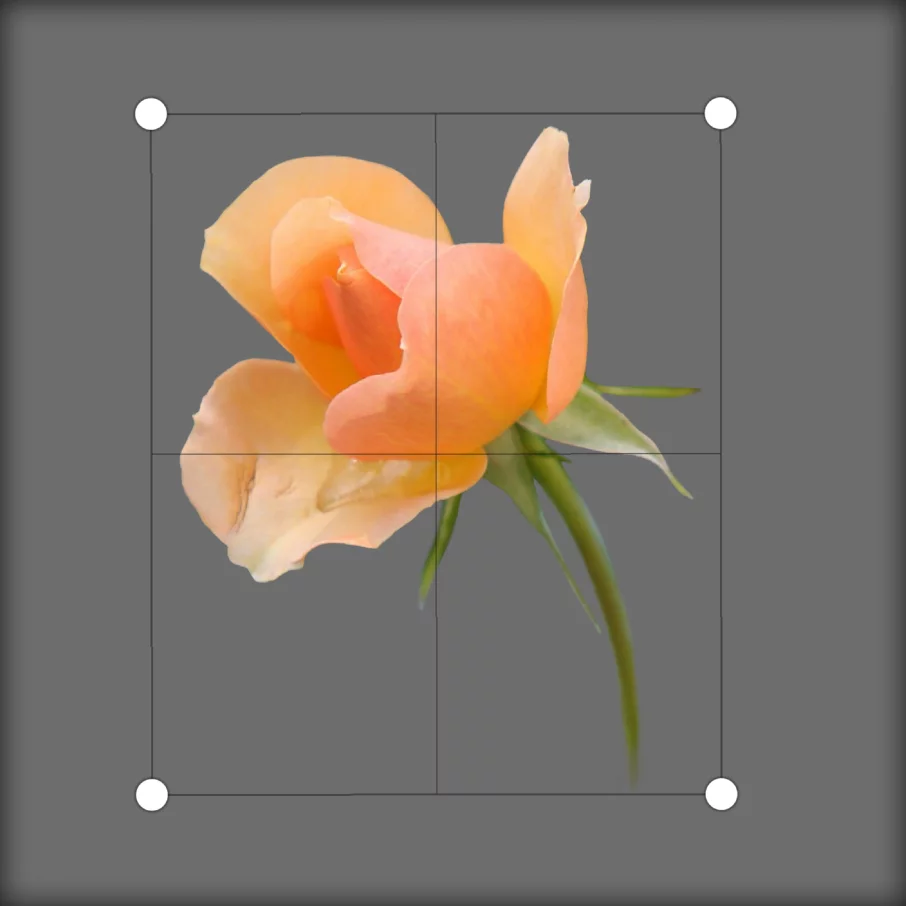
Control cage aligned to the edges of the canvas

Unlock the control cage.
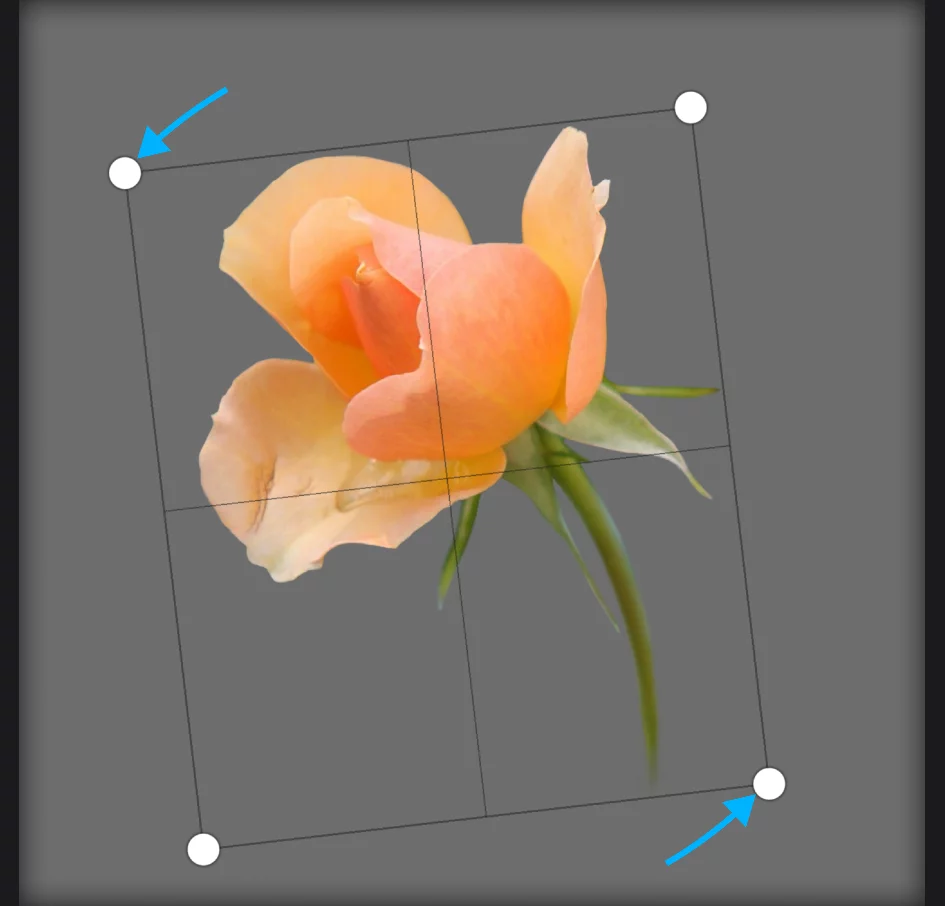
Control cage rotated relative to the canvas.
You may use any transformation on the control cage, except the Warp transformation.
Reshape the control cage to a square to better control perspective foreshortenings in Distort mode.
Remember to re-engage the control cage lock before starting actual transformations of the object.
Transformation Stamp
Stamp with your art.
You can create copies of the transformed object anytime during the transformation session.

Stamp button: hit it anytime to leave a copy.
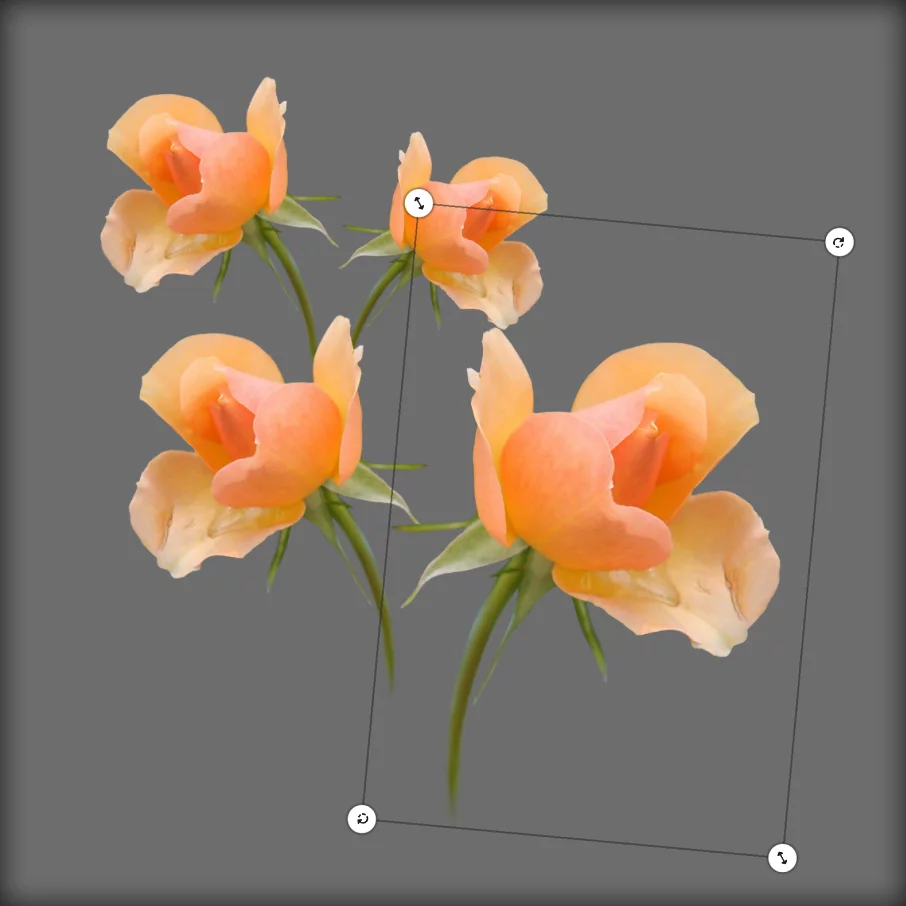
The transformed object (the final transformation of it)
Copies of the transformed object
Layer panel
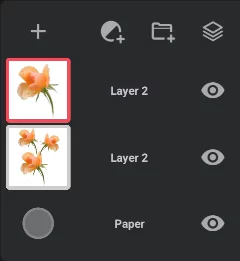
Original layer
(the final transformation will be applied to it.)
All copies are placed on a new layer (with the same name).
After creating a number of copies you may want to merge the layers (learn more in Merging layers).
You may use the Stamp function with any transformation modes including the Quick transformations with two-finger gestures.
Note that canceling of the transformation doesn't delete the new layer containing copies; canceling only leaves the original layer intact. You may find this useful if you wish to keep the original image intact for further use.
Horizontal Flip
Mirror it.
You can flip (mirror) the transformed object.

Flip button
is accessible in each mode.
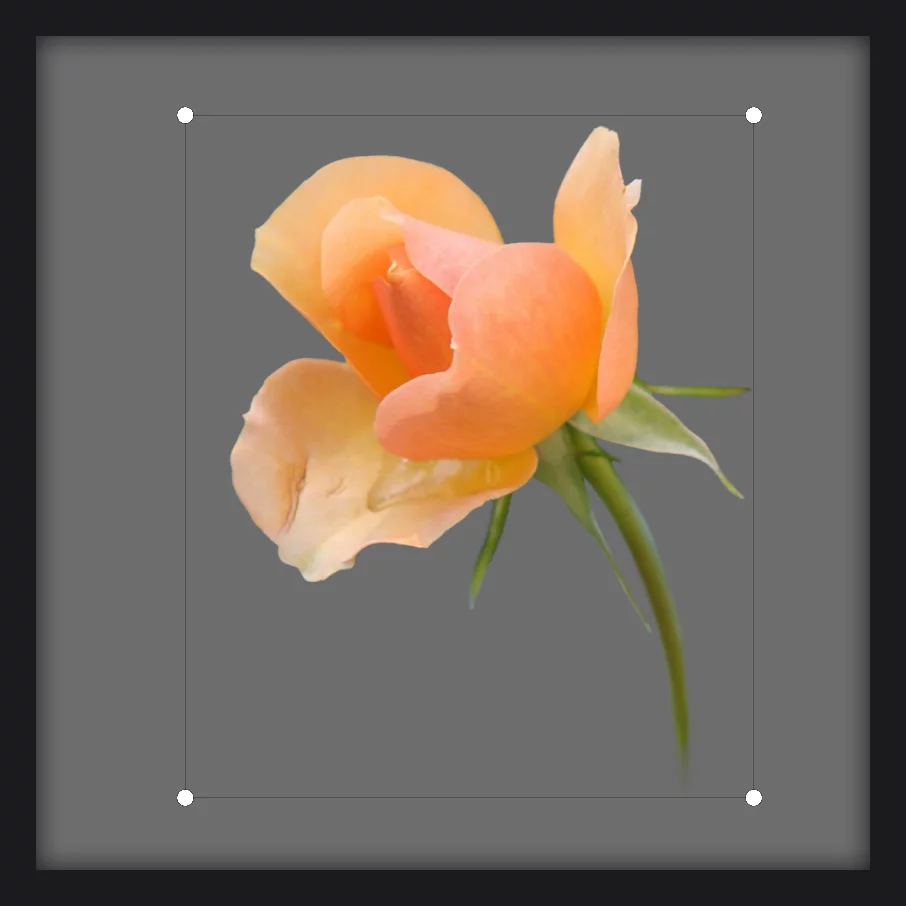
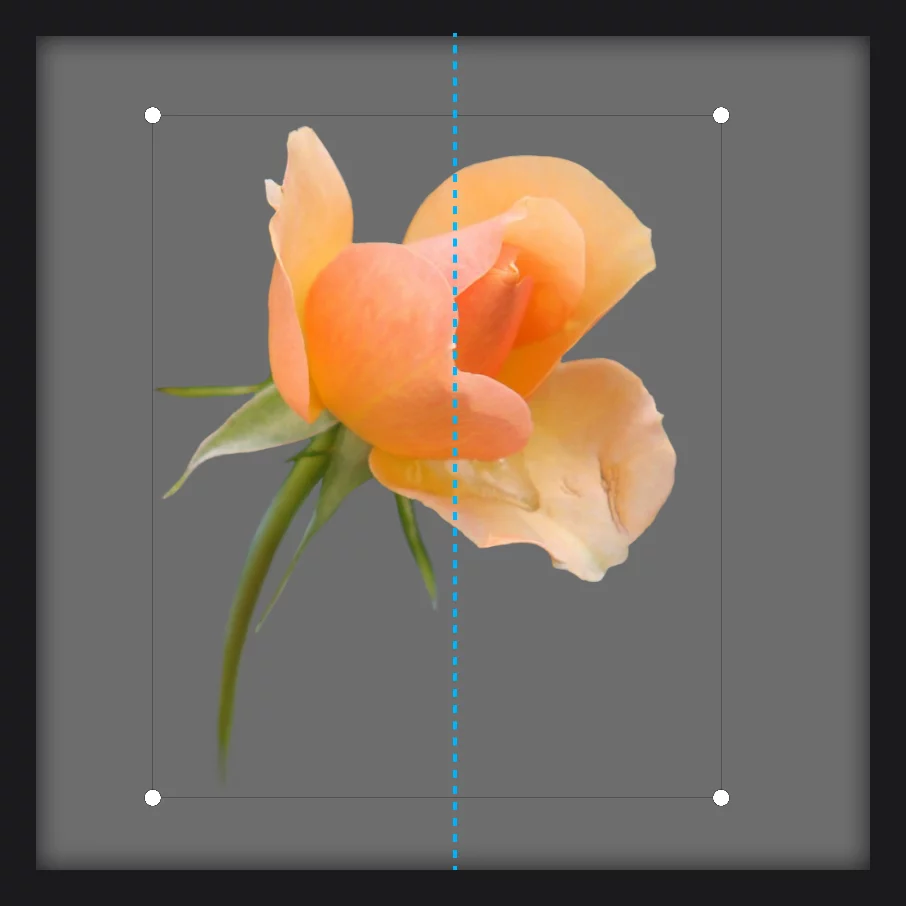
The axis of the flip symmetry passes through the center of the object, or through the anchor point in the Anchor transformation mode.

Note that Flip works only horizontally. If you want to flip the object vertically, flip it horizontally and rotate 180° in place (the easiest way is to hit the Rotate button four times. More below.)
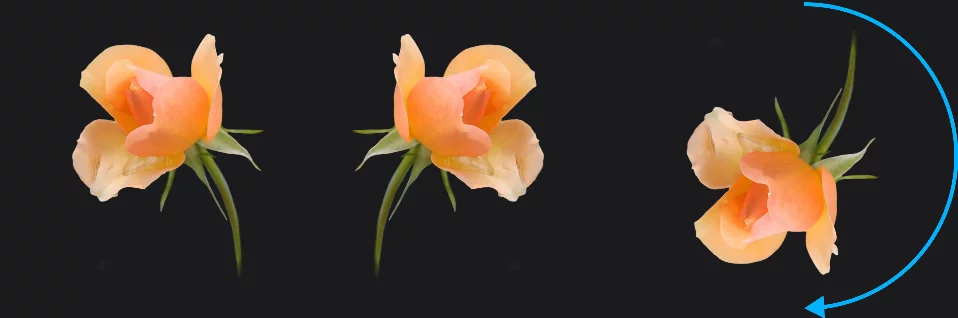
Incremental rotation
0° — 45° — 90° — 135° — 180°…
You can quickly rotate an object in 45° increments (but only clockwise).

Rotate CW button is accessible in each mode.
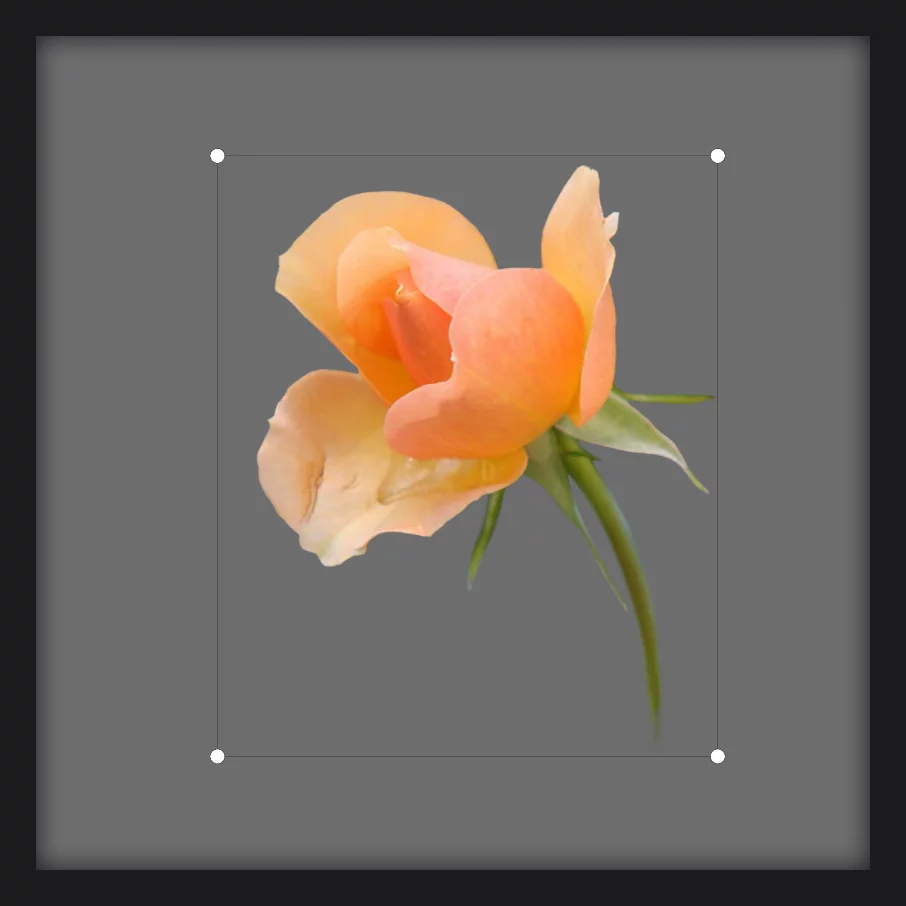
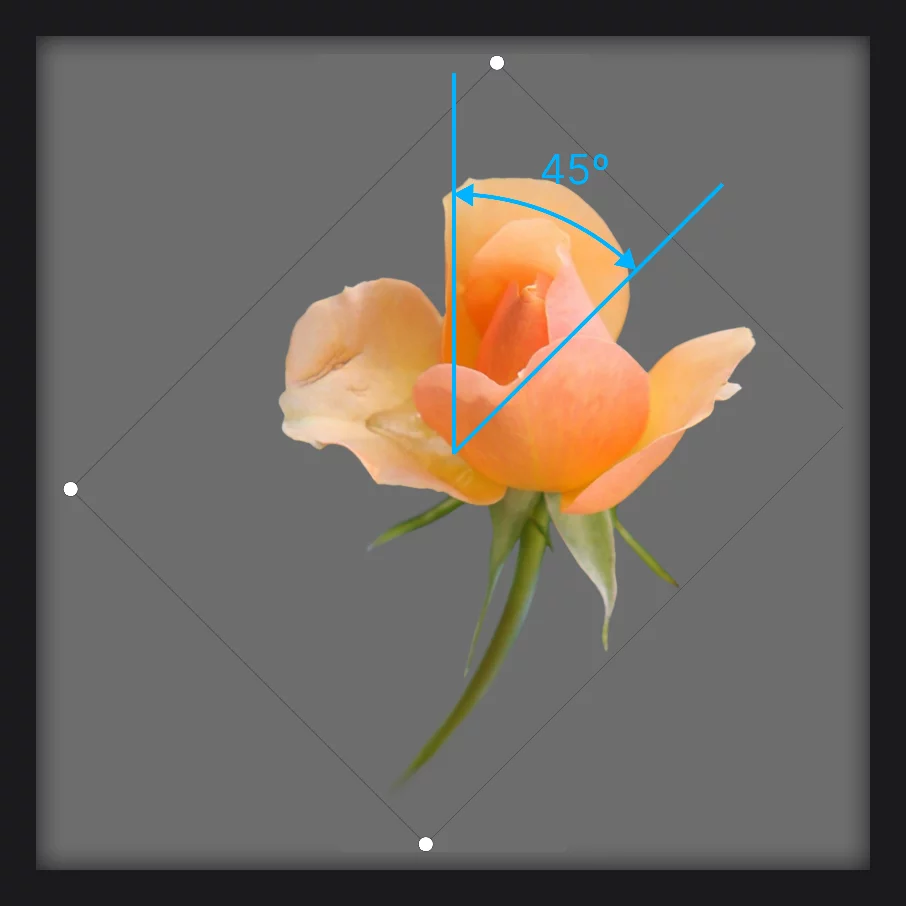
The center of rotation is the center of the object or the anchor point in the Anchor transformation mode.
Note that the Rotate button rotates only in the clockwise direction. If you want to rotate the object for example 90° counterclockwise, just hit the Rotate button six times (6 × 45° = 270° or -90°).