
Transformations controls
Common controls for all transformations.
All transformation types (modes) share a common workspace, so you can mix different transformations in a single session.
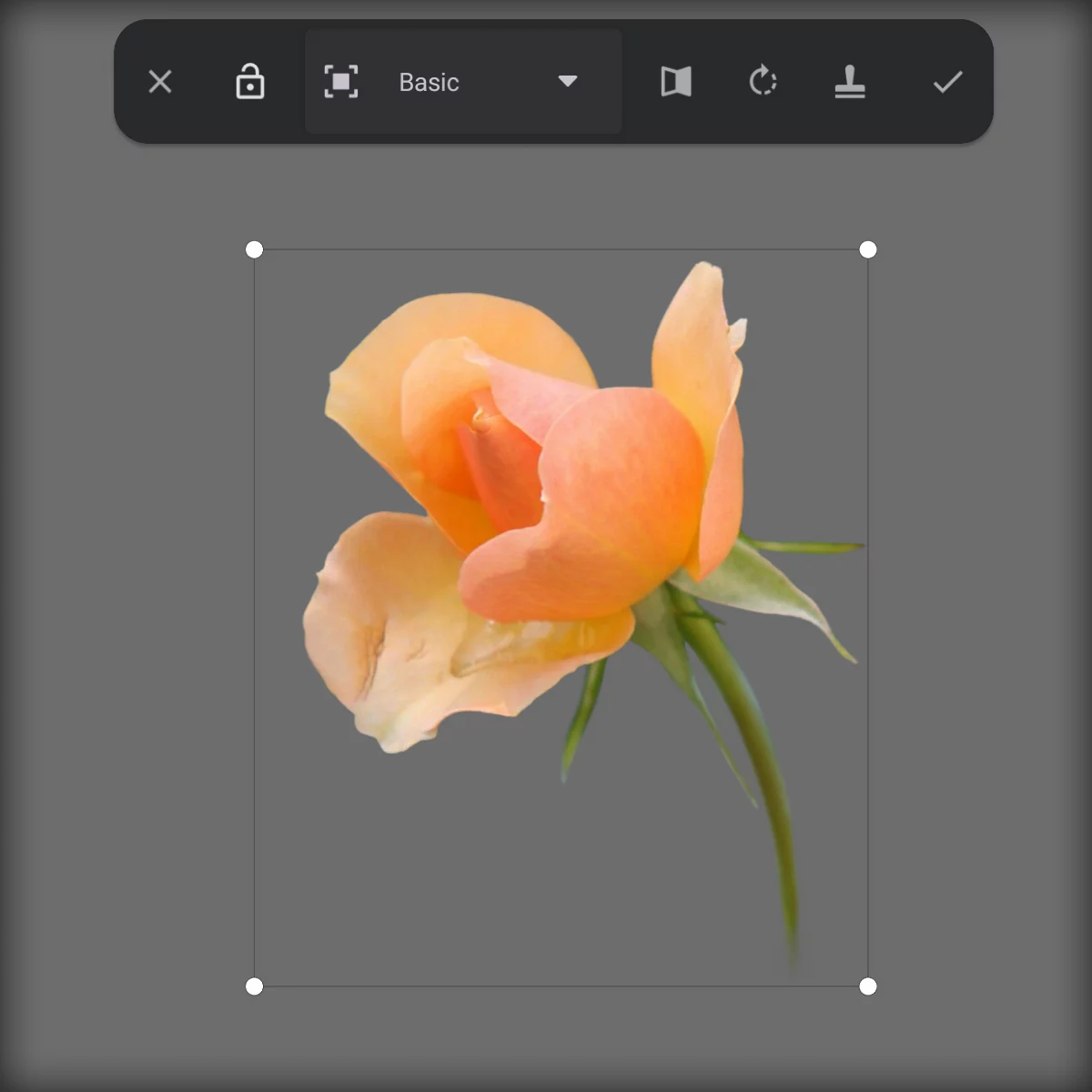
Transformation toolbar (detailed description below).
Transformation type (mode) selector; here shown in the default Basic transformation mode.
Control handles are slightly different for different transformation types.
Control cage is a bounding box of the object: the smallest rectangle circumscribing the object.
More in Transformation control cage.
Transformations toolbar
Mix the transformation types.
Each transformation tool uses the same common toolbar


Cancel
closes the tool without applying changes.

Unlock bounding box
Allows you to transform the bounding box (transformation cage) only. See Adjusting the control cage.

Transformation mode selector
(See below.)

Flip
flips the object horizontally. See Horizontal Flip.

Rotate 45°
rotates the object in 45° increments clockwise. See Incremental rotation.

Stamp
Creates a copy of transformed object. See Transformation Stamp.

Confirm
Closes the tool applying the changes.
Transformation mode selector
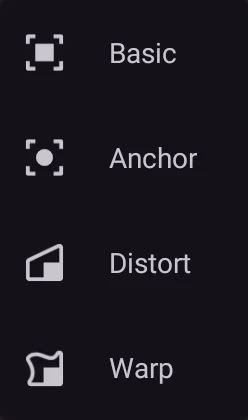
Move-scale-rotate tools:

Basic move-scale-rotate tool

Move-scale-rotate with an anchor point
Distortion tools:

Skew and distort tool

Free-form deformation tool
In one session you can apply each transformation tool as many times as needed.
Transformation control cage
Control the transformation.
Control cage (bounding box) is the main control for every transformation.
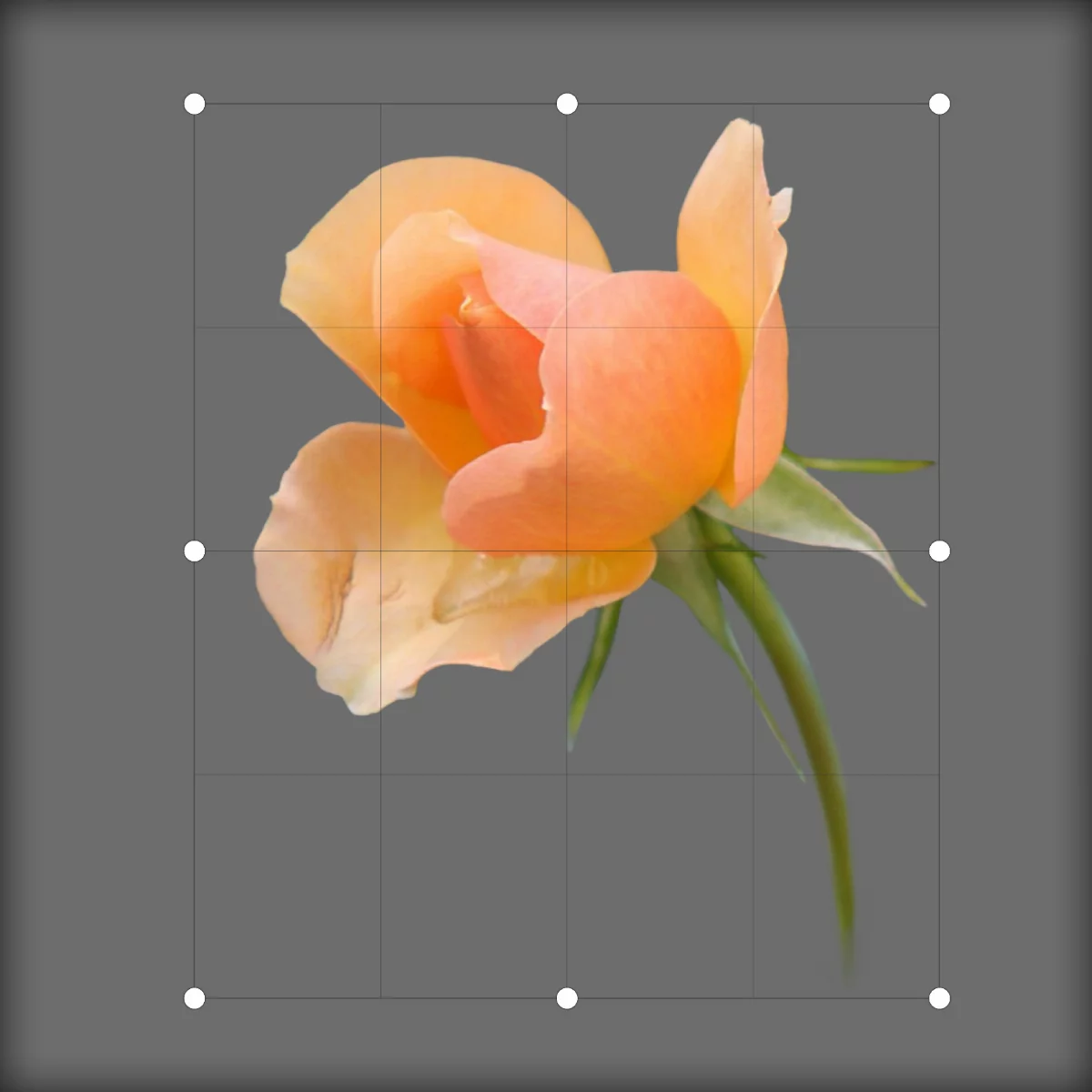
Control cage is a bounding box of the object: the smallest rectangle circumscribing the object.
Note that In Infinite Painter 7 the bounding box is aligned to the edges of the canvas (in earlier versions of the app the control cage wasn't aligned).
Control handles (control points)
Drag them to manipulate or deform the object. Learn more in descriptions of each transformation tool (mode).
Deformation grid
In Distort and Warp modes the control cage displays a grid to show the deformation.
You can transform the control cage independently from the object if necessary. Learn more in Adjusting the control cage.