
The Distort transformation mode may be used for a number of geometrical distortions of the selected fragment: stretching, skewing, free and perspective distortions. In this mode, a 4×4 grid is displayed to visualize the deformation.
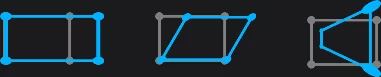

Stretching
Scale the object non-proportionally.

Stretch objects in the Distort mode with side control handles.
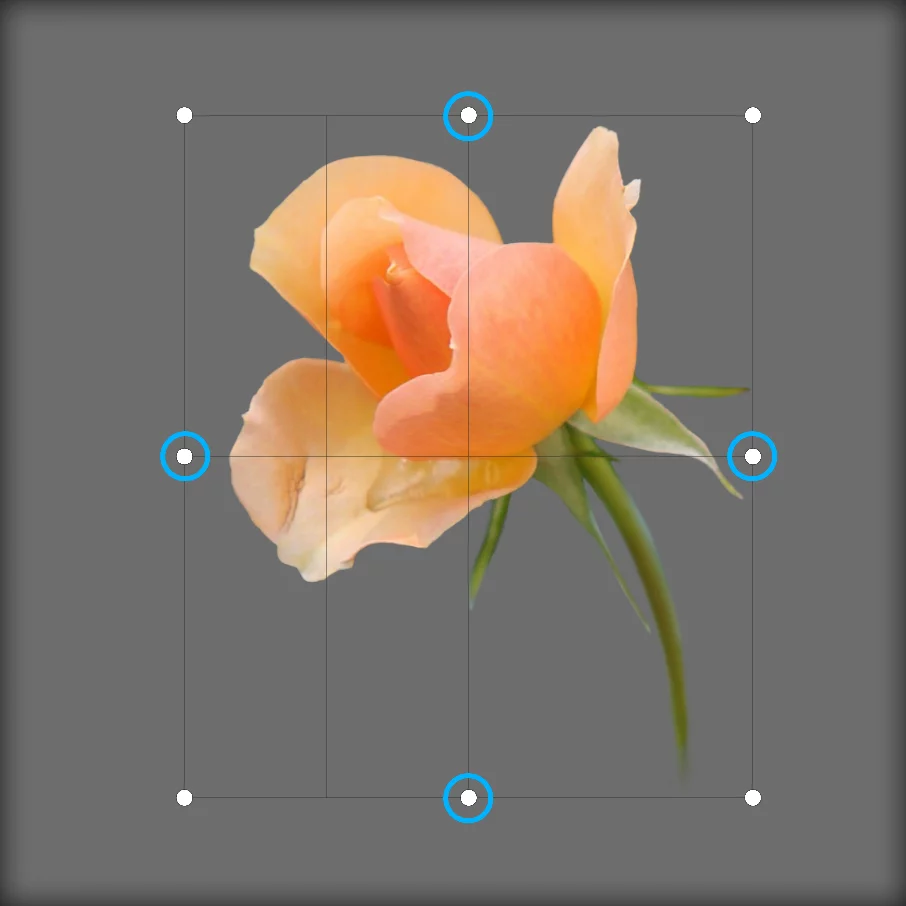
Skew/stretch handles
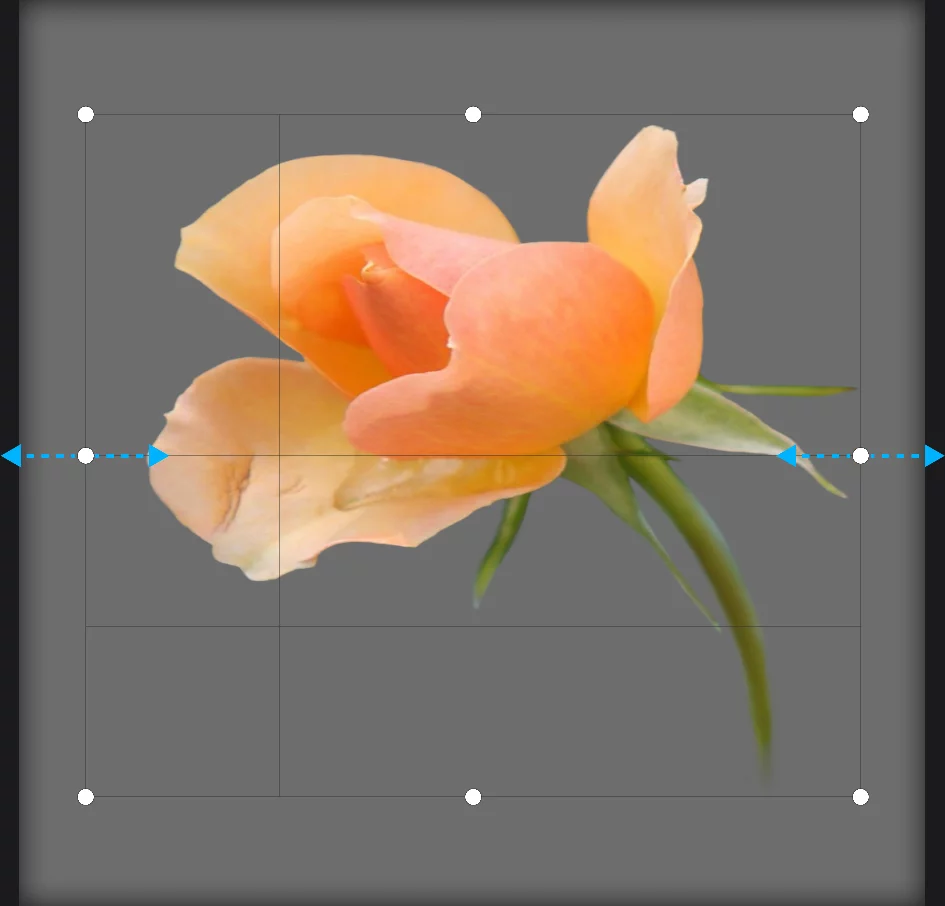
The control cage is aligned to the edges of the canvas, so stretching is exactly horizontal or vertical (unless you rotate the selection).
To stretch, drag one of the middle handles perpendicularly to the edge of the control cage.
You can drag the same handle along to the edge to skew the object.
Skewing
More control over linear transformations.
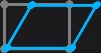
Skew objects in Distort mode with the side control handles.
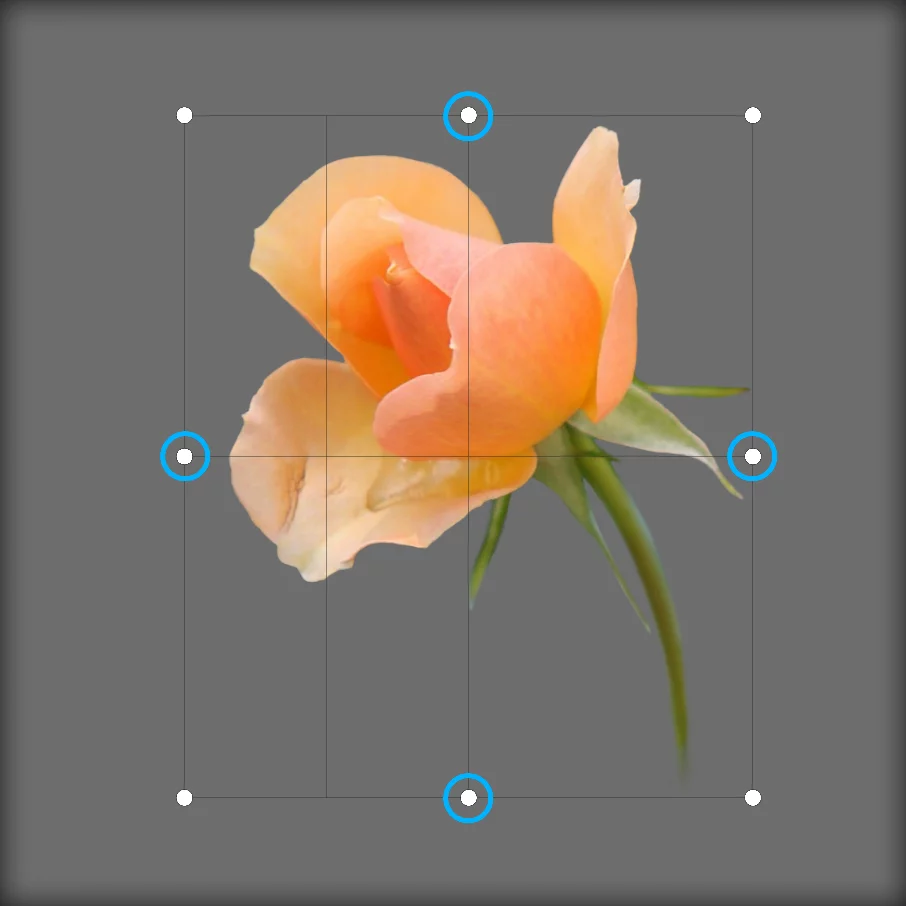
Skew/stretch handles
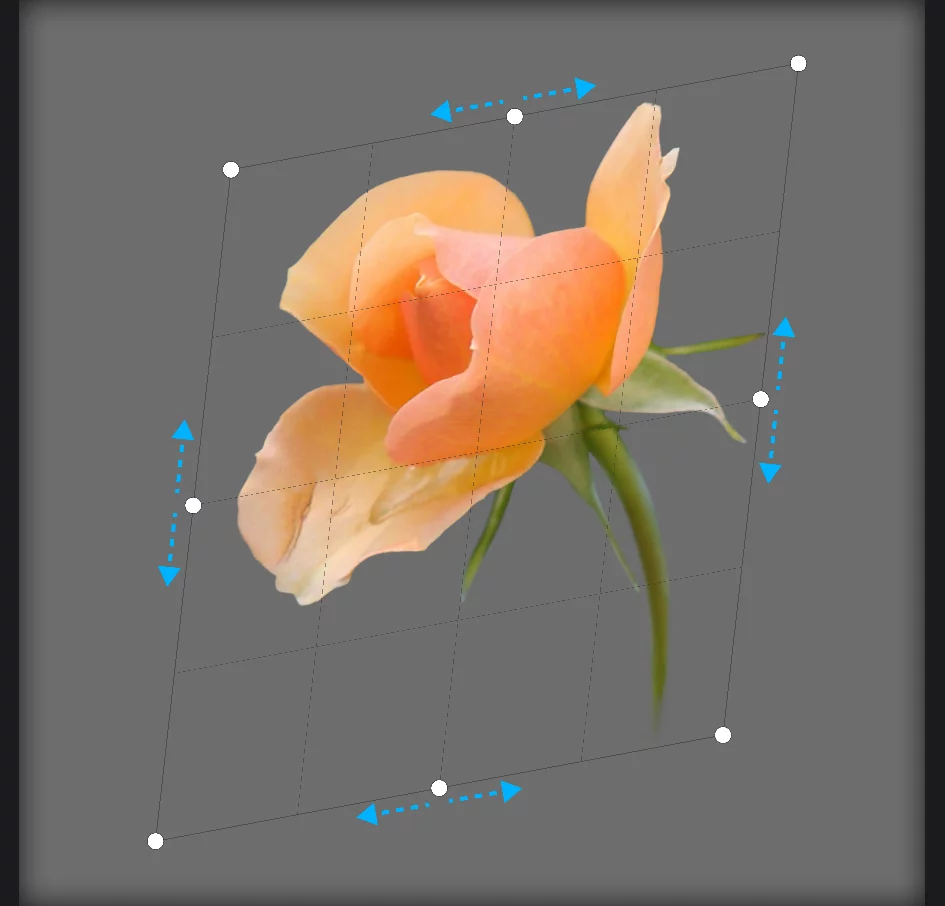
Deformation grid shows the geometric distortion.
Drag the handles along the edges of the control cage to skew the object.
Note that you can drag the same handles perpendicularly to the edges to stretch the object.
Free distortion
Freedom of creation.
Distort mode lets you deform objects with the corner handles.
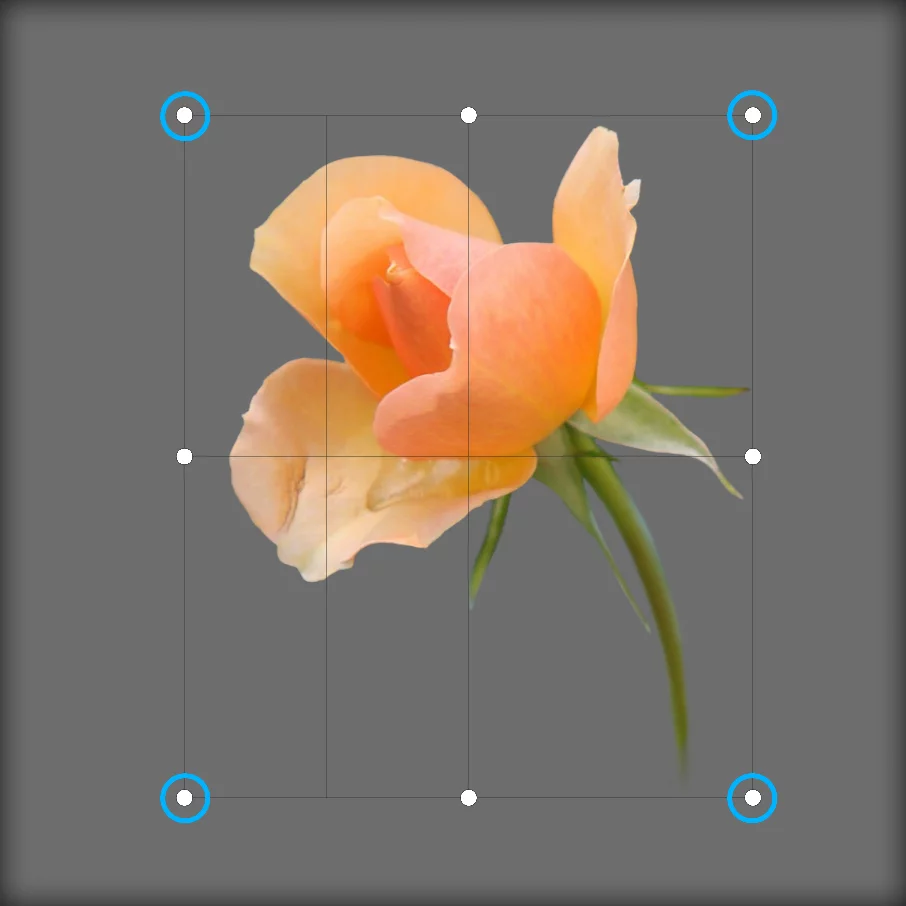
Deformation (corner) handles.
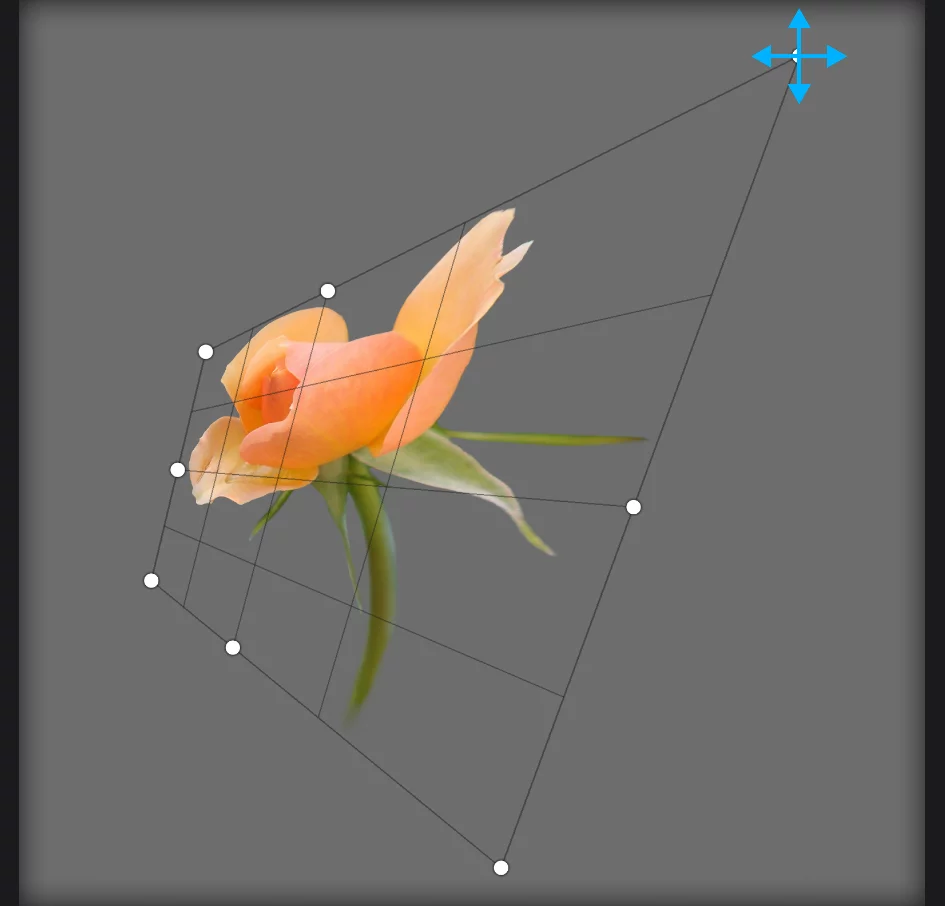
Drag the corner handles to deform the object
Deformation grid shows the geometric distortion.
Note that the by moving the corner control handles you create an imaginary perspective plane. Infinite Painter allows you to move the object (and its copies) within this imaginary perspective plane. Learn more below, and in Transformation Stamp.
Perspective distortion
Watch the 3D magic.
Create illusion of perspective with the Distort tool: drag copies of your object within an imaginary 3D plane.
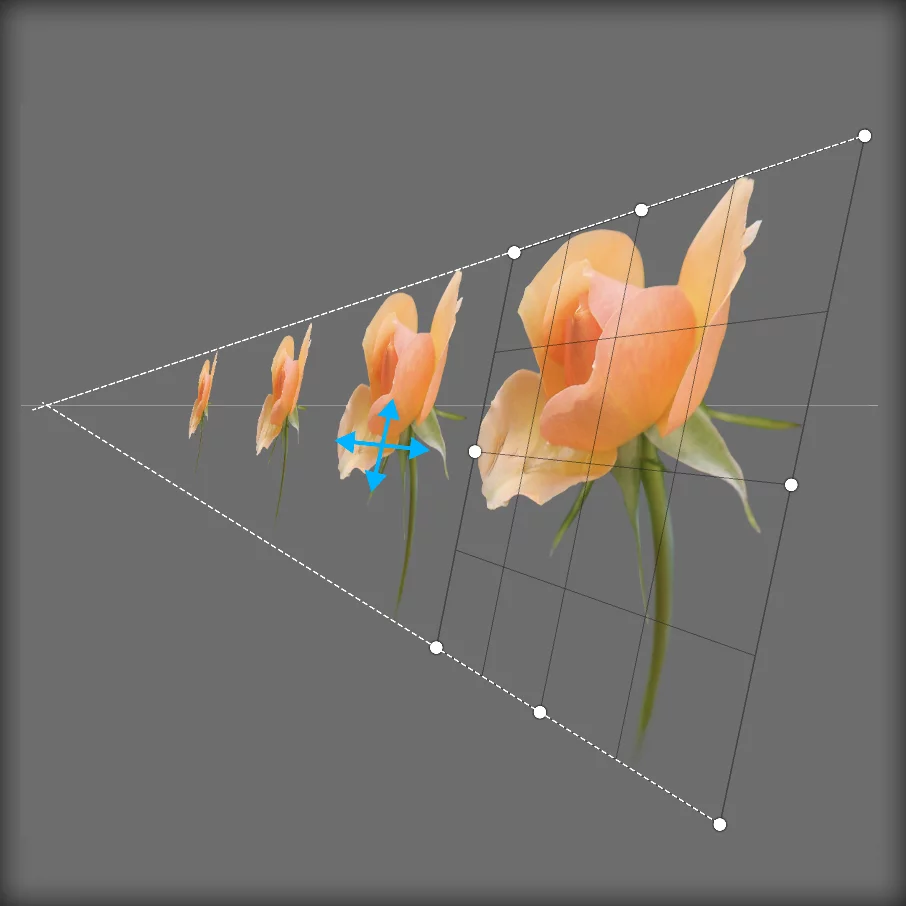
Virtual vanishing point.
Move the object within the virtual perspective plane.
The edges of the control cage define the virtual perspective plane.

Use the Stamp button to create copies of the transformed object. Learn more in Transformation Stamp.
Note that the movement within the imaginary 3D plane is consistent only until you adjust the distortion (move the control handles).