
Overview
Swatch palettes in Infinite Painter are sets of color swatches (samples) that can be used in any artwork.
A number of named palettes come with the application and new sets can be created or imported.
The swatch palettes in the Color panel appear in two forms: the large Main Swatch Palette tab and the compact palettes under the color wheel and color sliders. Both large and compact palettes are synchronized.
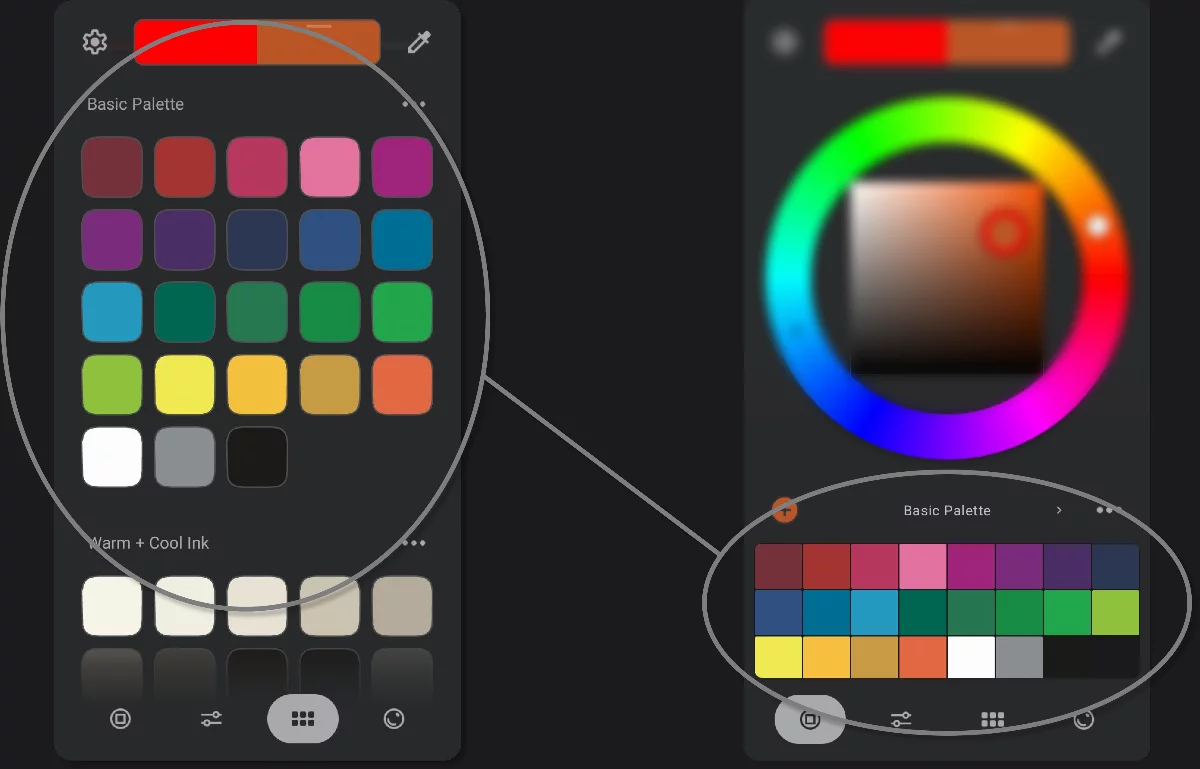
The Main Swatch Palette tab
Compact swatch palette under the color wheel.
Main Swatch Palette
Your color library.
The main swatch palette is actually a collection of palettes
Pick any color from one of many carefully designed palettes that come with Infinite Painter 7.1.
Name of the current palette
Tap on the name label to quickly select another palette from the current set.
Learn more about using the swatch palettes in Managing the swatch palettes.
Tap on a swatch
to set it as the current color
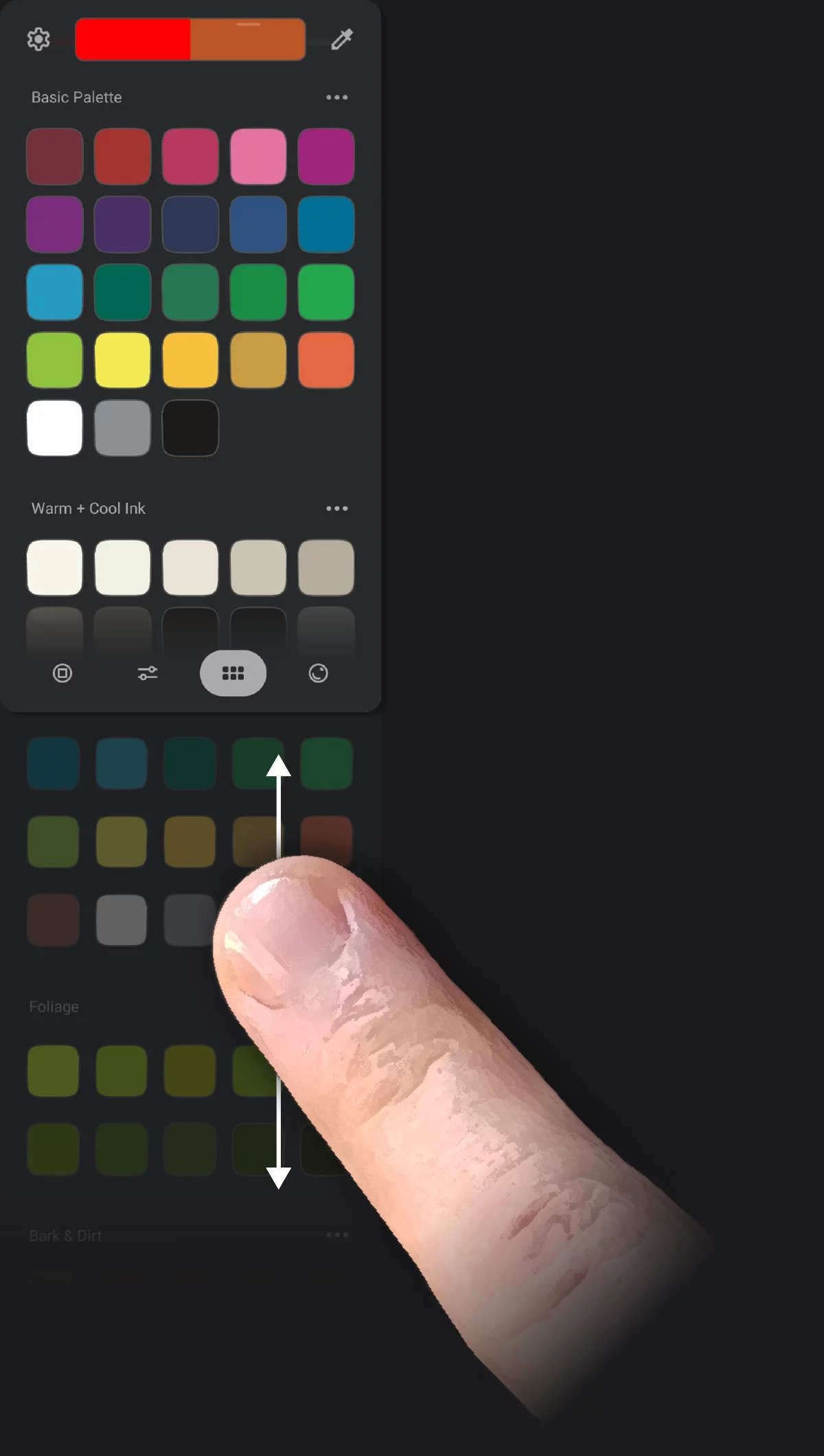
Scroll the palette
to see even more palettes in the collection.
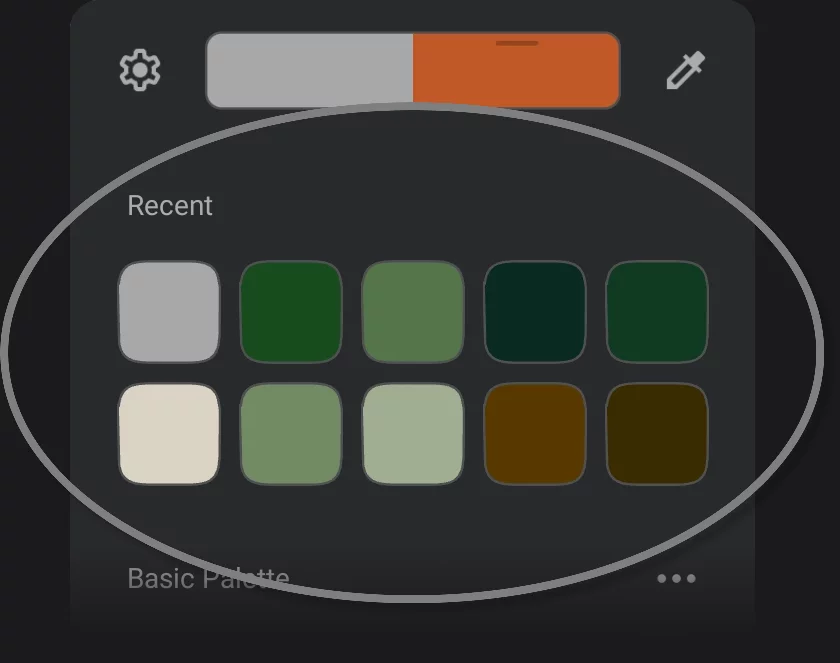
The palette tab displays the recently-used colors at the top.
Learn more about the color history feature in Color history.
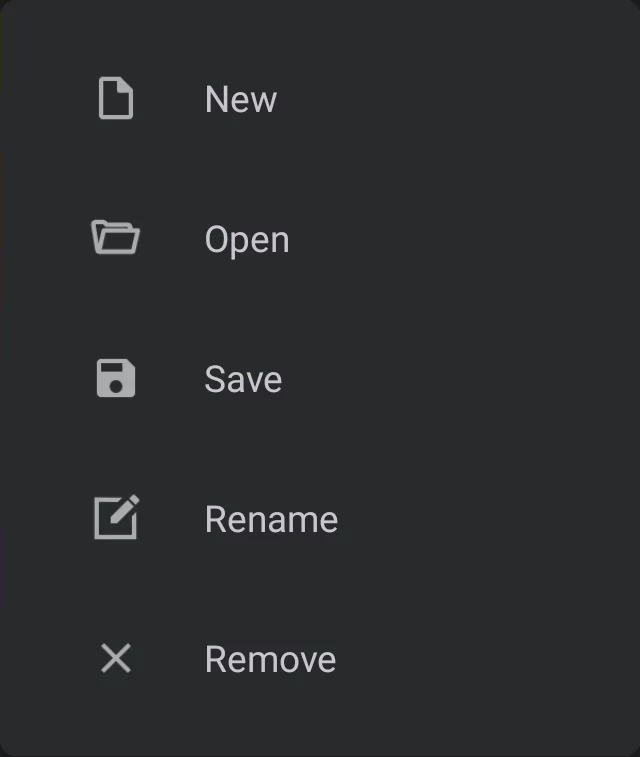
Palette options menu
This menu is also accessible from the compact palettes. More below.
Remove
removes the palette only from the current collection; the palette still can be found in the main palette library. More Swatch palette library.
You can add more palettes to the collection with the "+" button at the very end of the collection.
Managing the swatch palettes
You may have more of them.
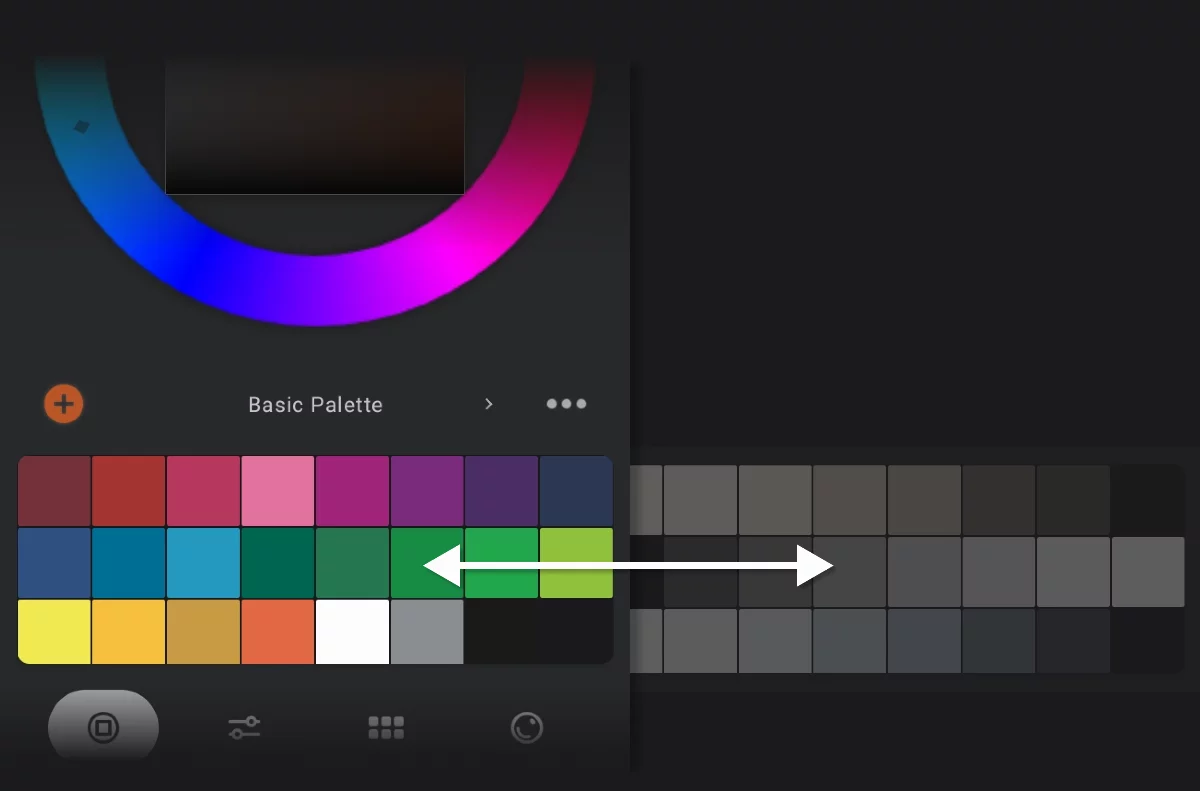
Name of current swatch palette
Tap on it to quickly pick another palette from current collection
Tap a swatch
to set it as the current color
Options
Tap to open the menu
Scroll down
to see more swatches
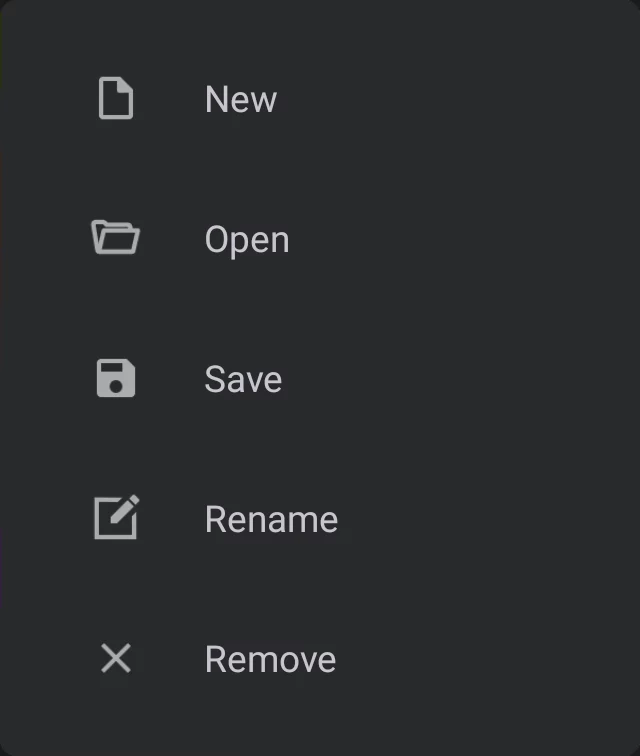

New
Create a new, empty palette

Open
a palette from list

Save current palette as new

Rename current palette

Remove the palette from the current collection. It will no longer be displayed in the panel, but will remain in your library. You will be able to bring it back via the Open command.
Swatch palette library
This screen shows all available swatch palettes. Pick those you want in your current collection (so they will show up in the Color panel).
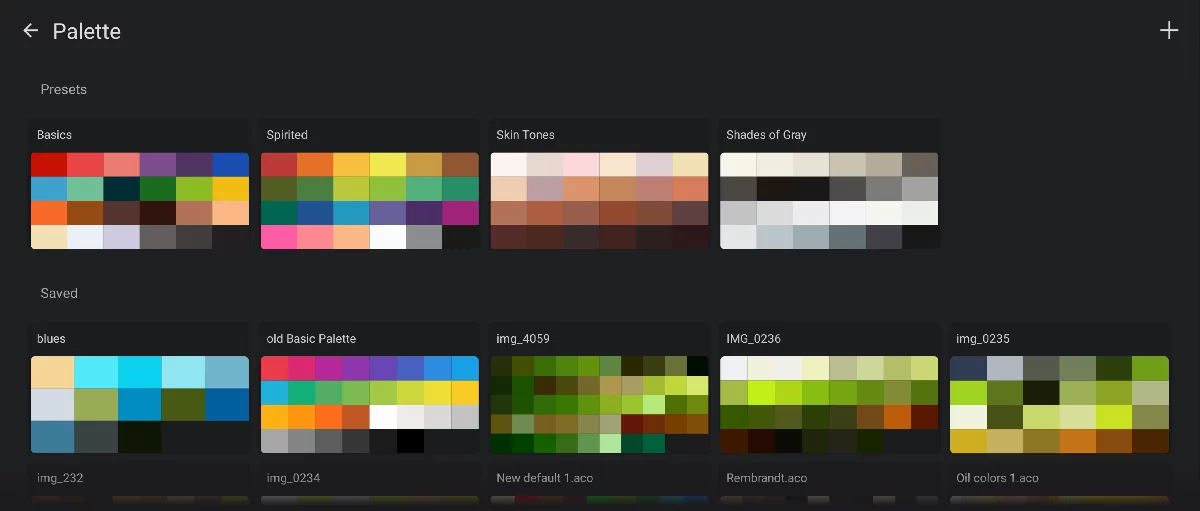
Presets
The built-in palettes that come with Infinite Painter. These cannot be removed from the library.
Custom palettes
You can create or import any number of custom palettes. Note that these will not show up in your current collection until you select them.
Tap on a palette thumbnail
to use this palette in the color panel (it will be added to the current collection).
Add a palette to the library. See Swatch palette library.
Palette options
Long press on a palette to access the options:
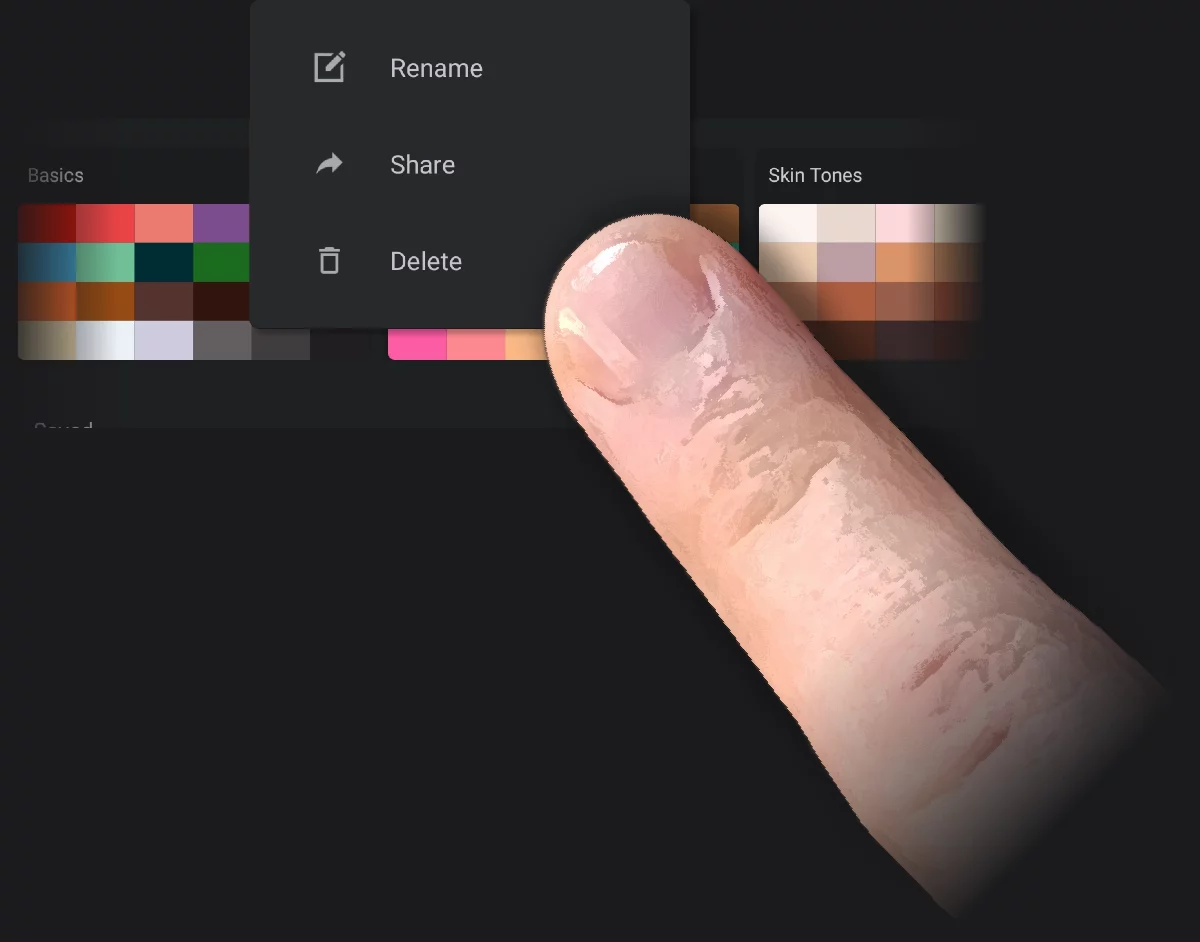
Long press
on a palette thumbnail to bring up the options popup.
Rename
Change the name of the palette.

Share
Save the palette in .clrs format. Learn more in Exporting assets.

Delete
the palette from the library. Deletion is irreversible.
You cannot delete default palettes.
Importing palettes
Import sources
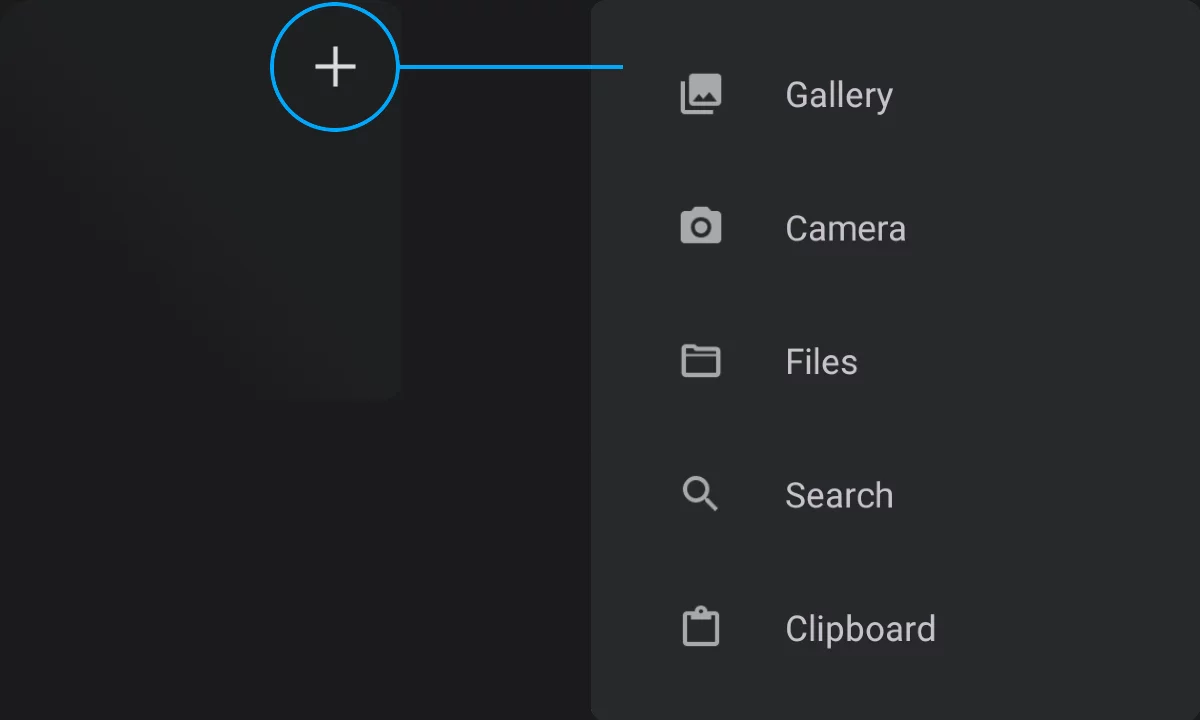
Add a palette to the library
Learn more about importing in Importing assets.
You can add a swatch palette from various sources:
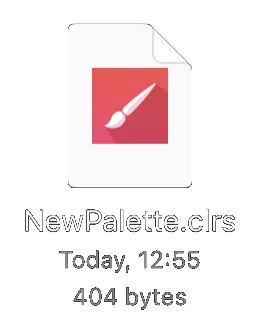
Add an existing swatch palette
from a CLRS (.clrs) file (you have to use the "Files" as the source). CLRS is a proprietary palette format used in Infinite Painter.

Generate a Smart palette from an image file
The new palette will be generated without importing the source images and will be 'frozen'. The image will not appear in the Studio. Learn more about the Smart palettes in Smart palette.

Grab a color palette from real objects using your device’s camera.
Simply select Camera as a source and take a photo; the colors will appear as a new palette in your library. The photo will not be saved on your device.

Currently Infinite Painter's swatch palettes are not compatible with color palettes from other applications.
Editing swatch palettes
Create your own sets of colors
Add current color to the palette
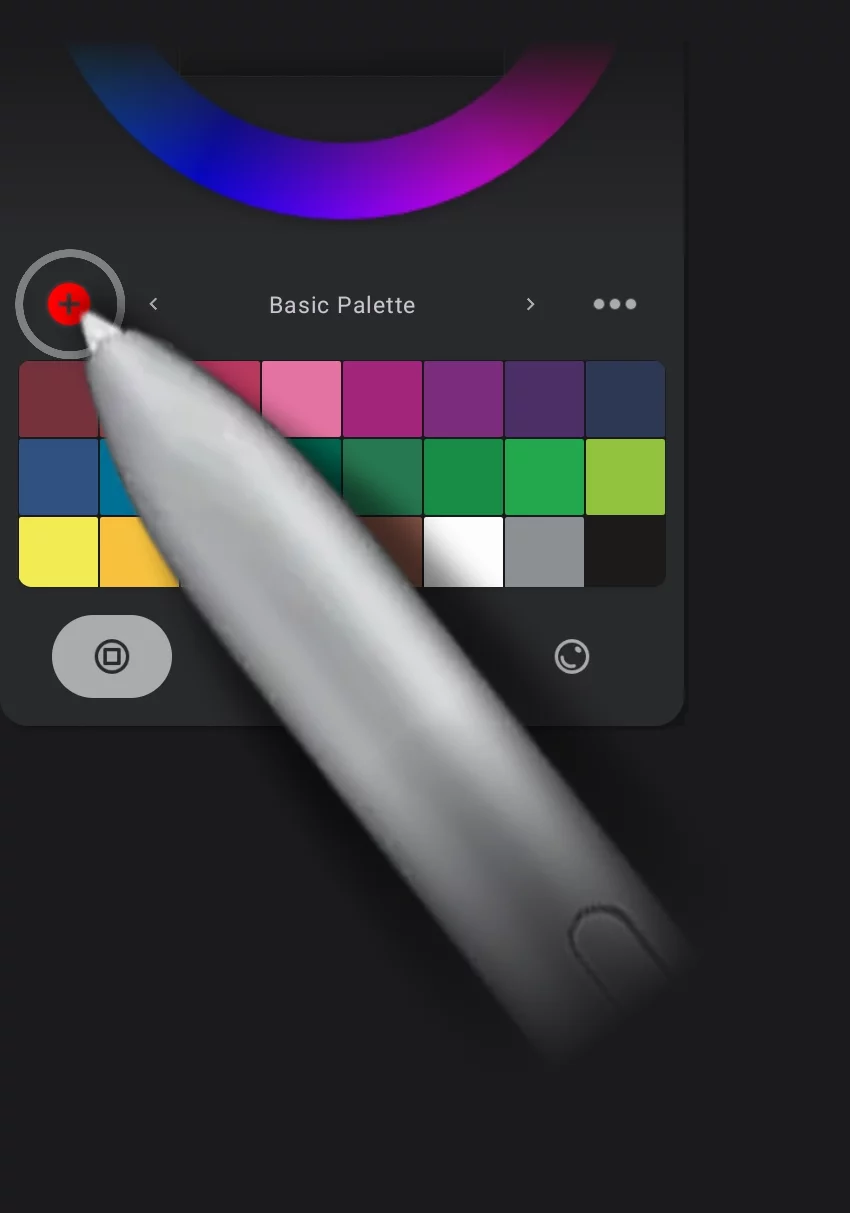

Tap the + button to add the current color at the end of the palette.
Reorganize color swatches
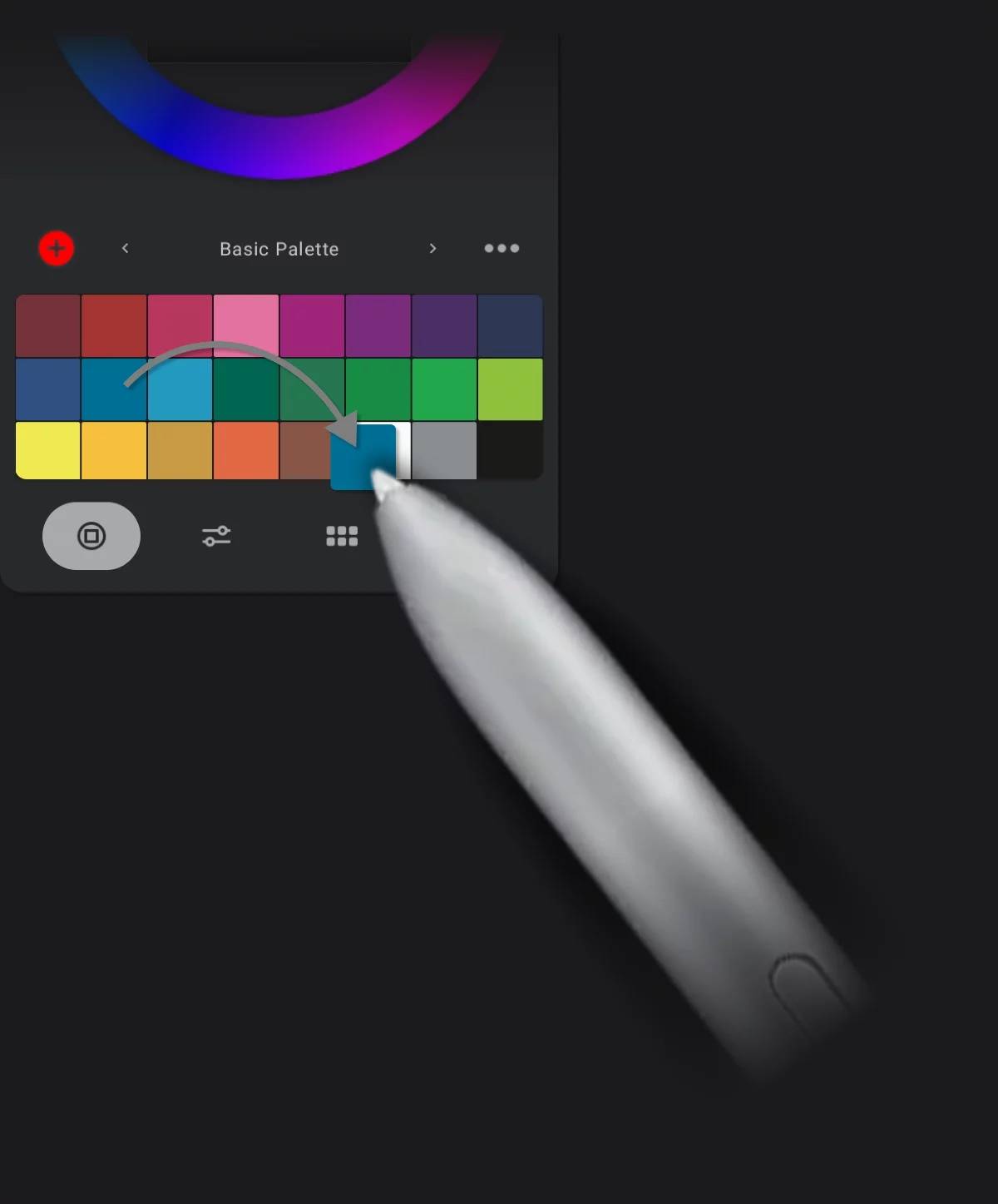
Long press and drag a swatch to move it to other location.
Delete a swatch
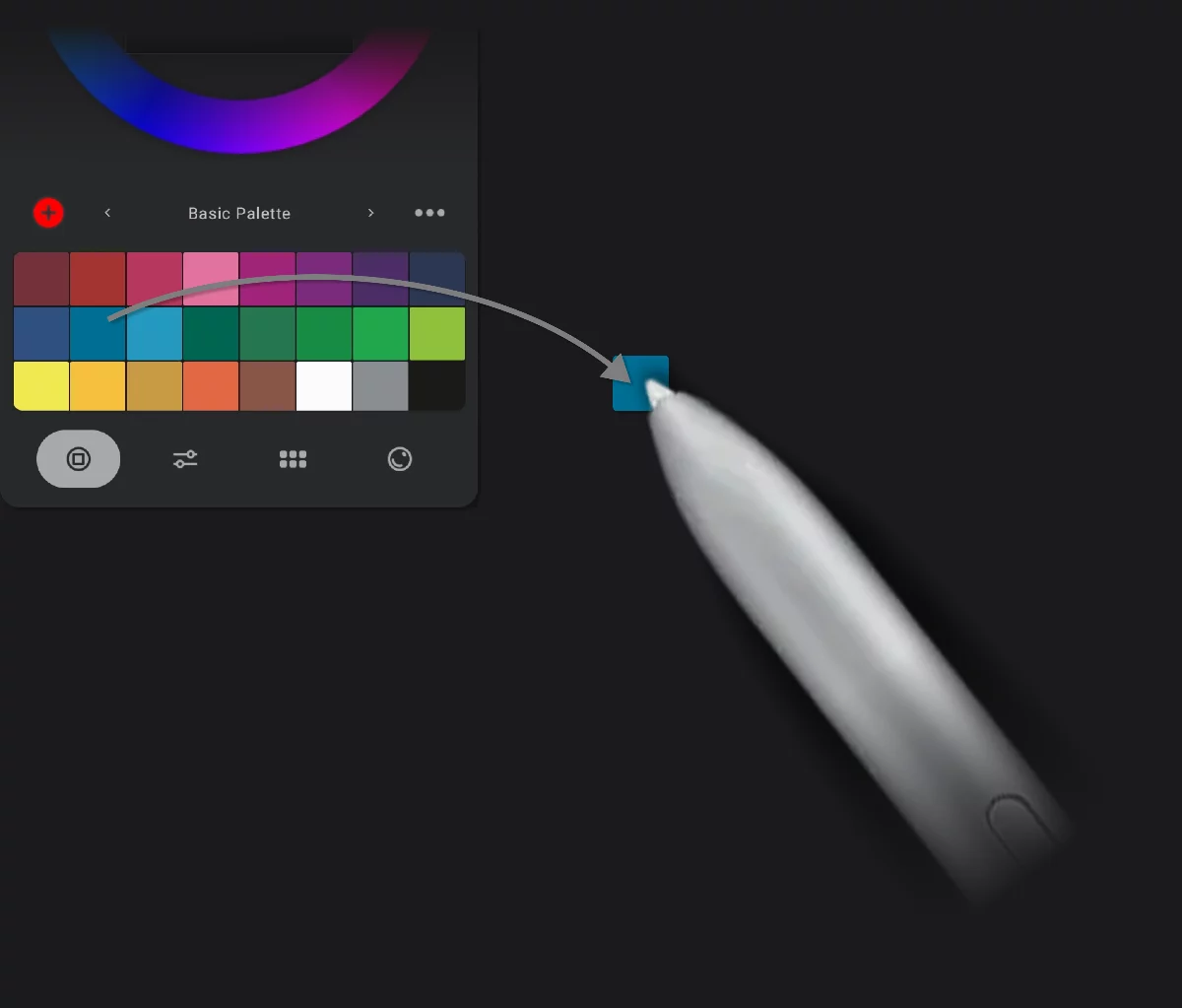
Long press and drag the swatch outside the palette to delete it.
Be careful, it is quick, but irreversible.
Save the edited palette under a new name. See “palette options” above.