
Overview
Just like in Photoshop.
You can add a bitmap mask to a layer to mask out unwanted fragments non-destructively
Layer mask in Infinite Painter is an 8-bit (grayscaleGrayscaleIn computer graphics, image editing and digital art, grayscale refers to images and image encoding with only a single channel for “intensity” or “amount of light”. In other words, a monochrome image composed exclusively of shades of gray.
Commonly (but incorrectly) referred to as “black-and-white”.) image that can be edited (almost) like a regular layer. The mask hides or reveals parts of the masked layer depending on the brightness of the pixels of the mask.
White areas on the mask reveal the layer content, black areas hide it.
You can paint on the mask, apply filters, tonal adjustments and any other tools to it.
Note that you actually cannot see the mask while editing. You can only see the result of the masking.
In order to add a mask to the current layer, tap on the layer’s thumbnail to open the options pop-up:
Layer options
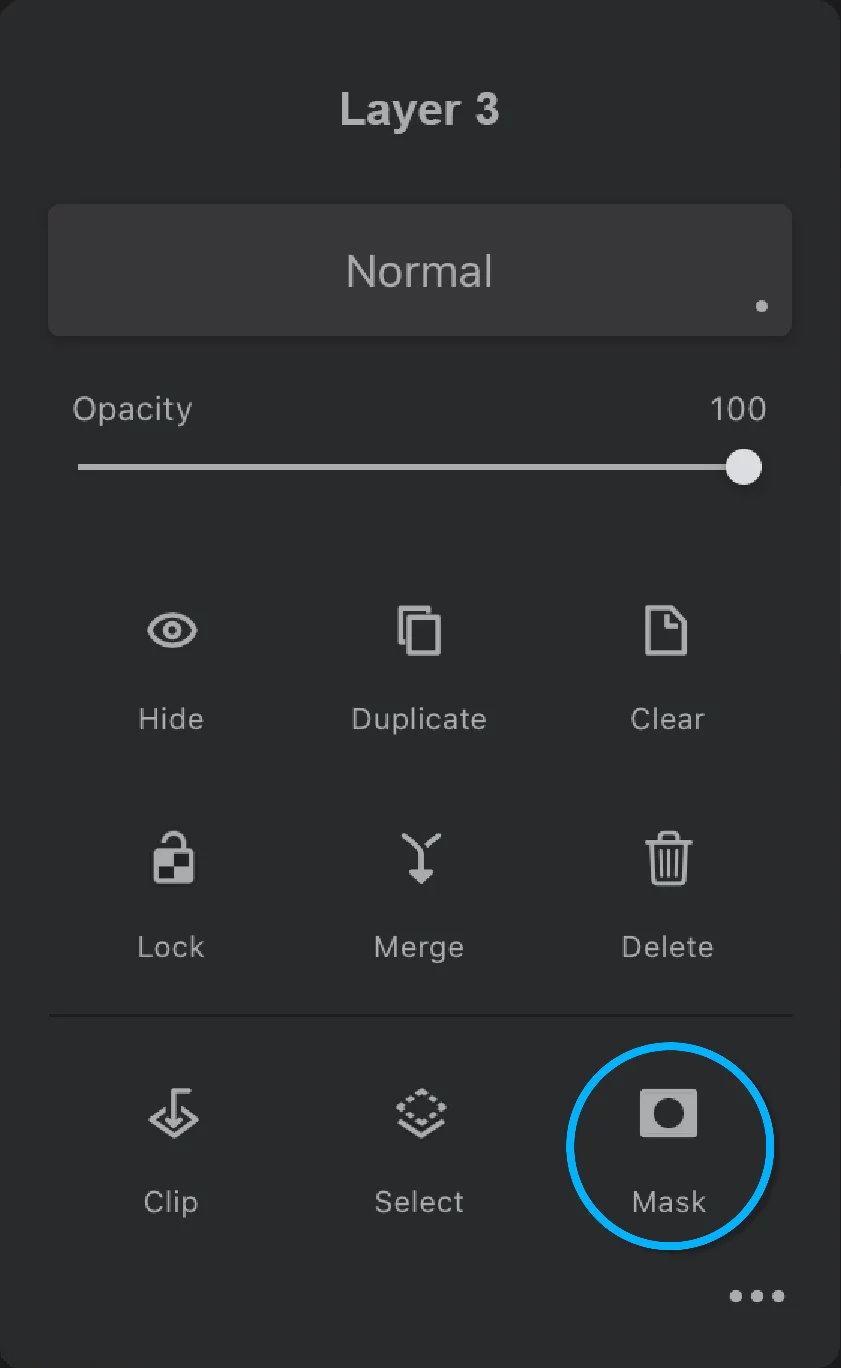
Tap on the Mask icon to add a mask to the current layer
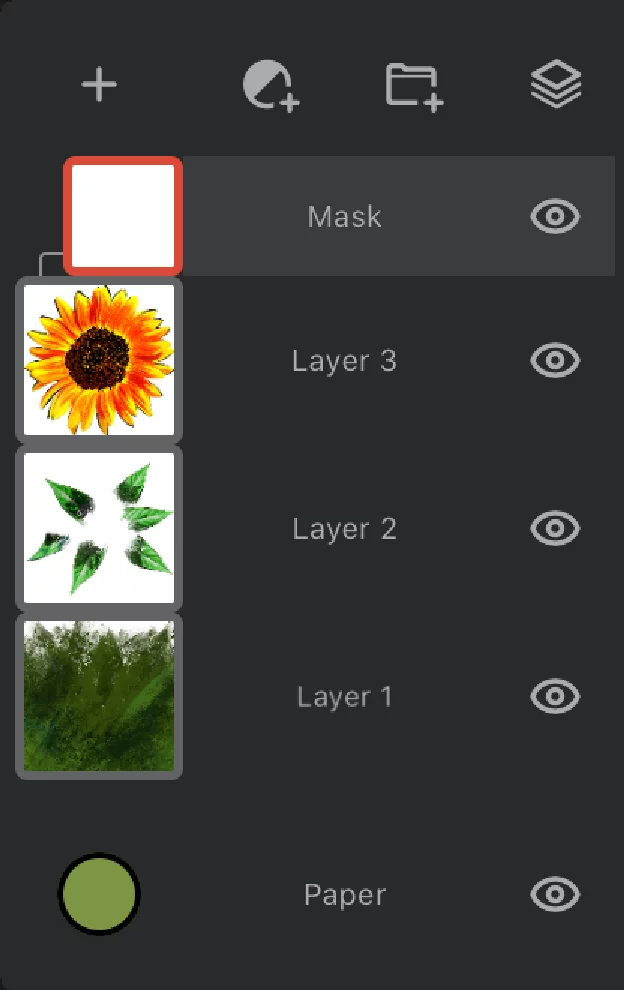
The mask is initially filled with white so it reveals the entire layer.
Paint with black on the layer mask to hide fragments from the content layer. Learn more in Using layer masks.
You can add a mask to a regular layerLayerA layer is a separate RGBA image (usually) of the size of the canvas. Layers can be stacked on top of each other. , to an adjustment layerAdjustment layerA special, non-editable layer that works as a real-time adjustment or filter for all the underlying layers. There are various types of adjustment and filter layers.Learn more /filter layerFilter layerA special layer that applies a filter to the layers below in the layer stack. The layers below it can be edited with the filter being updated in real time.Learn more or to a group of layersLayer groupA number of layers bound in a temporary unit. Groups (a.k.a. layer folders) can be nested within other groups.Learn more. Only one mask can be added to each layer. More in Using layer masks.
Layer mask — options
Control your mask.
Tap on the mask’s name to open the options pop-up:
Layer mask options
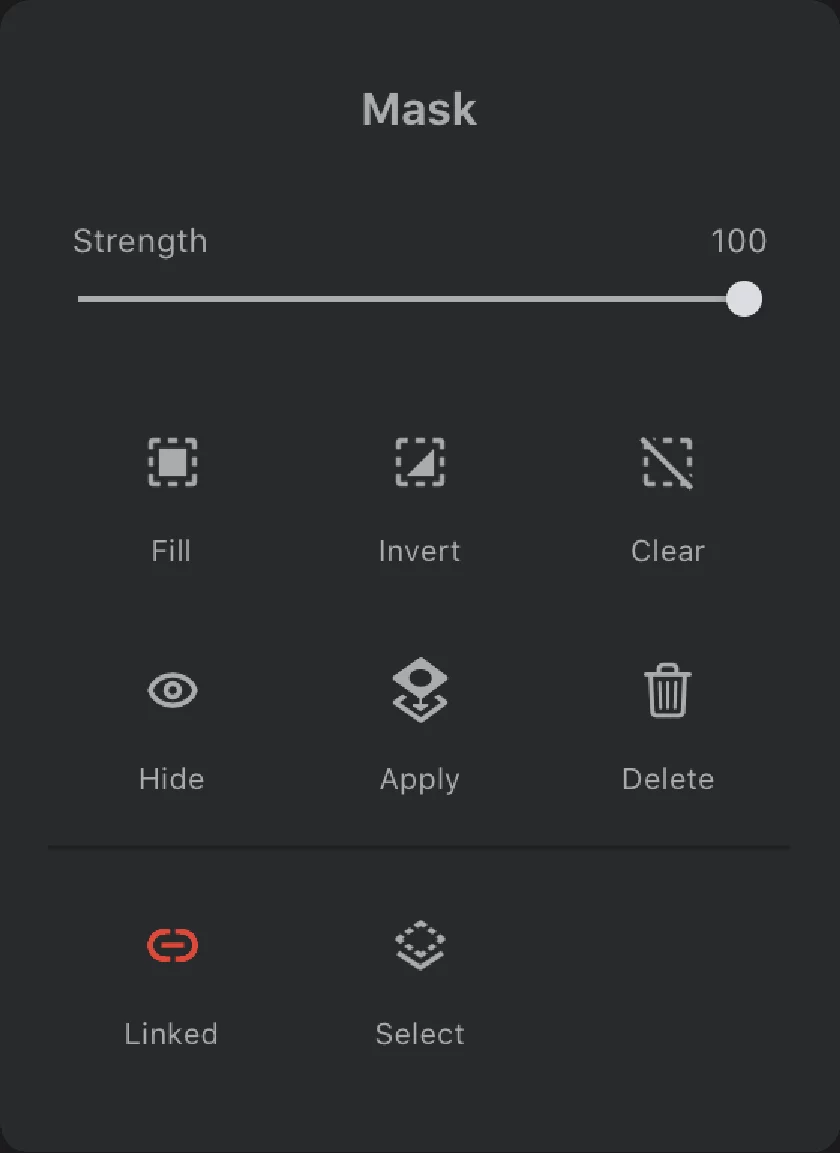
Mask name
(You cannot edit the name; a mask is always a mask)
Mask strength
May be considered the mask's opacityOpacityMeasure of how much a layer (or a pixel on a layer) obscures the background. Zero opacity means full transparency; 100% opacity means that no background is visible..

Fill
Fills the mask with black. This makes the content layer completely invisible (of course only if the mask’s Strength is 100%).

Invert
Inverts the tonal curve of the mask (creates a negative). Parts that were transparent will be opaque and vice-versa.

Clear
Fills the mask with white; this makes the content layer fully visible (if the Strength is 100%).

Hide or show
Toggles the visibility of the mask.

Apply
Applies the mask to its content layer permanently (and removes the mask).
This permanently deletes the masked out areas from the content layer and permanently deletes the mask bitmap too.

Delete
Removes the mask from the layer.
The mask contents is permanently lost. This does not affect the masked layer.
If you wish to turn off the masking only temporarily, use the Hide option instead.

Linked (toggle)
If on (default), the mask will be transformed along with its contents layer. Turn it off to be able to transform the mask independently (or to transform the contents layer without transforming the mask).

Select
Makes a selectionSelectionA selection is a defined region of your canvas that can be used to edit its content or to limit the application of painting tools (like a stencil). Technically, a selection is an 8-bit (grayscale) mask image which defines the selected vs. masked areas of the canvas. based on the mask's opacity. More in Selecting layers.
Using layer masks
Paint a mask.
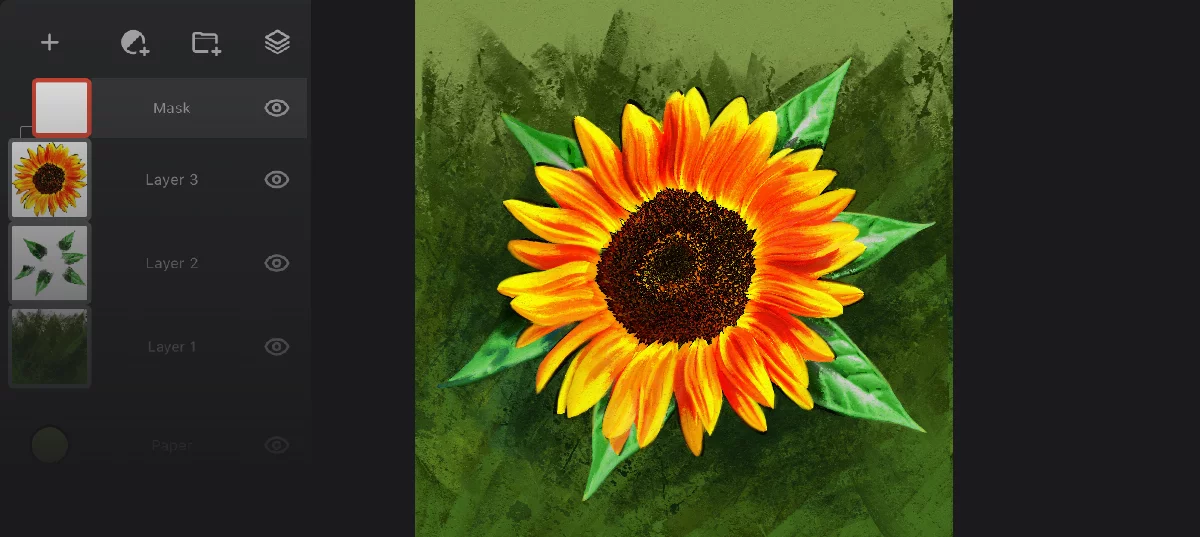
Empty layer mask
(white indicates full opacity of the content layer).
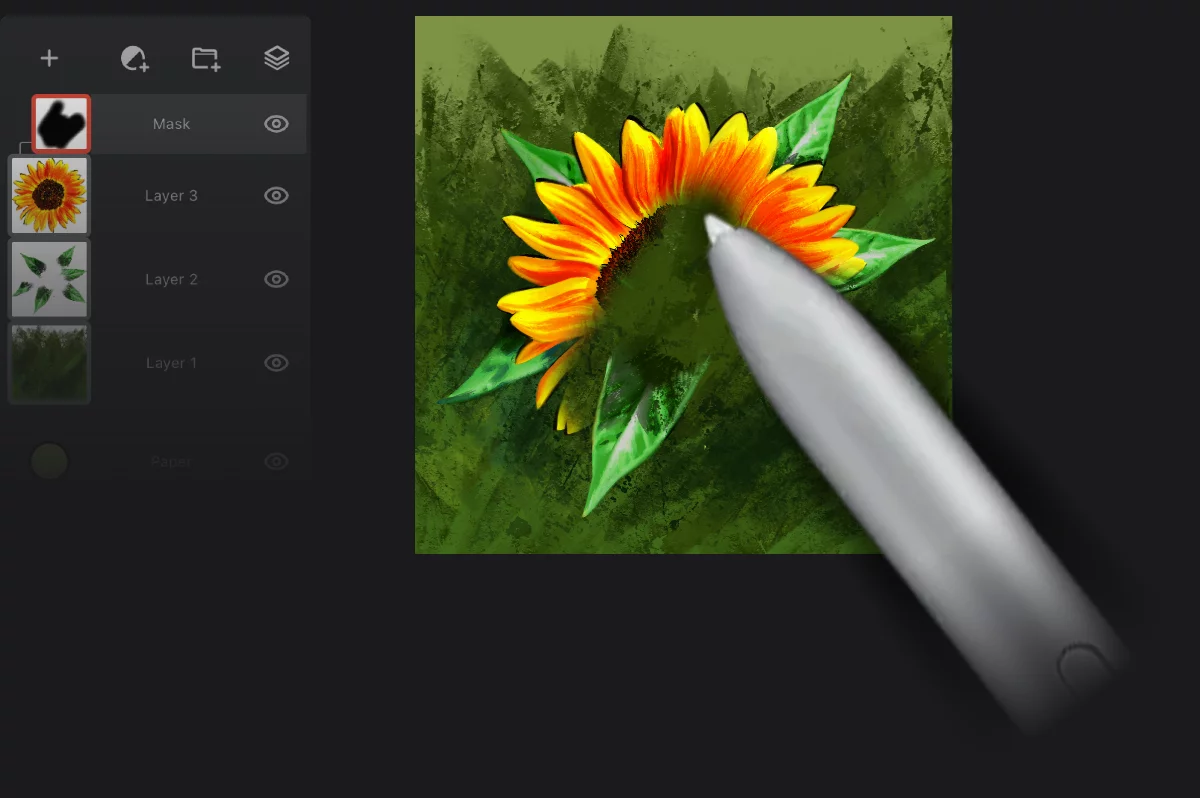
Layer mask edited
(black areas on the mask indicate transparent areas of the contents layer)
Paint on the mask
You may use any brush in any brush modeBrush modeOne of the three main ways the brushes in Infinite Painter work: in the Paint mode the brush applies the color, in the Blend mode it blends or smears existing colors on the canvas, and in the Erase mode it removes the color. Technically, the Cloning is actually a brush mode too.Learn more (Paint, Blend, Erase and even clone) and most of the other tools and functions on layer masks.
Dark colors on the mask add transparency, bright colors reveal the content of the contents layer.
Make sure you are editing the mask, not the layer itself.
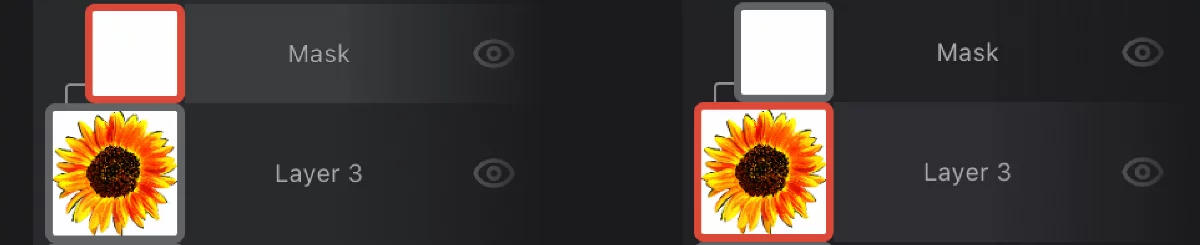
The mask is active
The layer is active
Editing layer masks
In black-and-white.
A layer mask is an 8-bit (grayscale) image adding an extra alpha channelAlpha channelIn the RGBA color coding, the Alpha channel defines transparency of the image. Each pixel has defined opacity (usually in 0–255 scale). to the contents layer.
The mask adds transparency in a non-destructive (reversible) way.
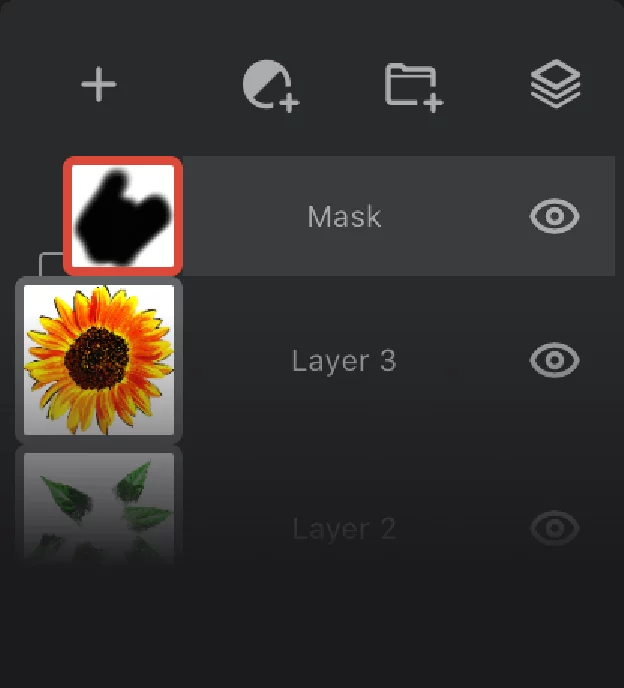
Active layer mask
You can paint on the mask but you actually cannot see the mask while editing. You can only see the result of the masking.
What you see vs. what actually happens when you are editing the layer mask
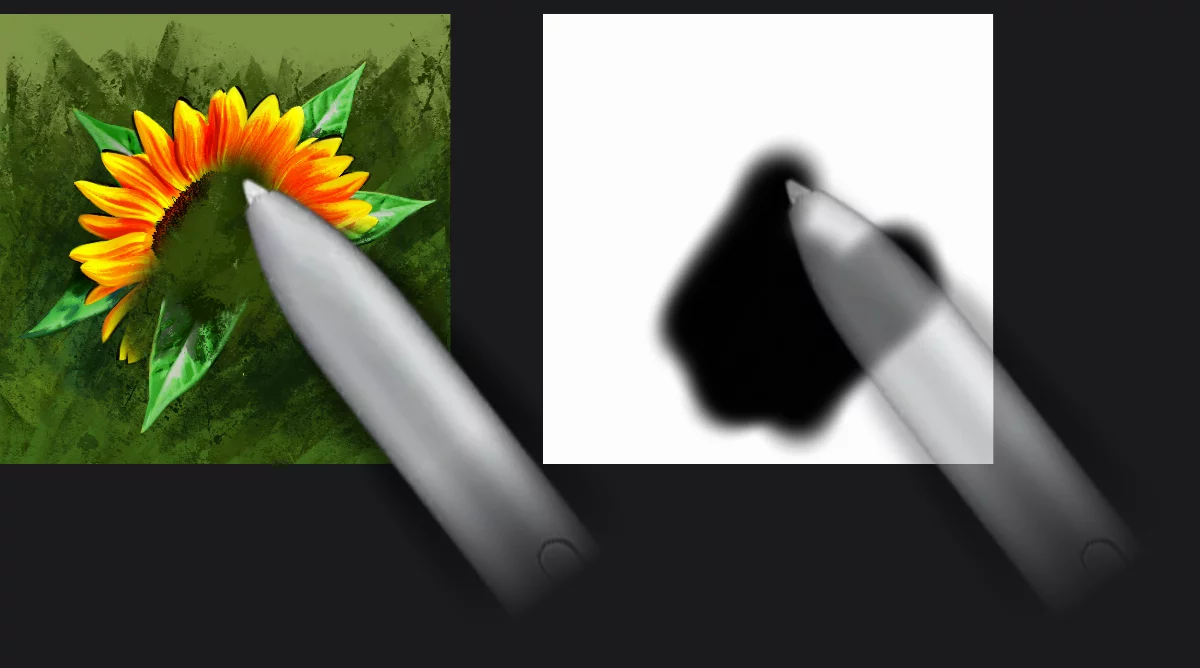
You are editing the mask but you don't see the mask itself.
Dark colors on the mask add transparency, bright colors reveal the content of the content layer.
This is what you see while editing a layer mask
This is what actually happens on the mask
Creating a layer mask from selection
Make it fast.
You can apply a selectionSelectionA selection is a defined region of your canvas that can be used to edit its content or to limit the application of painting tools (like a stencil). Technically, a selection is an 8-bit (grayscale) mask image which defines the selected vs. masked areas of the canvas. as the layer mask immediately. In fact just add a mask while having the selection active.
First, make sure you have a selection defined and active
The active selection indicator appears on the top bar, next to the Selection menu icon
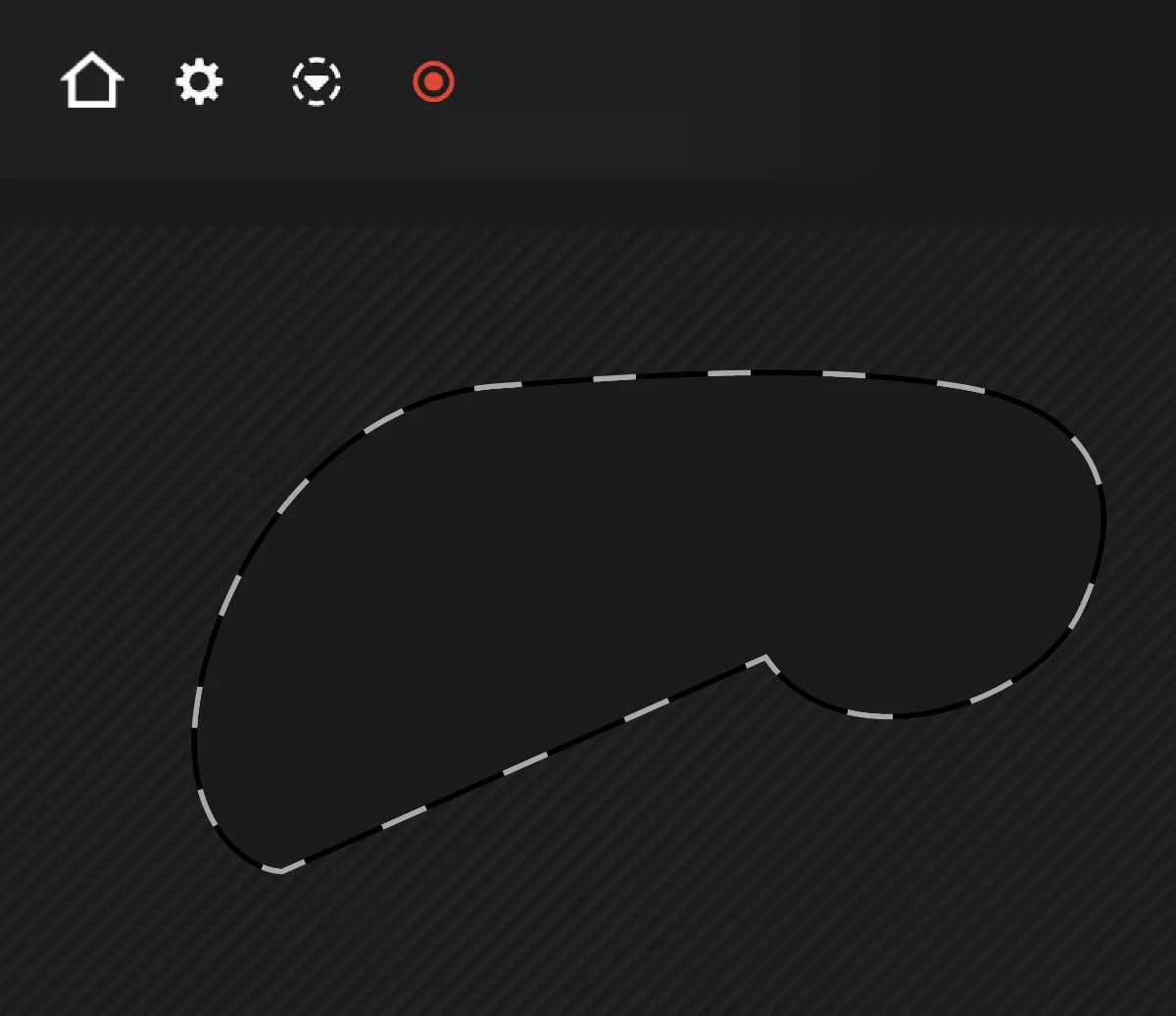

(the red dot indicates active selection)
Active selection (example)
Learn more about using selections in Infinite Painter in Selection tools section.
Then add the layer mask as usually (see Layer masking — overview).
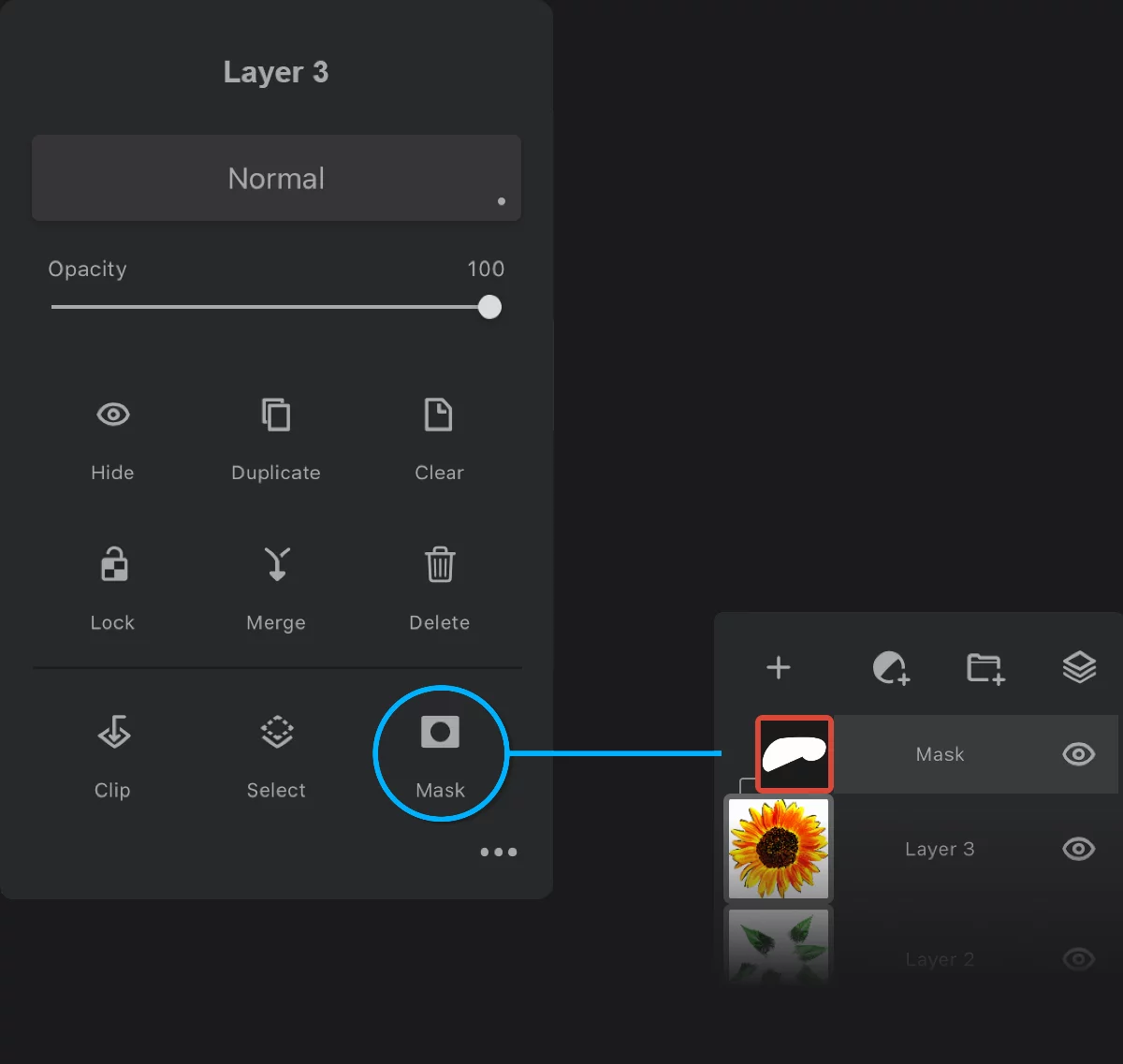
Layer options panel
The newly created mask contains the selection mask.
The selected areas will be white (revealing the contents layer), masked-out areas will be black.
If you want to copy the mask to another layer, use the Select command in the Layer mask — options to make a selectionSelectionA selection is a defined region of your canvas that can be used to edit its content or to limit the application of painting tools (like a stencil). Technically, a selection is an 8-bit (grayscale) mask image which defines the selected vs. masked areas of the canvas. from the original mask; then immediately add a new mask to the target layer.