
Welcome to Infinite Painter! Here you will learn everything you need to use the full potential of this powerful painting application.
Infinite Painter application
Definitely not only for painting.
Infinite Painter® is a sophisticated mobile application for painting, drawing and crafting digital images.
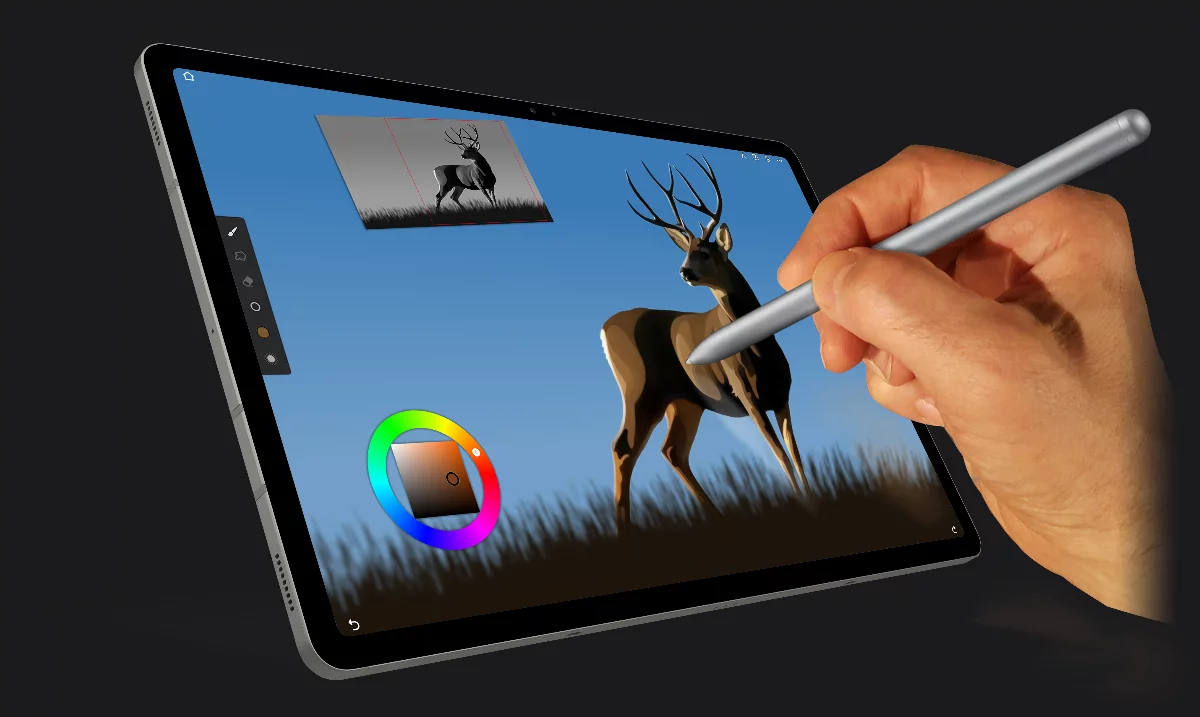
Infinite Painter works on any Android tablet or smartphone*; also on Chromebooks, Apple iPads and iPhones**.
Infinite Painter works best with a stylus (like the Apple Pencil®), but you can equally well paint with your finger. Note that the smartphone version has certain limitations due to small screen size.
The Creator
Infinite Painter® is a product developed by Infinite Studio LLC.
See About the company or visit www.infinitestudio.art for more information.
Infinite Painter's main features
Desktop power in a mobile application.
Superior brushes
Nearly 200 beautifully crafted brushes for every artist
Download or create new brushes
Fine-tune brush behavior with almost 100 parameters
Brushes interact realistically with paper textures
Special effects brushes
Designed for styluses with pressure and tilt support
Streamlined interface
It’s simple. It’s organized. It’s out of the way.
Highly customizable interface
Custom toolbar for quick access to favorite tools
Floating and dockable panels
Support for gestures and keyboard shortcuts
Unparalleled toolset
Four types of symmetry with up to 32 planes
Create clean geometry using guides and editable shapes
Draw precisely with automatic shape detection
Design 3D cityscapes with five different perspective grids or use a standard 2D grid
Create seamless patterns with a set of Pattern tools
Extensive set of Selection tools
Transform tools: move, scale, rotate, flip, distort, warp
Transform multiple layers simultaneously
Sophisticated Gradient and Pattern fills
Text tool and a hundred of built-in fonts for all your typographic needs
Advanced features
Project version history: restore any previously saved version of your work
Crop, resize or resample your artwork at any time
Use multiple reference images
Color selector with RGB, HSB, Lab, CMYK and Hex support
Multiple color palettes
64-bit color support
Pixel-perfect editing
Photoshop-quality layers:
Color curves: master, red, green, blue, and alpha channels
40+ photographic, artistic, and motion filters
Focus and tilt-shift masking
Liquify: move, bloat, pinch and swirl
Advanced color adjustment tools
Import and export
Import and export PSD multilayer documents
Import images from system photo gallery, camera or Pixabay™
Export images as JPEG, PNG, WebP, PSD, or ZIP
Access to thousands of free assets created by other users
Record a timelapse video of your creative process
Workspaces in Infinite Painter
Create and organize.
Infinite Painter® application consists of two main environments: the Home and the Studio.
Home screen
is basically a “file manager” where you can organize your projects, and start new ones. But not only that.
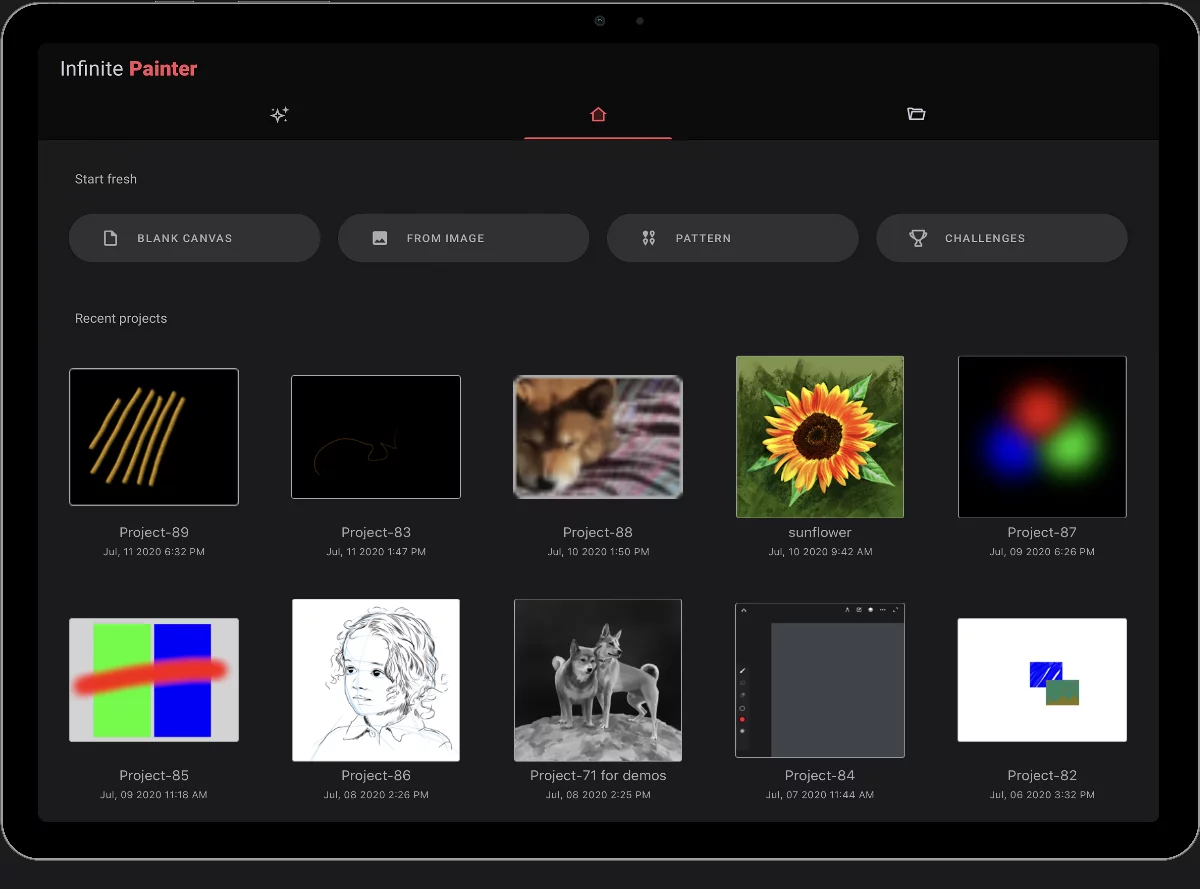
Learn more in Home.
The Studio
The place where you create.
The Studio is the main working environment in Infinite Painter; learn about it in General controls.
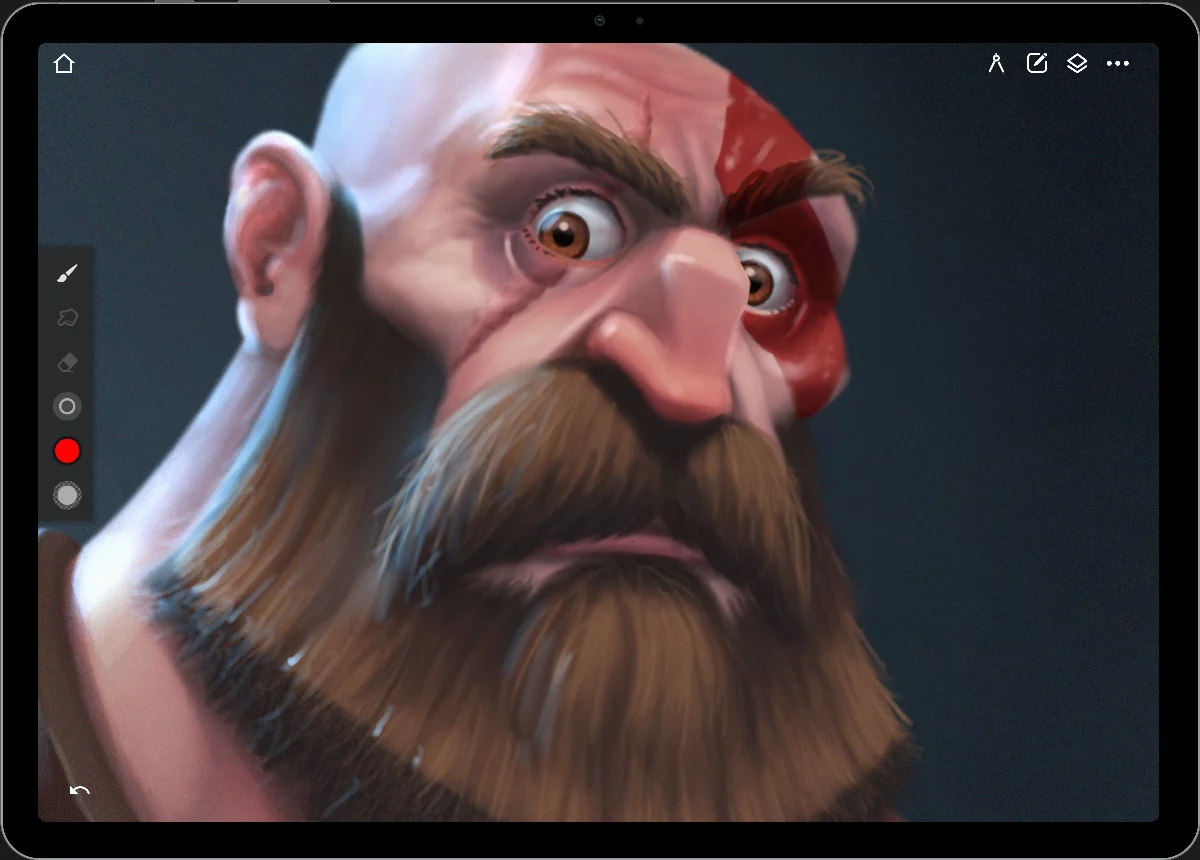
The tools available in the Studio are described in detail in the General controls chapter;
In the Studio you always see your canvasCanvasThe rectangular area of a defined size that contains the artwork. All and only the canvas will be exported or printed.: the working area on which you paint, draw and edit your artwork. Learn more about defining the size and shape of the canvas in Starting a new project. Learn about how to navigate around your canvas in Navigate around the canvas.
You can also return to the Home screen in a number of other ways: by using Open or New commands; by hitting the Back button on the navigation bar of your device (if it is enabled); by hitting the Esc key on a physical keyboard (if you have one connected to your device).
Experiment freely. Your project is being saved automatically each time you leave the Studio so you are not going to lose your work in case you forget to save it. However don't be afraid that the automatic saving is going to overwrite your previous versions: Infinite Painter remembers all your creative process. Learn more about the project version history feature in Project version history.
Installation and uninstallation of Infinite Painter
Learn about how to install and uninstall Painter in Installation and uninstallation of Infinite Painter.
Free vs. Pro versions
Infinite Painter has two main versions (modes): Free and Pro. The Free version is, well, free and you can use it without any obligations. The Pro version is paid, but you pay for it only once (there is no monthly subscription). After the purchase, you can use the Pro version on all our devices of the same hardware platform (Android or Apple iOS — see below for details). You are eligible for any future updates of the application too.
Learn more in Free vs. Pro versions.
Android vs. Apple iOS versions
Infinite Painter can be used on both Android and iOS / iPadOS devices. However Infinite Painter for Android and Infinite Painter for iOS are separate products.
Note that there are no cross-platform licenses: Infinite Painter for Android and Infinite Painter for iOS are sold separately, through separate application stores. For example, you cannot use the same license on an Apple iPad and an Android smartphone.
If you wish to use the application on both Android device and on an iPad, you have to purchase separate licenses for each platform.
Infinite Painter for Android
Can be obtained only via the Google Play store. If purchased, the license for the pro features is valid on all supported Android devices where the user is logged in to Google with the same Google account (email address) as used for the purchase. Such license covers also all Android-compatible ChromeOS devices (Chromebooks) and Android emulators on the Windows computers.
Infinite Painter for iOS / iPadOS
Can be obtained only via the Apple App store. If purchased, the license for the pro features is valid for all Apple iPadOS and iOS devices (iPads and iPhones). Also, this version can be used on Apple Silicone iMac computers (these supporting iOS applications). The license is bound to the Apple ID used for the purchase.
Both versions are compatible: you can create a project on one platform and open it on the other. Also, all the assets (like brushes, swatch palettes etc.) are compatible.
There are slight differences between the iOS and Android versions of the application, but in general, most of the tools are expected to work the same way on both platforms.
Note that this documentation covers both the Android and iOS versions of the application. Find the platform toggle in the upper-right corner of this page.
(Currently you see the Android version of this page)
Smartphone version
The same toolset on a smaller screen
Infinite Painter can be run on both tablets and smartphones, however the functionality of the application slightly differs between these two classes of devices. This documentation covers the functionality of the application on tablets. On a smartphone you have access to all the tools and functions of the application with only a few differences.
Main differences between tablet and smartphone installations:
On a smartphone you cannot create the custom toolbar. (Learn more about custom toolbar in UI customization). Still, you have access to all the floating widgets.
On certain phone models, you may have limited canvas sizes and you could create fewer layers in the project, due to lower amount of RAM memory. And, obviously, the smartphone interface is more compact.
On selected smartphones, like Samsung Galaxy Note series, you can use a dedicated, pressure-sensitive stylus. On all other devices you can use third-party styluses (Bluetooth or capacitive) or enjoy finger painting. This however does not support pressure and tilt control in brushes.
Note that if you have purchased Infinite Painter on your Android tablet, you can use it on your Android phone too, with the same license. The license is bound to your Google account used for the purchase; make sure to be logged in to Google with this account on each device.
You can exchange project files (in PNTR format) and brushes (as PRBR or PRZP files) between your smartphone and your tablet.