
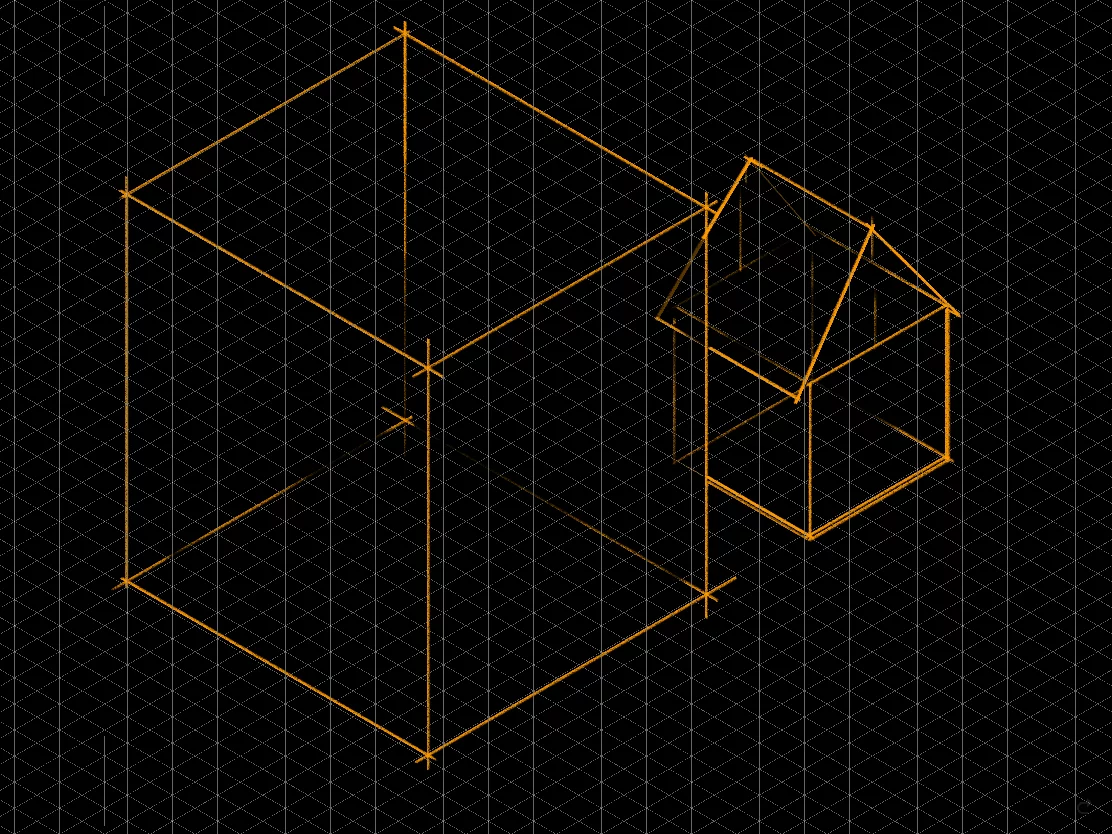
Isometric projection grid
In a way, a perspective too.
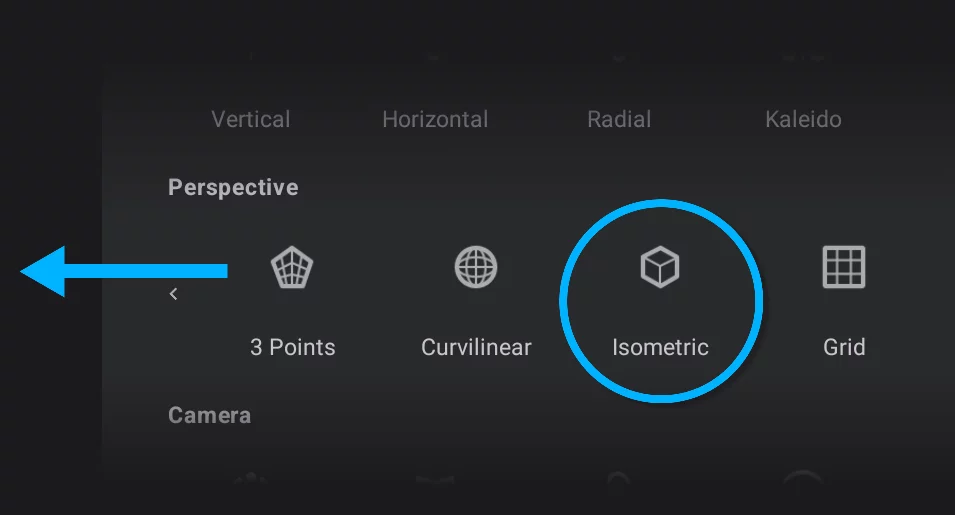
Note that you have to scroll the Perspective icon row to the left to reveal the Isomeric grid icon.
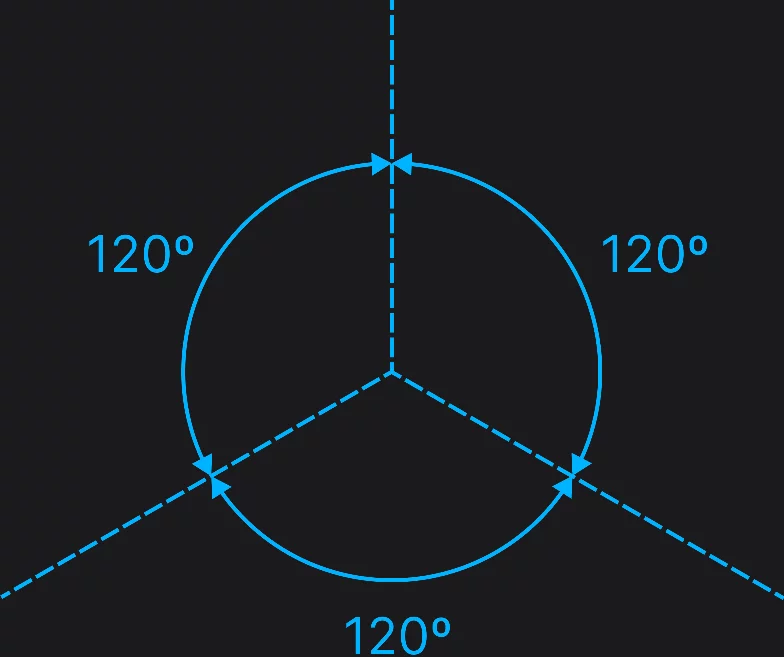
Isometric projection is based on three directions spaced 120°
Perfect for old-school video games. Or for anything you imagine.
All perspective grids have identical set of controls in the Tool settings menuTool settings menu The menu that contains all the settings of currently active tools. If at least one active tool has settings, the cogwheel icon appears at the left end of the top bar.Learn more:
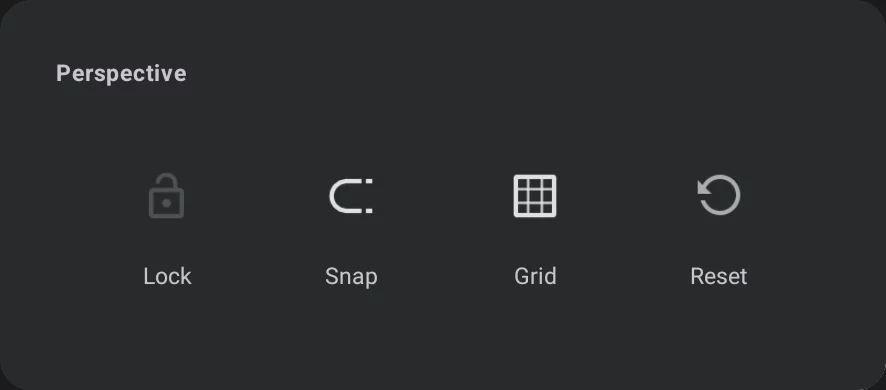

Lock grid toggle

Snap toggle (active by default)

Grid visibility toggle (visible by default)

Reset the grid to the default state.
Note that Snap and Grid visibility toggles are duplicated on the Mini-toolbarMini-toolbarIn Infinite Painter’s interface, a small toolbar displayed in the upper-right part of the screen when certain tool is active. This toolbar may consist of one or more buttons; the main, leftmost icon indicates the tool in use. Learn more for convenience:
Isometric Perspective mini-toolbar


Grid icon
tap to close the tool.
Snap toggle (active by default); see Perspective snapping.

Grid visibility (visible by default).
Rectangle and Circle shapes follow the perspective rules in this grid. Learn more in Shapes in perspective.